# Multifactor Authentication With edu-ID
Certain services may require **multifactor authentication** (or **MFA**, **strong authentication**, or **two-factor authentication**) to increase the security level of our applications ([more info on our blog](https://wp.unil.ch/newsci/pourquoi-lauthentification-a-deux-facteurs-debarque-a-lunil/), in French). In addition to your password, you will be asked for either:
- A **one-time code** generated in an application designed for this purpose, called TOTP (such as Google Authenticator),
- To validate an authentication request **without a password** using **Passkey** technology
The edu-ID identity includes the use of multifactor authentication, and its activation is easy. To read the official SWITCH documentation on MFA and edu-ID, visit the following page: [https://eduid.ch/help#two-step-login](https://eduid.ch/help#two-step-login)
### Activation
([adapted from the official SWITCH documentation](https://eduid.ch/help#two-step-login))
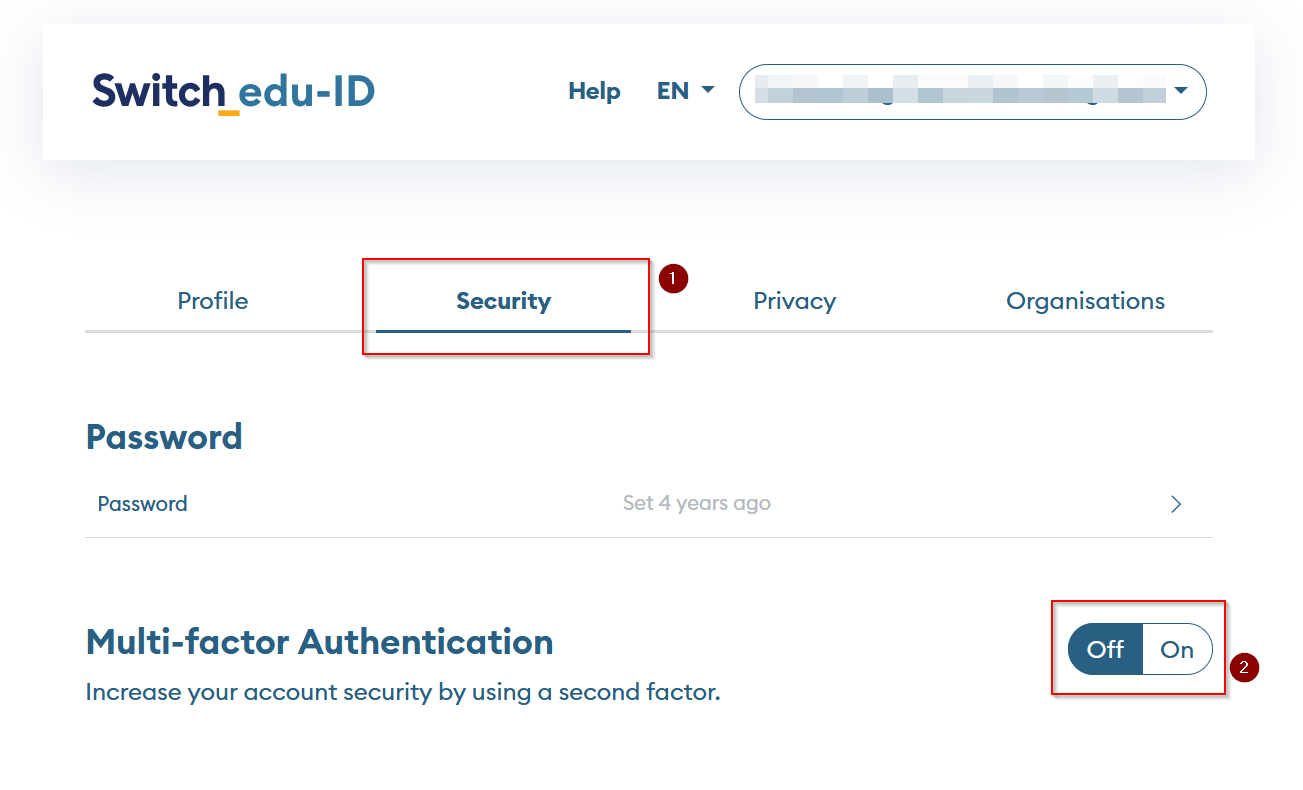
To **enable** two-step login, go to your SWITCH edu-ID account at [https://eduid.ch](https://eduid.ch) and click on the **[Security](https://eduid.ch/account/security)** tab, and then click the On button next to **[Multifactor Authentication](https://eduid.ch/mfa/initial)**,
[](https://wiki.unil.ch/ci/uploads/images/gallery/2025-01/mfa-en1.png)
or go *directly to the two-step login settings* ([https://eduid.ch/mfa/initial](https://eduid.ch/mfa/initial)).
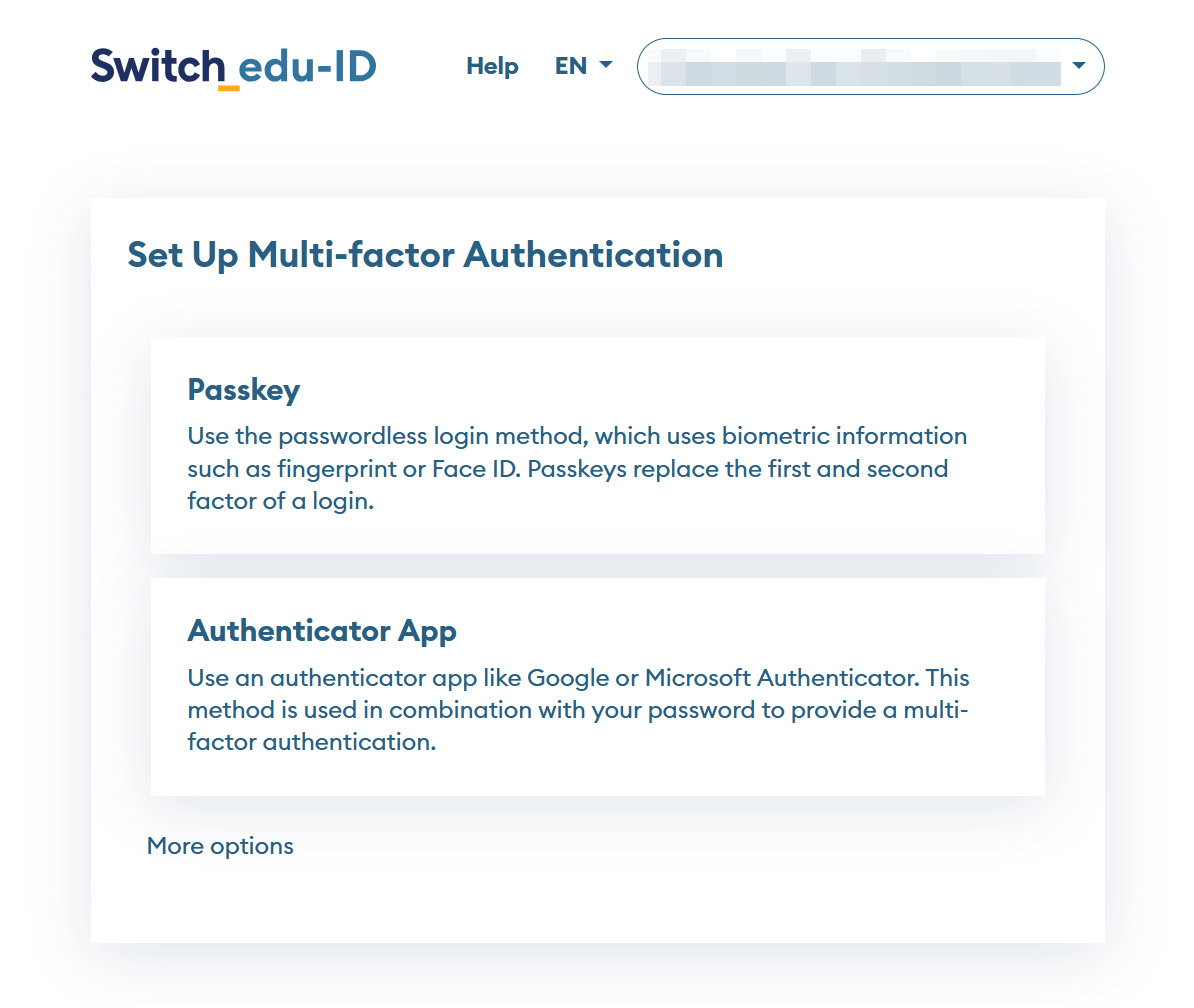
Next, activate one of the two-step authentication methods. We recommend using a **mobile authenticator app** to obtain your codes.
[](https://wiki.unil.ch/ci/uploads/images/gallery/2025-01/mfa-en2.png)
#### Authenticator app
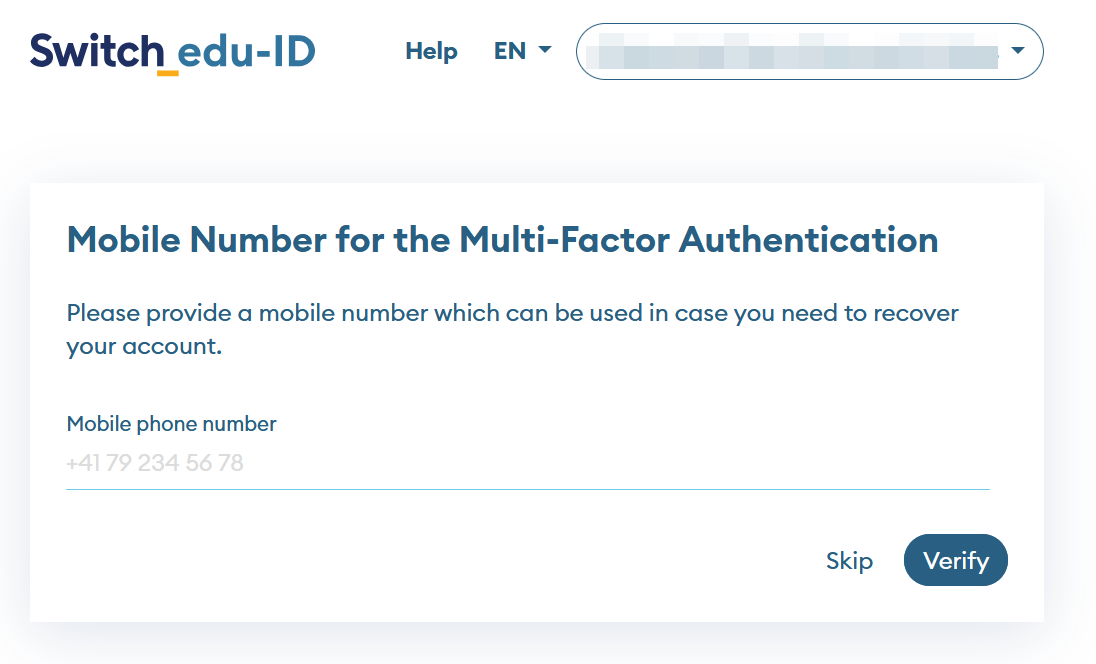
You will first be asked for a mobile phone number in case you need to recover your account:
[](https://wiki.unil.ch/ci/uploads/images/gallery/2025-01/mfa-en3.png)
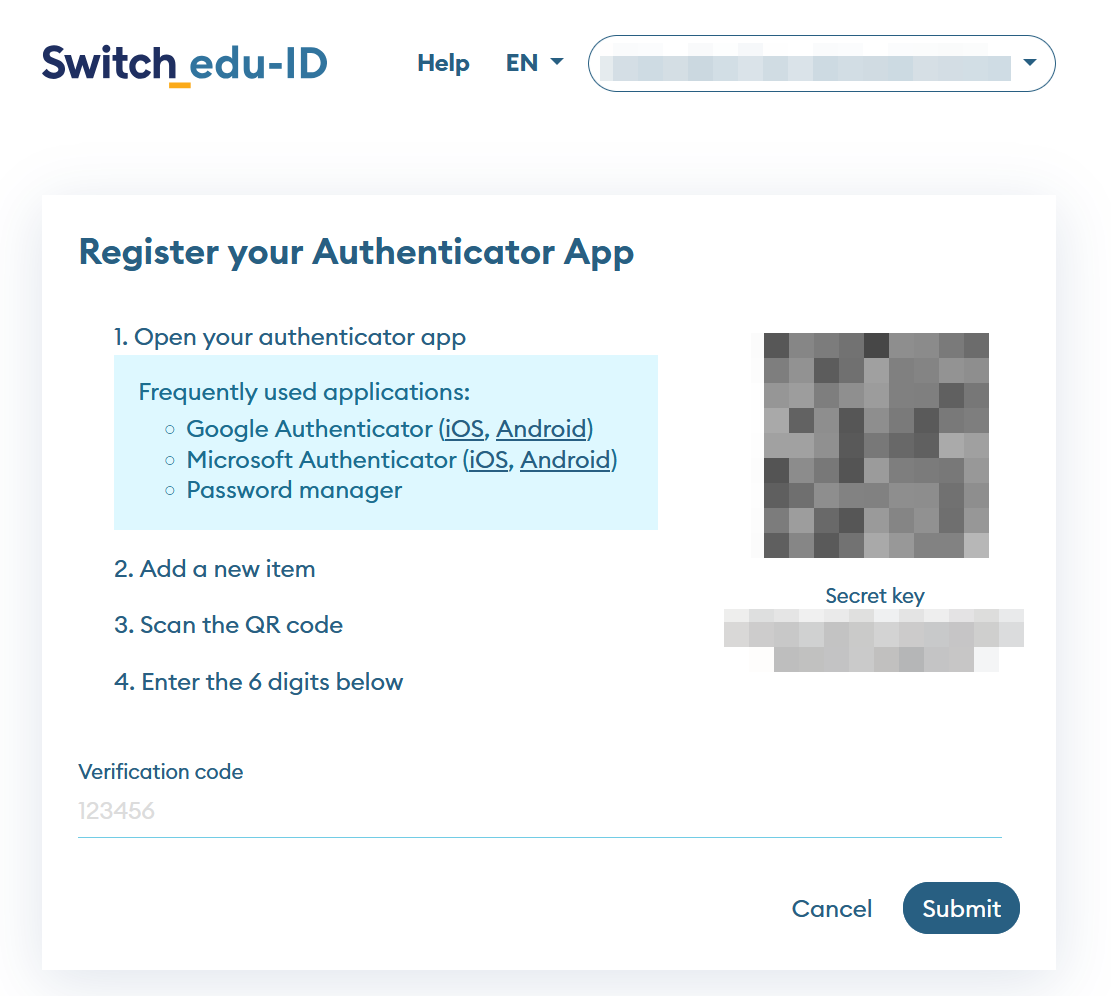
Next, you need to register your secret key, which will be used to generate the codes:
[](https://wiki.unil.ch/ci/uploads/images/gallery/2025-01/mfa-en4.png)
The following mobile apps, among others, work: **[Ente Auth](https://ente.io/auth/)**, [Twilio Authy](https://authy.com/), [FreeOTP](https://freeotp.github.io/), [Google Authenticator](https://www.google.com/landing/2step/), [Microsoft Authenticator](https://www.microsoft.com/en-us/account/authenticator), [BitWarden Authenticator](https://bitwarden.com/products/authenticator/), and [OTP Auth](https://cooperrs.de/otpauth.html). (Other applications that support the TOTP standard can also be used.) More information on [iBarry.ch](https://www.ibarry.ch/en/safe-devices/secure-login/ "External Link"). The [Ente](https://ente.io/auth/)[ Auth](https://ente.io/auth/) application and the [2FAS](https://2fas.com/browser-extension/) browser extension can be used without a mobile phone.
Most of the authenticator apps mentioned above work with multiple account providers too, such as Google, Facebook, etc.
More and more password managers offer the ability to manage both your passwords as well as the 2nd factor within a single app, such as macOS Keychain (latest version) or [BitWarden](https://bitwarden.com/) (premium version). ). This also has the advantage of being synchronised across different devices.
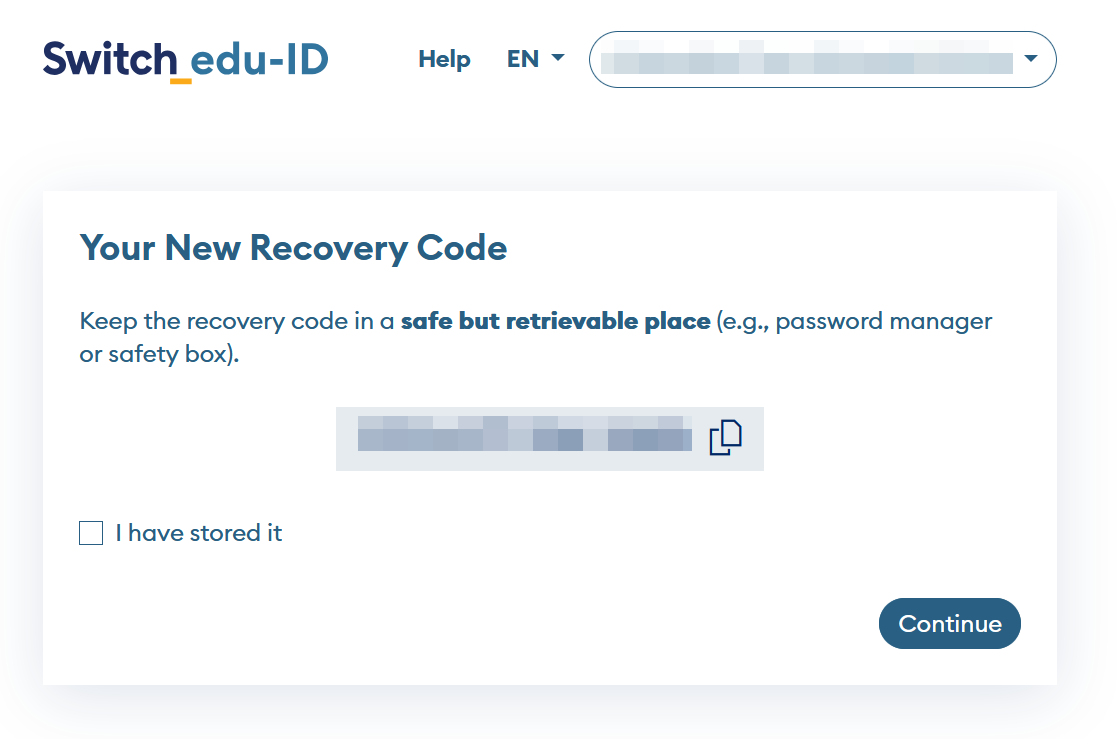
**Don't forget to take note of your recovery code and save it.**
[](https://wiki.unil.ch/ci/uploads/images/gallery/2025-01/mfa-en5.png)
#### Passkey
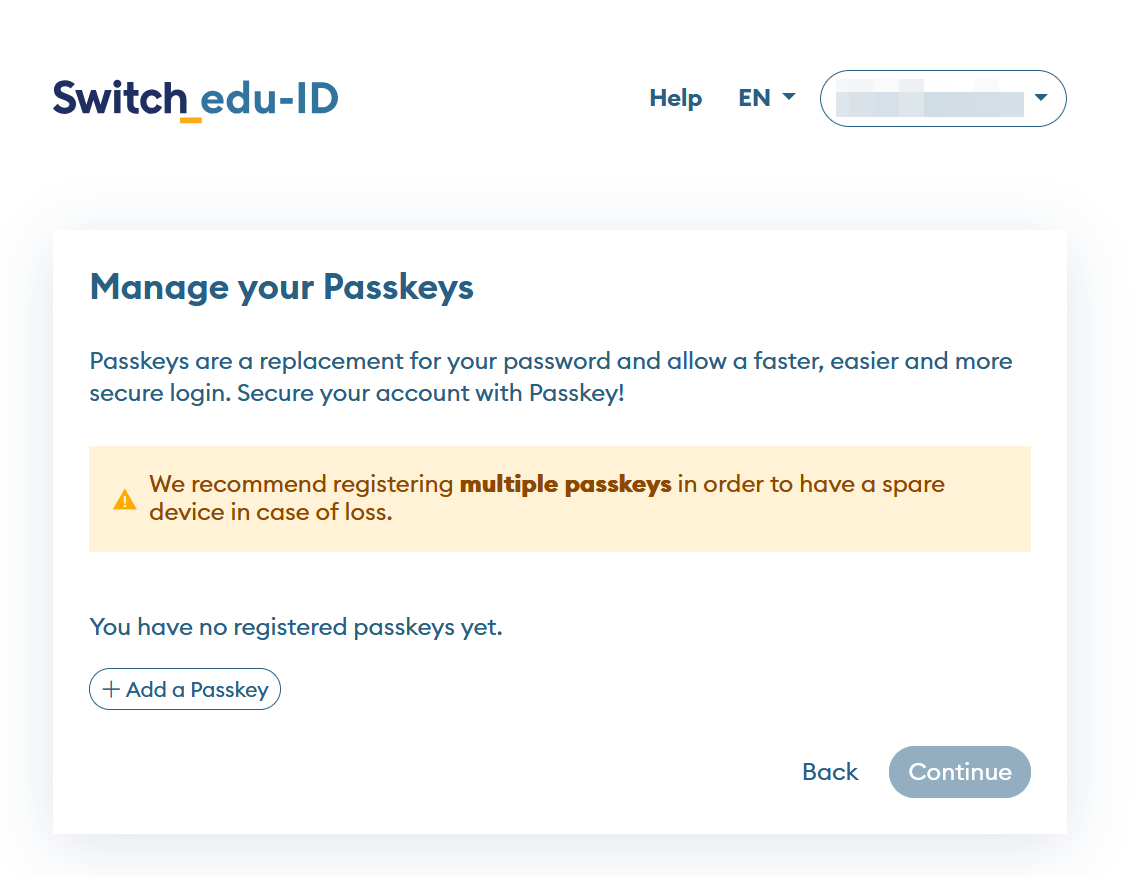
**Passkeys** are a new and highly secure authentication technology, now supported by major internet platforms and by **SWITCH edu-ID**. Once configured, they allow truly *passwordless* login—no need to enter your password. You can find more information here: [https://eduid.ch/help#passkeys](https://eduid.ch/help#passkeys) and an additional overview article here: [https://www.ibarry.ch/en/safe-devices/passkeys/](https://www.ibarry.ch/en/safe-devices/passkeys/).
Although Passkeys are considered the future standard for secure authentication, the technology is still emerging. Compatibility varies: not all operating systems, apps, or devices support Passkeys yet, and there are several configuration methods. Importantly, Passkeys are configured **per device**, meaning you will typically need to set one up on every laptop, phone, or browser you use—unless you rely on a synchronised password manager like BitWarden, which allows Passkeys to work across multiple devices.You can fin more information in the [Switch FAQ](https://eduid.ch/help#passkeys).
If you encounter problems or compatibility issues while configuring or using Passkeys, please report them to the [helpdesk](https://go.unil.ch/helpdesk).
[](https://wiki.unil.ch/ci/uploads/images/gallery/2026-02/HDJimage.png)
---
It is possible to enable more than one login method and multiple Passkeys.
### Disabling MFA
If you deactivate MFA, you risk losing access to certain resources or services which require MFA. You will have to restart the processus if you reactivate it later.
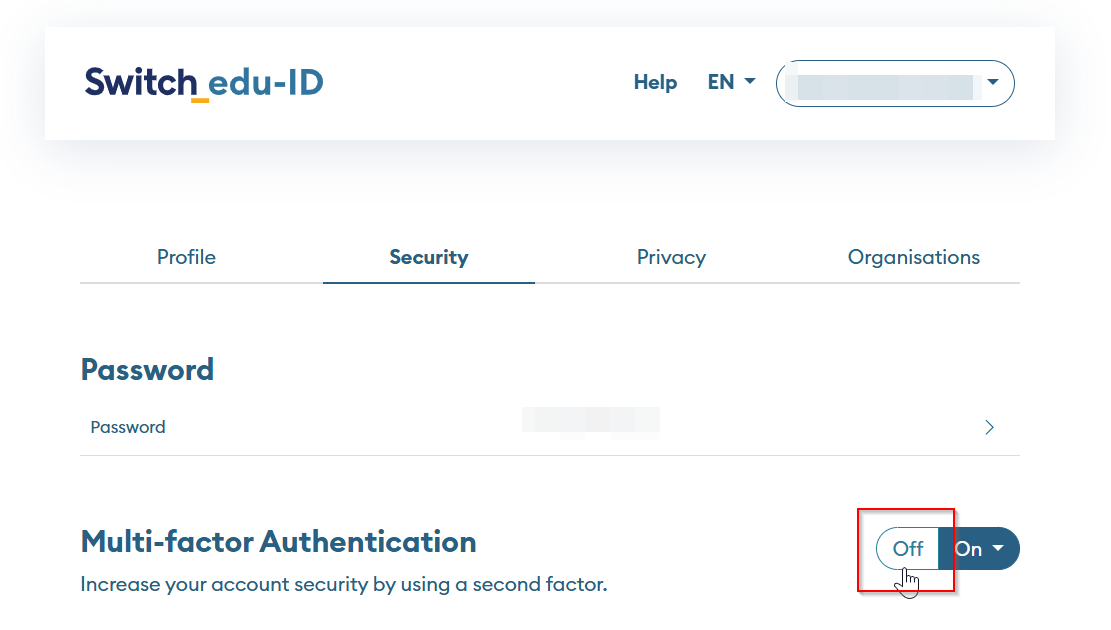
To **disable** two-step authentication, go back to the *Security* tab and click the Off button next to the *Multifactor Authentication* option ([https://eduid.ch/account/security](https://eduid.ch/account/security)).
[](https://wiki.unil.ch/ci/uploads/images/gallery/2025-01/mfa-off-en.png)
Please note that this may mean that you need to reinitialise or reverify the verification code if you reactivate a certain method later on.
### Login
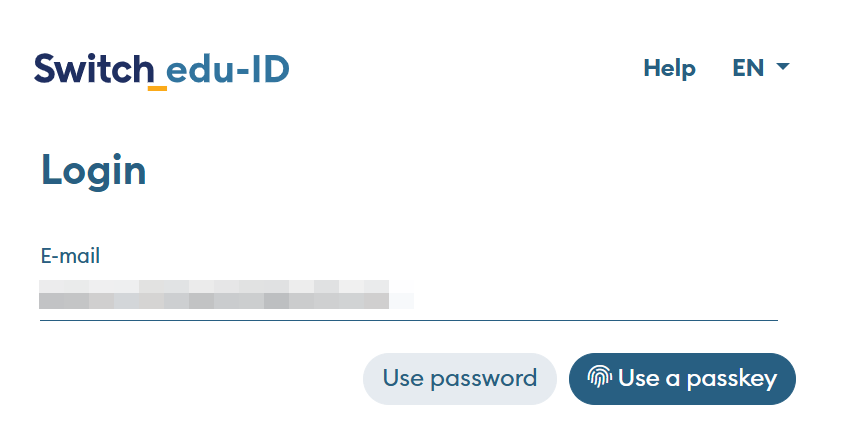
When you log in to a page requiring a second factor, after entering your email address, depending on your MFA configuration, you will need to either enter a password or proceed via a Passkey:
[](https://wiki.unil.ch/ci/uploads/images/gallery/2025-01/login-en1.png)
#### TOTP
If you choose the password, enter it
[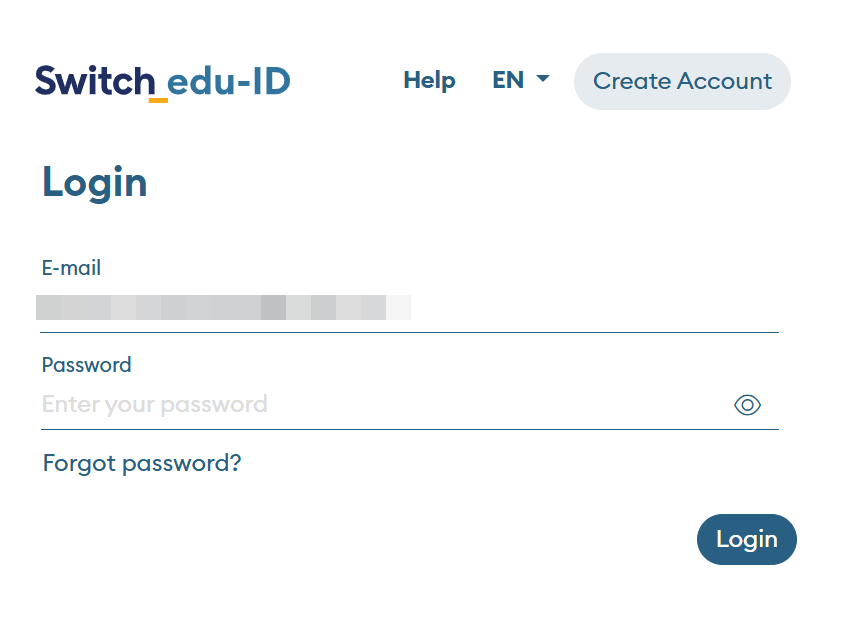](https://wiki.unil.ch/ci/uploads/images/gallery/2025-01/1iBlogin-en2-pass.png)
then enter the TOTP code generated in the app you previously configured
[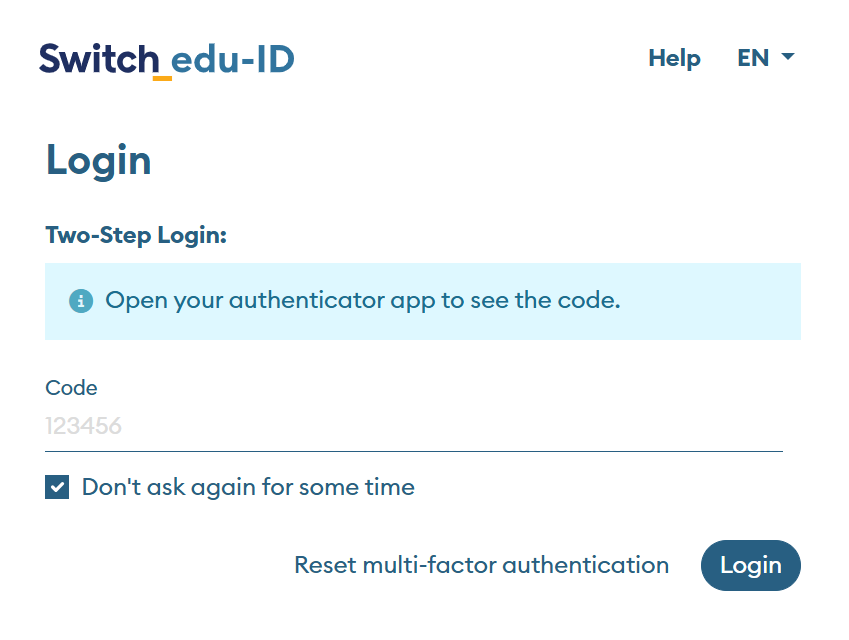](https://wiki.unil.ch/ci/uploads/images/gallery/2025-01/ljklogin-en3-pass.png)
### Questions / Problems
You will find the answers to multiple questions concerning multi-factor authentication on the official SWITCH edu-ID website: [https://eduid.ch/help#two-step-login](https://eduid.ch/help#two-step-login)
#### I lost my second factor, what should I do?
Please go to [https://eduid.ch/mfa-recovery](https://eduid.ch/mfa-recovery) and follow the instructions.