| *Type of permissions* | *Use* | *Name used on Exchange* |
| Read | Gives the beneficiary rights to read events of the shared calendar. The beneficiary cannot enter events. | Full details |
| Read + write | Gives the beneficiary rights to read and write events in the shared calendar. **Caution: every user with such rights could delete any event in the shared calendar without its owner knowing it.** | Editor |
| Full access | Gives the beneficiary full rights to control the shared calendar (read and write events, respond to invitations, send invitations) **To be used in only one situation: complete delegation of a head of department's agenda to its secretary** | Delegate |
NB: Two more types of permissions are available in Exchange: ”Availability only" and ”Limited details". Using any of those two options is not recommended at Unil, as they are not correctly processed by mac computers.
1. ### Sharing your own calendar 1. Connect to [https://outlook.com/owa/unil.ch](https://outlook.com/owa/unil.ch) [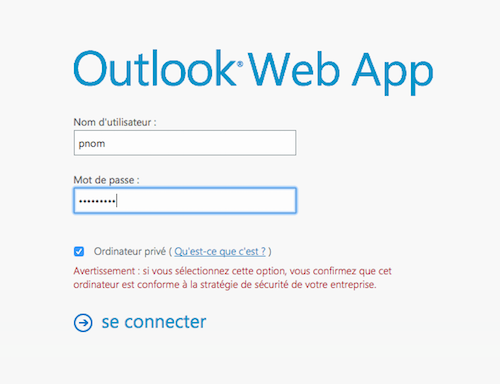](https://wiki.unil.ch/ci/uploads/images/gallery/2020-02/partage_owa_01.png) 2. Click on Calendar [](https://wiki.unil.ch/ci/uploads/images/gallery/2020-02/partage_owa_02.png) 3. Right-click on the calendar named "Calendar" and click on "Share calendar" [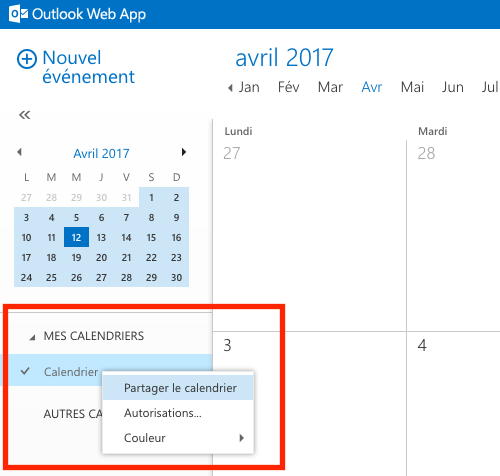](https://wiki.unil.ch/ci/uploads/images/gallery/2020-02/partage_owa_03.png) 4. Start typing the name of the person you would like to share your calendar with. If it does not show automatically, use the "Search contacts and directory" button. [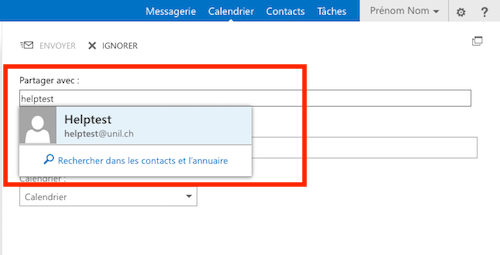](https://wiki.unil.ch/ci/uploads/images/gallery/2020-02/partage_owa_04.png) 5. Select the type of share you would like to use (recommended: "Full details") [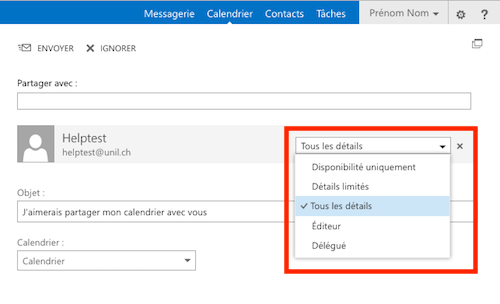](https://wiki.unil.ch/ci/uploads/images/gallery/2020-02/partage_owa_05.png) 6. (Optional) Once the share type is defined, you can can change the subject of the email sent to the beneficiary. [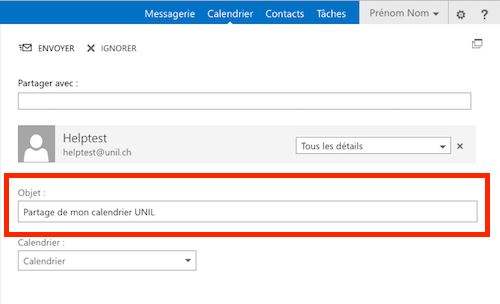](https://wiki.unil.ch/ci/uploads/images/gallery/2020-02/partage_owa_06.png) 7. Click on ”Send" [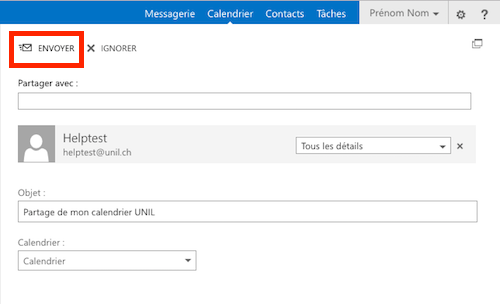](https://wiki.unil.ch/ci/uploads/images/gallery/2020-02/partage_owa_07.png) 8. The beneficiary of the shared calendar will receive a standard email, saying that the calendar has been shared with him/her. [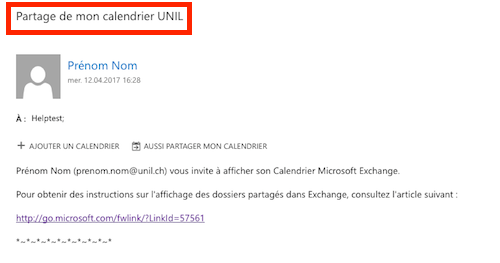](https://wiki.unil.ch/ci/uploads/images/gallery/2020-02/partage_owa_08.png) 1. ### (optional) Check permissions on the shared calendar 1. Right-click on "Calendar" and click on "Permissions" [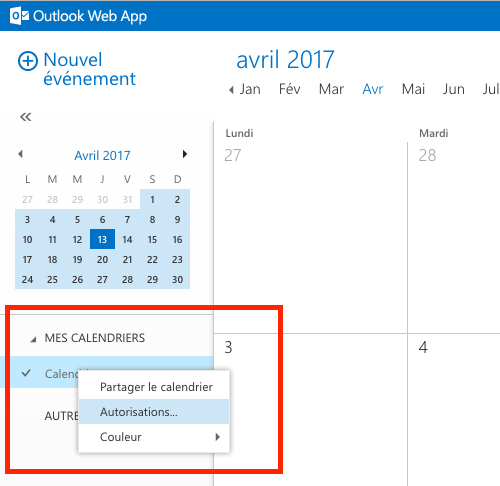](https://wiki.unil.ch/ci/uploads/images/gallery/2020-02/partage_owa_09.png) 2. Permissions list then appears [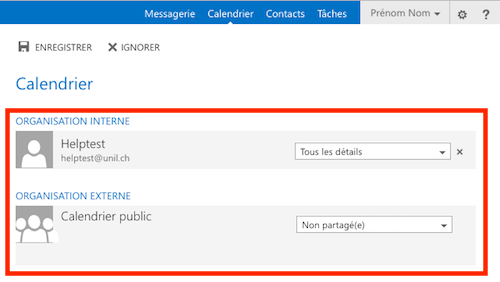](https://wiki.unil.ch/ci/uploads/images/gallery/2020-02/partage_owa_10.png) ## Display a shared calendar ### Web (outlook.office.com) 1. Connect to [https://outlook.com/owa/unil.ch](https://outlook.com/owa/unil.ch) with your Unil username/password [](https://wiki.unil.ch/ci/uploads/images/gallery/2020-02/partage_owa_01.png) 2. Click on ”Calendar" [](https://wiki.unil.ch/ci/uploads/images/gallery/2020-02/partage_owa_02.png) 3. Right-click on "Other Calendars" and click on "Open calendar" [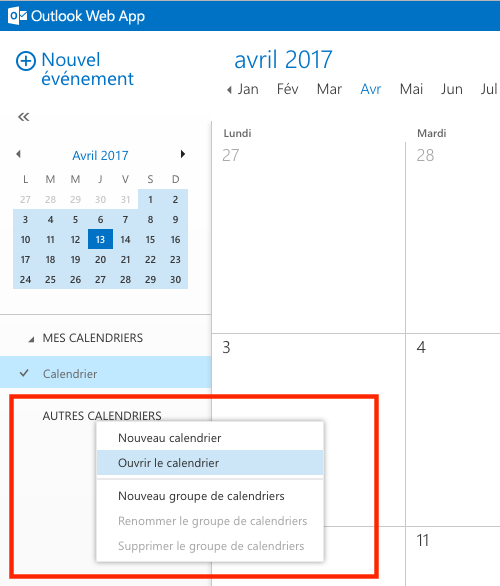](https://wiki.unil.ch/ci/uploads/images/gallery/2020-02/afficher_cal_owa_01.png) 4. Type in the name of the person who shared their calendar Please note: In the case of a group calendar (created upon request by the Ci), it is necessary to precede the name of the calendar with the mention "*cal.*" (Example: *cal.name\_of\_group\_calendar*) [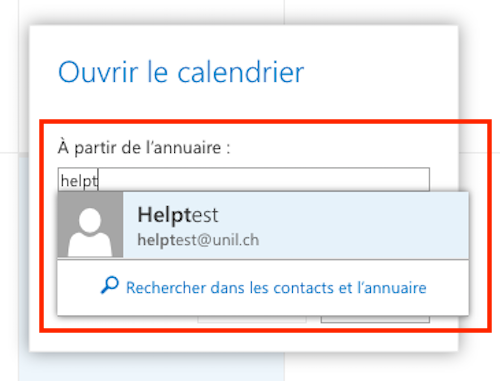](https://wiki.unil.ch/ci/uploads/images/gallery/2020-02/afficher_cal_owa_02.png) 5. Click on "Open" [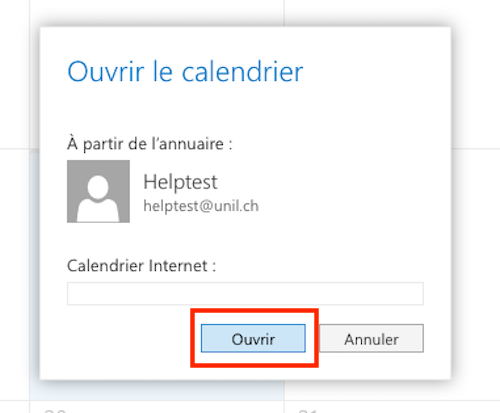](https://wiki.unil.ch/ci/uploads/images/gallery/2020-02/afficher_cal_owa_03.png) 6. The shared calendar appears in the "Other calendars" section. In the example below, helptest's shared calendar is the green one. [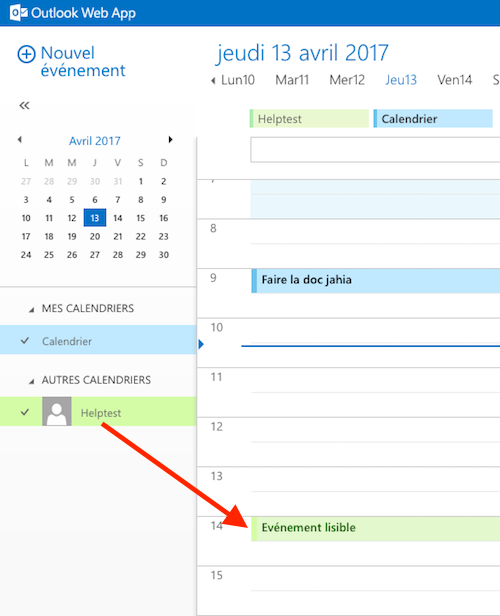](https://wiki.unil.ch/ci/uploads/images/gallery/2020-02/afficher_cal_owa_04.png) 7. The example below shows how a private event displays in helptest's shared calendar. The beneficiary of the shared calendar will only see a "Private event" mention. [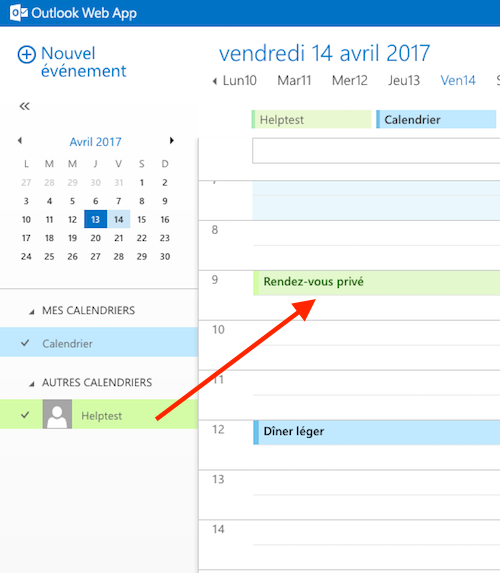](https://wiki.unil.ch/ci/uploads/images/gallery/2020-02/afficher_cal_owa_05.png) ### Windows 1. Open Microsoft Outlook [](https://wiki.unil.ch/ci/uploads/images/gallery/2020-02/afficher_cal_windows_01.png) 2. Click on Calendar [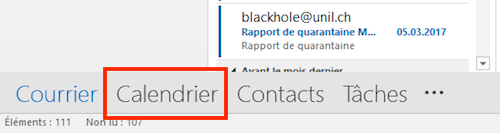](https://wiki.unil.ch/ci/uploads/images/gallery/2020-02/afficher_cal_windows_02.png) 3. Click on "Open calendar", then on "From Address Book..." [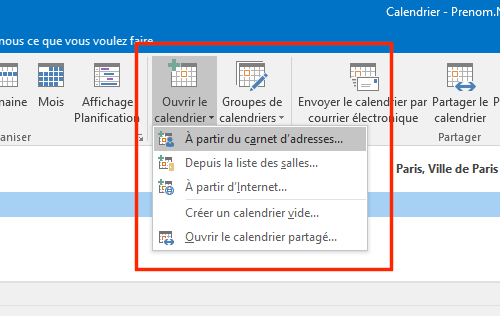](https://wiki.unil.ch/ci/uploads/images/gallery/2020-02/afficher_cal_windows_03.png) 4. Type the name of the person sharing their calendar, select them in the list, click on "Calendar" then on "OK". Please note: In the case of a group calendar (created upon request by the Ci), it is necessary to precede the name of the calendar with the mention "*cal.*" (Example: *cal.name\_of\_group\_calendar*) [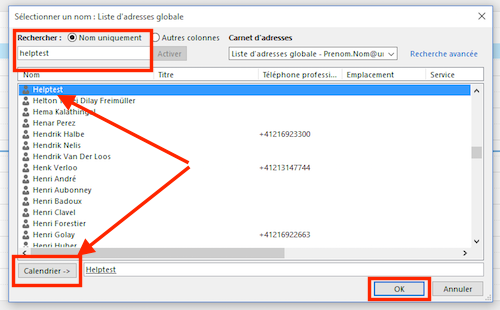](https://wiki.unil.ch/ci/uploads/images/gallery/2020-02/afficher_cal_windows_04.png) 5. The shared calendar appears in the "Shared calendars" section. In the example below, helptest's shared calendar is the green one. [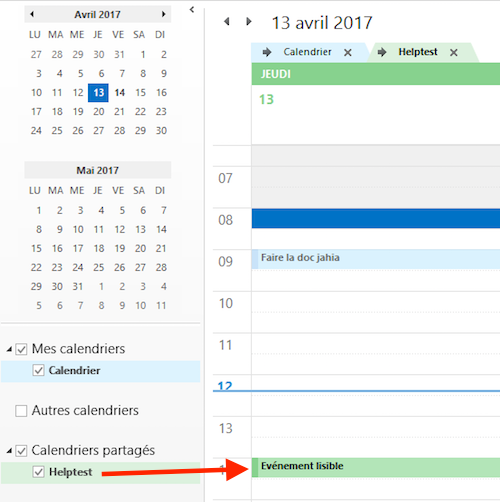](https://wiki.unil.ch/ci/uploads/images/gallery/2020-02/afficher_cal_windows_05.png) 6. The example below shows how a private event displays in helptest's shared calendar. The beneficiary of the shared calendar will only see a "Private event" mention. [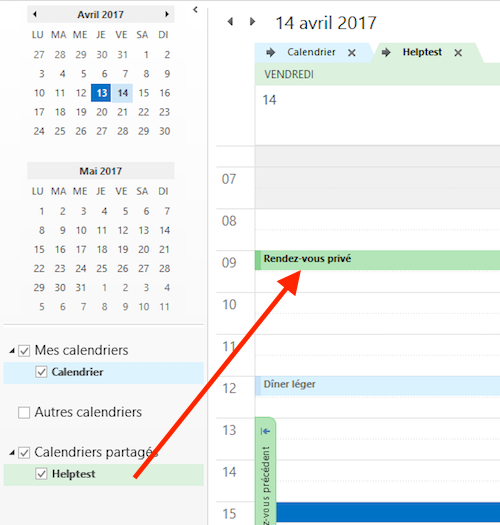](https://wiki.unil.ch/ci/uploads/images/gallery/2020-02/afficher_cal_windows_06.png) ### Mac 1. Open the Calendar app [](https://wiki.unil.ch/ci/uploads/images/gallery/2020-02/afficher_cal_mail_01.png) 2. (Optional) Click on "Calendars" to display a list of all Calendars [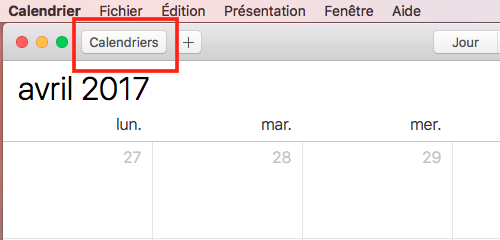](https://wiki.unil.ch/ci/uploads/images/gallery/2020-02/afficher_cal_mail_02.png) 3. In the "Calendar" menu, click on "Preferences" [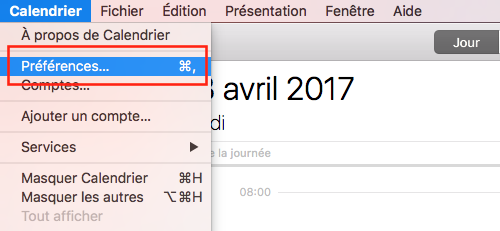](https://wiki.unil.ch/ci/uploads/images/gallery/2020-02/afficher_cal_mail_03.png) 4. Click on "Accounts", then on ”Exchange", then on "Delegation" [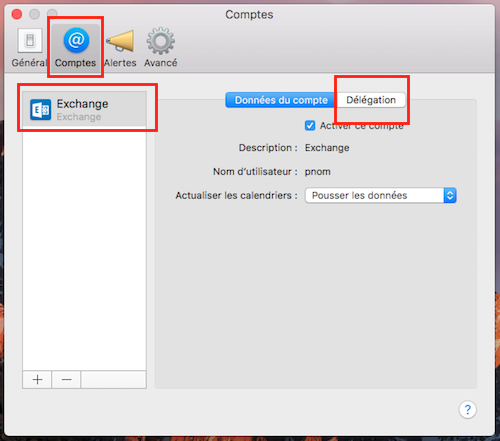](https://wiki.unil.ch/ci/uploads/images/gallery/2020-02/afficher_cal_mail_04.png) 5. Click on the "+" button, then start typing the name of the person who shared their calendar. Select the right name in the displayed list. Please note: In the case of a group calendar (created upon request by the Ci), it is necessary to precede the name of the calendar with the mention "*cal.*" (Example: *cal.name\_of\_group\_calendar*) [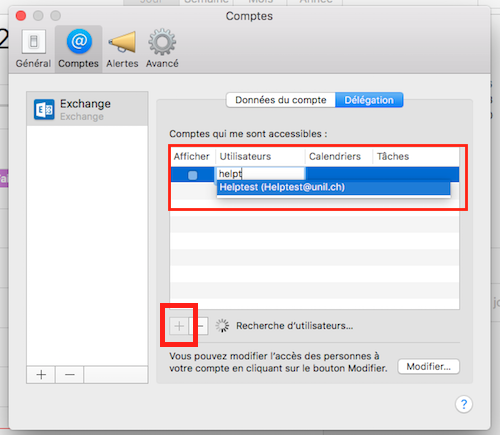](https://wiki.unil.ch/ci/uploads/images/gallery/2020-02/afficher_cal_mail_05.png) 6. Check the "Show" box and close the window. [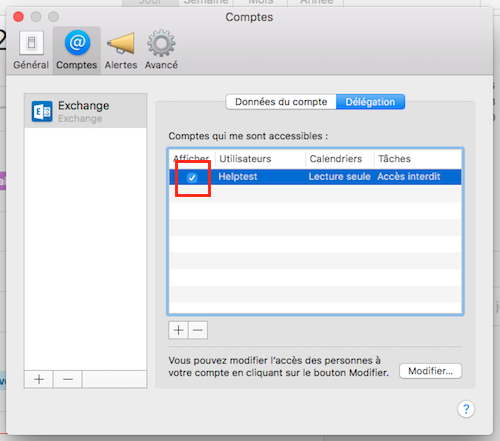](https://wiki.unil.ch/ci/uploads/images/gallery/2020-02/afficher_cal_mail_06.png) 7. The shared calendar appears in the "Delegates" section. In the example below, helptest's shared calendar is the blue one. [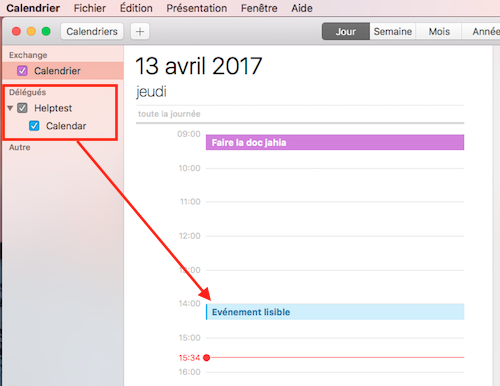](https://wiki.unil.ch/ci/uploads/images/gallery/2020-02/afficher_cal_mail_07.png) 8. The example below shows how a private event displays in helptest's shared calendar. The beneficiary of the shared calendar will only see a "Private event" mention. [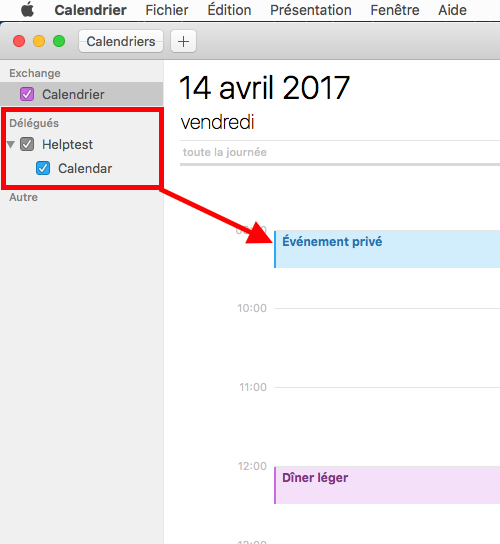](https://wiki.unil.ch/ci/uploads/images/gallery/2020-02/afficher_cal_mail_08.png)NB: Display of private events does not function starting from MacOS Sierra (10.12.x). Please use the "Scheduling assistant", or display the calendar in Outlook Online or Outlook.
## Create an invitation ### (IMPORTANT) Please read this The "Create an invitation" section explains how to create an invitation to an event using Microsoft Exchange's scheduling assistant. Please consider the following "best practices": - Not every user enters all their events in the Exchange calendar. This means that a user could easily decline an invitation even if the scheduling assistant shows that he or she is available at the time planned for the event - Use a planning tool (such as Doodle, [Framadate](https://framadate.org/), etc.) when planning an event with **more than 2 attendees**. The goal is to set a relevant date for the event. - With **less than 2 attendees**, the use of a planning tool might not be necessary ### Web (outlook.office.com) 1. Connect to [https://outlook.com/owa/unil.ch](https://outlook.com/owa/unil.ch) with your Unil username/password [](https://wiki.unil.ch/ci/uploads/images/gallery/2020-02/partage_owa_01.png) 2. Click on ”Calendar" [](https://wiki.unil.ch/ci/uploads/images/gallery/2020-02/partage_owa_02.png) 3. Click on "New event" [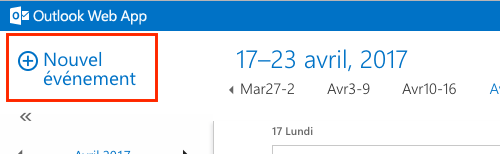](https://wiki.unil.ch/ci/uploads/images/gallery/2020-02/invitation_owa_01.png) 4. Add an event name, an event place (if known), the name of the attendees, choose a date and add notes (if wanted). [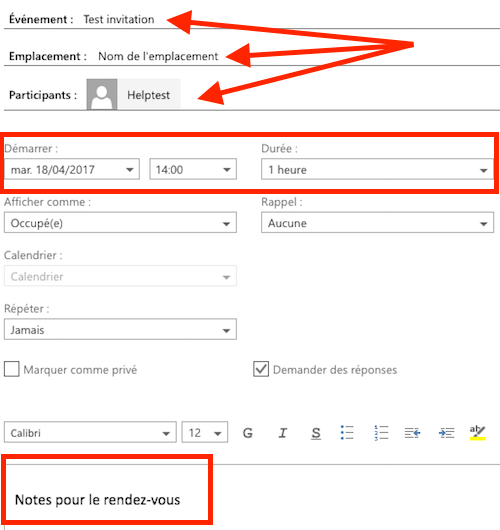](https://wiki.unil.ch/ci/uploads/images/gallery/2020-02/invitation_owa_02.png) 5. (optional) Click on "Scheduling assistant" to check availability. [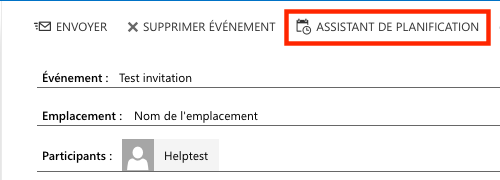](https://wiki.unil.ch/ci/uploads/images/gallery/2020-02/invitation_owa_ZZ.png) 6. (optional) Check availability of attendees and modify the date and/or hour of the event if needed. [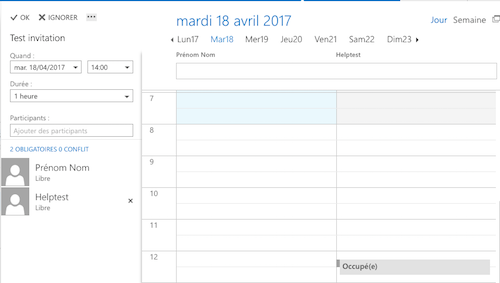](https://wiki.unil.ch/ci/uploads/images/gallery/2020-02/invitation_owa_03.png) 7. Click on "Send" [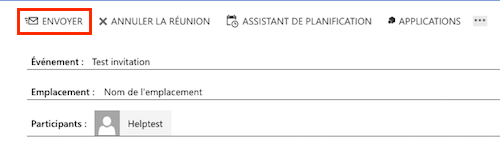](https://wiki.unil.ch/ci/uploads/images/gallery/2020-02/invitation_owa_04.png) ### Windows 1. Open Microsoft Outlook [](https://wiki.unil.ch/ci/uploads/images/gallery/2020-02/afficher_cal_windows_01.png) 2. Click on "Calendar" [](https://wiki.unil.ch/ci/uploads/images/gallery/2020-02/afficher_cal_windows_02.png) 3. Click on "New meeting" [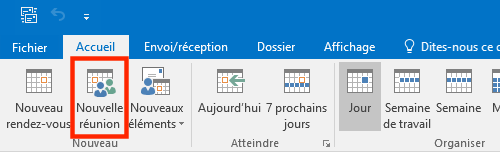](https://wiki.unil.ch/ci/uploads/images/gallery/2020-02/invitation_outlook_01.png) 4. Add an event name, an event place (if known), the name of the attendees, choose a date and add notes (if wanted). [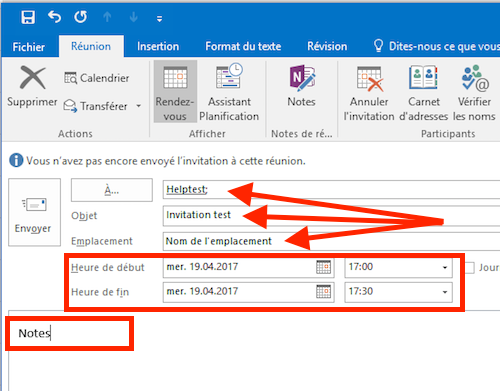](https://wiki.unil.ch/ci/uploads/images/gallery/2020-02/invitation_outlook_02.png) 5. (optional) Click on "Scheduling assistant", check availability of attendees and modify the date and/or hour of the event based on the results. [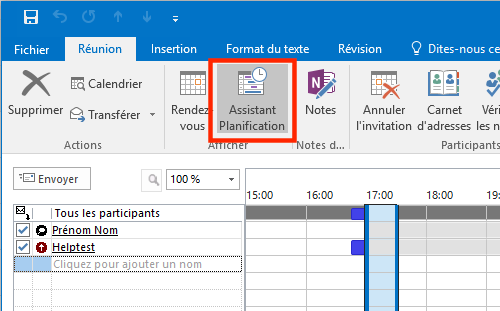](https://wiki.unil.ch/ci/uploads/images/gallery/2020-02/invitation_outlook_03.png) 6. Click on "Send" [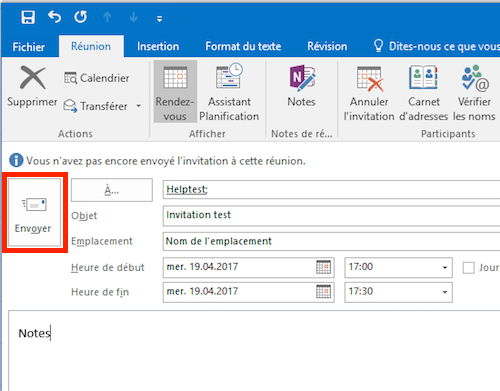](https://wiki.unil.ch/ci/uploads/images/gallery/2020-02/invitation_outlook_04.png) ### Mac 1. Open the Calendar app [](https://wiki.unil.ch/ci/uploads/images/gallery/2020-02/afficher_cal_mail_01.png) 2. Create an event with a double-click at the planned date. Enter a name for the event and set the planned date and hour. [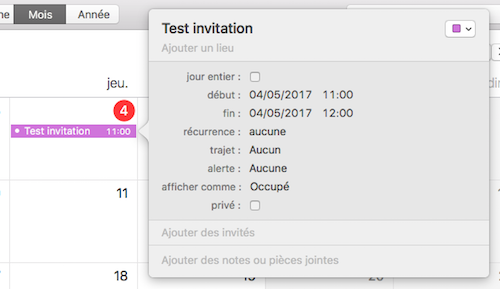](https://wiki.unil.ch/ci/uploads/images/gallery/2020-02/invitation_calendrier_02.png) 3. In the "Add invitees" section, enter the name of the invitees. [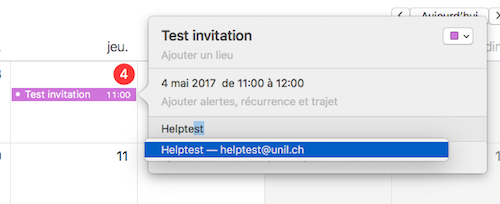](https://wiki.unil.ch/ci/uploads/images/gallery/2020-02/invitation_calendrier_03.png) 4. (optional) Click on "Check Availability...". [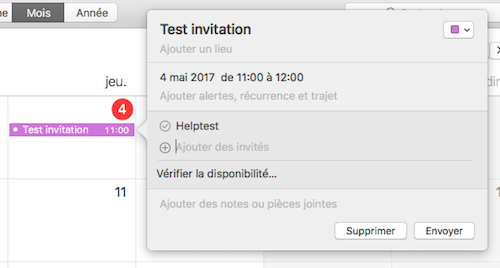](https://wiki.unil.ch/ci/uploads/images/gallery/2020-02/invitation_calendrier_04.png) 5. (optional) Check availability of your invitees and modifiy planned date and/or hour of the meeting if needed. Click on "Next available time" if you want Exchange to search for the next availability shared by every invitee. [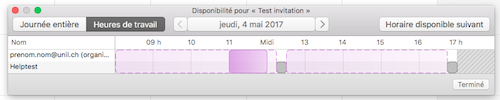](https://wiki.unil.ch/ci/uploads/images/gallery/2020-02/invitation_calendrier_05.png) 6. Click on "Send" [](https://wiki.unil.ch/ci/uploads/images/gallery/2020-02/invitation_calendrier_04.png) ## Corrupt calendar events ### Verify in Calendar (Mac) If you find a calendar named **Doublons\_calendrier\_A\_VERIFIER**, it means our monitoring has detected corrupt events in your Exchange calendar. These events can cause issues when sharing your calendar with other users: the synchronisation will fail on these items. We moved these problematic items to a separate calendar named **Doublons\_calendrier\_A\_VERIFIER**. Please take a while to go through these events to make sure nothing important was moved. The quickest way to check is to: 1. Select **only** the calendar named **Doublons\_calendrier\_A\_VERIFIER** [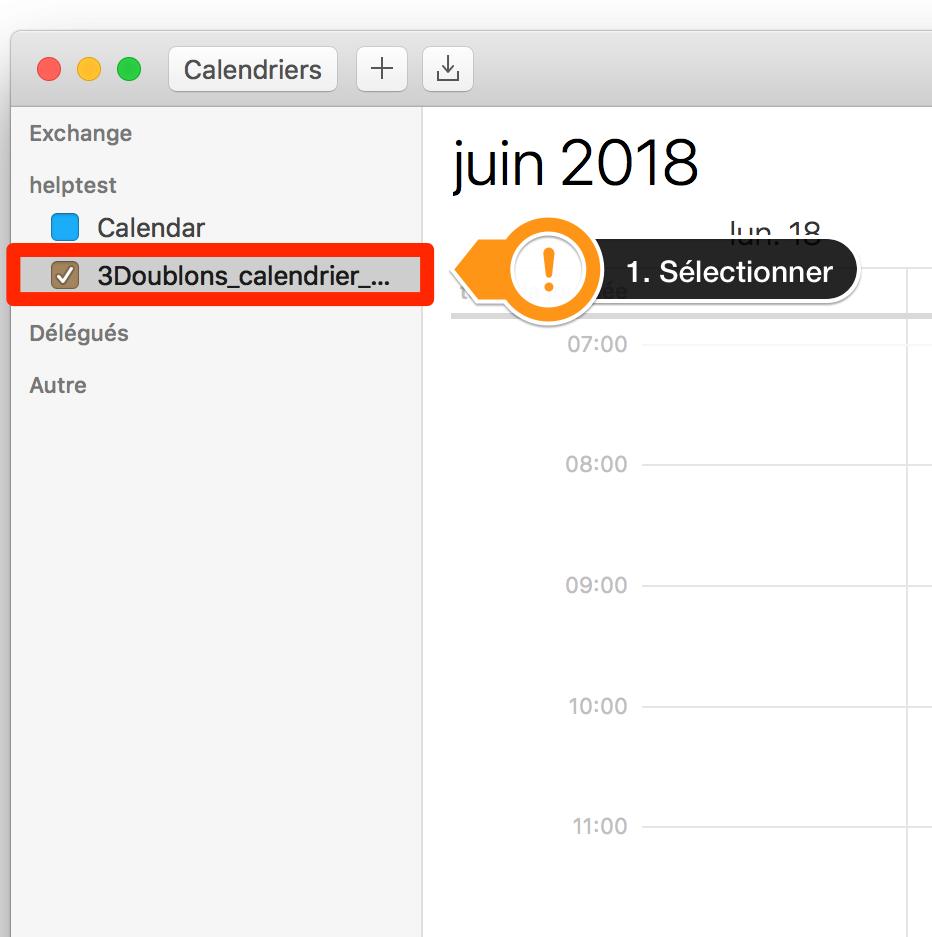](https://wiki.unil.ch/ci/uploads/images/gallery/2020-02/CalendarModeList1.png) 2. Search by entering two double quotes **""**. This will display all the calendar's events 3. Check and recreate (do not copy!) important items to your **main calendar** if needed and not already present [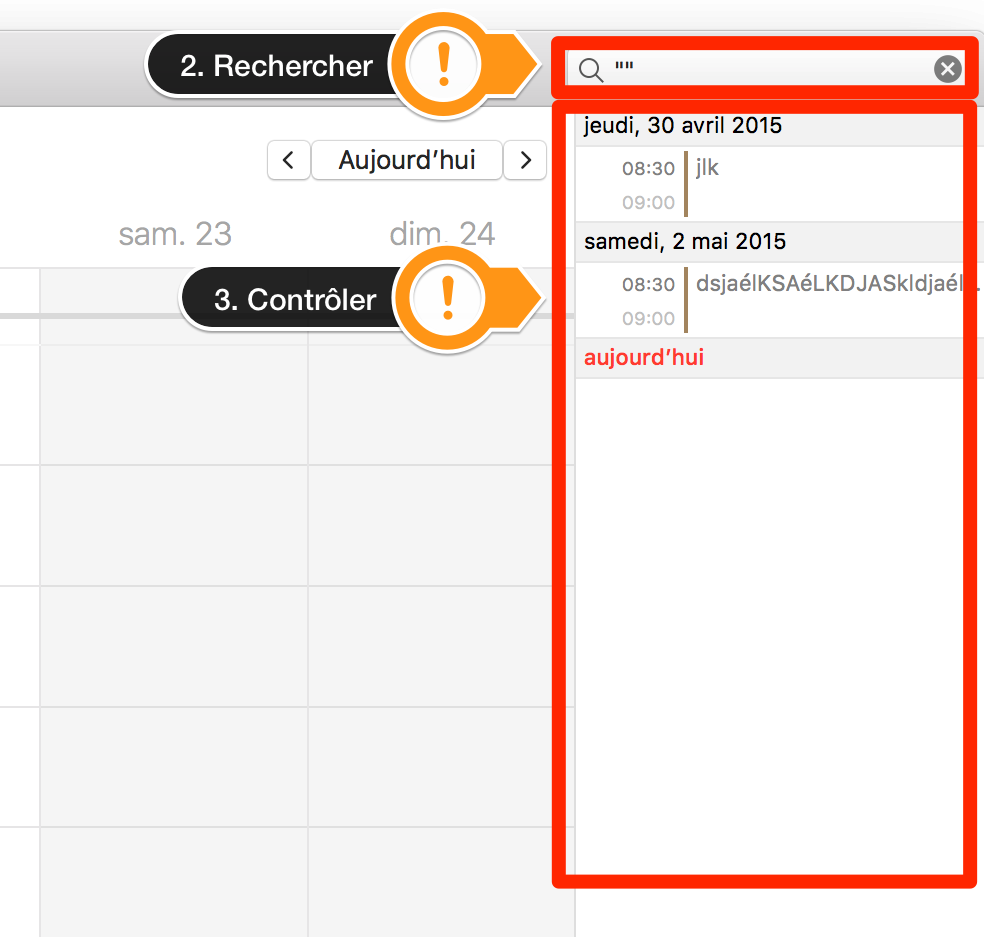](https://wiki.unil.ch/ci/uploads/images/gallery/2020-02/CalendarModeList2.png) Once finished, you can delete **Doublons\_calendrier\_A\_VERIFIER** by right clicking and choosing **Delete**. [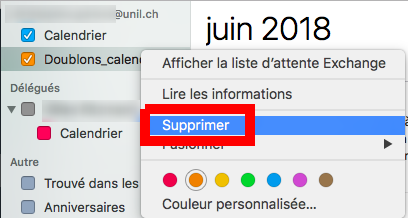](https://wiki.unil.ch/ci/uploads/images/gallery/2020-02/doublons_calendar_del.png) ### Verify in Outlook (Windows) If you find a calendar named **Doublons\_calendrier\_A\_VERIFIER**, it means our monitoring has detected corrupt events in your Exchange calendar. These events can cause issues when sharing your calendar with other users: the synchronisation will fail on these items. We moved these problematic items to a separate calendar named **Doublons\_calendrier\_A\_VERIFIER.** Please take a while to go through these events to make sure nothing important was moved. The quickest way to check is to: 1. Select **only** the calendar named **Doublons\_calendrier\_A\_VERIFIER** 2. Click on **Change view** and choose **List [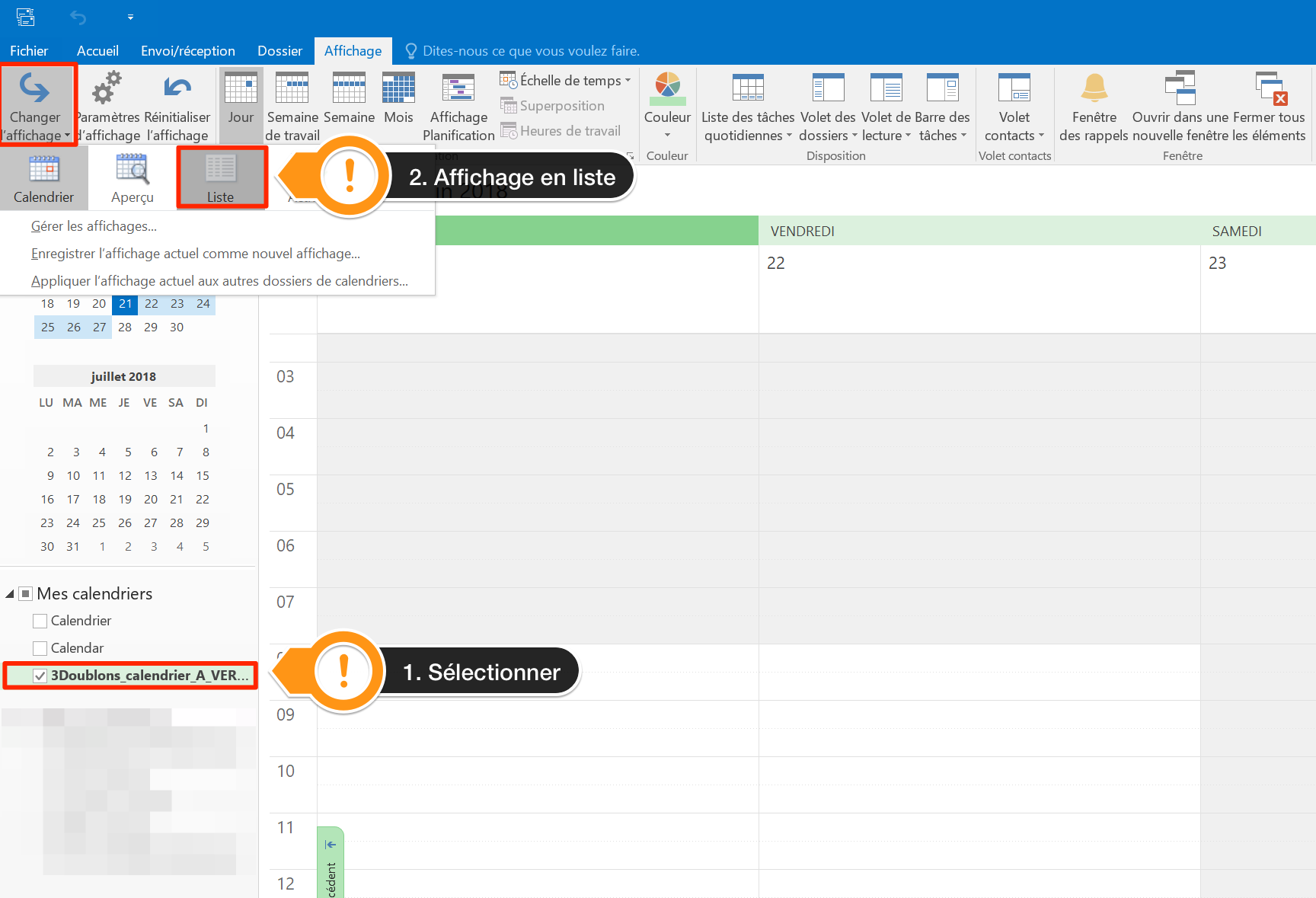](https://wiki.unil.ch/ci/uploads/images/gallery/2020-02/outlookModeList1.png)** 3. Check and recreate (do not copy!) important events in your **main calendar** if needed [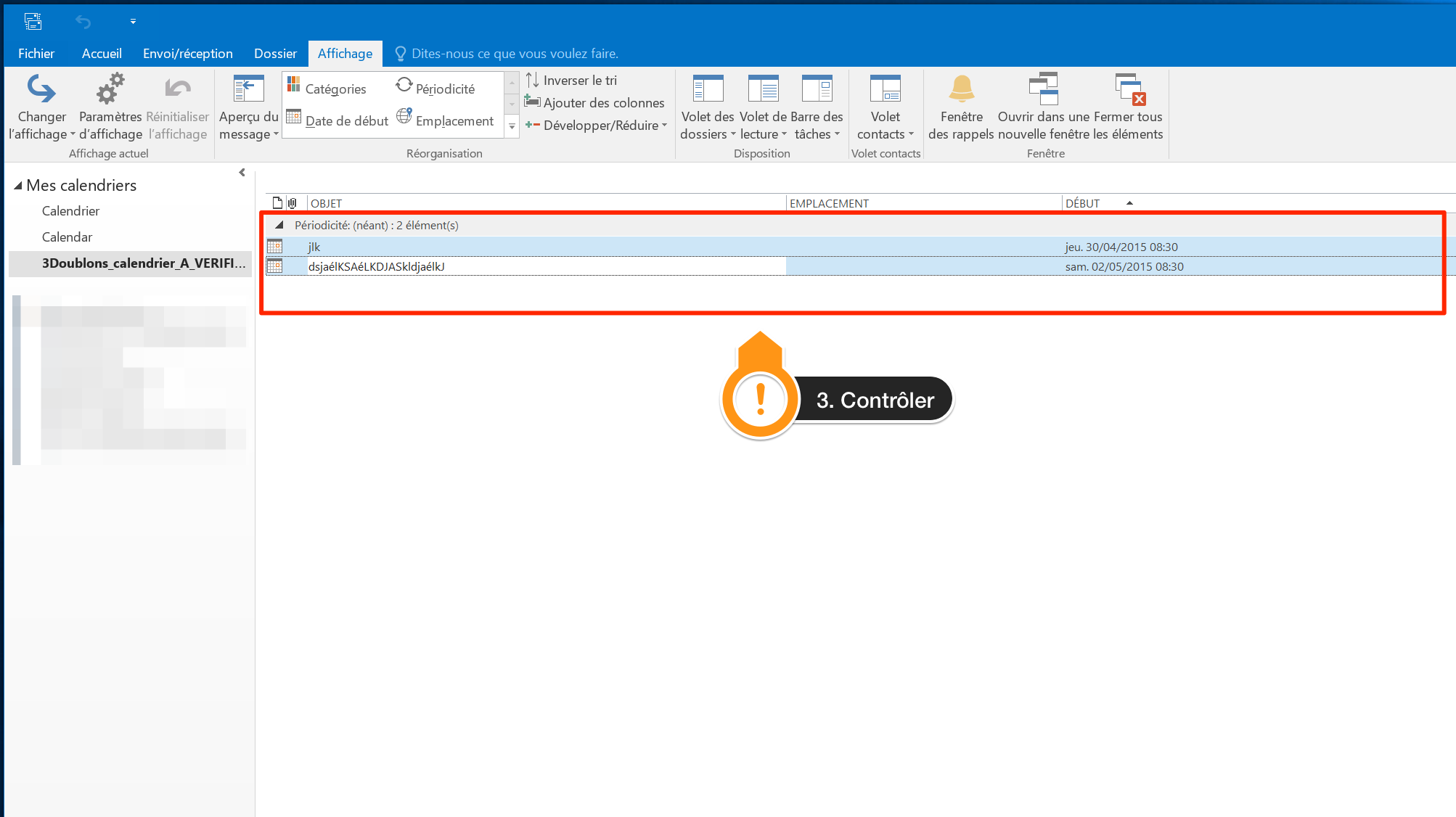](https://wiki.unil.ch/ci/uploads/images/gallery/2020-02/outlookModeList2.png) Once finished, you can delete the calendar by right clicking and choosing **Delete the calendar**. [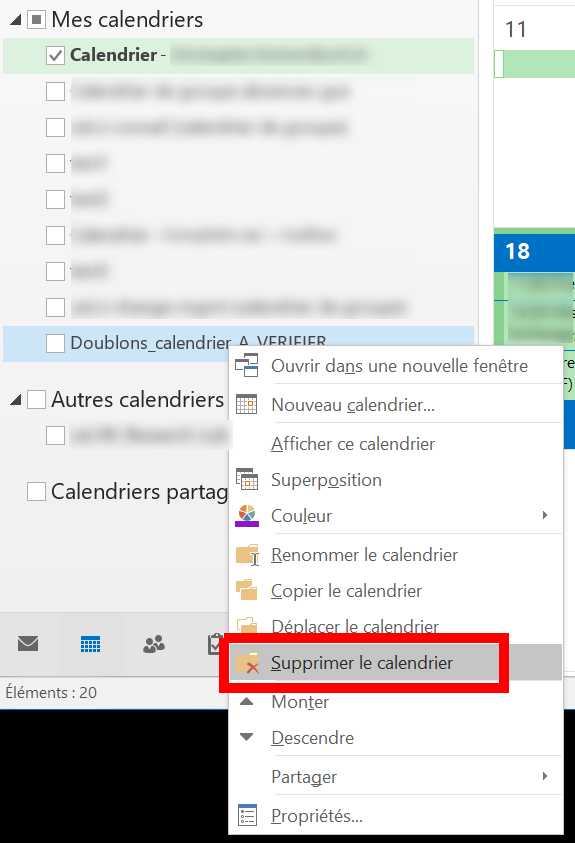](https://wiki.unil.ch/ci/uploads/images/gallery/2020-02/doublons_outlook_del.png) ### Verify in Outlook Online (web) If you find a calendar named **Doublons\_calendrier\_A\_VERIFIER**, it means our monitoring has detected corrupt events in your Exchange calendar. These events can cause issues when sharing your calendar with other users: the synchronisation will fail on these items. We moved these problematic items to a separate calendar named **Doublons\_calendrier\_A\_VERIFIER**: to view it, log on to [https://outlook.com/owa/unil.ch](https://outlook.com/owa/unil.ch) and click on the **Calendar** tab. [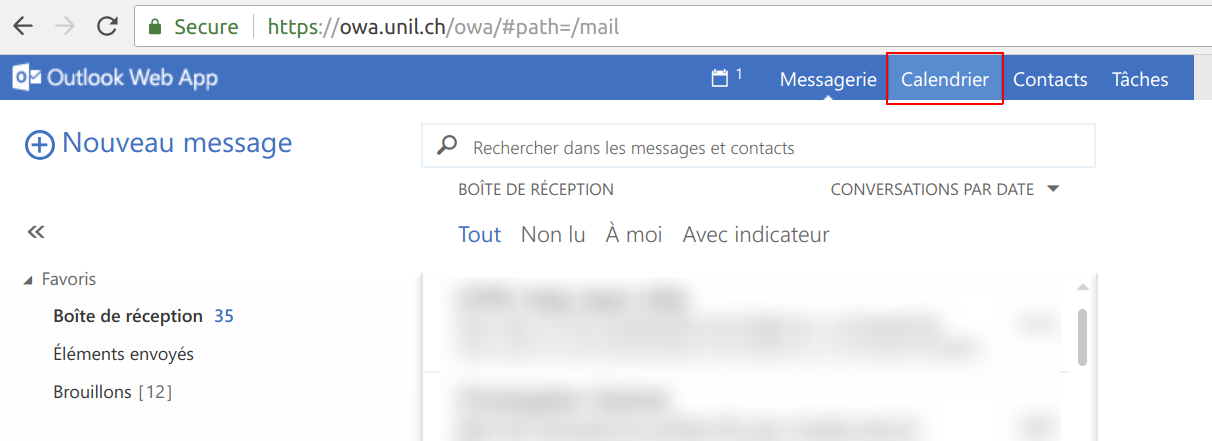](https://wiki.unil.ch/ci/uploads/images/gallery/2020-02/doublons_owa_cal.png) Please take a while to go through these events to make sure nothing important was moved. You can then delete this calendar by right-clicking on it and choosing **Delete**. [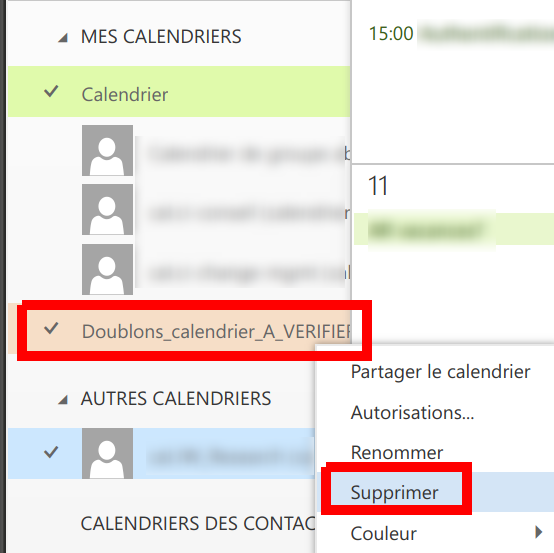](https://wiki.unil.ch/ci/uploads/images/gallery/2020-02/doublons_owa_del.png)