# VMWare Workstation
## Compatibilité et disponibilité
| [](https://wiki.unil.ch/ci/uploads/images/gallery/2020-01/Apple_logo_black.png) | [](https://wiki.unil.ch/ci/uploads/images/gallery/2020-01/no.png) | |
| [](https://wiki.unil.ch/ci/uploads/images/gallery/2020-01/Windows_logo.png) | [](https://wiki.unil.ch/ci/uploads/images/gallery/2020-01/yes.png) | Windows 10 et plus récent |
| [](https://wiki.unil.ch/ci/uploads/images/gallery/2020-01/linux_logo-300x184.png) | [](https://wiki.unil.ch/ci/uploads/images/gallery/2020-01/no.png) | |
## Installation
### Windows
1. Prérequis: disposer du lien et de la licence fournis par mail suite à une demande auprès de [notre centrale d'achats](https://wiki.unil.ch/ci/books/achats-informatiques-institutionnels "Achats informatiques institutionnels")
2. Télécharger le fichier
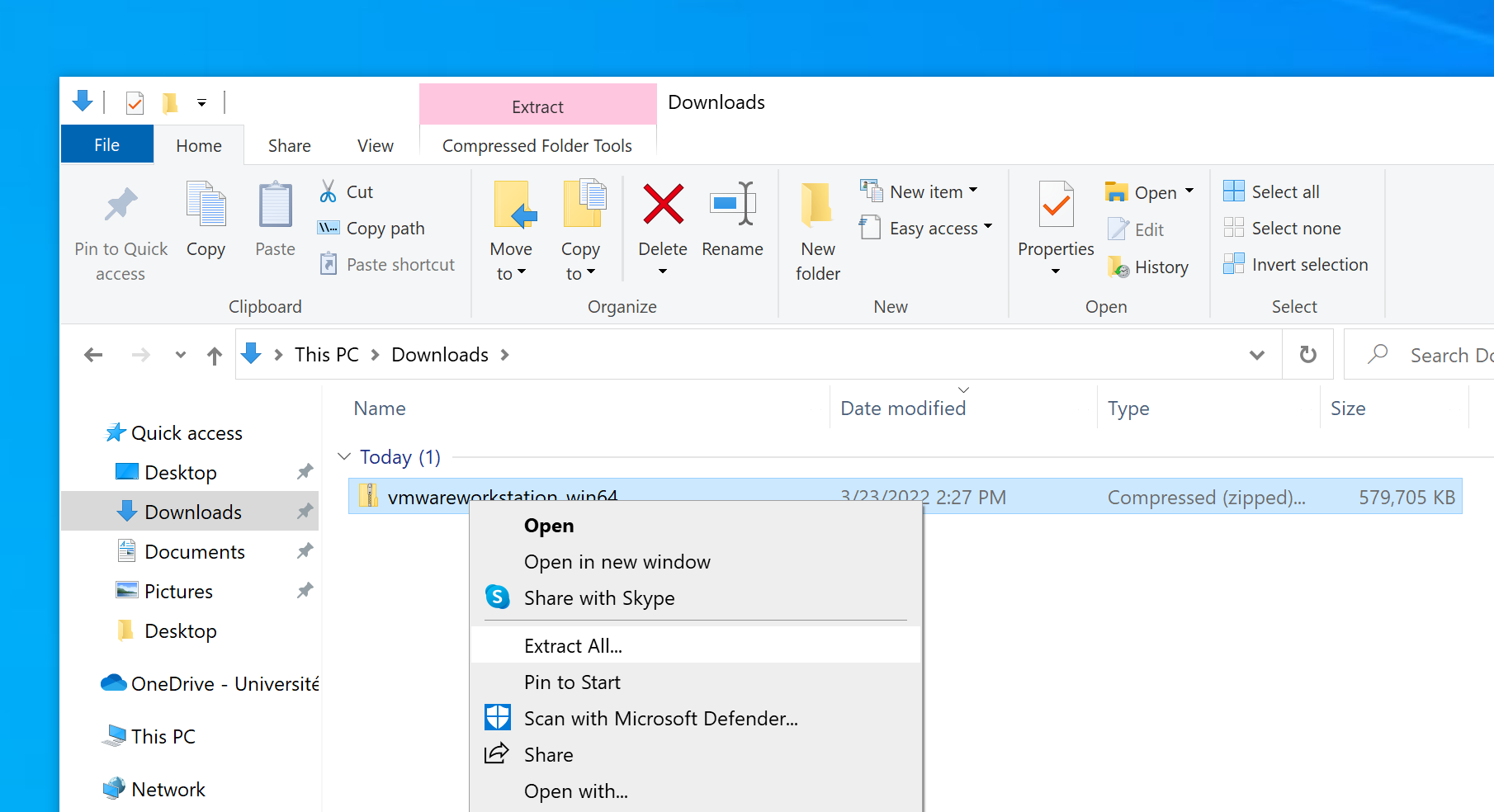
3. Extraire le contenu du fichier .zip
[](https://wiki.unil.ch/ci/uploads/images/gallery/2022-03/vmwareworkstation00005.png)
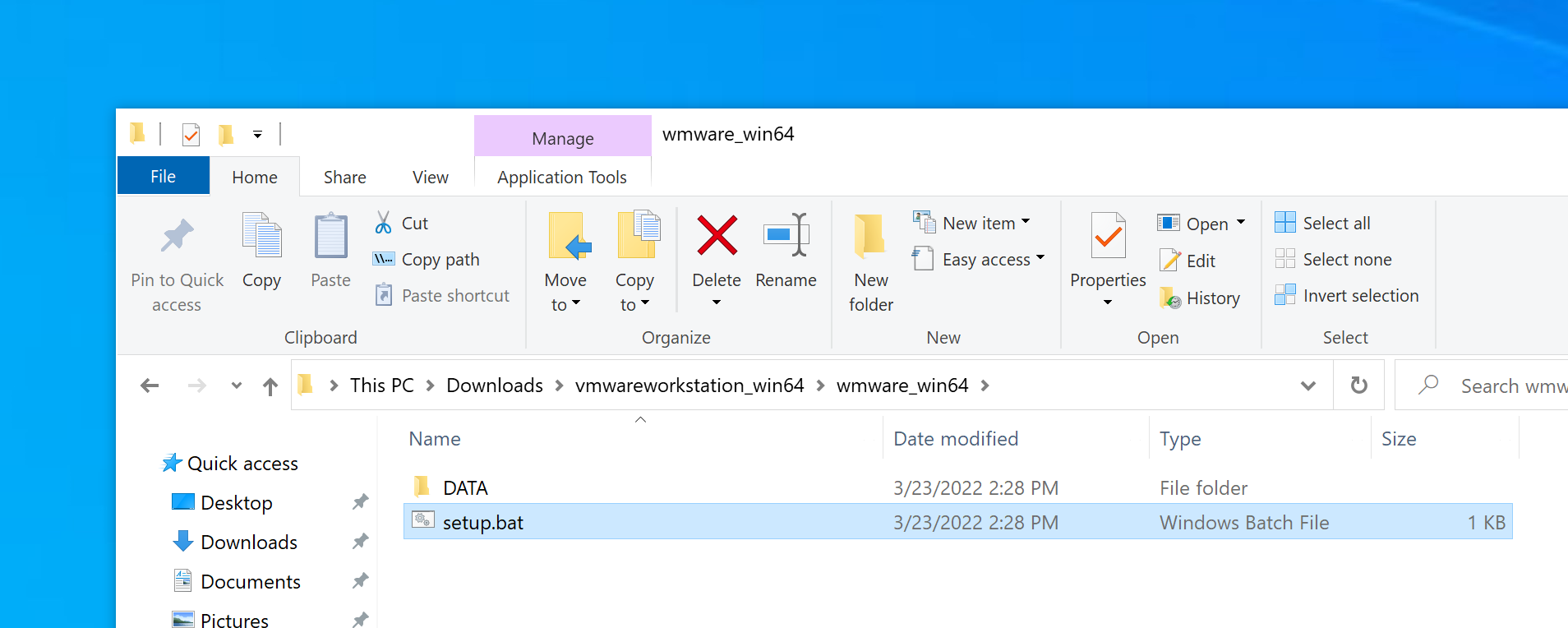
4. Double-cliquer sur le fichier setup.bat
[](https://wiki.unil.ch/ci/uploads/images/gallery/2022-03/vmwareworkstation00004.png)
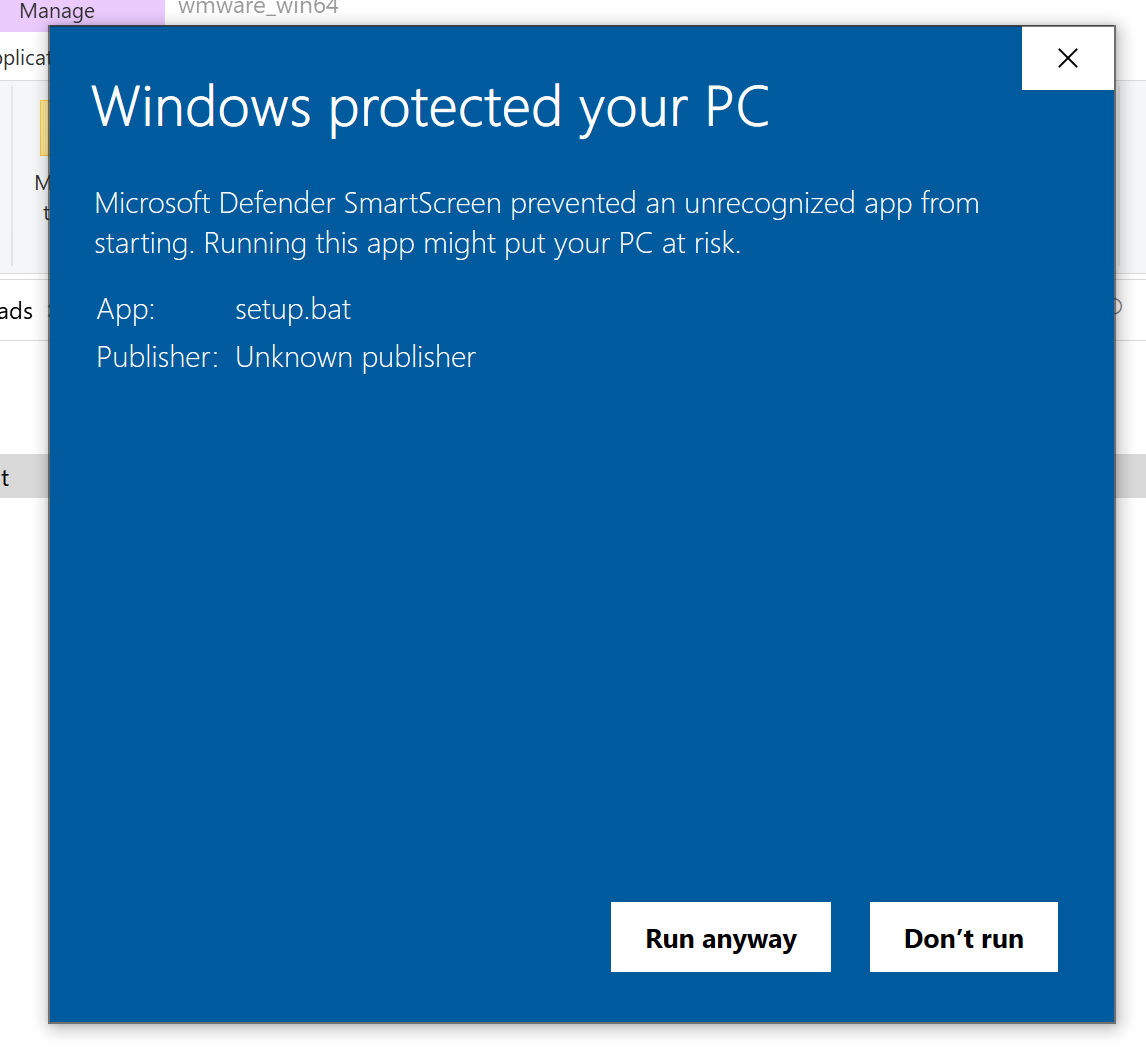
5. Cliquer sur plus d'infos et sur "run anyway"
[](https://wiki.unil.ch/ci/uploads/images/gallery/2022-03/vmwareworkstation00003.png)
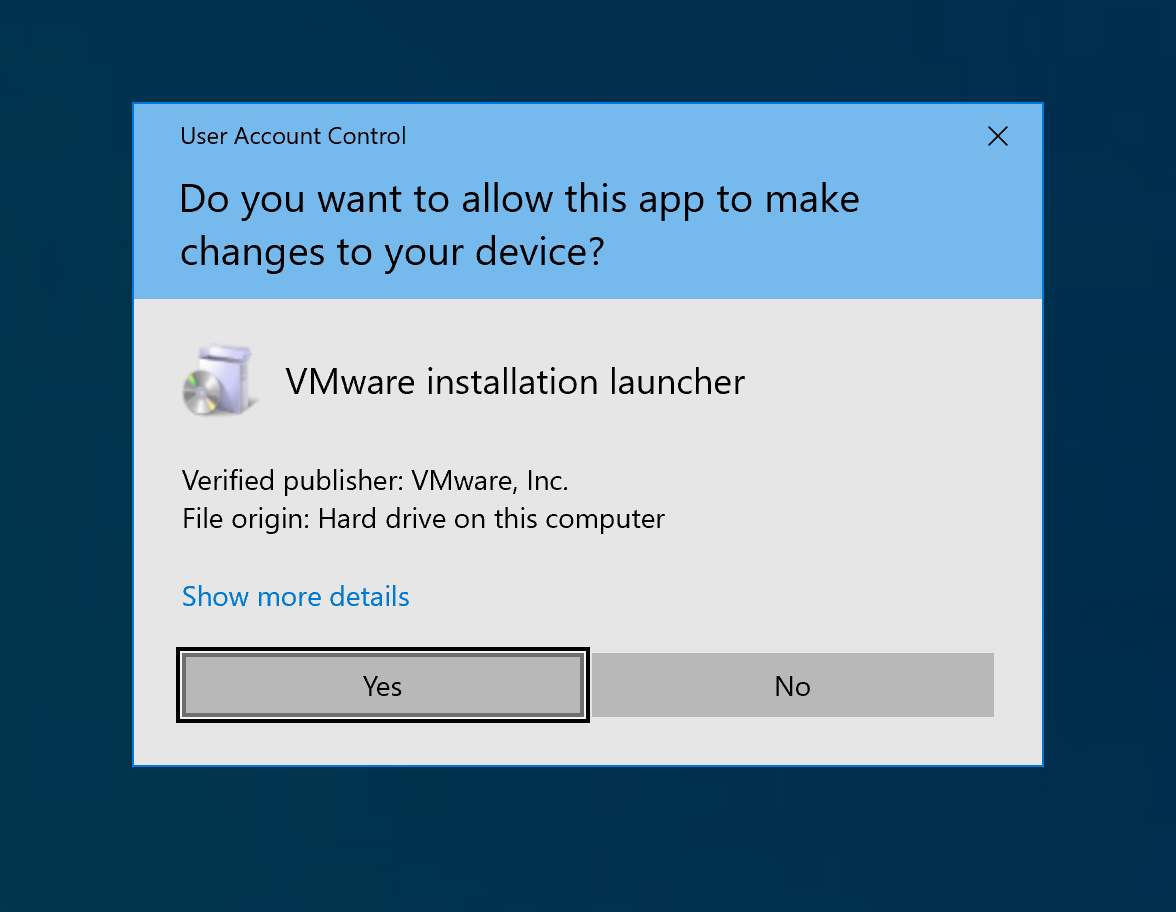
6. Cliquer sur Oui
[](https://wiki.unil.ch/ci/uploads/images/gallery/2022-03/vmwareworkstation00002.png)
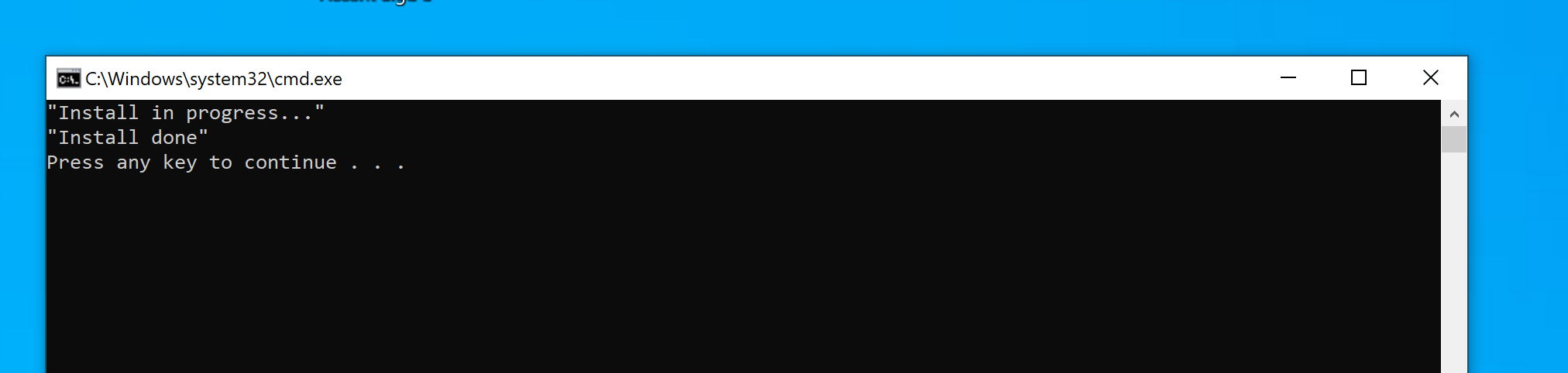
7. L'installation se termine lorsque "Install done" apparaît. Un retour de chariot permet alors de fermer la fenêtre de commande. On peut ensuite lancer VMWare Workstation avec le raccourci se trouvant sur le bureau.
[](https://wiki.unil.ch/ci/uploads/images/gallery/2022-03/vmwareworkstation00001.png)
## Informations logiciel
### Eligibilité
- Employé·e·s UNIL et des institutions partenaires officielles.
### Coût du logiciel
- Logiciel vendu à prix coûtant
### Dispositions légales
- Licence à l'année pour un ordinateur identifié et permettant à toutes personnes éligibles de l'utiliser sur cet ordinateur dans le cadre professionnel.
### Cours
- Le Ci ne propose pas de cours pour ce logiciel
### Support
- best effort (help desk uniquement)