Infrastructure and Resources
An introductory tutorial video on using HPC clusters is available here.
Curnagl
Kesako?
Curnagl (Romanche), or Chocard à bec jaune in French, is a sociable bird known for its acrobatic exploits and is found throughout the alpine region. More information is available here
It's also the name of the HPC cluster managed by the DCSR for the UNIL research community.
A concise description if you need to describe the cluster is:
Curnagl is a 96 node HPC cluster based on AMD Zen2/3 CPUs providing a total of 4608 compute cores and 54TB of memory. 8 machines are equipped with 2 A100 GPUs and all nodes have 100Gb/s HDR Infiniband and 100Gb/s Ethernet network connections in a fat-tree topology. The principal storage is a 2PB disk backed filesystem and a 150TB SSD based scratch system. Additionally all nodes have 1.6 TB local NVMe drives.
If you experience unexpected behaviour or need assistance please contact us via helpdesk@unil.ch starting the mail subject with DCSR Curnagl.
An introductory tutorial video on using HPC clusters is available here.
How to connect
For full details on how to connect using SSH please read the documentation.
Please be aware that you must be connected to the VPN if you are not on the campus network.
Then simply ssh username@curnagl.dcsr.unil.ch where username is your UNIL account.
The login node must not be used for any form of compute or memory intensive task apart from software compilation and data transfer. Any such tasks will be killed without warning.
You can also use the cluster through the OpenOnDemand interface.
Hardware
Compute
The cluster is composed of 96 compute nodes:
- 72 nodes with 2 AMD Epyc2 7402
- 24 nodes with 2 AMD Epyc3 7443
- 18 NVIDIA A100 (40 GB VRAM) distributed on 8 nodes
- 1 node with 2 AMD Epyc 9334 32-Core Processor and 8 NVIDIA L40S (48 GB VRAM)
- 1 NVIDIA GH200 (80 GB VRAM)
12 nodes with 1024 GB of memory, 512 GB otherwise.
Network
The nodes are connected with both HDR Infiniband and 100 Gb Ethernet. The Infiniband is the primary interconnect for storage and inter-node communication.
Cluster partitions
There are 3 main partitions on the cluster. CPU-hours and GPU-hours costs are available on this page (UNIL login required).
interactive
The interactive partition allows rapid access to resources but comes with a number of restrictions, the main ones being:
- Only one job per user at a time
- Maximum run time of 8 hours but this decreases if you ask for lots of resources.
For example:
| CPU cores requested | Memory requested | GPUs requested | Run Time Allowed (h) |
|---|---|---|---|
| 4 | 32 | 1 | 8 |
| 8 | 64 | 1 | 4 |
| 16 | 128 | 1 | 2 |
| 32 | 256 | 1 | 1 |
We recommend that users access this using the Sinteractive command. This partition should also be used for compiling codes.
This partition can also be accessed using the following sbatch directive:
#SBATCH -p interactive
There is one node with GPUs in the interactive partition and in order to allow multiple users to work at the same time these A100 cards have been partitioned into 2 instances each with 20GB of memory for a total of 4 GPUs. The maximum time limit for requesting a GPU is 8 hours with the CPU and memory limits applying. For longer jobs and to have whole A100 GPUs please submit batch jobs to the gpu partition.
Please do not block resources if you are not using them as this prevents other people from working.
If you request too many resources then you will see the following error:
salloc: error: QOSMaxCpuMinutesPerJobLimit`
salloc: error: Job submit/allocate failed: Job violates accounting/QOS policy (job submit limit, user's size and/or time limits)`
Please reduce either the time or the cpu / memory / gpu requested.
cpu
This is the main partition and includes the majority of the compute nodes. Interactive jobs are not permitted. The partition is configured to prevent long running jobs from using all available resources and to allow multi-node jobs to start within a reasonable delay.
The limits are:
- Normal jobs (3 days walltime):
- Maximun number of jobs submitted: 10000
- Maximum number of jobs running: 1152
- Maximum number of CPUs (used by all jobs same user): 1152
- Maximum number of memory (used by all jobs same user): 12T
- Short jobs (12 hours):
- Maximun number of jobs submitted: 10000
- Maximum number of jobs running: 512
- Maximum number of CPUs (used by all jobs): 1536
Normal jobs are restricted to ~2/3 of the resources which prevents the cluster being blocked by long running jobs.
In exceptional cases wall time extensions may be granted but for this you need to contact us with a justification before submitting your jobs!
The cpu partition is the default partition so there is no need to specify it but if you wish to do so then use the following sbatch directive
#SBATCH -p cpu
GPU partitions
To request resources in a gpu partition please use the following sbatch directives:
#SBATCH --partition=<GPU_PARTITION>
#SBATCH --gres=gpu:<N>
Replace <N> with the number of needed GPUs (typically 1), and <GPU_PARTITION> with the name of one of the following partitions:
A100
-
Partition name:
gpu -
Number of available nodes in the partition: 7
-
Node configuration:
- 2x AMD EPYC 7402 24-Core Processor (x86_64)
- 2x NVIDIA A100 GPU 40GB
- Memory (RAM): 500GB
-
Recommended usage:
- General-purpose AI training for small to medium models
- Deep learning and advanced machine learning workloads
- HPC jobs requiring a balanced and versatile GPU
L40
-
Partition name:
gpu-l40 -
Number of available nodes in the partition: 1
-
Node configuration:
- 2x AMD EPYC 9334 32-Core Processor (x86_64)
- 8x NVIDIA L40S GPU 46GB
- Memory (RAM): 750GB
-
Recommended usage:
- High-performance AI inference
- Suitable for medium-size training when needed
H100
-
Partition name:
gpu-h100 -
Number of available nodes in the partition: 2
-
Node configuration:
- 2x AMD EPYC 9334 32-Core Processor (x86_64)
- 4x NVIDIA H100 GPU 94GB
- Memory (RAM): 750GB
-
Recommended usage:
- HPC workloads requiring extremely high memory bandwidth
- Training large AI models (LLMs, diffusion, multimodal)
- Optimized for the most demanding AI and transformer-based workloads
GH200
These nodes are specific because they use the Grace‑Hopper superchip (CPU + GPU) based on an ARM architecture. This means that there is a coherent and high-bandwidth access to memory from all computing units, providing high-performance computing, but it also means that all the software needs to be compiled and possibly optimized for this architecture.
-
Partition name:
gpu-gh -
Number of available nodes in the partition: 2
-
Node configuration:
- 1x Neoverse-V2 72-Core Processor (aarch64)
- 1x NVIDIA GH200 GPU 96GB HBM3
- Memory (RAM, LPDDR5X): 480GB
- Coherent memory, also accessible from the CPU cores
-
Recommended usage:
- Advanced HPC tasks benefiting from large unified CPU-GPU memory
- Scientific applications with high memory bandwidth requirements
- Hybrid CPU+GPU AI workloads
Comparison of GPUs
| GPU | FP64/TF64 (TFLOPS) | FP32/TF32 (TFLOPS) | TP16/BF16 Tensor (TFLOPS) | FP8 / INT8 (TFLOPS/TOPS) | Memory bandwidth | TDP |
|---|---|---|---|---|---|---|
| A100 40GB | 9.7/19.5 | 19.5/156 | 312 | INT8: 624 | 1.6 TB/s | 250 W |
| L40s | -/- | 91.6/183 | 362 | FP8/INT8: 733 | 864 GB/s | 300 W |
| H100 SXM5 94GB | 34/67 | 67/494 | 1979 | FP8/INT8: 3958 | 3.36 TB/s | 700 W |
| GH200 | 34/67 | 67/494 | 989.5 | FP8/INT8: 1979 | 4 TB/s | 1000 W |
Software
For information on the DCSR software stack see the following link:
https://wiki.unil.ch/ci/books/high-performance-computing-hpc/page/dcsr-software-stack
Storage
The recommended place to store all important data is on the DCSR NAS which fulfils the UNIL requirement to have multiple copies. For more information please see the user guide
This storage is accessible from within the UNIL network using the SMB/CIFS protocol. It is also accessible on the cluster login node at /nas (see this guide)
The UNIL HPC clusters also have dedicated storage that is shared amongst the compute nodes but this is not, in general, accessible outside of the clusters except via file transfer protocols (scp).
This space is intended for active use by projects and is not a long term store.
Cluster filesystems
The cluster storage is based on the IBM Spectrum Scale (GPFS) parallel filesystem. There are two disk based filesystems (users and work) and one SSD based one (scratch). Whilst there is no backup the storage is reliable and resilient to disk failure.
The role of each filesystem as well as details of the data retention policy is given below.
How much space am I using?
The quotacheck command allows you to see the used and allocated space:
$quotacheck
------------------------------------------user quota in G-------------------------------------------
Path                     Quota   Used    Avail   Use% | Quota_files  No_files      Use%
/users/cruiz1            50.00   17.78   32.22    36% | 195852       202400         97%
------------------------------------------work quotas in T------------------------------------------
Project                              Quota   Used    Avail   Use% | Quota_files  No_files      Use%
pi_rfabbret_100222-pr-g              3.00    2.11    0.89     70% | 7098428      9990000        71%
cours_hpc_100238-pr-g                0.19    0.00    0.19      2% | 69713        990000          7%
spackbuild_101441-pr-g               1.00    0.00    1.00      0% | 1            9990000         0%
Users
/users/<username>
This is your home directory and can be used for storing small amounts of data. The per user quota is 50 GB and 100,000 files.
There are daily snapshots kept for seven days in case of accidental file deletion. See here for more details.
Work
/work/FAC/FACULTY/INSTITUTE/PI/PROJECT>
The work space is for storing data that is being actively worked on as part of a research project. This space can, and should, be used for the installation of any research group specific software tools including python virtual environments.
Projects have quotas assigned and while we will not delete data in this space there is no backup so all critical data must also be kept on the DCSR NAS. This space is allocated per project and the quota can be increased on request by the PI as long as free space remains.
Scratch
/scratch/<username>
The scratch space is for intermediate files and the results of computations. There is no quota and the space is not charged for. You should think of it as temporary storage for a few weeks while running calculations.
In case of limited space files will be automatically deleted to free up space. The current policy is that if the usage reaches 90% files, starting with the oldest first, will be removed until the occupancy is reduced to 70%. No files newer than two weeks old will be removed.
There is a quota of 50% of the total space per user to prevent runaway jobs wreaking havoc
$TMPDIR
For certain types of calculation it can be useful to use the NVMe drive on the compute node. This has a capacity of ~600 GB and can be accessed inside a batch job by using the $TMPDIR variable.
At the end of the job this space is automatically purged.
Urblauna
Kesako?
Urblauna (Romanche), or Lagopède Alpin in French, is a bird known for its changing plumage which functions as a very effective camouflage. More information is available at https://www.vogelwarte.ch/fr/oiseaux/les-oiseaux-de-suisse/lagopede-alpin
Urblauna is the UNIL cluster for sensitive depersonalized data.
The differences between Jura and Urblauna are described here
Support
Please contact the DCSR via helpdesk@unil.ch and start the mail subject with "DCSR Urblauna"
Do not send mails to dcsr-support - they will be ignored.
Connecting to Urblauna
The Urblauna cluster is intended for the processing of sensitive data and as such comes with a number of restrictions.
- All access requires the use of two factor authentication
- Data movement requires an intermidiate server
- Cluster is isolated from internet
Note for CHUV users: in case of problems connecting to Urblauna please contact your local IT team to ensure that the network connection is authorised.
2 Factor authentication
When your account is activated on urblauna you will receive an email from noreply@unil.ch that contains a link to the QR code to set up the 2 factor authentication - this is not the same code as for EduID!
To import the QR code you first need to install an application on your phone such as Google Authenticator or FreeOTP+. Alternatively desktop applications such as KeePassXC can also be used.
If you lose the secret then please contact us in order to generate a new one.
Web interface
There is a web interface (Guacamole) that allows for a graphical connection to the Urblauna login node. To connect go to u-web.dcsr.unil.ch
You will then be prompted to enter your username and password followed by the 2FA code that you received
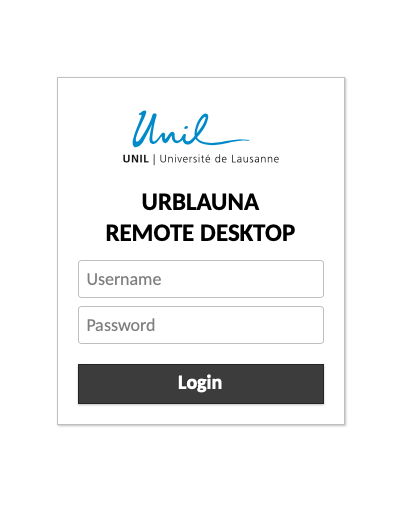
This will send you to a web based graphical desktop.
SSH interface
There is also SSH terminal access which may be more convenient for many operations. Unlike connections to Curnagl no X11 forwarding or use of tunnels is permitted. The use of scp to copy data is also blocked.
To connect:
ssh username@u-ssh.dcsr.unil.ch
You will then be prompted for your UNIL password and the 2FA code that you received as follows:
% ssh ulambda@u-ssh.dcsr.unil.ch

(ulambda@u-ssh.dcsr.unil.ch) Password:
(ulambda@u-ssh.dcsr.unil.ch) Verification code:

Last login: Wed Jan 18 13:25:46 2023 from 130.223.123.456

[ulambda@urblauna ~]$
The 2FA code is cached for 1 hour in case that you connect again.
Hardware
Compute
The cluster is composed of:
- 18 compute nodes with 2 x AMD Epyc3 7443 and 1024 of Memory
- 4 Nvidia A100 (40 GB) partitioned to create 4 GPUs on each machine with 20GB of memory per GPU
Storage
The storage is based on IBM Spectrum Scale / Lenovo DSS and provides 1PB of space in the /data filesystem.
Whilst reliable this space is not backed up and all important data should also be stored on /archive
/data
The /data filesystem is structured in the same way as on Curnagl
/data/FAC/FACULTY/INSTITUTE/PI/PROJECT
This space is on reliable storage but there are no backups or snapshots. If you wish to increase the limit then just ask us. With 1PB available all resonable requests will be accepted.
/scratch
It is considered as temporary space and there is no fee associated. There are no quotas but in case of the utilisation being greater that 90% then files older than 2 weeks will be removed automatically.
/users
The users' home directory.
/work
The Curnagl /work filesystem is visible in read-only from inside Urblauna. This is very useful for being able to install software on an Internet connected system.
/reference
This is intended to host widely used datasets
The /db set of biological databases can be found at /reference/bio_db/
/archive
This is an HSM (Hierarchical Storage Management system) meaning that any files written are copied on tape in two copies, after some time the file content is erased from disk and a pointer to the file on tape remains. If you open a file which content is not on disk any more the tape cardridge has to be loaded in a drive, spooled to the right place and then transferred to disk.
It is only for cold data. If you have to retrieve more than 1000 files please send us a ticket at helpdesk@unil.ch with subject "DCSR Urblauna archive retrieve" and the directory path.
It has the same roganization as /data:
/archive/FAC/FACULTY/INSTITUTE/PI/PROJECT
Software
For information on the DCSR software stack see here. This is the default stack and is same as Curnagl. It is still possible to use the old Vital-IT /software but this is deprecated and no support can be provided.
Installing your own software
We encourage you to ask for a project on Curnagl (HPC normal data) which will allow you to install tools and then be able to use them directly inside Urblauna.
See the documentation for further details
For those who use Conda don't forget to make sure that all the directories are in your project /work space
https://wiki.unil.ch/ci/books/high-performance-computing-hpc/page/using-conda-and-anaconda
nano .condarc


pkgs_dirs:
  - /work/path/to/my/project/space

envs_dirs:
  - /work/path/to/my/project/space
For R packages it's easy to set an alternative library location:
echo 'R_LIBS_USER=/work/path/to/project/Rlib' > ~/.Renviron
This will need to be run on both Curnagl and Urblauna and will allow you to install packages when connected to the internet and run them inside the air gapped environment.
For how to do this see the documentation at Old software stack
Slurm partitions
As on Curnagl, there are three partitions: cpu,gpu and interactive.
$ sinfo

PARTITION   AVAIL  TIMELIMIT  NODES  STATE NODELIST
cpu            up 3-00:00:00     15   idle sna[002-016]
gpu            up 3-00:00:00      2   idle snagpu[001-002]
interactive    up    8:00:00      4   idle sna[015-016],snagpu[001-002]
There is no separate GPU partition so to use a GPU simply request
#SBATCH --gres=gpu:1
To launch an interactive session you can use Sinteractive as on Curnagl