# Optimisation, Profiling and Debugging
# Profiling Tools
## Introduction
This tutorial will guide you how to run intel profiling tools in AMD processors, we explore also the type of code we can profile.
## Advisor
### Project setup
First of all, we prepare an executable to run the tests. You can use any code to run these examples. Here we use for the nqueens example provided by advisor installation. We copy it from advisor installation directory:
`cp /dcsrsoft/spack/external/intel/2021.2/advisor/2021.2.0/samples/en/C++/nqueens_Advisor.tgz .`
Then, extract the contents and compile the serial version:
`make 1_nqueens_serial`
### Creating a project
We create a project using advisor gui:
[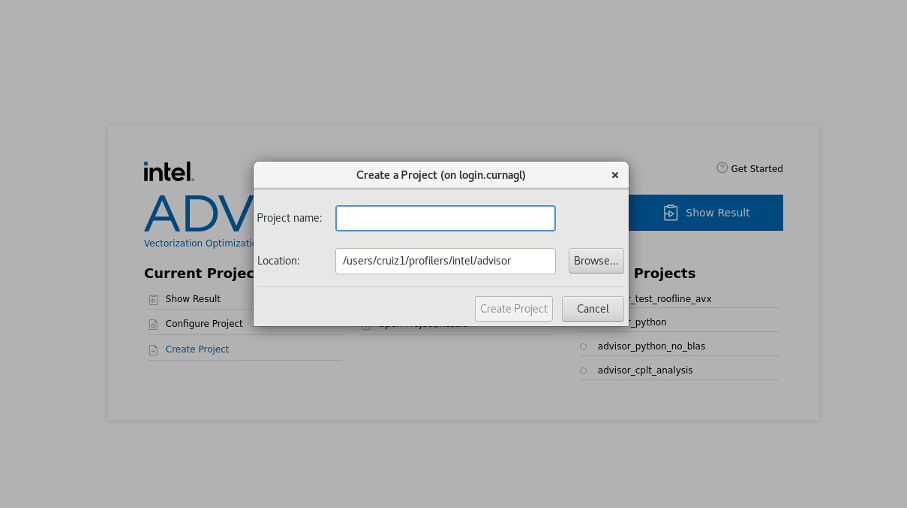](https://wiki.unil.ch/ci/uploads/images/gallery/2022-04/image-1649336791755.png)
We configure the path of our nqueens executable (or the executable you want to profile), and we click on OK.
[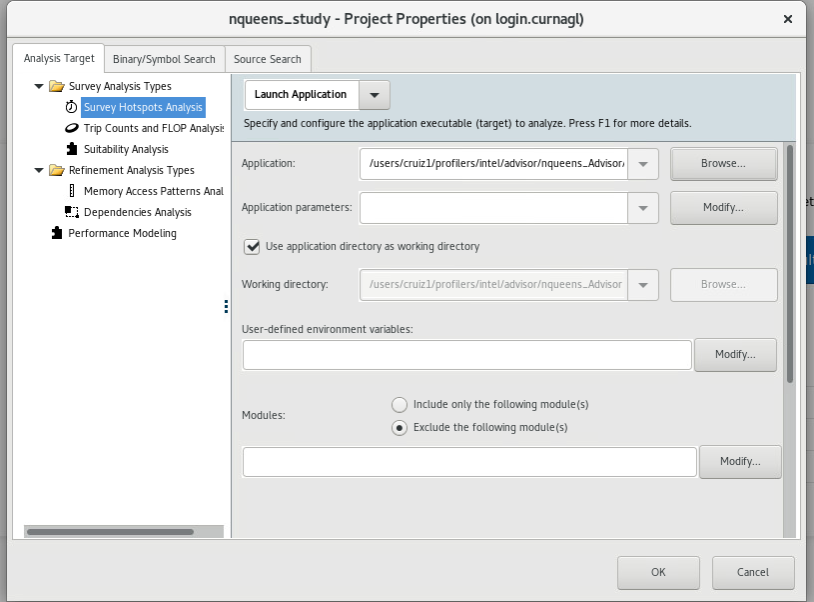](https://wiki.unil.ch/ci/uploads/images/gallery/2022-04/image-1649336864897.png)
Several analysis are proposed :
[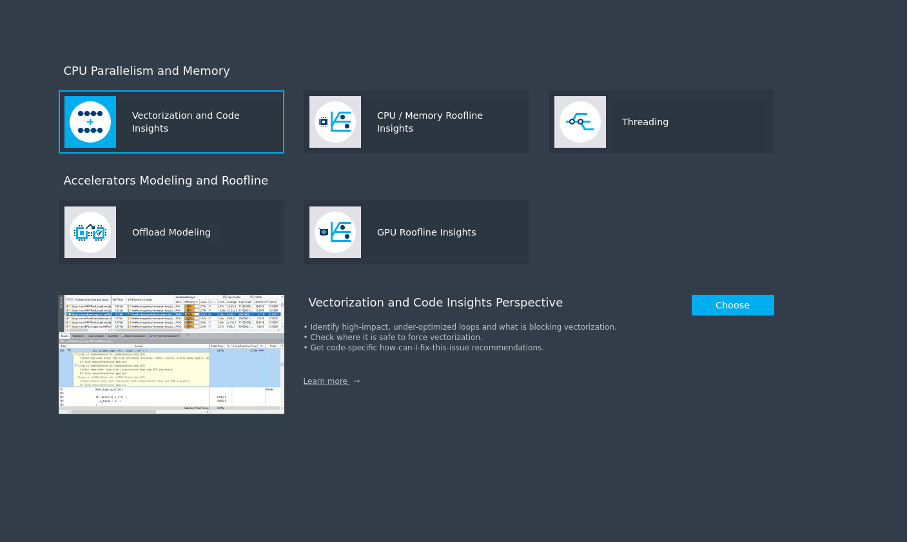](https://wiki.unil.ch/ci/uploads/images/gallery/2022-04/image-1649337010123.png)
We start with **Vectorization and Code insights** which will give us information about the parallelization opportunities in the code. It identifies loops that will benefit most from vector parallelism, discover performance issues, etc. The summary window will give us more details.
### Using SLURM
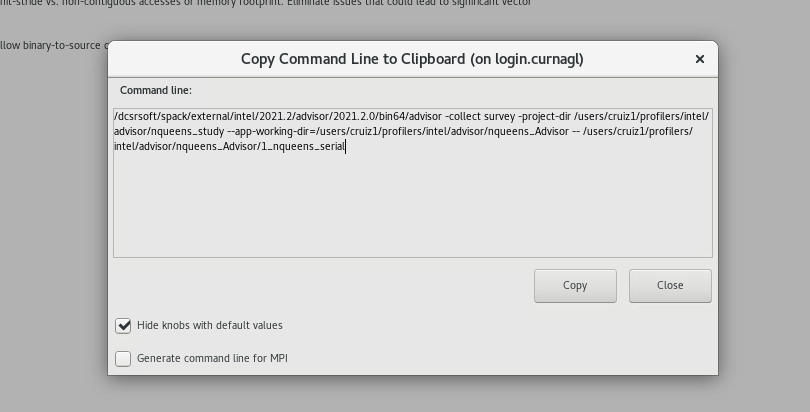
To use Advisor in the cluster, it is better to use the command line. The GUI can provide the commands we should run. Let’s run the survey, to see the command to run, click on the following button
[](https://wiki.unil.ch/ci/uploads/images/gallery/2022-04/image-1649337101993.png)
[](https://wiki.unil.ch/ci/uploads/images/gallery/2022-04/image-1649337119796.png)
This will show the exact command to use:
[](https://wiki.unil.ch/ci/uploads/images/gallery/2022-04/image-1649337146519.png)
We can copy that line in our slurm job:
```shell
#!/bin/sh
#SBATCH --job-name test-prof
#SBATCH --error advisor-%j.error
#SBATCH --output advisor-%j.out
#SBATCH -N 1
#SBATCH --cpus-per-task 1
#SBATCH --partition cpu
#SBATCH --time 1:00:00
dcsrsoft/spack/external/intel/2021.2/advisor/2021.2.0/bin64/advisor -collect survey -project-dir /users/cruiz1/profilers/intel/advisor/nqueens_study --app-working-dir=/users/cruiz1/profilers/intel/advisor/nqueens_Advisor -- /use\
rs/cruiz1/profilers/intel/advisor/nqueens_Advisor/1_nqueens_serial
```
we launch the job:
`sbatch slurm_advisor.sh`
check for errors in Slurm output files.
### Checking results
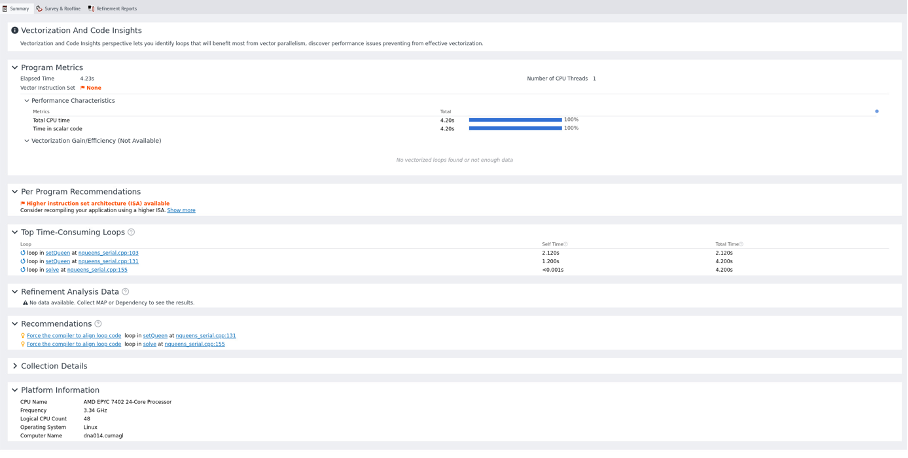
If we close and reopen the project, we see that we have some results:
[](https://wiki.unil.ch/ci/uploads/images/gallery/2022-04/image-1649337346201.png)
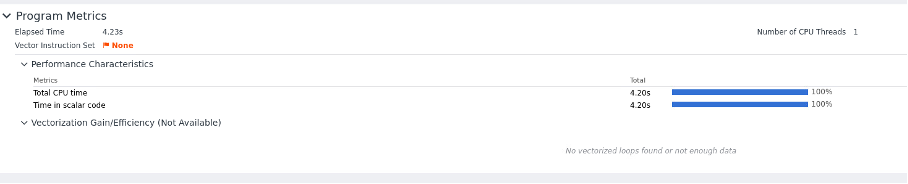
We have recommendations for using other instruction sets because no vector instruction set was detected.
[](https://wiki.unil.ch/ci/uploads/images/gallery/2022-04/image-1649337383729.png)
[](https://wiki.unil.ch/ci/uploads/images/gallery/2022-04/image-1649337410465.png)
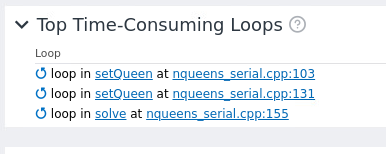
We see the most time consuming loops:
It detects correctly the AMD CPU
[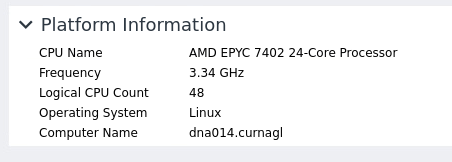](https://wiki.unil.ch/ci/uploads/images/gallery/2022-04/image-1649337498963.png)
In the survey window we can observer the time consuming parts of the code. Each line on the table represent either a function call or a loop. Several useful information is presented by line such as: vector instructions used, length of the vector instruction and type of data.
[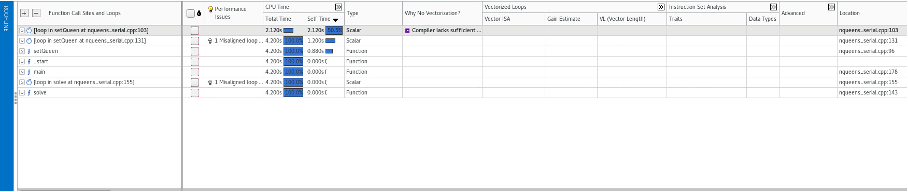](https://wiki.unil.ch/ci/uploads/images/gallery/2022-04/image-1649337547455.png) On the window above, we should see recommendation about the vector instructions to use. This is missing probably due to the fact that we are using an AMD processors. Compilation of code using Intel compiler did not help.
The lower half of the screen shows the following tabs:
- source code (available if compiled with -g)
- top down shows the call tree
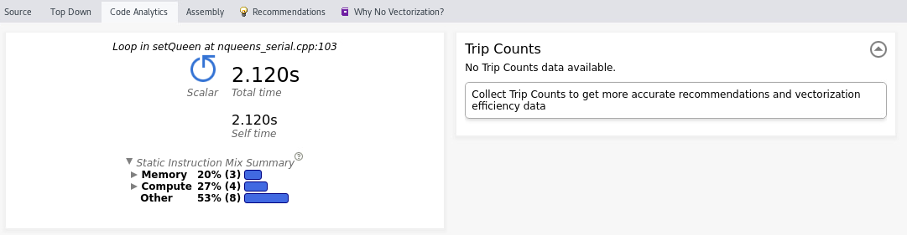
- code analysis shows the most time consuming loop as well as a profile of the application in terms of resources (CPU, memory)
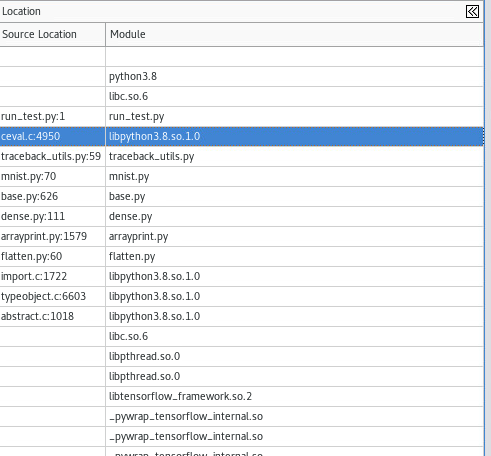
On the top down tab, we can see where the call is taking place:
[](https://wiki.unil.ch/ci/uploads/images/gallery/2022-06/image-1655123335943-28-47.png)
Below a screenshot of the code analysis window.
[](https://wiki.unil.ch/ci/uploads/images/gallery/2022-04/image-1649337576762.png)
### Collecting trip counts
We choose characterization analysis. To improve the analysis we should choose a loop, this can be done on the survey window:
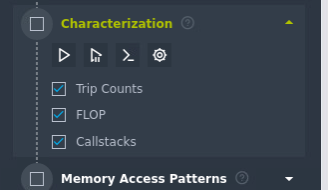
[](https://wiki.unil.ch/ci/uploads/images/gallery/2022-04/image-1649337589080.png)And then launch the characterizitation, again we ask for the cmd line :
[](https://wiki.unil.ch/ci/uploads/images/gallery/2022-04/image-1649338707136.png)
The generated command will contain the additional options:
`tripcounts -flop -stacks -mark-up-list-2`
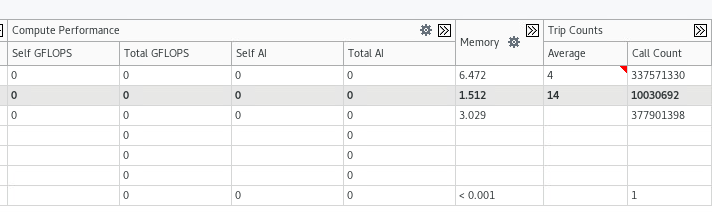
We can see the different trip counts for each loop:
[](https://wiki.unil.ch/ci/uploads/images/gallery/2022-04/image-1649338773817.png)
We can now repeat the process for memory access analysis. After running the analysis, we have new information:
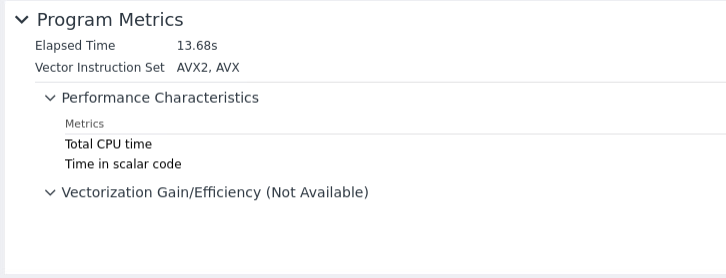
[](https://wiki.unil.ch/ci/uploads/images/gallery/2022-04/image-1649338844790.png)If we compile the code with more performant instruction set, this is detected in the summary window:
[](https://wiki.unil.ch/ci/uploads/images/gallery/2022-04/image-1649338874110.png)
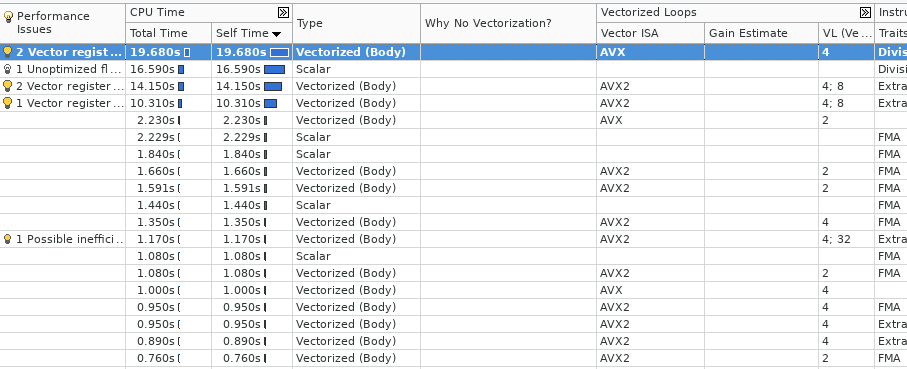
and the call stack window:
[](https://wiki.unil.ch/ci/uploads/images/gallery/2022-04/image-1649345626025-28-53.png)
This screenshoot was obtained profiling HPL Benchmark.
### MPI profiling
The command proposed by the GUI is not the appropriate, we should use the following command:
```
srun advisor --collect survey --trace-mpi -project-dir /users/cruiz1/profilers/intel/advisor/analysis_mpi_trace-2 --app-working-dir=/users/cruiz1/profilers/intel/advisor/mpi_sample -- /users/cruiz1/profilers/intel/advisor/mpi_sample/mpi_sample_serial
```
The default behavior generates a profile database per rank which is not ideal to understand the interactions between MPI ranks. We can use the option `--mpi-trace` but unfortunately it does not seem to give more additional information as it only works if we use the same host.
One possible approach is to only profile one processes using SLURM multiprogram option:
`srun --multi-prog task.conf`
the task.conf would look like:
```p1
0 /dcsrsoft/spack/external/intel/2021.2/advisor/2021.2.0/bin64/advisor -collect survey -project-dir $PROJECT_DIR -- $PATH_BINARY/xhpl
1-3 ./xhpl
```
In this example, we profile the rank 0.
### Python application
It is possible to profile python applications by adding '--profile-python' option. For example to profile a tensorflow code:
```
advisor -collect survey --profile-python -project-dir /users/cruiz1/profilers/intel/advisor/tensor_flow_study -- python /users/cruiz1/python/run_test.py
```
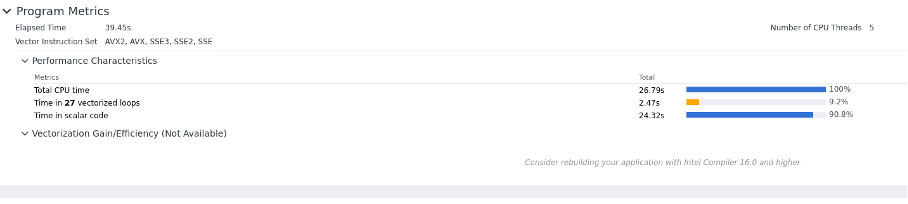
We have the following summary:
[](https://wiki.unil.ch/ci/uploads/images/gallery/2022-04/image-1649339604340.png)
We can see that the code uses vector instruction (In this example the CPU version of Tensorflow was used).
The complete call tree shows:
[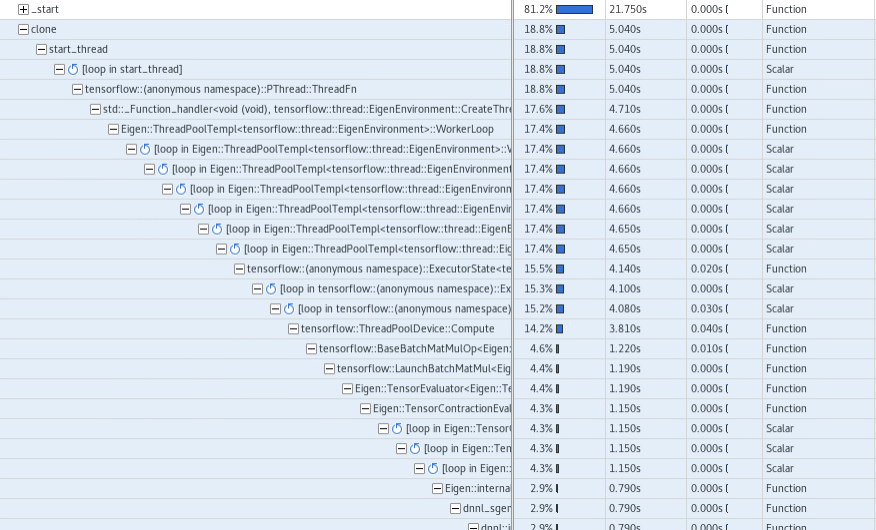](https://wiki.unil.ch/ci/uploads/images/gallery/2022-04/image-1649339632398.png)
We can explore the main script and how CPU time is distributed:
[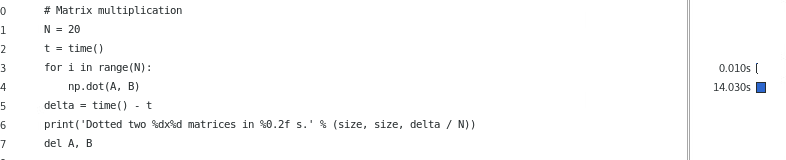](https://wiki.unil.ch/ci/uploads/images/gallery/2022-06/image-1655130958100-35-55.png)
Unfortunately, this is not automatic, we should filter it using the source file filter, example:
[](https://wiki.unil.ch/ci/uploads/images/gallery/2022-06/image-1655131089189-38-06.png)
## Intel VTune
### Limitations
##### Limited number of analysis
Unfortunately, for most of the analysis:
- hpc-performance
- memory-acesss
- performance snapshot
- uarch-exploration
- io
we obtained the following error message:
```
vtune: Error: This analysis type is not applicable to the system because VTune Profiler cannot recognize the processor.
If this is a new Intel processor, please check for an updated version of VTune Profiler. If this is an unreleased Intel processor
```
for io analysis we have the following error:
*vtune: Error: Cannot enable event-based sampling collection: Architectural Performance Monitoring version is 0. Make sure the vPMU feature is enabled in your hypervisor.*
##### Maximum number of threads
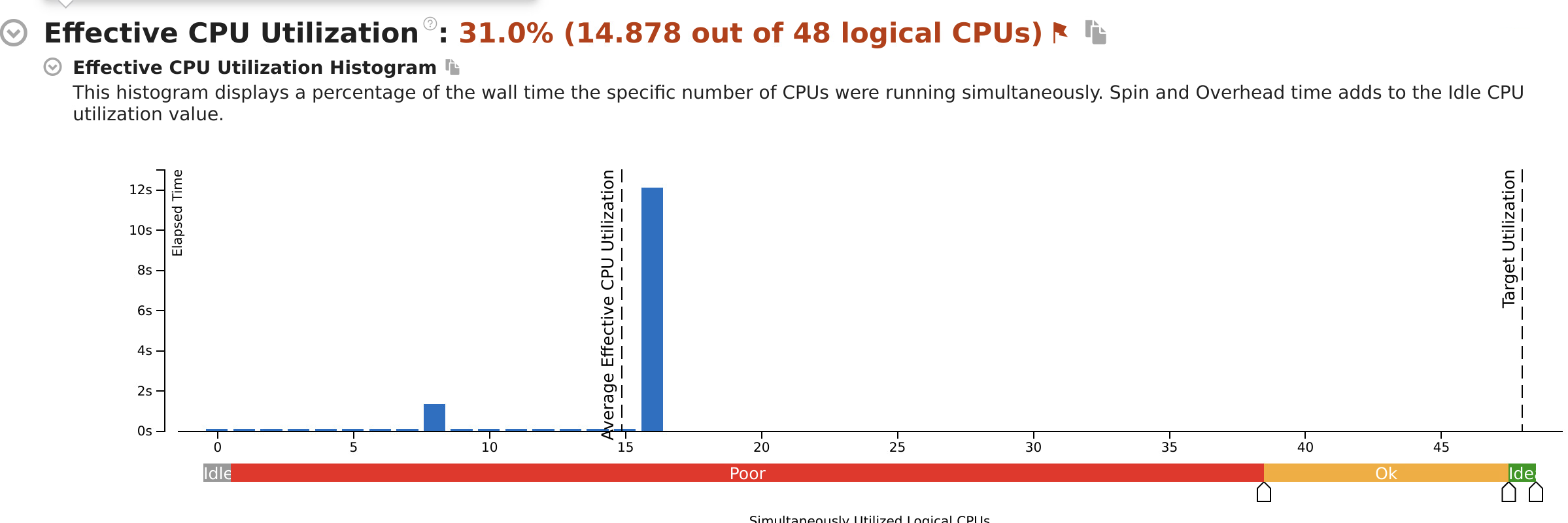
The tool detect a maximum number of 16 threads
### Launching analysis in SLURM
We can still do some analysis like 'hotspots analysis'.
```
#!/bin/sh
#SBATCH --job-name test-vtune
#SBATCH --error vtune-%j.error
#SBATCH --output vtune-%j.out
#SBATCH -N 1
#SBATCH --cpus-per-task 8
#SBATCH --partition cpu
#SBATCH --time 1:00:00
export OMP_NUM_THREADS=8
source /dcsrsoft/spack/external/intel/2021.2/vtune/2021.2.0/amplxe-vars.sh
vtune -collect hotspots ./matrix
```
### Hotspot analysis
The summary window looks like:
[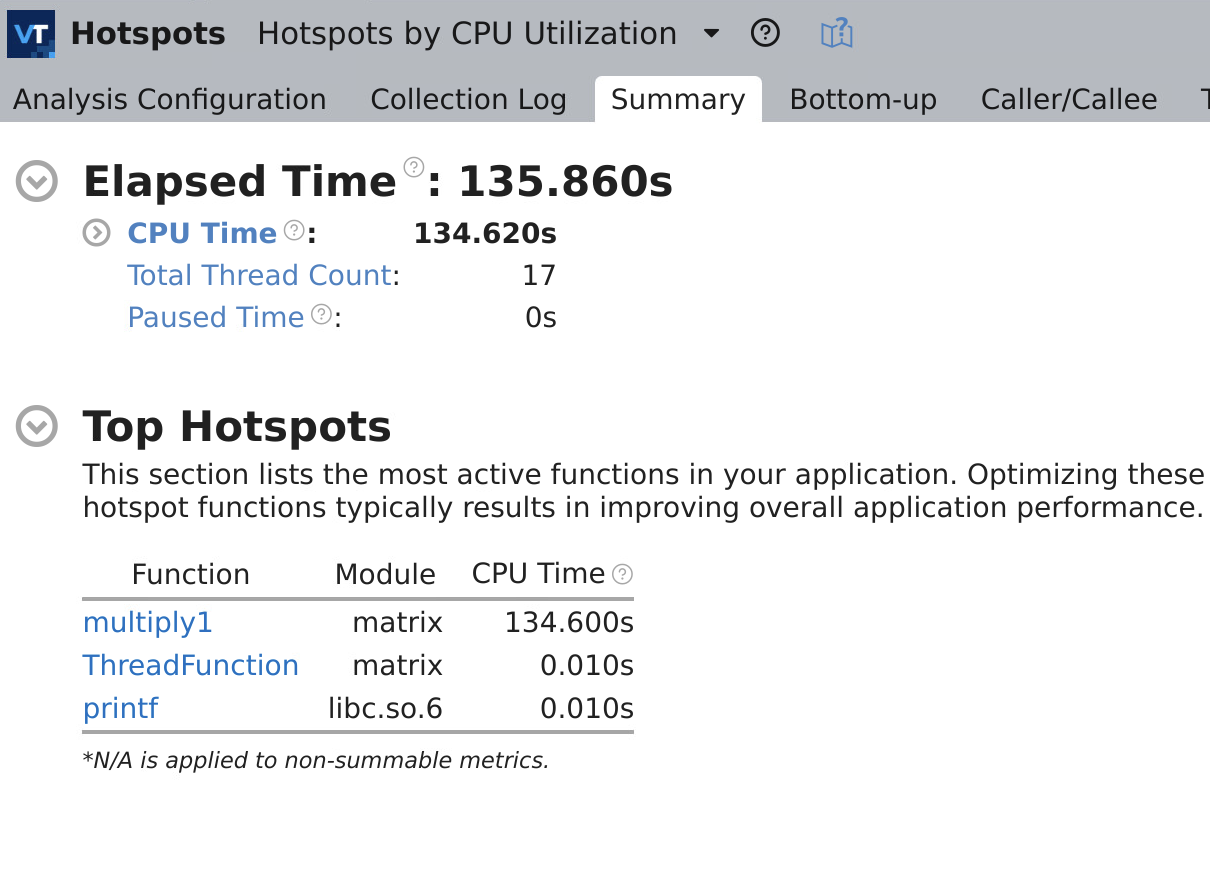](https://wiki.unil.ch/ci/uploads/images/gallery/2022-04/image-1649667670640-42-16.png)
On the bottom section we can see a profile per thread, where we can see how well balanced is the application:
[](https://wiki.unil.ch/ci/uploads/images/gallery/2022-04/image-1649667778586-52-22.png)
### Memory consumption analysis
[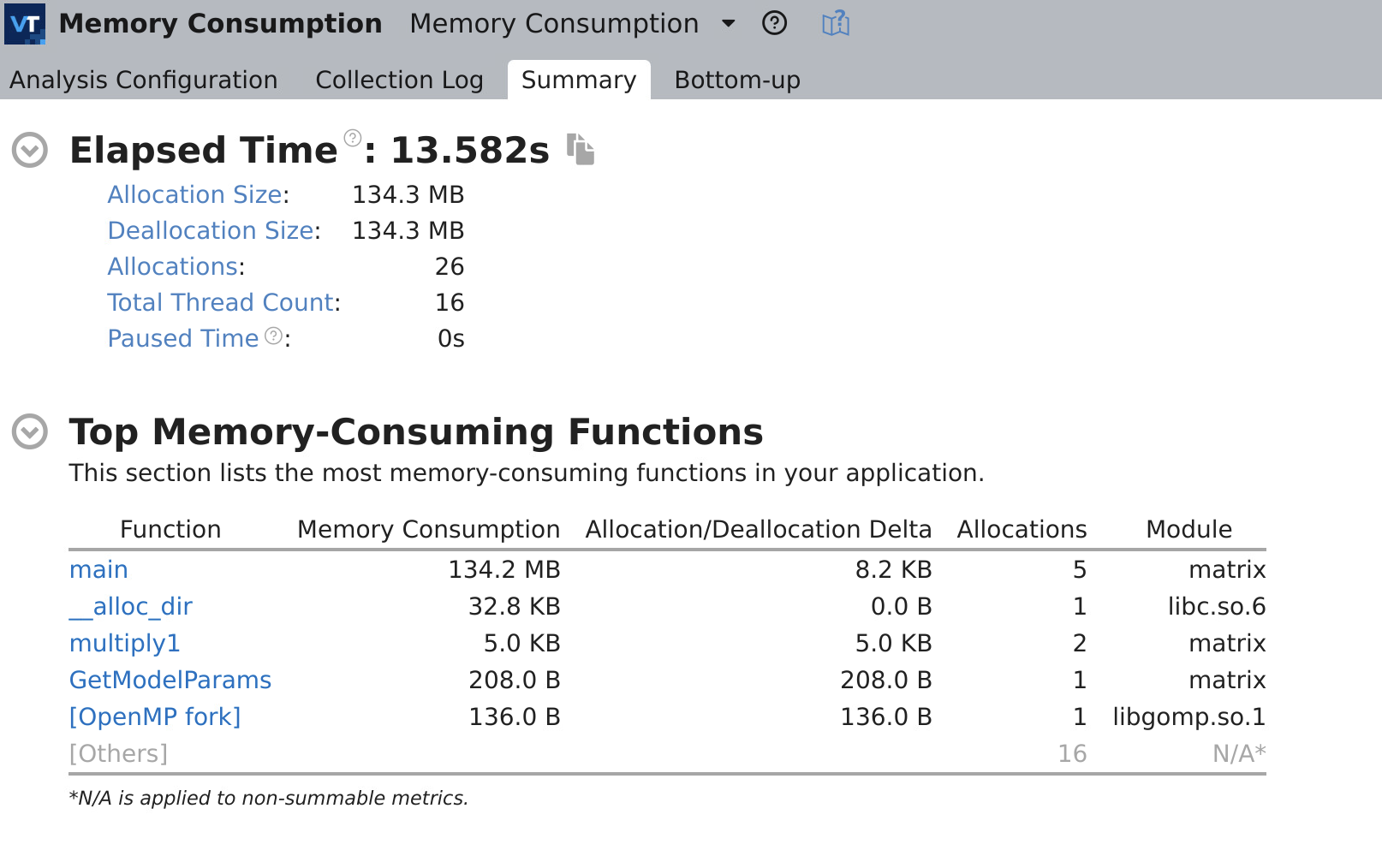](https://wiki.unil.ch/ci/uploads/images/gallery/2022-04/image-1649668714931-18-09.png)
### Threading analysis:
This graph shows the distribution of active threads for a given computation. We observe for this example 8 and 16 that run simultaneously.
[](https://wiki.unil.ch/ci/uploads/images/gallery/2022-04/image-1649671471997-47-53.png)
It shows more details:
[](https://wiki.unil.ch/ci/uploads/images/gallery/2022-04/image-1649671505014-48-04.png)
#### Application using external libraries:
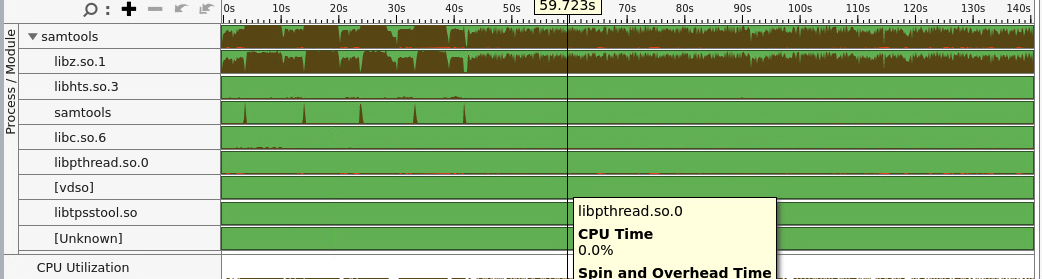
we can see how the CPU time was used by external libraries. This is accomplish by doing choosing process/module view.
[](https://wiki.unil.ch/ci/uploads/images/gallery/2022-06/image-1654876407497-35-58.png)