# Email

##### Cette documentation est disponible en français [ici](https://wiki.unil.ch/ci/books/messagerie/page/messagerie).

## Généralités

##### UNIL email account  


The UNIL account provided to all employees and students comes with a personal mailbox for email. User adresses usually follow the `firstname.lastname@unil.ch` pattern, with incrementing numbers appended at the end if multiple users have the same first name and last name. Since the migration to *Exchange Online*, mailboxes come with a default 100GB of data storage. Archiving your emails should therefore no longer be needed, as it is very unlikely to reach even half of that quota. As your mailbox is synchronised via *Exchange Online*, you will be able to access it via most internet browsers and compatible email applications.

If you have any question, do not hesitate to check out our [**FAQ page**](https://wiki.unil.ch/ci/books/messagerie/page/faq-502) or ask us directly if you can't find the answer there.

##### End of studies or contract  


UNIL email accounts are only open so long as the corresponding UNIL account is. Thus, when the UNIL account is closed at the end of a person's employment or student status within UNIL, the mailbox is closed as well. **If you are approaching the end of your contractual or student status, you will have six months after the official date to move the data you would like to keep as well as inform the people who contact you via your UNIL email adress before your accounts are closed permanently.**

## Access via web browser (Firefox, Safari, Edge, Chrome, ...)  


### Outlook Online

![logo_owa.png](https://wiki.unil.ch/ci/uploads/images/gallery/2020-02/logo_owa.png)

1. Go to [outlook.office.com](https://wiki.unil.ch/ci/outlook.office.com)
2. Log in using your UNIL email address and password
3. You now have access to all the functionalities provided by your *Exchange* account; e-mails, calendars, contacts, tasks, notes, etc.

---

## Access by application (computers, tablets, smartphones)  


### ![Apple-logo.png](https://wiki.unil.ch/ci/uploads/images/gallery/2022-11/scaled-1680-/apple-logo.png) macOS

<p class="callout info">**The CI recommends using Outlook instead of Apple Mail**, especially for UNIL employees. Using Apple Mail on mailboxes containing more than a few thousands of emails may lead to data corruption and loss.</p>

<details id="bkmrk-%5Boutlook%5D-exchange-a"><summary>\[Outlook\] Exchange account setup (email, calendars, etc.)</summary>

<p class="callout warning">Before starting, ensure that an up to date version of *Outlook* is installed. To do so, open the *Outlook* menu and click on *About Outlook*. If you are using the 2019 or 2016 version of *Outlook*, you will have to uninstall it and [install the latest version (french)](https://wiki.unil.ch/ci/books/distribution-de-logiciels/page/microsoft-365).</p>

1. Open *Microsoft Outlook* and enter your @unil.ch email address
2. A window opens and prompts you for your UNIL password 
    - If you have already logged into another *Microsoft* product, your email account should be automatically added  
          
        [![Capture d’écran 2023-03-06 à 10.24.44.png](https://wiki.unil.ch/ci/uploads/images/gallery/2023-03/scaled-1680-/capture-decran-2023-03-06-a-10-24-44.png)](https://wiki.unil.ch/ci/uploads/images/gallery/2023-03/capture-decran-2023-03-06-a-10-24-44.png)
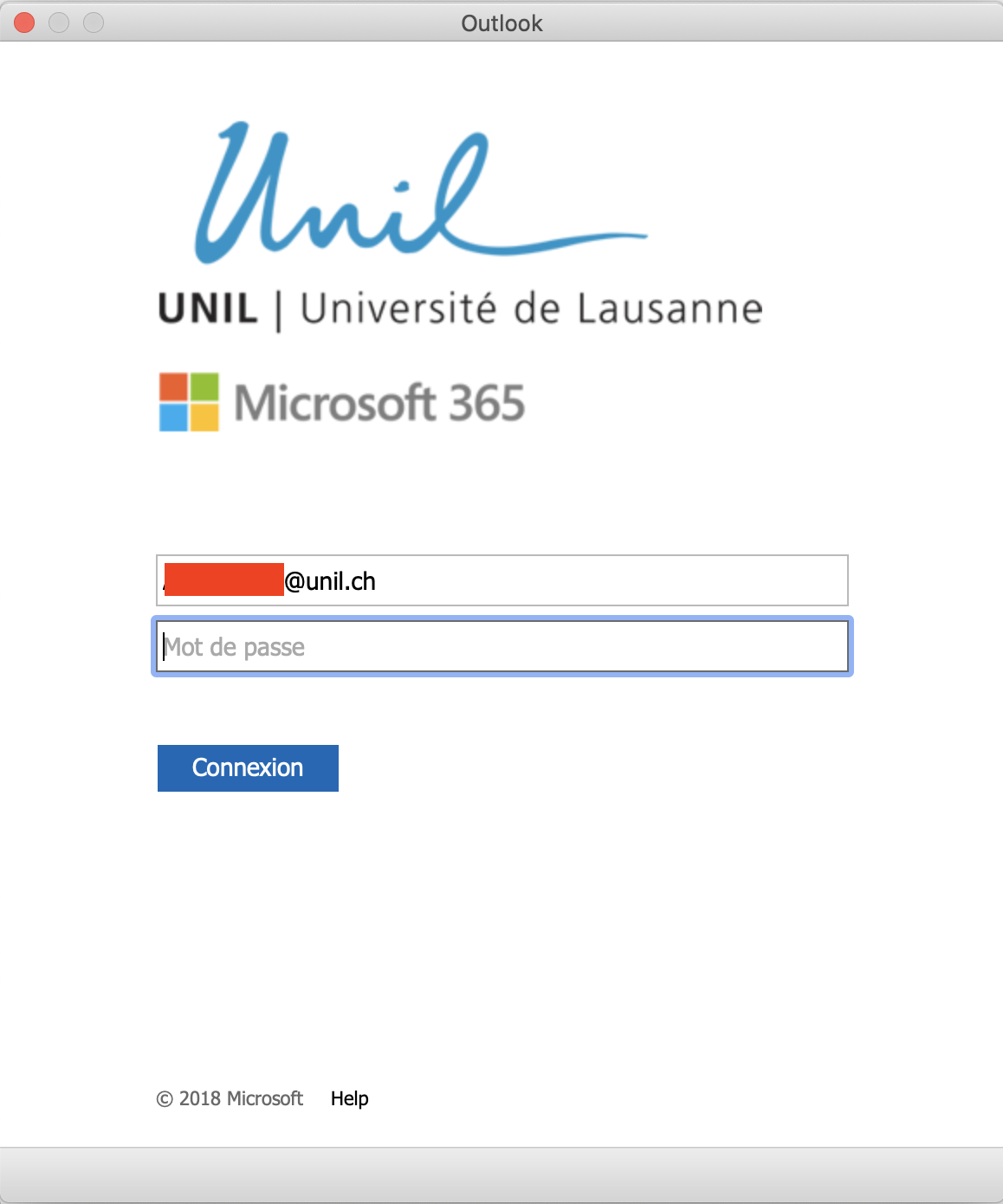
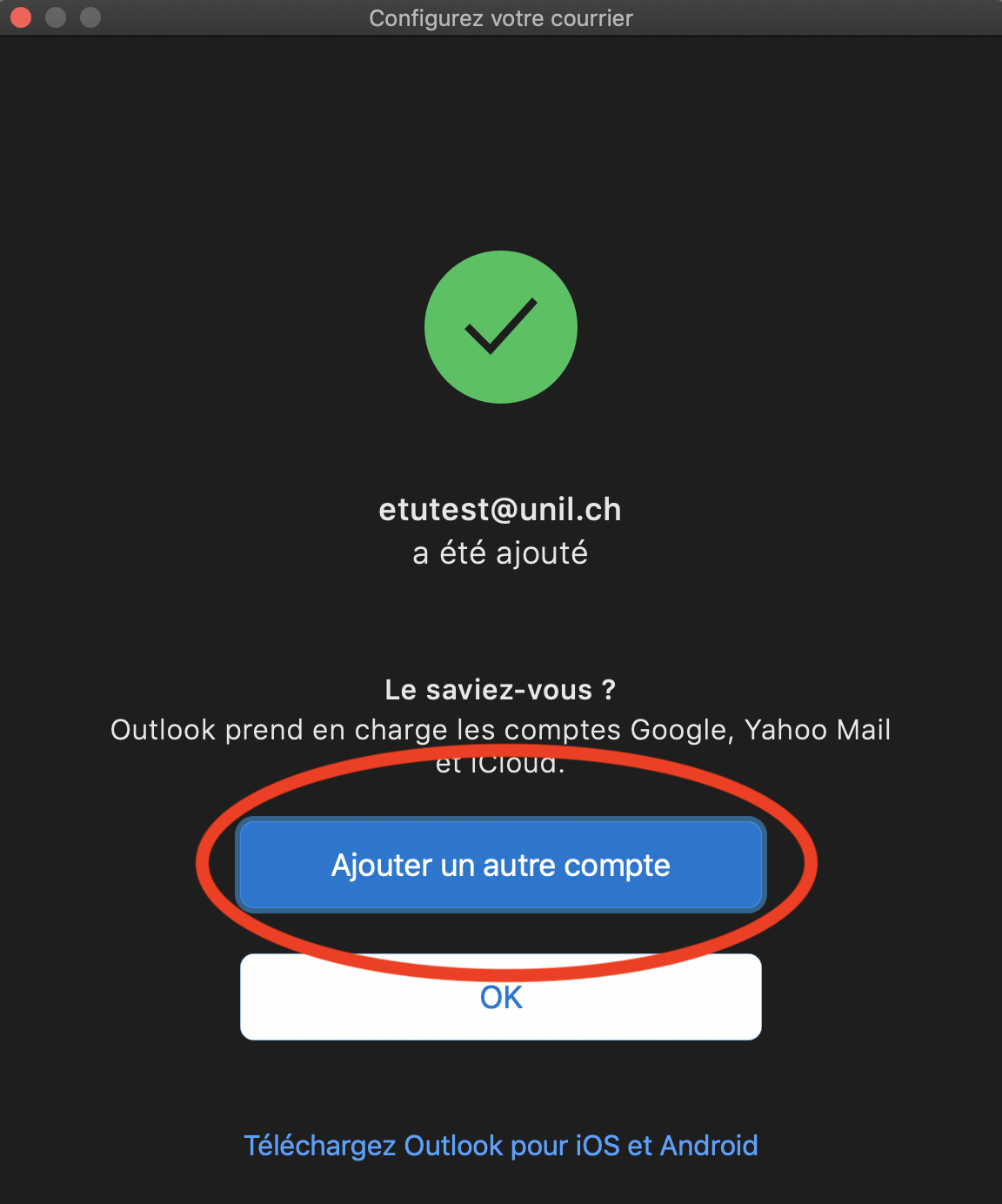
3. After logging in, the email account should be automatically added and set up. You should see a confirmation window.
4. If desired, you may add another email account by clicking the following button:  
      
    ![2.png](https://wiki.unil.ch/ci/uploads/images/gallery/2021-02/scaled-1680-/2.png)

</details><details id="bkmrk-%5Boutlook%5D-connecting"><summary>\[Outlook\] Connecting additional Exchange accounts</summary>

<p class="callout warning">Before starting, ensure that an up to date version of *Outlook* is installed. To do so, open the *Outlook* menu and click on *About Outlook*. If you are using the 2019 or 2016 version of *Outlook*, you will have to uninstall it and [install the latest version (french)](https://wiki.unil.ch/ci/books/distribution-de-logiciels/page/microsoft-365).</p>

1. Open the *Outlook* app
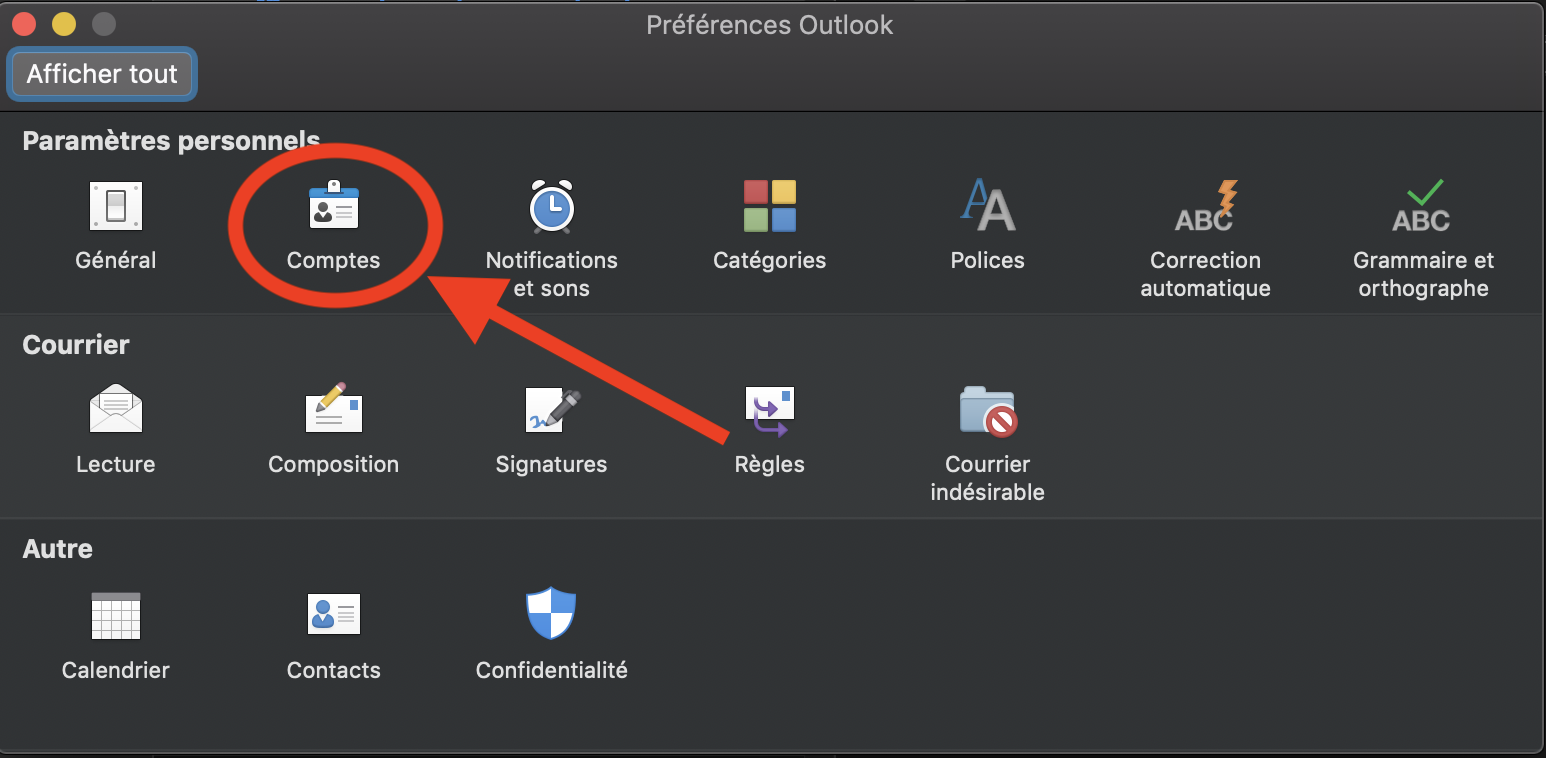
2. On the top left of the display, click on the *Outlook* menu then *Settings...* ![Capture d’écran 2022-11-30 à 15.11.47.png](https://wiki.unil.ch/ci/uploads/images/gallery/2022-11/capture-decran-2022-11-30-a-15-11-47.png)
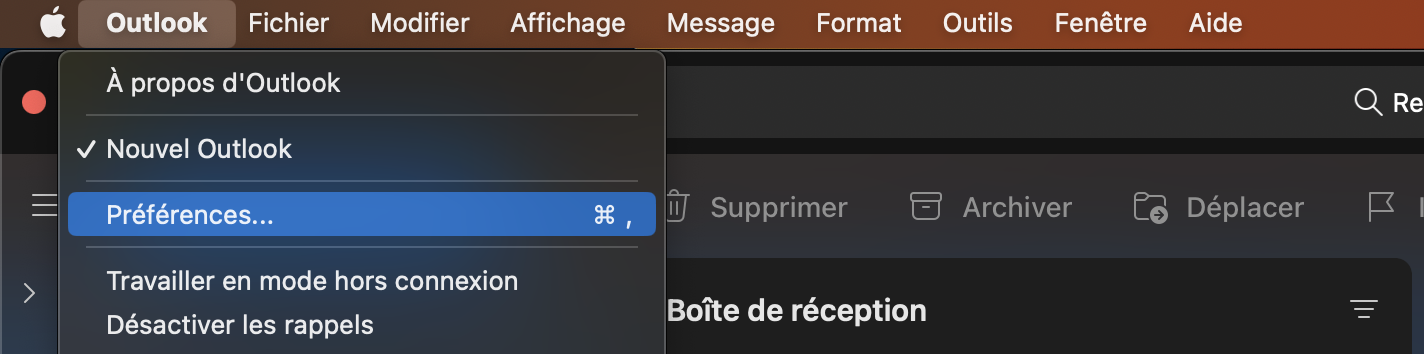
3. Click on the *Accounts* icon  
      
    **![3.png](https://wiki.unil.ch/ci/uploads/images/gallery/2021-02/scaled-1680-/3.png)**
4. Click on the `+` symbol, then **New account...** ![4.png](https://wiki.unil.ch/ci/uploads/images/gallery/2021-02/scaled-1680-/4.png)
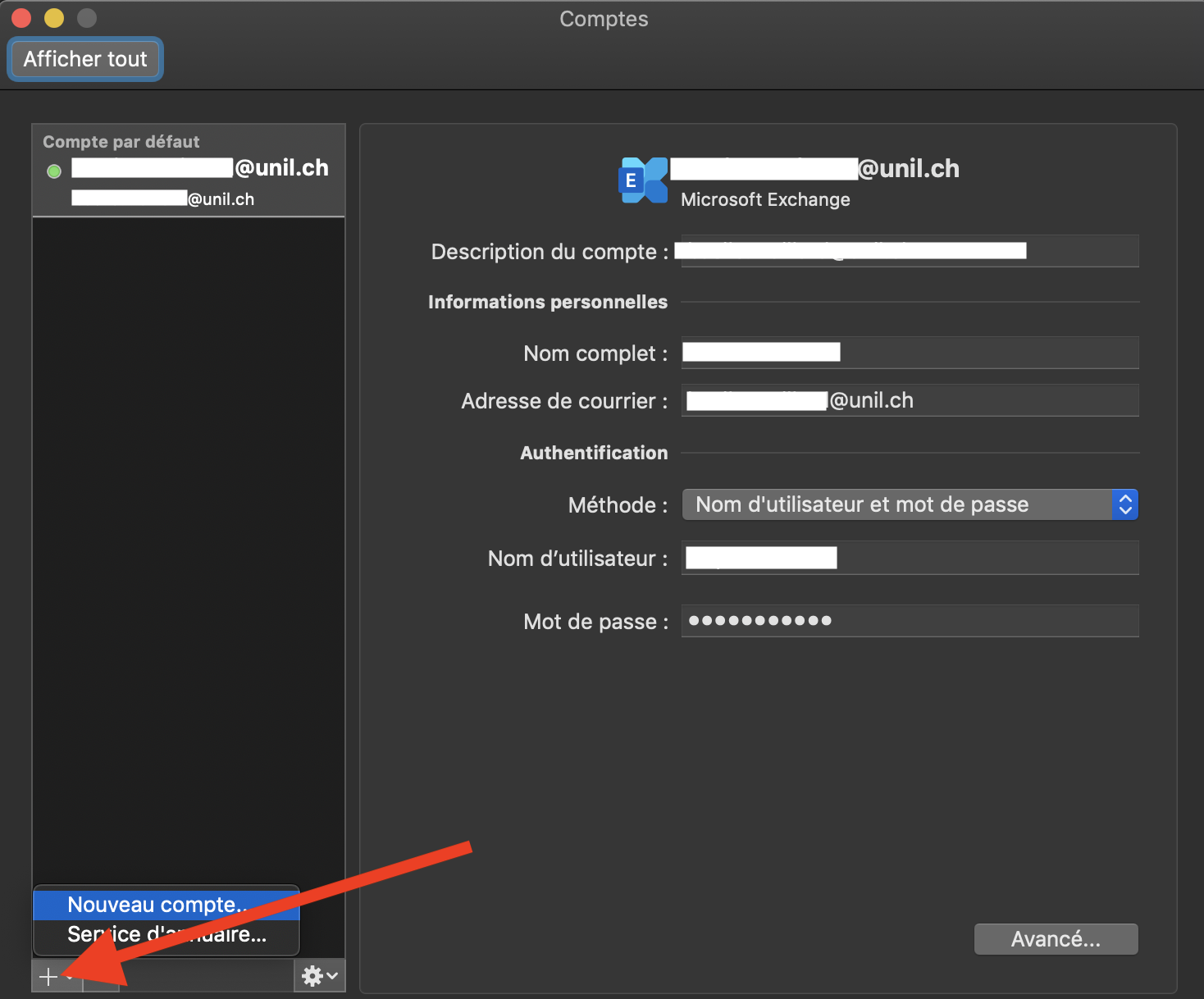
5. Follow the standard *Exchange* account setup process referenced above

</details><div id="bkmrk--1"></div><details id="bkmrk-%5Boutlook%5D-ajouter-un"><summary>\[Outlook\] Add a mailbox that is shared through your Unil account</summary>

<p class="callout info">These instructions are for the newly introduced shared mailboxes that do not possess their own credentials but are instead accessed by a person's own Unil account. If you would like to add a shared mailbox with its own credentials, you can follow the procedure for standard *Exchange* accounts above.   
</p>

<p class="callout warning">**Shared mailboxes cannot be added to *Apple Mail*. They are only available on *Microsoft Outlook*.**</p>

<p class="callout warning">Before starting, ensure that an up to date version of *Outlook* is installed. To do so, open the *Outlook* menu and click on *About Outlook*. If you are using the 2019 or 2016 version of *Outlook*, you will have to uninstall it and [install the latest version (french)](https://wiki.unil.ch/ci/books/distribution-de-logiciels/page/microsoft-365).</p>

1. Open the *Outlook* app
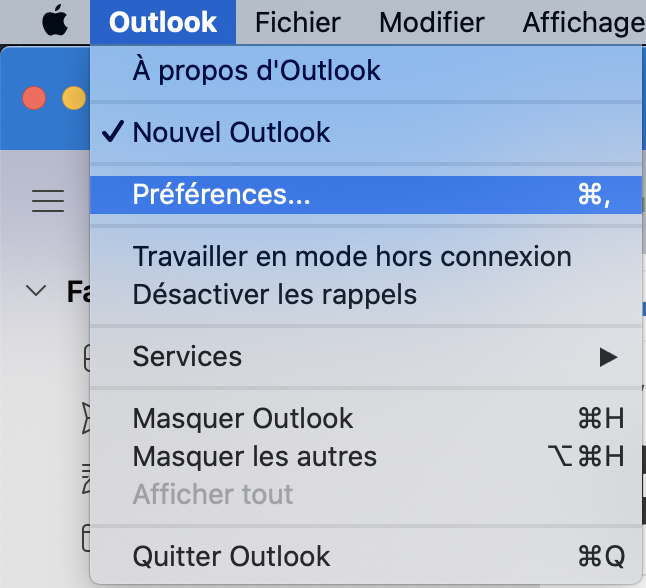
2. On the top left, click on *Outlook* right next to the *Apple* icon, then *Settings...*  
      
    [![Capture d’écran 2023-03-06 à 09.39.15.png](https://wiki.unil.ch/ci/uploads/images/gallery/2023-03/scaled-1680-/capture-decran-2023-03-06-a-09-39-15.png)](https://wiki.unil.ch/ci/uploads/images/gallery/2023-03/capture-decran-2023-03-06-a-09-39-15.png)
3. Select your personal account in the list on the left, then click on *Delegating and sharing*  
      
    [![Capture d’écran 2023-03-06 à 09.41.09.png](https://wiki.unil.ch/ci/uploads/images/gallery/2023-03/scaled-1680-/capture-decran-2023-03-06-a-09-41-09.png)](https://wiki.unil.ch/ci/uploads/images/gallery/2023-03/capture-decran-2023-03-06-a-09-41-09.png)
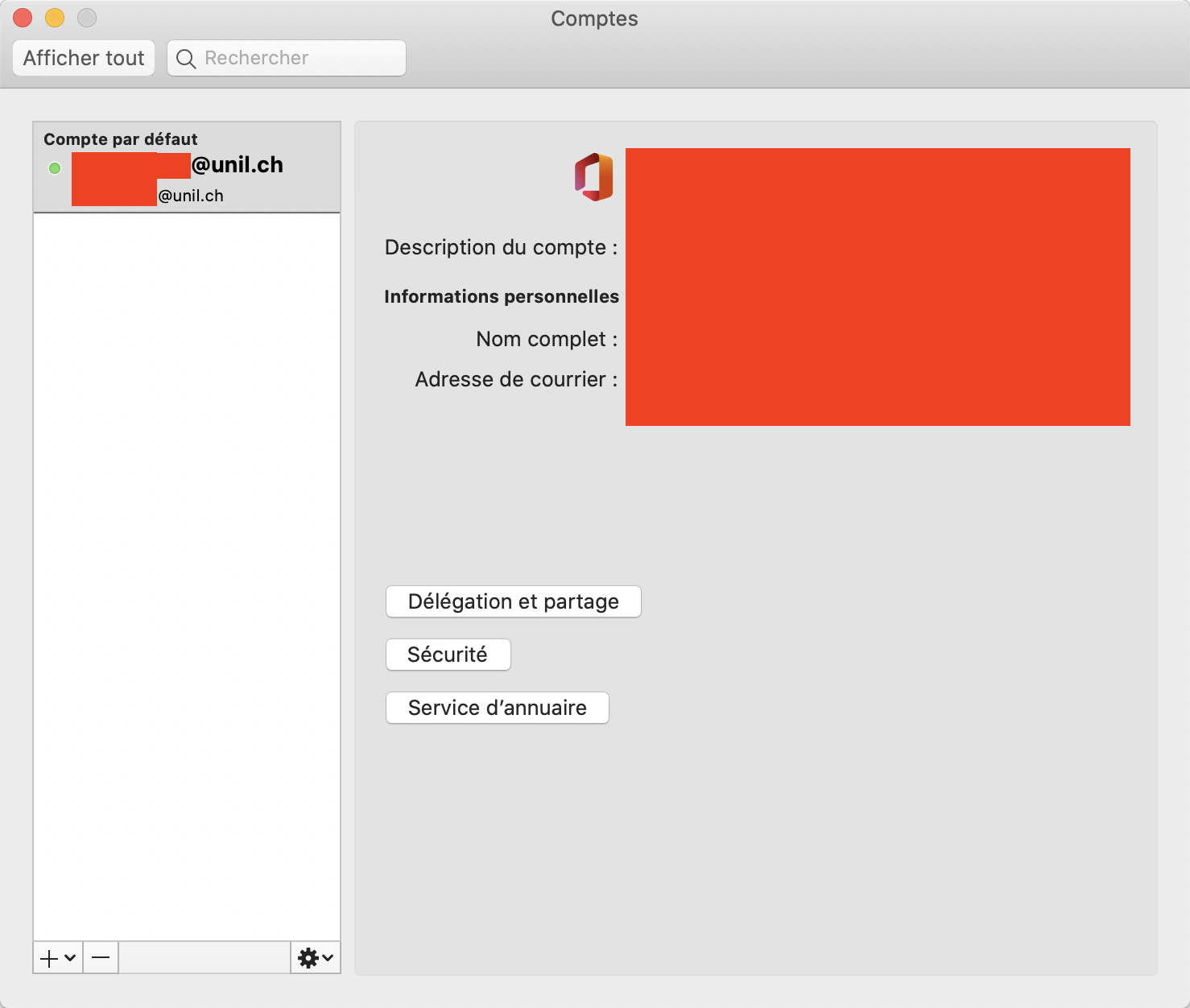
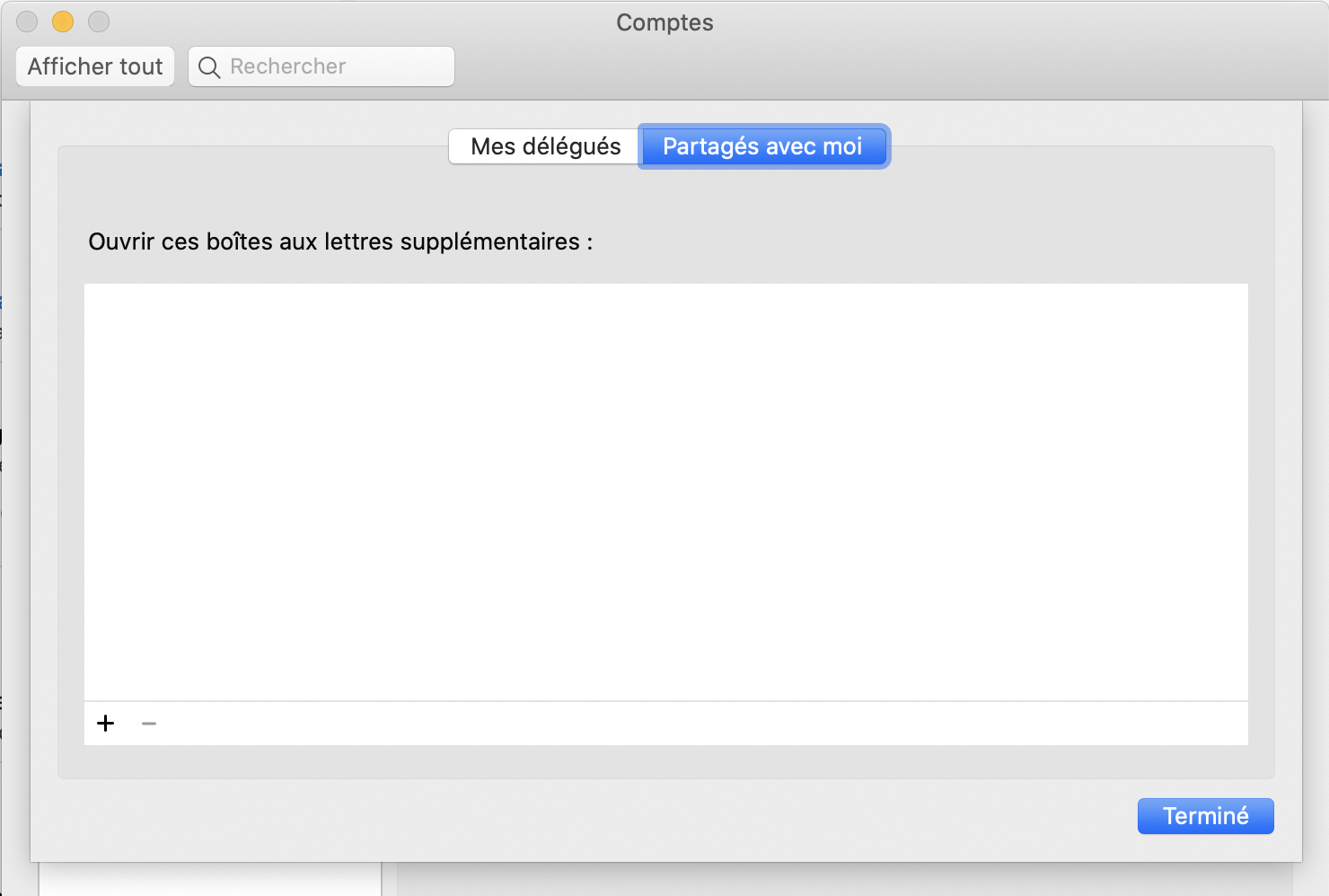
4. Open the *Shared with me* tab and click on the `+` on the bottom left  
      
    [![Capture d’écran 2023-03-06 à 09.42.44.png](https://wiki.unil.ch/ci/uploads/images/gallery/2023-03/scaled-1680-/capture-decran-2023-03-06-a-09-42-44.png)](https://wiki.unil.ch/ci/uploads/images/gallery/2023-03/capture-decran-2023-03-06-a-09-42-44.png)
5. Write the name of your shared mailbox in the search field. For example, if you would like to add `boite-mail-partagee@unil.ch`, look for `boite-mail-partagee`) and double-click it
6. The shared mailbox should now appear in *Outlook*'s main window.

If an error message pops up, please check with the person reponsible for the mailbox that your permissions have been granted properly then wait a moment before trying again. If the problem persists, please reach out to the helpdesk.

</details>#### Apple Mail

<details id="bkmrk-%5Bapple-mail%5D-ajout-d"><summary>\[Apple Mail\] Connecting an Exchange account</summary>

<p class="callout info">Archived emails will only be available on the device they have been archived on. They will no longer be synchronised with your other devices and the UNIL email servers.   
</p>

1. Open the *Mail* app
2. On the top left, click on *Mail* then *Accounts...*
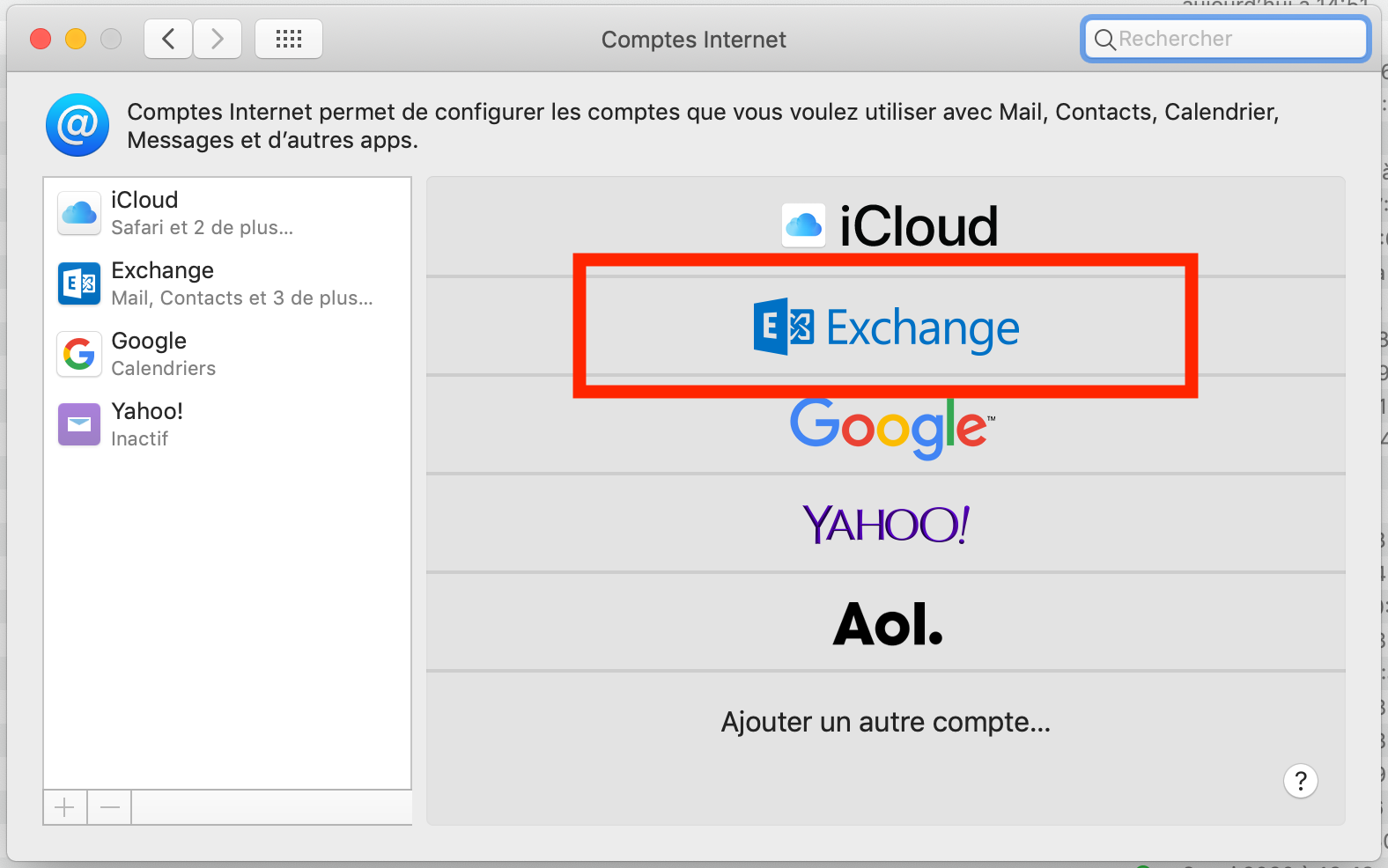
3. Select *Exchange*  
      
    [![mail_mac_00000.png](https://wiki.unil.ch/ci/uploads/images/gallery/2020-06/scaled-1680-/mail_mac_00000.png)](https://wiki.unil.ch/ci/uploads/images/gallery/2020-06/mail_mac_00000.png)
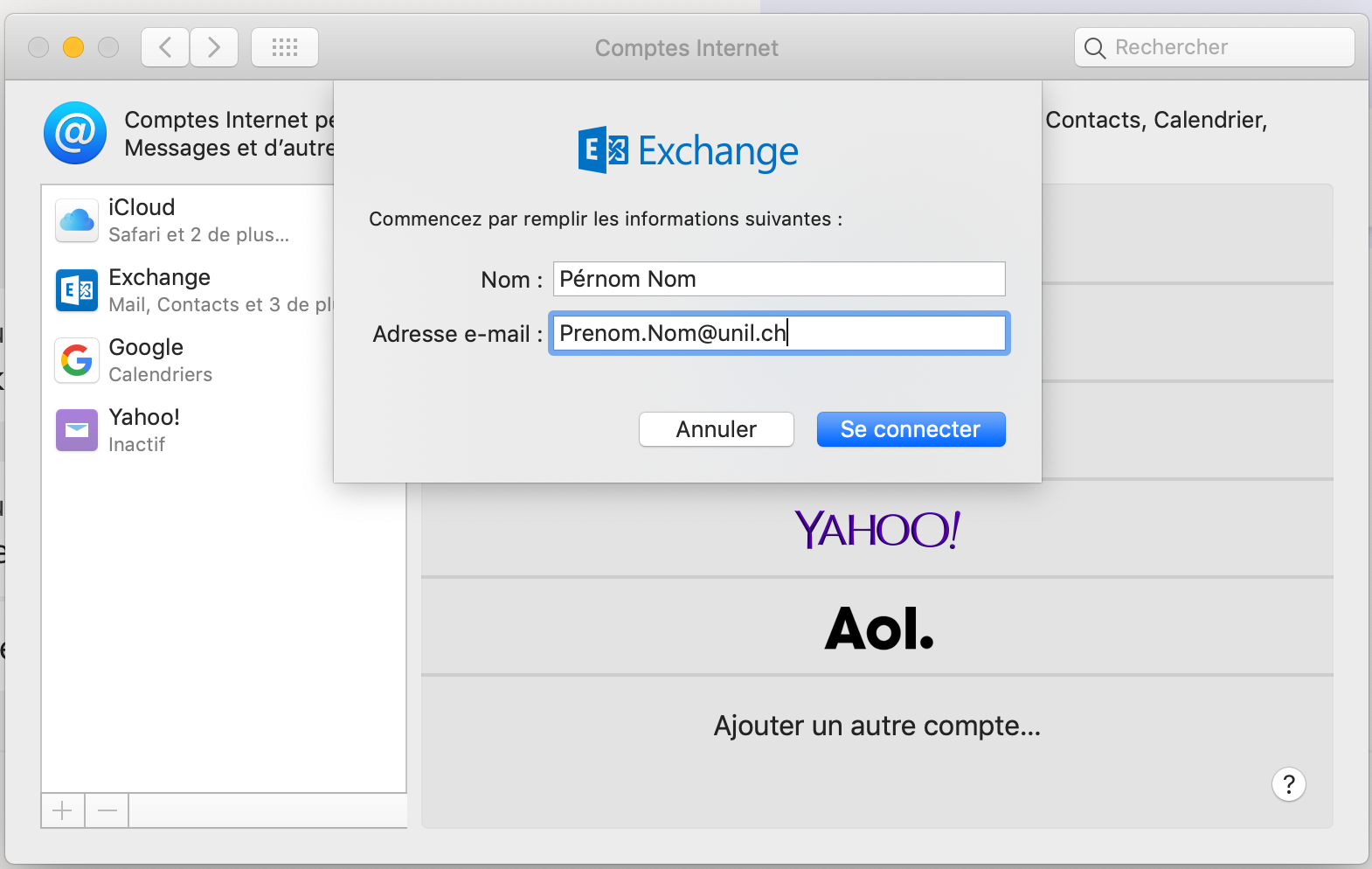
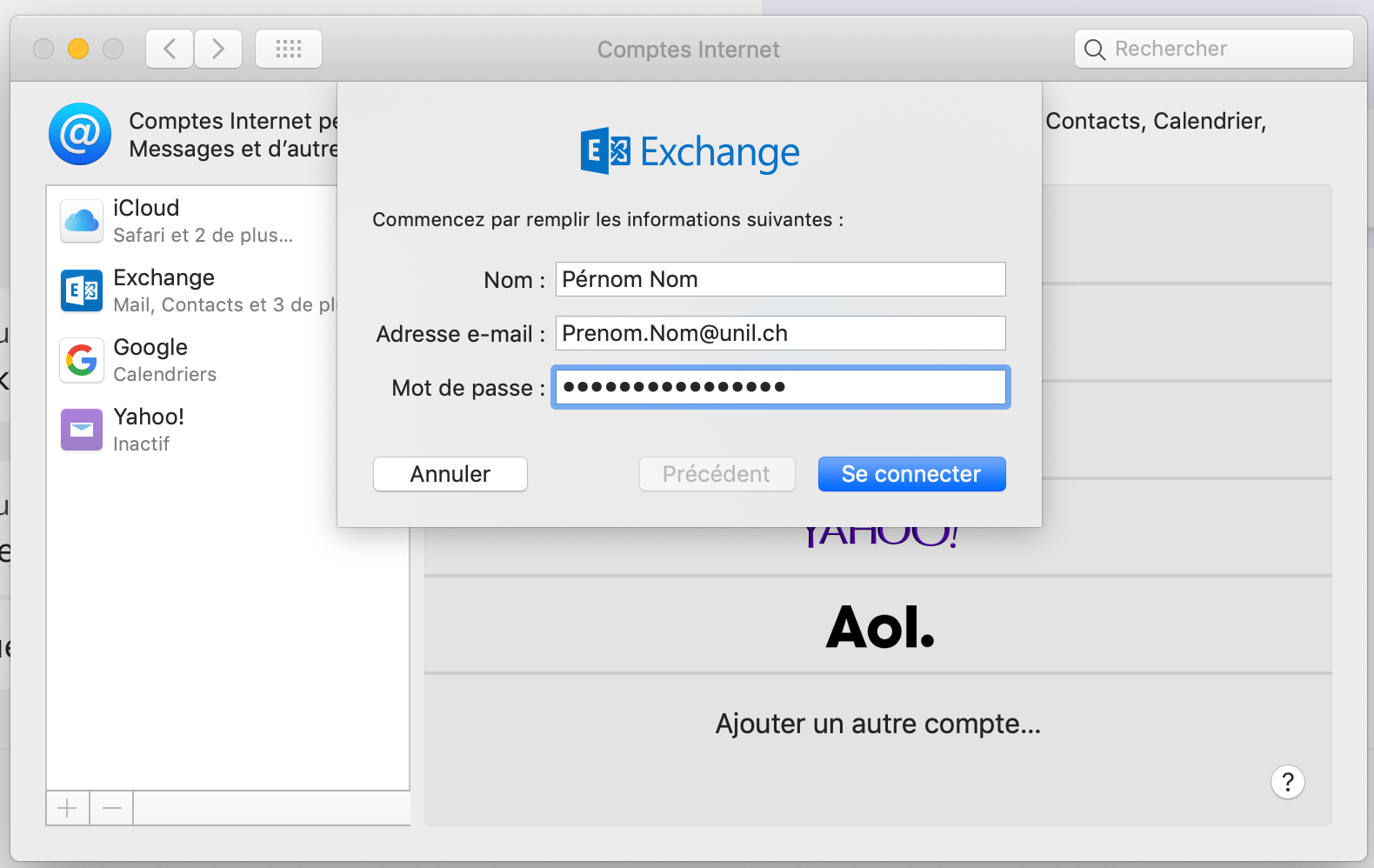
4. Fill in the *Name* and *e-mail address* fields*,* then click on the blue button  
      
    [![mail_mac_00001.png](https://wiki.unil.ch/ci/uploads/images/gallery/2020-06/scaled-1680-/mail_mac_00001.png)](https://wiki.unil.ch/ci/uploads/images/gallery/2020-06/mail_mac_00001.png)
5. Select the blue button again. Manual configuration does not work since the migration to *Exchange Online*.   
      
    [![Capture d’écran 2023-03-06 à 10.45.41.png](https://wiki.unil.ch/ci/uploads/images/gallery/2023-03/scaled-1680-/capture-decran-2023-03-06-a-10-45-41.png)](https://wiki.unil.ch/ci/uploads/images/gallery/2023-03/capture-decran-2023-03-06-a-10-45-41.png)
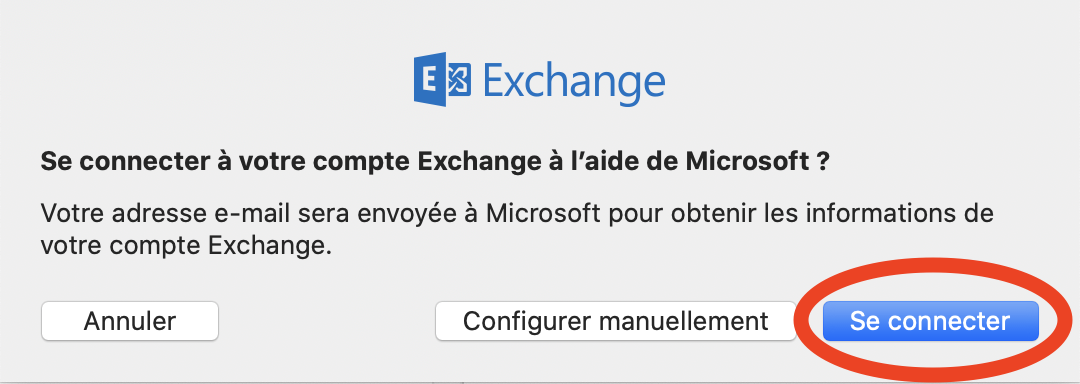
6. Enter your Unil account password, then continue  
      
    [![mail_mac_00003.png](https://wiki.unil.ch/ci/uploads/images/gallery/2020-06/scaled-1680-/mail_mac_00003.png)](https://wiki.unil.ch/ci/uploads/images/gallery/2020-06/mail_mac_00003.png)
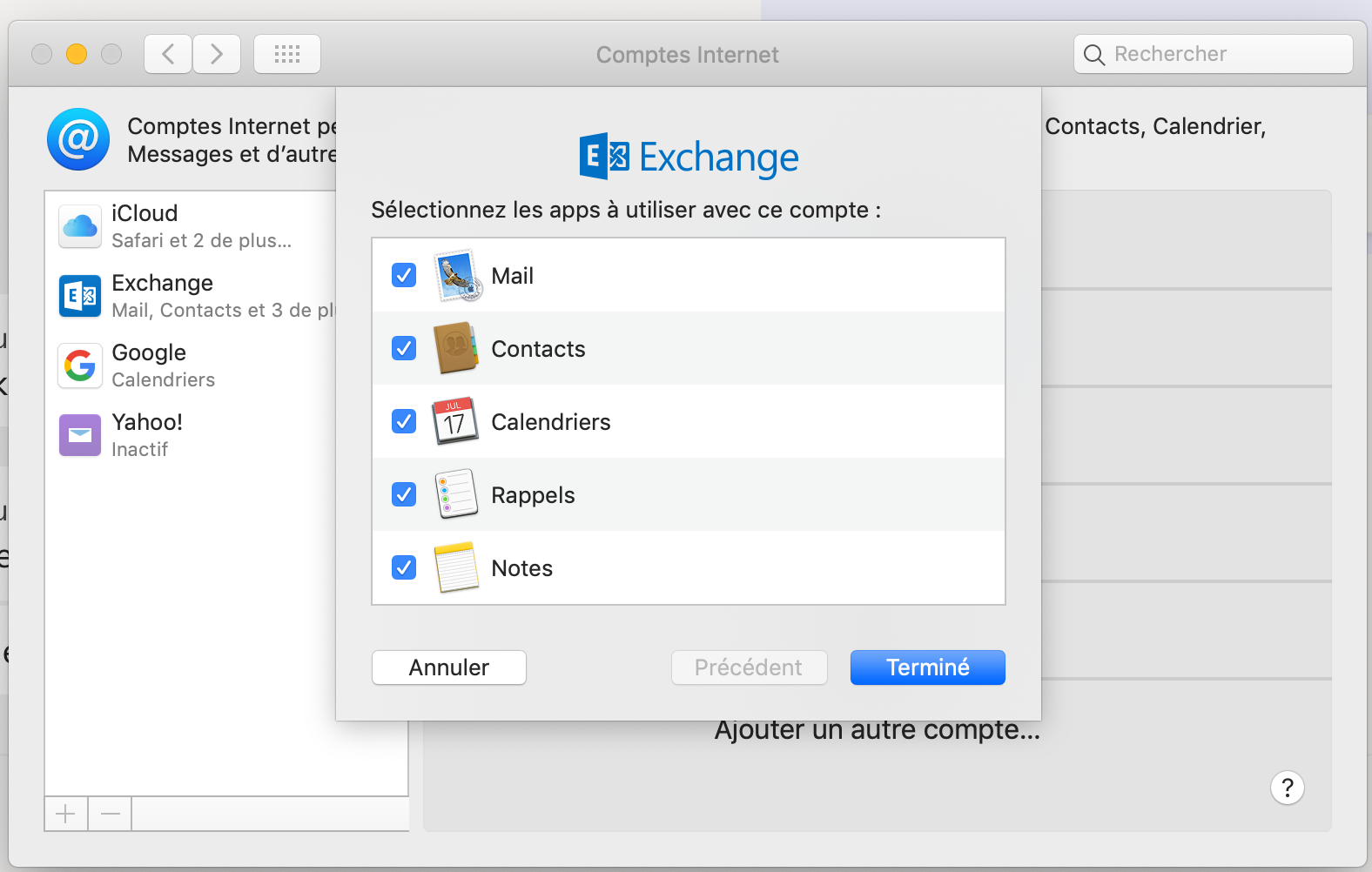
7. Select the *Exchange* services you would like to enable, then click on *Finish*  
      
    [![mail_mac_00004.png](https://wiki.unil.ch/ci/uploads/images/gallery/2020-06/scaled-1680-/mail_mac_00004.png)](https://wiki.unil.ch/ci/uploads/images/gallery/2020-06/mail_mac_00004.png)
</details><details id="bkmrk-%5Bapple-mail%5D-archive"><summary>\[Apple Mail\] Archiving emails on macOS</summary>

<div id="bkmrk-ouvrir-l%27application-0"><div><div>1. Open the *Mail* app
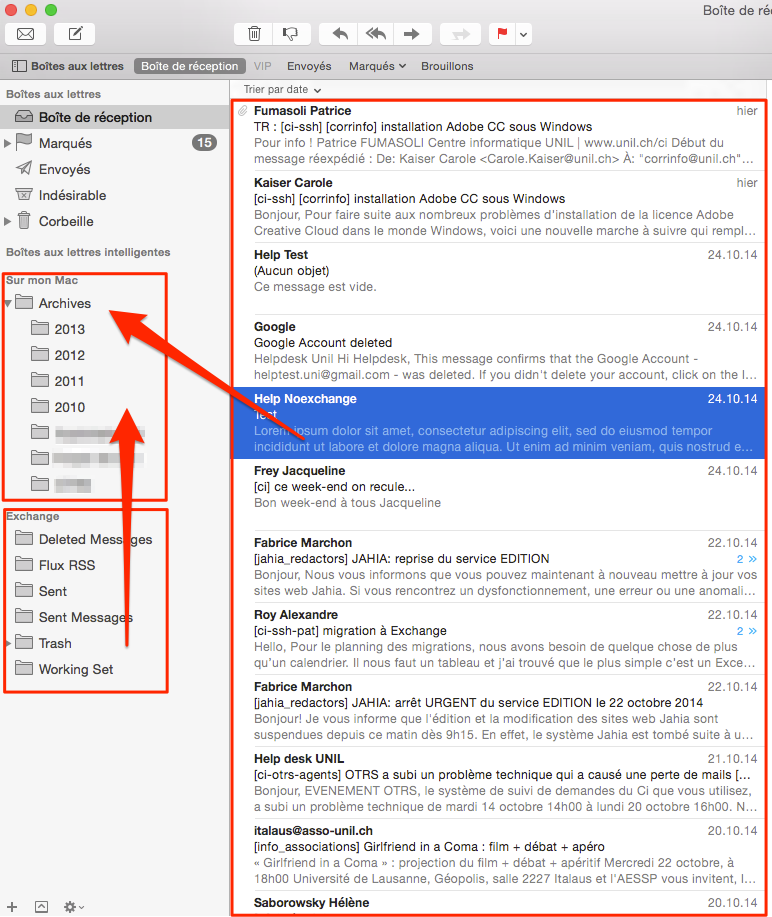
2. Click on the `+` button on the bottom left of the main window, then select *New mailbox...*  
      
    ![mail_new_bal_local.png](https://wiki.unil.ch/ci/uploads/images/gallery/2020-02/scaled-1680-/mail_new_bal_local.png)

</div></div></div><div id="bkmrk-sous-%22emplacement%22-s"><div><div>3. Under *Location*, select *On my mac.* Under *Name*, type in something like "Archives" and click on *OK*  
      
    ![mail_name_new_bal.png](https://wiki.unil.ch/ci/uploads/images/gallery/2020-02/scaled-1680-/mail_name_new_bal.png)

</div></div></div><div id="bkmrk-d%C3%A9placer-des-mails-o"><div><div>4. Move emails or mailboxes from your *Exchange* account into the new *Archives* mailbox  
    <p class="callout warning">Do not move more than a thousand emails at a time. Doing so might cause loss of data and potential mailbox corruption. Do call the helpdesk if you are feeling unsure or have sudden doubts about what you are attempting to do.  
    </p>
    
    ##### ![mail_archives_mail.png](https://wiki.unil.ch/ci/uploads/images/gallery/2020-02/scaled-1680-/mail_archives_mail.png)

</div></div></div></details>---

### ![logoWin.png](https://wiki.unil.ch/ci/uploads/images/gallery/2020-02/scaled-1680-/logoWin.png)Windows

<p class="callout info">The Unil Centre Informatique recommends using *Microsoft Outlook* to access your Unil email mailbox on *Windows*.   
</p>

<p class="callout warning">The pictures in this section are out of date.</p>

<div id="bkmrk--9"></div>#### \[Outlook\] Exchange account setup (mail, calendars, etc.)  


1. Open *Outlook*
2. Go to the *File* menu, then *Account settings* and finally *Add an account*
3. Fill in the fields with your name and Unil credentials
4. Click *Next*  
      
    [![O2013_1-1.png](https://wiki.unil.ch/ci/uploads/images/gallery/2020-02/scaled-1680-/O2013_1-1.png)](https://wiki.unil.ch/ci/uploads/images/gallery/2020-02/O2013_1-1.png)
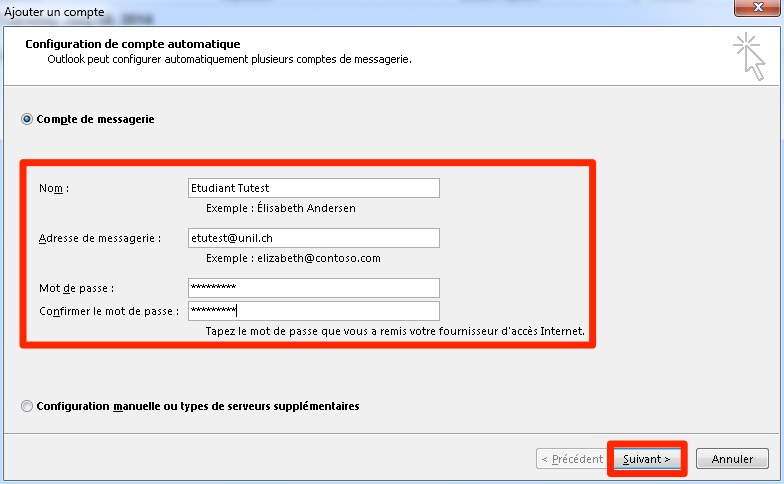
5. Wait for the automatic setup process to complete, then click *Finish  
      
    [![O2013_2-1.png](https://wiki.unil.ch/ci/uploads/images/gallery/2020-02/scaled-1680-/O2013_2-1.png)](https://wiki.unil.ch/ci/uploads/images/gallery/2020-02/O2013_2-1.png)*
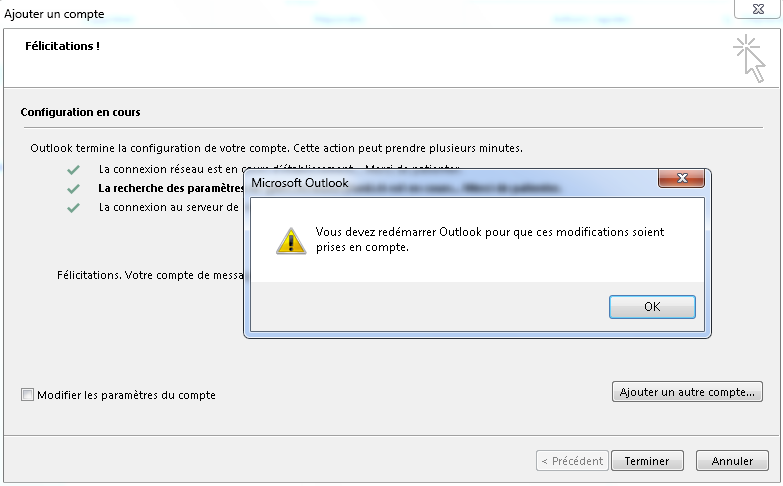
6. Restart *Outlook*
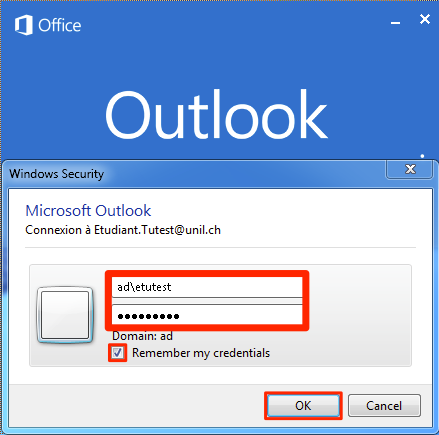
7. Once *Outlook* has started, you should get a login prompt. Fill in the first field with `ad\` followed by your username. For `etutest`, the field would look like `ad\etutest`
8. Tick the *Remember my credentials* box and click *OK* to proceed  
      
    [![O2013_3.png](https://wiki.unil.ch/ci/uploads/images/gallery/2020-02/scaled-1680-/O2013_3.png)](https://wiki.unil.ch/ci/uploads/images/gallery/2020-02/O2013_3.png)
<details id="bkmrk-%5Boutlook%5D-archiving-"><summary>\[Outlook\] Archiving emails on Windows</summary>

1. Open *Outlook*
2. Go to *Files*
3. Select *Account settings,* then *Account settings...*  
      
    [![creerPST1.png](https://wiki.unil.ch/ci/uploads/images/gallery/2020-02/scaled-1680-/creerPST1.png)](https://wiki.unil.ch/ci/uploads/images/gallery/2020-02/creerPST1.png)
4. Click on *Data files* then *Add...*
5. Select a location for your archive, then give your archive a name  
      
    [![creerPST2.png](https://wiki.unil.ch/ci/uploads/images/gallery/2020-02/scaled-1680-/creerPST2.png)](https://wiki.unil.ch/ci/uploads/images/gallery/2020-02/creerPST2.png)
6. Select *OK*, then go back to your *Outlook* mailbox
7. Right click *Outlook Data Files.*, then select *New folder...*  
      
    [![outlook_new_bal1.png](https://wiki.unil.ch/ci/uploads/images/gallery/2020-02/scaled-1680-/outlook_new_bal1.png)](https://wiki.unil.ch/ci/uploads/images/gallery/2020-02/outlook_new_bal1.png)
8. Input the name you previously picked for your archive
9. You may now move emails or mailboxes into the archive folder  
      
    [![outlook_achives2.png](https://wiki.unil.ch/ci/uploads/images/gallery/2020-02/scaled-1680-/outlook_achives2.png)](https://wiki.unil.ch/ci/uploads/images/gallery/2020-02/outlook_achives2.png)

</details>---

### iOS (iPhone/iPad/iPod Touch)

<p class="callout info">The CI recommends using the built-in *Apple Mail* app on iOS, but the *Outlook* app by *Microsoft* works as well.  
</p>

![apple-iphone13-mini.png](https://wiki.unil.ch/ci/uploads/images/gallery/2023-03/apple-iphone13-mini.png)

- Available options  
    
    - e-mail
    - calendar
    - contacts
    - reminders
    - notes

#### **Mail iOS** Exchange account setup (mail, calendars, etc.)  


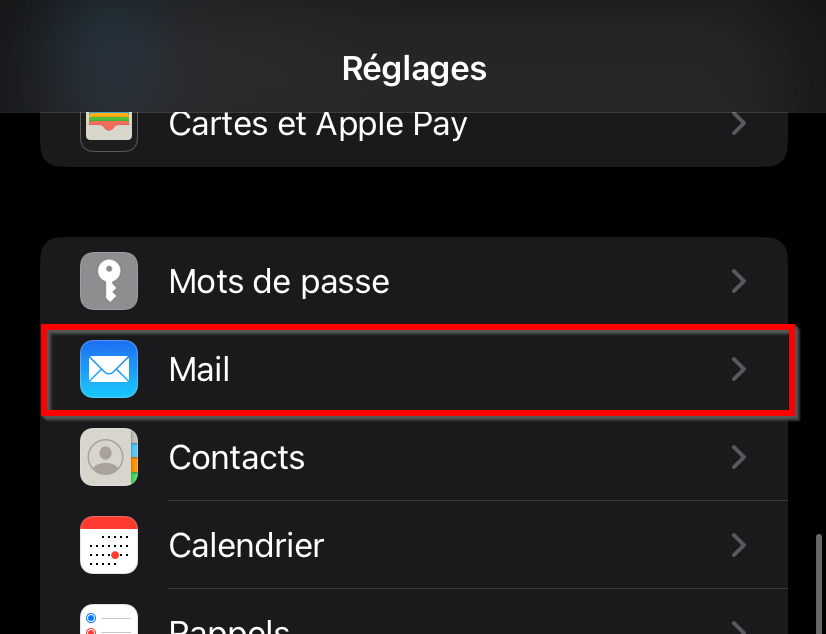
1. Go to *Settings*
2. Select *Mail*  
      
    [![iOS1.png](https://wiki.unil.ch/ci/uploads/images/gallery/2022-11/scaled-1680-/ios1.png)](https://wiki.unil.ch/ci/uploads/images/gallery/2022-11/ios1.png)
3. Select *Accounts*  
      
    [![iOS2.png](https://wiki.unil.ch/ci/uploads/images/gallery/2022-11/scaled-1680-/ios2.png)](https://wiki.unil.ch/ci/uploads/images/gallery/2022-11/ios2.png)
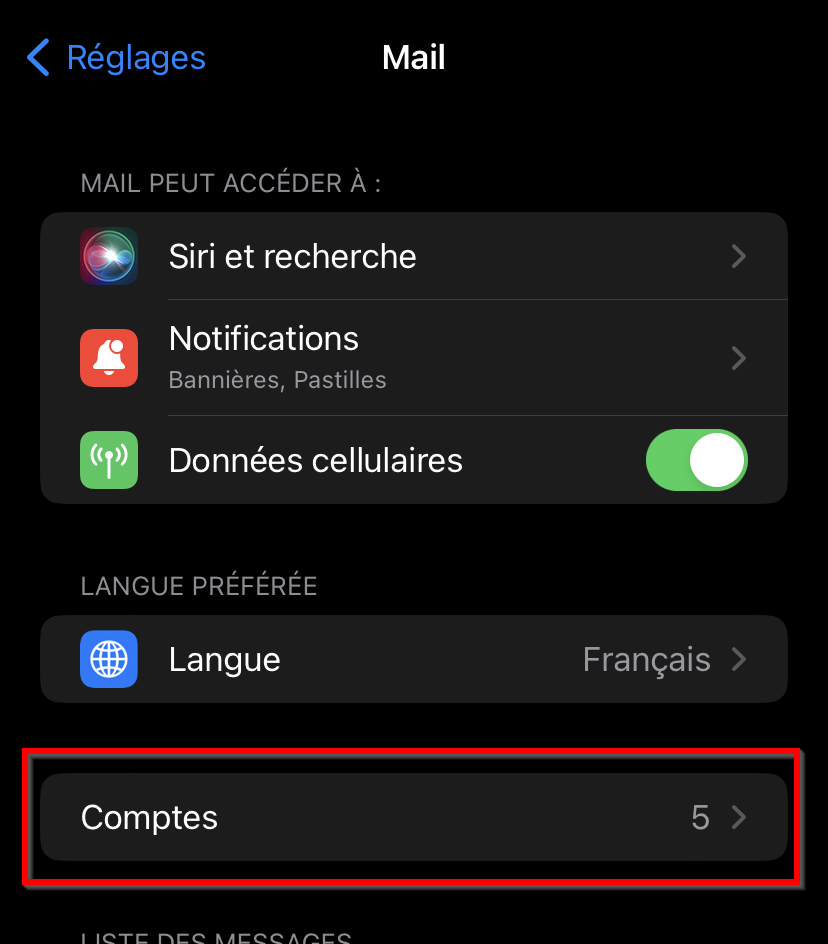
4. Select *Add an account*  
      
    [![iOS3.png](https://wiki.unil.ch/ci/uploads/images/gallery/2022-11/scaled-1680-/ios3.png)](https://wiki.unil.ch/ci/uploads/images/gallery/2022-11/ios3.png)
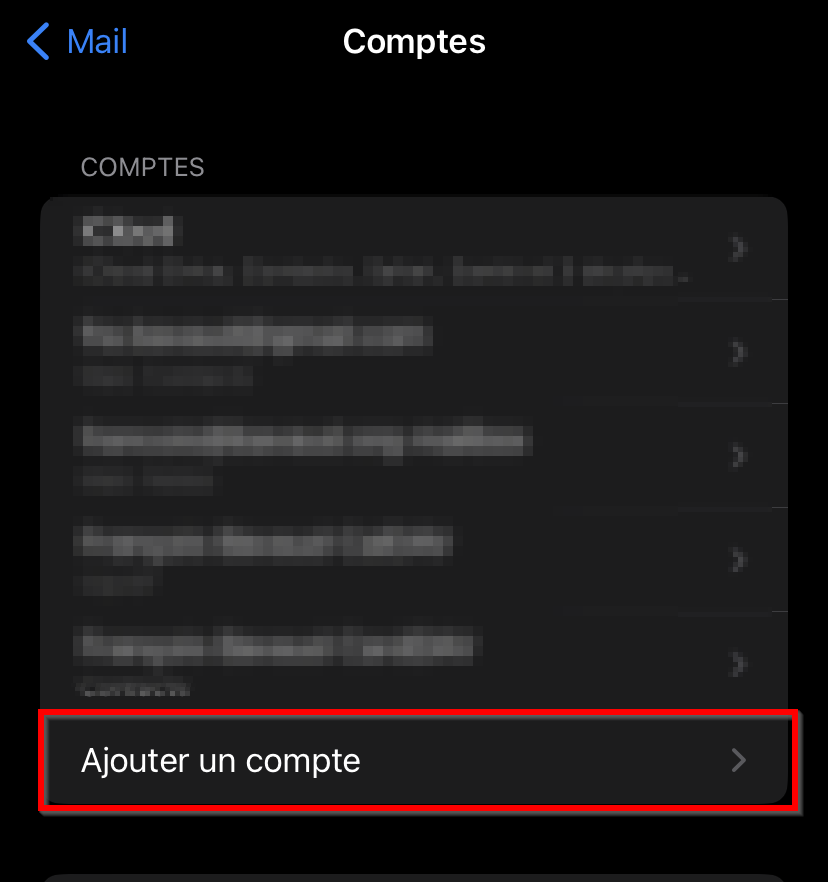
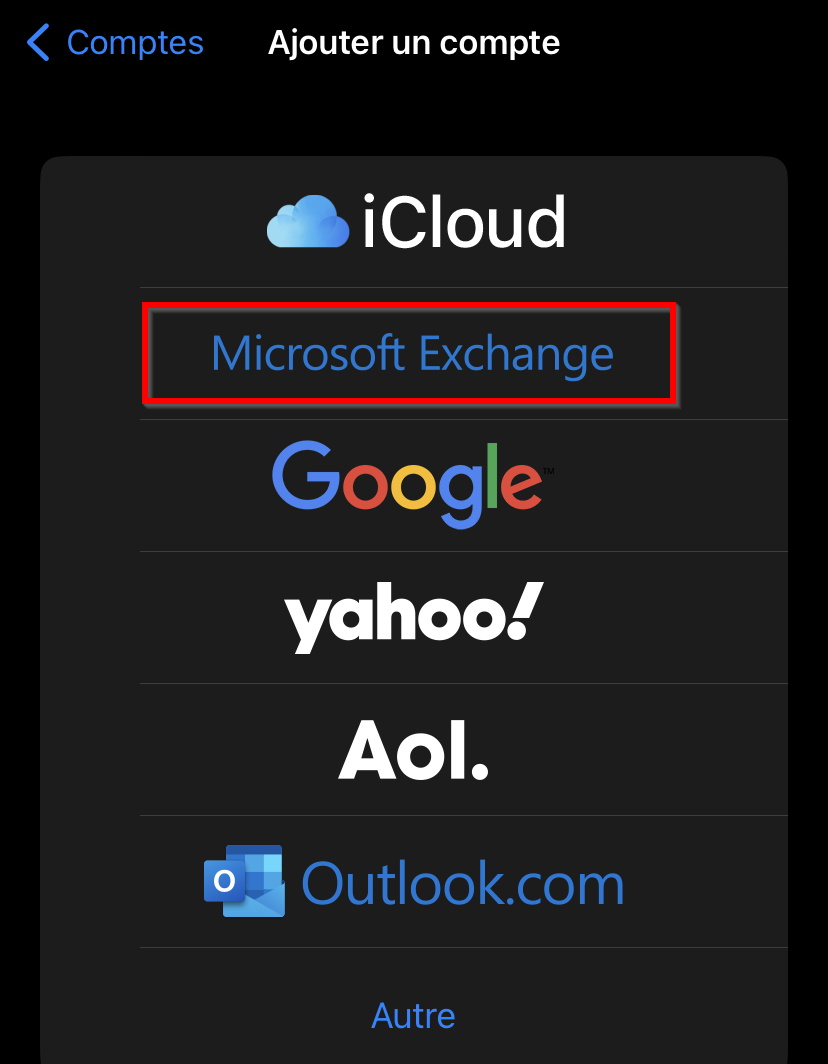
5. Select *Microsoft Exchange*  
      
    [![iOS4.png](https://wiki.unil.ch/ci/uploads/images/gallery/2022-11/scaled-1680-/ios4.png)](https://wiki.unil.ch/ci/uploads/images/gallery/2022-11/ios4.png)
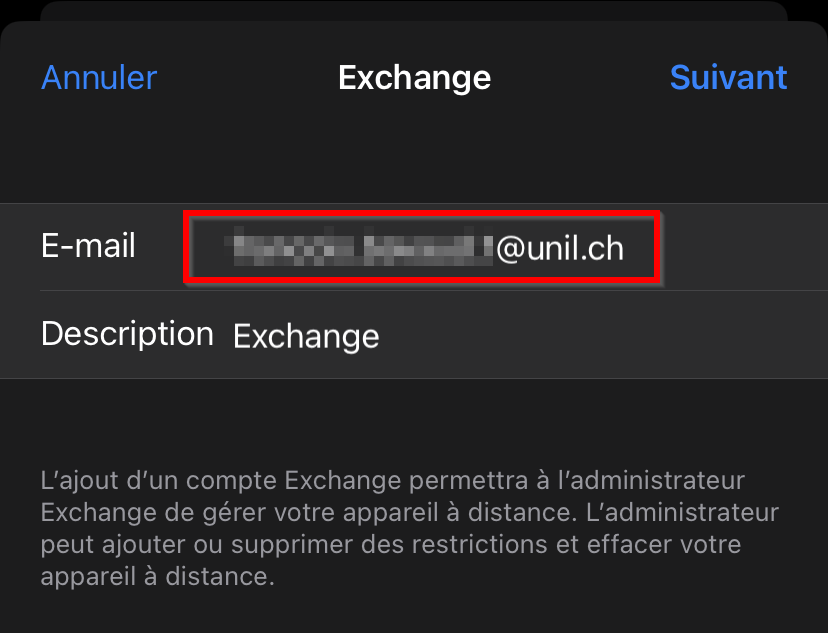
6. Enter your @unil email address and a description  
      
    [![iOS5.png](https://wiki.unil.ch/ci/uploads/images/gallery/2022-11/scaled-1680-/ios5.png)](https://wiki.unil.ch/ci/uploads/images/gallery/2022-11/ios5.png)
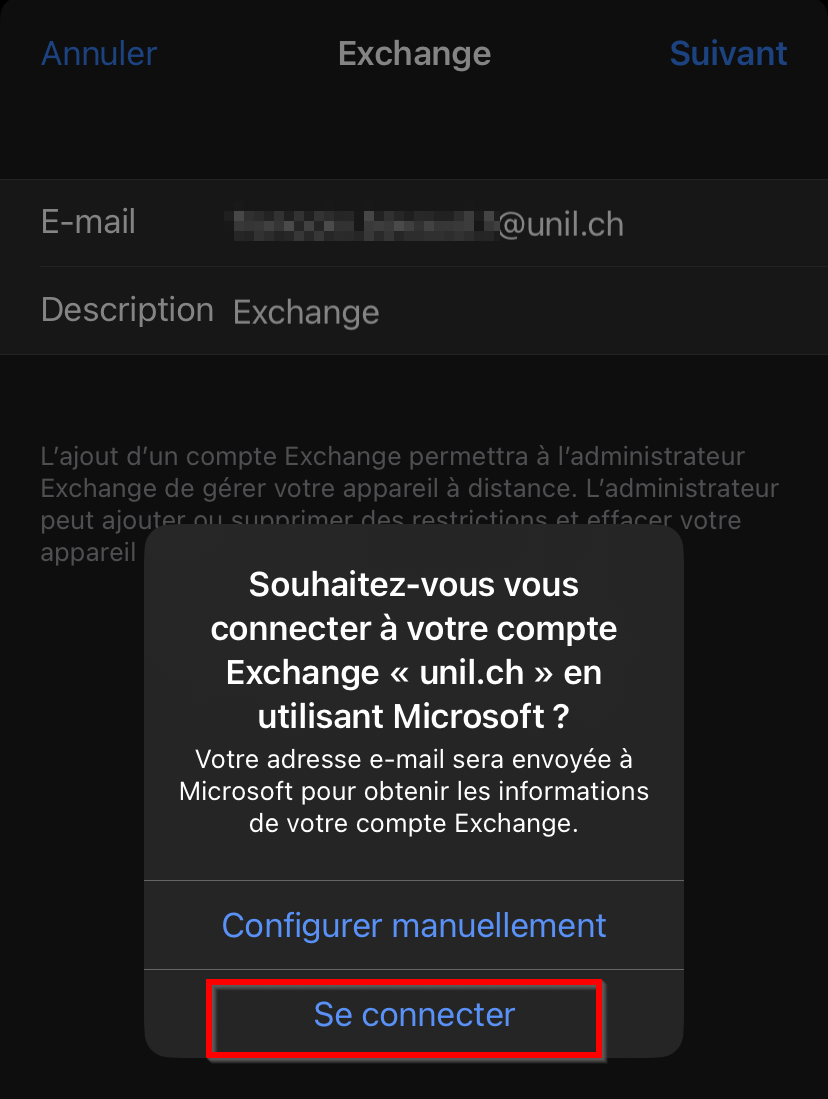
7. Select *Connect*  
      
    [![iOS6.png](https://wiki.unil.ch/ci/uploads/images/gallery/2022-11/scaled-1680-/ios6.png)](https://wiki.unil.ch/ci/uploads/images/gallery/2022-11/ios6.png)
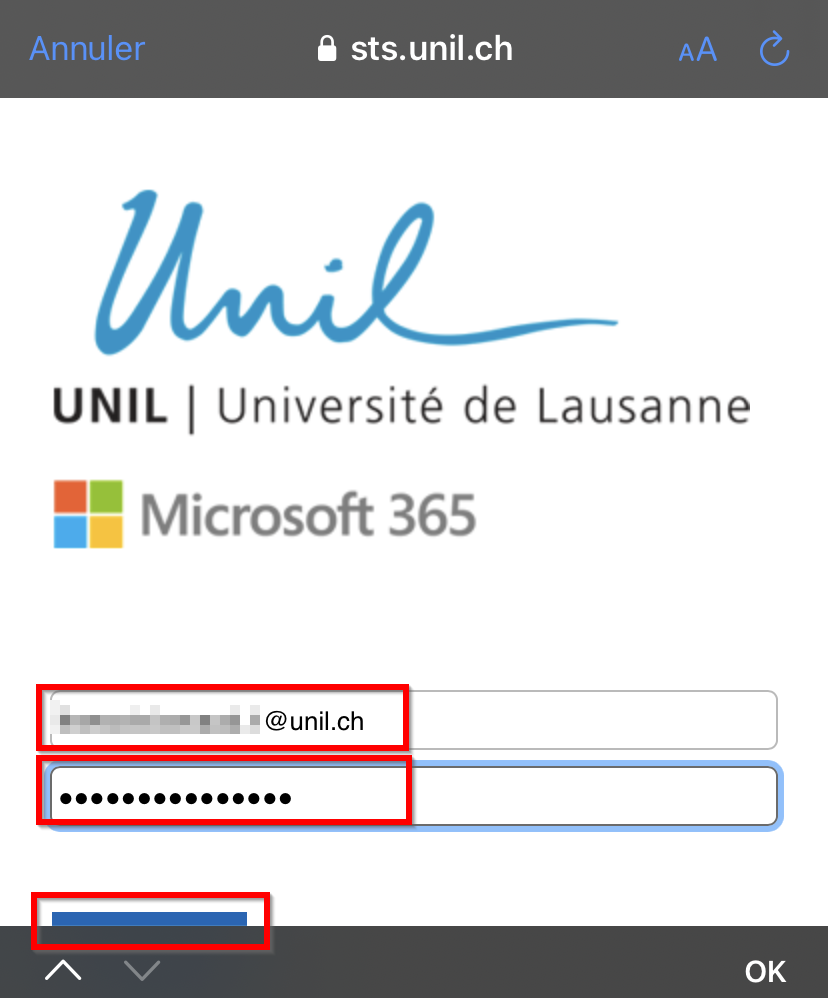
8. If the field hasn't been automatically filled, enter your Unil email address again, followed by your password  
      
    [![iOS7.png](https://wiki.unil.ch/ci/uploads/images/gallery/2022-11/scaled-1680-/ios7.png)](https://wiki.unil.ch/ci/uploads/images/gallery/2022-11/ios7.png)
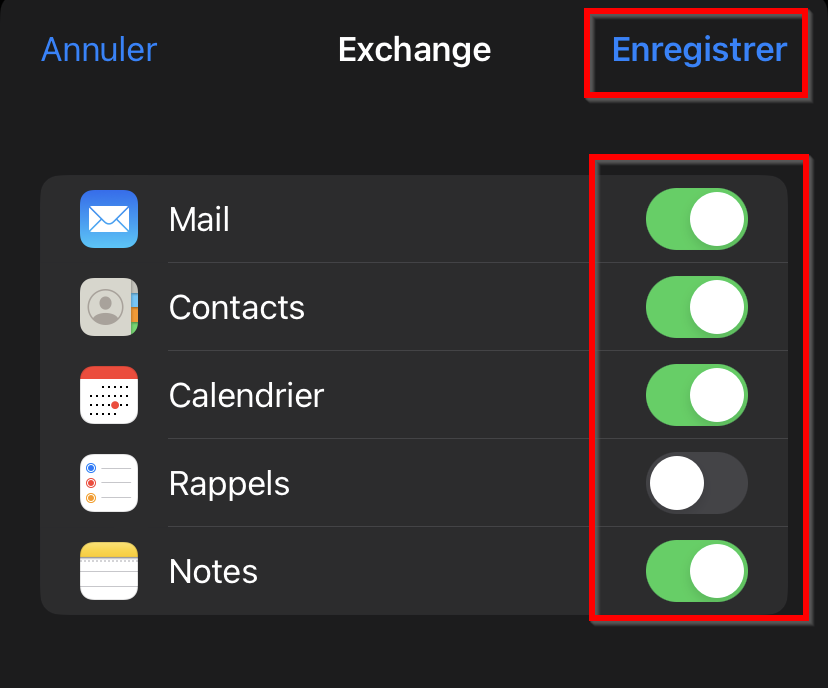
9. Select the *Exchange* services you would like to toggle on or off, then *Save*  
      
    [![iOS8.png](https://wiki.unil.ch/ci/uploads/images/gallery/2022-11/scaled-1680-/ios8.png)](https://wiki.unil.ch/ci/uploads/images/gallery/2022-11/ios8.png)
---

### Android  


<p class="callout info">The Ci strongly recommends the use of the native Android apps (all functions offered by Exchange are however not available). The *Outlook* app works as well.  

</p>

![](https://wiki.unil.ch/ci/uploads/images/gallery/2020-02/logoAndroid.png)

- Android options 
    - e-mail
    - calendars
    - address book
    - tasks: third party app required
    - notes: third party app required

<div id="bkmrk--20"></div>#### **Mail Android** Exchange account setup (mail, calendar, etc.)


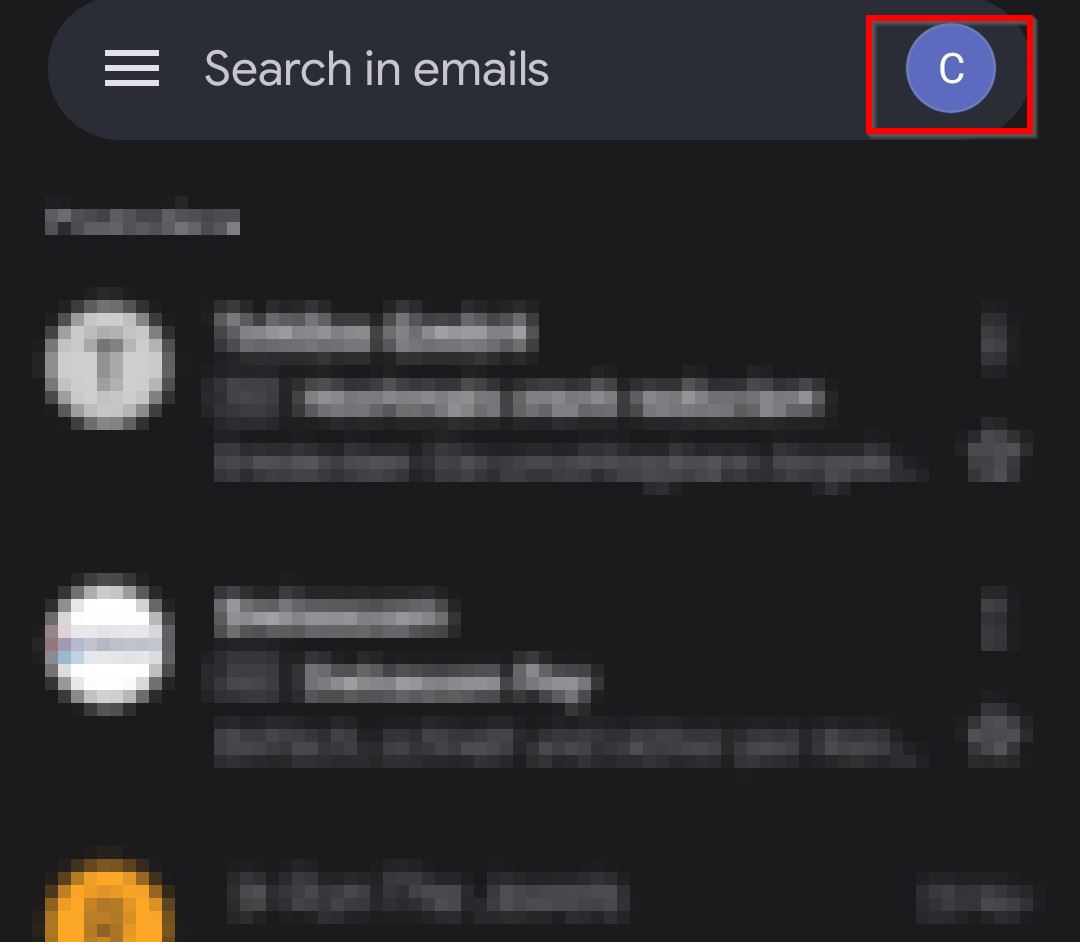
1. Launch the *Mail* app and navigate to the settings  
      
    [![01.jpg](https://wiki.unil.ch/ci/uploads/images/gallery/2022-11/scaled-1680-/01.jpg)](https://wiki.unil.ch/ci/uploads/images/gallery/2022-11/01.jpg)
2. Select *Add another account*  
      
    [![02.jpg](https://wiki.unil.ch/ci/uploads/images/gallery/2022-11/scaled-1680-/02.jpg)](https://wiki.unil.ch/ci/uploads/images/gallery/2022-11/02.jpg)
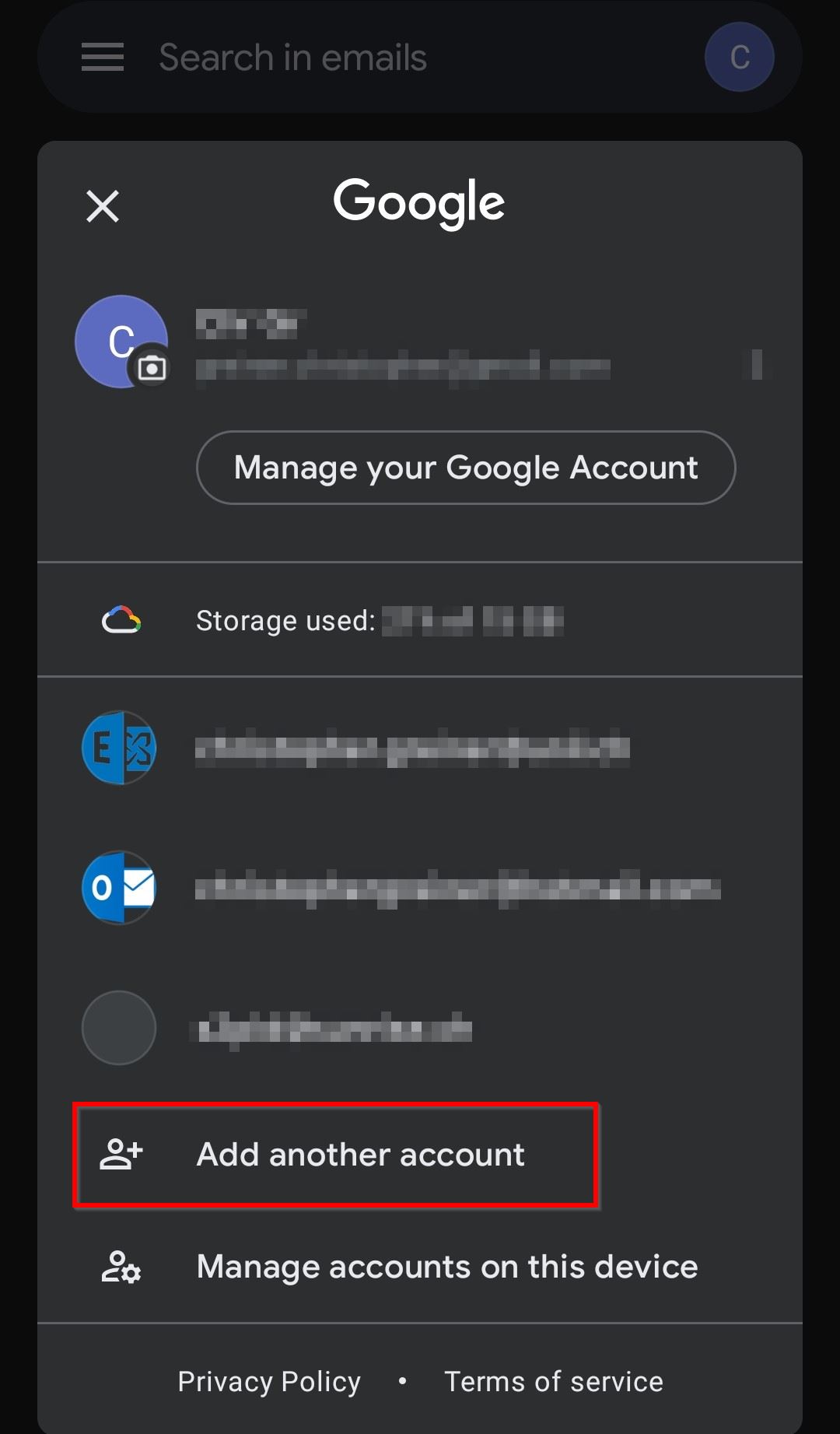
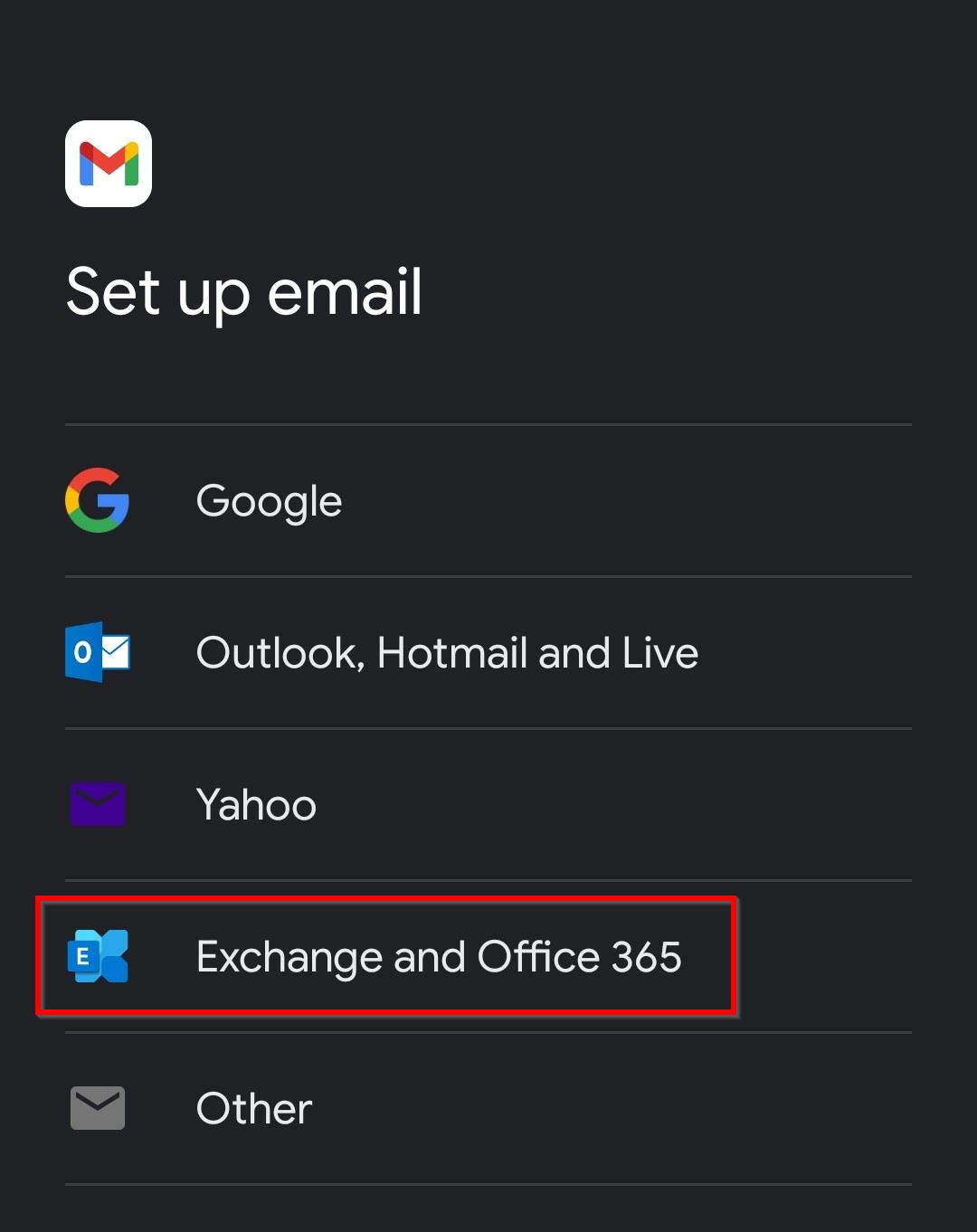
3. Select *Exchange et Office 365* or *Microsoft 365*, whichever appears  
      
    [![03.jpg](https://wiki.unil.ch/ci/uploads/images/gallery/2022-11/scaled-1680-/03.jpg)](https://wiki.unil.ch/ci/uploads/images/gallery/2022-11/03.jpg)
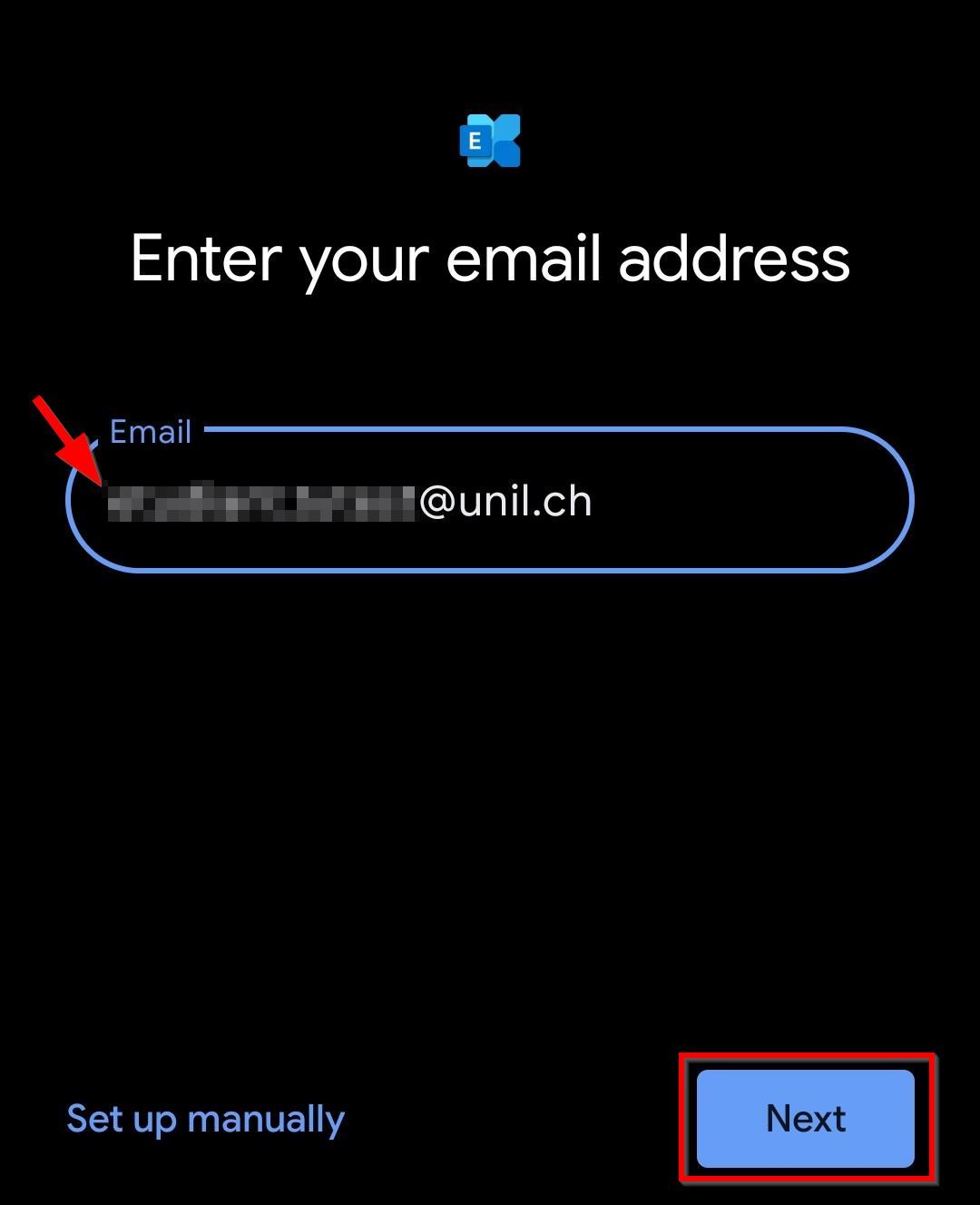
4. Fill in the *email* field with your Unil email address and select *Next*  
      
    [![04.jpg](https://wiki.unil.ch/ci/uploads/images/gallery/2022-11/scaled-1680-/04.jpg)](https://wiki.unil.ch/ci/uploads/images/gallery/2022-11/04.jpg)
5. Input your Unil password  
      
    [![05.jpg](https://wiki.unil.ch/ci/uploads/images/gallery/2022-11/scaled-1680-/05.jpg)](https://wiki.unil.ch/ci/uploads/images/gallery/2022-11/05.jpg)
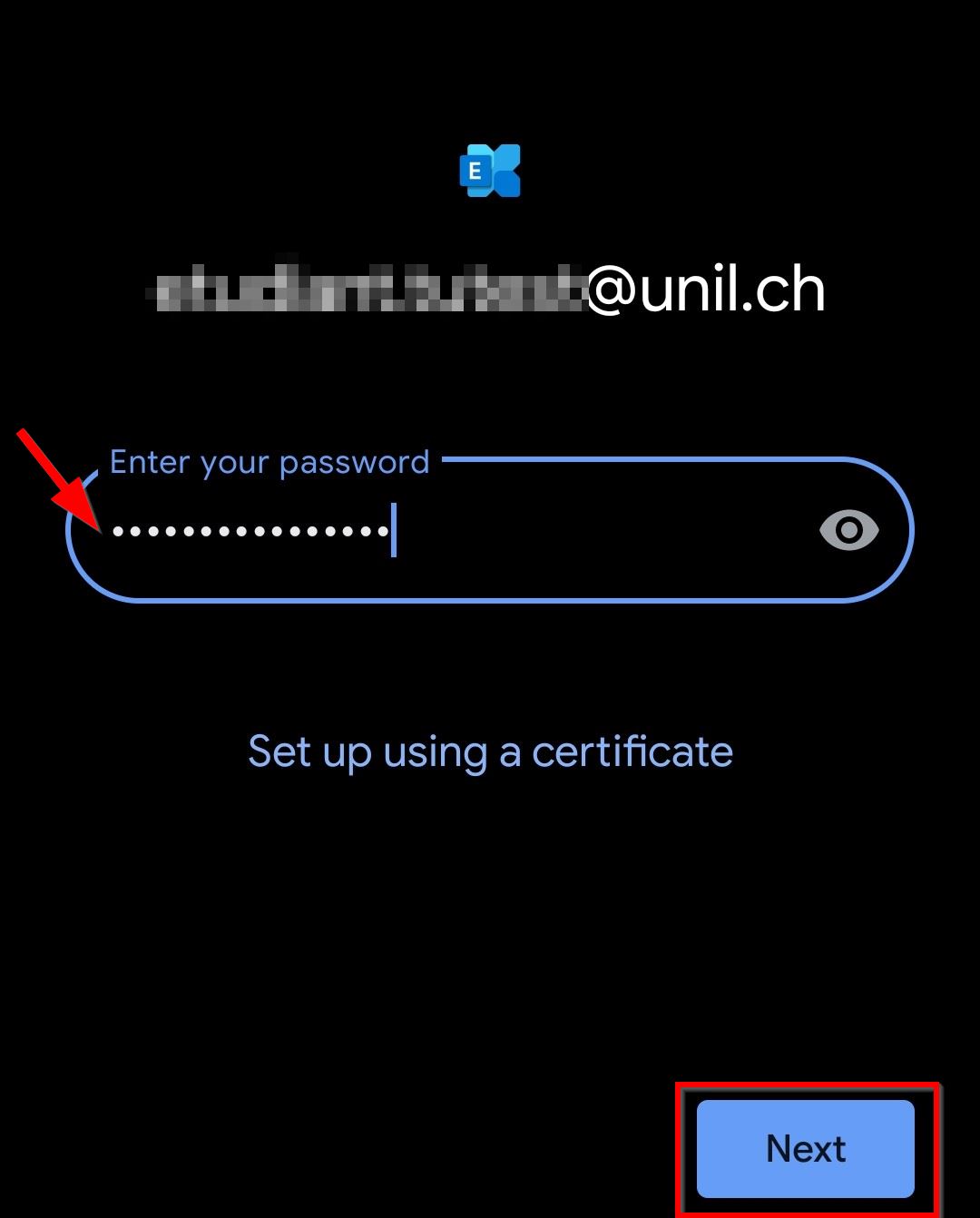
6. Select *Next*   
      
    [![06.jpg](https://wiki.unil.ch/ci/uploads/images/gallery/2022-11/scaled-1680-/06.jpg)](https://wiki.unil.ch/ci/uploads/images/gallery/2022-11/06.jpg)
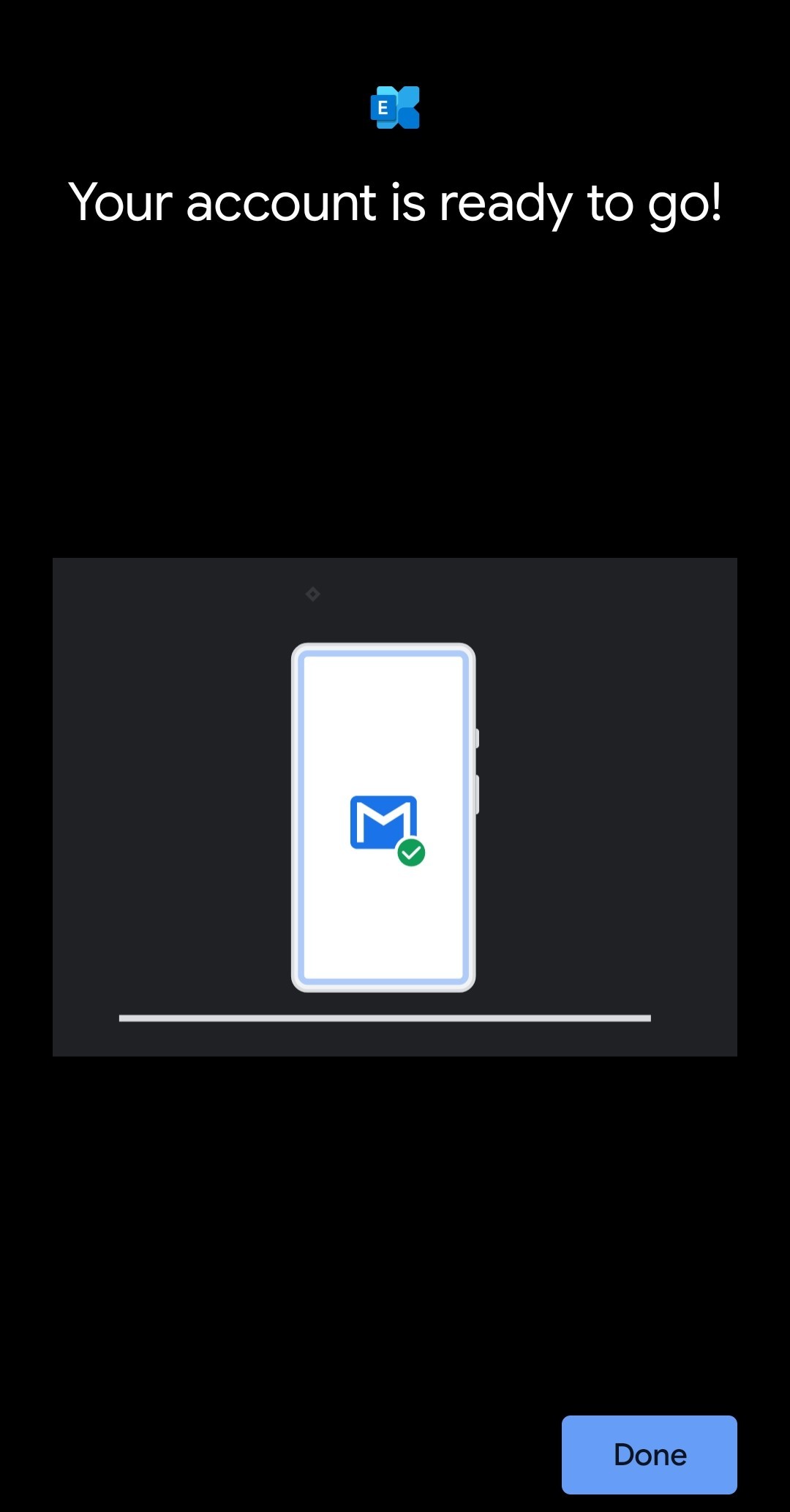
7. If you are using an up to date version of Android, the setup is now complete.
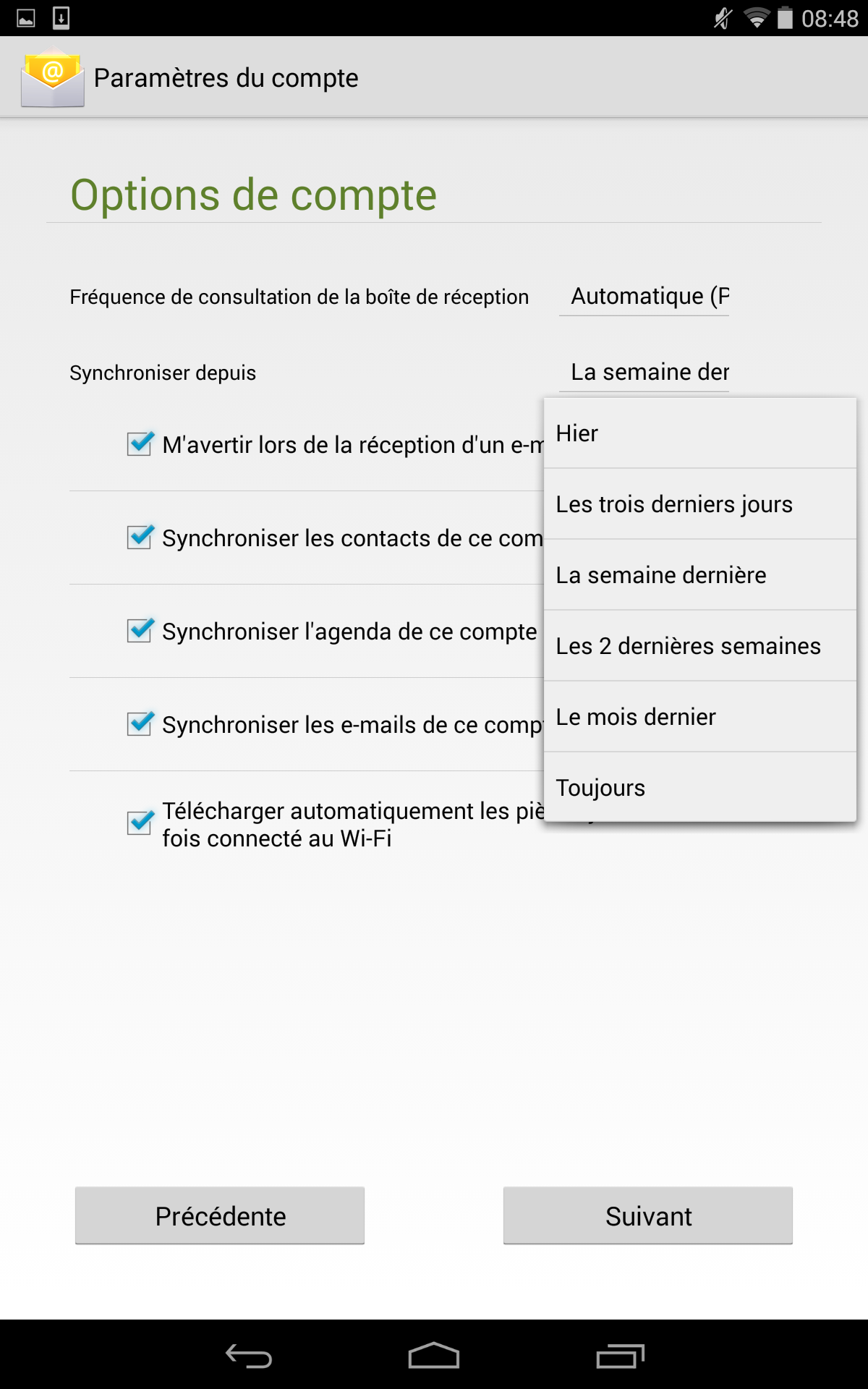
8. On older Android versions, you may have to select the sync frequency and period:  
    
    1. Select the preferred options and sync period
    2. Select *Next*  
          
        [![E_Android6.png](https://wiki.unil.ch/ci/uploads/images/gallery/2020-02/scaled-1680-/E_Android6.png)](https://wiki.unil.ch/ci/uploads/images/gallery/2020-02/E_Android6.png)
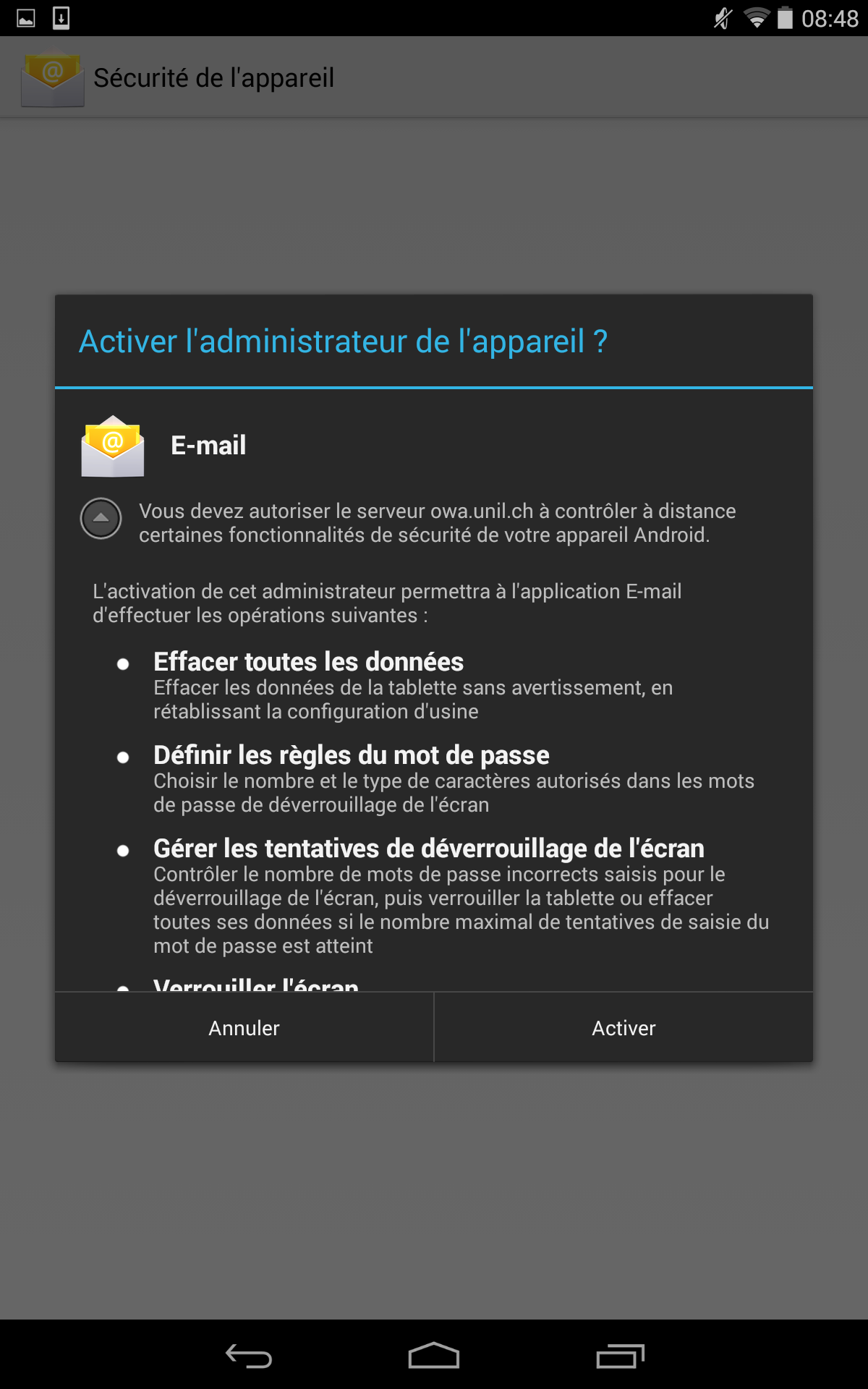
    3. Allow the *Exchange* server to administrate your device. This option allows you to remotely wipe and lock your device in case of theft.   
          
        [![E_Android8.png](https://wiki.unil.ch/ci/uploads/images/gallery/2020-02/scaled-1680-/E_Android8.png)](https://wiki.unil.ch/ci/uploads/images/gallery/2020-02/E_Android8.png)
##### Android limitations and workarounds  


Android has the following limitations when it comes to *Exchange* mailboxes:

<div id="bkmrk-une-seule-couleur-po"><div><div>- Only one calendar color
- No support for *tasks* and *notes*

</div></div></div>The *Microsoft Outlook* app comes with the aforementioned functionalities.


---

### **Other** mail clients  


This documentation is there to allow you to connect third-party software without *Exchange* support to your Unil mailbox. These will most likely not have most of the usual *Exchange* functions.

![](https://wiki.unil.ch/ci/uploads/images/gallery/2020-02/scaled-1680-/persoMail.png)

<div id="bkmrk-configuration-client">- Options  
    
    - e-mail

</div><div id="bkmrk--46"></div>---

<p class="callout danger">**From 2023 onwards, *Microsoft* will cease support for and stop providing *Exchange* access to software using the *"Basic Auth"* authentication protocol. We strongly advise you to use *Microsoft Outlook* or *Apple Mail* on your devices.** If this is not an option for you, third-party software using the *OAuth2* authentication protocol may still be used.  
</p>

<p class="callout info">[*Microsoft* support article on the passage to *OAuth2*](https://support.microsoft.com/en-us/office/pop-imap-and-smtp-settings-8361e398-8af4-4e97-b147-6c6c4ac95353)</p>

<details id="bkmrk-%5Bthunderbird%5D-ajoute"><summary>\[Thunderbird &amp; Third parties\] Exchange account setup</summary>

<p class="callout warning">Ensure that your Thunderbird client accepts the cookies mandatory for *OAuth2* connection:  
 1. Go to *Settings* &gt; *Security and Confidentiality* &gt; *Web Content*  
 2. Turn on *Accept Cookies*  
 3. Under the option *Allow third-party cookies*, select *Always*  
Once these steps done, you may follow the instructions below.  
</p>

<p class="callout info">If your *Sent Messages* do not appear after the setup, try sending yourself an e-mail.   
</p>

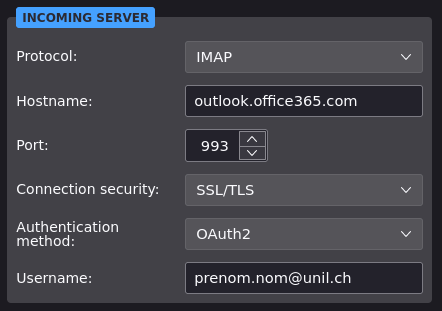
##### **IMAP** Configuration  


##### [![Screenshot_2023-03-06_11-47-04.png](https://wiki.unil.ch/ci/uploads/images/gallery/2023-03/scaled-1680-/screenshot-2023-03-06-11-47-04.png)](https://wiki.unil.ch/ci/uploads/images/gallery/2023-03/screenshot-2023-03-06-11-47-04.png)

<table border="1" id="bkmrk-serveur-imap-outlook" style="border-collapse: collapse; width: 100%; height: 177px;"><colgroup><col style="width: 50%;"></col><col style="width: 50%;"></col></colgroup><tbody><tr style="height: 35.4px;"><td style="height: 35.4px;">IMAP server  
</td><td class="align-right" style="height: 35.4px;">`outlook.office365.com`

</td></tr><tr style="height: 35.4px;"><td style="height: 35.4px;">IMAP username  
</td><td class="align-right" style="height: 35.4px;">full Unil email (`prenom.nom@unil.ch`)

</td></tr><tr style="height: 35.4px;"><td style="height: 35.4px;">Authentication method  
</td><td class="align-right" style="height: 35.4px;">`OAuth2`

</td></tr><tr style="height: 35.4px;"><td style="height: 35.4px;">Port

</td><td class="align-right" style="height: 35.4px;">`993`</td></tr><tr style="height: 35.4px;"><td style="height: 35.4px;">Connection security  
</td><td class="align-right" style="height: 35.4px;">`SSL/TLS`

</td></tr></tbody></table>

<p class="callout warning">If an "User is authenticated but not connected" type of error appears, try:  
 1. Going to *Settings &gt; General &gt; Configuration editor*  
 2. Enter `network.dns.dis` in the search field  
 3. Enable the first option, *network.dns.disableIPv6* so that it is set to *True*</p>

---

##### **POP3** Configuration  


<p class="callout info">Access to a mailbox via POP3 should only be used as a last-resort option.  
</p>

[![Screenshot_2023-03-06_11-47-04.png](https://wiki.unil.ch/ci/uploads/images/gallery/2023-03/scaled-1680-/screenshot-2023-03-06-11-47-04.png)](https://wiki.unil.ch/ci/uploads/images/gallery/2023-03/screenshot-2023-03-06-11-47-04.png)

<table border="1" id="bkmrk-serveur-pop3-outlook" style="border-collapse: collapse; width: 100%; height: 149px;"><colgroup><col style="width: 50.0642%;"></col><col style="width: 50.0642%;"></col></colgroup><tbody><tr style="height: 29.8px;"><td style="height: 35.4px;">IMAP server  
</td><td class="align-right" style="height: 35.4px;">`outlook.office365.com`

</td></tr><tr style="height: 29.8px;"><td style="height: 35.4px;">IMAP username  
</td><td class="align-right" style="height: 35.4px;">full Unil email (`prenom.nom@unil.ch`)

</td></tr><tr style="height: 29.8px;"><td style="height: 35.4px;">Authentication method  
</td><td class="align-right" style="height: 35.4px;">`OAuth2`

</td></tr><tr style="height: 29.8px;"><td style="height: 35.4px;">Port

</td><td class="align-right" style="height: 35.4px;">`995`</td></tr><tr style="height: 29.8px;"><td style="height: 35.4px;">Connection security  
</td><td class="align-right" style="height: 35.4px;">`SSL/TLS`

</td></tr></tbody></table>

##### **SMTP** Configuration (send-only)  


[![screenshot-2023-03-06-11-48-04.png](https://wiki.unil.ch/ci/uploads/images/gallery/2024-07/scaled-1680-/B4sscreenshot-2023-03-06-11-48-04.png)](https://wiki.unil.ch/ci/uploads/images/gallery/2024-07/B4sscreenshot-2023-03-06-11-48-04.png)

<table border="1" id="bkmrk-serveur-smtp-smtpaut" style="border-collapse: collapse; width: 100%; height: 177px;"><colgroup><col style="width: 50%;"></col><col style="width: 50%;"></col></colgroup><tbody><tr style="height: 35.4px;"><td style="height: 35.4px;">SMPT Server  
</td><td class="align-right" style="height: 35.4px;">`smtpauth.unil.ch`

</td></tr><tr style="height: 35.4px;"><td style="height: 35.4px;">POP3 Username  
</td><td class="align-right" style="height: 35.4px;">Unil username (e.g. `pnom` for *Prenom Nom*)

</td></tr><tr style="height: 35.4px;"><td style="height: 35.4px;">Authentication method  
</td><td class="align-right" style="height: 35.4px;">`Normal password`

</td></tr><tr style="height: 35.4px;"><td style="height: 35.4px;">Port</td><td class="align-right" style="height: 35.4px;">`587`</td></tr><tr style="height: 35.4px;"><td style="height: 35.4px;">Connection security  
</td><td class="align-right" style="height: 35.4px;">`STARTTLS` (or `SSL/TLS` if STARTTLS unavailable)

</td></tr></tbody></table>

</details>---

## Redirecting the UNIL mailbox towards a private email

<p class="callout warning">By redirecting your Unil emails to your private, external mailbox, **you are trusting external entities** with their contents. Therefore, the Centre Informatique **does not provide any kind of support** for external email providers **and will not and cannot be held responsible for any prejudice and damage** caused by the use of the aforementioned external email providers.   
</p>

<p class="callout danger">If you are a **<span style="text-decoration: underline;">UNIL employee</span>**, using an external service **may go against the [internal UNIL directives](https://www.unil.ch/interne/files/live/sites/interne/files/textes-leg/6-inf/dir6-9-fichiers-info3.pdf).**</p>

<details id="bkmrk-transfer-your-e-mail"><summary>Transfer your e-mails to another e-mail address</summary>

<p class="callout warning">Emails may be lost if the destination mailbox rejects them even though they arrived in your UNIL mailbox.</p>

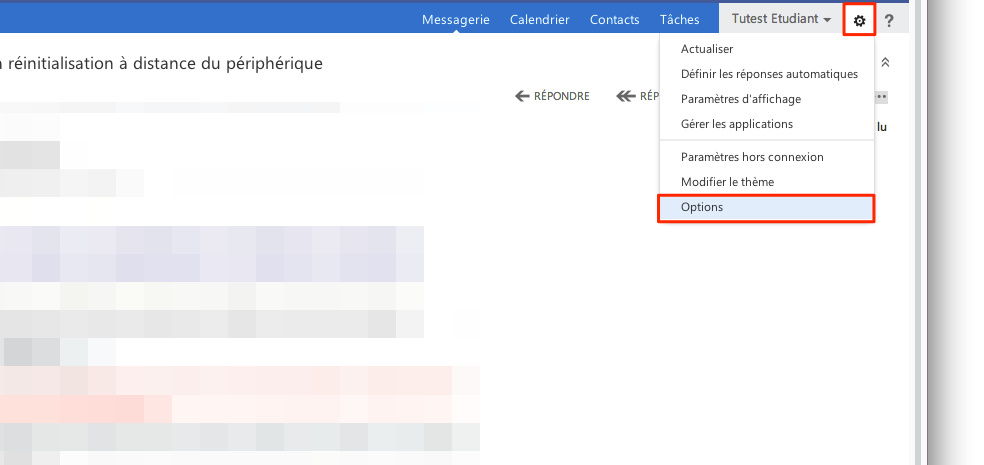
1\. Log into [https://outlook.office.com](https://outlook.office.com) with your UNIL credentials.

2\. Go to the *Options* menu
![E_transf2-1.png](https://wiki.unil.ch/ci/uploads/images/gallery/2020-02/E_transf1-1.png)

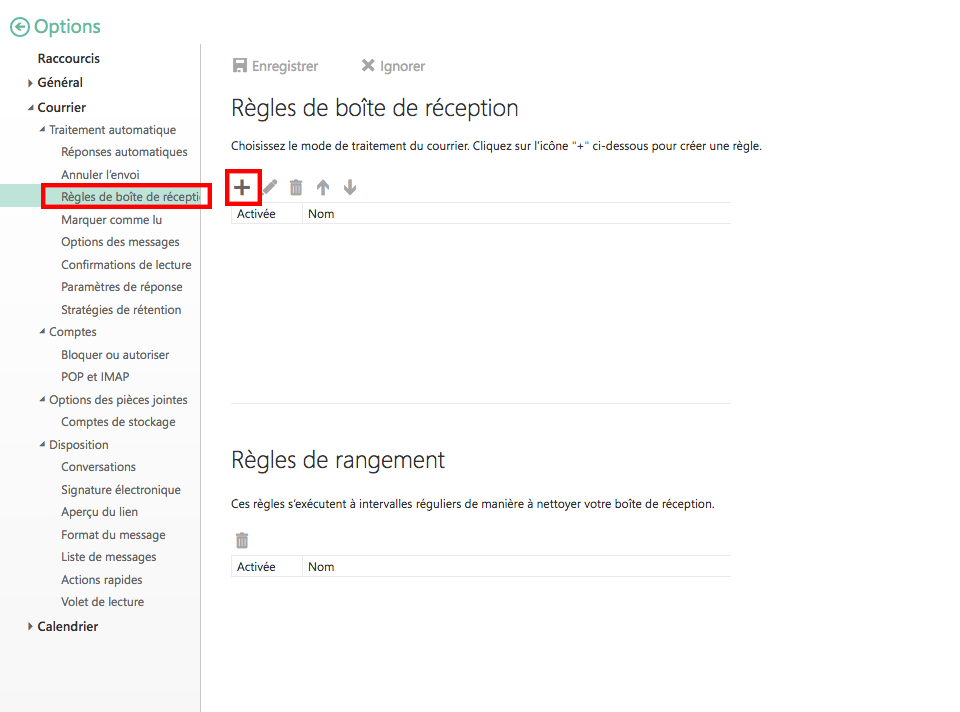
3\. Under the *Organize email* section, click on `+`  
4\. Select *Create a new rule for arriving messages*
![transfert1.png](https://wiki.unil.ch/ci/uploads/images/gallery/2020-02/trans1.png)

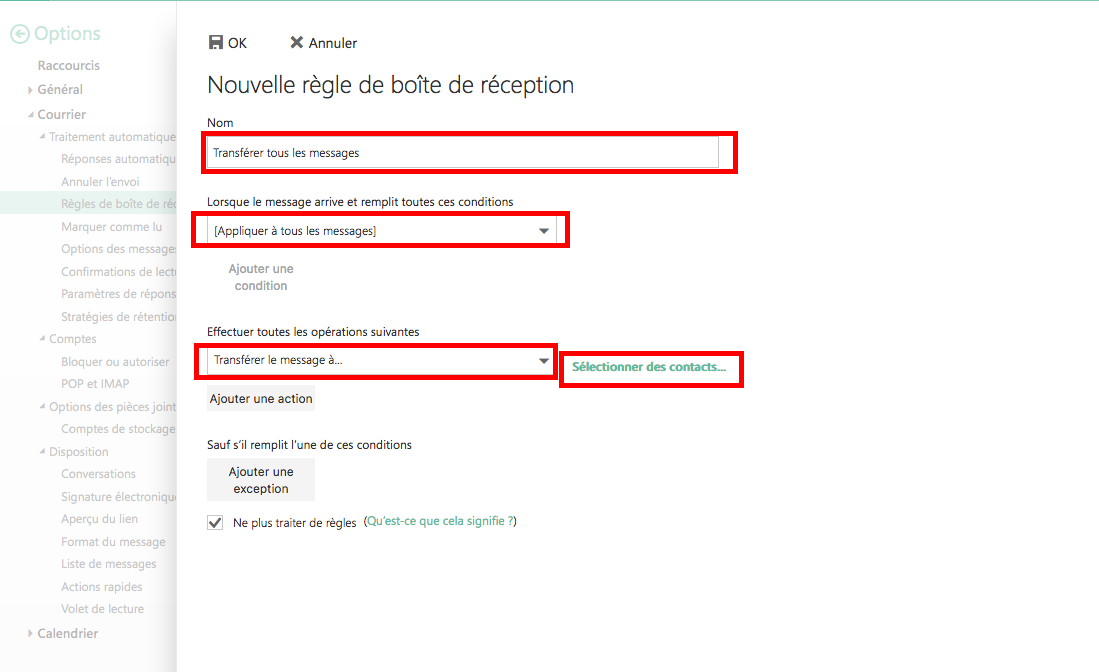
5\. Name the rule, choose *Apply to all messages* and *Redirect the message to…*  
6\. Type in the private e-mail address you want to use for the transfer  
7\. Click on the *Save* button
![E_transf6.png](https://wiki.unil.ch/ci/uploads/images/gallery/2020-02/trans2.png)

8\. Finish the procedure by accepting the warning message

</details>