Public Documentation
MFA Configuration
Consult and immediately configure new authentication methods for your account at https://mysignins.microsoft.com/security-info
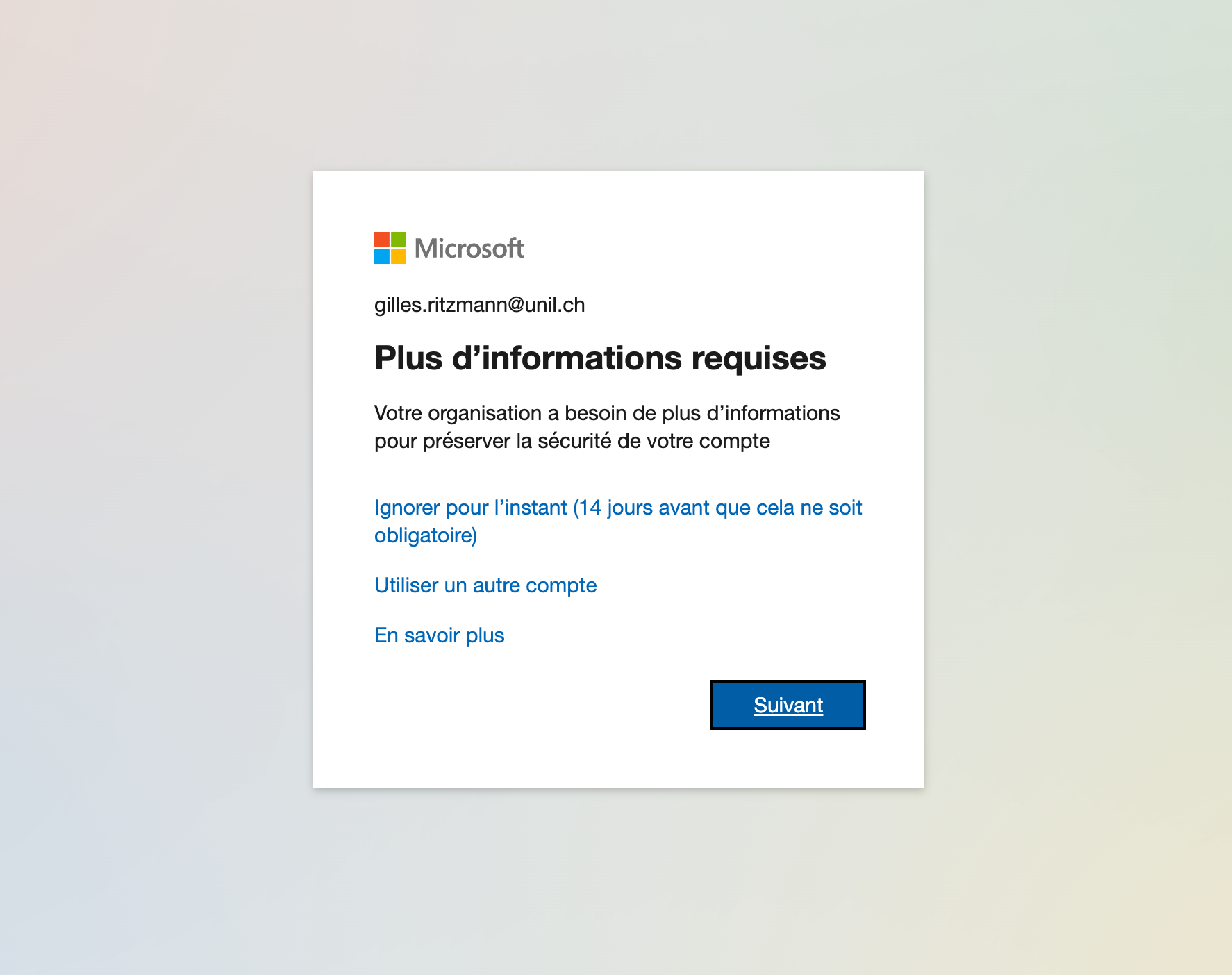
The next time your account connects to Microsoft 365 services, you will automatically be prompted to set up a second authentication method to enhance your account's security.
- Start the setup by clicking Next
- You can choose to configure a second authentication method from the following options:
Microsoft Authenticator
This is the method recommended by the Central IT Services
To set up the Microsoft Authenticator app as your second authentication method, you need to:
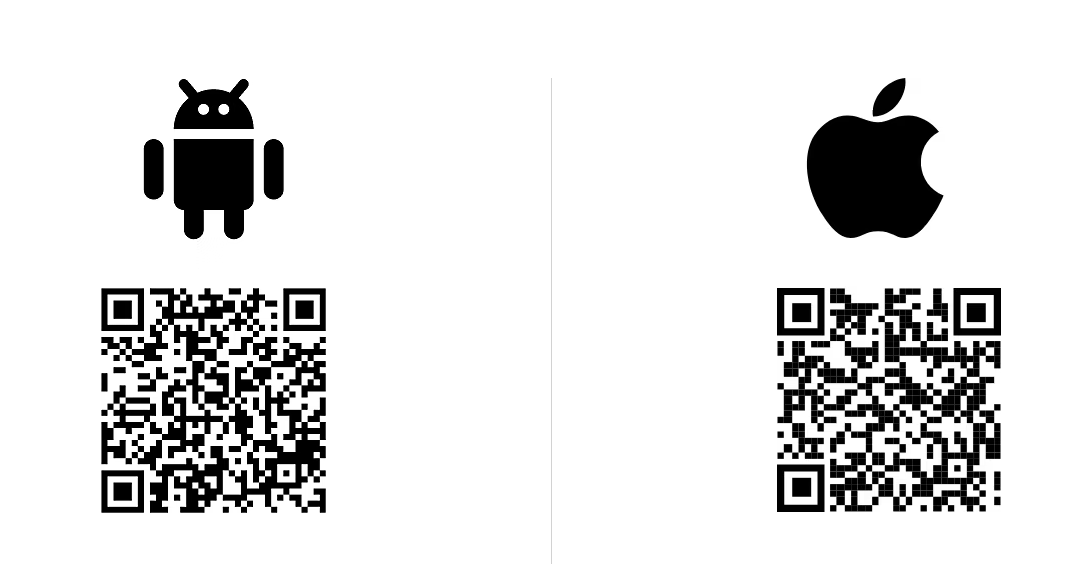
- Install the Microsoft Authenticator app on your phone using the links for Android and iOS, or directly via the QR codes
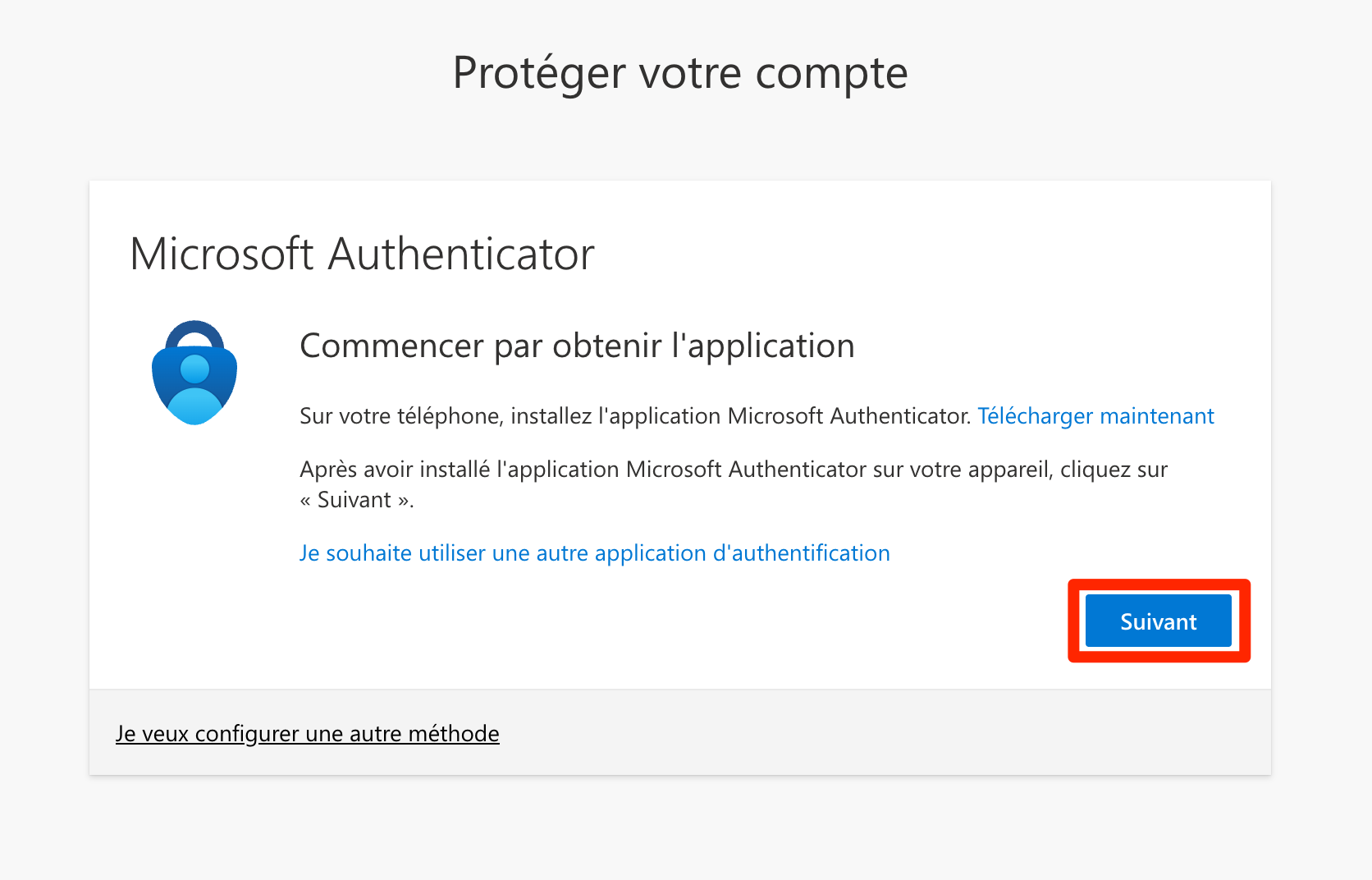
- Keep your phone nearby and return to the setup page to continue by clicking Next

- Click Next again
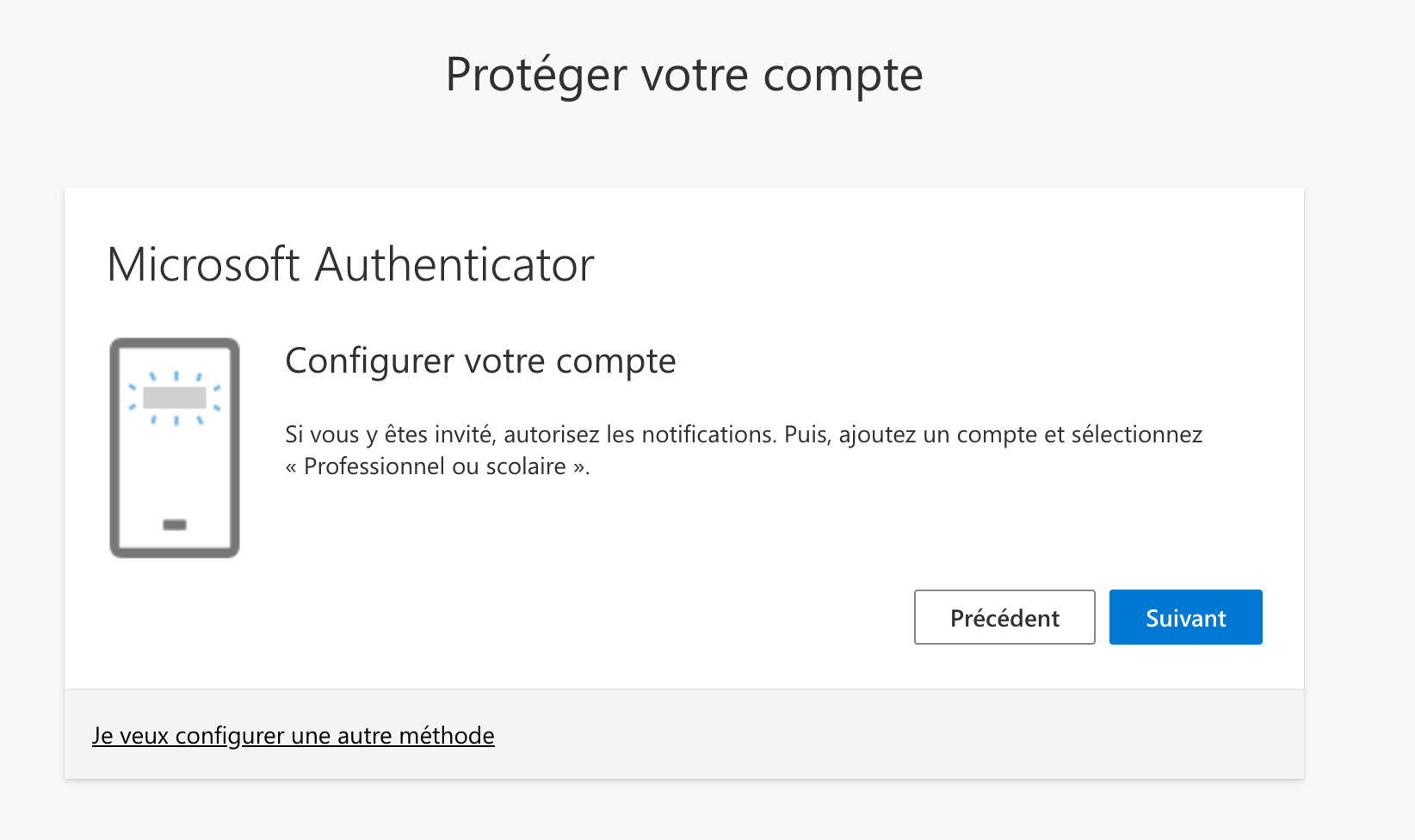
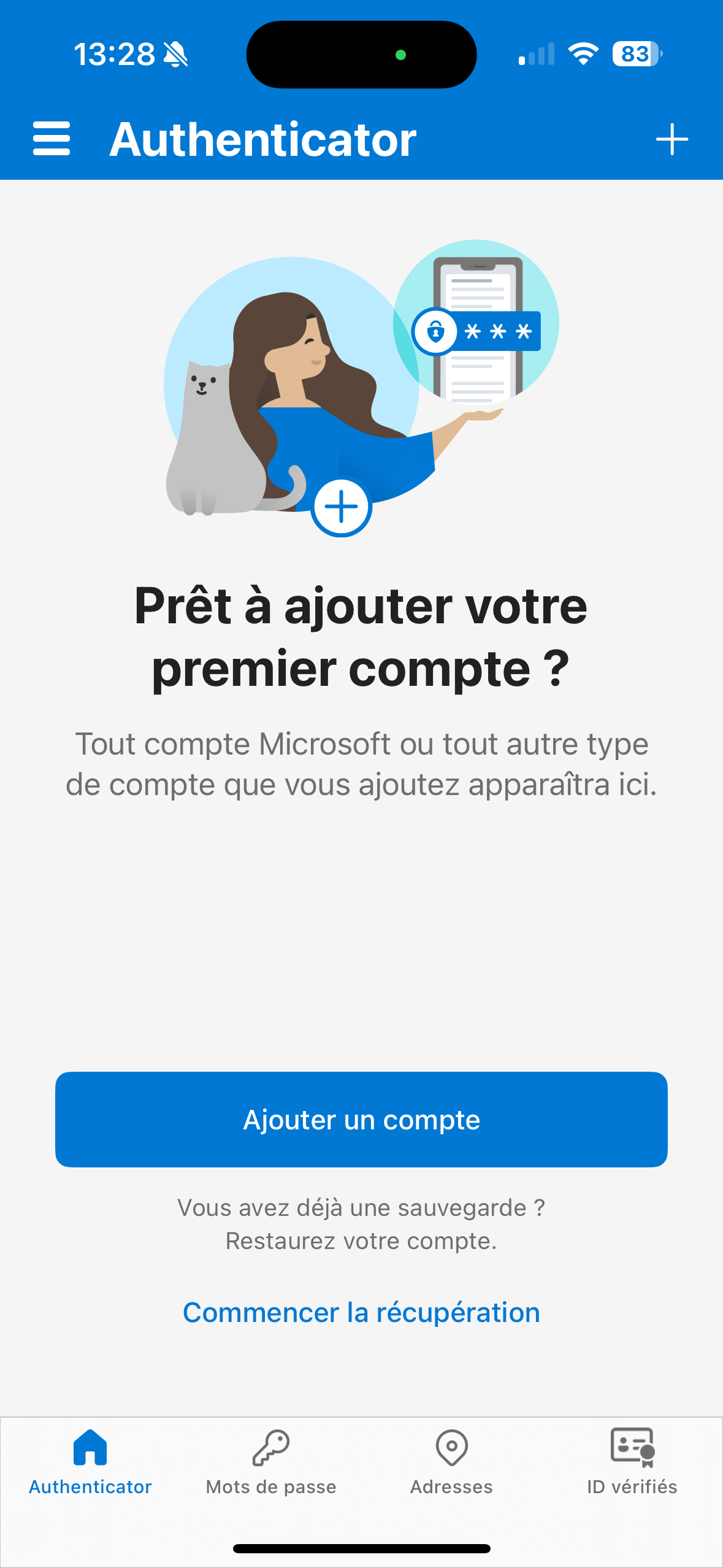
- Open the Microsoft Authenticator app on your phone, tap Add account, then choose Work or school account, and Scan the QR code
You may allow push notifications if the app prompts you.
 |
|
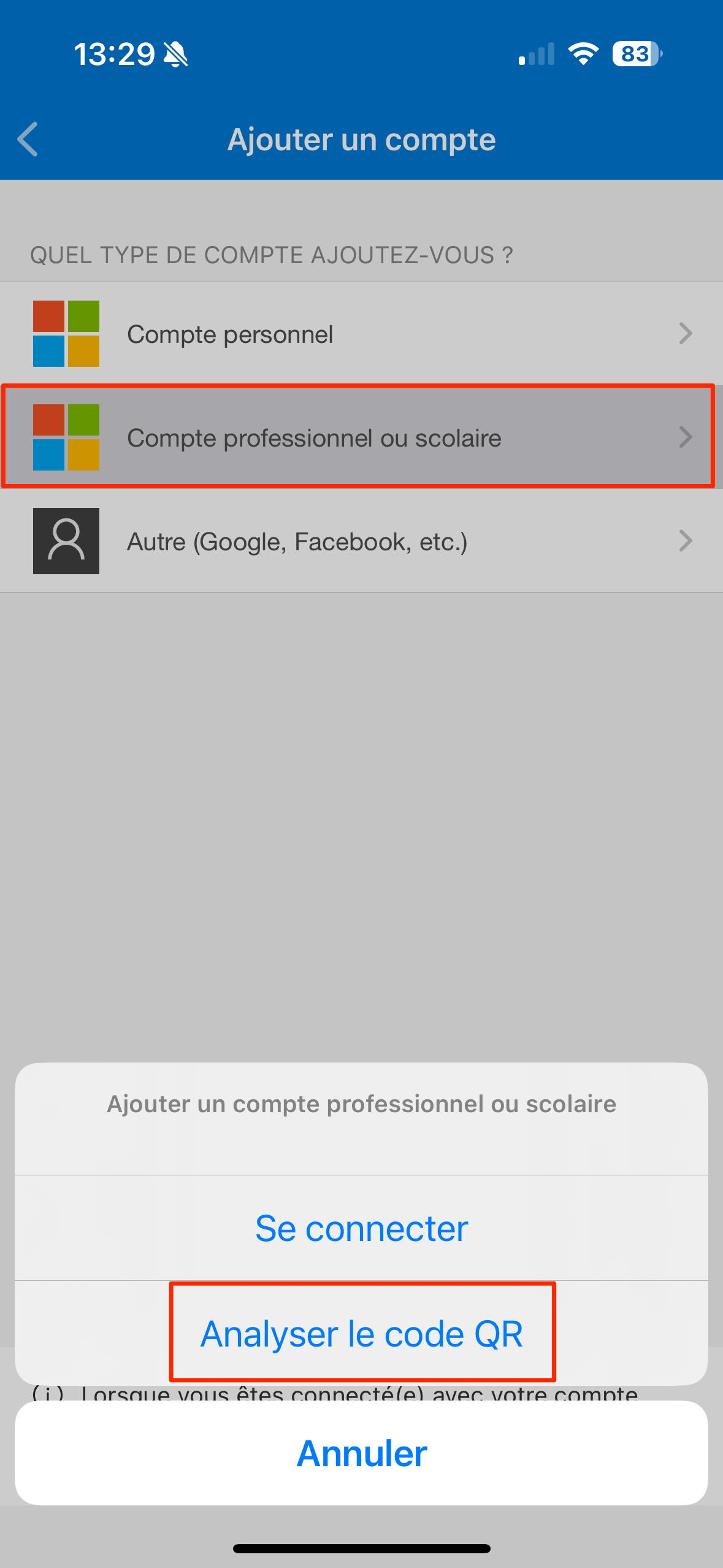
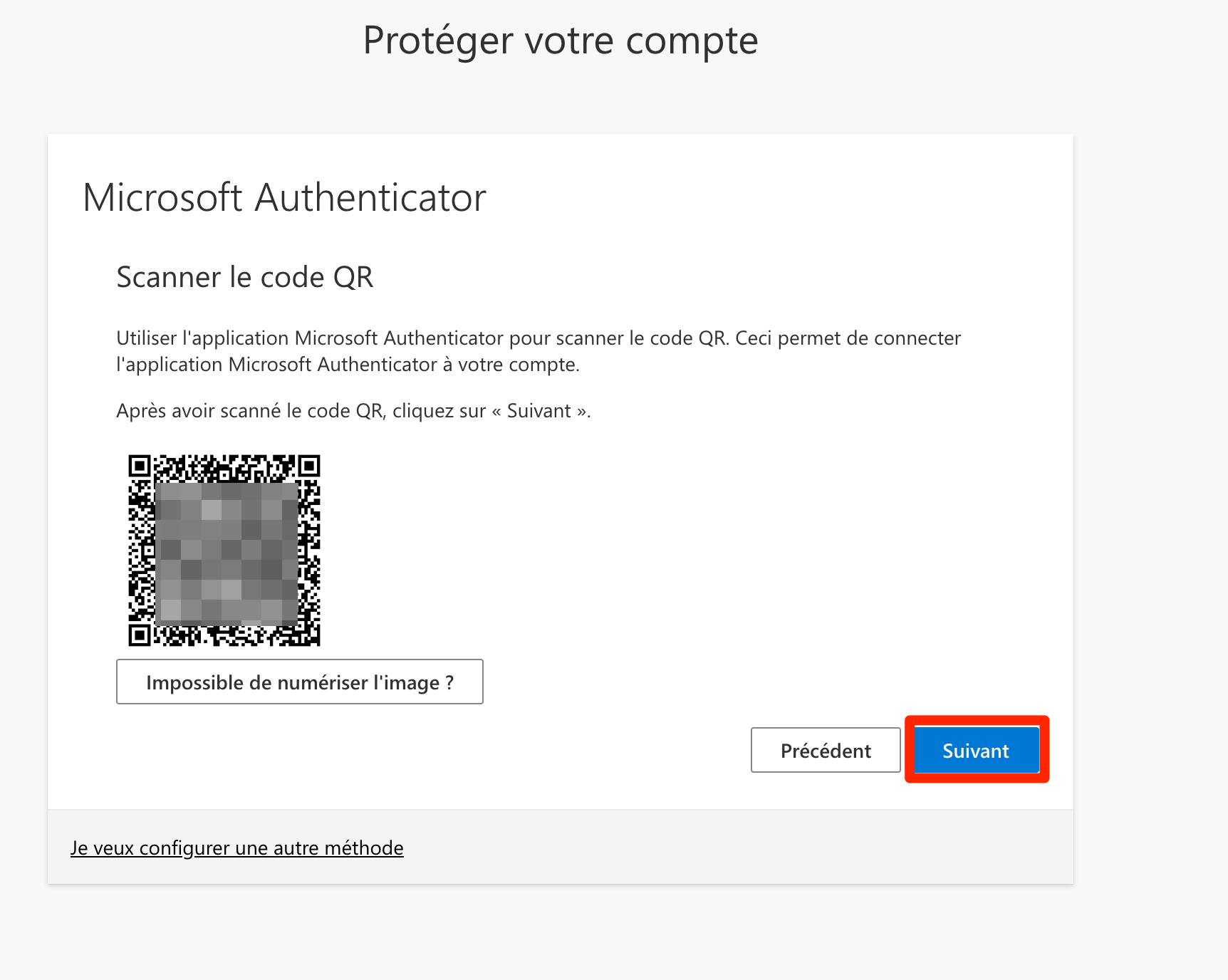
- Scan the QR code displayed on your screen with your phone and click Next
- Enter the 2-digit code shown on your screen into your phone and tap Yes
|
|
|
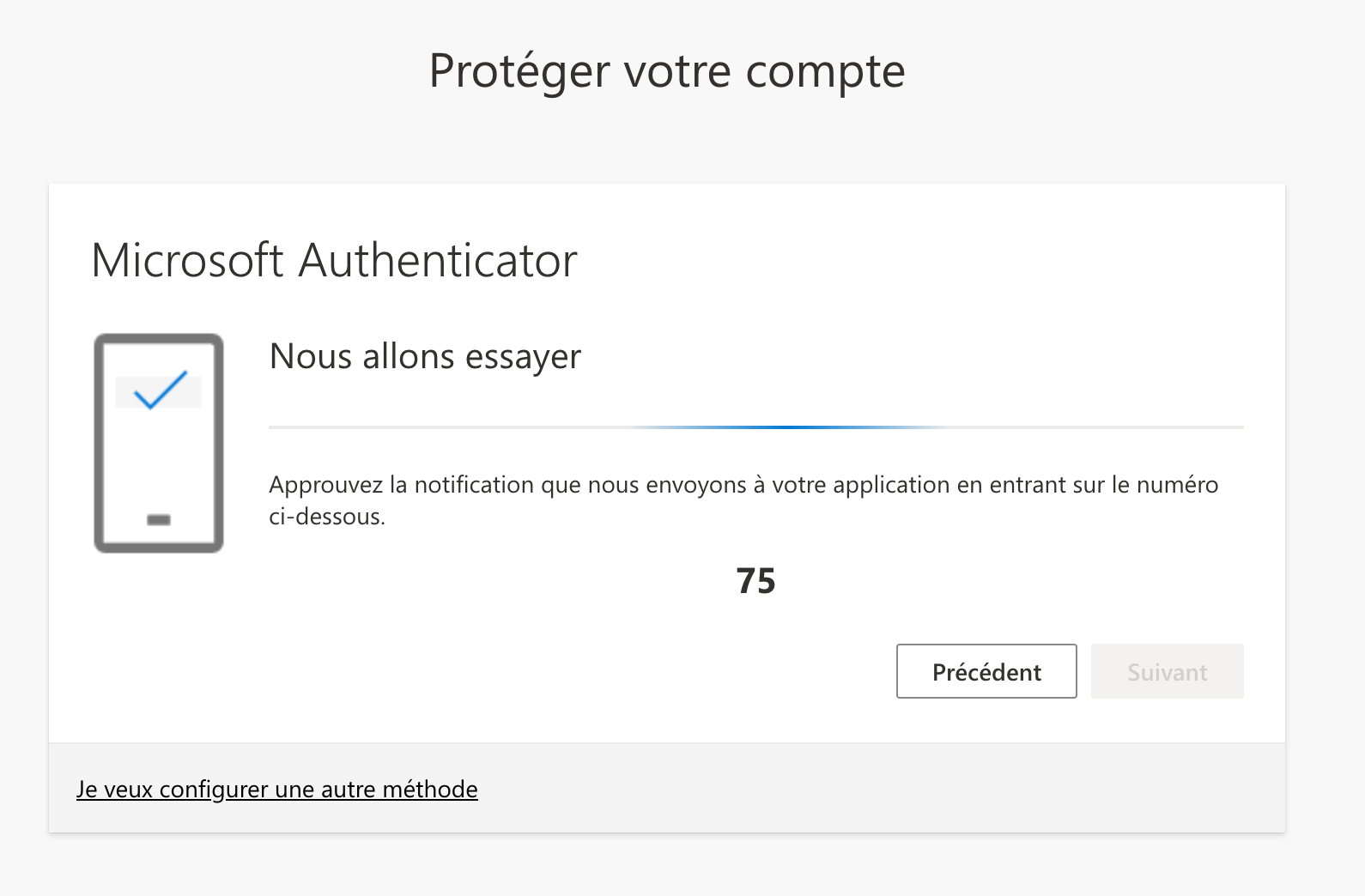
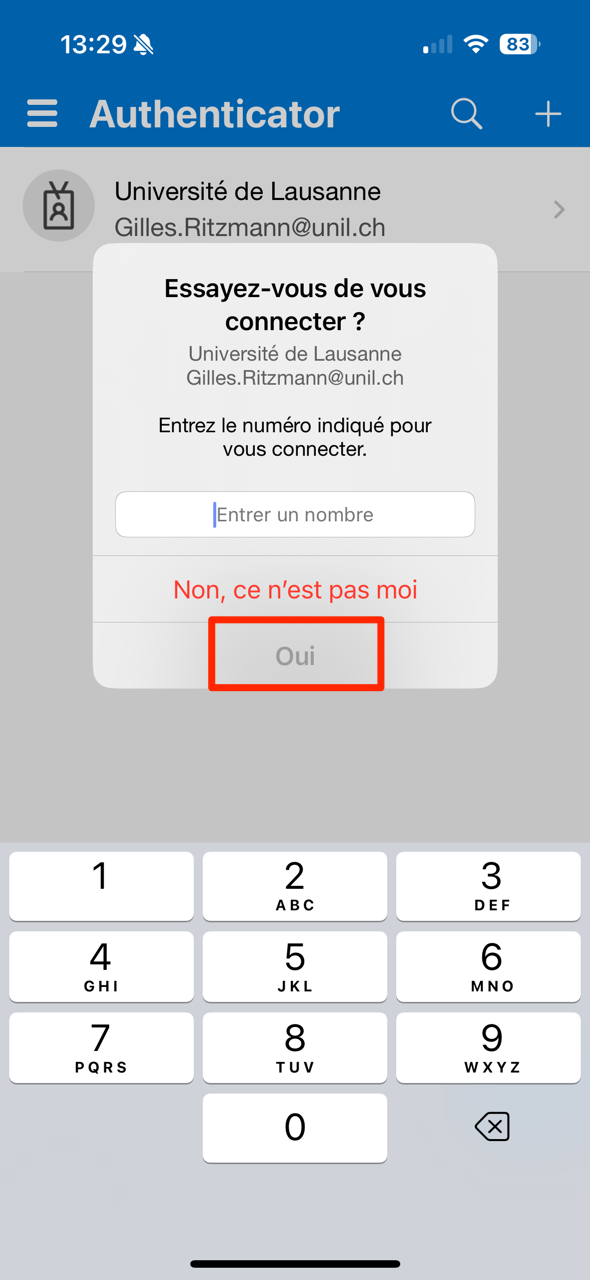
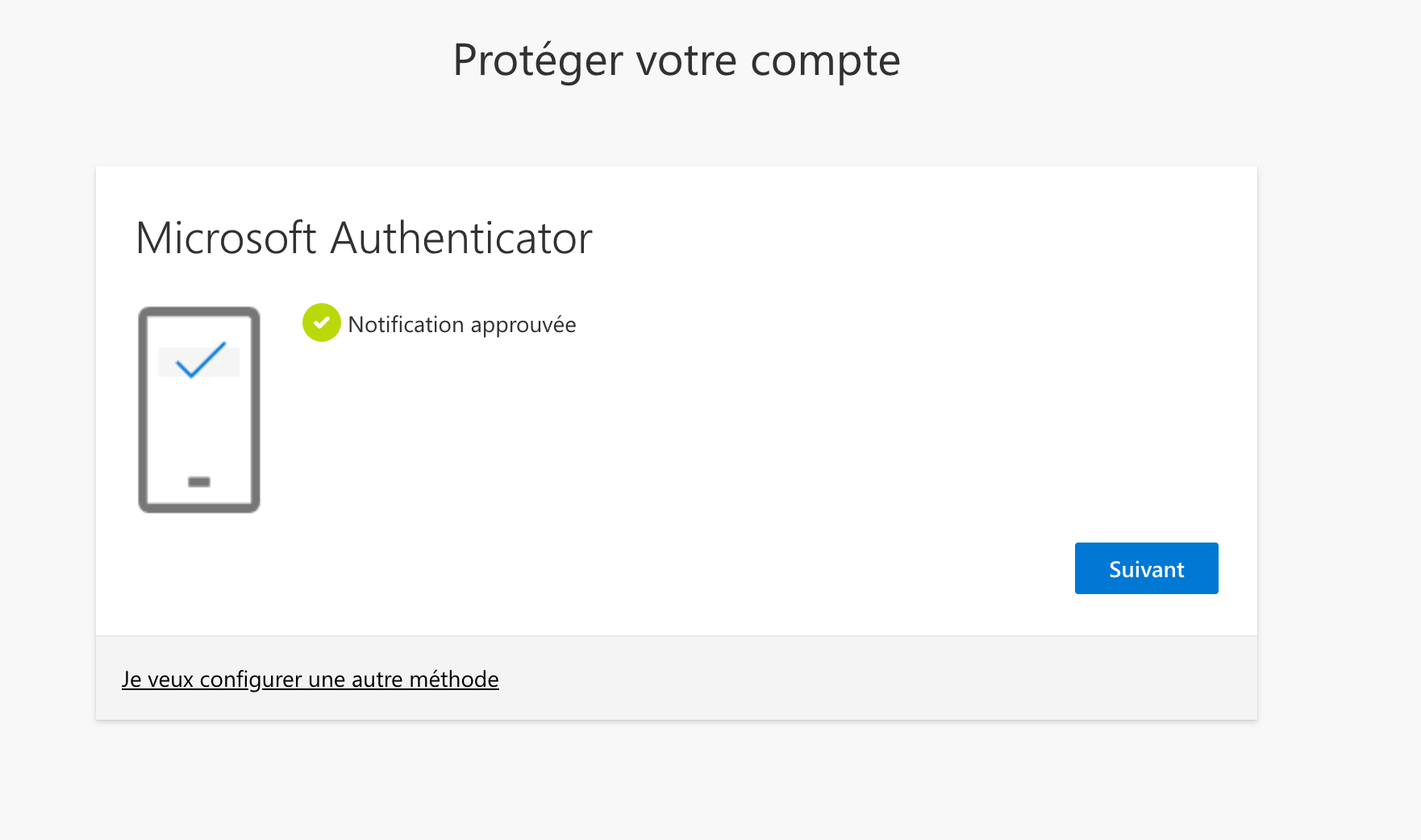
- If successful, click Next to complete the setup
Other Authentication Application
Be sure to choose a trusted tool
If you want to set up another authentication app compatible with TOTP (such as Google Authenticator, Authy, Apple Keychain, BitWarden Premium/Family [paid], Aegis Authenticator [open source, Android], 2FAS [open source, iOS + Android], etc.) with your account, you need to:
- Click on I want to use a different authentication app
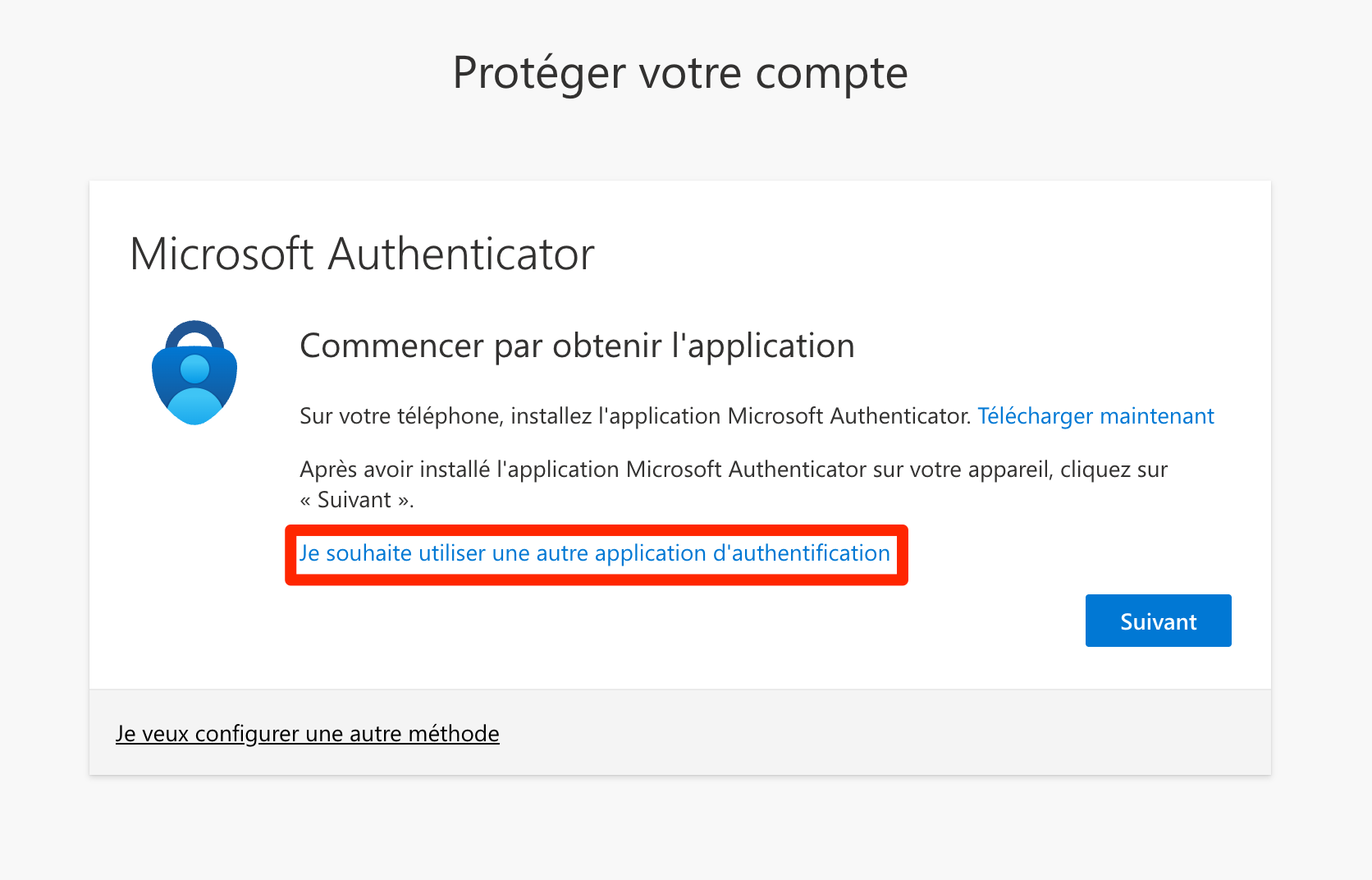
- Open your authentication app, add a new account, then click Next
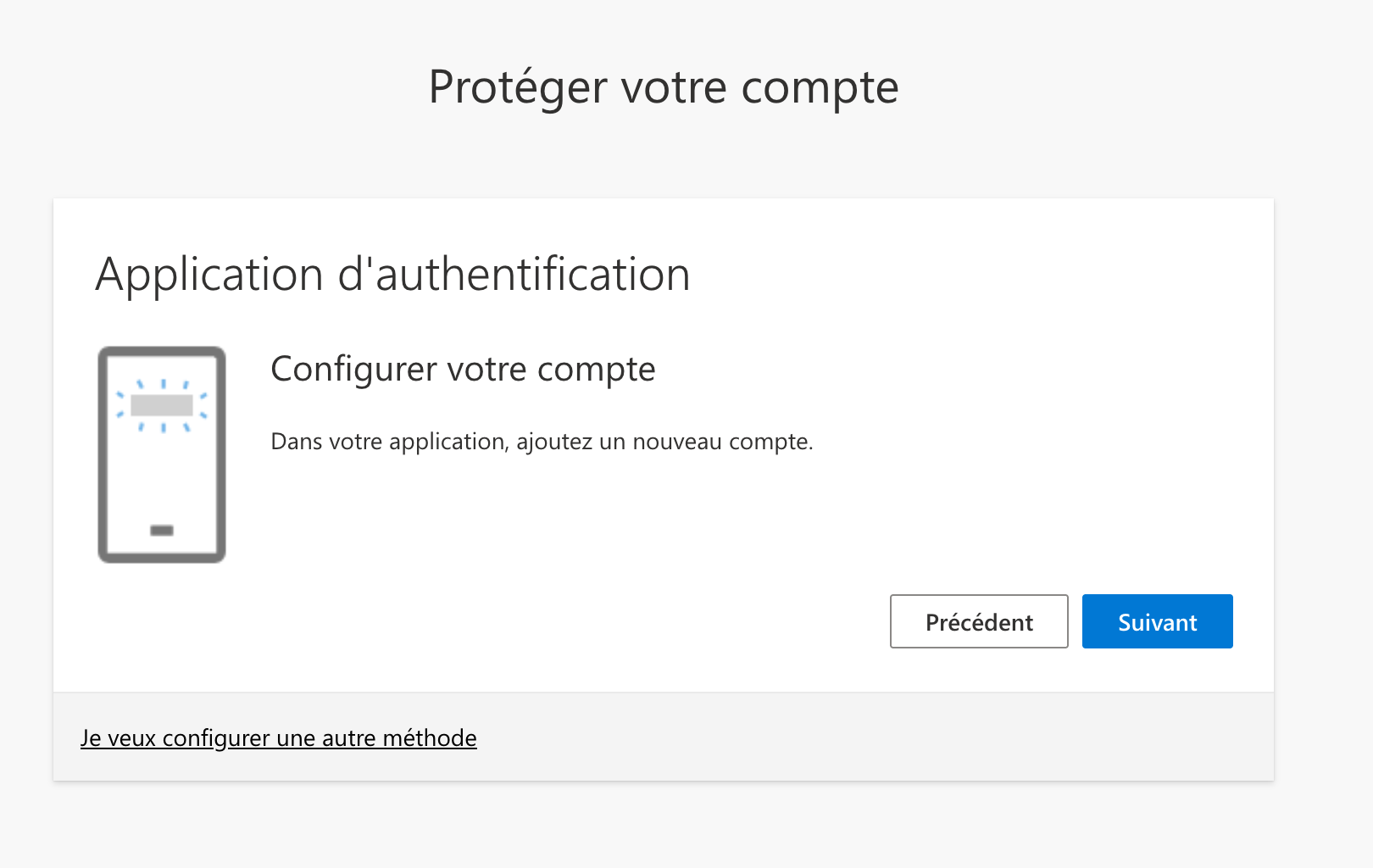
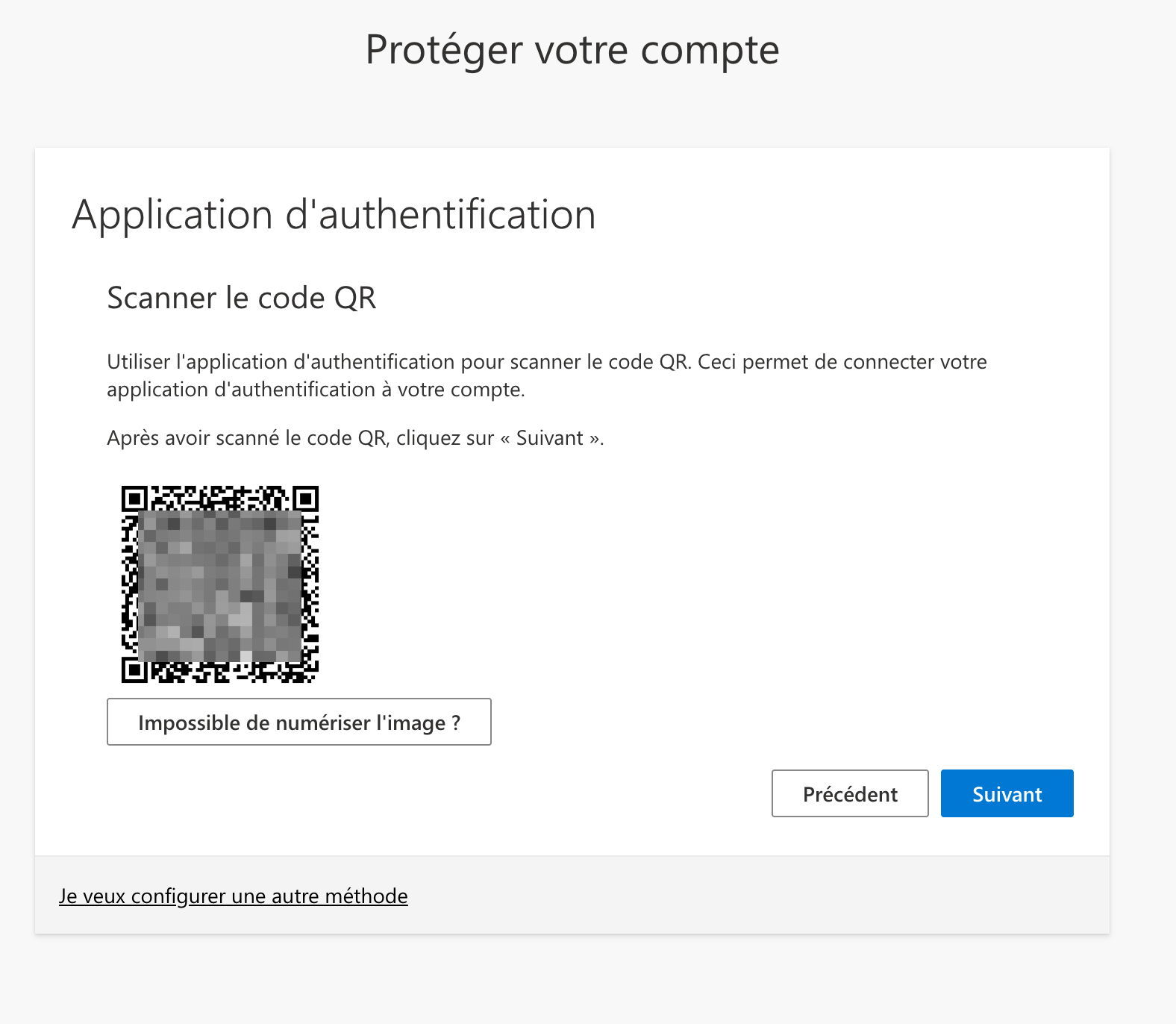
- Scan the QR code using your app (or click Can’t scan the image? to display the key for manual entry), then click Next
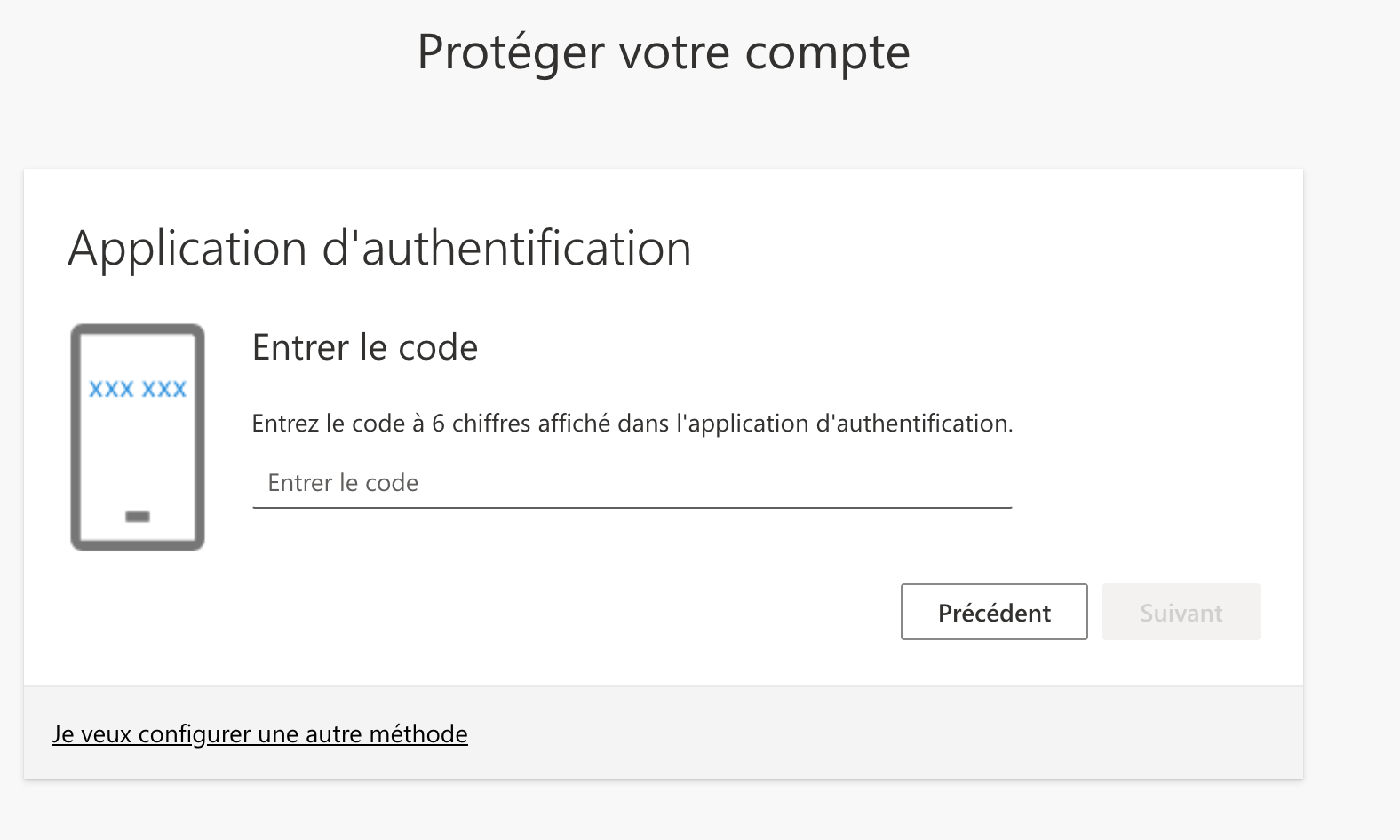
- Enter the code displayed in your app and click Next to complete the setup
Ente Auth (Phone-Free Solution)
A solution for anyone who does not have a phone.
Ente Auth is a free and open-source solution that allows you to set up an MFA code on your computer (Windows, macOS, and Linux). To configure a second factor using the Ente Auth software, you need to:
- Download the Ente Auth software from https://ente.io/auth/ (available for Windows, macOS, or Linux) and install it on your computer

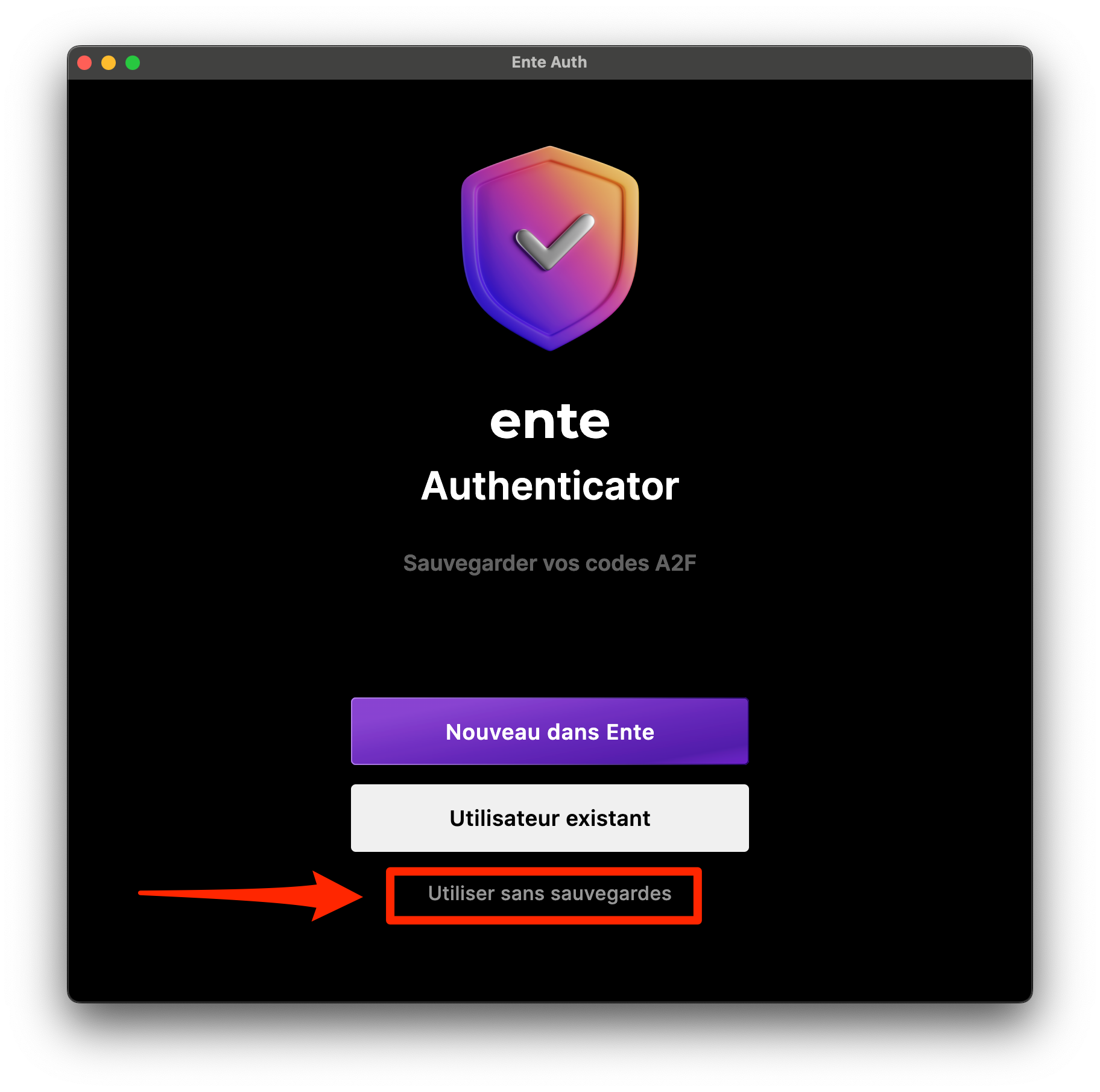
- Open the Ente Auth application and choose the option Use without backup (this allows use without creating an account, but be sure to have a backup of your computer)

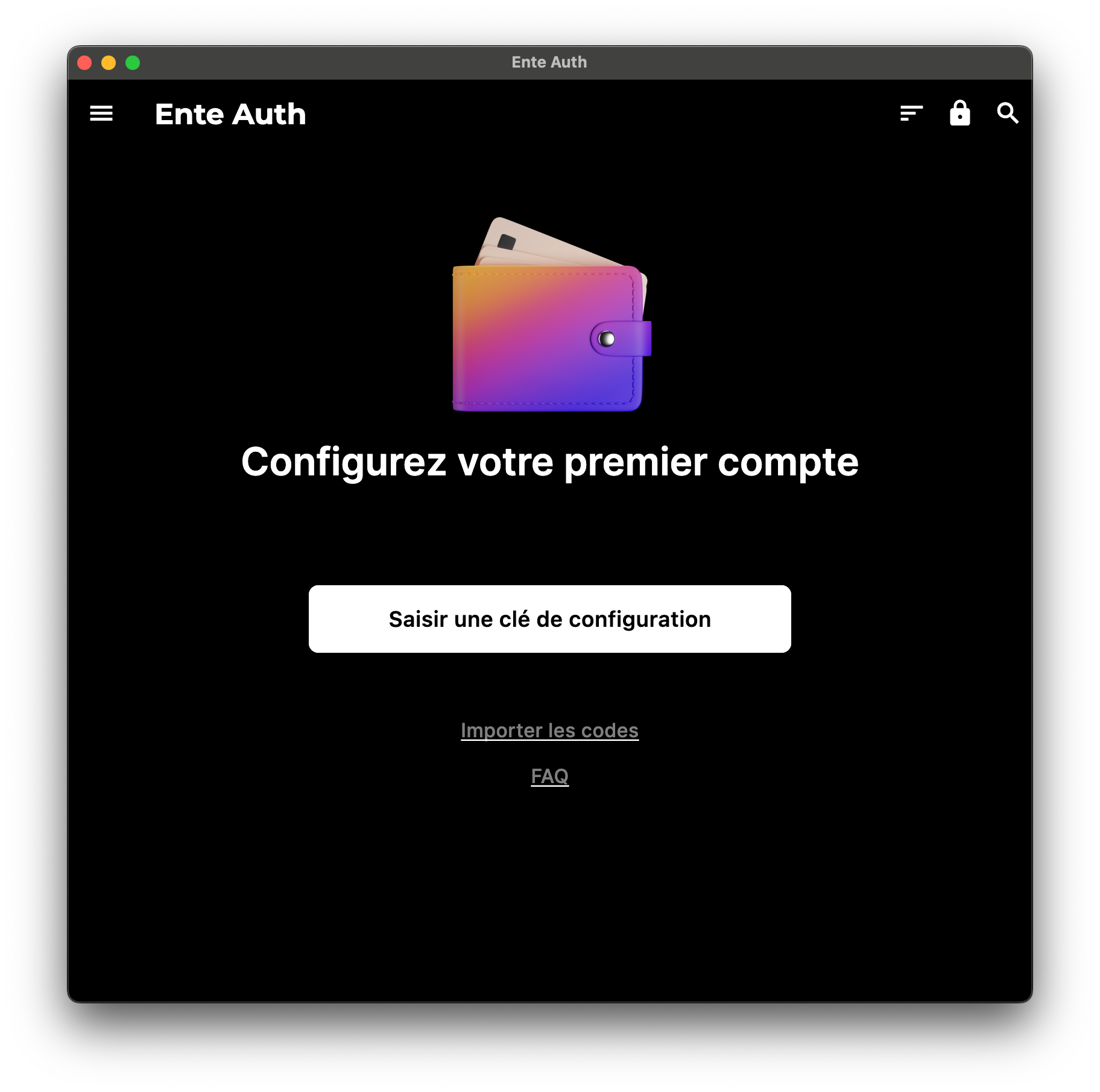
- Click on Enter a setup key

- Return to the Microsoft 365 second authentication method setup page and click on I want to use a different authentication app

- Click Next

- Click on Can’t scan the image? and copy-paste the information into Ente Auth

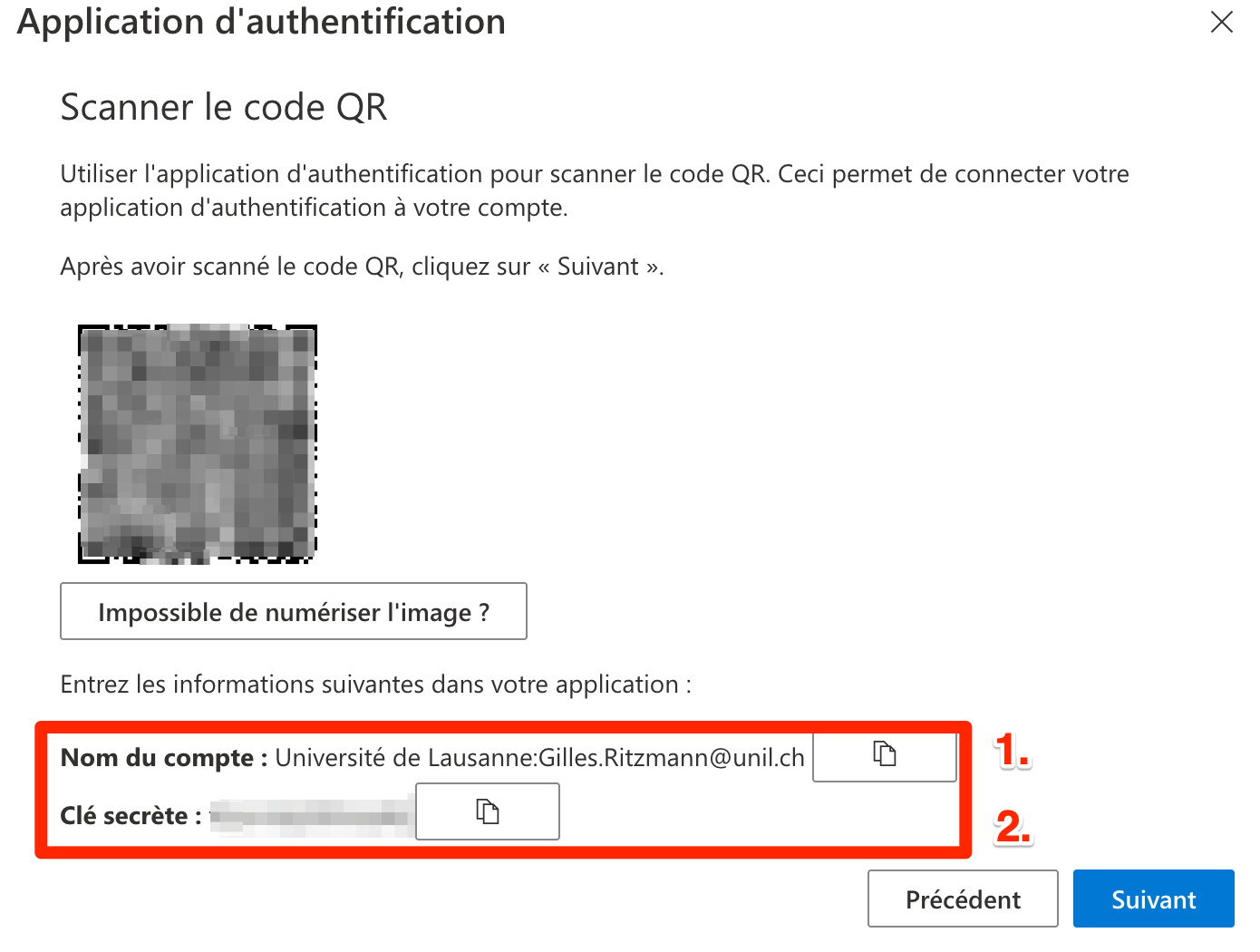
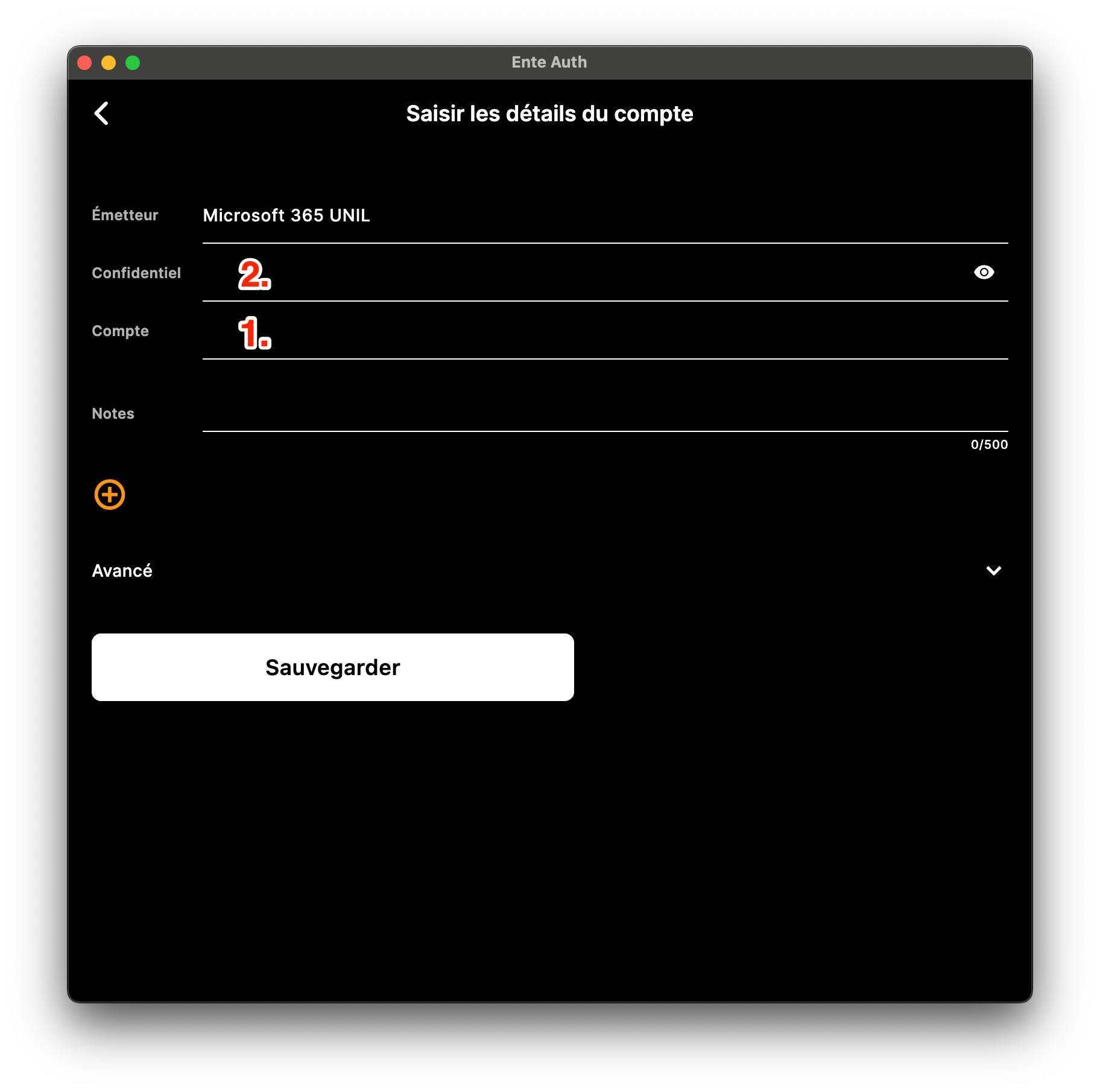
- Enter the following information and click Save:
- Issuer: Microsoft 365 UNIL
- Secret: Copy and paste the Secret Key value
- Account: Copy and paste the Account Name value
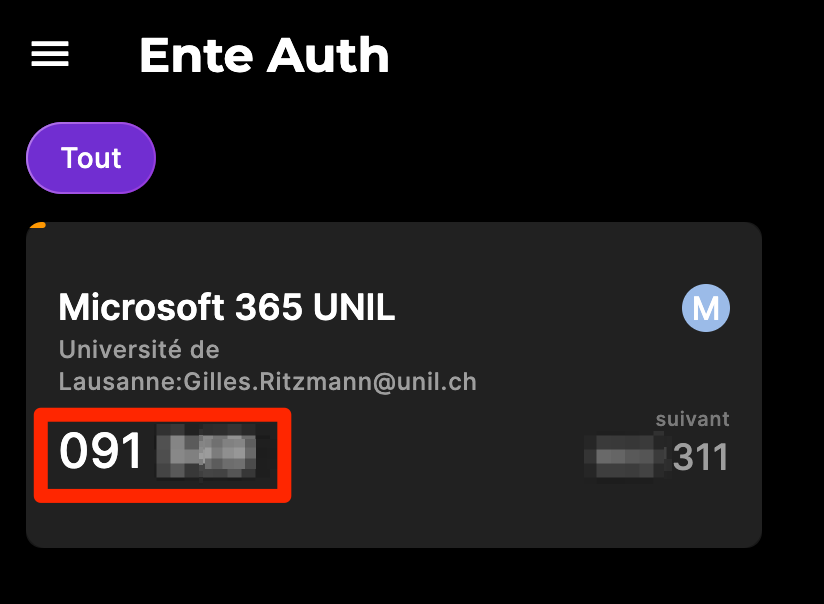
- Enter the code displayed in Ente Auth and click Next to complete the setup