NewsUNIL - Public documentation
Public documentation of the “news and events (MyUNIL)” service.
The NewsUNIL management interface available in MyUNIL enables UNIL faculties and departments to quickly create, publish or propose news and events relating to their departments. Depending on their affiliation, articles are automatically published on the various UNIL websites, as well as on the News and Events portals.
(Version française disponible ici)
- News and events management inteface
- Adding news or events
- Editing/Deleting news or events
- Editing news/event content
- Add an image to a news and events
- Add a video to news and events
- Add documents to news or events
- Sharing news and events
- Validate news or events
- Relay news or events
- Submit news or events
- Subscribe to a new or event channel
- Adding keywords (faculty web site validators)
News and events management inteface
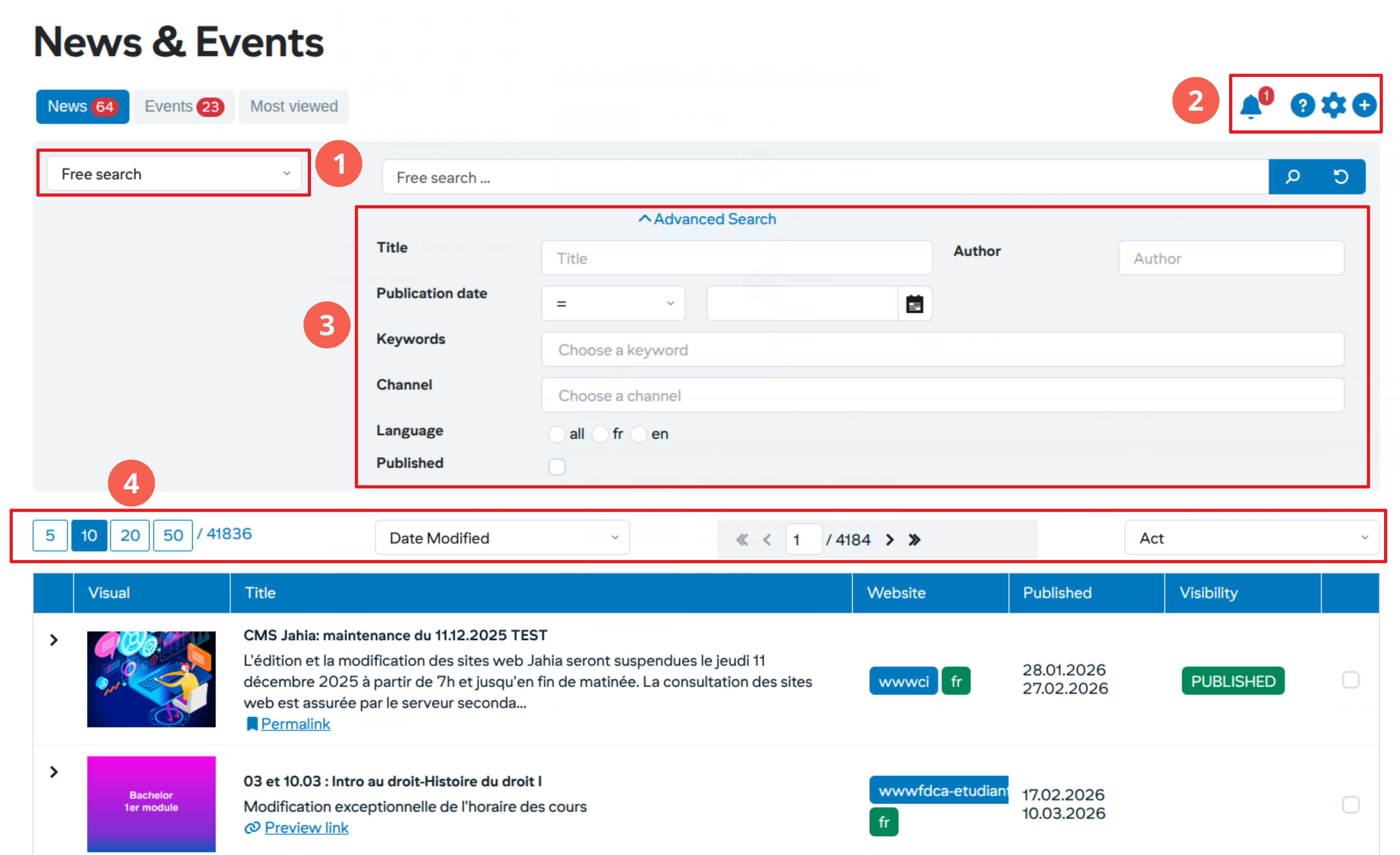
1. List of predefined searches
Each user has a list of predefined searches based on their profile. These searches are:
- My News/Events: list of news/events entered by the user
- My subscriptions: list of news/events from channels to which I have subscribed
- My validations: list of items awaiting validation
- My channels: list of items published in channels for which the user is a validator
2. General actions
Each user has actions based on his/her profile. These actions are:
- Subscribe to news channels
- Add items (news, events)
3. Advanced search
An advanced search is available by default.
4. Navigation
Users can filter and sort search results according to their needs.
Validators can also launch grouped actions on search results. These actions are: Delete/Relay/Propose selected list.
Adding news or events
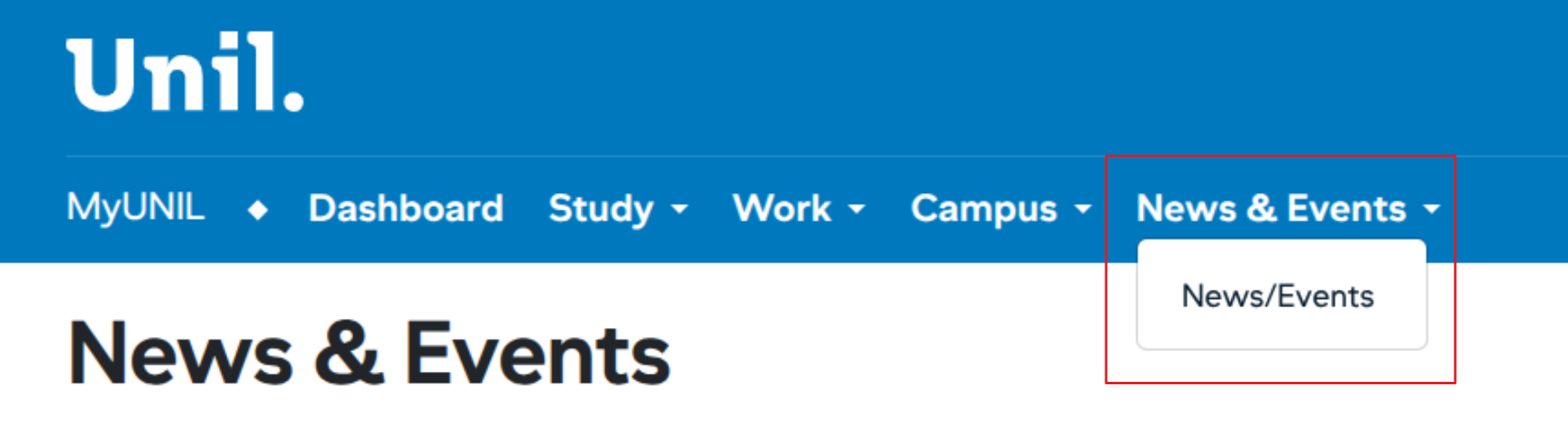
Users with a write-right in one of the news channels can access news management from the “News / Events” tab
Ajouter une actualité/événement
-
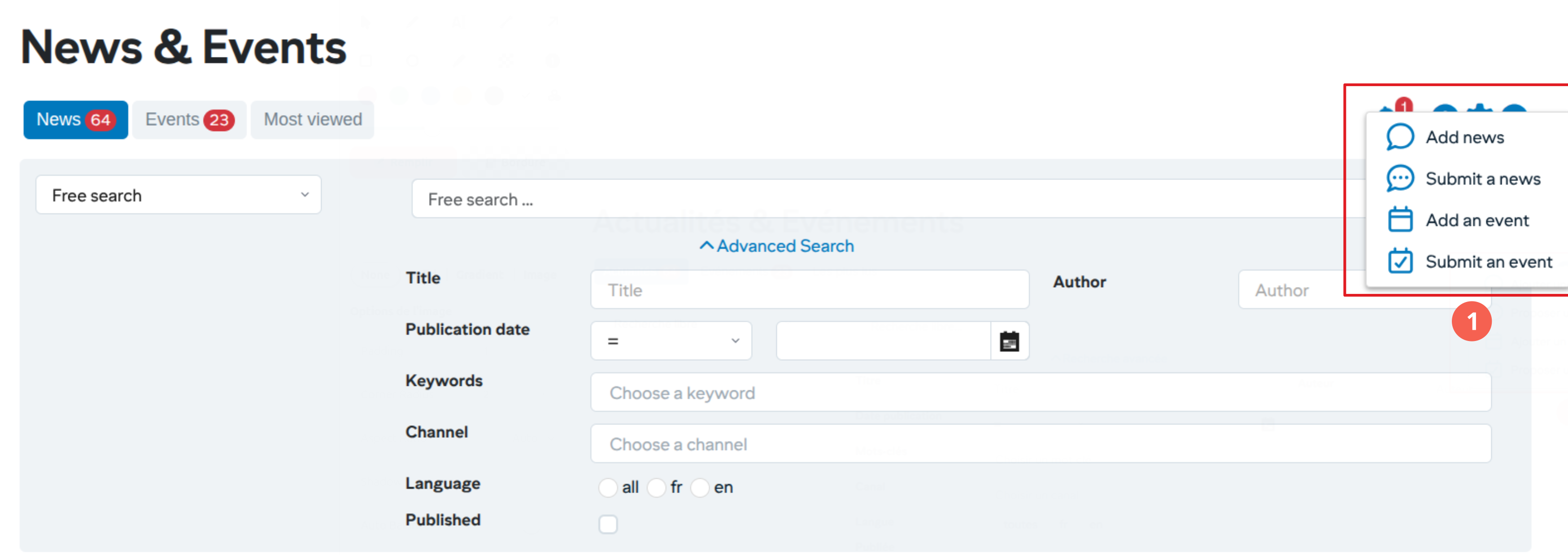
To add a news item simply click on the + button in the action area
Stages of the input workflow
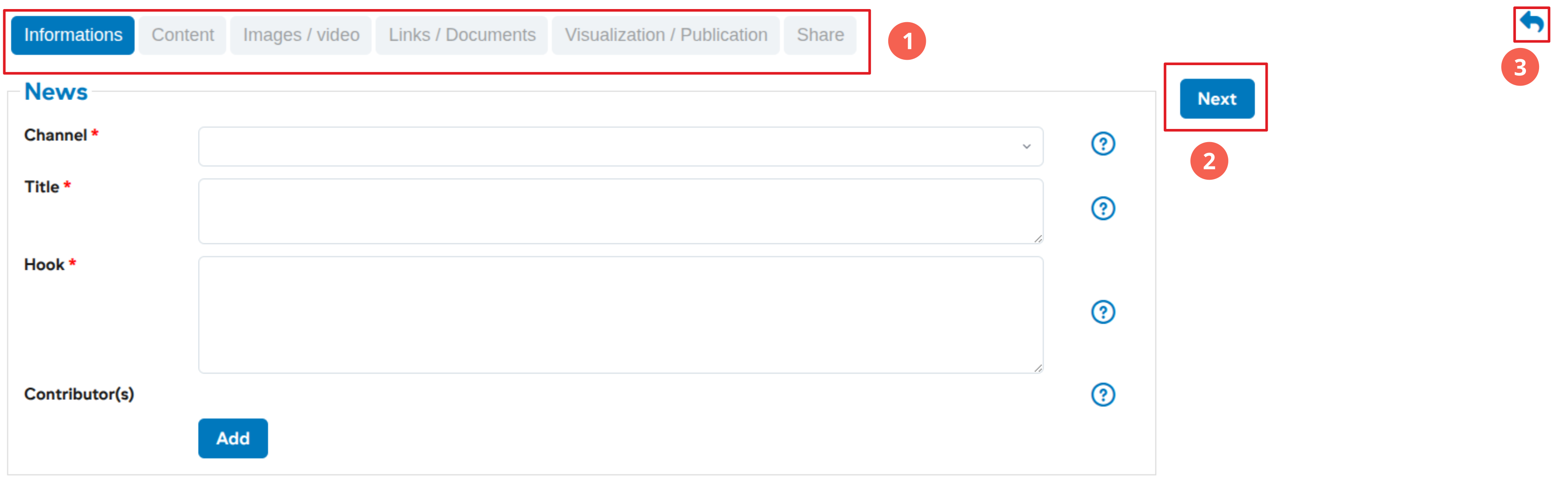
- Stages of the input workflow
- Informations: Entering general information
- Contents: Entering news content
- Images/Videos: Addition of the mandatory image and a possible illustrative video
- Links/Files: Adding specific links or documents
- Publication: Preview the object before publishing and add keywords
- Sharing: Sharing on social networks or proposal to other channels
- Actions to move around in the workflow
- Cancel the entry
Post a news
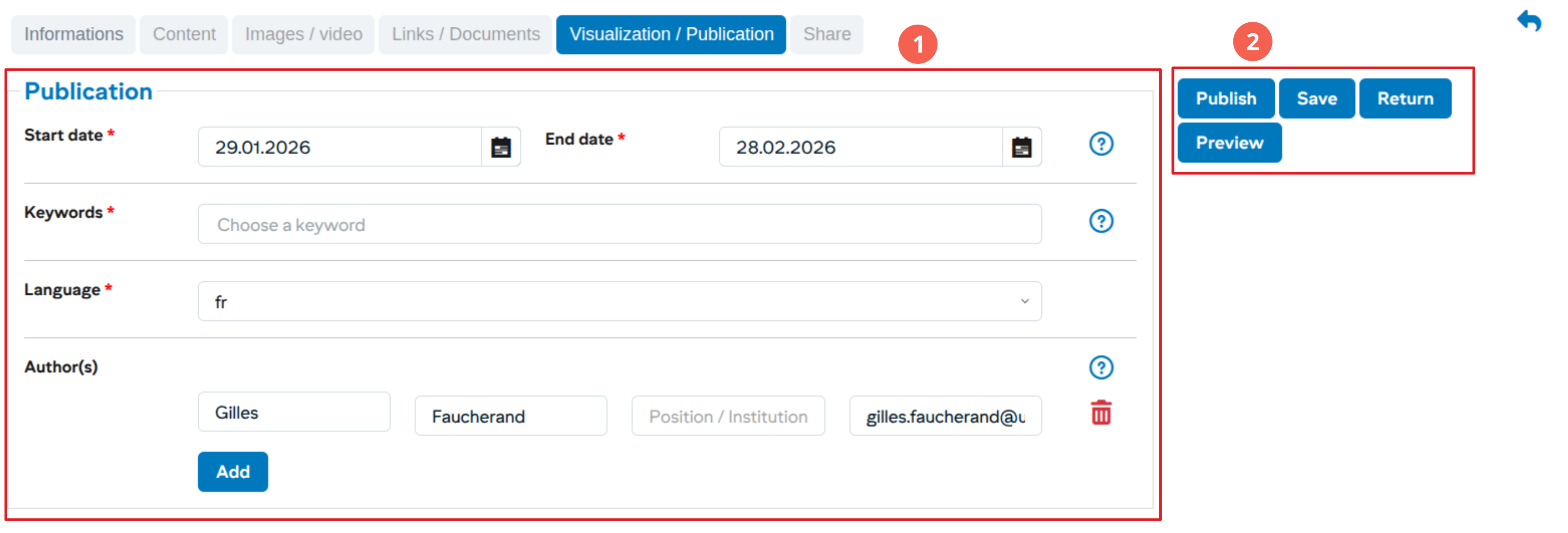
- Entering publication information (dates, keywords, authors and language)
- Actions (with possible preview before publication)
Editing/Deleting news or events
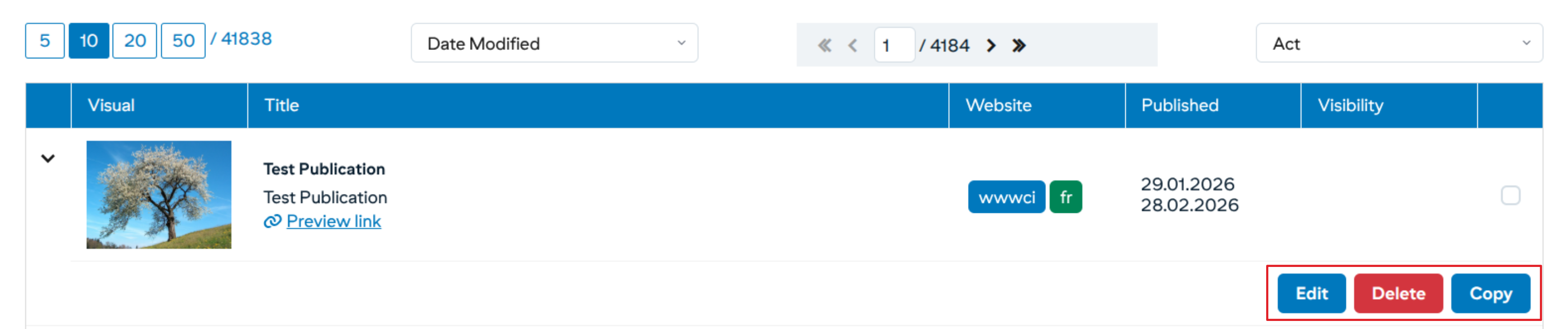
From the news details, the user can edit/delete/copy a news item at any time.
Editing news/event content
Actions
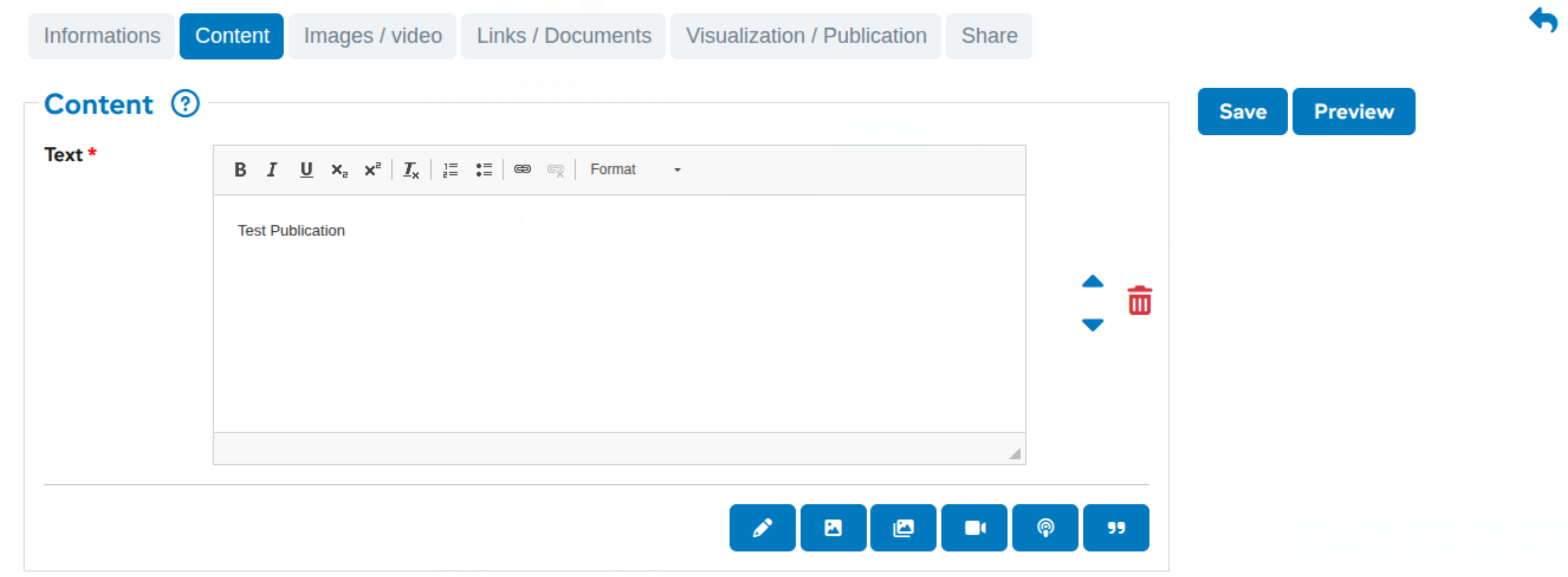
Users can add multiple text blocks and images. After editing, you can delete or sort the blocks at any time using the buttons to the right of the blocks:

Blocks
At the bottom, a toolbar lets you add different types of content:

Respectively: text block, image block, gallery block, video block, podcast block and quote block.
- Text block: the user can use several formatting tools directly in the text
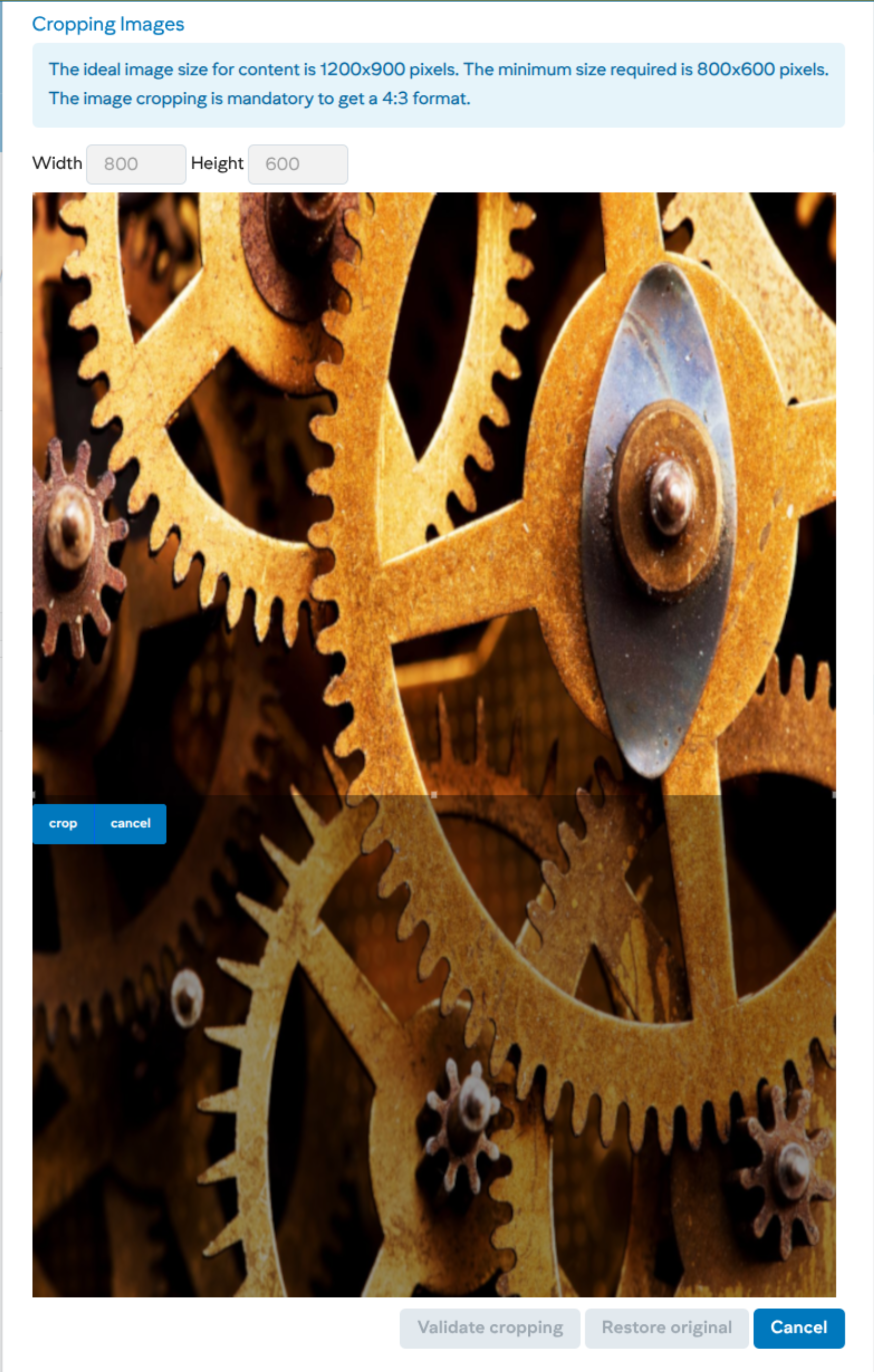
- Image block: users can add an image in 4:3 format, which requires cropping. The rectangular area can be adjusted with the mouse to preview the crop. Click on the crop button and then click on the Validate crop button to add the image to the content.
Once the first image has been added, it is possible to add a second using the Add secondary image button, in which case the two images will be displayed side by side:
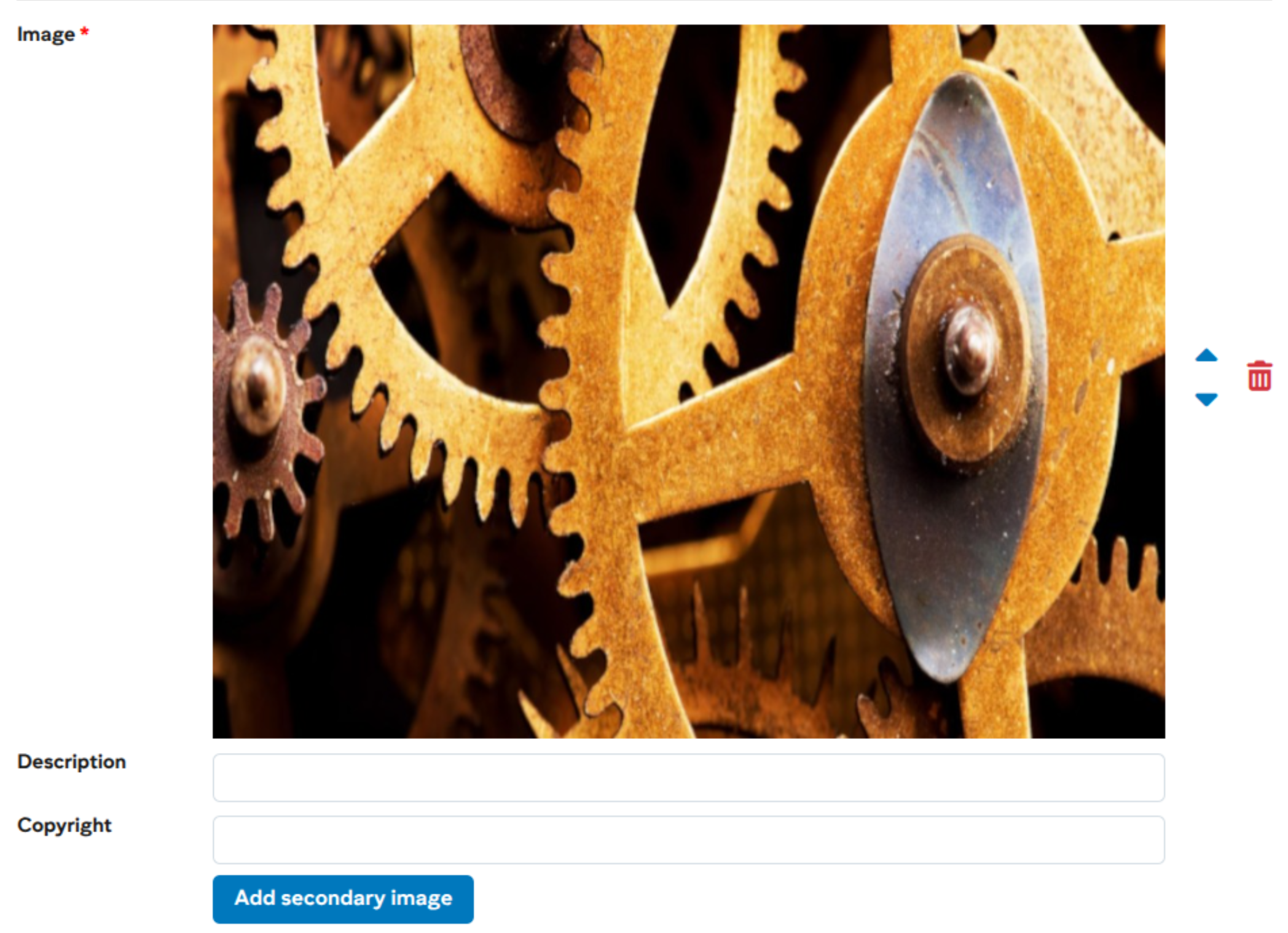
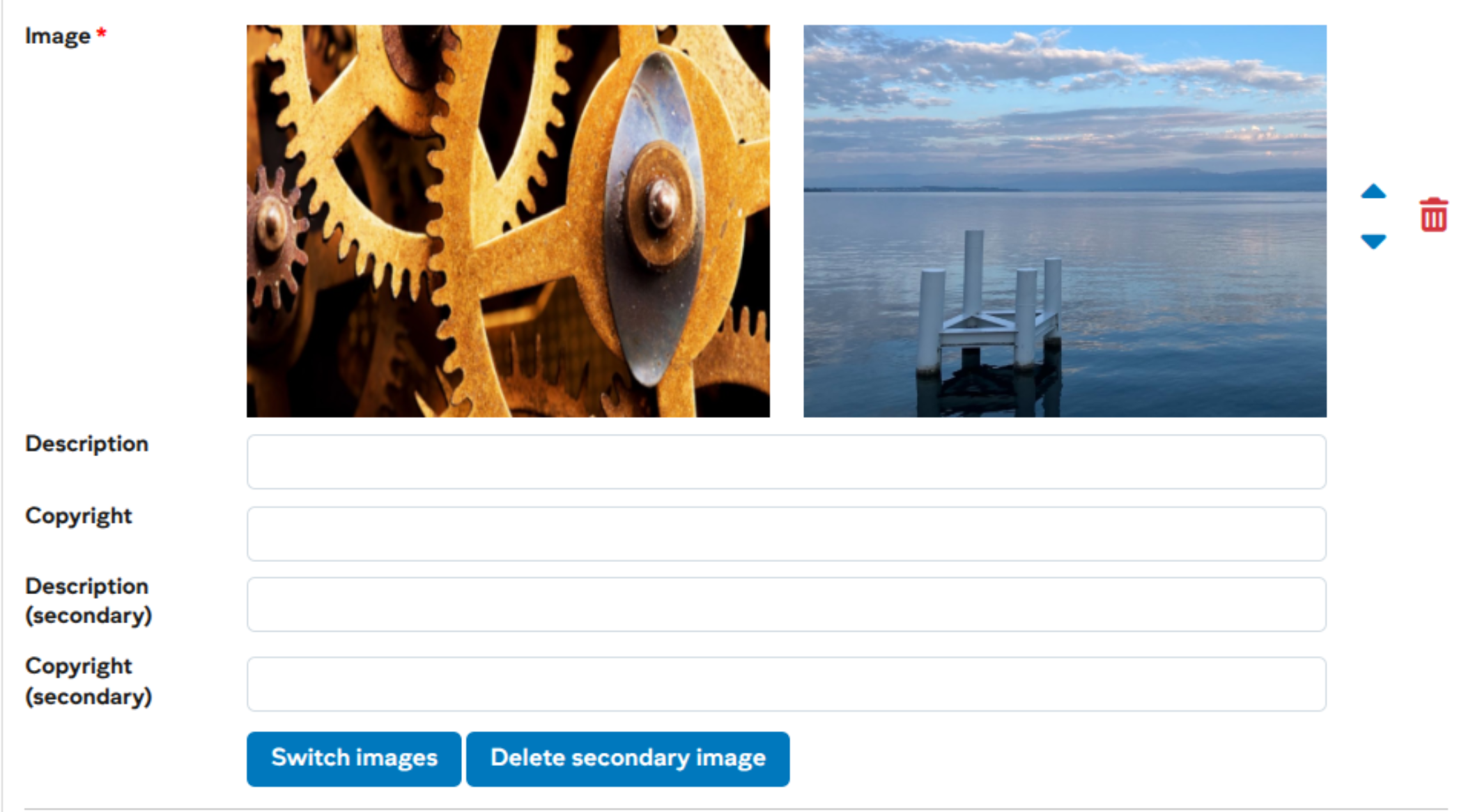
You can then manage the presentation of these two images using the Switch images and Delete secondary image buttons:
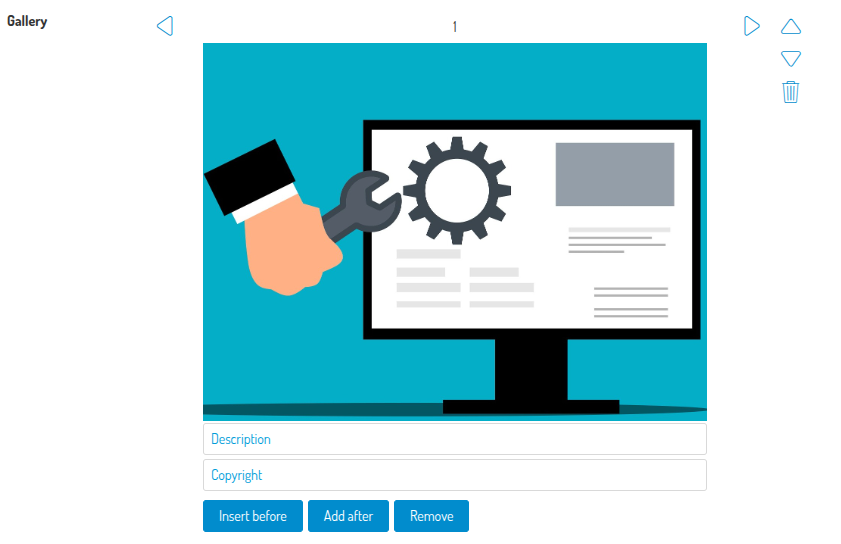
- Gallery block : unlike the image block, the user can add multiple images (with the same rules for size). You can then manage the addition/deleion of other images using the Insert before, Add after and Remove buttons.
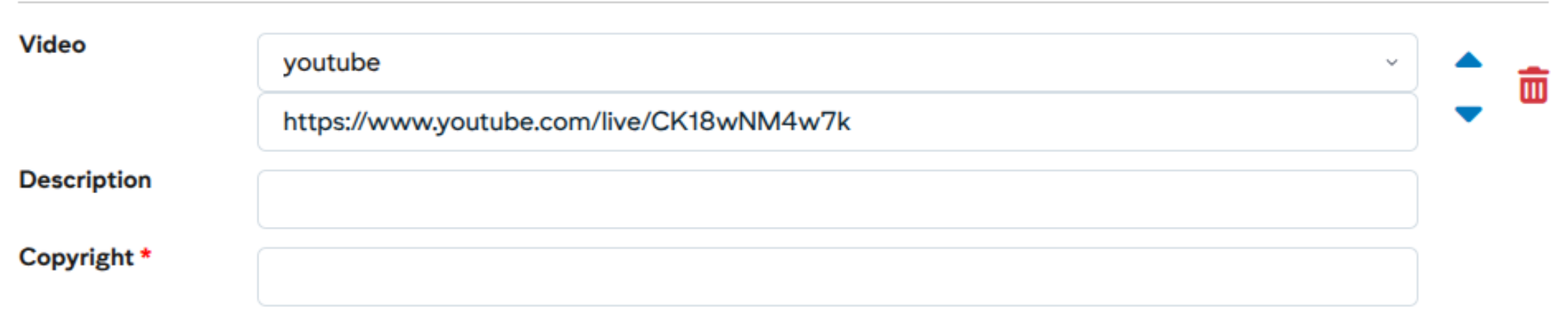
- Video block: adds a video with the same rules as the main video.
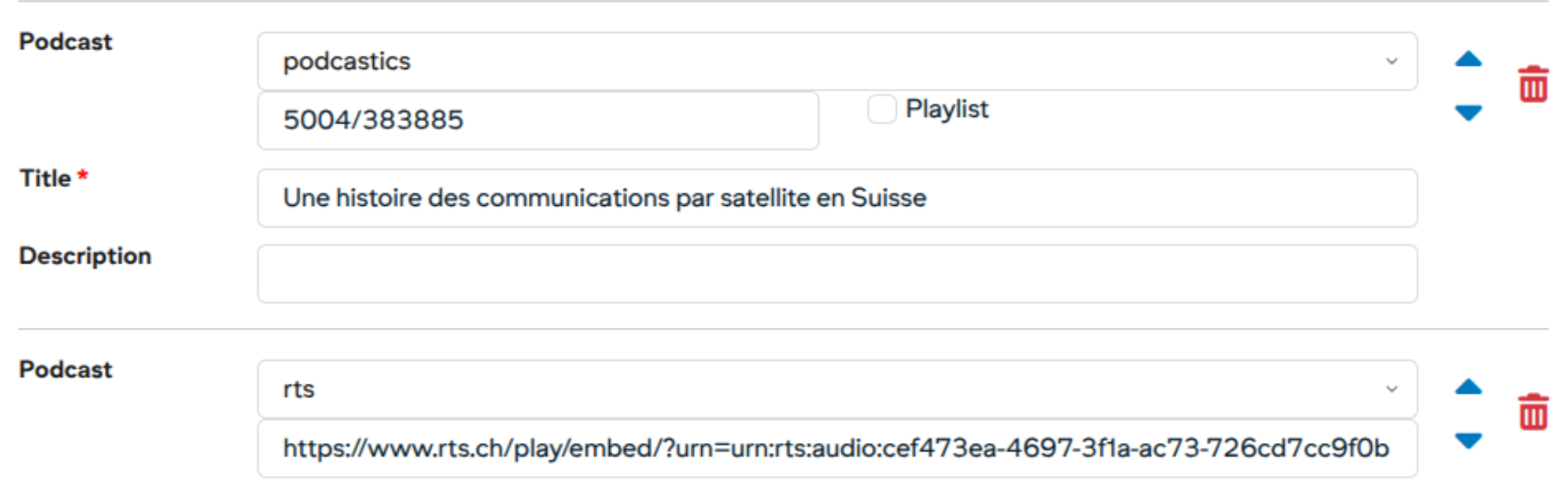
- Podcast block: adds a podcast to the content (embedded player). Supported formats are :
- RTS: https://www.rts.ch/play/embed/?urn=urn:rts:audio:...
- Podcastics: podcast identifier for simple player or playlist player
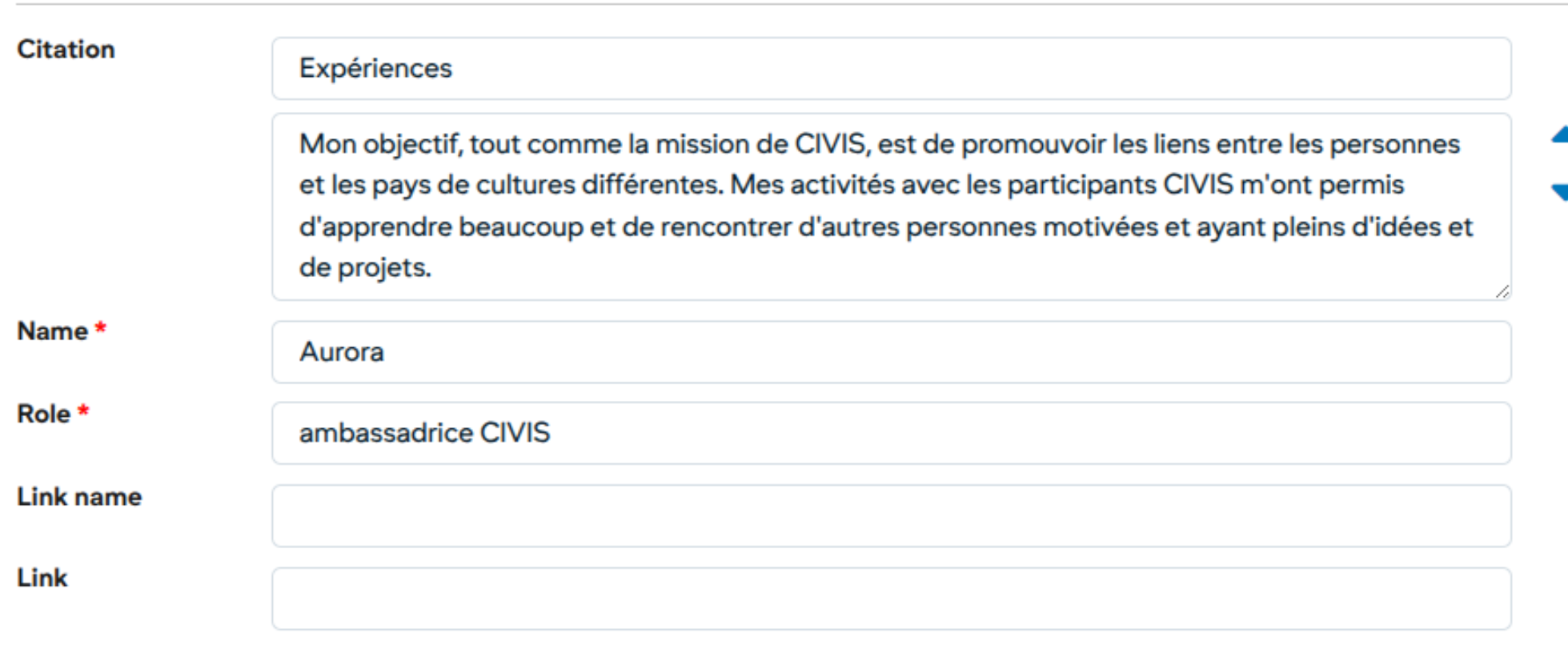
- Quote block: allows you to quote a person. The minimum requirement is the quotation itself, the name and function of the person. Optionally, you can add a title and an external link with its label.
Add an image to a news and events
Users can add an image and a thumbnail to illustrate a news/events item.
- the thumbnail (mandatory for news items) will appear in the news/events list on the MyUnil site and on the News or Events sites, as well as on the Unil site
- the main image will be placed at the very beginning of the content when viewed
Workflow step: Images / video
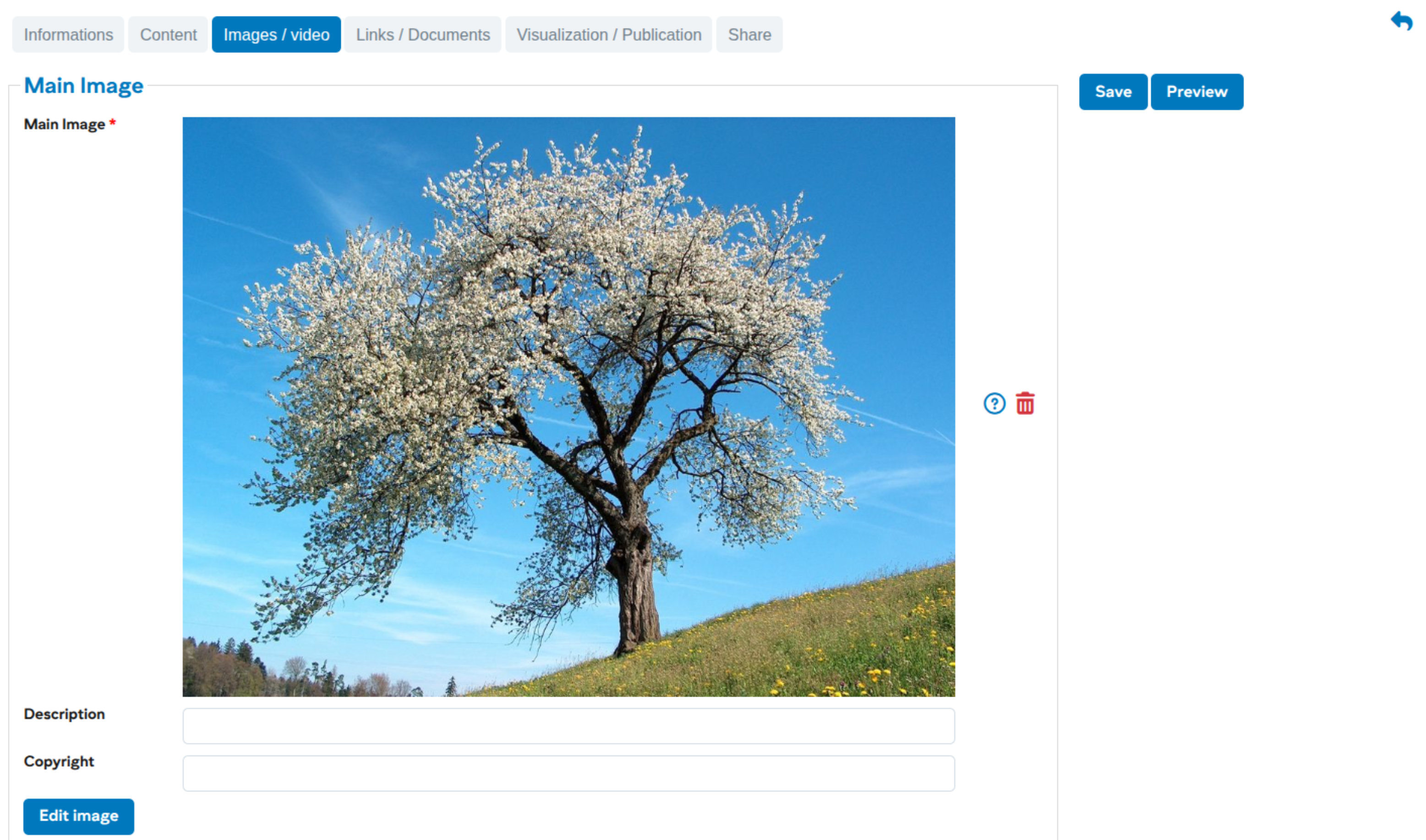
As with adding images to the content, it is essential to crop the image to the correct format before usage (see here for cropping).
Add a video to news and events
Users can add a video to illustrate a news / event. This video will take the place of the main image.
Workflow step: Images / video
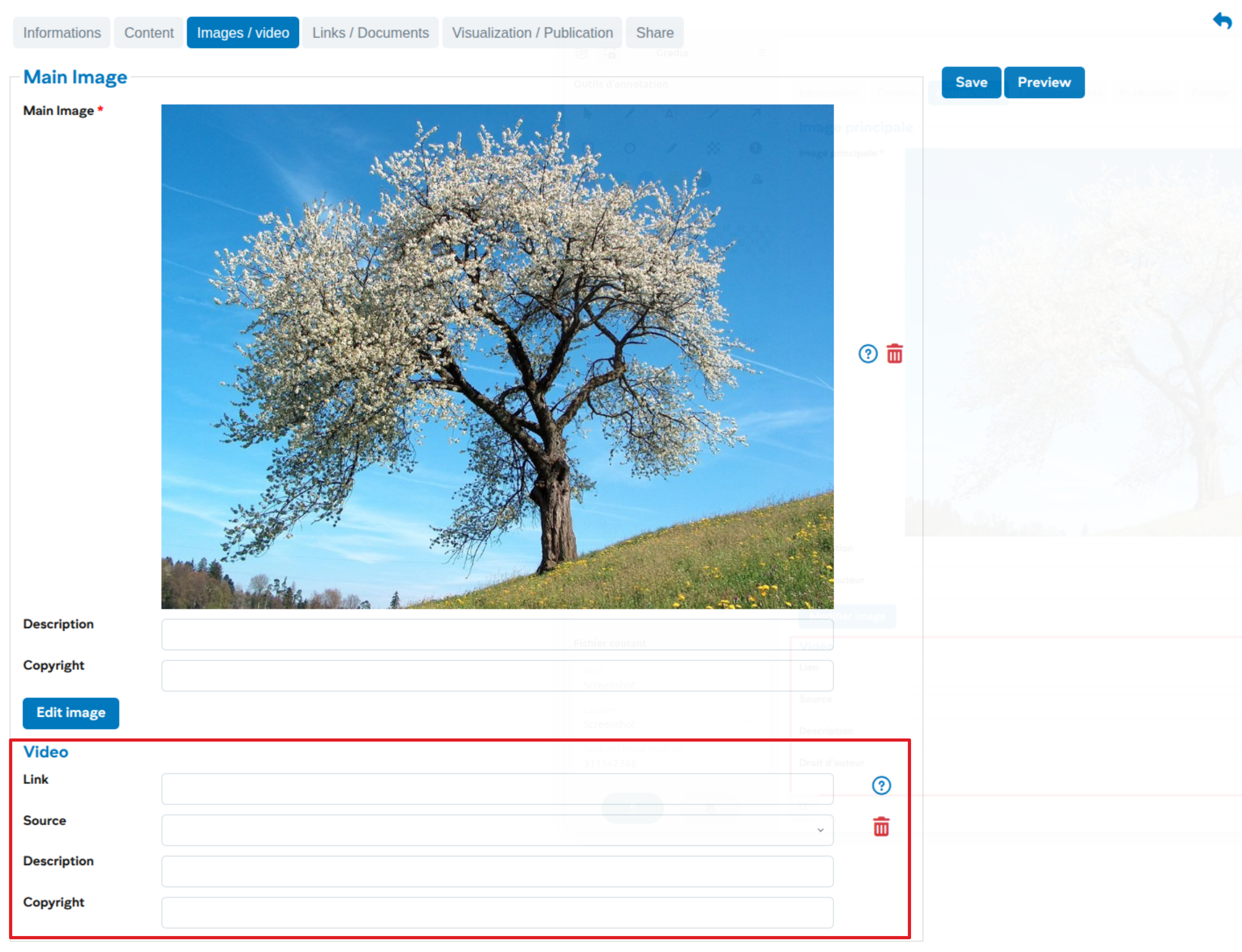
Several sources are available, and the links are generally obtained from the sharing buttons of the respective platforms and must follow these forms:
- REC Unil : https://rec.unil.ch/permalink/...
- RTS : https://www.rts.ch/play/embed?urn=urn:rts:video:... (use the value of attribute "src" from the "Embed" sharing)
- Youtube : https://youtu.be/... for a video or https://youtube.com/playlist?list=... for a series of videos
- Vimeo : https://vimeo.com/...
- HVA : https://av.unil.ch/hva/...
Example of adding a Youtube video
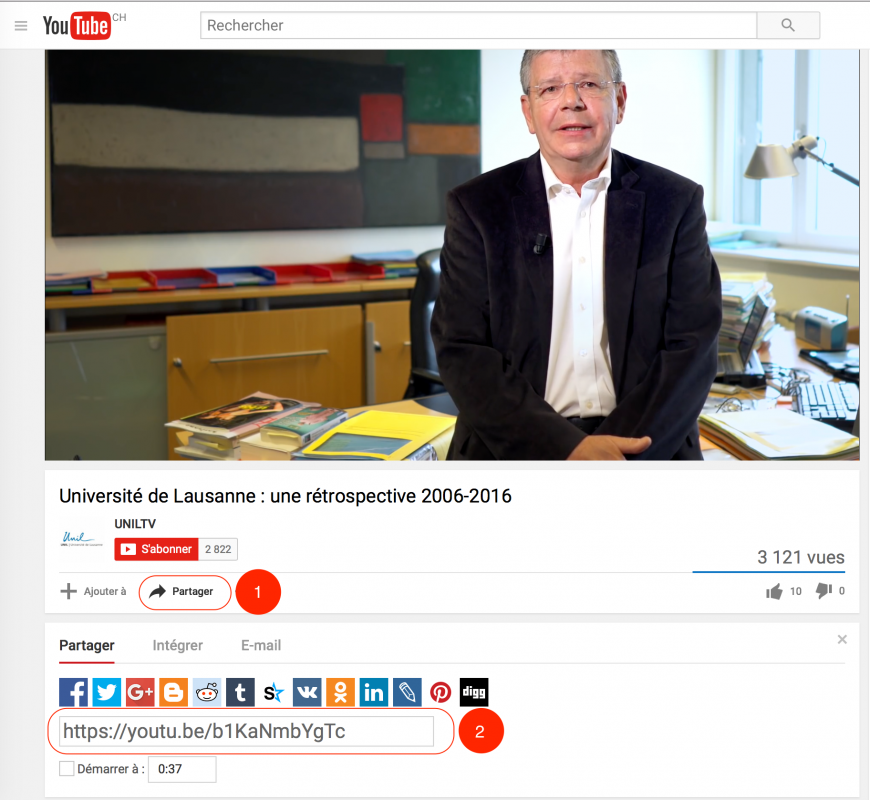
- Click on the sharing link in Youtube
- Copy the generic link of the video
Add documents to news or events
When entering news, it is now possible to add documents directly in the news / event. The addition is done from the “Links / documents” workflow step.
Workflow step: Links / documents
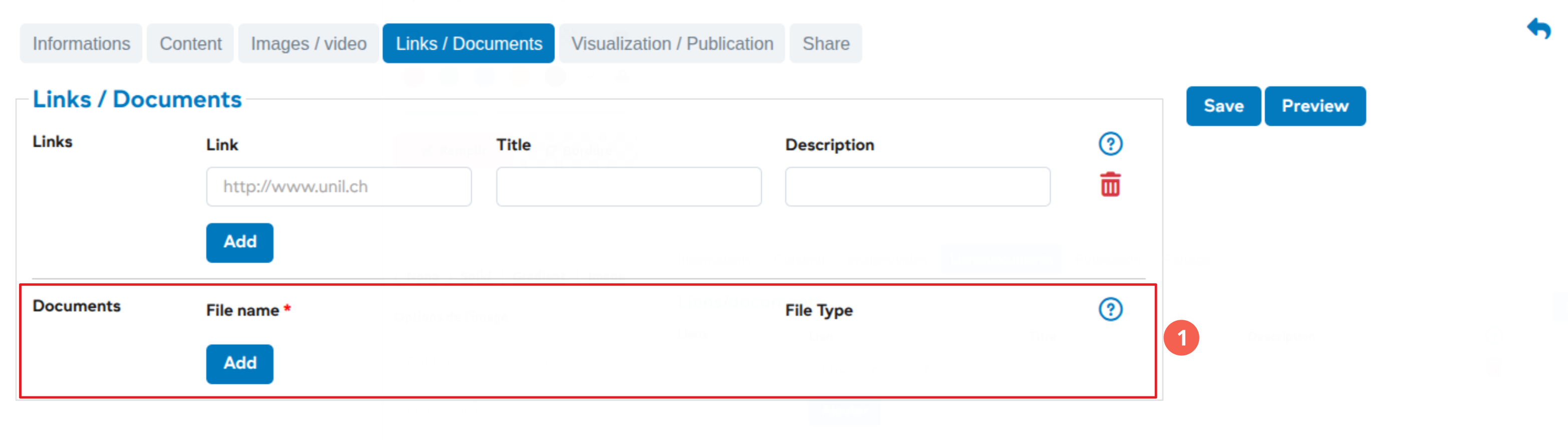
For reasons of portability between different systems, the only accepted format will be the PDF. The maximum size allowed is 10Mb.
Sharing news and events
When entering a news / event, the user has the possibility to share his / her object:
- Sharing on social networks
- Share with another news channel of the UNIL
Input Workflow Step: Sharing

-
Sharing news or events with another channel of the UNIL
Validate news or events
Users with write permissions in a channel have access to the validation of the different objects in their channel. Each news / event is assigned a status. Here is the list of existing statuses in the new system NewsUNIL:
- To validate: Default status, the news is awaiting publication and does not appear in the websites.
-
Proposed: Status of an object proposed by another channel, or submitted by a person who does not have write rights in the channel
-
Online: Status after publication, appears on the various services (websites, public research, L’ACTU, L’AGENDA)
-
Offline: Status applies after the end of publication date for news. For events, the date of the event is applied.
Validation of a news
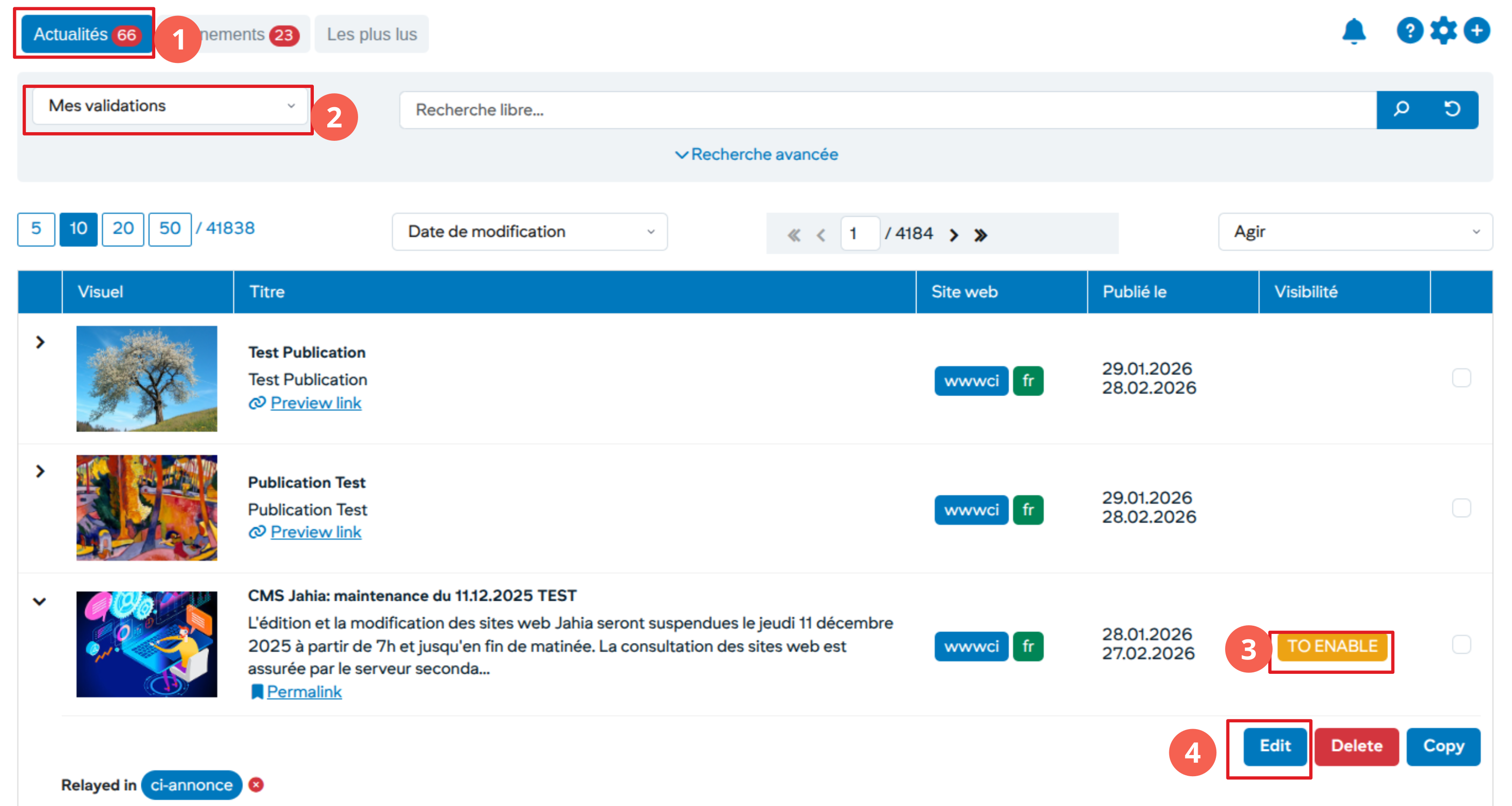
-
A pellet indicates the number of items awaiting validation
-
In the predefined lists, choose the menu “My validations”
-
Status of item: TO VALIDATE or PROPOSED
-
Show details to access the validation. Click the “Edit” button and choose the “View / Publish”
Validate an item with a status: TO VALIDATE
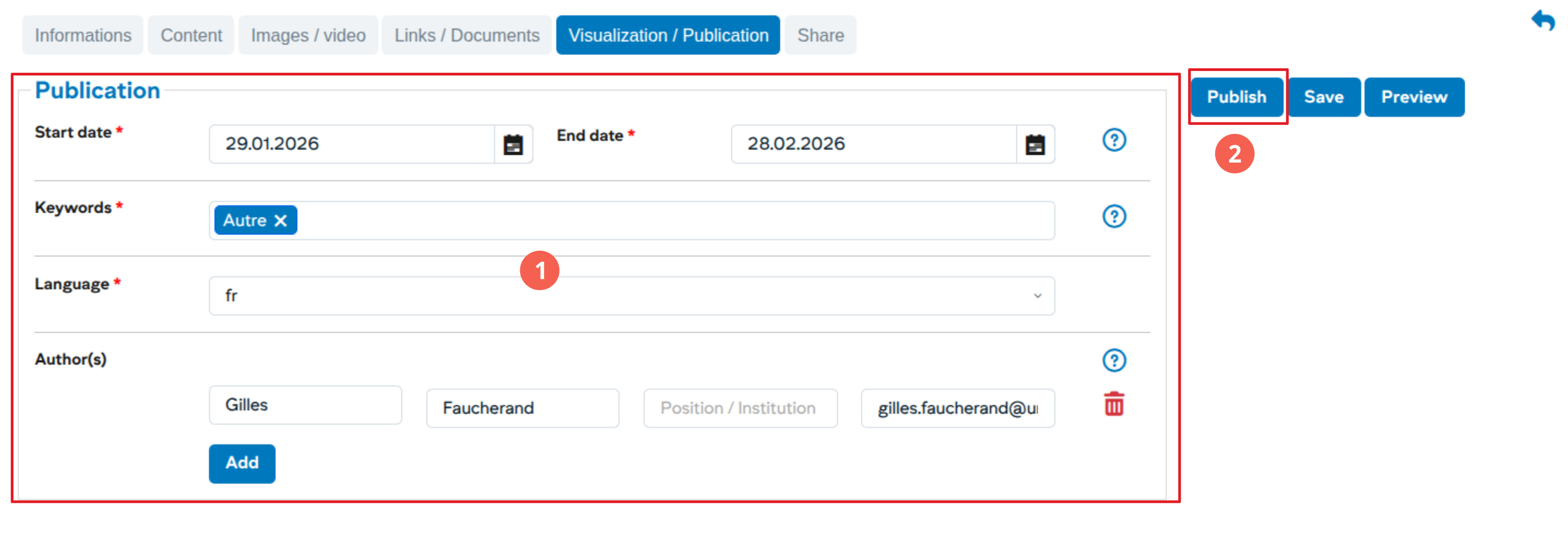
- Publication Information
- Click on “Publish” to publish the item
Accept rejecting an item with a status: PROPOSED
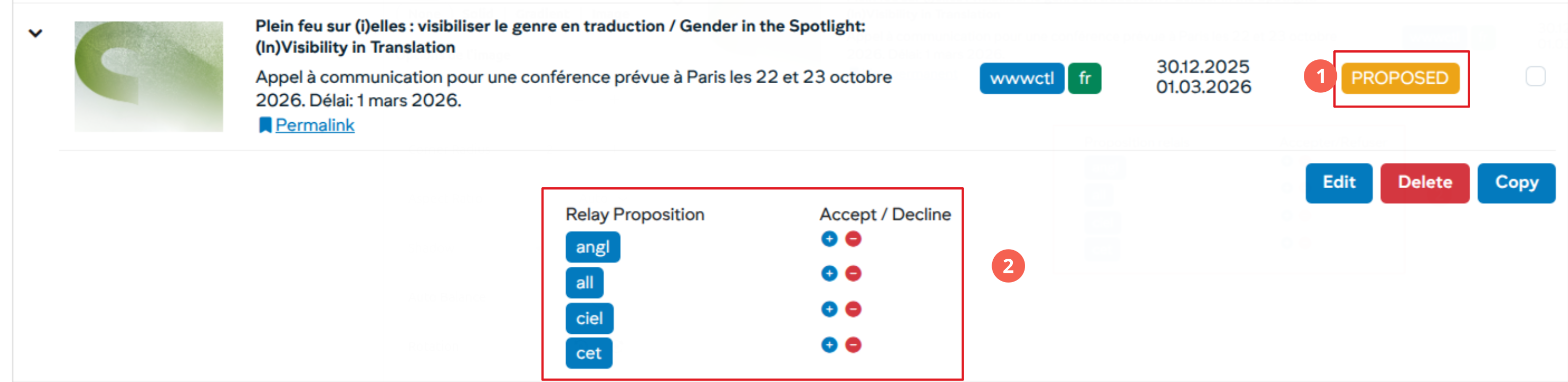
- Status: PROPOSED
- Show detail allows you to view the item
Relay news or events
Any element can be relayed at any time by the user in a channel for which it has write rights.
News search to relay
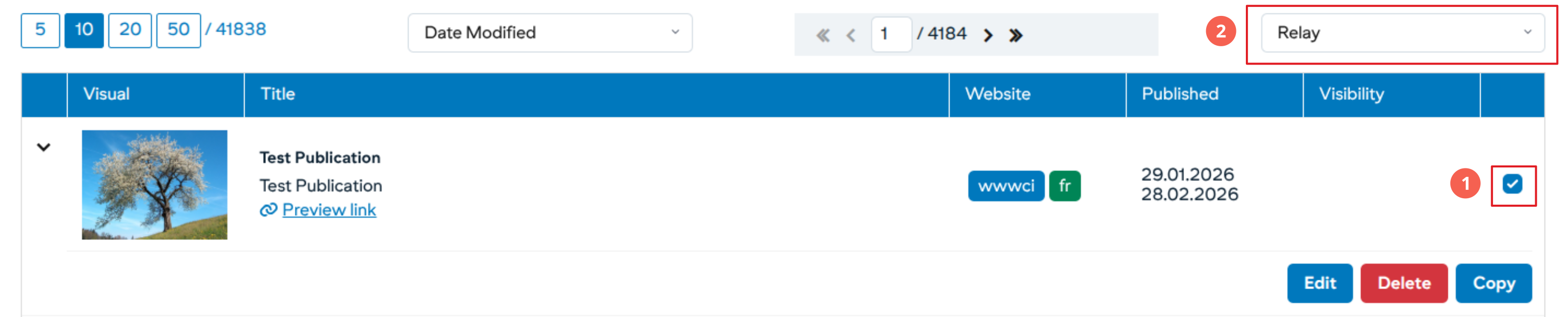
- Select the elements to be relayed
- Choose the option “Relay”
Validation of the relay
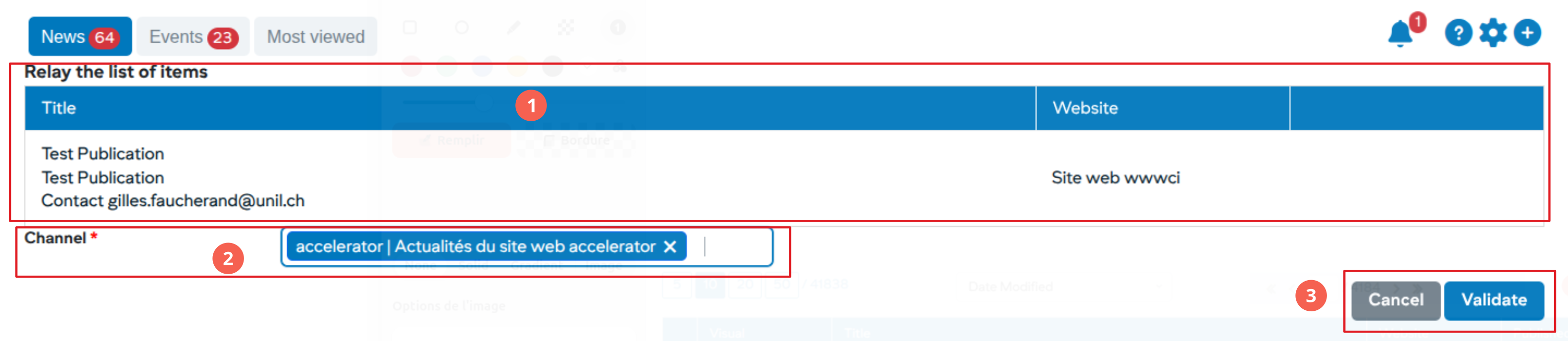
- List of elements to be relayed
- Choose the channel (s) in which to relay the elements
- Validate relays
After this step, the validated elements will be visible in the channels with an “R” status corresponding to the relay.
Submit news or events
A user with write rights on a channel can at any time offer these items with an “ONLINE” status to other channels.
Search news in its channels
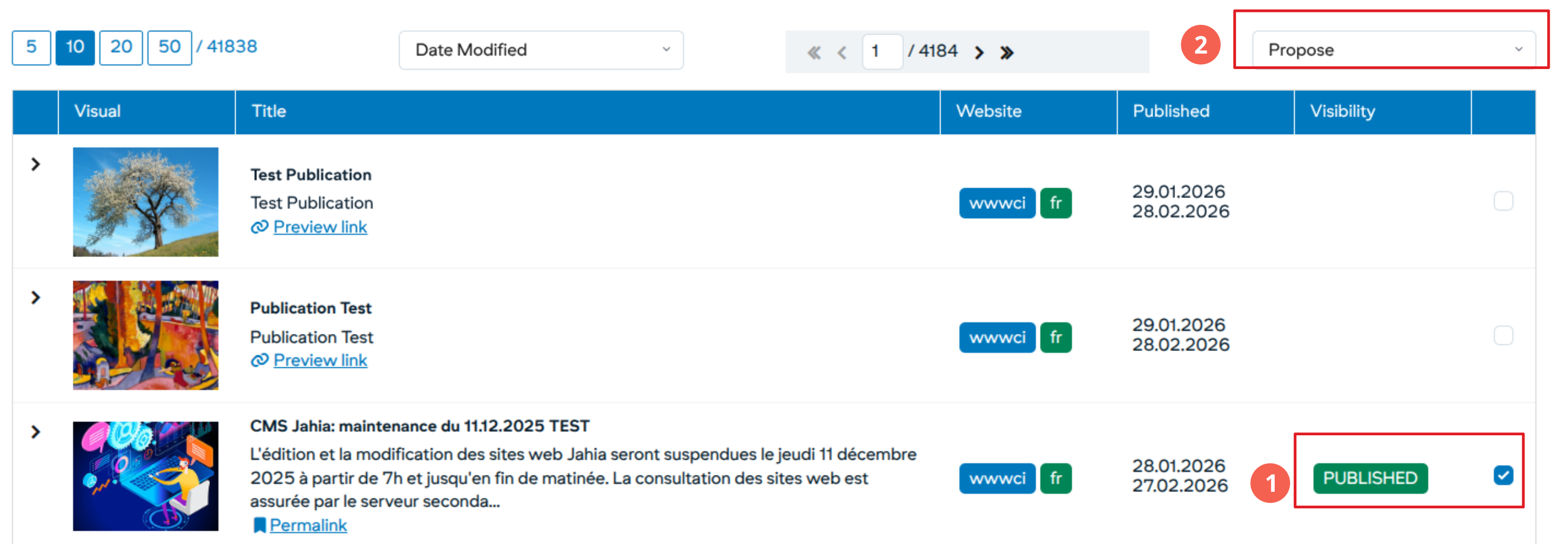
- The news to be proposed must have an “PUBLISHED” status
- Select items Propose
Validate the proposals
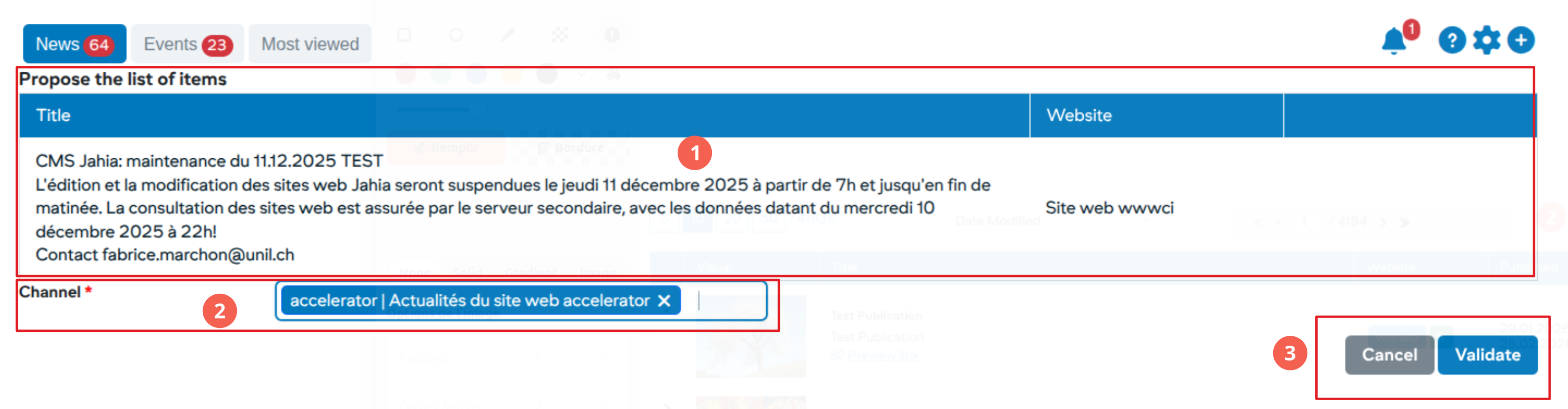
-
List of elements to propose
-
Choosing the channels to propose
-
Validate these elements
Proposal of a news / event by a user without writing rights
Any user with access to MyUNIL has the possibility to propose a news / event to any channel of the system.
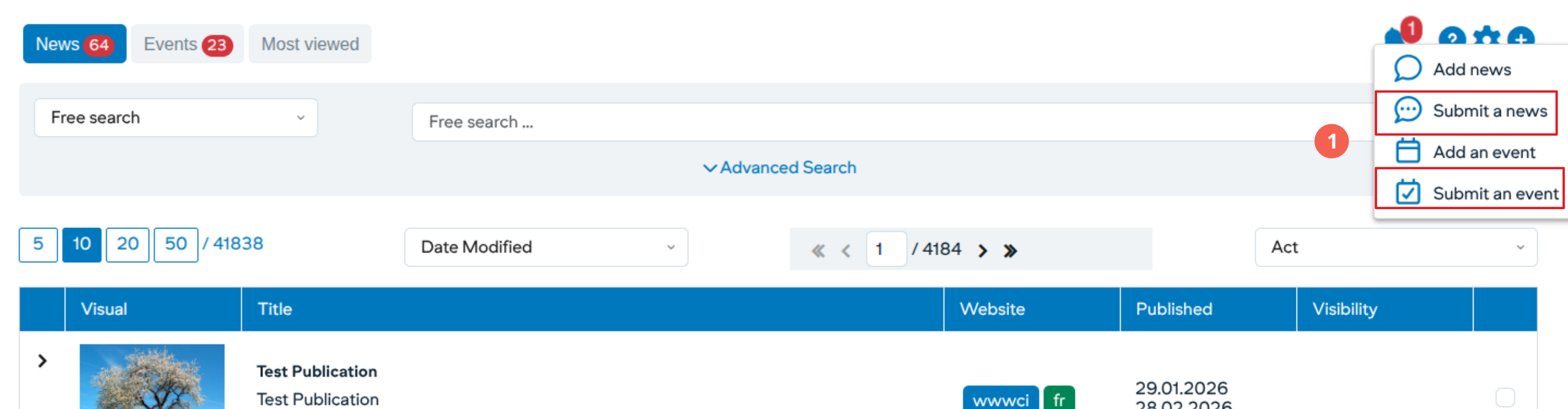
- Go to the actions section and click on the + button to propose an element to a news channel
- The item can then be published by a user with write access to that channel
If the person who posted the news item or event wishes to edit it after publication, they cannot do so directly but must send the changes to a user with write access.
Subscribe to a new or event channel
Any member of the academic community may subscribe to news / events channels. The items published in these channels will then appear directly in the notifications of the “What’s New?” Application.
Preference Management

Subscribe to one or more channels
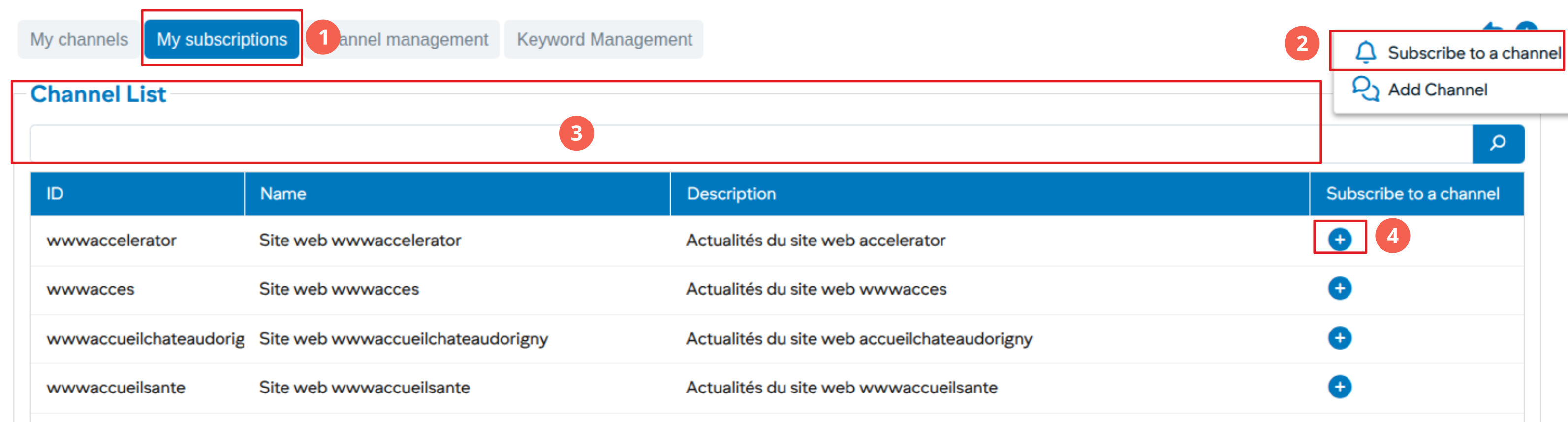
- Choose the “My subscriptions” tab
- Click on more to subscribe
- Searching through existing channels
- Subscribe to the channel by clicking on +
Adding keywords (faculty web site validators)
Users with write permissions in faculty channels as well as UNICOM users will be able to add keywords to allow news and events ranking
Preference Management

-
Click on the preferences management icon
Add a keyword

- Go to keyword management
- Enter the new keyword and save
Once added to the system, the new keyword can be used by all channels.