Study - Access and view your course documents
Through the MyUNIL portal, teachers can make course materials available and students can access them. The Moodle service also allows this.
(Version française disponible ici)
Access to course material
Students can access all course documents filed by the teacher if they use MyUNIL for the management of course materials.
Access to course documents from the “Courses” application
Access from course list

- Select course on the list on the left
-
The documents will appear in the “Documents” section to the right of the interface
- On peut à l'aide des icônes :
-
 Download folder as compressed file
 -
 Share bookmark of this course page
 -
 Share link of documents of this course
-


Search for course documents

By selecting the “Course Documents” tab, students have access to a search in course documents (Documents tab)
- Search term
- Access to advanced search
- Result of the research. Access to the course space by clicking on the detail icon
- Possibility of research in these courses or in the courses of the whole faculty
- Allow to filter courses by date
- Allow to define the language of the search term and possibly restrict the search to the exact term
- Allow to view the contents of this directory (the icon
 allows to share the link to the documents in this directory)

Search for course documents from a faculty

By selecting the “Course Documents” tab, students have access to a search in course documents of a faculty (Teaching tab)
Accessing course documents from the “Calendar” application

- Click on a course to view details

-
Access course documents from the link. The user is redirected to the “Courses” application and the file space is automatically displayed

Add course documents
Teachers and student assistants with a proxy for a course can at any time add documents to a course space
Select a course
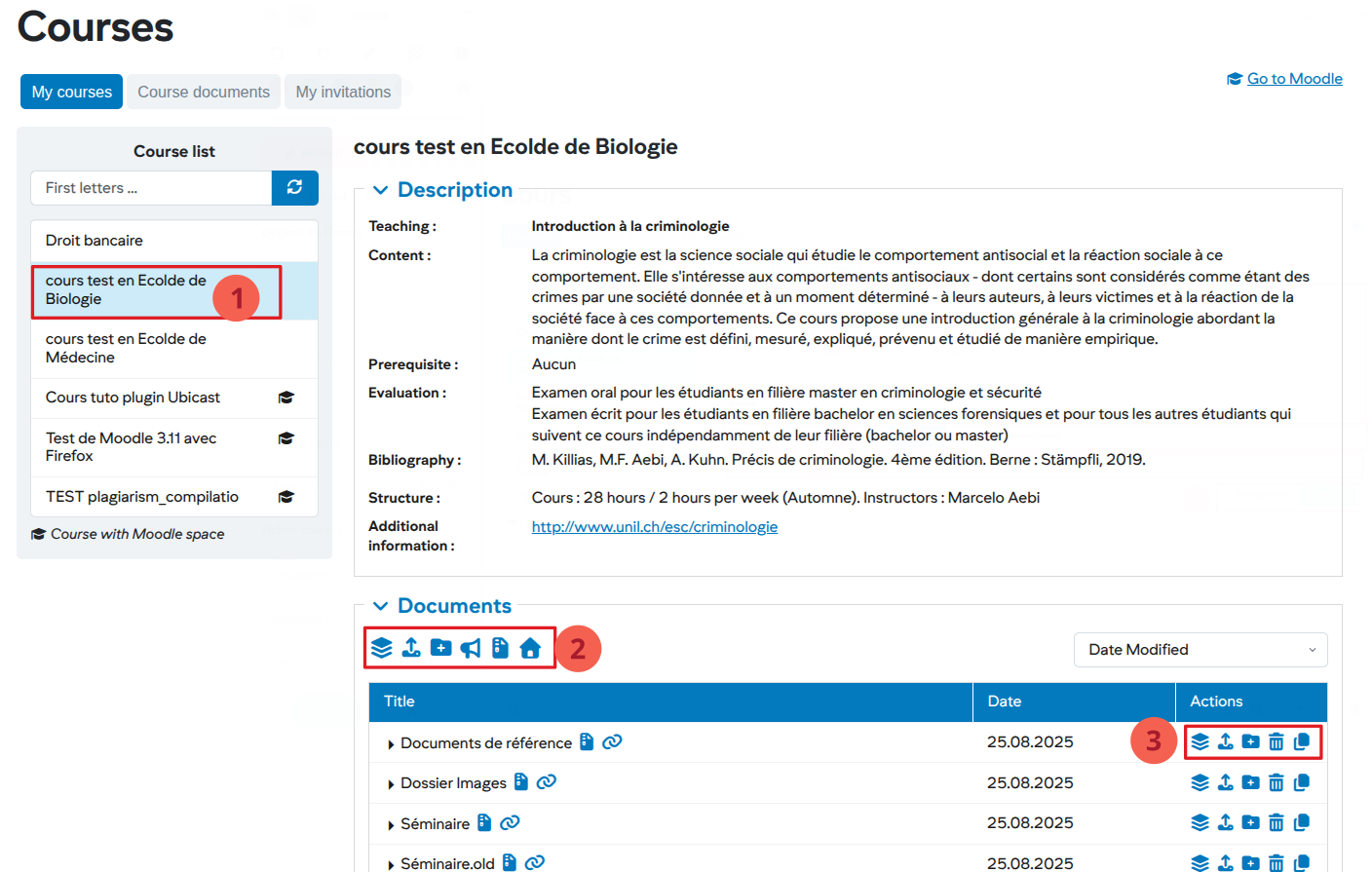
- Choose from the course list a course for which you want to add documents
- Add a document or directory to the root of the document system in the selected course
-
-
 Upload multiple documents
 -
 Upload a document
 -
 Add a directory
  Communicate by email with the students of this course
-
Download folder as compressed file
-
Share bookmark of this course page
-
-
- Add a document or directory to a specific directory
-
Upload multiple documents
-
Upload a document
-
Add a directory
-
 Delete a file or a directory
 -
 Copy a file or a directory into an other directory
-


Add a course document
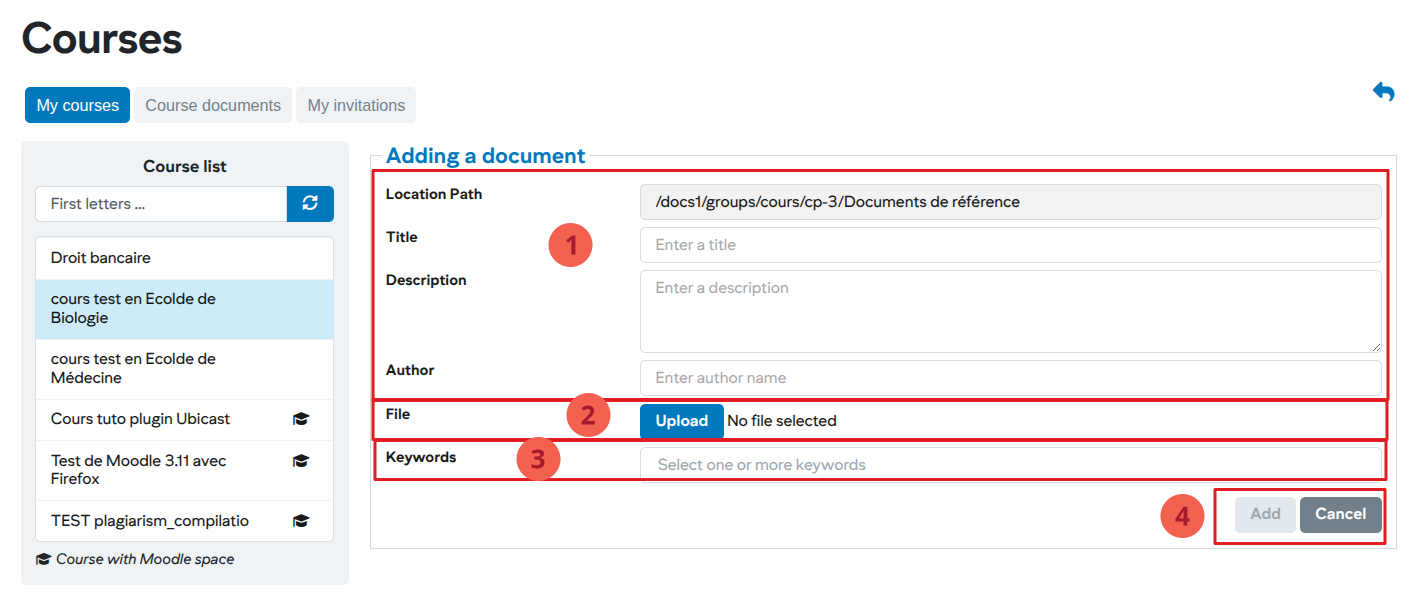
- Enter document information
- Upload the file
- Add the keywords. These keywords will be used to find them in the search for documents
- Validate the addition of document
Note: when adding multiple documents, the title and description cannot be provided, and only five documents can be uploaded at a time.
Access a Moodle course space
Students can access their Moddle course space from the “Course” application. Courses with open course space in Moddle are indicated by a specific icon.
Access the Moodle space of a course
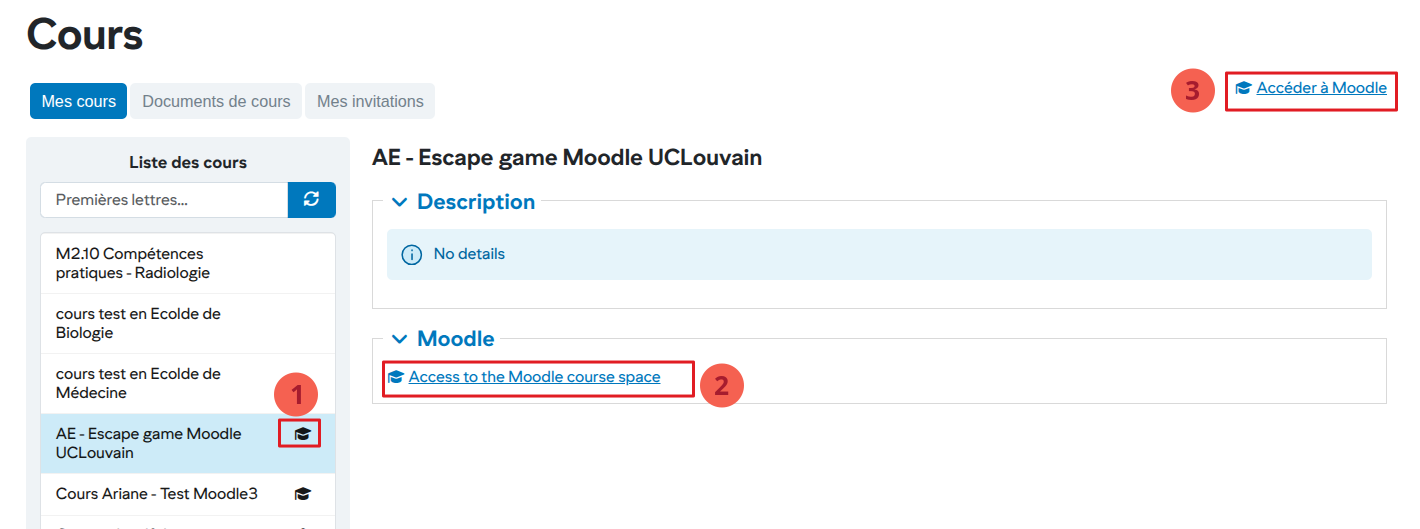
- In the left menu, all courses with an open Moodle space are indicated by the icon
- After selecting a course from the list on the left, access to the corresponding Moodle space is displayed
- General access to Moodle