Course and Assessment Registration
Table of Contents
- Accessing the Registration Service
- Registration Contract
- Selecting Your Courses
- Reviewing and Confirming Your Registration
- Registration and Withdrawal Periods
- Key Points to Remember
1. Accessing the registration service
Go to MyUNIL and click on Enrollment in the navigation menu. The main page displays the list of available services in a table with the following columns: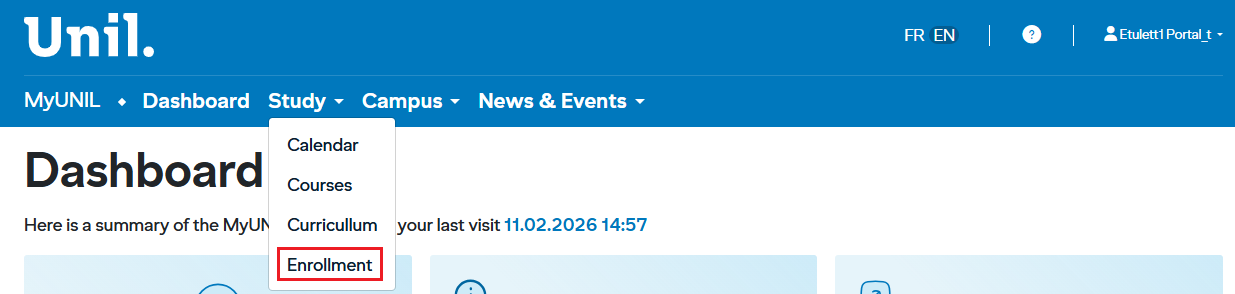
List of services :
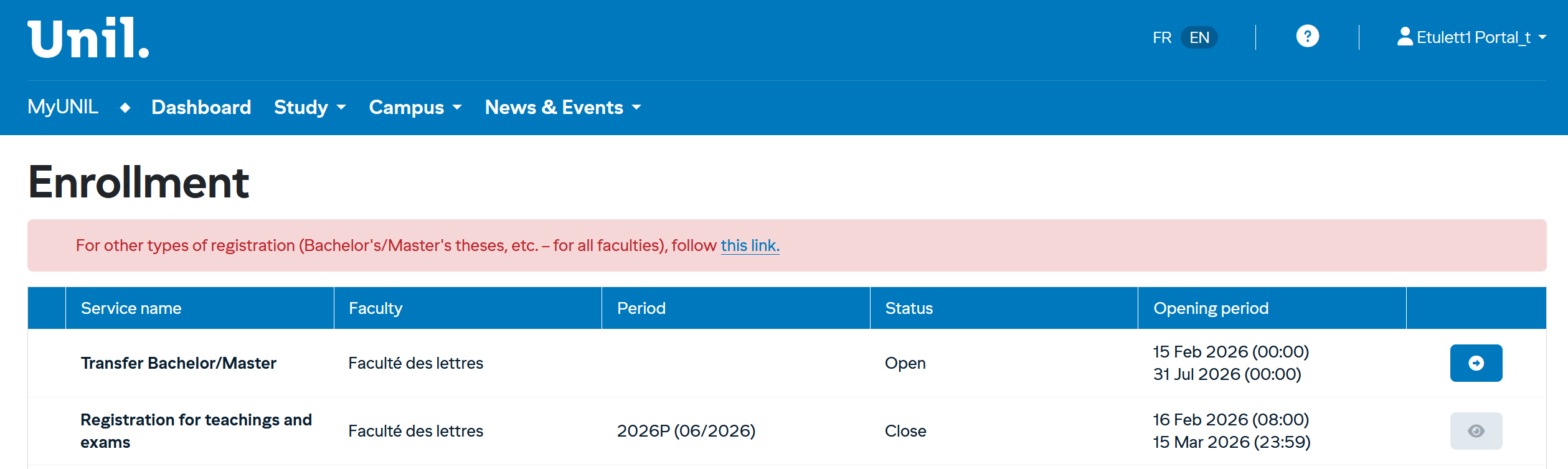
The main page displays the list of available services in a table with the following columns:
| Column | Description |
|---|---|
| Service Name | Type of operation (registration or withdrawal) |
| Faculty | Your affiliated faculty (e.g., School of Criminal Sciences) |
| Period | The relevant semester (e.g., 2025A for the winter 2026 session) |
| Status | Indicates whether the service is Open or Closed |
| Opening Period | The exact dates during which the service is accessible |
Click the blue icon to the right of the "Inscription aux enseignements et aux évaluations" (Course and Assessment Registration) row to begin your registration.
👁️ Greyed-out eye — Complement closed
No action is available.
➡️ Active arrow — Registration open
Registration is available.
2. Registration contract
Before proceeding with registration, a registration contract is displayed. Read it carefully as it outlines your obligations. Here are the key points:
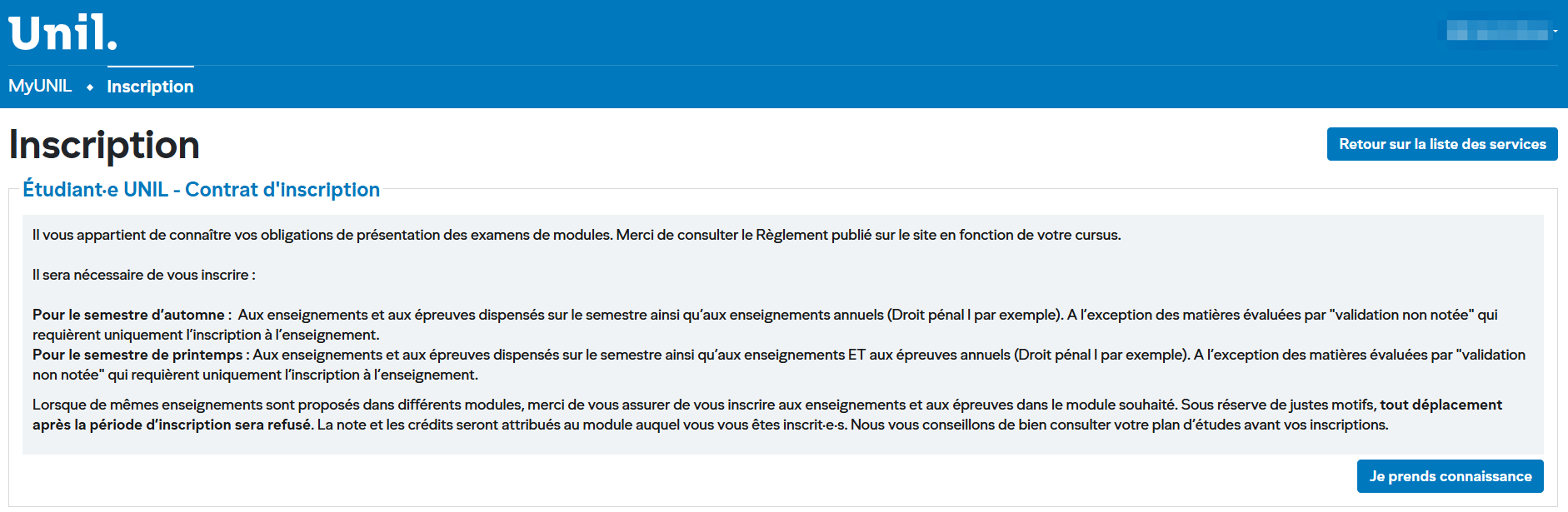
Information: Depending on your faculty or school, there may be no registration contract. In this case, you will be taken directly to the registration process.
Click "Je prends connaissance" (I acknowledge) to confirm you have read the contract and access the course selection page.
3. Selecting your courses
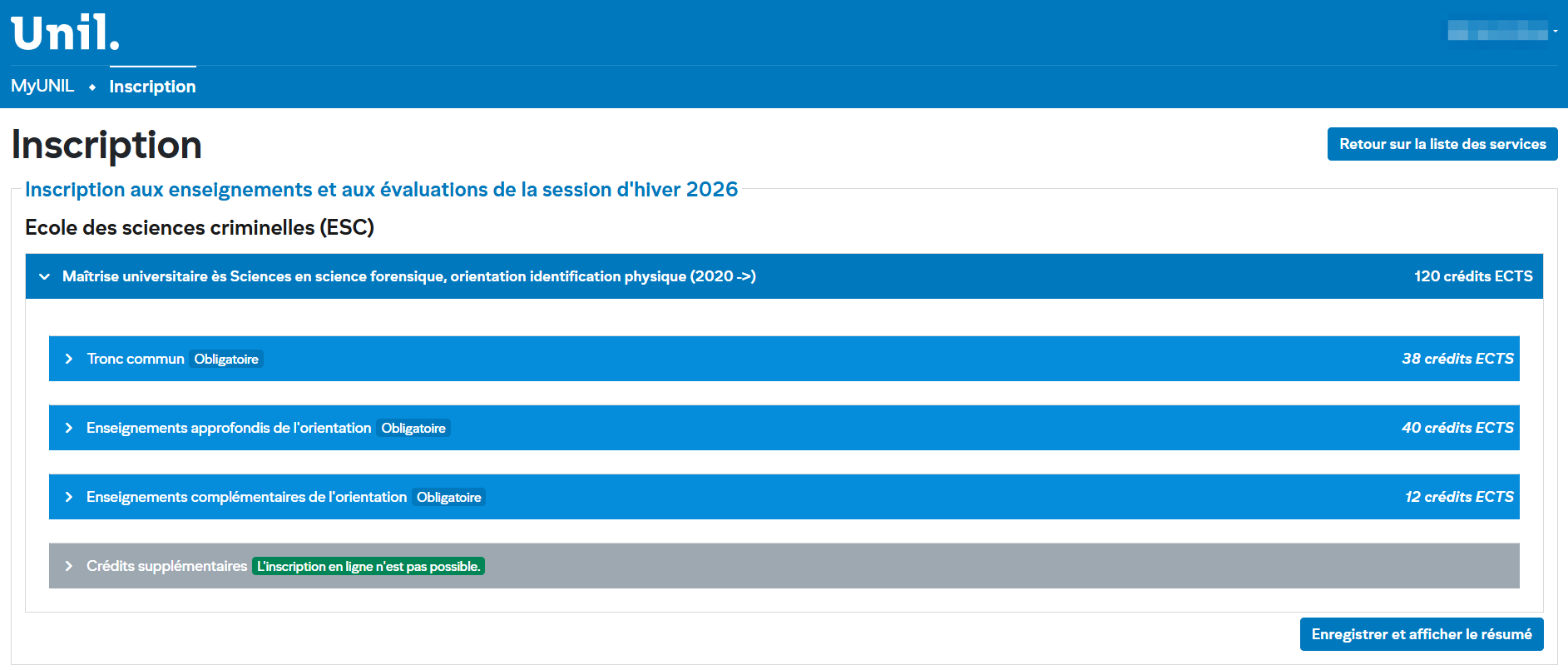
The registration page displays your study programme in expandable sections organised hierarchically.
Page Structure
Your programme is shown at the top (e.g., Master of Science in Forensic Science, Physical Identification track) along with the total number of required ECTS credits (e.g., 120 ECTS credits).
Below that, modules are listed with their category and associated credit count:
| Module | Type | ECTS Credits |
|---|---|---|
| Core Curriculum | Compulsory | 38 |
| Advanced Courses in the Track | Compulsory | 40 |
| Complementary Courses in the Track | Compulsory | 12 |
| Additional Credits | — | — |
How to select a course
- Click the chevron (›) to the left of a module to expand it and display the available courses.
- Check the courses you wish to register for.
- Repeat for each relevant module.
Courses offered in multiple modules
If the same course is offered in different modules, make sure you register under the correct module. Grades and credits will be attributed to the module in which you are registered.
Tip: Review your study plan carefully before registering.
Registration process details
Some faculties use a specific configuration. Therefore, when you select an evaluation or a course, other associated elements may be automatically selected within the same module.
4. Reviewing and confirming your registration
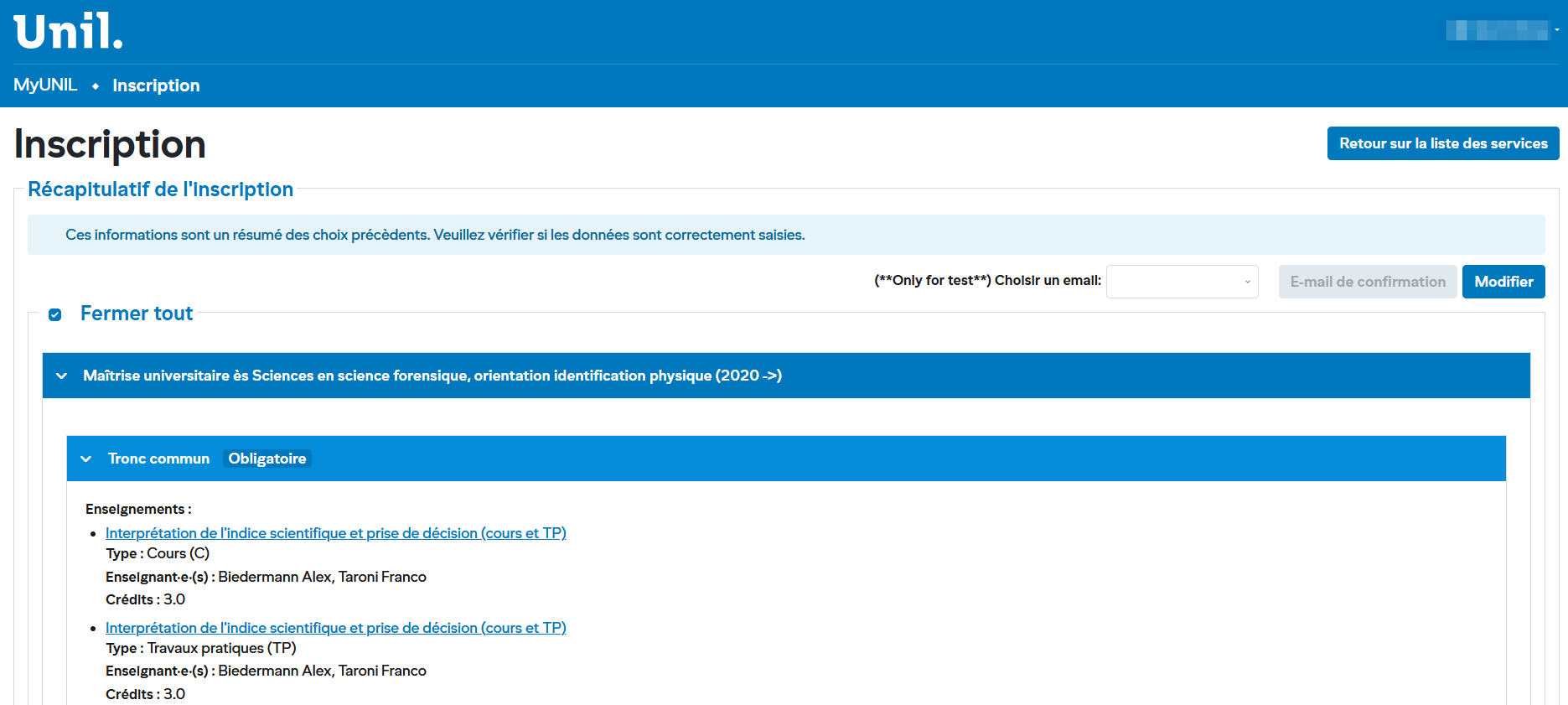
The "Récapitulatif de l'inscription" (Registration Summary) page displays a summary of all your selections. A message prompts you to verify that the information has been entered correctly.
What you see on this page
The summary is organised by module. Each selected course appears with the following details:
- Course name (clickable link to the course description)
- Type: Lecture (C), Practical Work (TP), Seminar (S), etc.
- Instructor(s): Name(s) of the course instructor(s)
- Credits: Number of ECTS credits awarded
Available actions
- Edit: Click the "Modifier" (Edit) button at the top right to return to the selection page and make changes.
- Confirmation email: You can request a summary email to be sent to your UNIL address.
- Collapse all / Expand all: Use the checkbox at the top to expand or collapse all sections at once.
Important: Review your summary carefully. Make sure each course is registered under the correct module.
5. Registration and withdrawal periods
Registrations and withdrawals are subject to strict deadlines. Here is an example calendar for the winter 2026 session (School of Criminal Sciences):
| Service | Opening Period | Status |
|---|---|---|
| Course and Assessment Registration | 15 Sept. 2025 (00:00) – 12 Oct. 2025 (23:59) | Open |
| Course and Assessment Withdrawal | 13 Oct. 2025 (00:00) – 26 Oct. 2025 (23:59) | Closed |
Note: Dates and periods vary by faculty. Always check the registration page on MyUNIL for the exact dates that apply to you.
6. Key points to remember
- Review your study plan before registering so you know which courses and modules to choose.
- Respect the deadlines: once the registration period is closed, it will no longer be possible to modify your selections (except in justified circumstances).
- Annual courses and assessments: The system only allows registration for courses and assessments taking place during the current semester and/or the upcoming examination session. Typically, in the autumn semester, it is not possible to register for assessments of annual courses, as these are only organized starting from the following summer examination session.
- Additional credits: if online registration is not available for certain modules, contact your department office.
- For other types of registration (Bachelor/Master theses, etc.), a dedicated link is available on the main registration page.