The DCSR NAS, or the "**N**etwork **A**ttached **S**torage of the Scientific Computing and Research Support Unit", is one of the several NAS solutions available at UNIL. The DCSR NAS is dedicated to the secure mid-term storage of **research** regular or personal data. The DCSR NAS does not comply to the current regulations for the storage of sensitive data, as defined by the [LPrD law Art. 4 al. 2](https://prestations.vd.ch/pub/blv-publication/actes/consolide/172.65?key=1543934892528&id=cf9df545-13f7-4106-a95b-9b3ab8fa8b01). For handling sensitive data, please refer to the corresponding [documentation](https://wiki.unil.ch/ci/books/research-data-storage/chapter/sensitive-data-tresorit).
**Organization** The first section explains how to access the DCSR NAS from the **UNIL network** with each of the most common operating systems (**Windows**, **MacOS** and **Ubuntu**) The second section explains how to access the DCSR NAS from the **CHUV network****Note:** If you work from home, you first need to connect to UNIL's Virtual Private Network (VPN), using the Pulse Secure software (see [VPN instructions](https://www.unil.ch/ci/reseau-unil-chez-soi "VPN instructions")).
## Access from the UNIL network ### From Windows **Step 1**: right click on Network in File explorer and choose "Map network drive…" [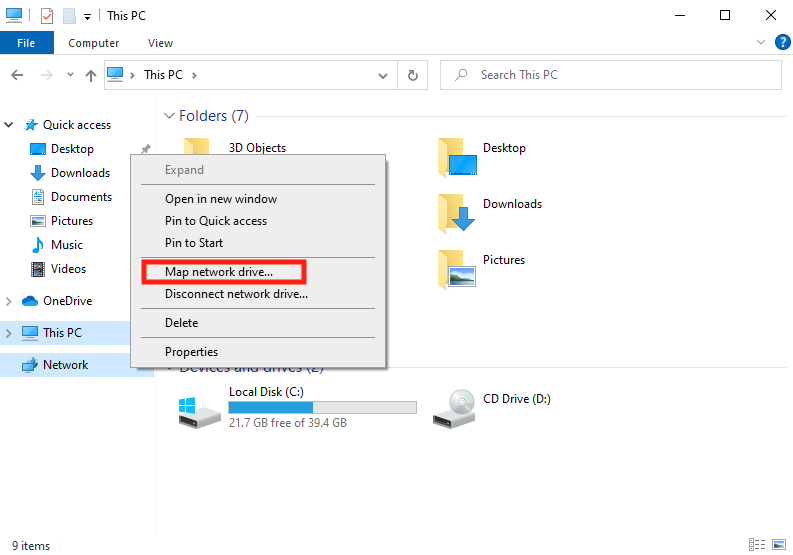](https://wiki.unil.ch/ci/uploads/images/gallery/2020-06/image-1591798613766.png) **Step 2**: enter the address of the Samba server and click to finishReplace **RECHERCHE** with **RECHERCHE-P** in the screen capture below to access the corresponding folder for a project that was created with the *personal data* flag
[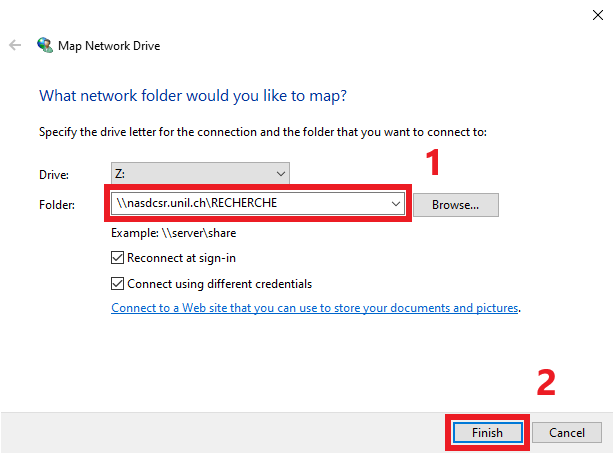](https://wiki.unil.ch/ci/uploads/images/gallery/2020-11/Ie9map01.PNG) `\\nasdcsr.unil.ch\RECHERCHE` **Step 3**: enter your Unil credentials and clikc "OK" - username: `ad\unil_username` (for example `ad\ulambda`) - password [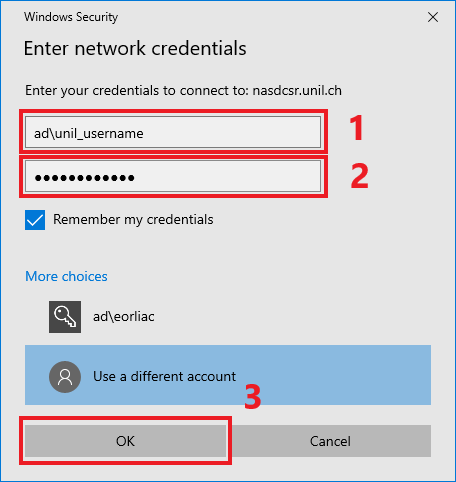](https://wiki.unil.ch/ci/uploads/images/gallery/2020-11/map02.PNG) **Step 4**: click on "This PC" and then on the new network drive [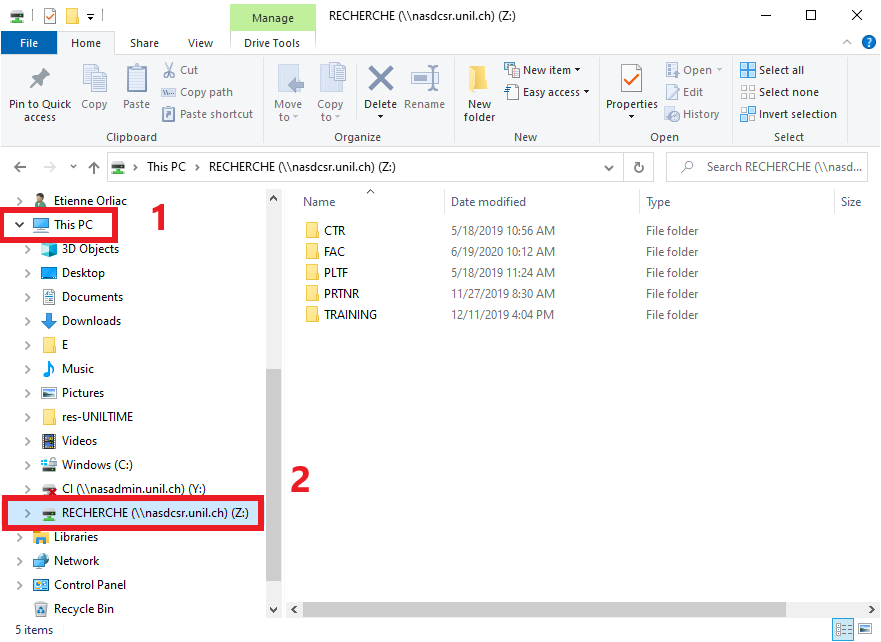](https://wiki.unil.ch/ci/uploads/images/gallery/2020-11/map03.PNG) ### From MacOS **Step 1**: open the Finder, in Go menu, select "Connect to Server" [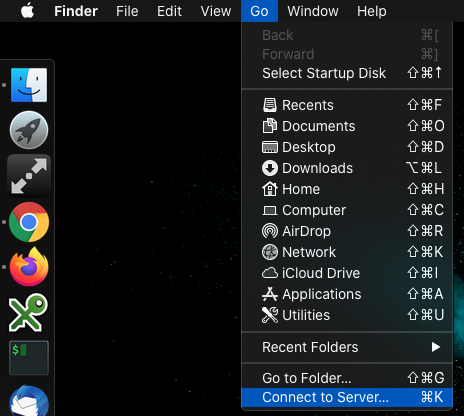](https://wiki.unil.ch/ci/uploads/images/gallery/2020-06/image-1591856270964.png) **Step 2**: enter the NAS url (`smb://nasdcsr.unil.ch/RECHERCHE`), you also may add this server as a favourite by clicking on + symbolReplace **RECHERCHE** with **RECHERCHE-P** in the screen capture below to access the corresponding folder for a project that was created with the *personal data* flag
[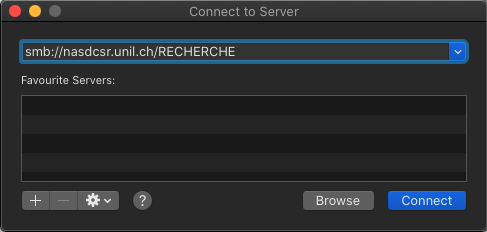](https://wiki.unil.ch/ci/uploads/images/gallery/2020-11/image-1605528817646.png) **Step 3**: enter your credentials [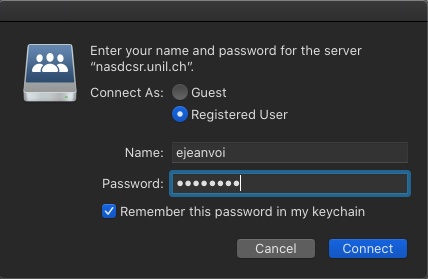](https://wiki.unil.ch/ci/uploads/images/gallery/2020-11/image-1605528837404.png) **Step 4**: navigate through the directories to find your working directory and push/fetch files as you see fit [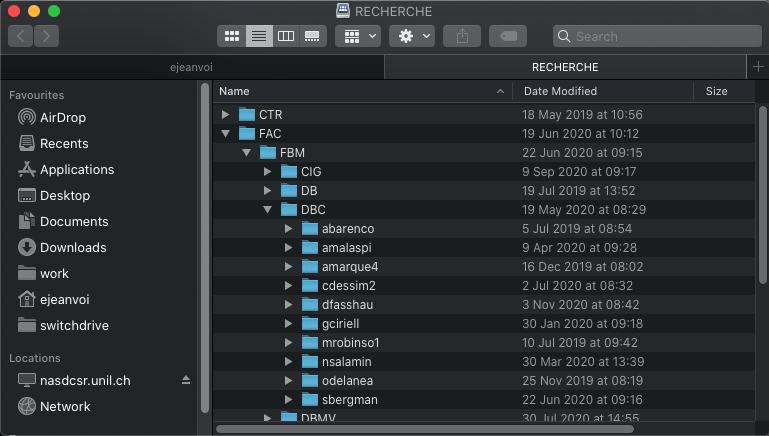](https://wiki.unil.ch/ci/uploads/images/gallery/2020-11/image-1605528863048.png) ### From Ubuntu It is possible to use a GUI but there are as much solutions as desktop managers. So here is a way to mount the NAS using command line interface.Don't forget to adapt the `username=` field in the `sudo mount` command by replacing `unil_username` with your **username** at UNIL (ex. `mcurie` for Marie Curie)!
Replace **RECHERCHE** with **RECHERCHE-P** in the commands below to access the corresponding folder for a project that was created with the *personal data* flag
```shell # First install the packages # Debian/Ubuntu version $ sudo apt install samba cifs-utils # Fedora/RedHat version $ sudo dnf install cifs-utils # In the following, ~/nas is chosen as a mountpoint, but it could be elsewhere $ mkdir ~/nasdcsr $ sudo mount -t cifs -o username=unil_username,mfsymlinks,domain=ad,rw,iocharset=utf8,dir_mode=0700,file_mode=0700,uid=$(id -u) //nasdcsr.unil.ch/RECHERCHE ~/nasdcsr # Perform the reauired operations $ cd ~/nasdcsr … # When finished, don't forget to umount it $ sudo umount ~/nasdcsr ``` ## Accessing DCSR NAS from CHUV network Windows and Mac users can install the graphical desktop client from DataExpedition as well if they wish so: Download Expedat from [here](https://www.unil.ch/ci/distrisoft), installation instruction from [here](https://wiki.unil.ch/ci/books/distribution-de-logiciels/page/expedat-movedat), and product documentation from [there](https://www.dataexpedition.com/expedat/Docs/index.html?p=https://www.dataexpedition.com/expedat/Docs/Desktop/). Here is an example of ExpeDat session: [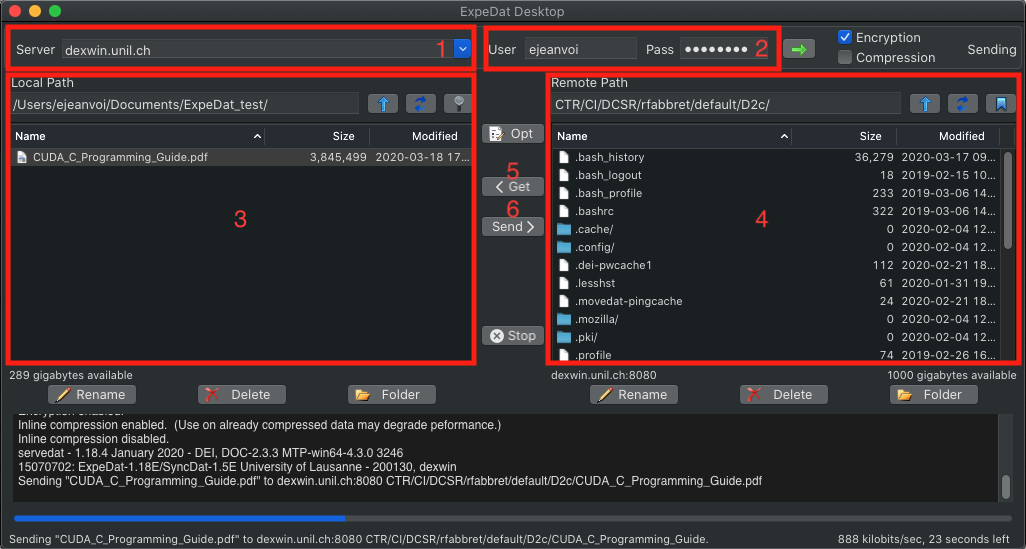](https://wiki.unil.ch/ci/uploads/images/gallery/2020-06/image-1591796422909.png) On that screenshot you can see: