[ Français](https://wiki.unil.ch/ci/books/research-data-storage/chapter/donnees-sensibles-tresorit)
##### Using the web interface Before using Tresorit at UNIL, you must follow the procedure indicated in the "[Who should I contact to request access to Tresorit](https://wiki.unil.ch/ci/link/1625#bkmrk-who-should-i-contact)" section of the FAQ. This includes a face-to-face appointment. To access the Tresorit online interface, log in at: [https://web.tresorit.com](https://web.tresorit.com) - **UNIL employees**: log in with your UNIL e-mail address and your Tresorit password. - **External employees**: log in with the e-mail address you used for your Tresorit appointment and your Tresorit password. If you have forgotten your password, contact us using [this contact form](https://www.unil.ch/ci/home/menuinst/calcul--soutien-recherche/contact-en.html). You can also contact the Helpdesk (Please note that Tresorit will offer you a tutorial including the installation of Android or iOS applications, as well as the possibility of sharing files by link. These steps should be ignored as they are prohibited for UNIL Tresorit accounts.
[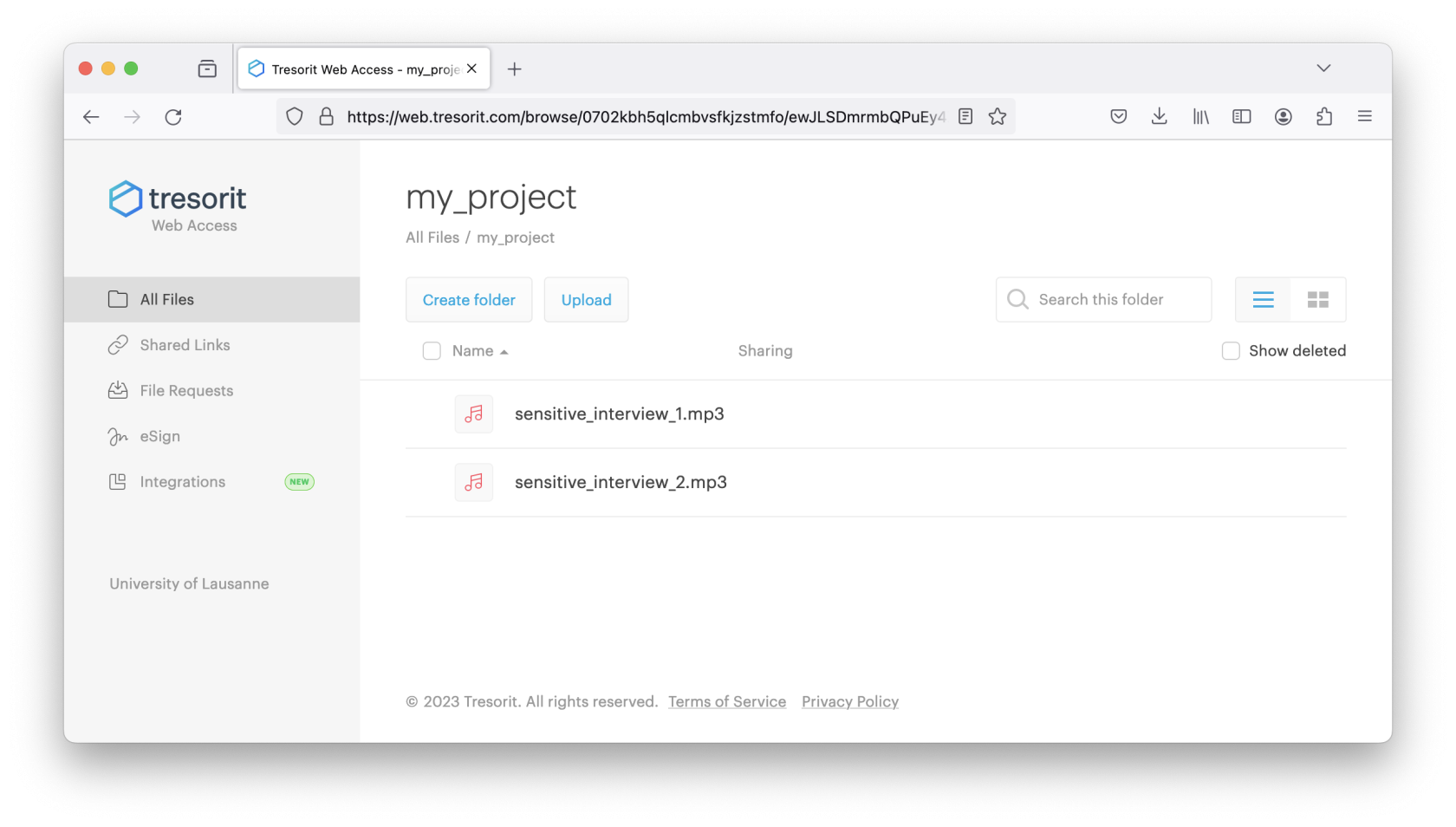](https://wiki.unil.ch/ci/uploads/images/gallery/2023-12/screenshot-2023-12-22-at-18-20-59.png) ##### Uploading a file to Tresorit To upload a file to Tresorit, double-click on the folder corresponding to your project to move inside. Then click on the "Import" button and select the folder or files you want. You can also drag and drop your files to the web interface. The data will then be copied to Tresorit online storage. [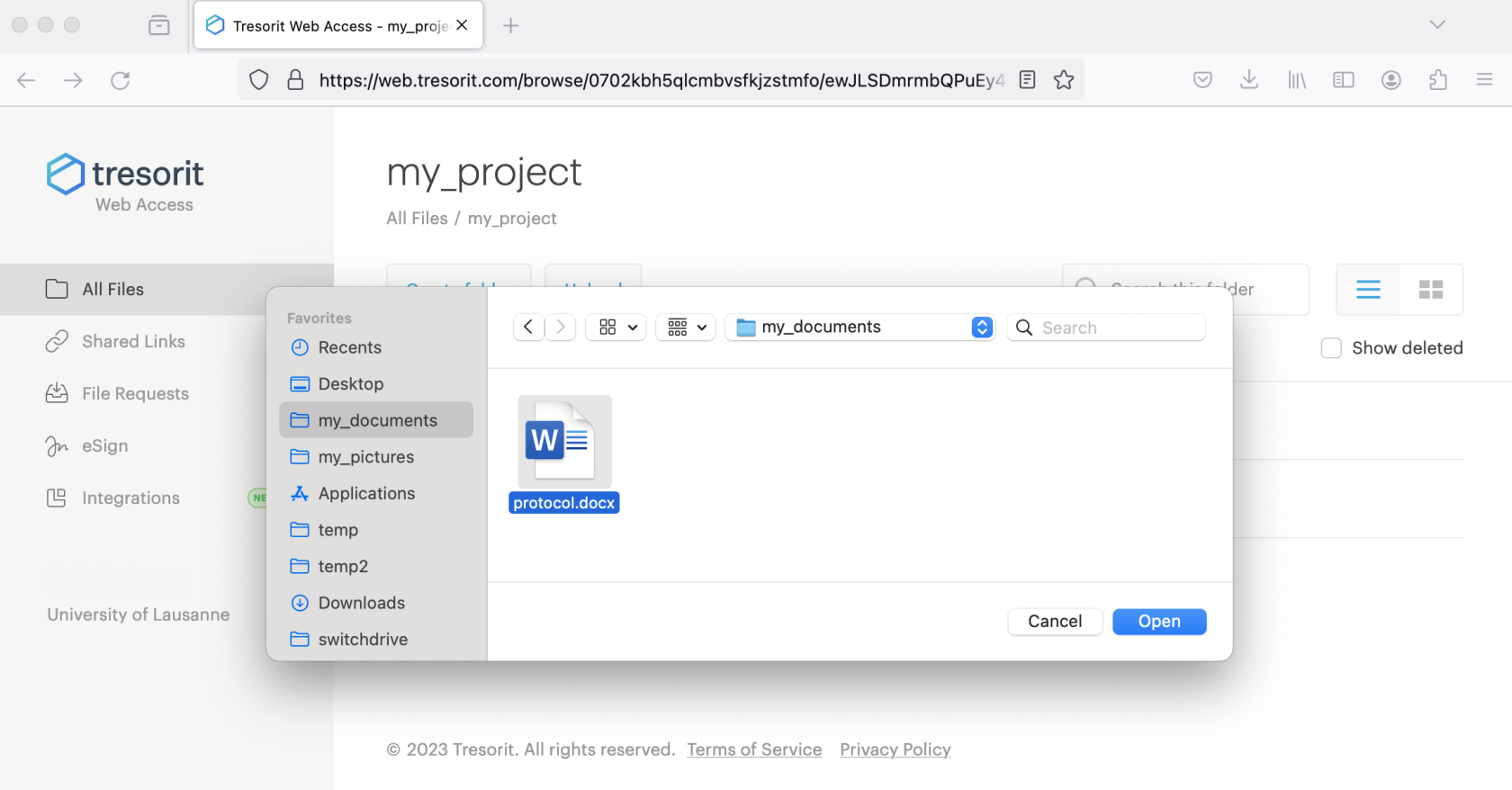](https://wiki.unil.ch/ci/uploads/images/gallery/2023-12/screenshot-2023-12-22-at-18-31-57.png) ##### Share a file uploaded to Tresorit To share one or more files with your research colleagues, you need to place them in a folder and configure the sharing options for this folder. Hover over the folder and click on the 'Share' button on the right of the explorer, then on 'Invite members'. All you then need to do is add the email addresses of your colleagues and assign them the appropriate permissions. Please note that a Tresorit account managed by UNIL is required (see [FAQ](https://wiki.unil.ch/ci/books/research-data-storage/page/faq-tresorit-h5G)) for all employees. [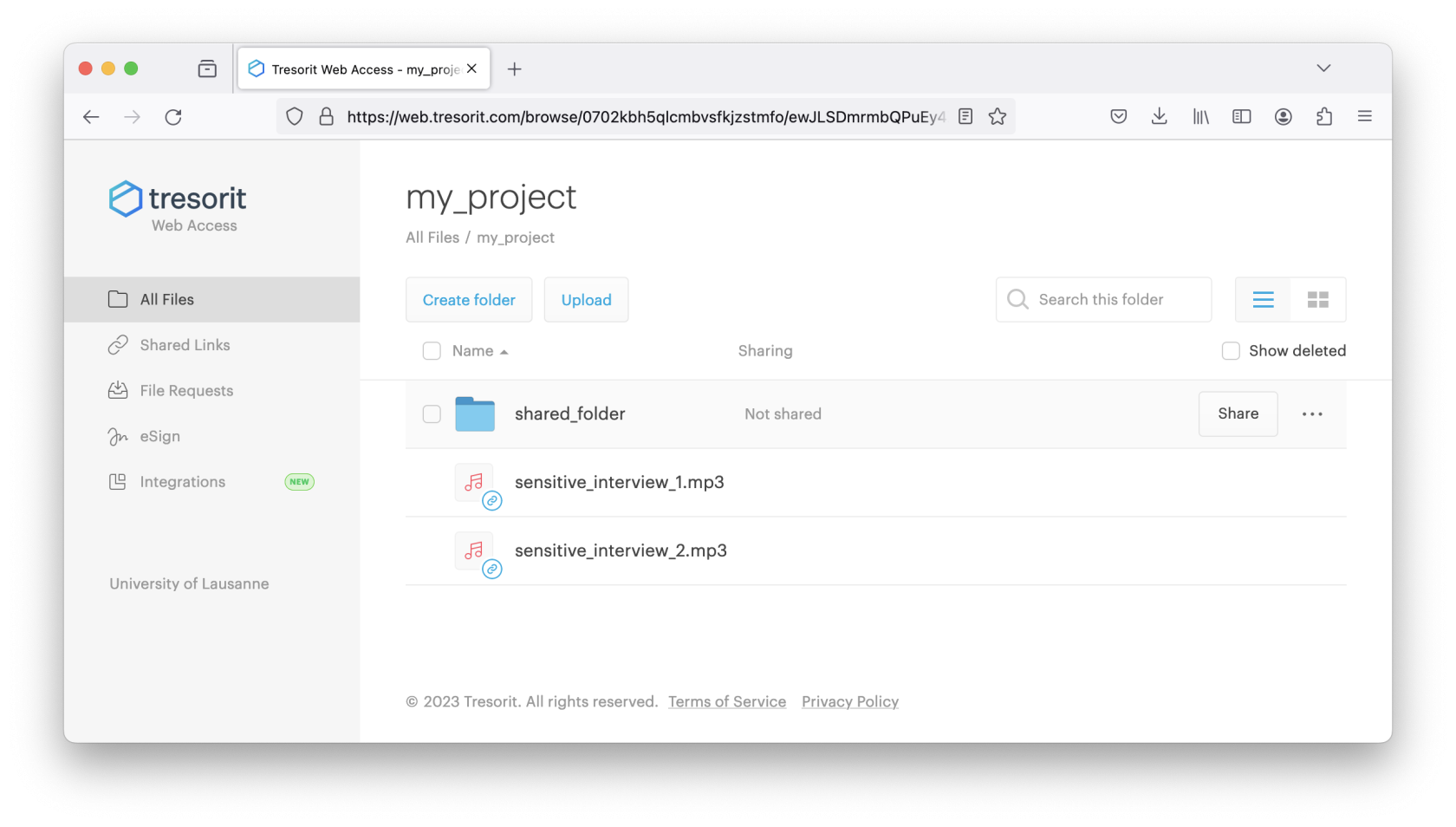](https://wiki.unil.ch/ci/uploads/images/gallery/2023-12/screenshot-2023-12-22-at-18-39-48.png) [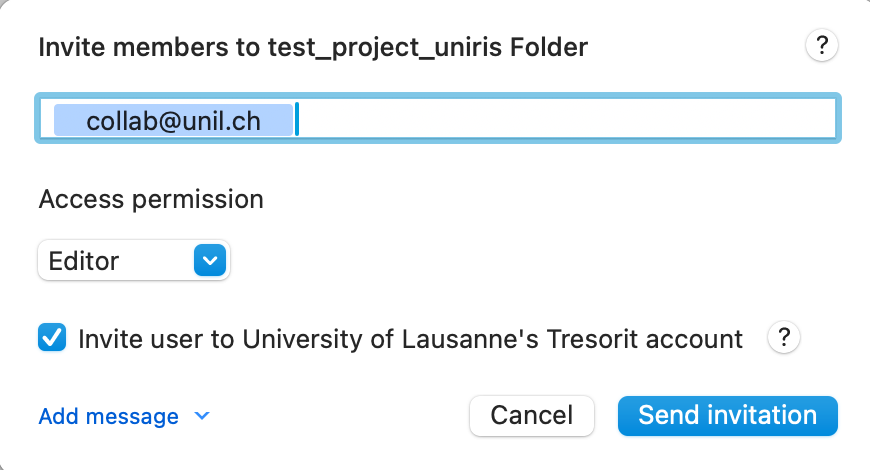](https://wiki.unil.ch/ci/uploads/images/gallery/2024-01/screenshot-2024-01-08-at-09-30-31.png) ##### Using the Tresorit software installed on your computer If you wish to install the Tresorit software locally on your computer, click on your username at the top right and select "Download desktop app" : [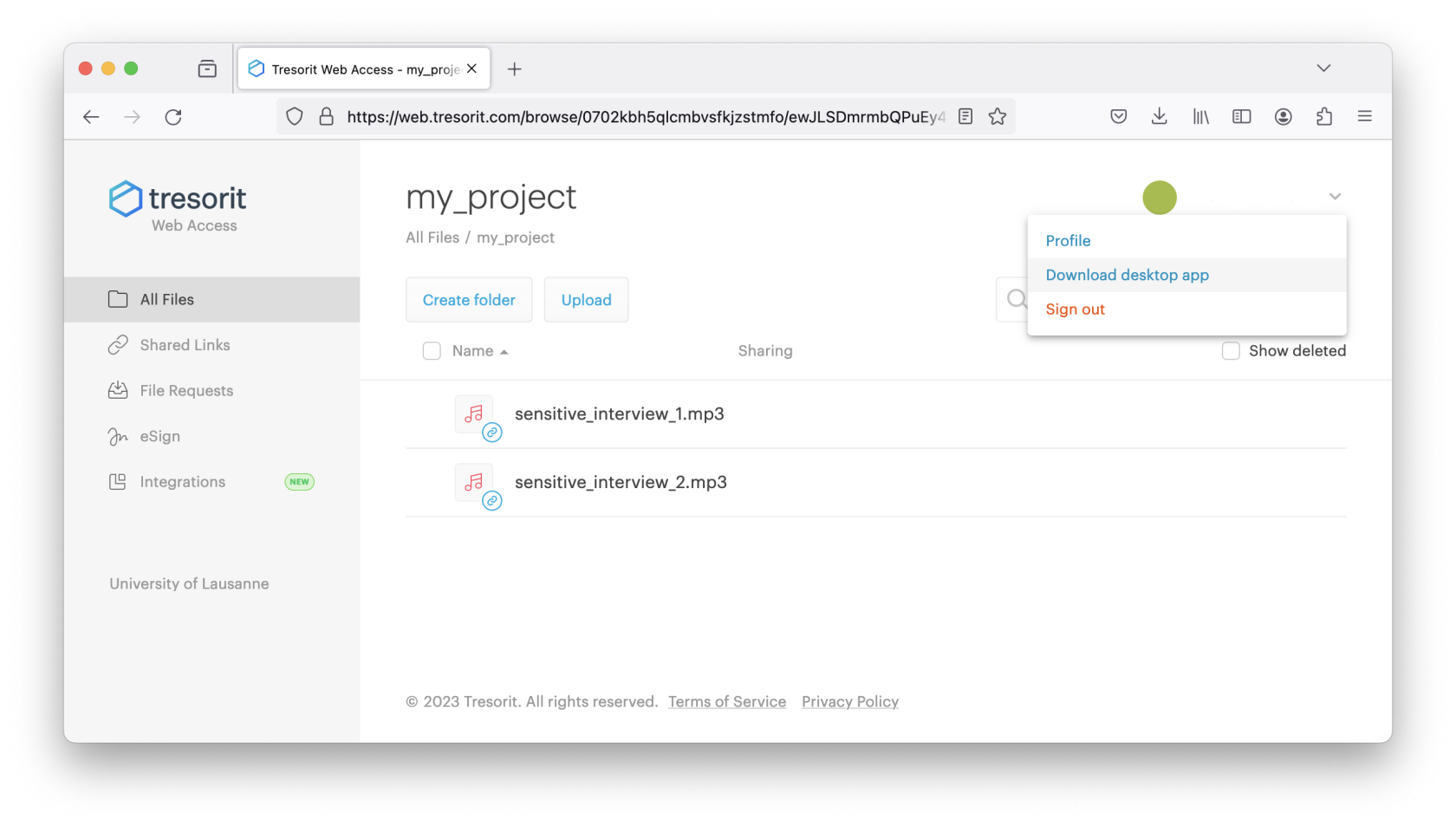](https://wiki.unil.ch/ci/uploads/images/gallery/2023-12/screenshot-2023-12-22-at-18-41-45.png) You can launch the Tresorit software on your computer by clicking on the Tresorit icon. For example, in the launchpad or launch bar on Apple MacOS. [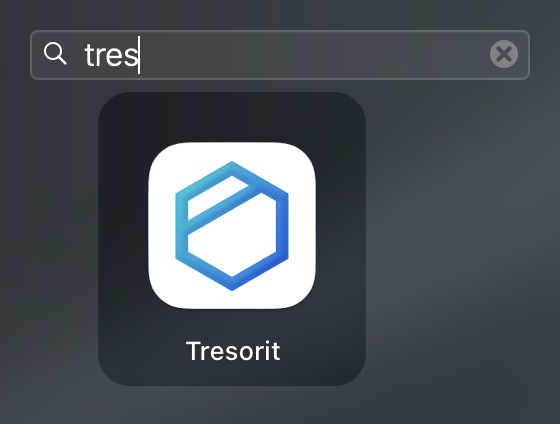](https://wiki.unil.ch/ci/uploads/images/gallery/2023-12/capture-decran-2023-10-30-a-10-54-18.png) [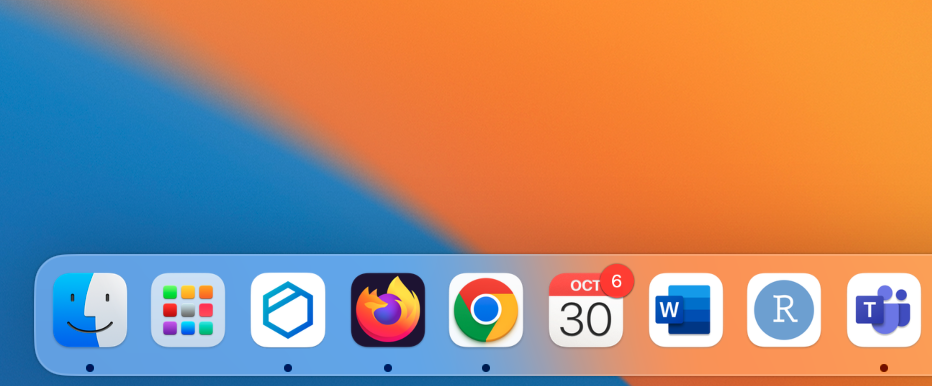](https://wiki.unil.ch/ci/uploads/images/gallery/2023-12/xrnmicrosoftteams-image.png) Or on the desktop or start menu on Microsoft Windows. [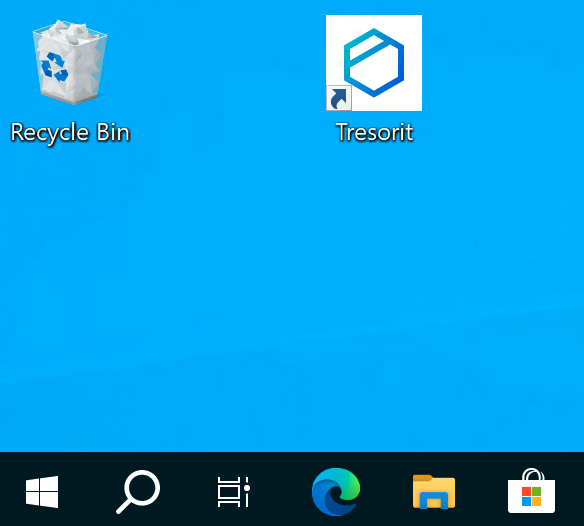 ](https://wiki.unil.ch/ci/uploads/images/gallery/2023-12/rnvmicrosoftteams-image.png)[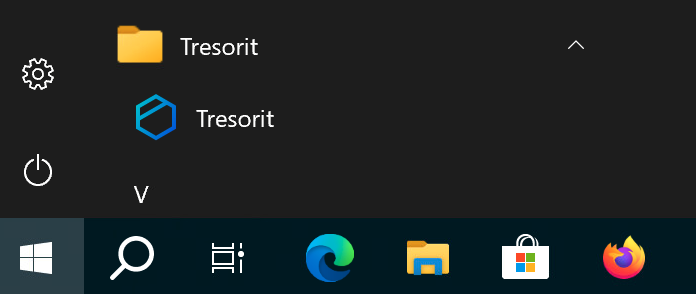](https://wiki.unil.ch/ci/uploads/images/gallery/2023-12/9upmicrosoftteams-image-1.png) And enter your login and password: [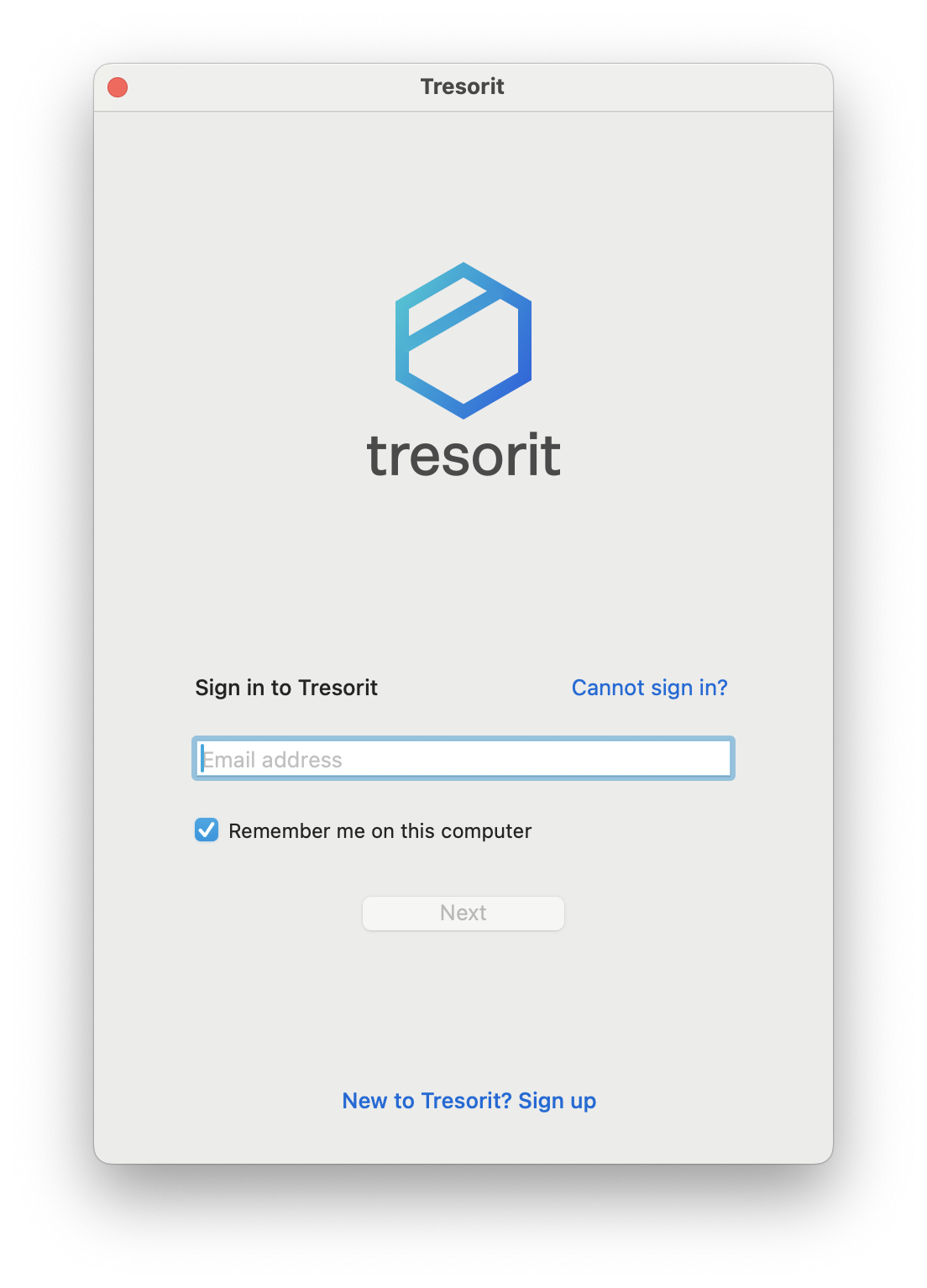](https://wiki.unil.ch/ci/uploads/images/gallery/2023-12/screenshot-2023-12-22-at-19-08-22.png) You will then be taken to the main Tresorit interface:Please note that Tresorit will offer you a tutorial including the installation of Android or iOS applications, as well as the possibility of sharing files by link. These steps should be ignored as they are prohibited for UNIL Tresorit accounts.
[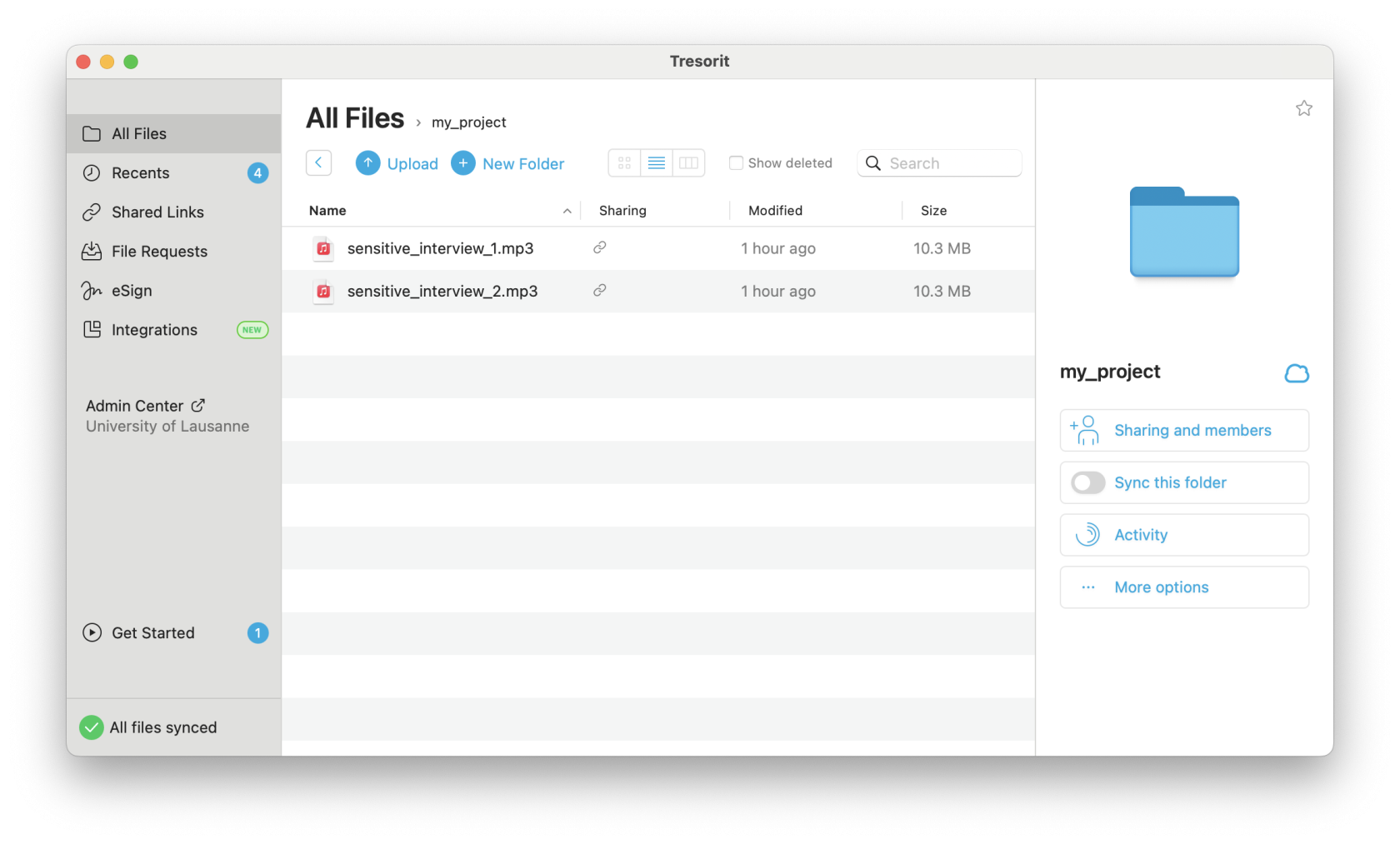](https://wiki.unil.ch/ci/uploads/images/gallery/2023-12/screenshot-2023-12-22-at-19-10-44.png)Note for BoxCryptor users (former encryption solution at UNIL): Please do not activate the "Migrate your data" button and do not follow the migration wizard offered by Tresorit. It is preferable to copy your files manually to avoid data loss.
##### Synchronizing files on your computer The folders and files visible in the Tresorit software installed on your computer are by default stored only on Tresorit's online storage. You can activate synchronisation of files and folders between online storage and your computer by clicking on the "Sync this folder" button (on the right below). This way, your files will be accessible on your hard drive even when you're offline. If the volume of your data is very large, make sure you have enough free disk space. The advantage of synchronizing locally is that reading and editing certain large files (audio/video) will be faster. [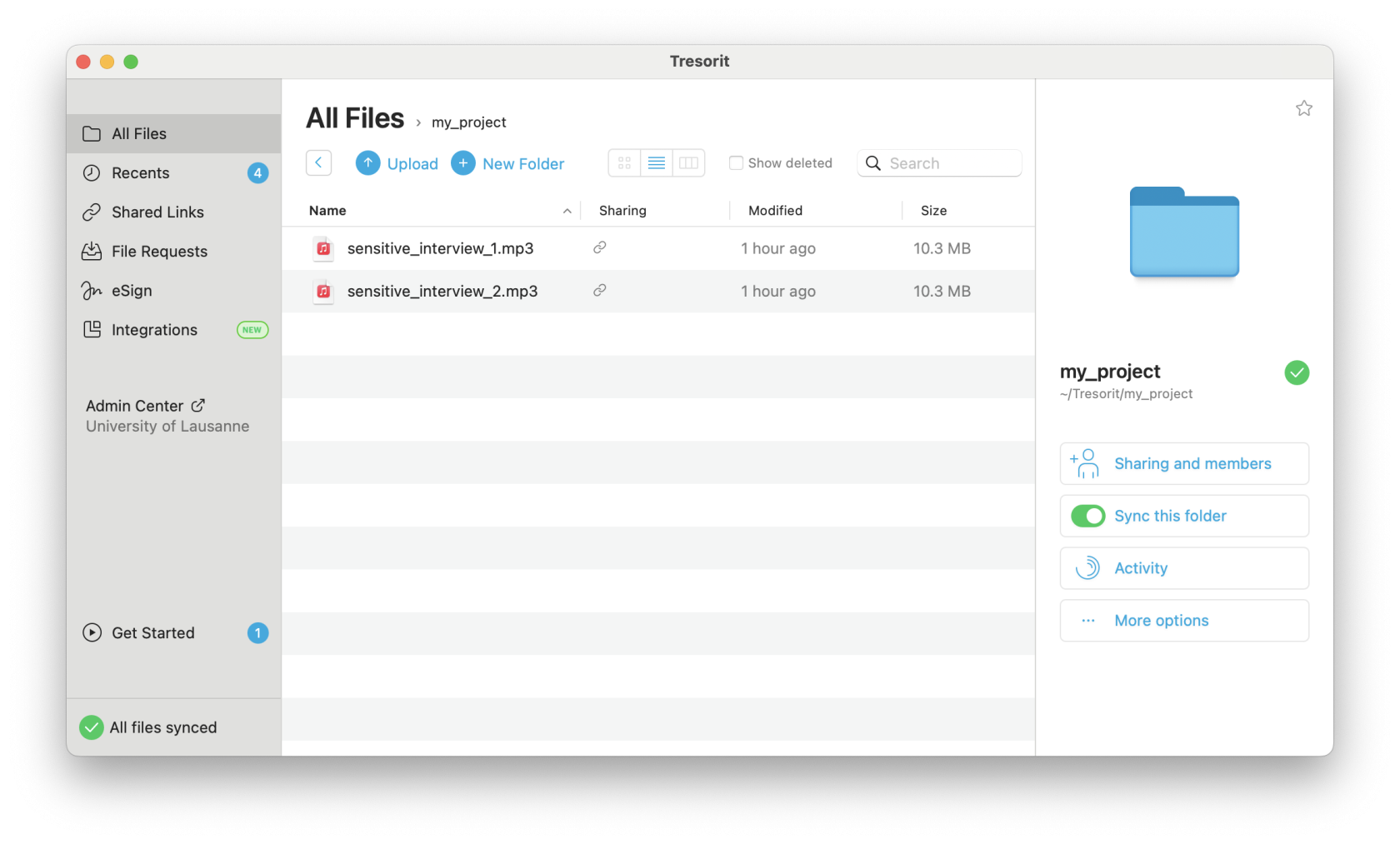](https://wiki.unil.ch/ci/uploads/images/gallery/2023-12/screenshot-2023-12-22-at-19-12-27.png) ##### Note on integration options To avoid accidentally distributing your data to unwanted locations (and potentially misplacing data), we recommend that you disable the following two features: **Integration** and **Tresorit Drive**. - On Apple MacOS : [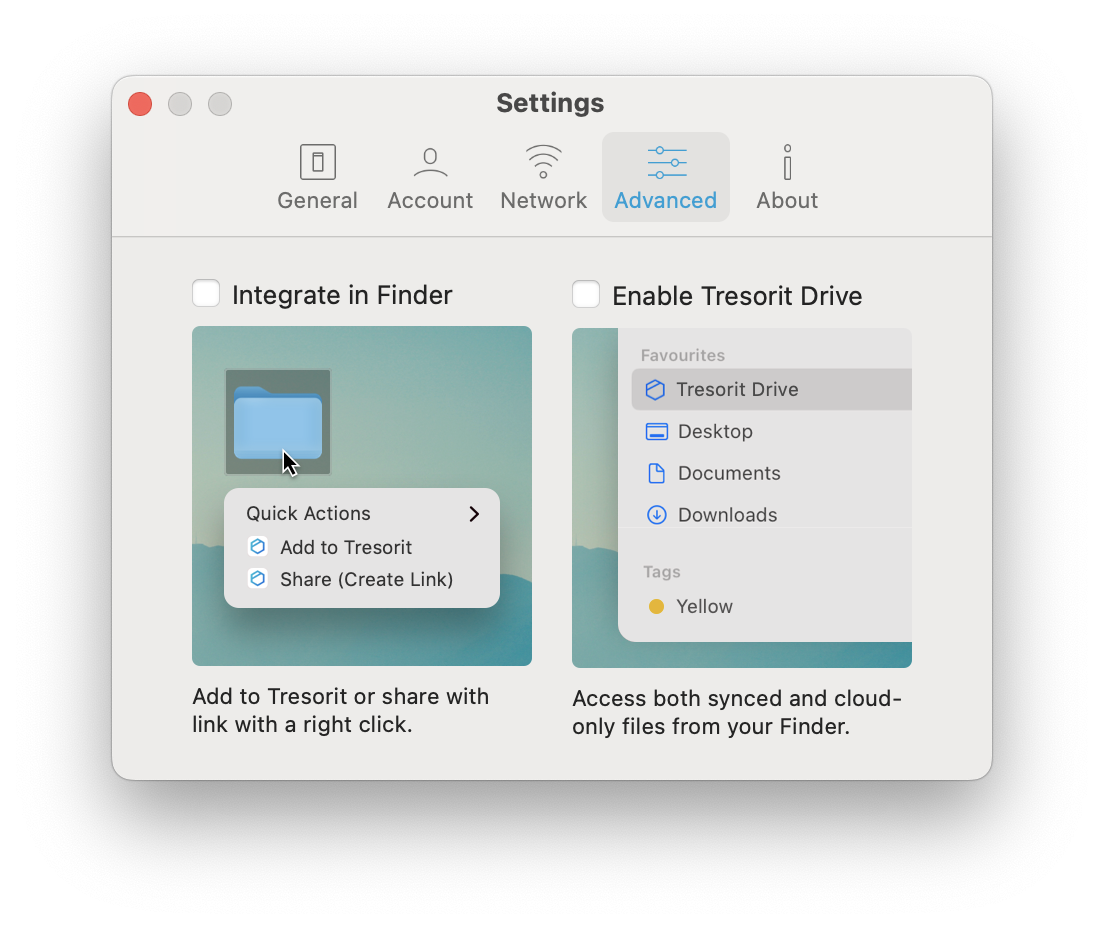](https://wiki.unil.ch/ci/uploads/images/gallery/2023-12/screenshot-2023-12-22-at-19-13-57.png) - On Microsoft Windows : [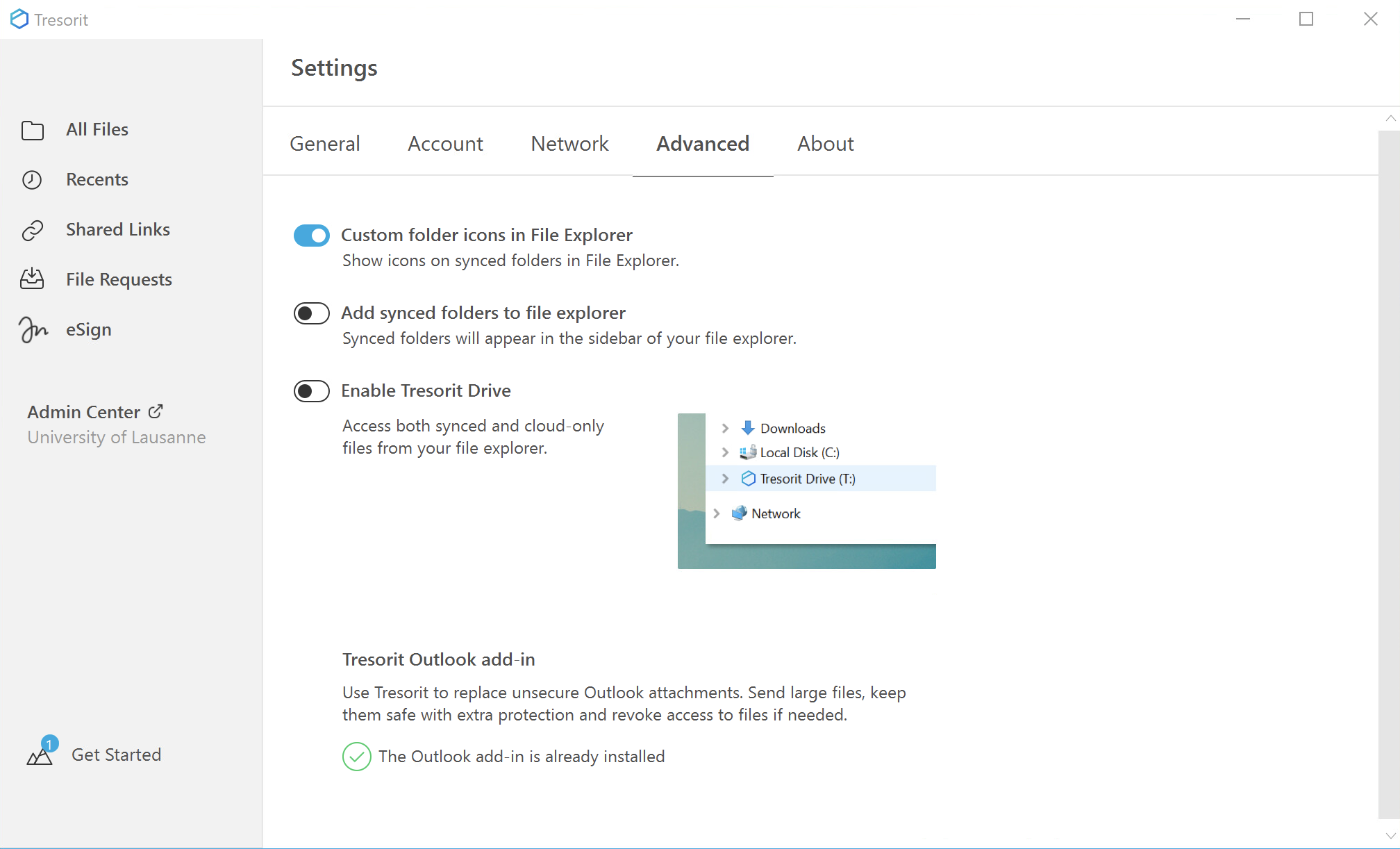](https://wiki.unil.ch/ci/uploads/images/gallery/2023-12/NS24qqmicrosoftteams-image.png) ##### Note on collaborative working Sometimes several collaborators may wish to edit the same file. Some collaborative editing solutions such as Google Drive, Microsoft OneDrive or OnlyOffice allow several collaborators to edit the same document simultaneously. Tresorit does not allow this. However, it does offer a lock system to warn your collaborators that you are editing a document. This prevents version conflicts. Example: "Project.docx" file opened by the collaborator 1 : [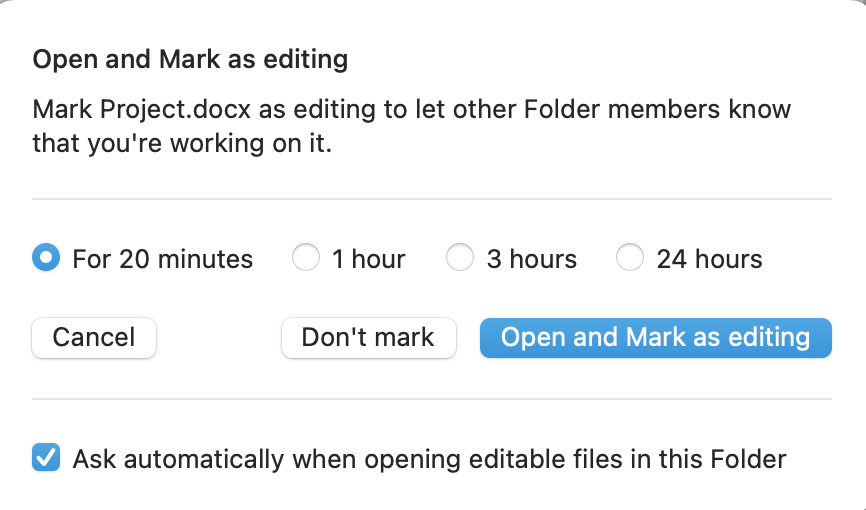](https://wiki.unil.ch/ci/uploads/images/gallery/2023-12/screenshot-2023-12-22-at-19-21-38.png) Lock visible on the Project.docx file for user 2: [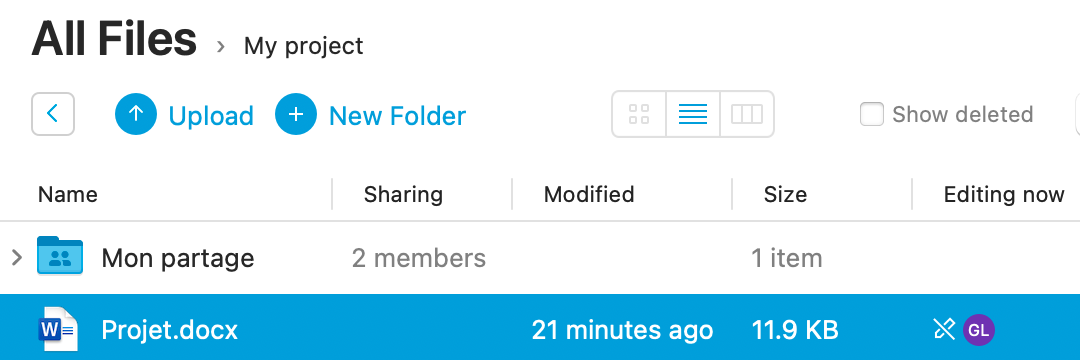](https://wiki.unil.ch/ci/uploads/images/gallery/2023-12/microsoftteams-image-2.png) For further information, please consult the [official Tresorit documentation](https://support.tresorit.com/). Please note that many of the steps described there do not apply to the specific features of the Tresorit contract with UNIL. ##### File request function Researchers with a Tresorit account can use the "File requests" function. This enables anyone who does not have a Tresorit account to submit a file using a simple link sent by e-mail. The file is only copied into the researcher's space after a validation stage. The person who does not have a Tresorit account never has access to the Tresorit storage.