# How to connect to the UNIL Wi-Fi
## Members of the UNIL community
eduroam wifi network is available at UNIL and in other institutions, partners of Eduroam, in over 101 countries throughout the world.
eduroam (education roaming) is the worldwide education roaming for Research & Education. It allows students, researchers, and staff from participating institutions to obtain secure Internet connectivity across campus and when visiting other participating institutions by simply opening their laptop.
As a member of UNIL you can use the wifi network [**eduroam**](https://www.eduroam.org/where/) .
### Configuration eduroam
You can configure eduroam on your devices from home, before coming on campus, thanks to [geteduroam](https://www.geteduroam.app/) application if you are using Windows, iOS or Android or [eduroamCAT](https://cat.eduroam.org/?idp=277) for macOS.
If you need information per type of device, please go to this [link](https://wiki.unil.ch/ci/books/r%C3%A9seau-sans-fil-%28wi-fi%29/page/reseau-eduroam).
macOS
##### Configuration with eduroamCAT - recommended
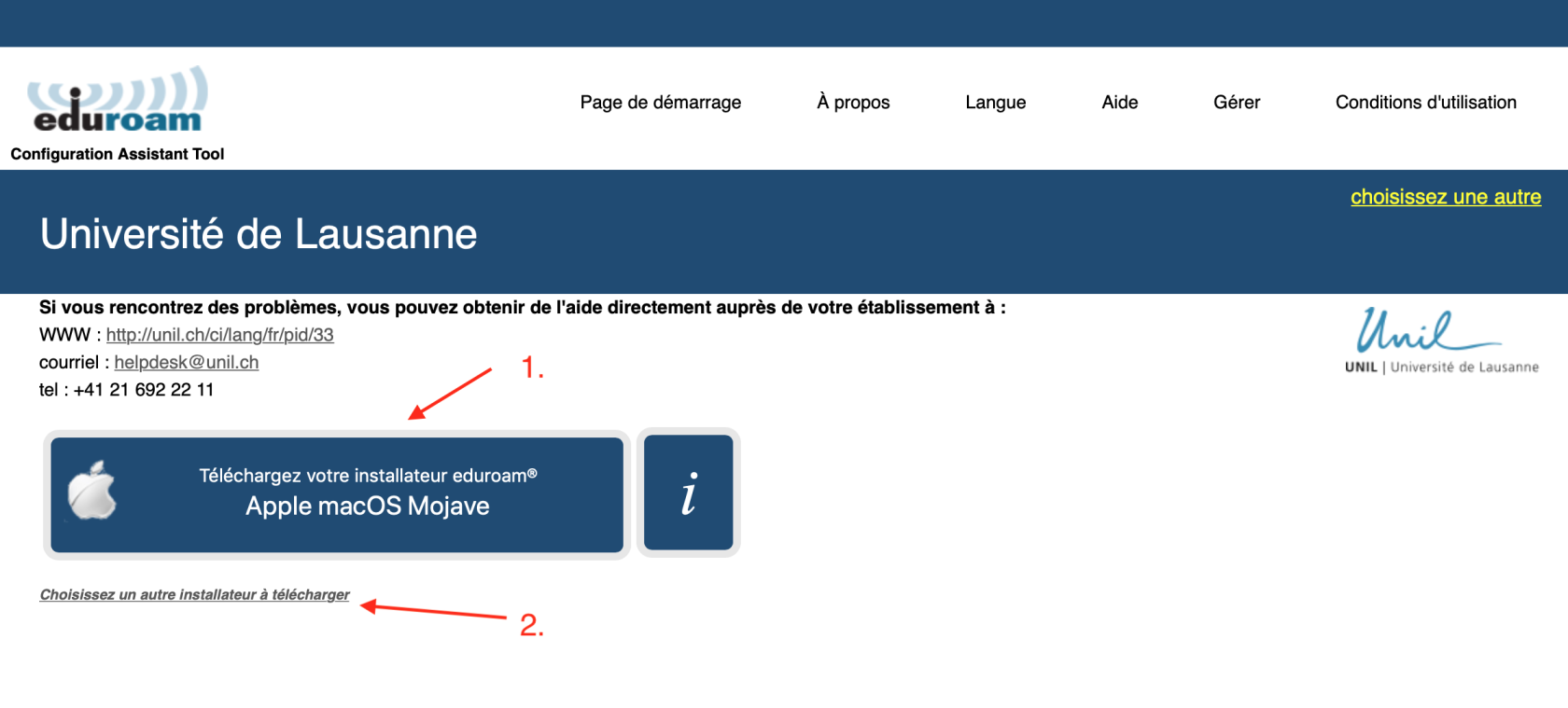
Download the [eduroamCAT](https://cat.eduroam.org/?idp=277) installer. You will get prompted with the right profile for your operation system (step 1), but you can also change the version if necessary (step 2)
[](https://wiki.unil.ch/ci/uploads/images/gallery/2025-01/9Lvcapture-1.png)
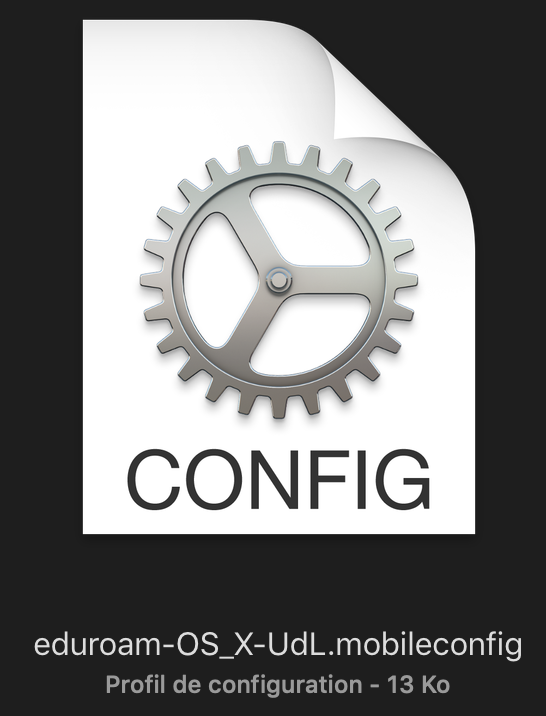
Double-click on the configuration file "**eduroam-OS\_X-Udl.mobileconfig**" (it should be in the Downloads folder).
[](https://wiki.unil.ch/ci/uploads/images/gallery/2025-01/capture-2.png)
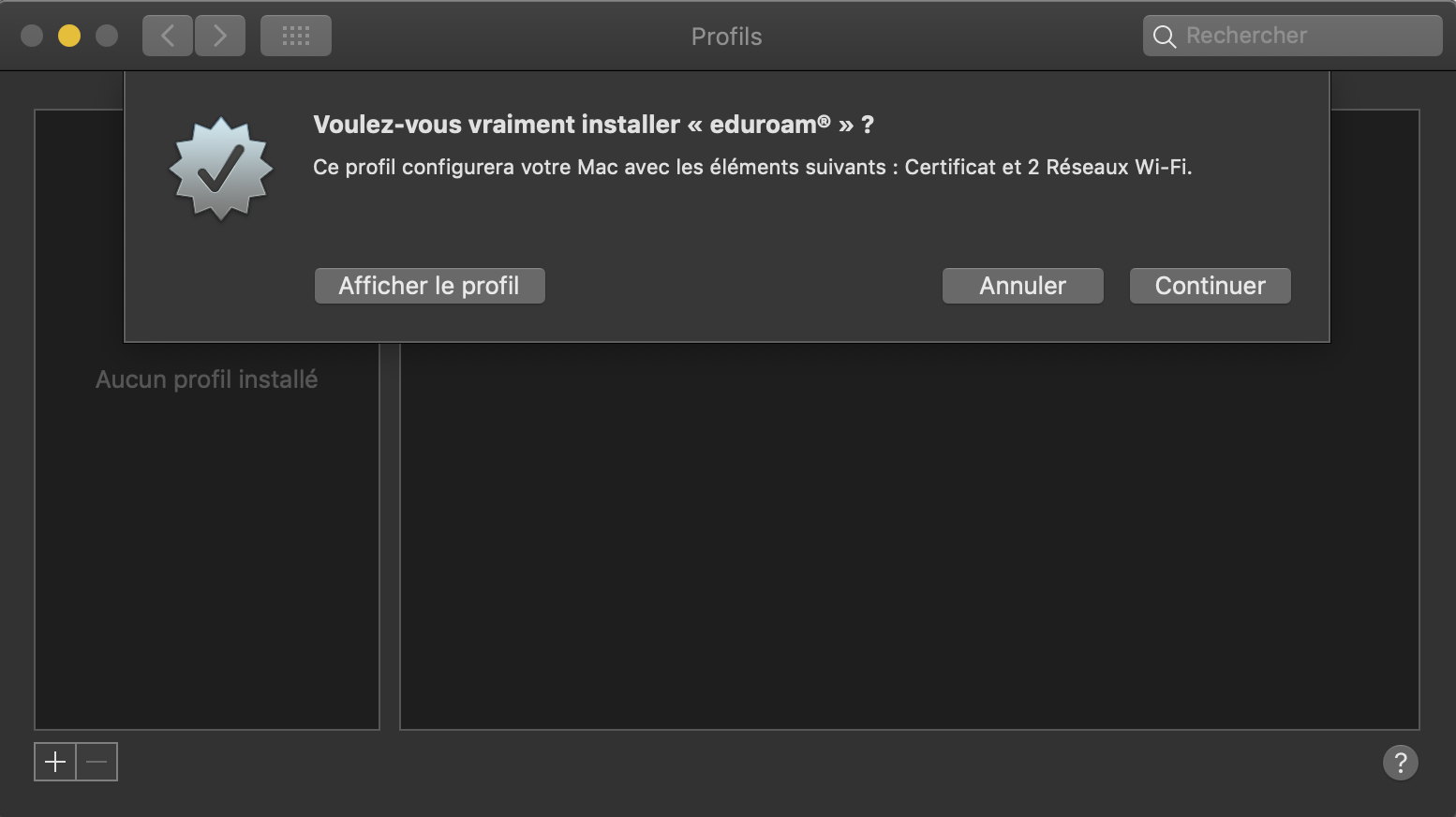
Click on Continue to install the eduroam profile.
[](https://wiki.unil.ch/ci/uploads/images/gallery/2025-01/capture-3.png)
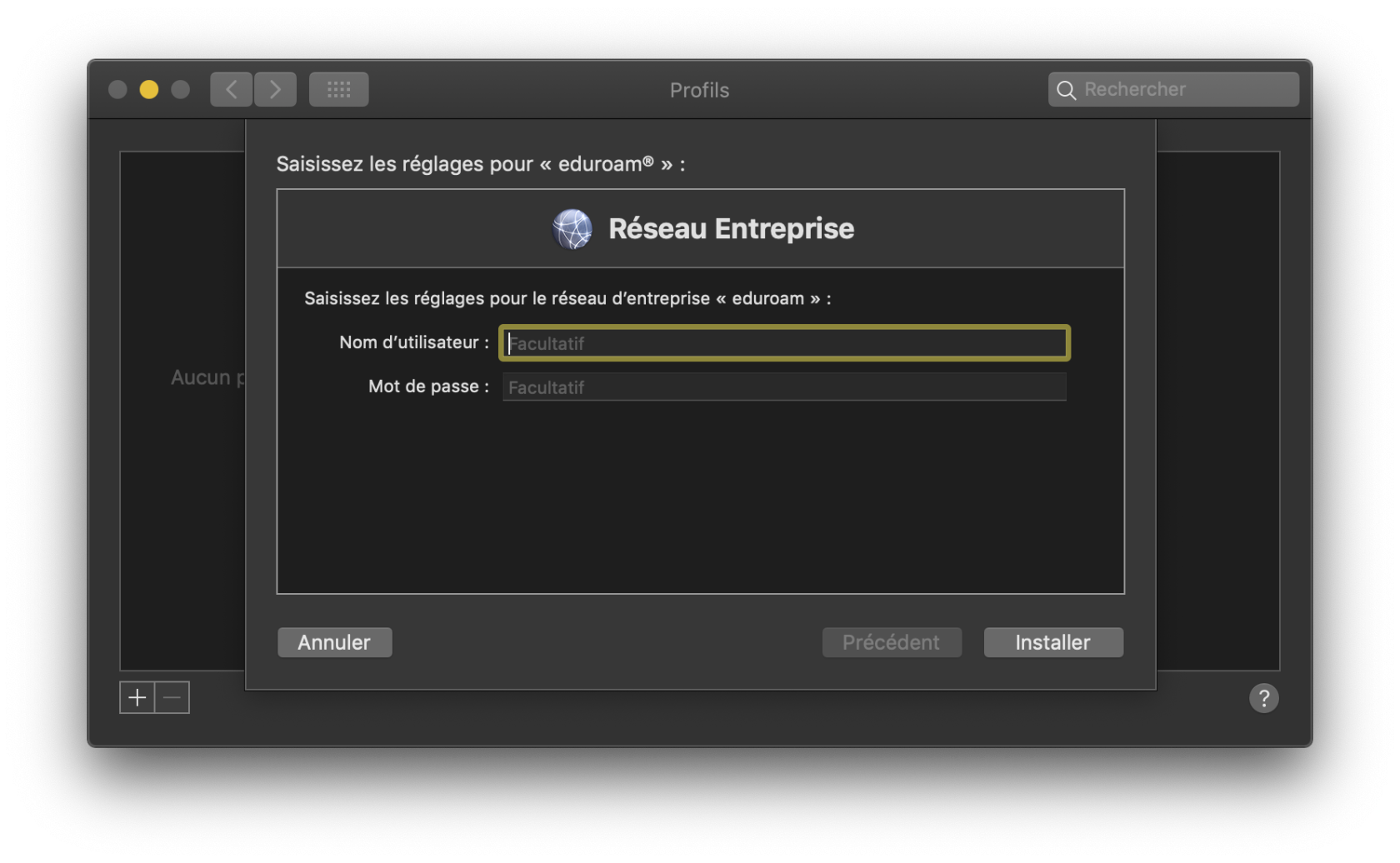
Enter the credentials of your UNIL account. If your UNIL account is brand new, please make sure you [validate it ](https://id.unil.ch/activer?execution=e1s1&langSite=en)before.
- Username: your UNIL email address
- Password: password of your UNIL account
(the *username@unil.ch* ID used previously is still working too)
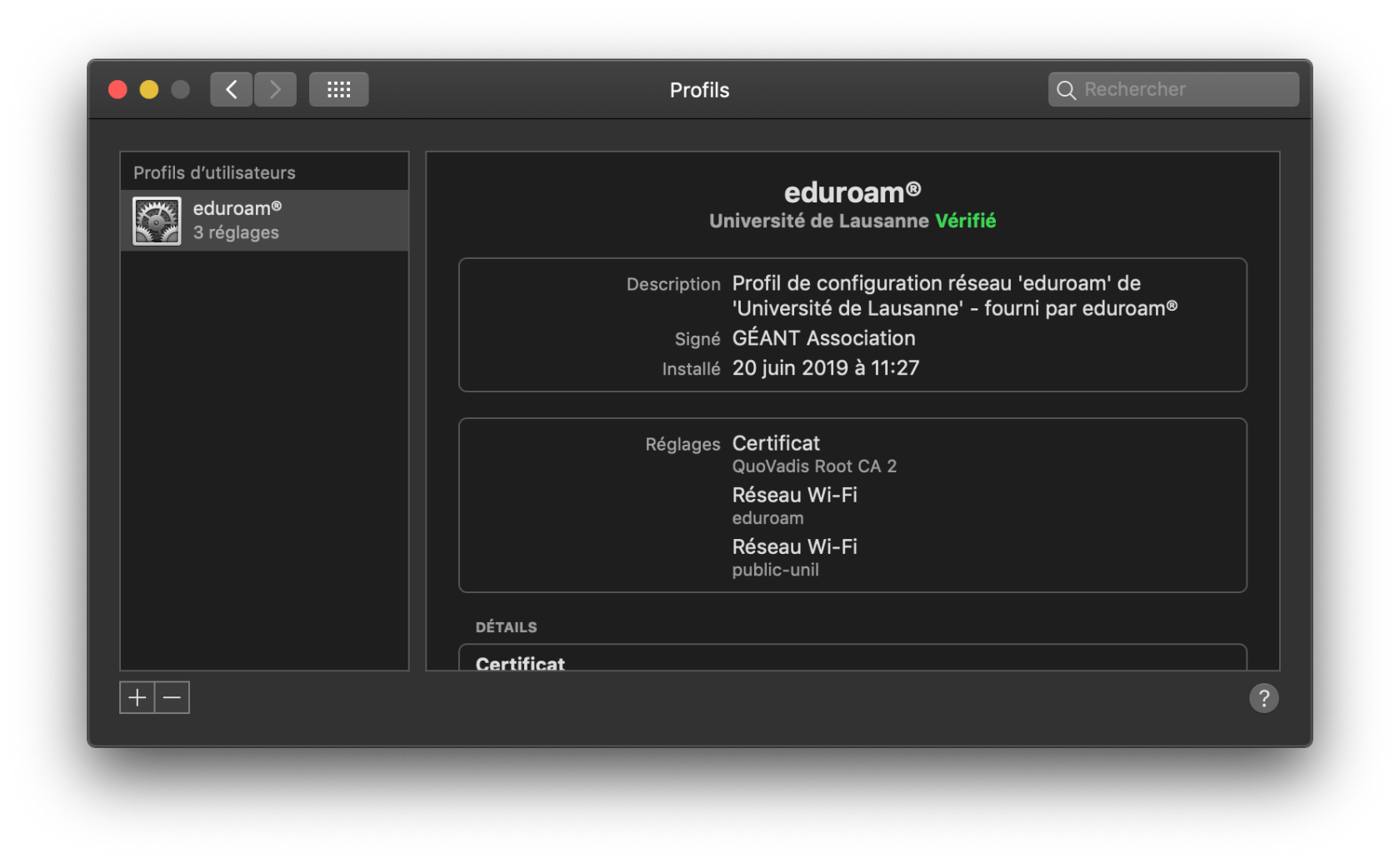
Your macOS is now configured to use eduroam wifi.
[](https://wiki.unil.ch/ci/uploads/images/gallery/2025-01/JEpcapture-5.png)
##### Manual Configuration - not recommended
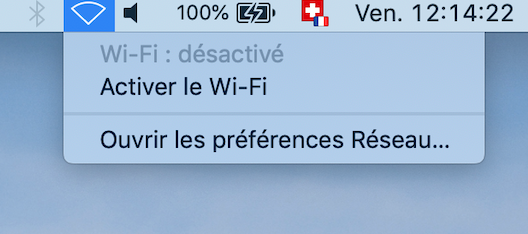
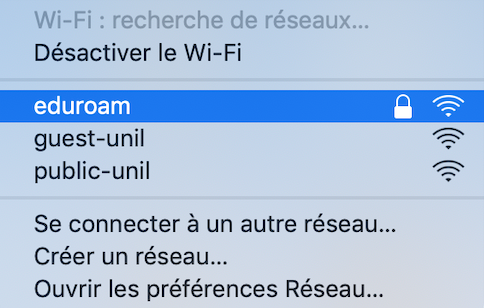
1. Enable the wifi interface on your device and choose eduroam network
[](https://wiki.unil.ch/ci/uploads/images/gallery/2025-01/XDImacos-eduroam-activerwifi-step1.png)
[](https://wiki.unil.ch/ci/uploads/images/gallery/2025-01/1y6macos-eduroam-choosessideduroam-step2.png)
2. Enter your UNIL credentials: your UNIL email address and the password of your UNIL account. Connect
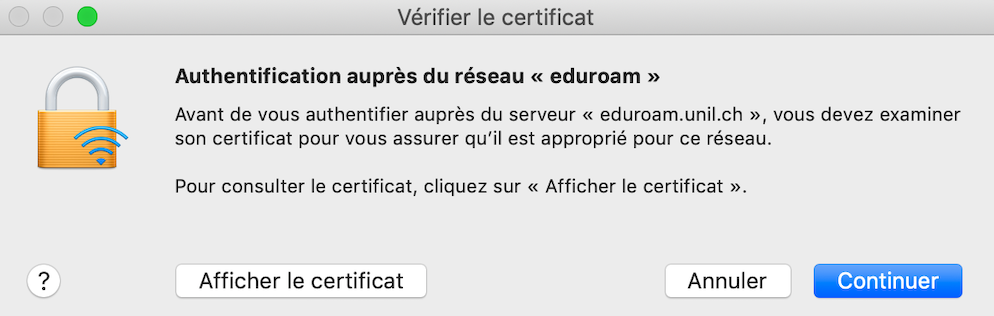
3. You are prompted with the certificate information.
[](https://wiki.unil.ch/ci/uploads/images/gallery/2025-01/macos-eduroam-certificatprompt-step4.png)
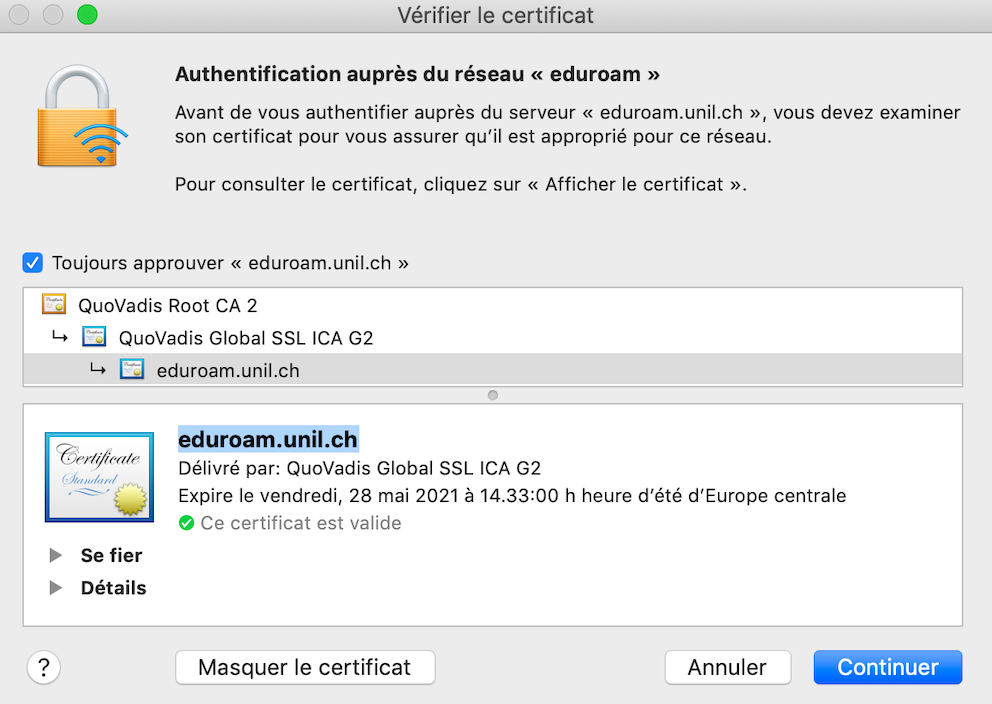
4. Pay attention to the name of the server, eduroam.unil.ch, and the expiration date.
[](https://wiki.unil.ch/ci/uploads/images/gallery/2025-01/macos-eduroam-certificateinfo-step5.png)
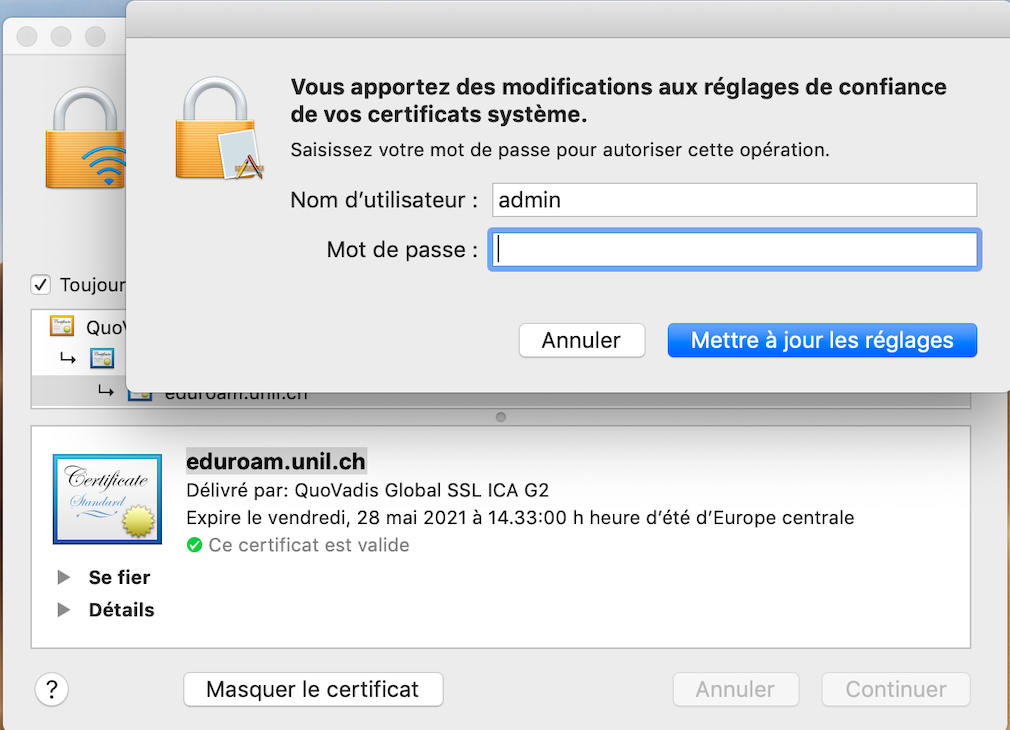
5. Enter the password of your administrator account in order to accept the change.
[](https://wiki.unil.ch/ci/uploads/images/gallery/2025-01/qyemacos-eduroam-step6.png)
6. Then you will be connected to eduroam.
Windows
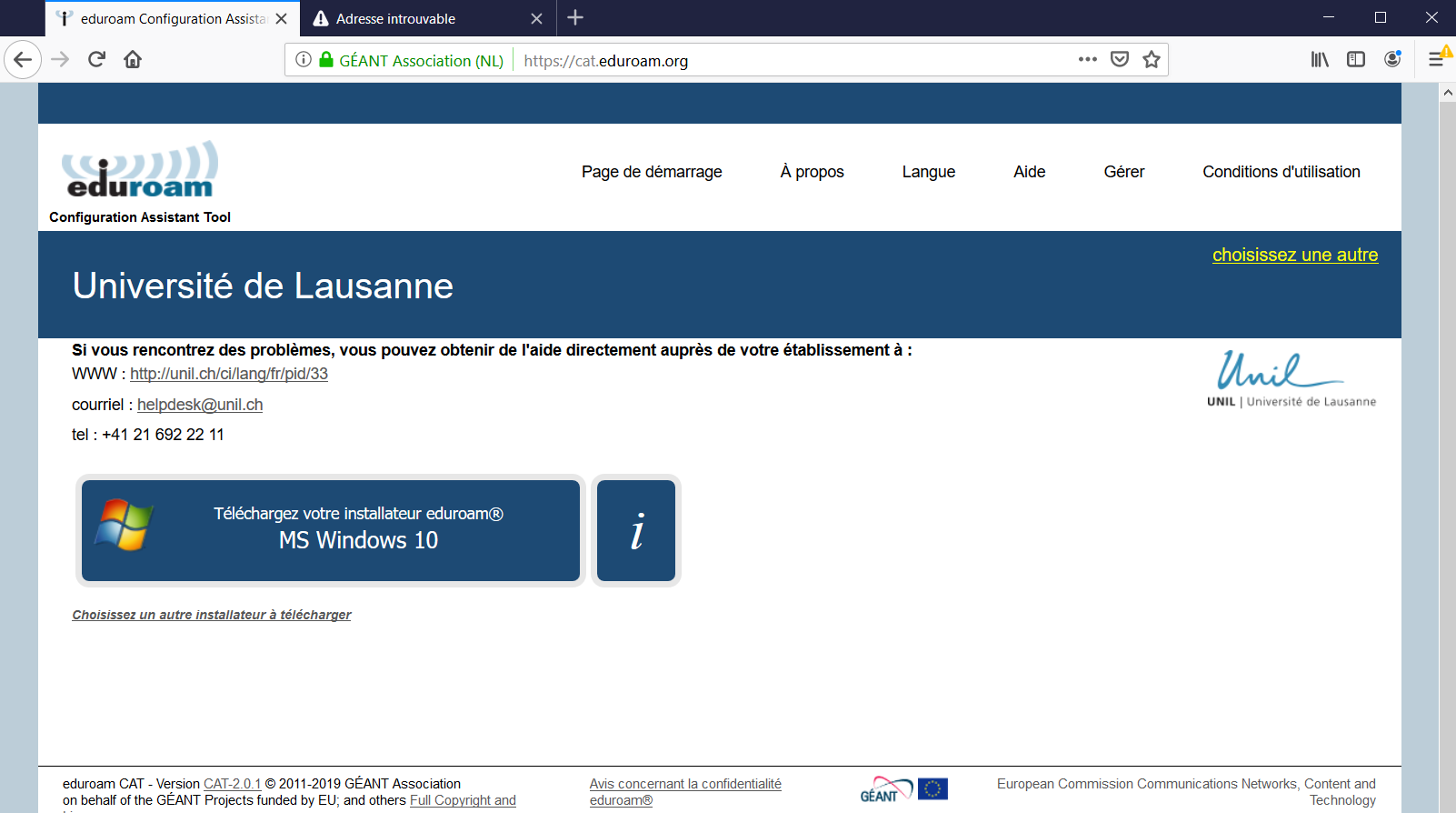
Download the [eduroamCAT](https://cat.eduroam.org/?idp=277) installer. The page should prompt you with the right installer for your OS but you can also choose another installer.
[](https://wiki.unil.ch/ci/uploads/images/gallery/2025-01/capture01.PNG)
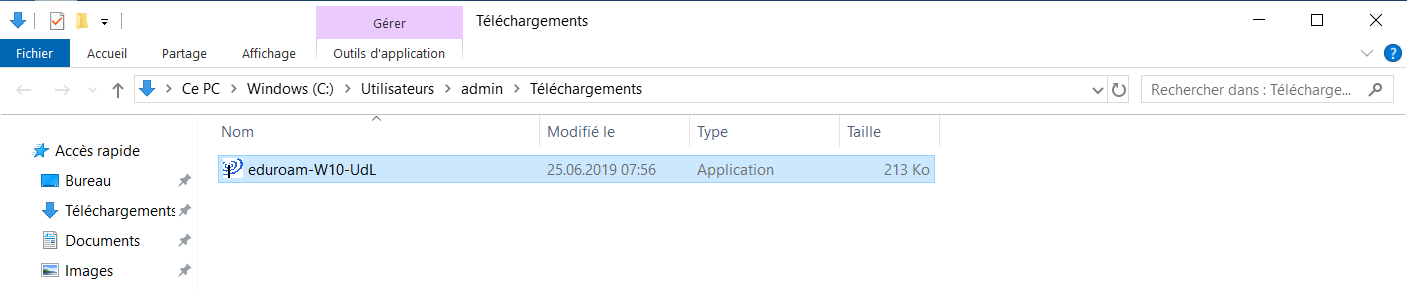
Double click on the downloaded file (eduroam\_Wx-UdL.exe should be in your Downloads folder)
[](https://wiki.unil.ch/ci/uploads/images/gallery/2025-01/capture02.PNG)
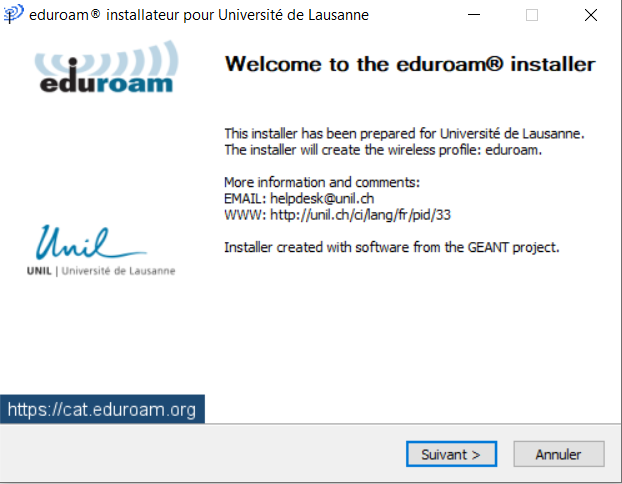
Click on Continue/ Suivant to install the eduroam configuration:
[](https://wiki.unil.ch/ci/uploads/images/gallery/2025-01/capture03.PNG)
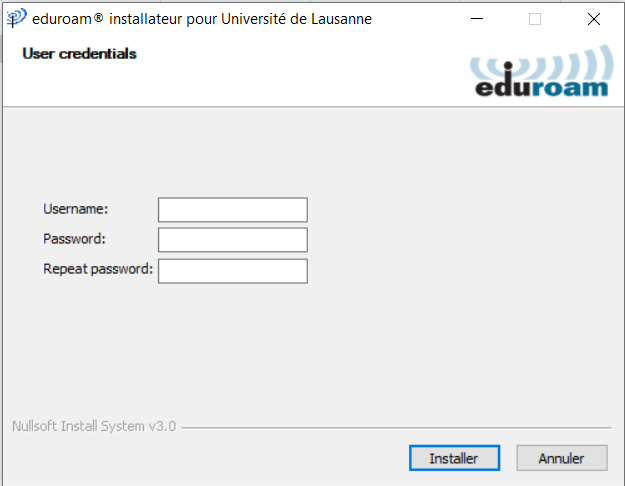
Enter the credentials of your UNIL account. If your account is brand new, please make sure you [validate it](https://id.unil.ch/activer?execution=e1s1&langSite=en) before using it.
- Username: your UNIL email address
- Password: password of your UNIL account
(the *username@unil.ch* ID used previously is still working too)
[](https://wiki.unil.ch/ci/uploads/images/gallery/2025-01/capture04.PNG)
Click on "Installer". After the installation is finished, your PC is configured to use eduroam wifi.
iOS
##### Configuration with eduroamCAT - recommended
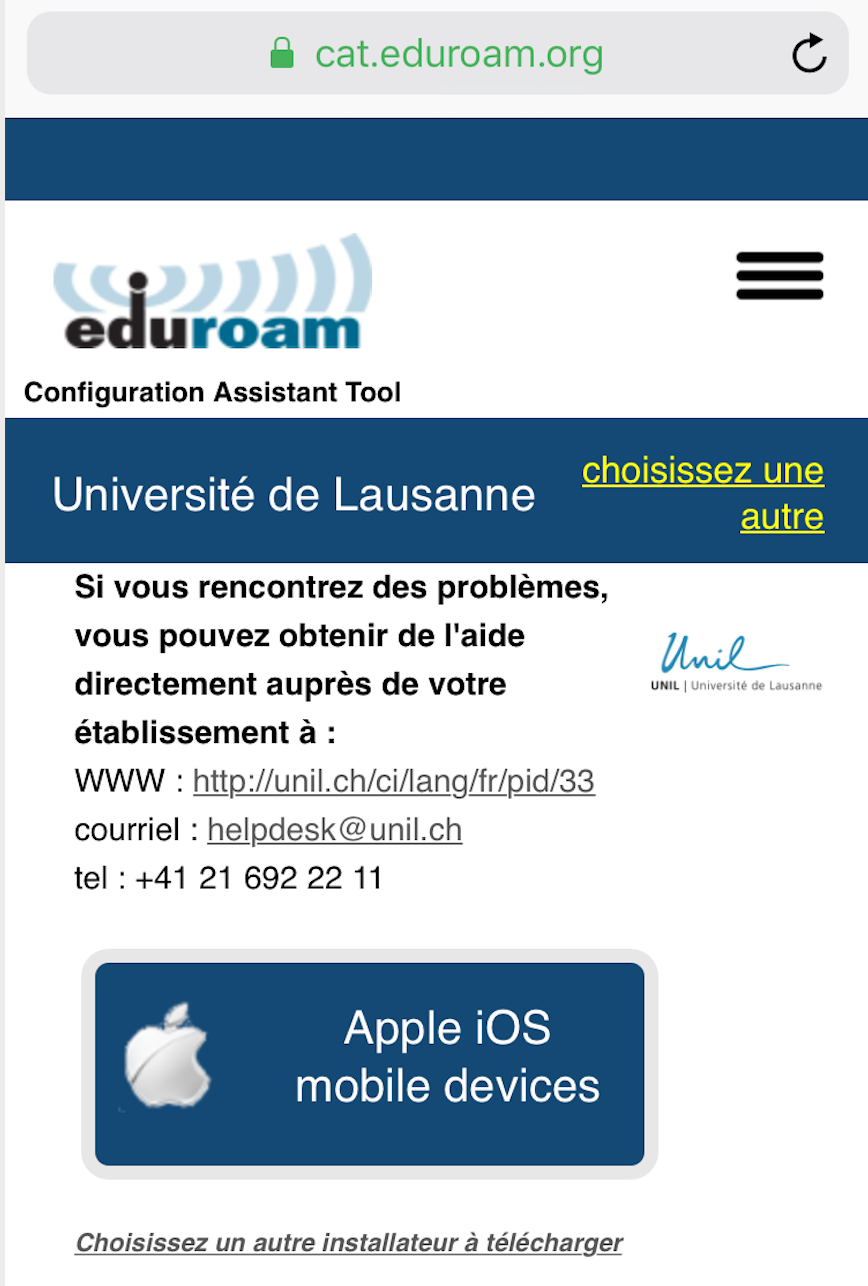
1. Download the [eduroamCAT](https://cat.eduroam.org/?idp=277) installer for iOS
[](https://wiki.unil.ch/ci/uploads/images/gallery/2025-01/ios-12-3-step3.png)
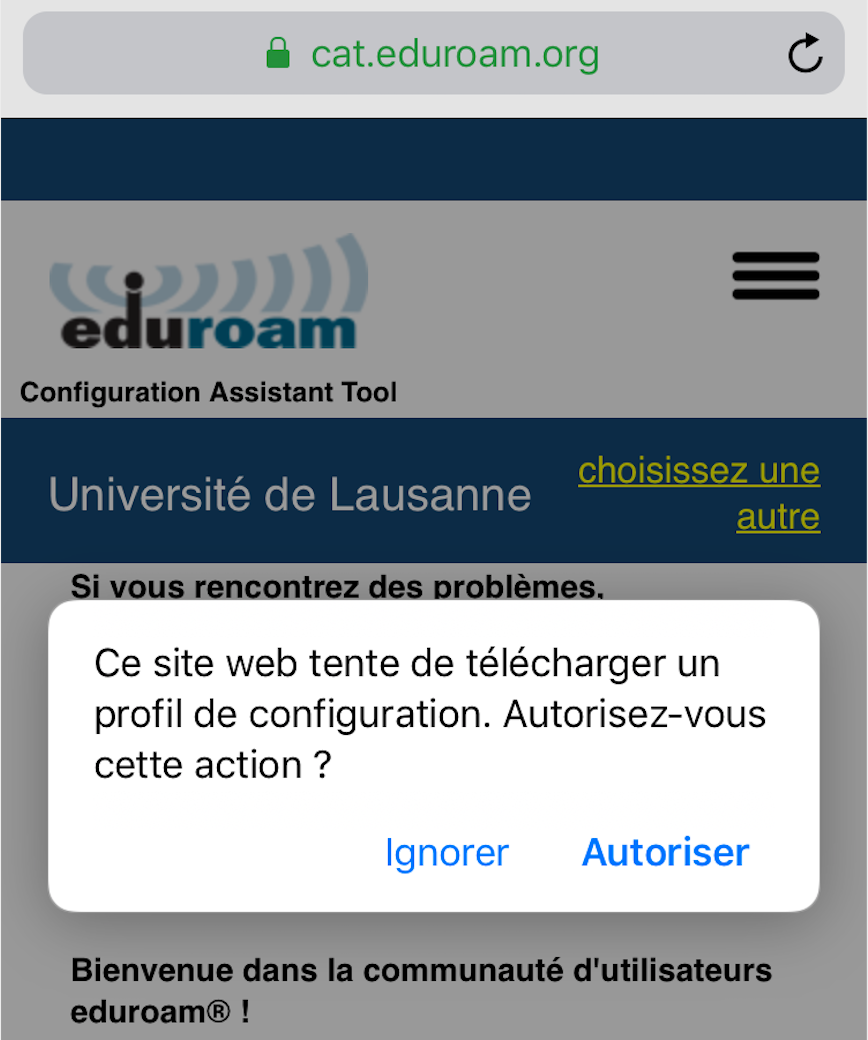
2. Authorize the change
[](https://wiki.unil.ch/ci/uploads/images/gallery/2025-01/ios-12-3-step4.png)
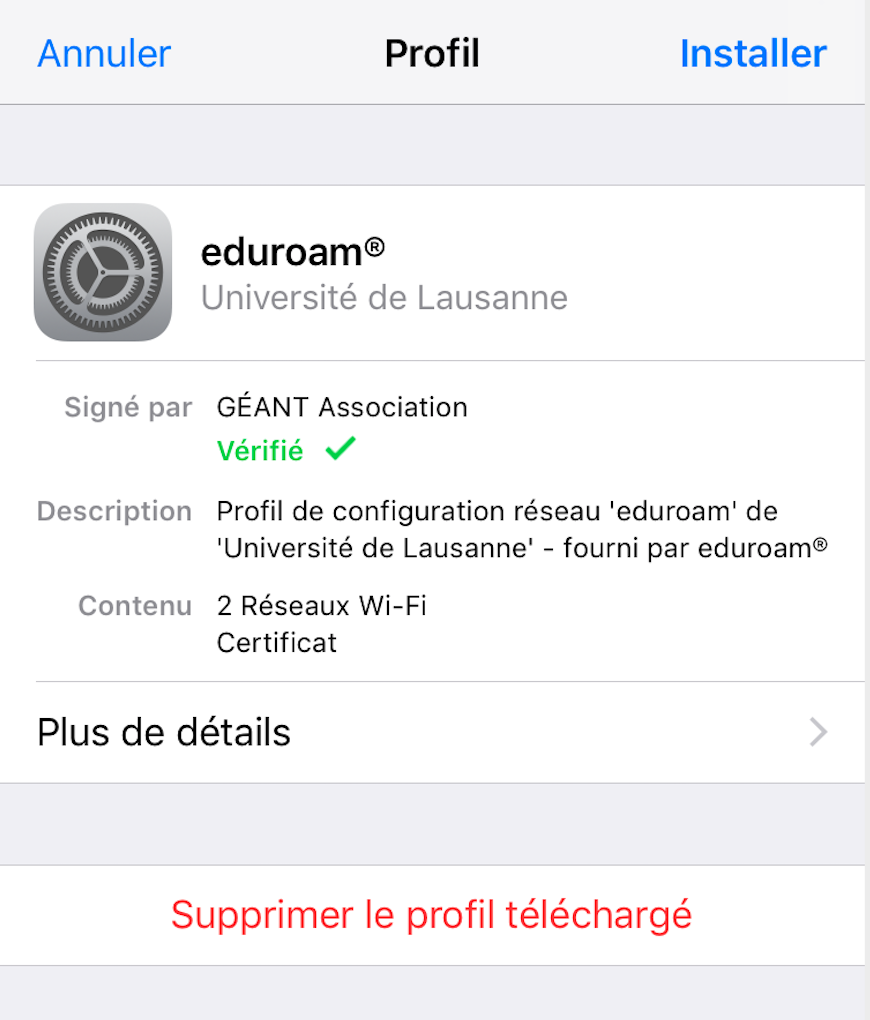
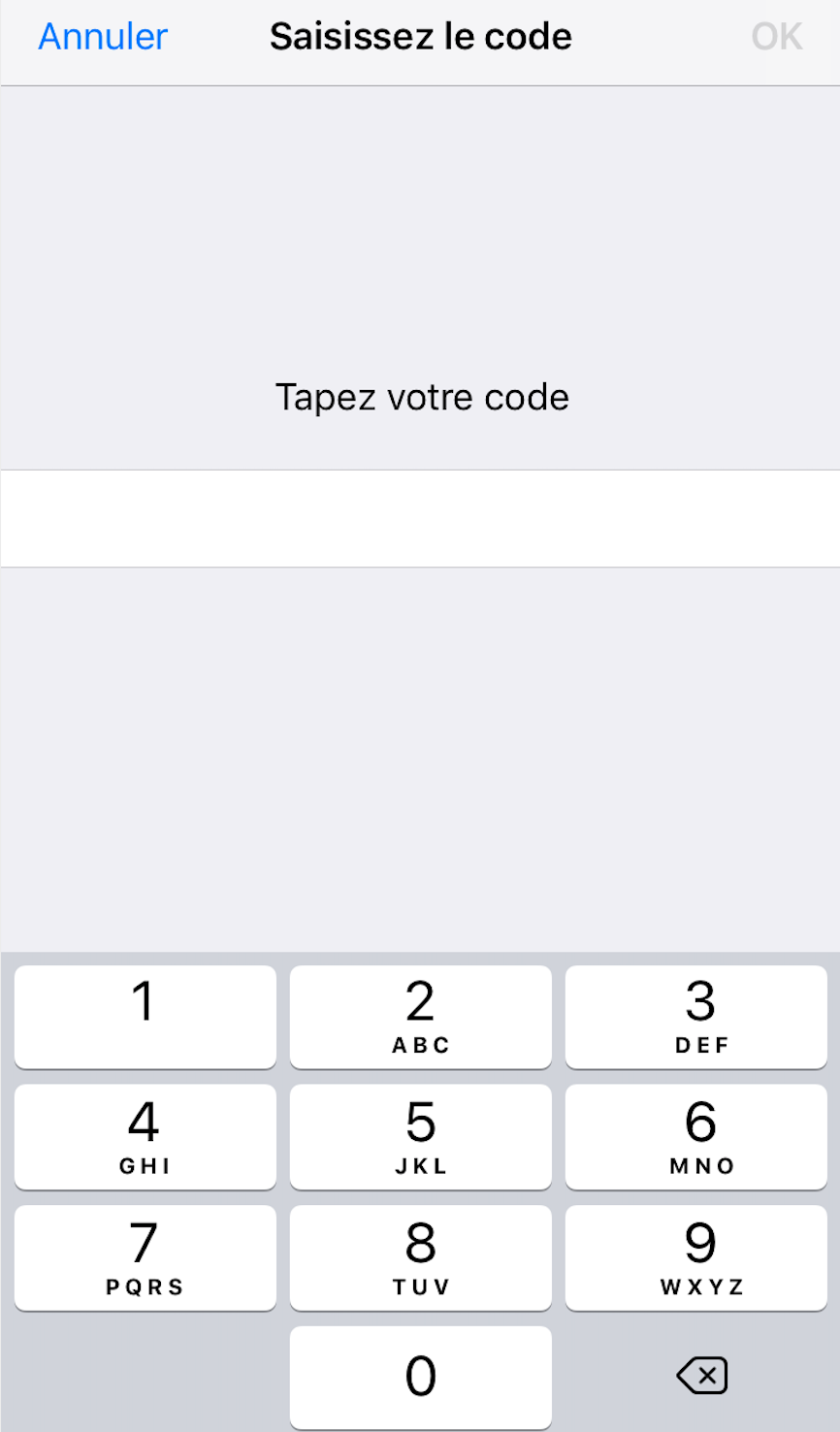
3. Click on the Install button in the upper right corner of the screen
[](https://wiki.unil.ch/ci/uploads/images/gallery/2025-01/ios-12-3-installer-profil.png)
[](https://wiki.unil.ch/ci/uploads/images/gallery/2025-01/ios-12-3-codepin.png)
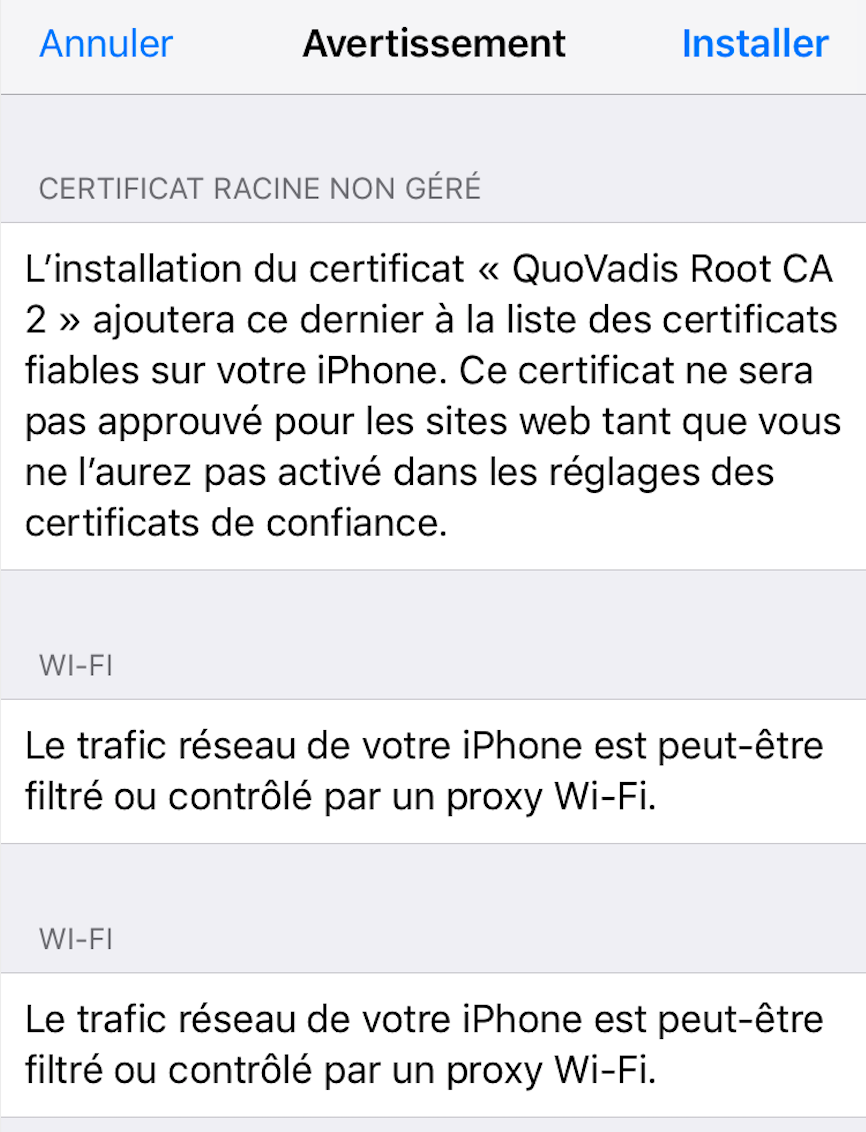
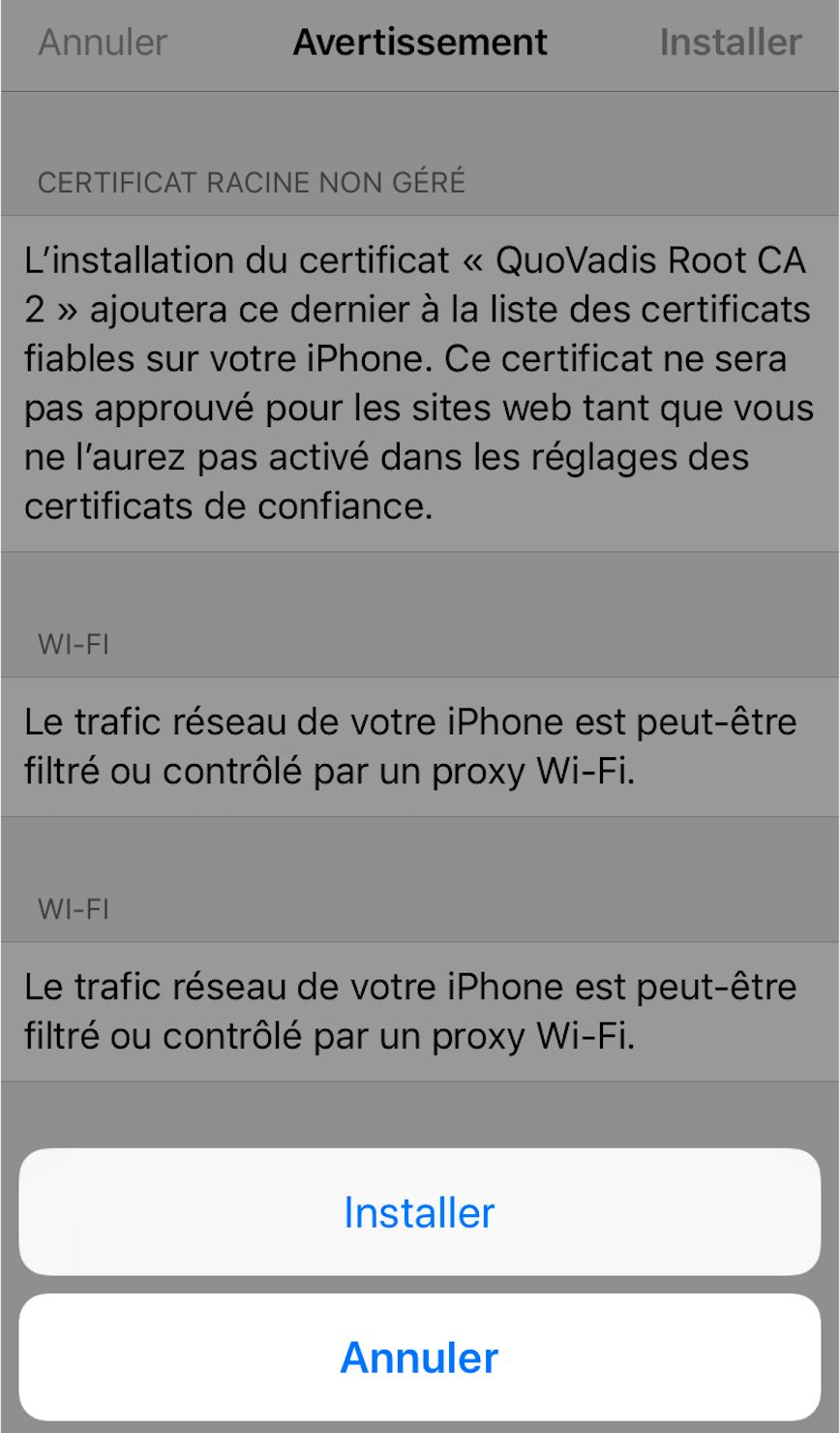
4. Confirm the installation by clicking on the Install button
[](https://wiki.unil.ch/ci/uploads/images/gallery/2025-01/ios-12-3-confirmer-installation.png)
[](https://wiki.unil.ch/ci/uploads/images/gallery/2025-01/ios-12-3-reconfirmer-installation.png)
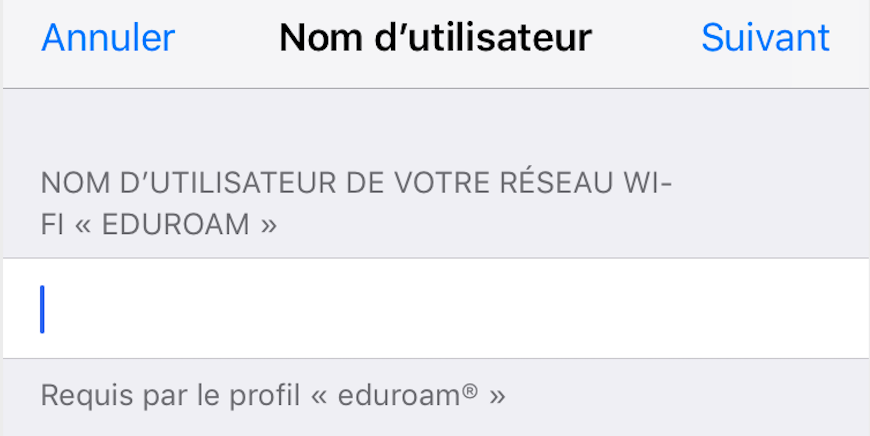
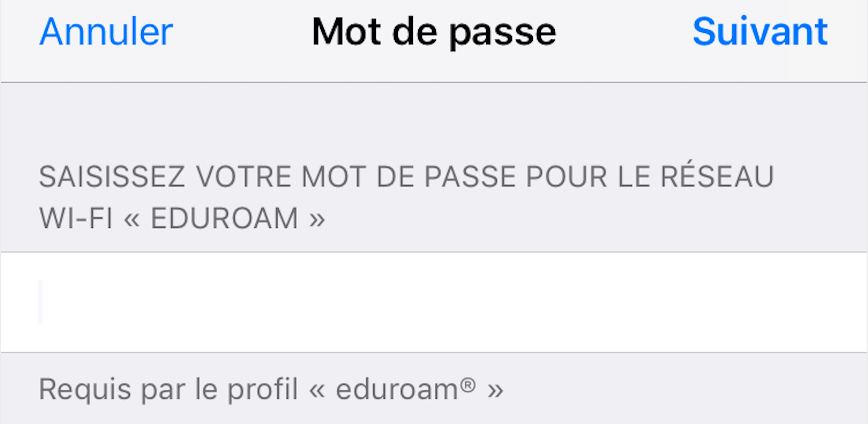
5. Enter your UNIL account credentials. If your UNIL account is brand new, please make sure you [have validated it ](https://id.unil.ch/activer?execution=e1s1&langSite=en)before using it.
- Username: your UNIL email address
- Password: password of your UNIL account
(the *username@unil.ch* ID used previously is still working too)
[](https://wiki.unil.ch/ci/uploads/images/gallery/2025-01/ios-12-3-username.png)
[](https://wiki.unil.ch/ci/uploads/images/gallery/2025-01/ios-12-3-password.png)
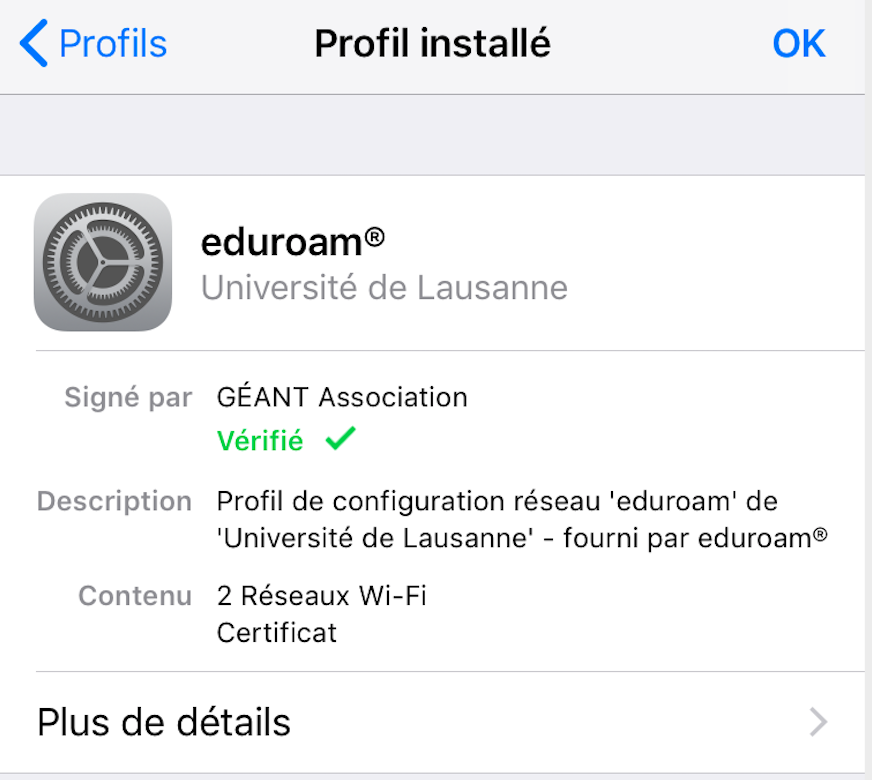
6. Your iOS device is now configured to use eduroam wifi
[](https://wiki.unil.ch/ci/uploads/images/gallery/2025-01/ios-12-3-profil-installed.png)
##### Manual Configuration not-recommended
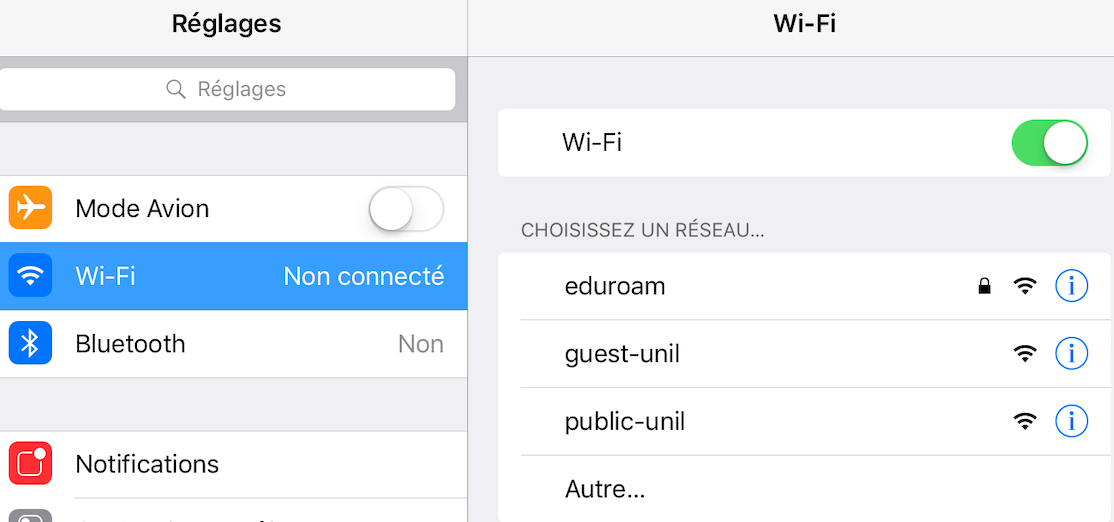
1. Enable wifi and choose eduroam network
[](https://wiki.unil.ch/ci/uploads/images/gallery/2025-01/ios-eduroam-manual-choosessid-step2.png)
2. Enter your credentials: your UNIL email address and your UNIL password. Connect
3. Trust the certificate
[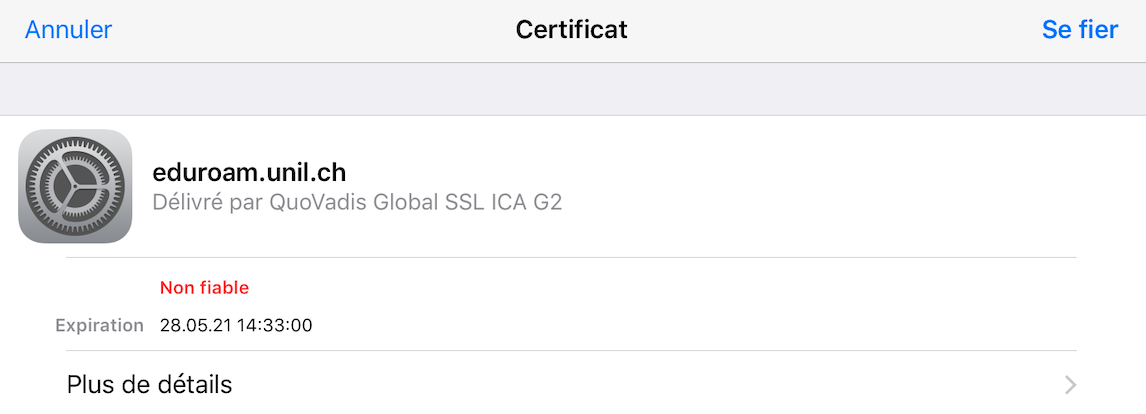](https://wiki.unil.ch/ci/uploads/images/gallery/2025-01/ios-eduroam-manual-certificate-step4.png)
4. You should then be connected
[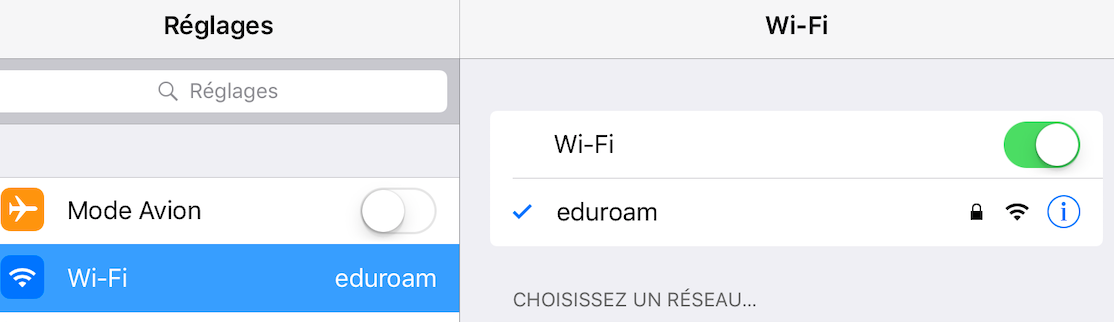](https://wiki.unil.ch/ci/uploads/images/gallery/2025-01/ios-eduroam-manual-connected-step5.png)
Android
For recent Android versions, **Android > 8** (especially Android 11) please use [geteduroam](https://play.google.com/store/apps/details?id=app.eduroam.geteduroam) application, available in Google PlayStore.
For older Android versions (**Android < 8**) please use eduroamCAT application.
Download the eduroamCAT application from [Google play store](https://play.google.com/store/apps?hl=fr)
[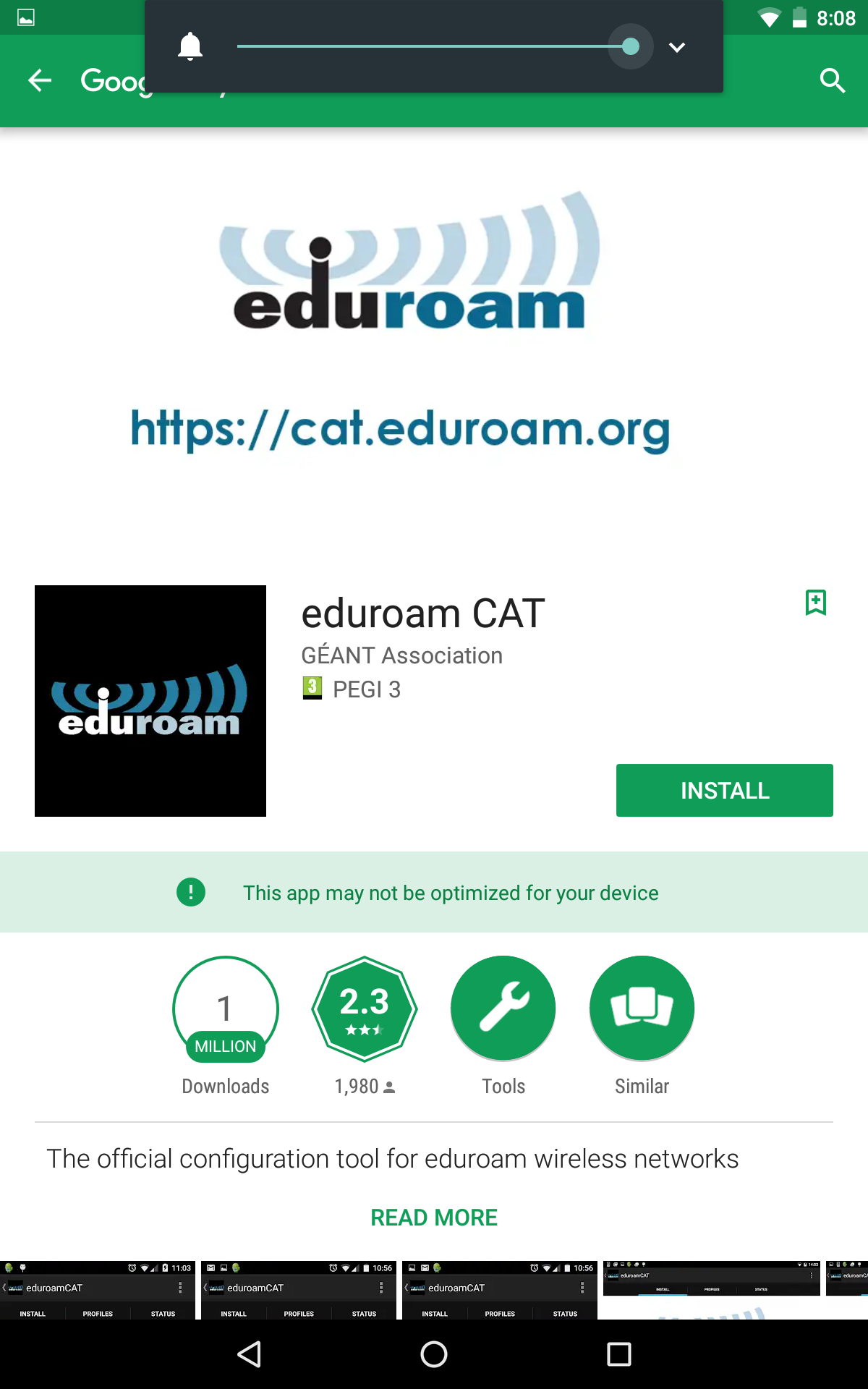](https://wiki.unil.ch/ci/uploads/images/gallery/2025-01/capture1-googleplay.png)
Open the appand search for University of Lausanne in the Nearby Configs menu.
Select "University of Lausanne"
[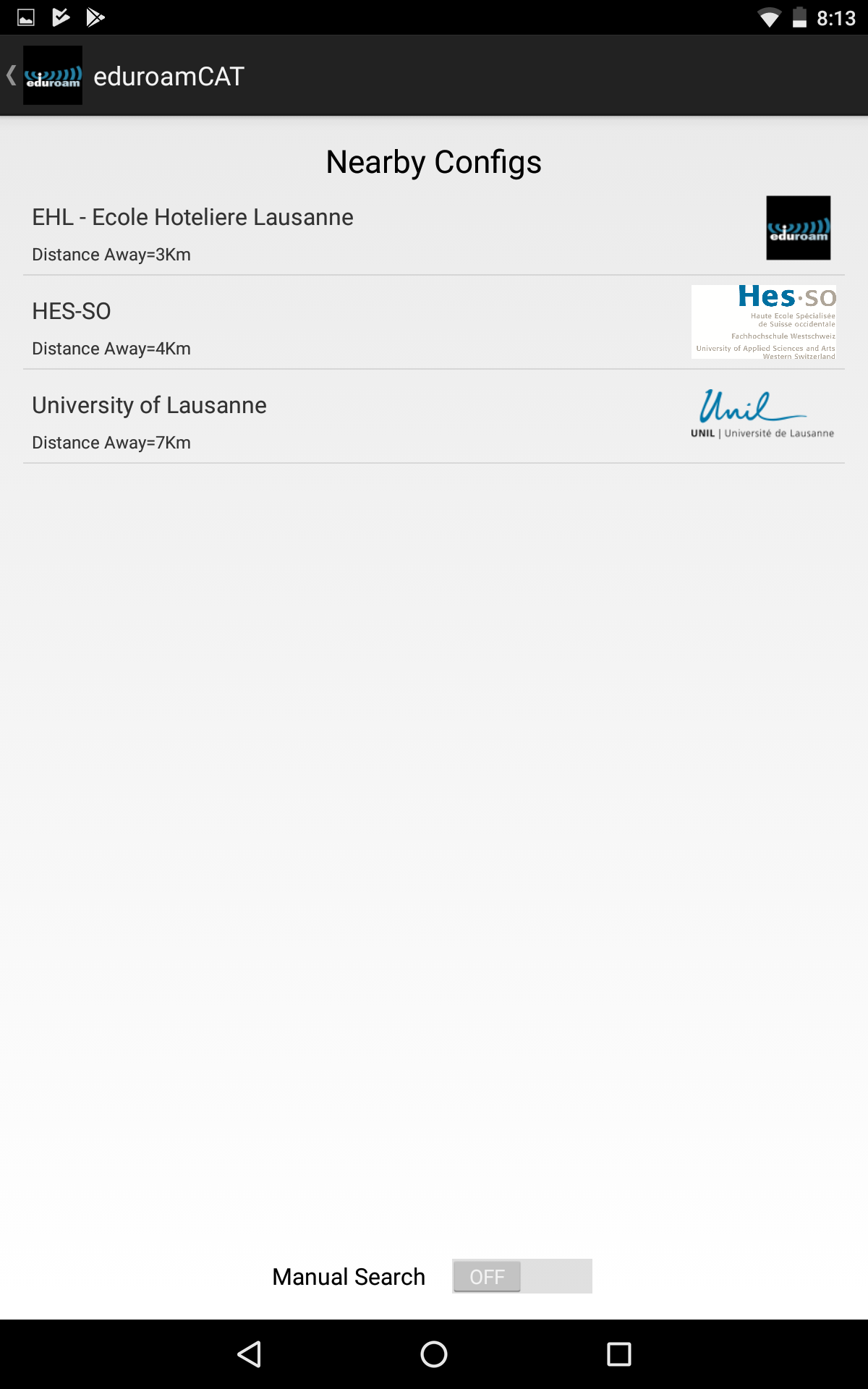](https://wiki.unil.ch/ci/uploads/images/gallery/2025-01/capture3-chooseconfig.png)
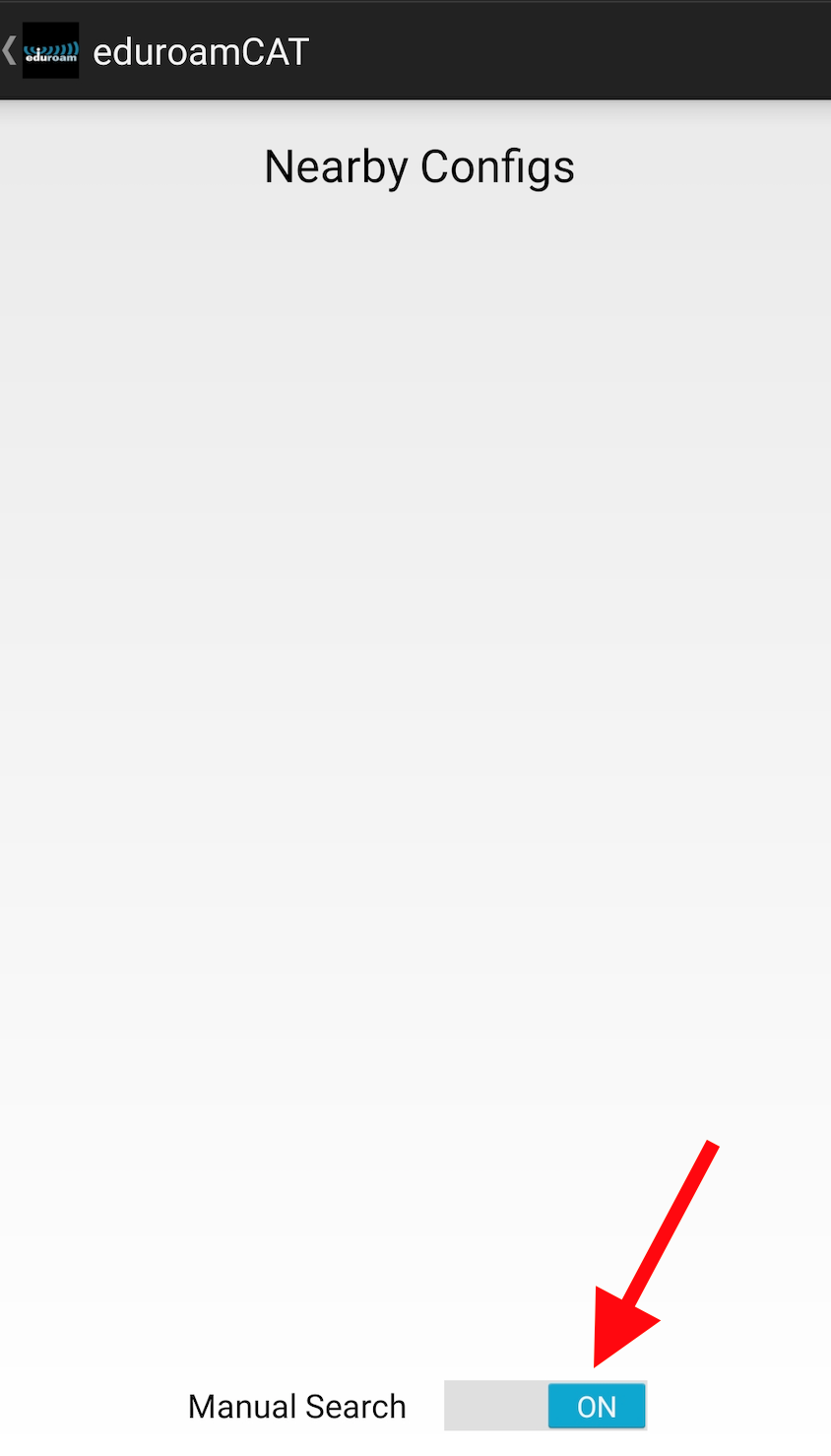
If you cannot find University of Lausanne in this list, you should enable Manual Search (ON) and look for Lausanne.
[](https://wiki.unil.ch/ci/uploads/images/gallery/2025-01/android-eduroamcat-nearbyconfig-searchon-arrow.png)
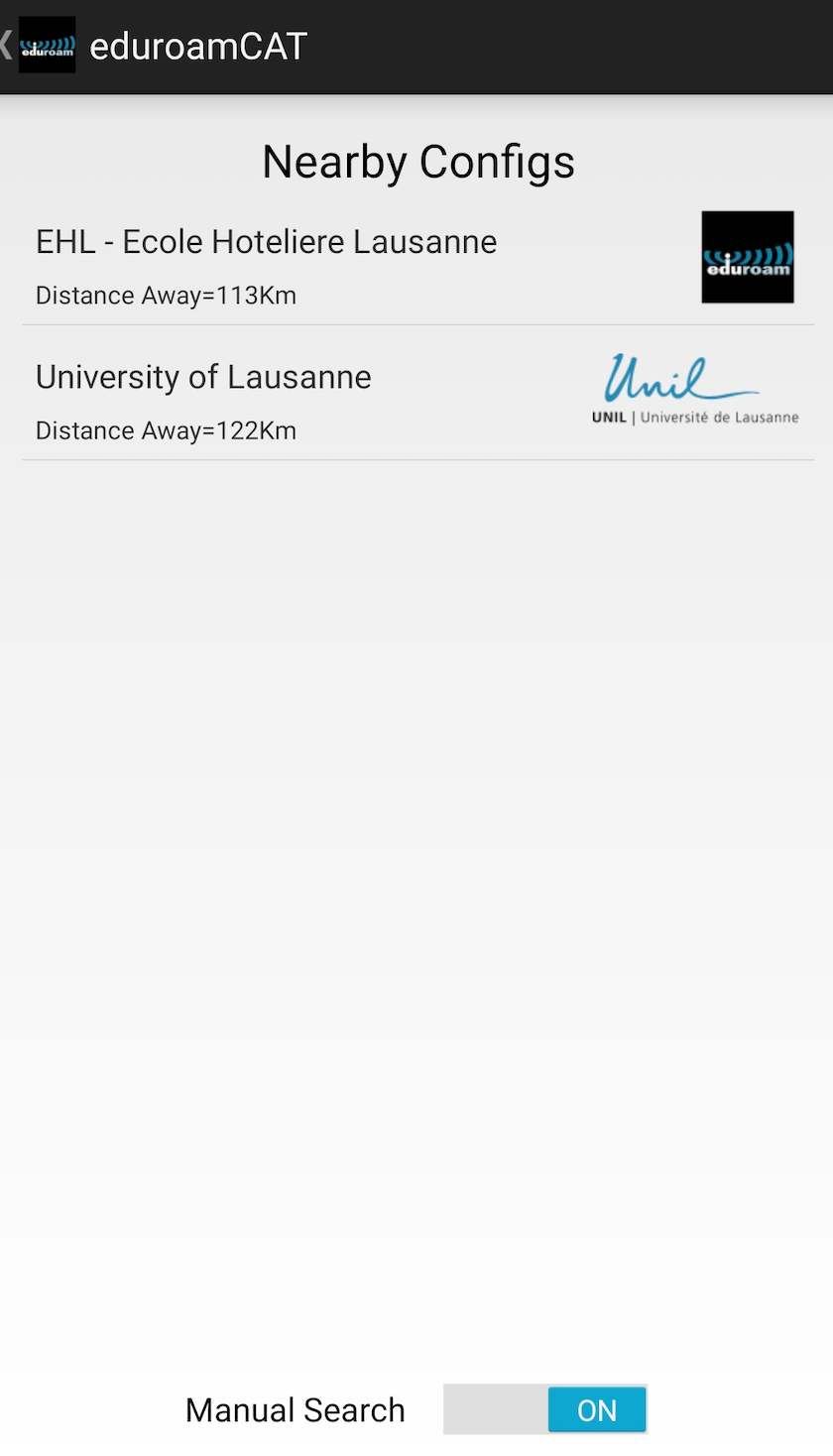
Click on the University of Lausanne, this will download the installler file for UNIL.
[](https://wiki.unil.ch/ci/uploads/images/gallery/2025-01/android-eduroamcat-nearbyconfigs-searchon-unil.png)
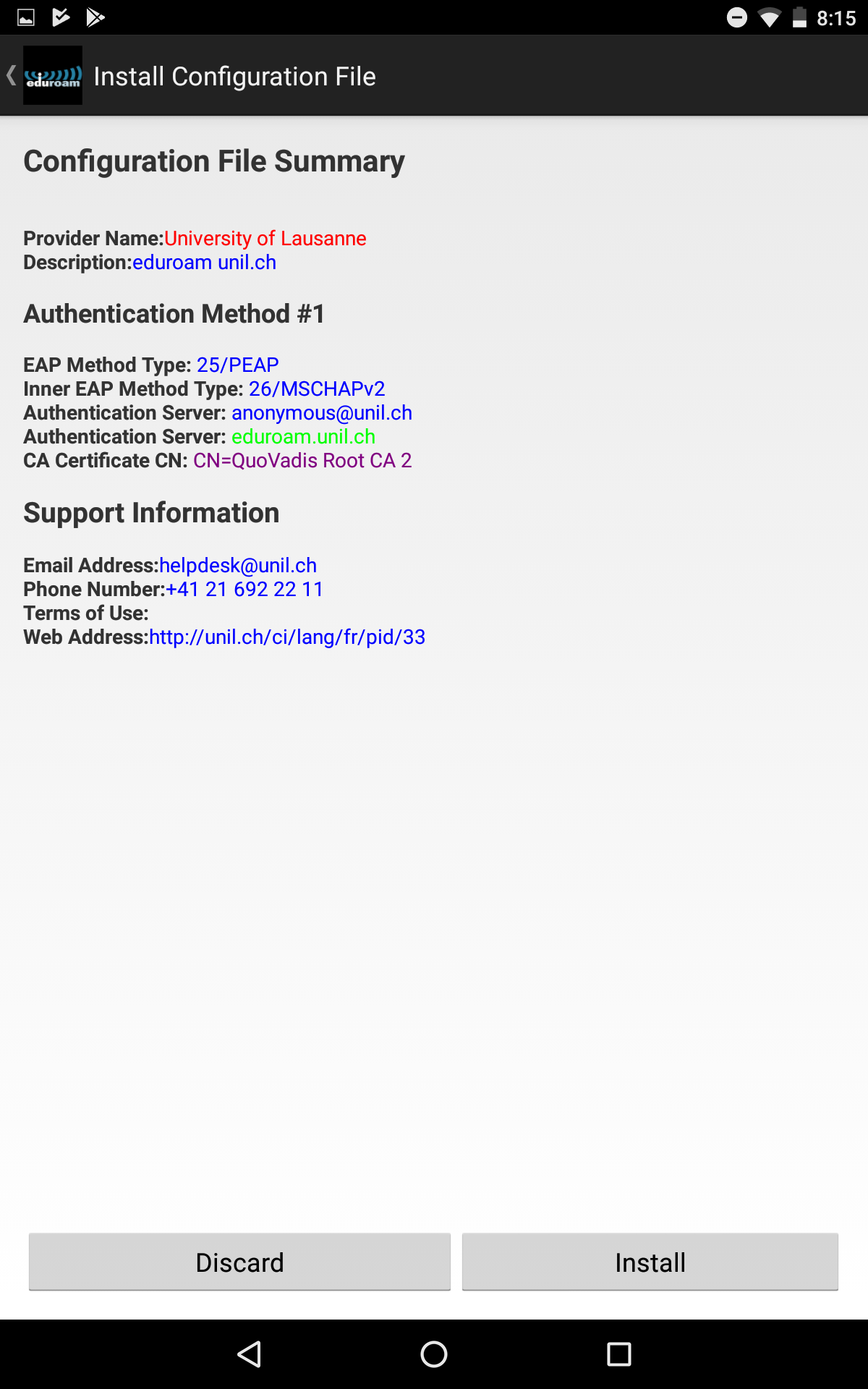
Click on "Install"
[](https://wiki.unil.ch/ci/uploads/images/gallery/2025-01/screenshot-20190625-081536.png)
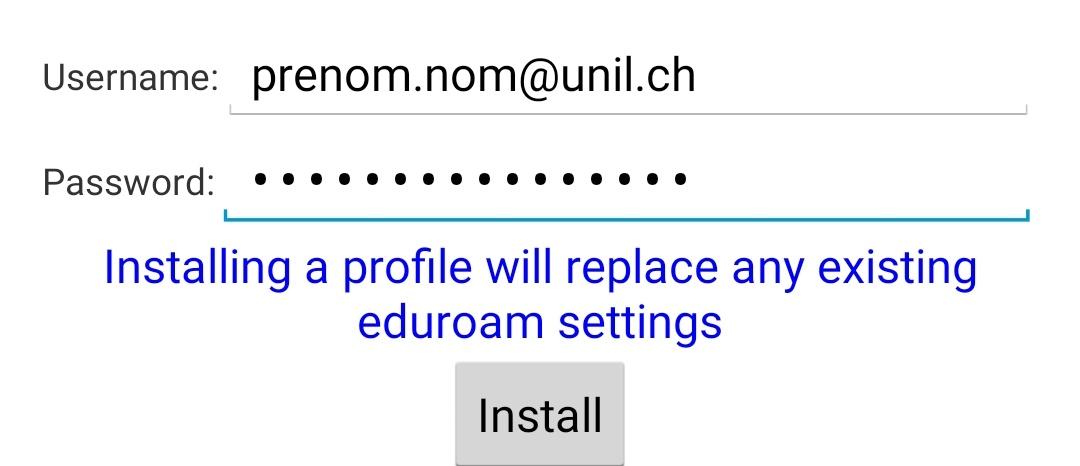
Enter your UNIL account credentials. If your UNIL account is brand new, please make sure you [have validated](https://id.unil.ch/activer?execution=e1s1&langSite=en) it before.
- Username: your UNIL email address
- Password: password of your UNIL account
(the *username@unil.ch* ID used previously is still working too)
[](https://wiki.unil.ch/ci/uploads/images/gallery/2025-01/eduroamcat-emailaddr.jpg)
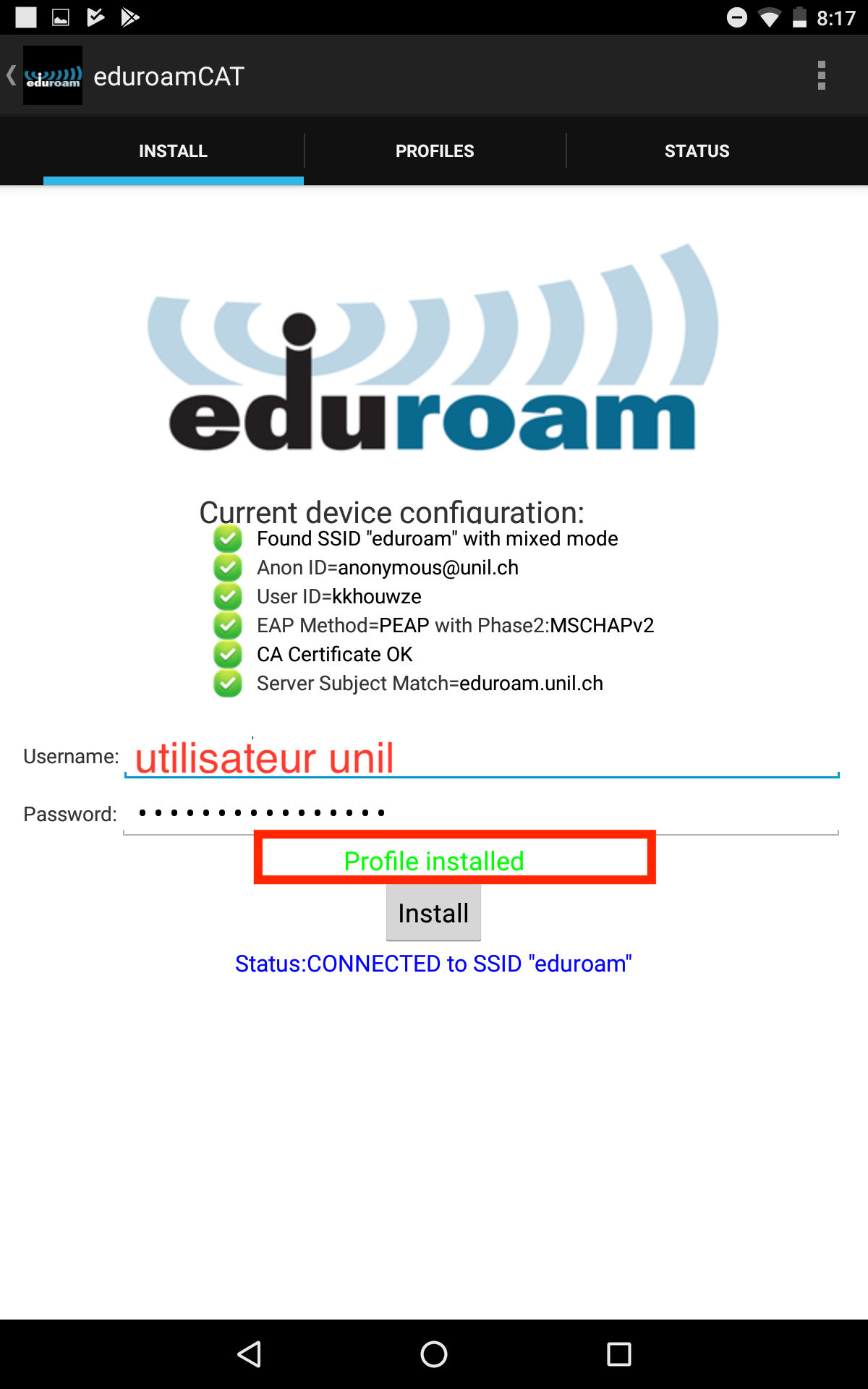
Click on "Install". Your Android device is now configured properly for using eduroam wifi network.
[](https://wiki.unil.ch/ci/uploads/images/gallery/2025-01/screenshot-20190625-081733.png)
Linux
Download the [eduroamCAT](https://cat.eduroam.org/?idp=277) installer for Linux
[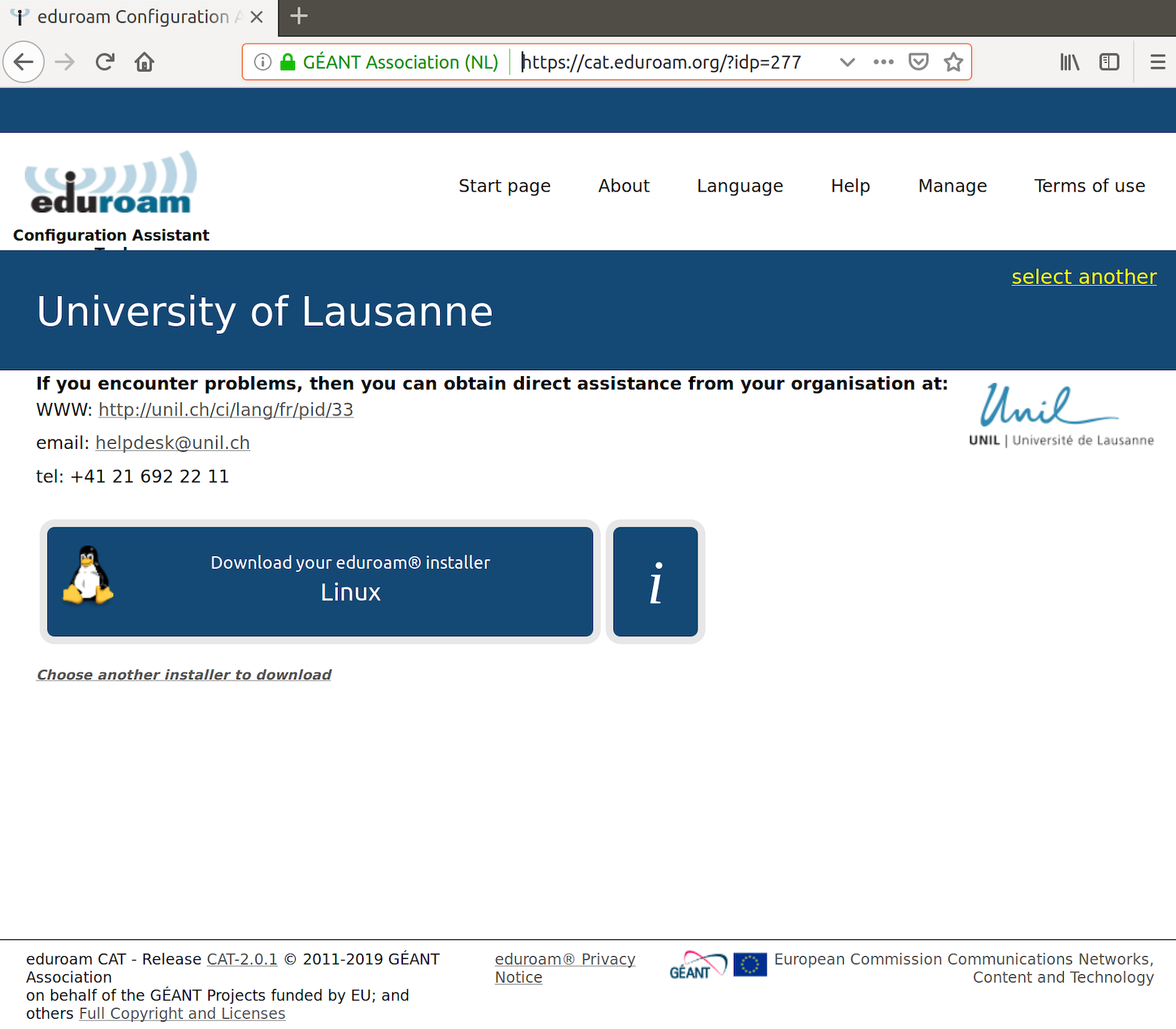](https://wiki.unil.ch/ci/uploads/images/gallery/2025-01/linux-eduroamcat-dl.png)
This will download a file (.py or .sh) in your Downloads folder.
[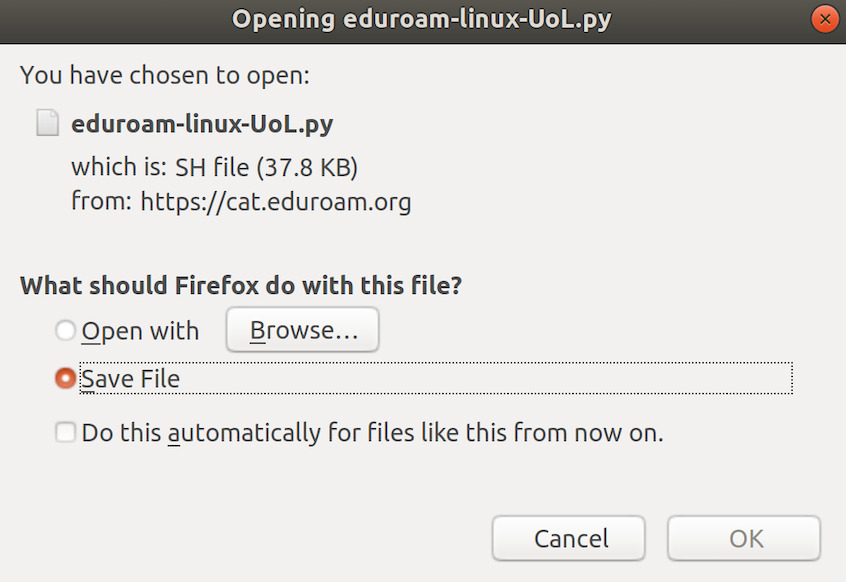](https://wiki.unil.ch/ci/uploads/images/gallery/2025-01/linux-eduroamcat-file.png)
[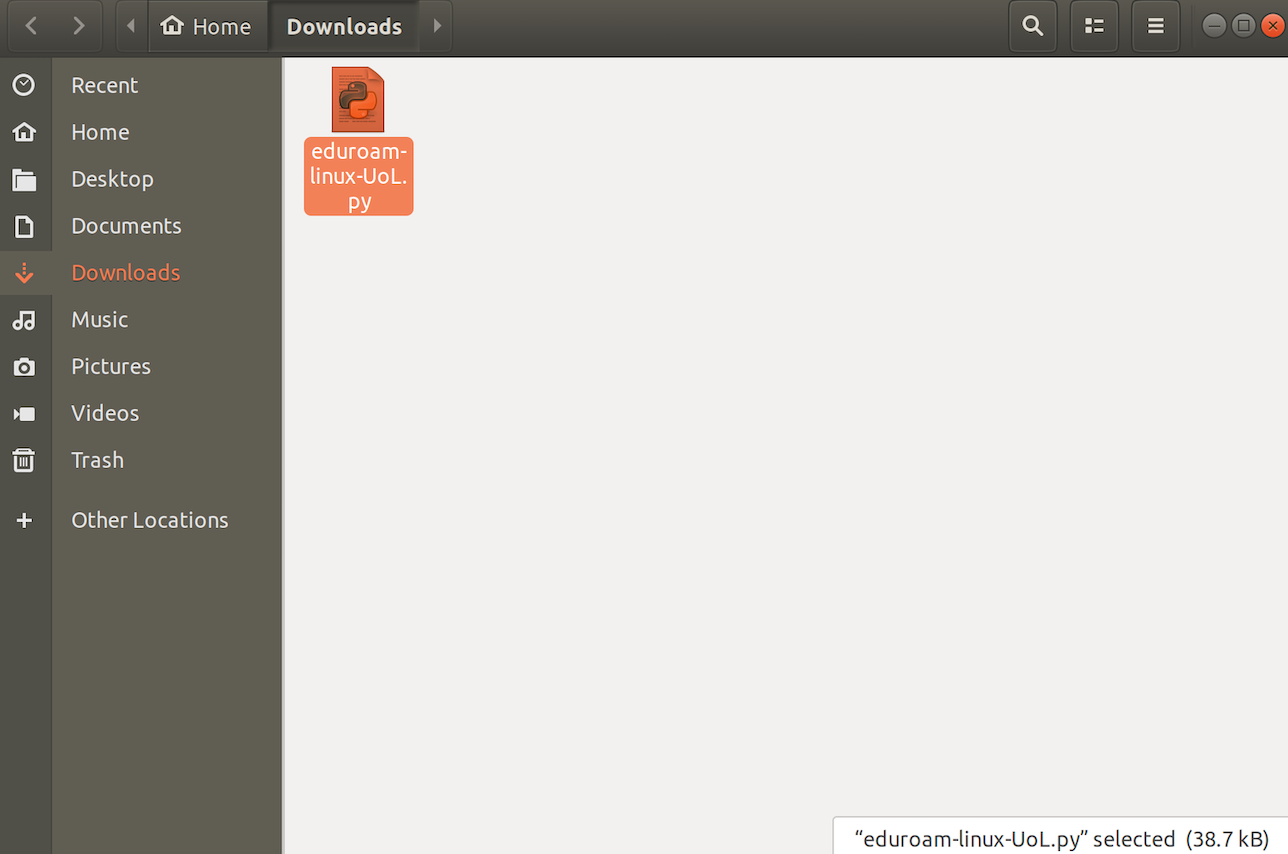](https://wiki.unil.ch/ci/uploads/images/gallery/2025-01/linux-eduroamcat-file-downloads.png)
Next, change permission for this file: In a terminal window execute the following commands:
**cd Downloads**
and
**sudo chmod +x eduroam-linux-UoL.py**
Then, execute the file, by running the command **./'eduroam-linux-UoL.py**'
You will be prompted with the following information:
[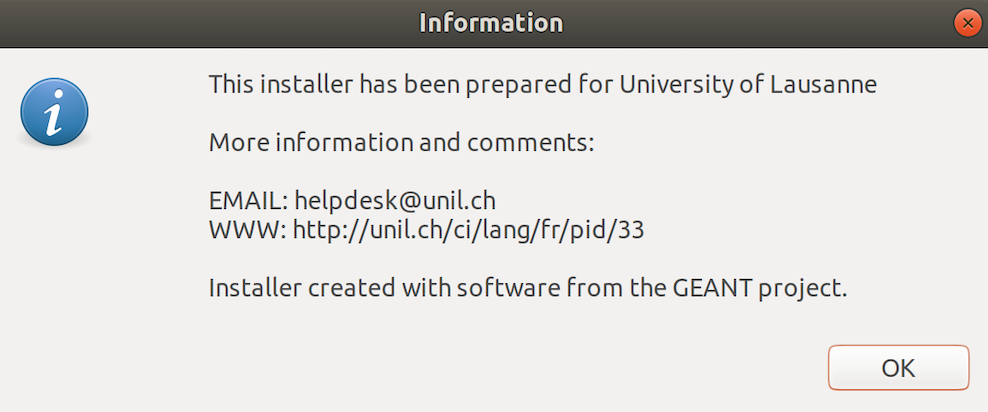](https://wiki.unil.ch/ci/uploads/images/gallery/2025-01/linux-eduroamcat-step1.png)
Enter your UNIL account credentials. If your UNIL account is brand new, please make sure you [have validated](https://id.unil.ch/activer?execution=e1s1&langSite=en) it before.
- Username: your UNIL email address
- Password: password of your UNIL account
(the *username@unil.ch* ID used previously is still working too)
[](https://wiki.unil.ch/ci/uploads/images/gallery/2025-01/linux-eduroamcat-step3-enteruserid.png)
[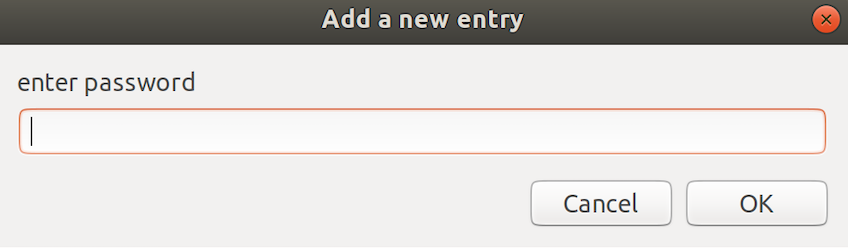](https://wiki.unil.ch/ci/uploads/images/gallery/2025-01/linux-eduroamcat-step4.png)
[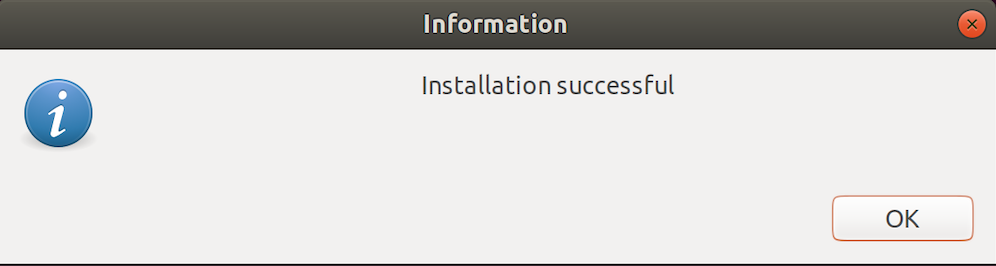](https://wiki.unil.ch/ci/uploads/images/gallery/2025-01/linux-eduroamcat-step5.png)
Now your device is configured to use the eduroam wifi network.
When you are in reach of an eduroam network you can choose it from the wifi network list and your device should connect easily to it.
Chromebook
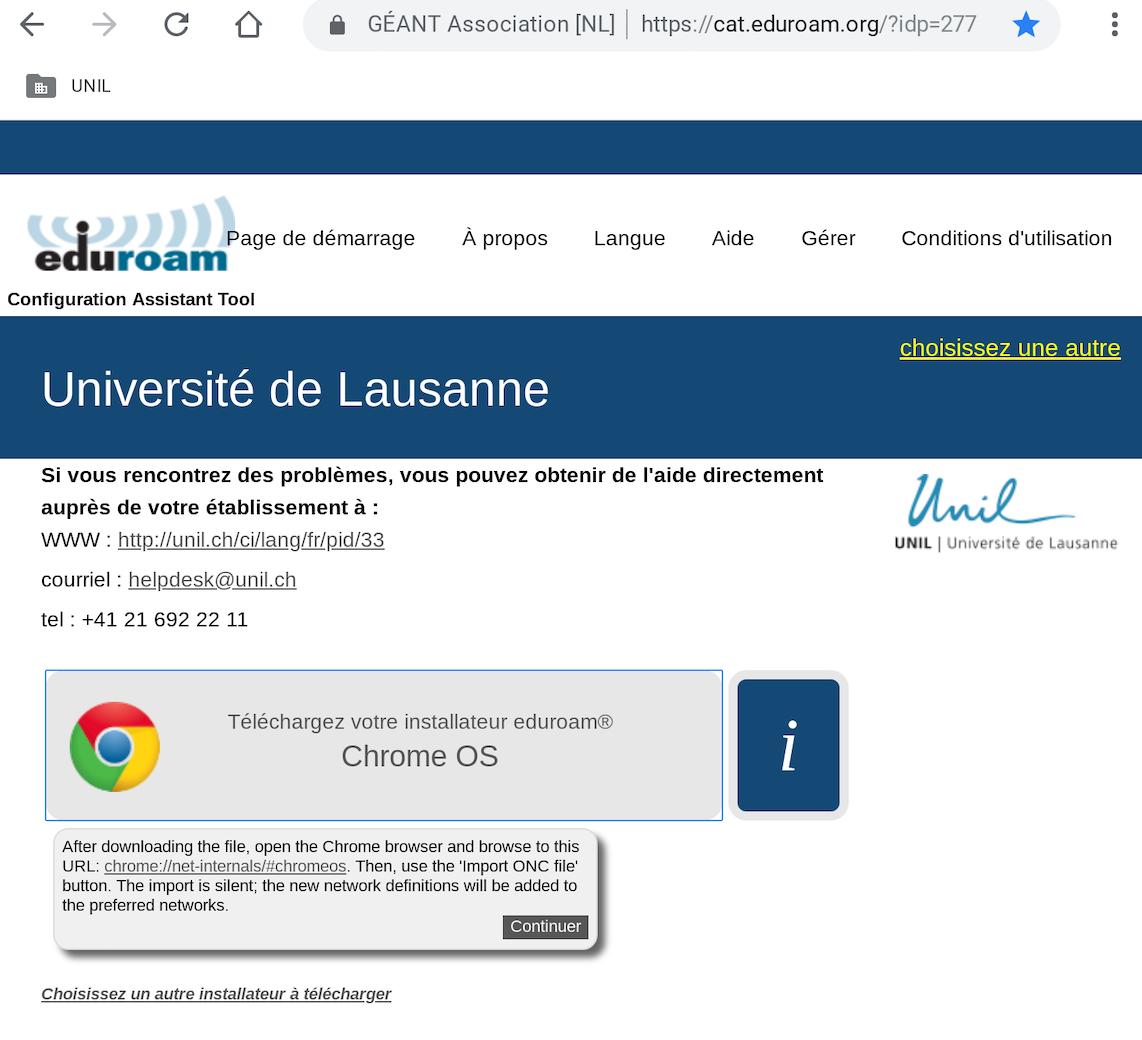
Download the [eduroamCAT](https://cat.eduroam.org/?idp=277) installer.
[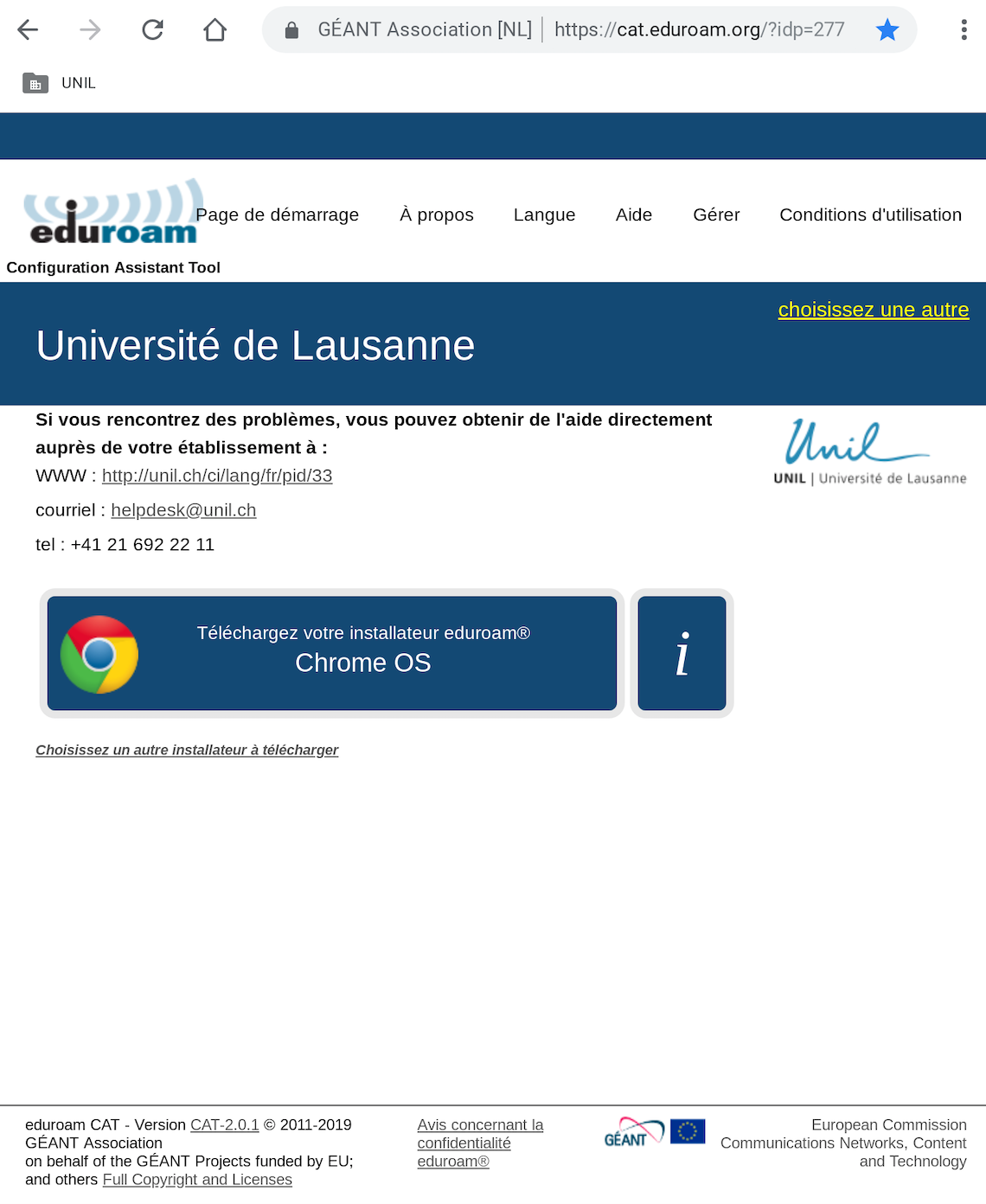](https://wiki.unil.ch/ci/uploads/images/gallery/2025-01/chromebook-eduroamcat-download.png)
Continue
[](https://wiki.unil.ch/ci/uploads/images/gallery/2025-01/chromebook-eduroamcat-download-2.png)
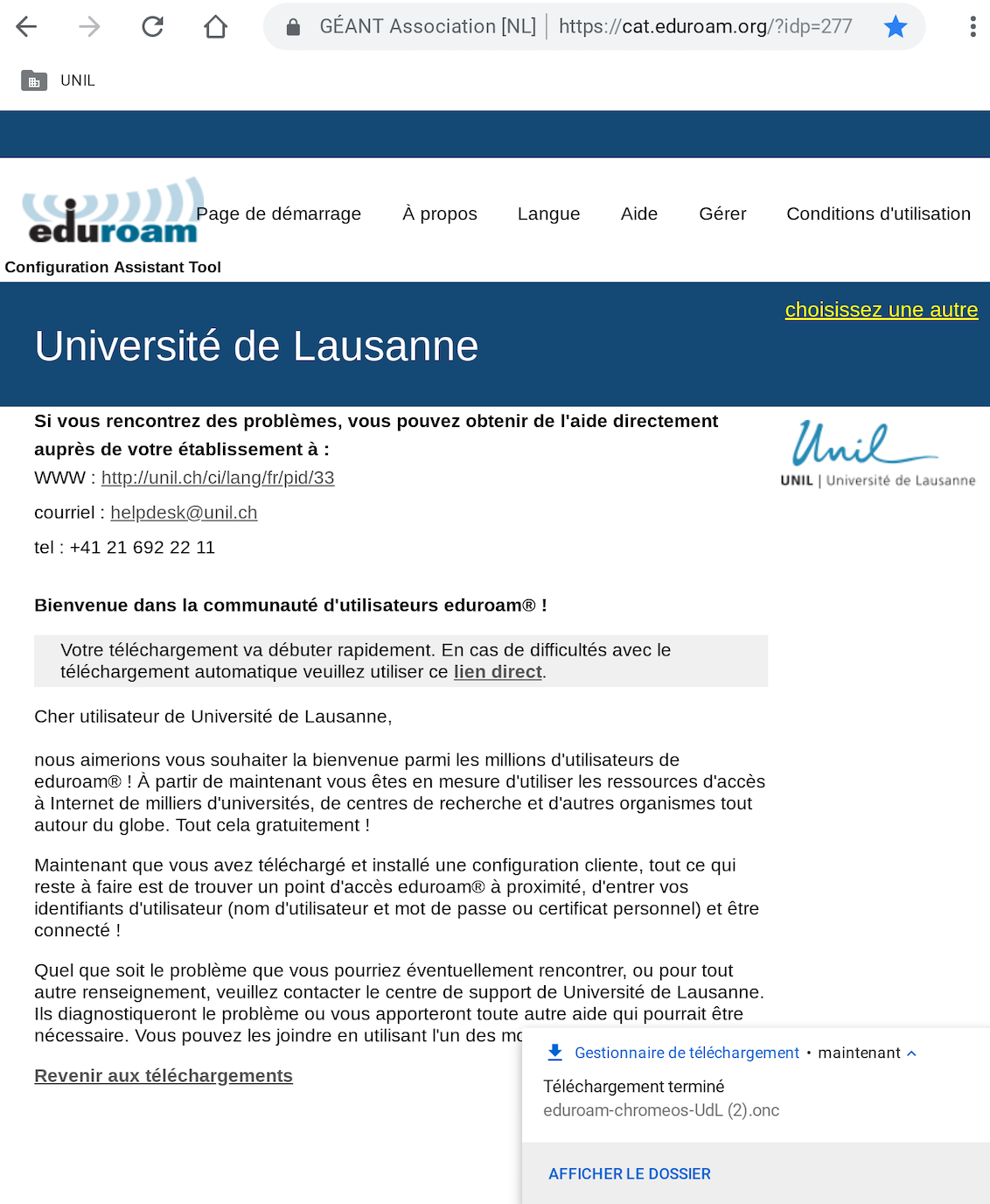
The file eduroam-chromeos-UdL.onc is now located in the Downloads folder.
[](https://wiki.unil.ch/ci/uploads/images/gallery/2025-01/chromebook-eduroamcat-download-3.png)
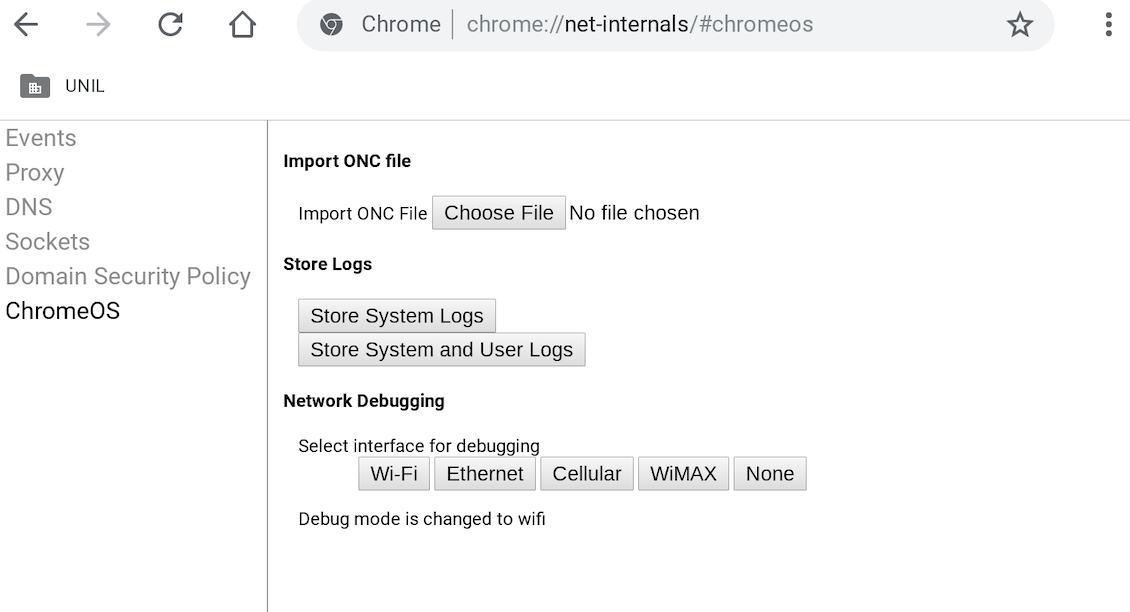
In the Chrome browser go to chrome://net-internals/#chromeos
[](https://wiki.unil.ch/ci/uploads/images/gallery/2025-01/chromebook-eduroamcat-download-4.png)
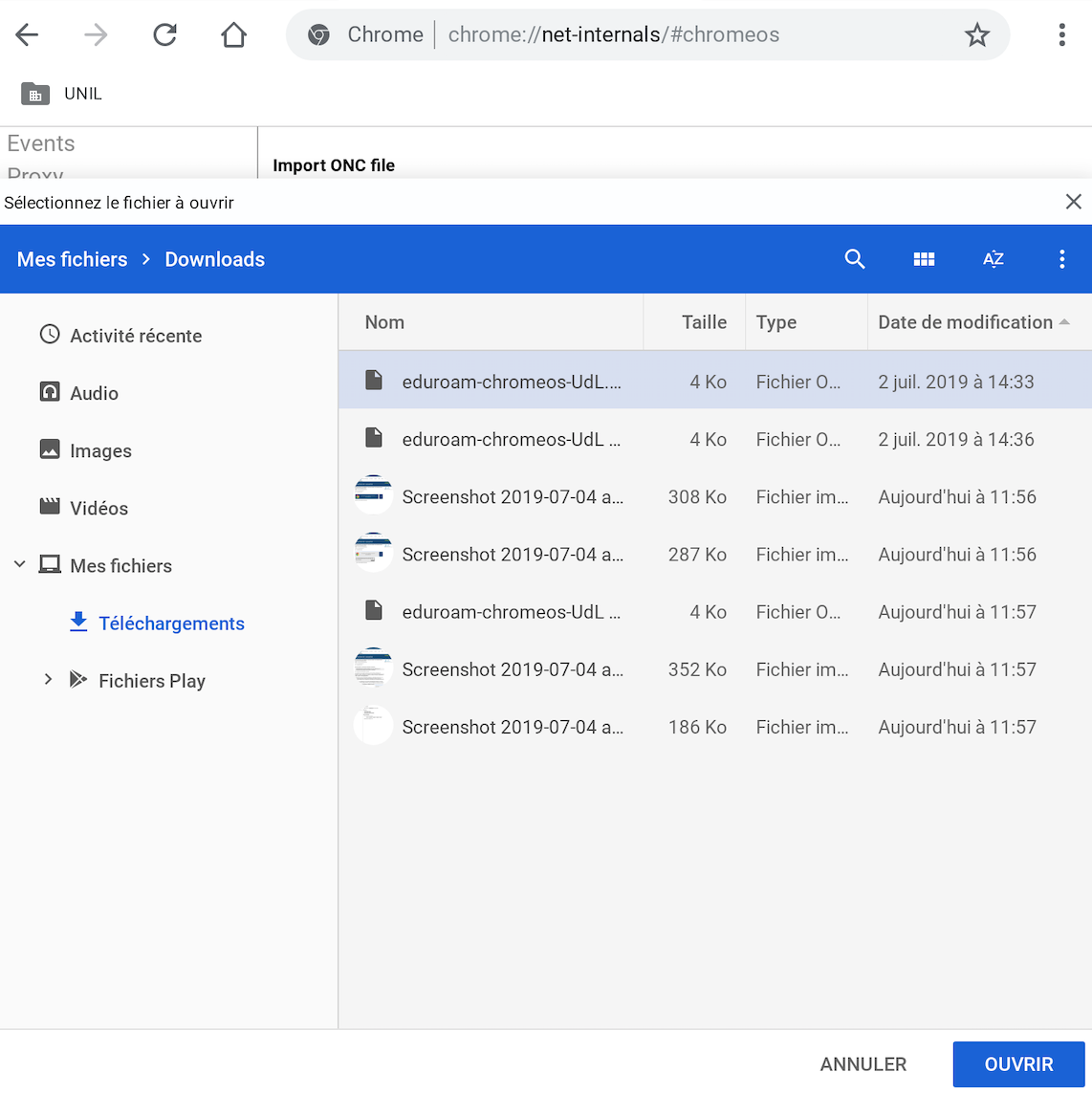
Import the ONC file
[](https://wiki.unil.ch/ci/uploads/images/gallery/2025-01/chromebook-eduroamcat-download-5.png)
When in reach of the eduroam network, go to your wifi settings and choose eduroam.
You only need to enter once your UNIL account credentials. If your UNIL account is brand new, please make sure you [have validated](https://id.unil.ch/activer?execution=e1s1&langSite=en) it before.
- Username: your UNIL email address
- Password: password of your UNIL account
(the *username@unil.ch* ID used previously is still working too)
Member of another institution: eduroam
If you are a member of another university, partner of Eduroam, please connect to [eduroam](https://www.eduroam.org/where/) wifi network by following the guidelines of your home institution.
External person: public-unil
**public-unil** - free, instant Internet access for visitors
1. Click on the link **SMS Self-Registration**
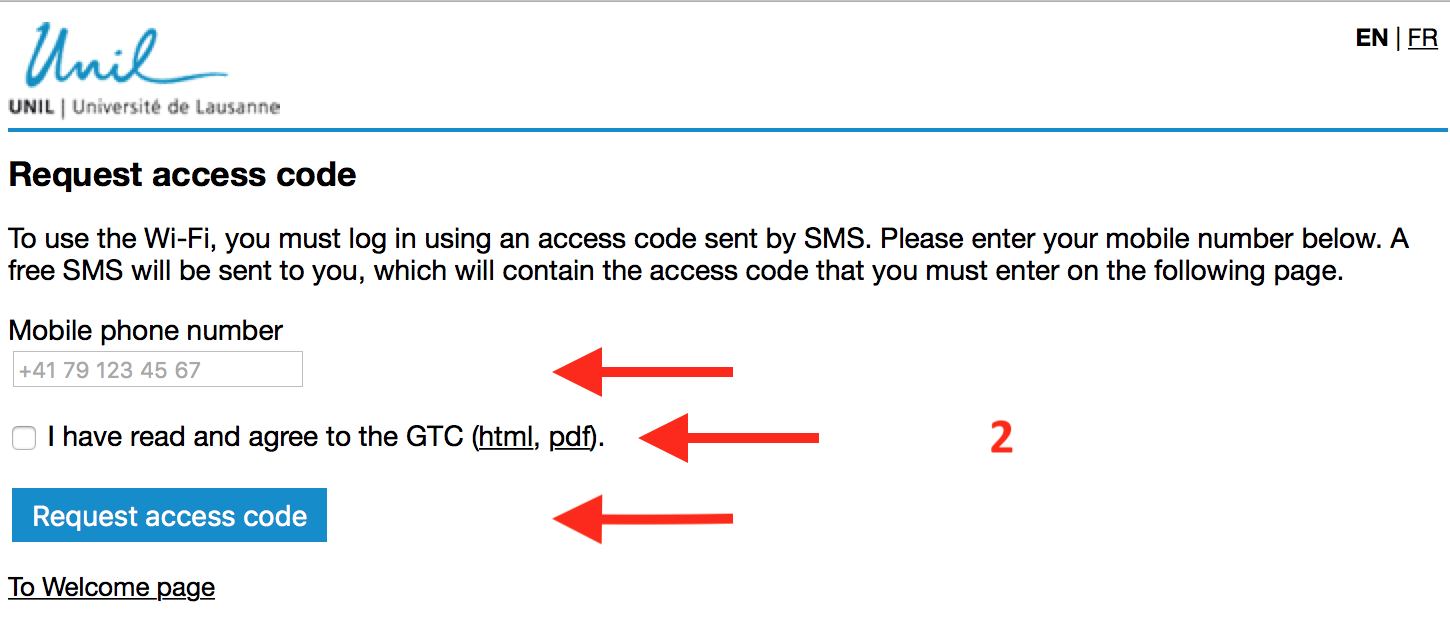
2. Enter your phone number with the prefix of your country. Please read and accept the General Terms and Conditions. Then, press **Request access code** button.
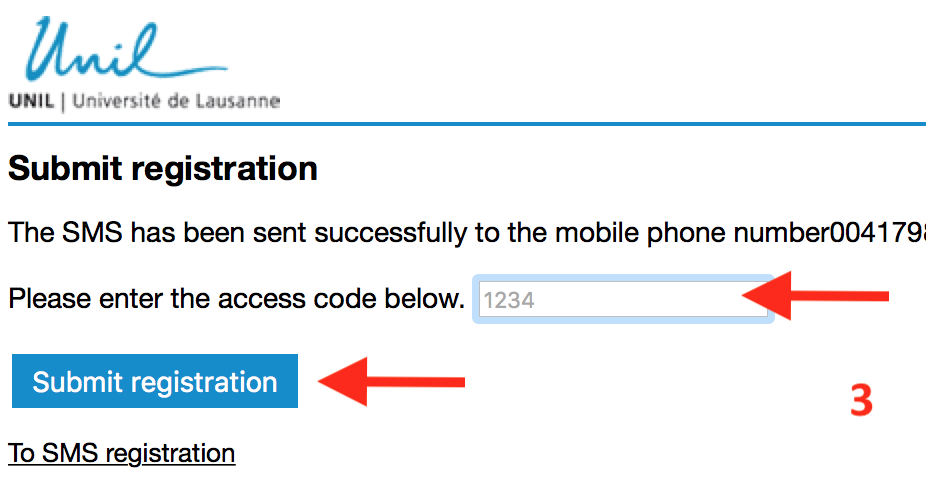
3. You should receive an SMS with an access code. Please enter the access code on the registration page (the previous page). Press Submit registration button. You are now connected and registered to public-unil and have free Internet access. The access will be valid for up to 6 months. [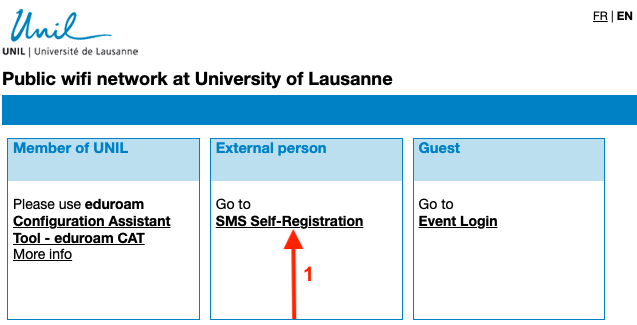](https://wiki.unil.ch/ci/uploads/images/gallery/2025-01/public-unil-en-3onglets.png)
[](https://wiki.unil.ch/ci/uploads/images/gallery/2025-01/public-unil-en-submit-registration-3.png)
[](https://wiki.unil.ch/ci/uploads/images/gallery/2025-01/public-unil-en-request-access-code-2.png)
Guest at a campus event: public-unil
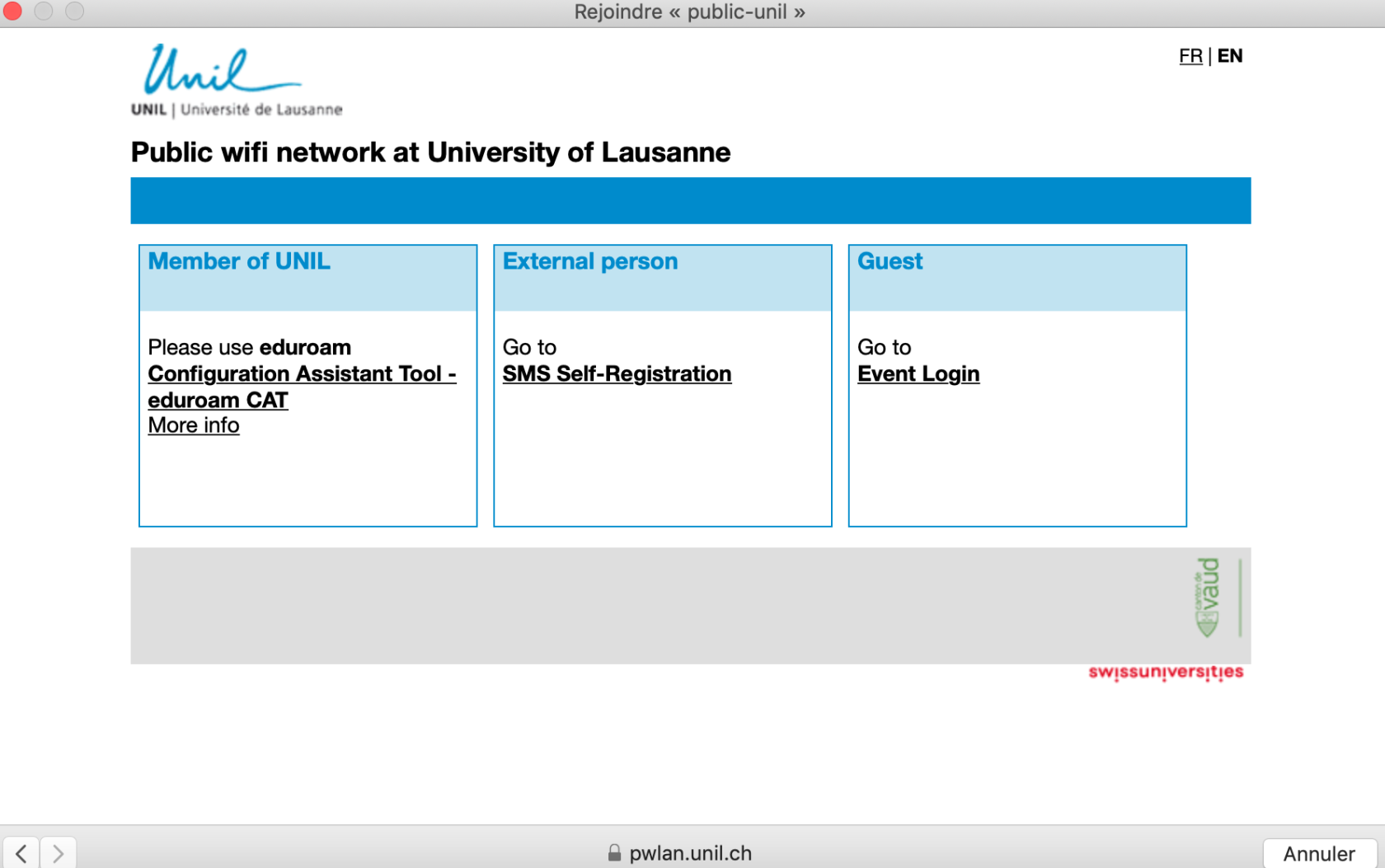
Connect to wifi public-unil, and click on Event Login.
[](https://wiki.unil.ch/ci/uploads/images/gallery/2025-01/public-unil-en-landingpage.png)
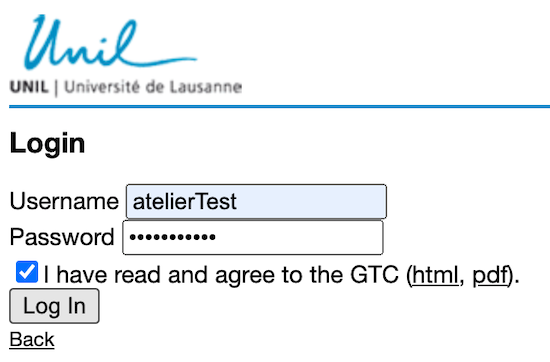
Enter the credentials you received in advance, accept the terms and conditions and click the **Log in** button.
[](https://wiki.unil.ch/ci/uploads/images/gallery/2025-01/login-etape3.png)