# Installation
## Windows 10 and 11
#### Installation:
On Windows 10 and Windows 11, OneDrive is usually installed by default. If you can't find it, you can download the application here: [https://www.microsoft.com/en-us/microsoft-365/onedrive/download](https://www.microsoft.com/en-us/microsoft-365/onedrive/download).
#### Configuration:
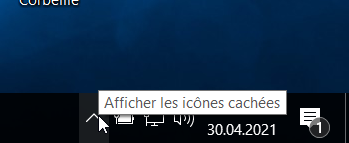
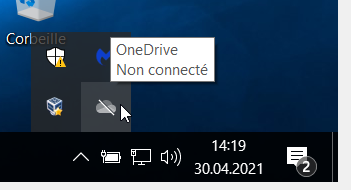
1. Launch the application by clicking on the icon in your taskbar
[](https://wiki.unil.ch/ci/uploads/images/gallery/2021-05/image-1620129804087.png)
[](https://wiki.unil.ch/ci/uploads/images/gallery/2021-05/image-1620129837232.png)
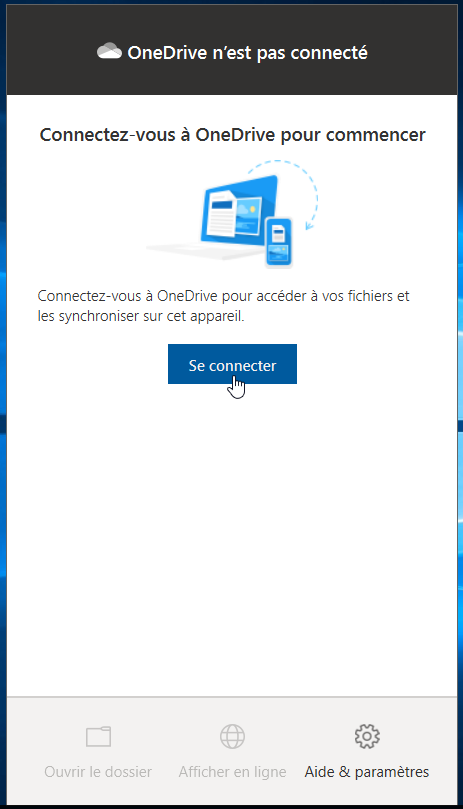
2. Click on the ***Sign In*** button
[](https://wiki.unil.ch/ci/uploads/images/gallery/2021-05/image-1620129875730.png)
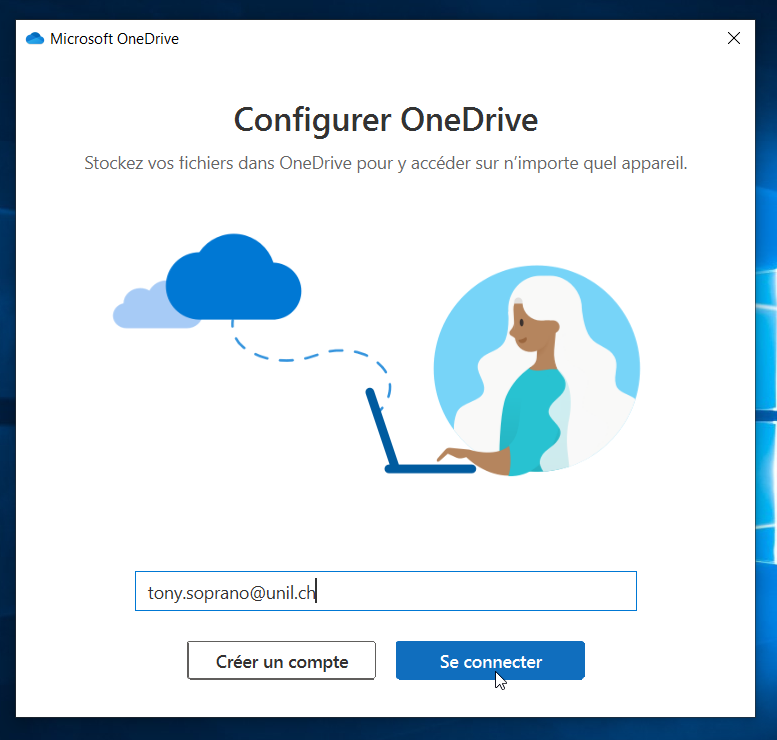
3. Enter your **@unil.ch** email address.
[](https://wiki.unil.ch/ci/uploads/images/gallery/2021-05/image-1620131755437.png)
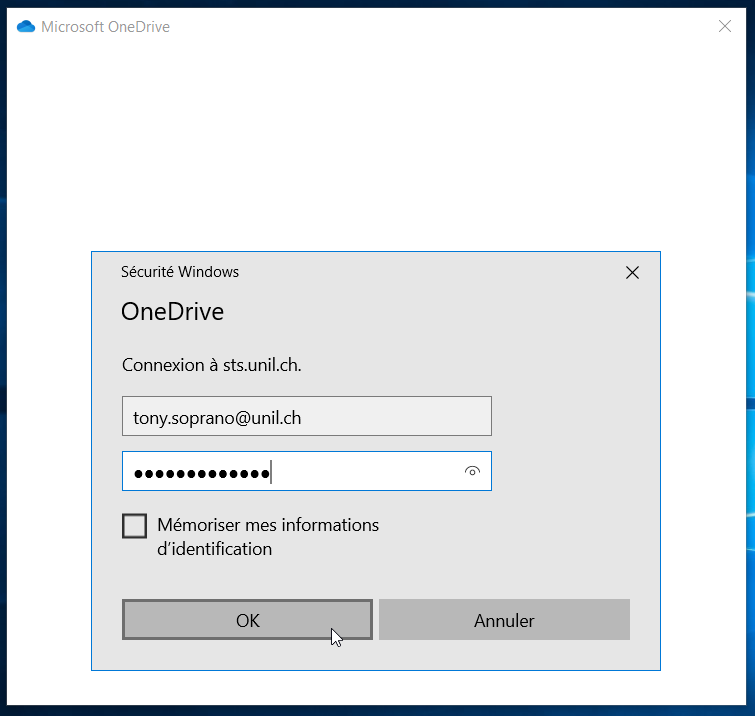
4. On the page that opens, enter your UNIL credentials (email address **@unil.ch** and UNIL password).
[](https://wiki.unil.ch/ci/uploads/images/gallery/2021-05/image-1620131791738.png)
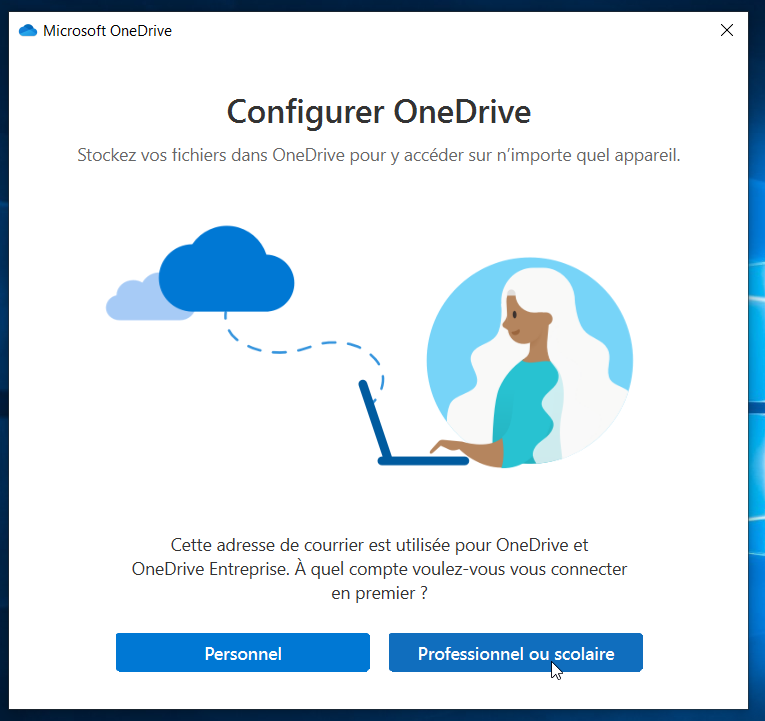
5. If asked to choose the account type, select ***Work or school***.
[](https://wiki.unil.ch/ci/uploads/images/gallery/2021-05/image-1620132694735.png)
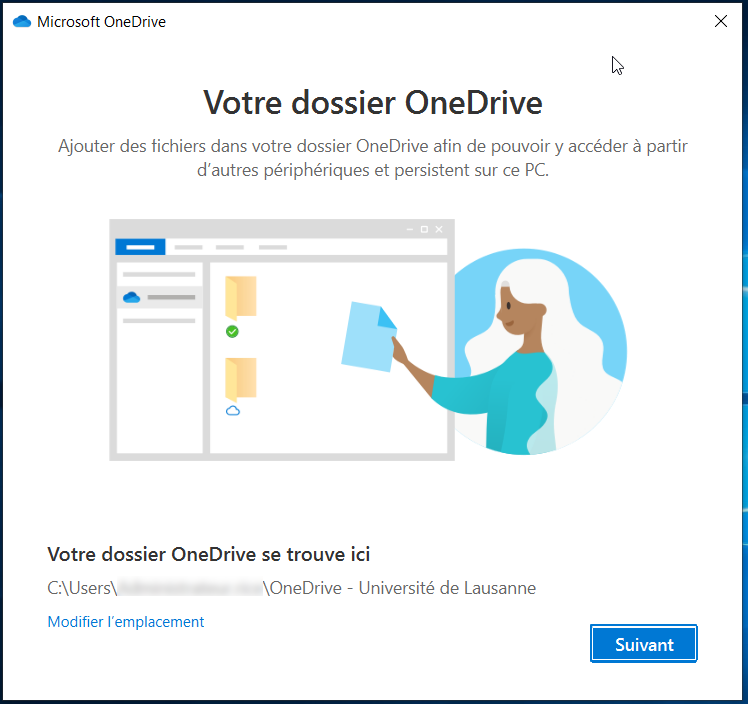
6. By default, OneDrive syncs a *OneDrive-Université de Lausanne* folder in your user folder. You can modify it if you wish. Never sync an entire user folder or a folder from another synchronization application (SWITCHdrive, Dropbox, etc.).
[](https://wiki.unil.ch/ci/uploads/images/gallery/2021-05/image-1620133199607.png)
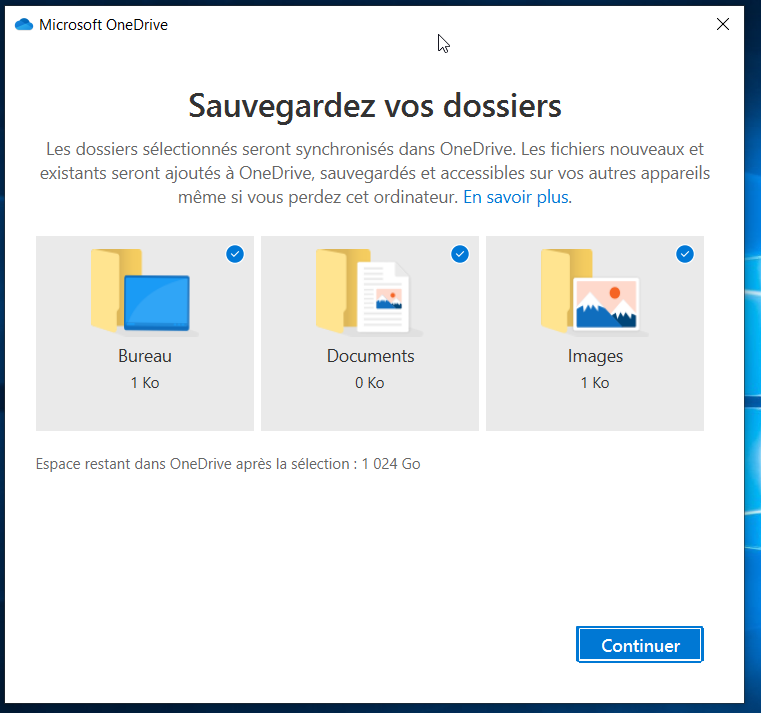
7. By default, the folders ***Desktop, Documents***, and ***Pictures*** are synced to OneDrive. You can deselect a folder if you do not want it to be added to OneDrive. Then click ***Continue***.
[](https://wiki.unil.ch/ci/uploads/images/gallery/2021-05/image-1620133232885.png)
8. Several explanation screens will appear. Skip them by clicking ***Next***.
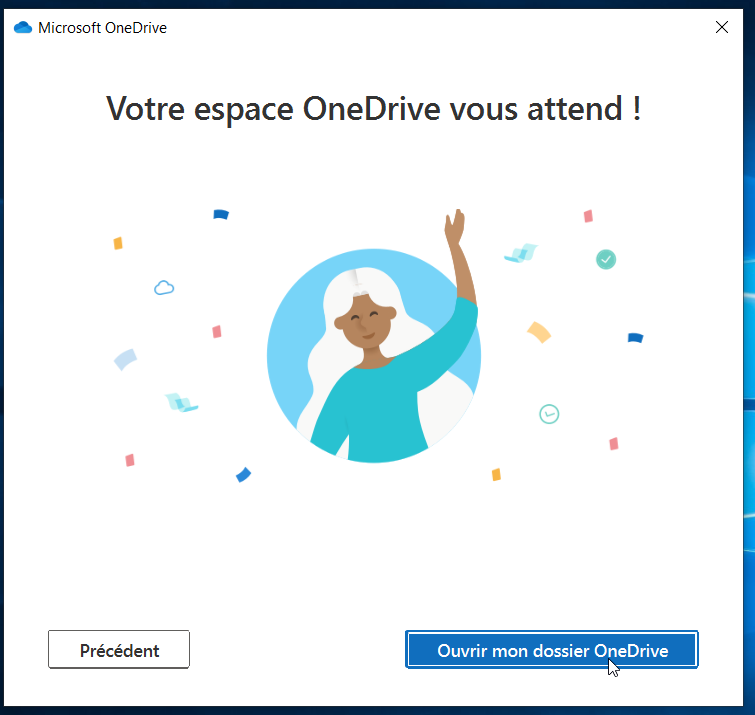
9. The final screen allows you to open your synchronization folder and start depositing files. If you chose to sync the Desktop, Documents, and/or Pictures folders, the data loading will start immediately.
[](https://wiki.unil.ch/ci/uploads/images/gallery/2021-05/image-1620133474520.png)
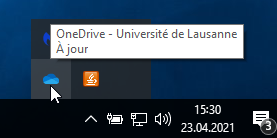
10. You can check that your account is configured correctly if the OneDrive icon in the taskbar turns blue.
[](https://wiki.unil.ch/ci/uploads/images/gallery/2021-05/image-1620133529265.png)
## macOS
#### Method 1: App Store
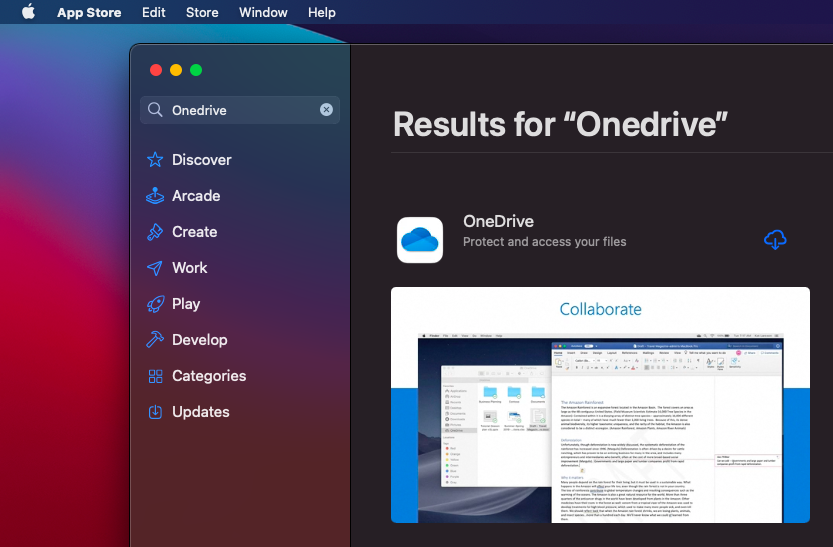
OneDrive can be installed from the Apple App Store: [https://apps.apple.com/ch/app/onedrive/id823766827?l=fr&mt=12](https://apps.apple.com/ch/app/onedrive/id823766827?l=fr&mt=12)
[](https://wiki.unil.ch/ci/uploads/images/gallery/2021-05/image-1620655492759.png)
#### Method 2: Download
1. Download the installation file here: [OneDrive macOS](https://go.microsoft.com/fwlink/?linkid=823060)
2. Double-click on the installation file.
3. Click *Next* [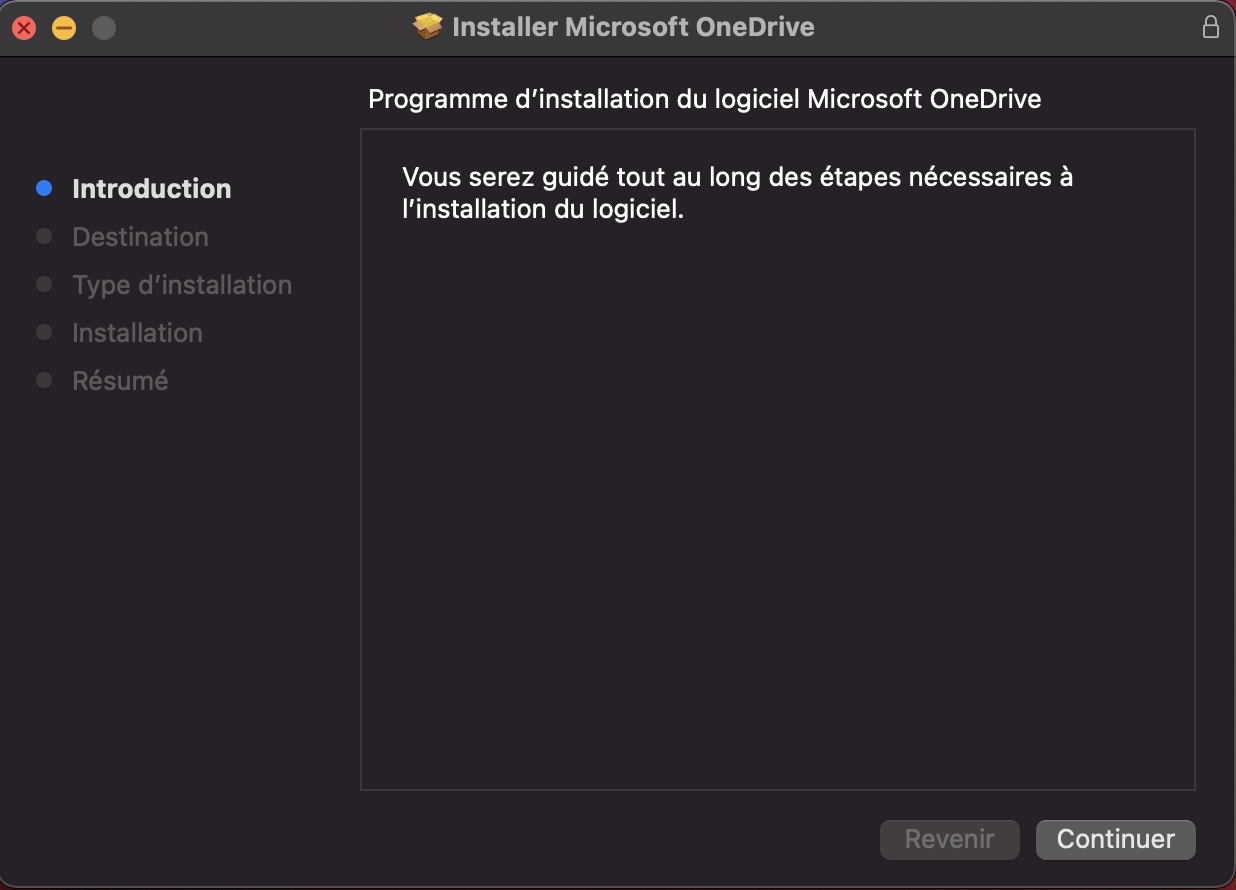](https://wiki.unil.ch/ci/uploads/images/gallery/2021-10/image-1635250620571-12-56.png)
4. Click *Install* [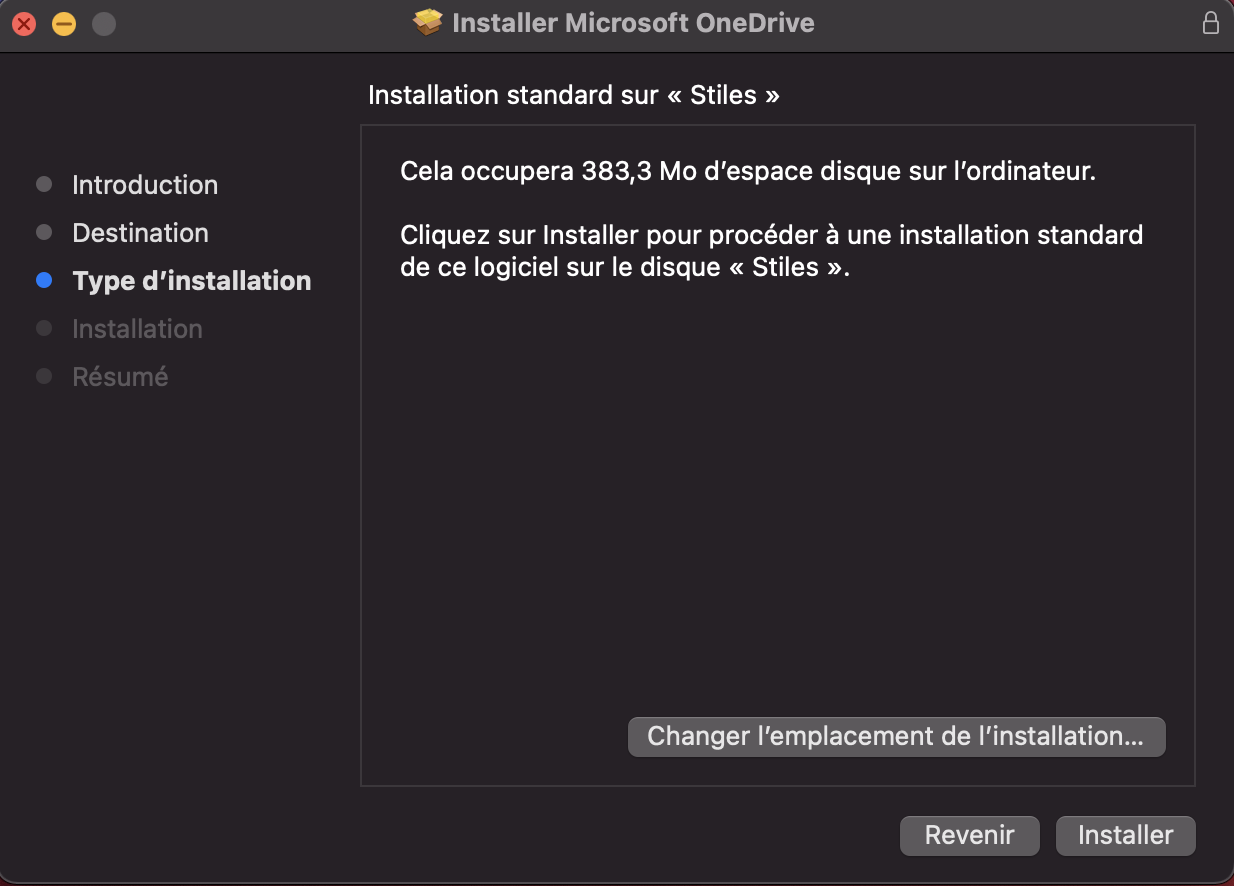](https://wiki.unil.ch/ci/uploads/images/gallery/2021-10/image-1635250653160-13-13.png)
5. Enter your computer password and click *Install Software* [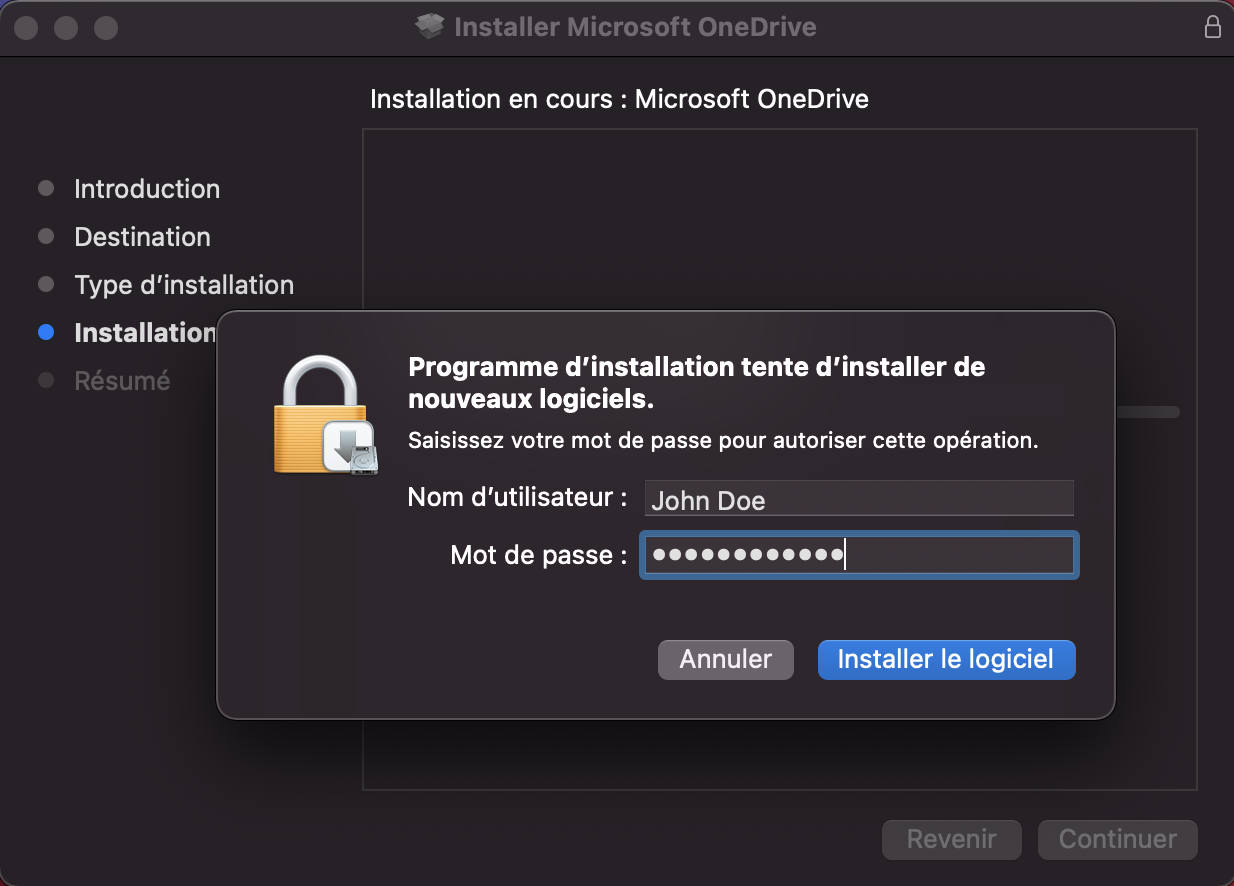](https://wiki.unil.ch/ci/uploads/images/gallery/2021-10/image-1635250691996-13-45.png)
6. Once the installation is complete, click *Close* [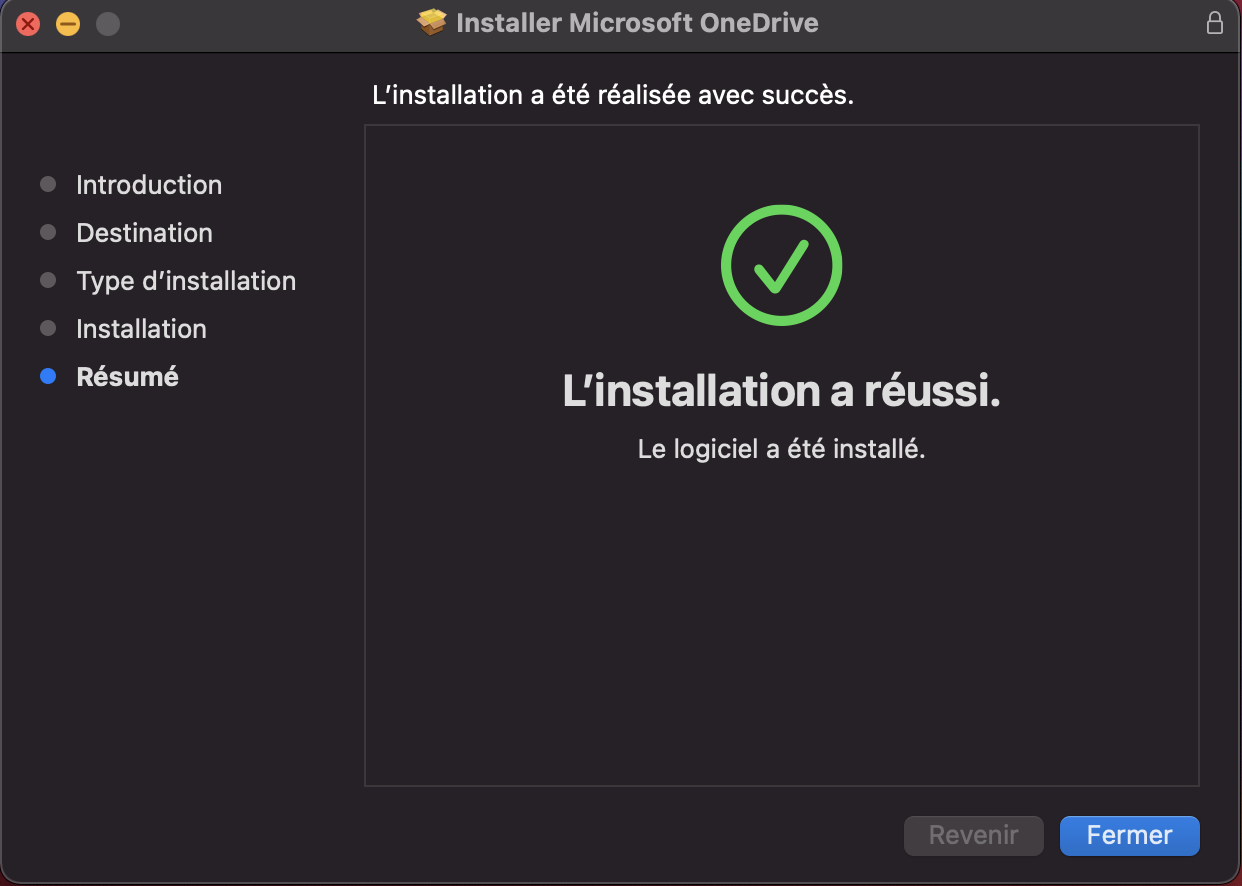](https://wiki.unil.ch/ci/uploads/images/gallery/2021-10/image-1635250753559-14-07.png)
7. Launch the application from the *Applications* folder.
### Configuration
1. Enter your UNIL email address
[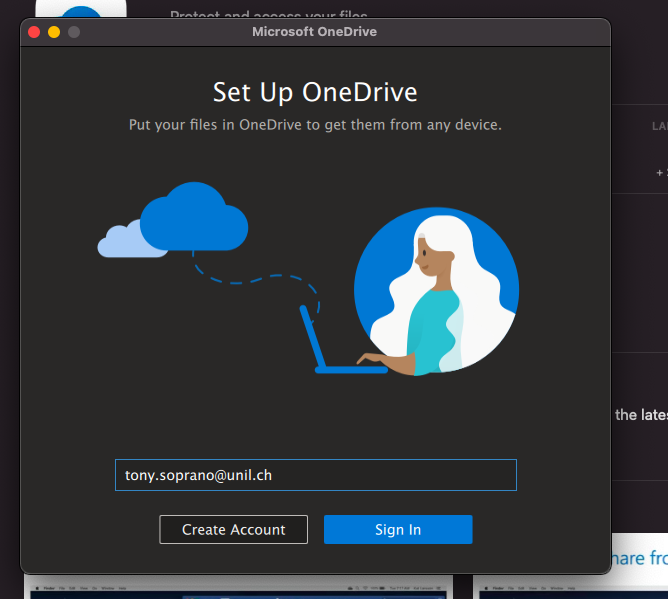](https://wiki.unil.ch/ci/uploads/images/gallery/2021-05/image-1620655662718.png)
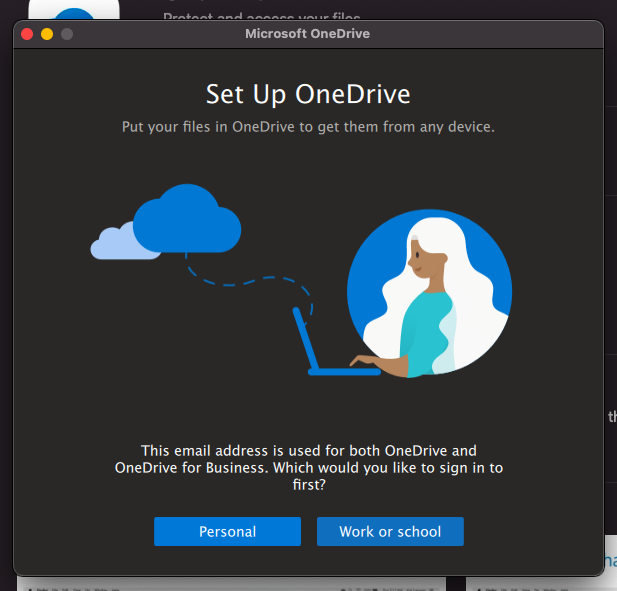
2. If asked, choose **Work or school**
[](https://wiki.unil.ch/ci/uploads/images/gallery/2021-05/image-1620655754073.png)
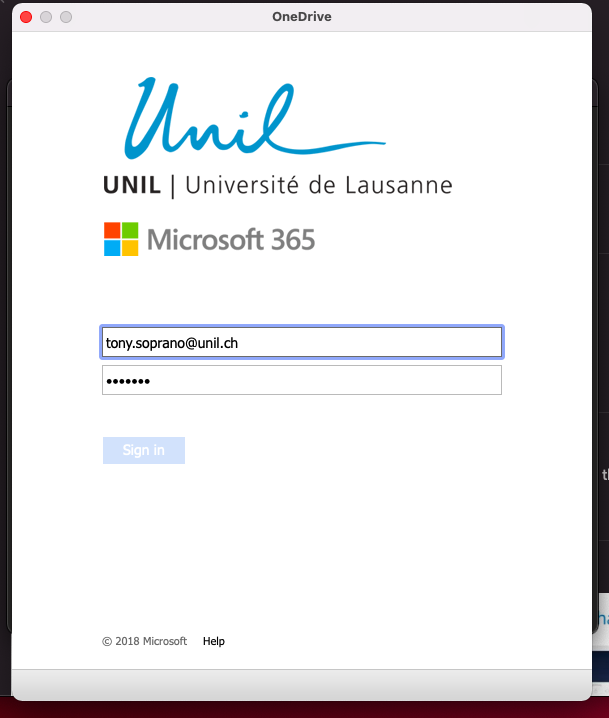
3. You will then be redirected to the UNIL login page. Enter your UNIL password and click **Sign In**.
[](https://wiki.unil.ch/ci/uploads/images/gallery/2021-05/image-1620655794964.png)
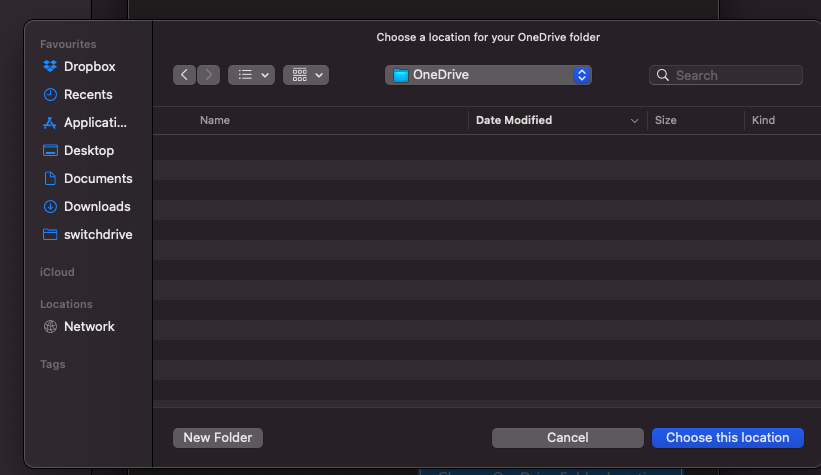
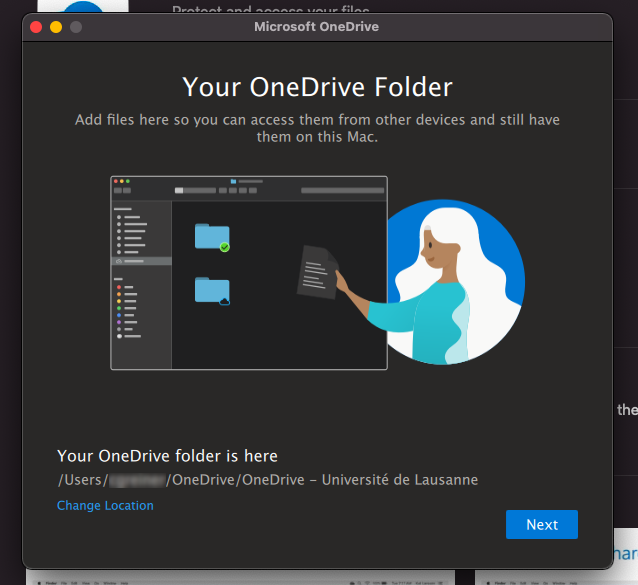
4. By default, OneDrive syncs a *OneDrive* folder in your user folder. You can modify it if you wish. **Never sync an entire user folder or a folder from another synchronization application (SWITCHdrive, Dropbox, etc.)**.
[](https://wiki.unil.ch/ci/uploads/images/gallery/2021-05/image-1620655840911.png)
[](https://wiki.unil.ch/ci/uploads/images/gallery/2021-05/image-1620655855190.png)
5. Several explanation screens will appear. Skip them by clicking ***Next***
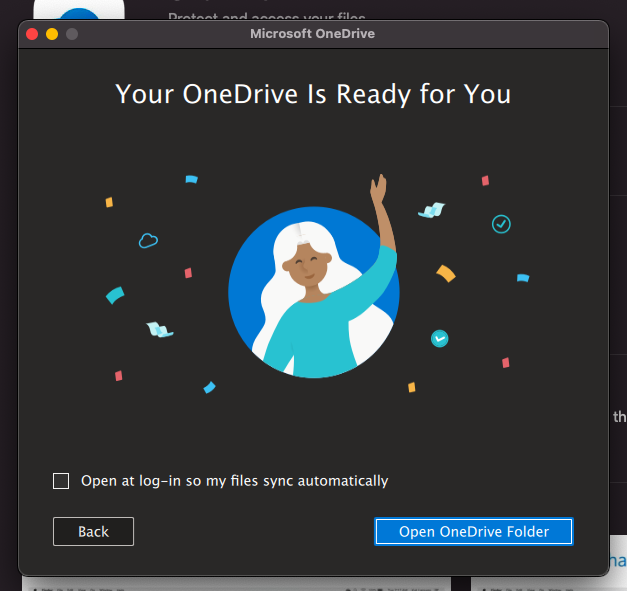
6. The final screen allows you to open your synchronization folder and start depositing files. If you chose to sync the Desktop, Documents, and/or Pictures folders, the data loading will start immediately.
[](https://wiki.unil.ch/ci/uploads/images/gallery/2021-05/image-1620656053940.png)
## Linux
There is no official OneDrive client for Linux. It is recommended to use the [OneDrive web interface](https://wiki.unil.ch/ci/books/synchronisation-de-fichiers-onedrive/page/interface-web).
You can use an unofficial command-line client for synchronization. For more information, read this [https://askubuntu.com/questions/804301/how-to-sync-onedrive-business-office-365-on-linux](https://askubuntu.com/questions/804301/how-to-sync-onedrive-business-office-365-on-linux), and the link to the project can be found here [https://github.com/abraunegg/onedrive/blob/master/docs/INSTALL.md](https://github.com/abraunegg/onedrive/blob/master/docs/INSTALL.md)
Some Linux distributions seem to offer OneDrive through their package manager, but this version is often not up-to-date. It is advisable to follow the instructions in the GitHub repository below!
### **Ubuntu 20.04**
The simplest solution seems to be [Insync](https://www.insynchq.com/), but it is a paid service!
Add the OneDrive repository to your APT sources:
`sudo vim /etc/apt/sources.list`
Add the following line at the end of the file:
`deb https://download.opensuse.org/repositories/home:/npreining:/debian-ubuntu-onedrive/xUbuntu_20.04/ ./`
Close Vim (if you don't know how to close Vim, switch to macOS or Windows :))
Download the key for the repo and add it:
```shell
wget https://download.opensuse.org/repositories/home:/npreining:/debian-ubuntu-onedrive/xUbuntu_20.04/Release.key
sudo apt-key add ./Release.key
```
Update APT and install the OneDrive client:
1. Go to the [App Store](https://apps.apple.com/us/app/microsoft-onedrive/id477537958) and install the **OneDrive** application.
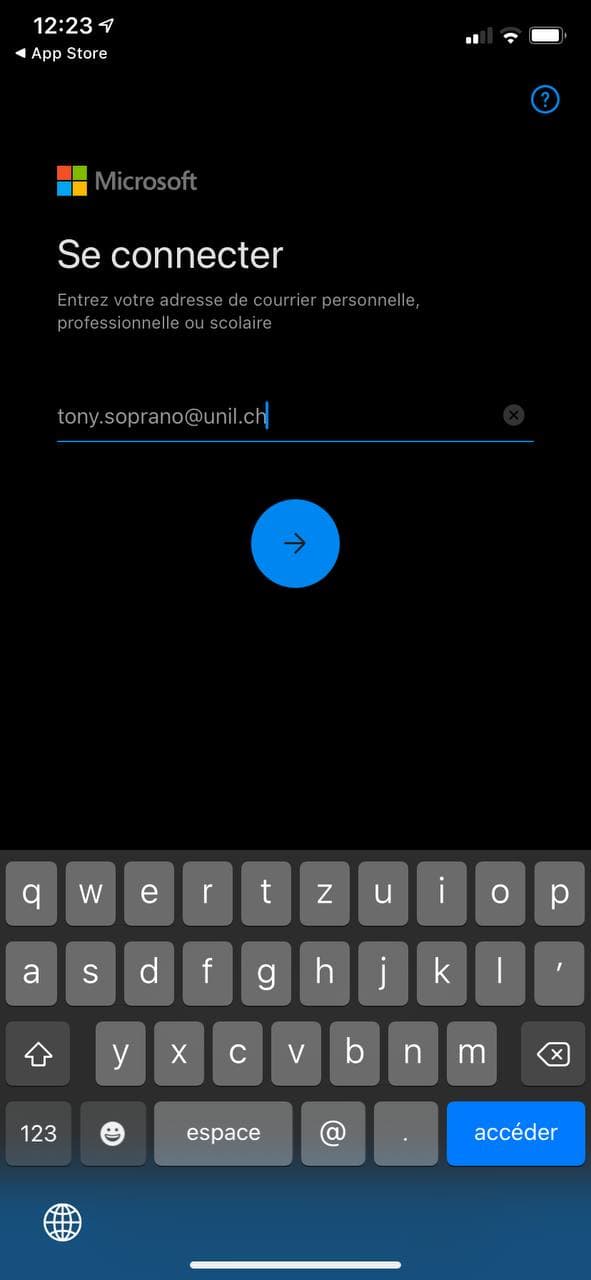
2. Enter your UNIL email address.
[](https://wiki.unil.ch/ci/uploads/images/gallery/2021-10/image-1635424149862.jpg)
3. You will be redirected to the UNIL login screen. Enter your UNIL credentials (email and password) and click *Sign In* [](https://wiki.unil.ch/ci/uploads/images/gallery/2021-10/image-1635424288845.jpg)
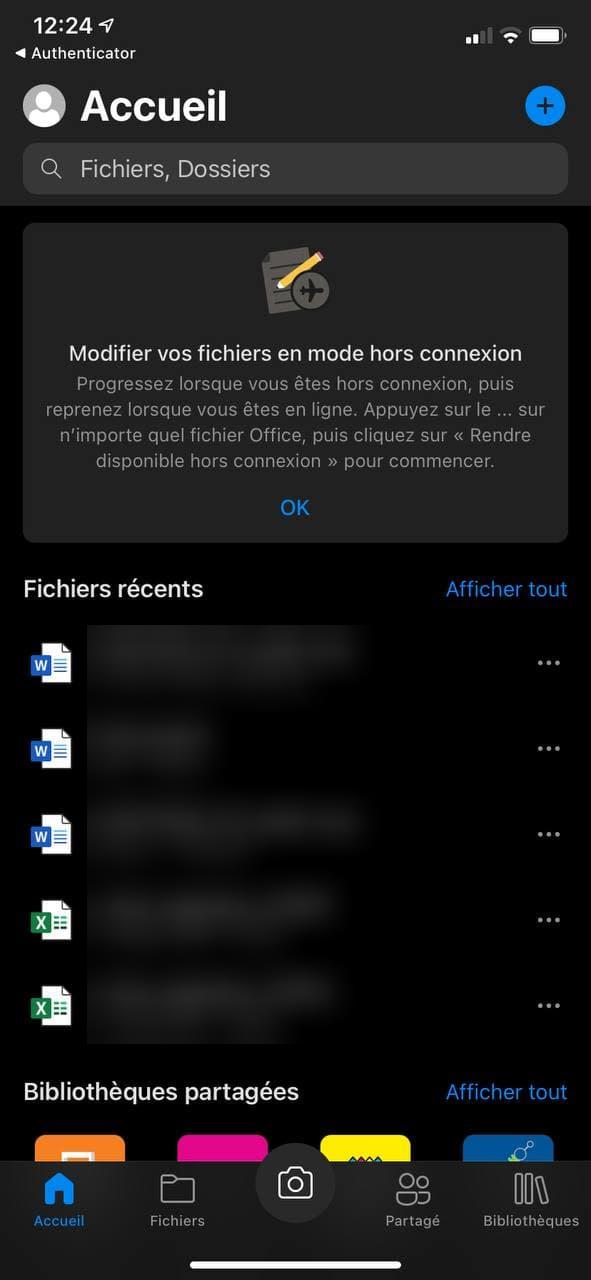
4. You will then have access to your OneDrive
[](https://wiki.unil.ch/ci/uploads/images/gallery/2021-10/image-1635424394453.jpg)
1. Go to the [Google Play Store](https://play.google.com/store/apps/details?id=com.microsoft.skydrive&hl=en&gl=US) and install the **Microsoft OneDrive** application.
2. Launch the application and select *Sign in* *****[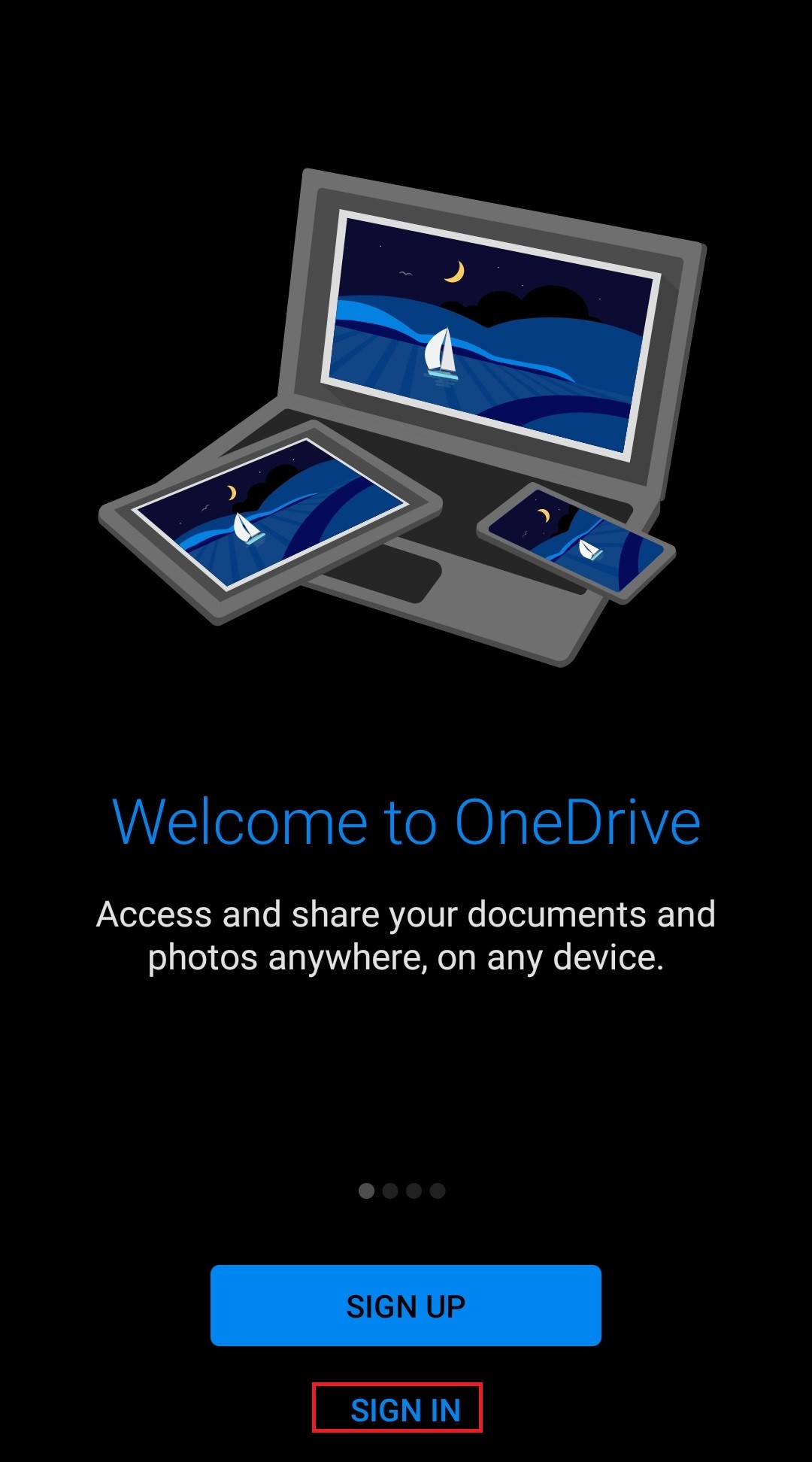](https://wiki.unil.ch/ci/uploads/images/gallery/2021-05/image-1620135101871.jpg)*****
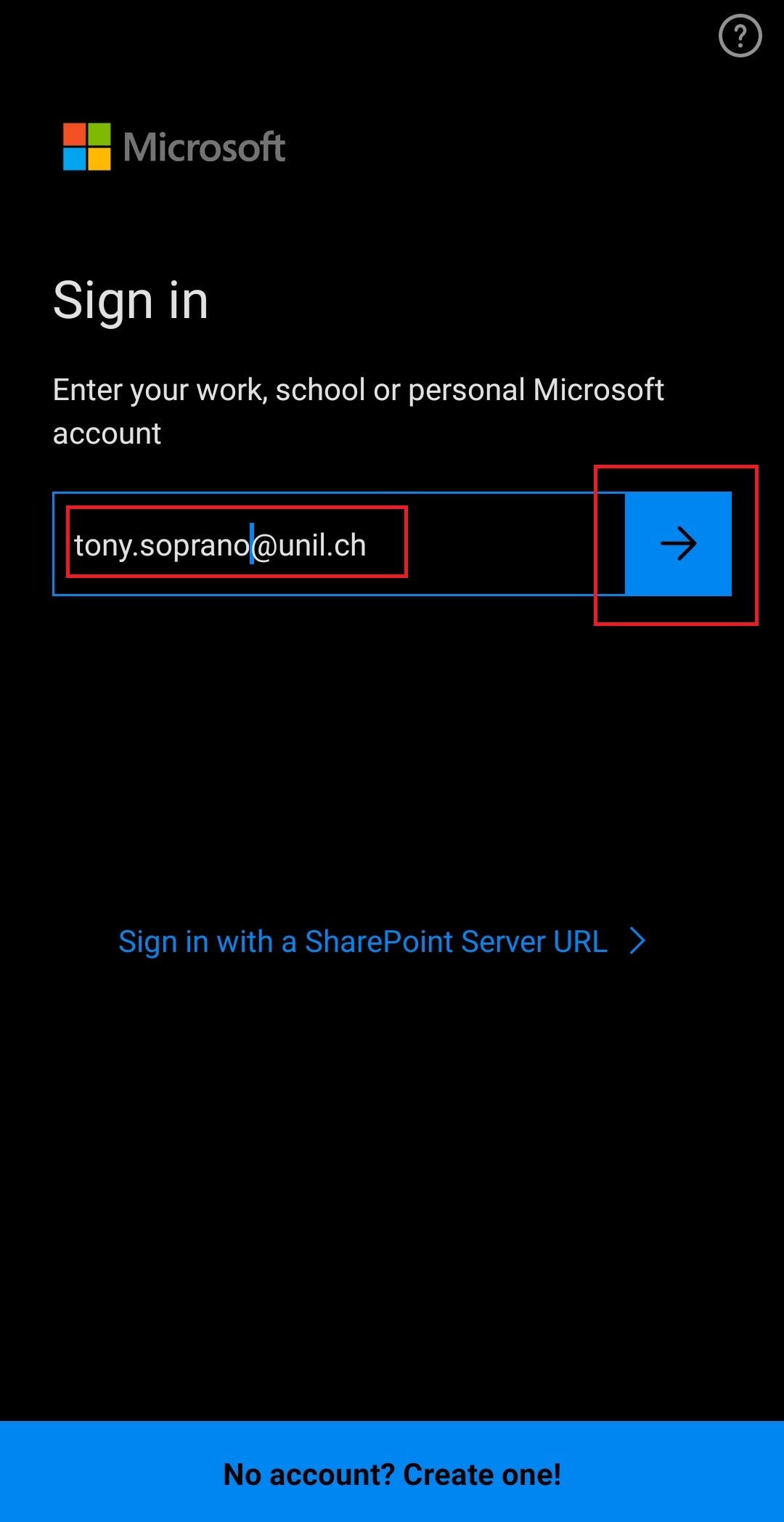
3. Enter your **@unil.ch** email address and continue
[](https://wiki.unil.ch/ci/uploads/images/gallery/2021-05/image-1620135110660.jpg)
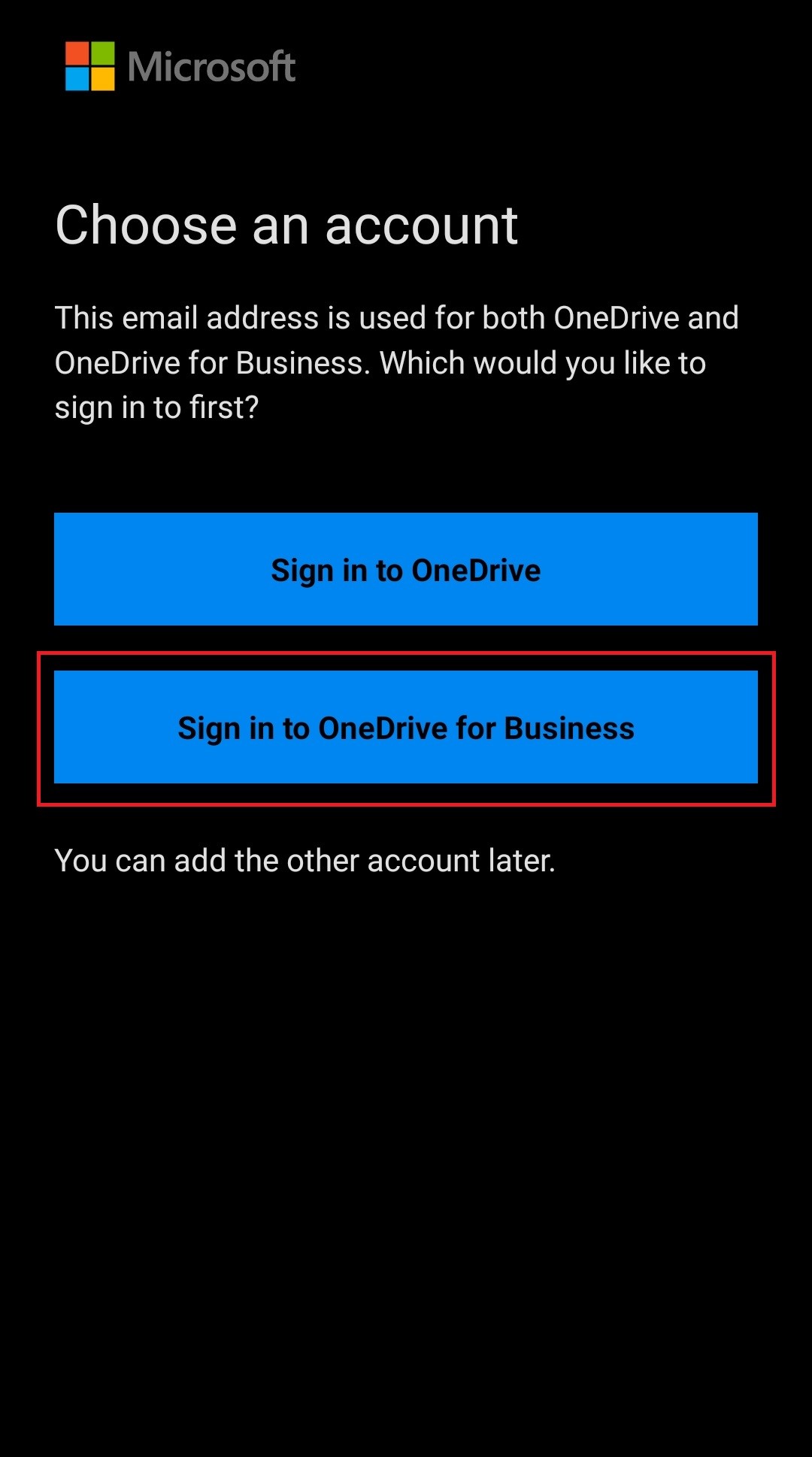
4. Select **Sign in to OneDrive For Business** if prompted
[](https://wiki.unil.ch/ci/uploads/images/gallery/2021-05/image-1620135129552.jpg)
5. Enter your **@unil.ch** email address and your UNIL password, then click ***Sign In* [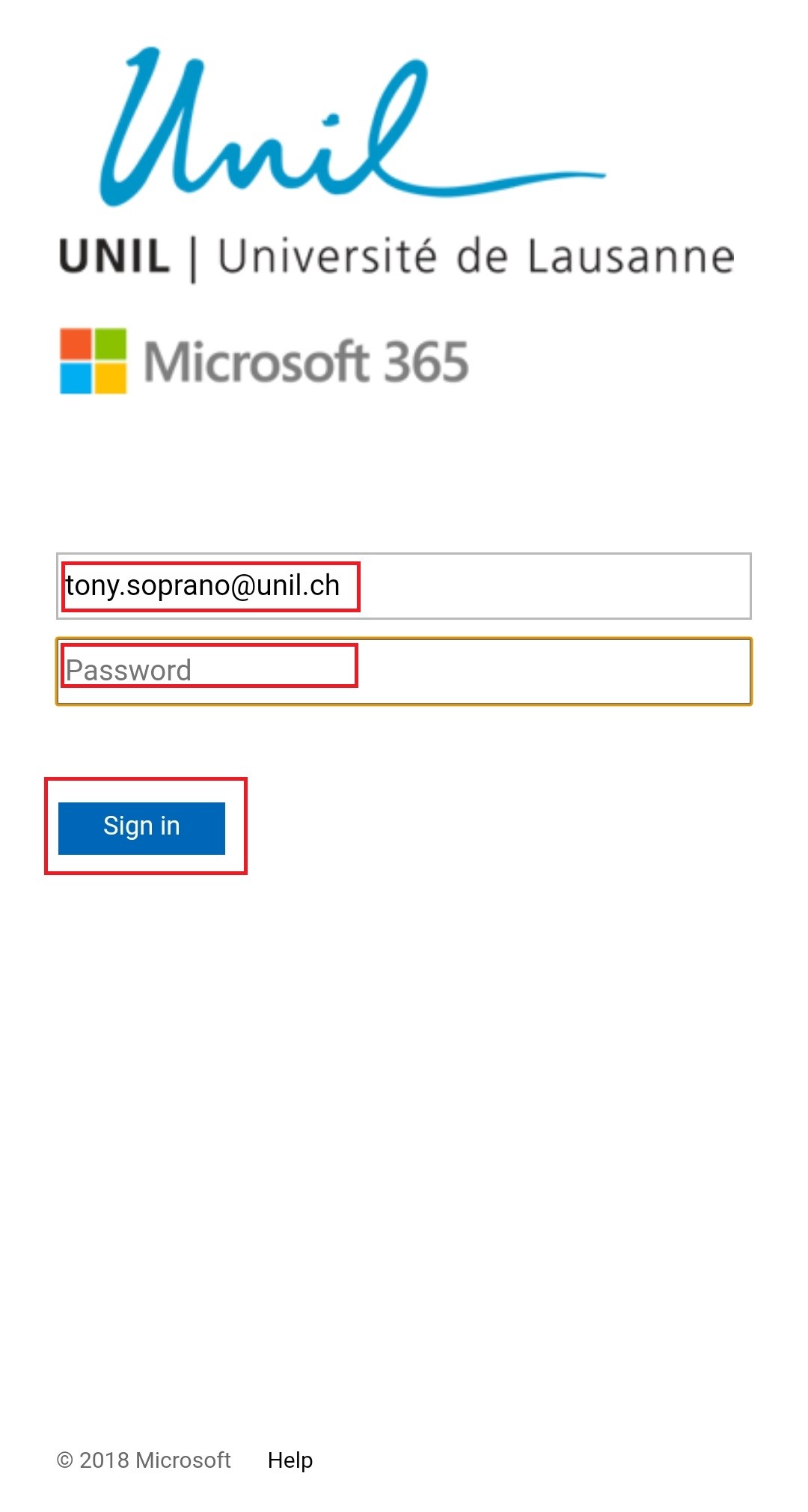](https://wiki.unil.ch/ci/uploads/images/gallery/2021-05/image-1620135196765.jpg)**
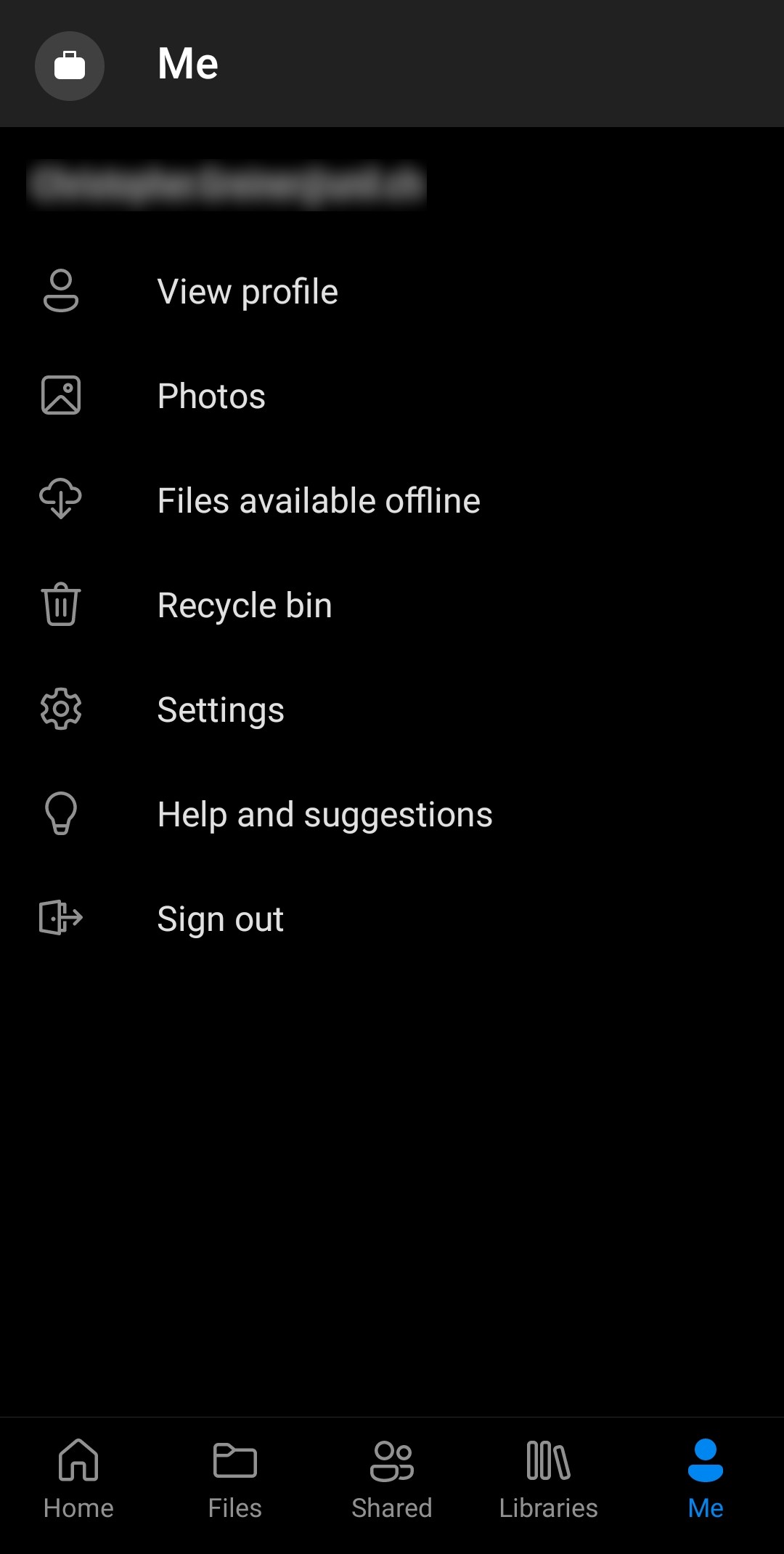
6. The final screen after installation
[](https://wiki.unil.ch/ci/uploads/images/gallery/2021-05/image-1620135338493.jpg)
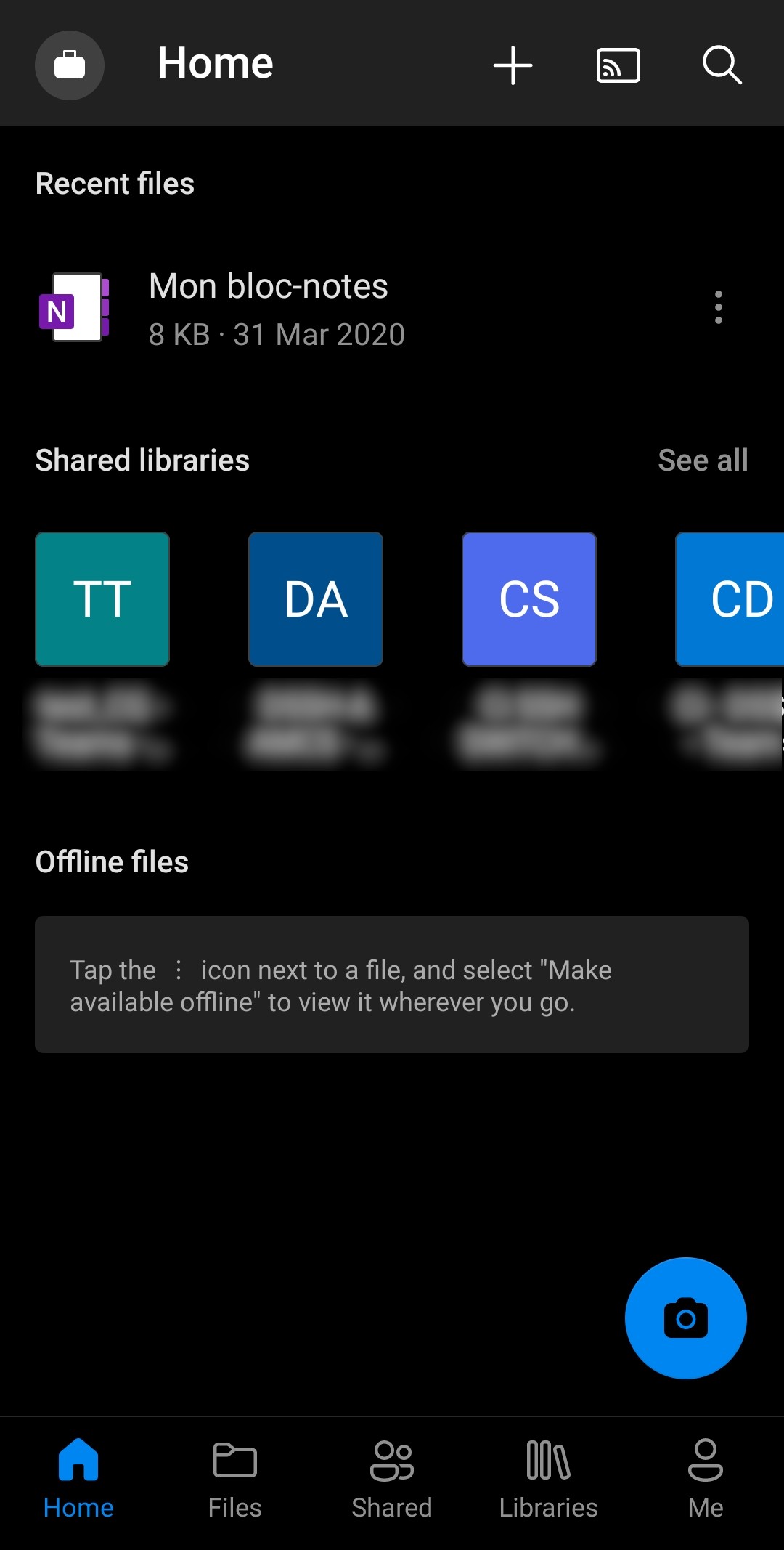
7. Click on "Home" to see an overview of your account
[](https://wiki.unil.ch/ci/uploads/images/gallery/2021-05/image-1620135420658.jpg)