# Enable GUI access to a Rocky Linux VM
This guide explains how to install a lightweight graphical environment (XFCE) and configure **XRDP** to enable remote desktop access to your Rocky Linux virtual machine.
> **Note:** You must have **sudo** privileges to perform the installation steps.
---
#### 🔧 Step 1: Update the System
```bash
sudo dnf update -y
```
####
#### 🧪 Step 2: Install EPEL repository
The installation of the **XFCE** desktop environment requires to install the **EPEL** repository which is a repository that provides high-quality software packages for RHEL-distributions.
```bash
sudo dnf install epel-release -y
```
#### 🎛️ Step 3: Install XFCE Desktop Environment
```bash
sudo dnf groupinstall "Xfce" -y
```
####
#### 📦 Step 4: Install XRDP
```bash
sudo dnf install xrdp -y
```
####
#### 🔄 Step 5: Enable and Start XRDP
```bash
sudo systemctl enable xrdp --now
```
Check the service status:
```bash
sudo systemctl status xrdp
```
You should see "active (running)".
####
#### 🔐 Step 6: Open RDP Port in Firewall
```bash
sudo firewall-cmd --permanent --add-port=3389/tcp
sudo firewall-cmd --reload
```
####
#### 🛠️ Step 7: Set XFCE as the Default Desktop for XRDP Sessions
Create or modify your user’s `.Xclients` file:
```bash
echo "startxfce4" > ~/.Xclients chmod +x ~/.Xclients
```
To apply this for all new users, you can add it to `/etc/skel/`:
```
echo "startxfce4" | sudo tee /etc/skel/.Xclients
sudo chmod +x /etc/skel/.Xclients
```
####
#### 🔄 Step 8: Reboot the system
To ensure all services and graphical environment changes take effect, reboot the virtual machine:
```bash
sudo systemctl reboot
```
Wait a few moments for the system to come back online.
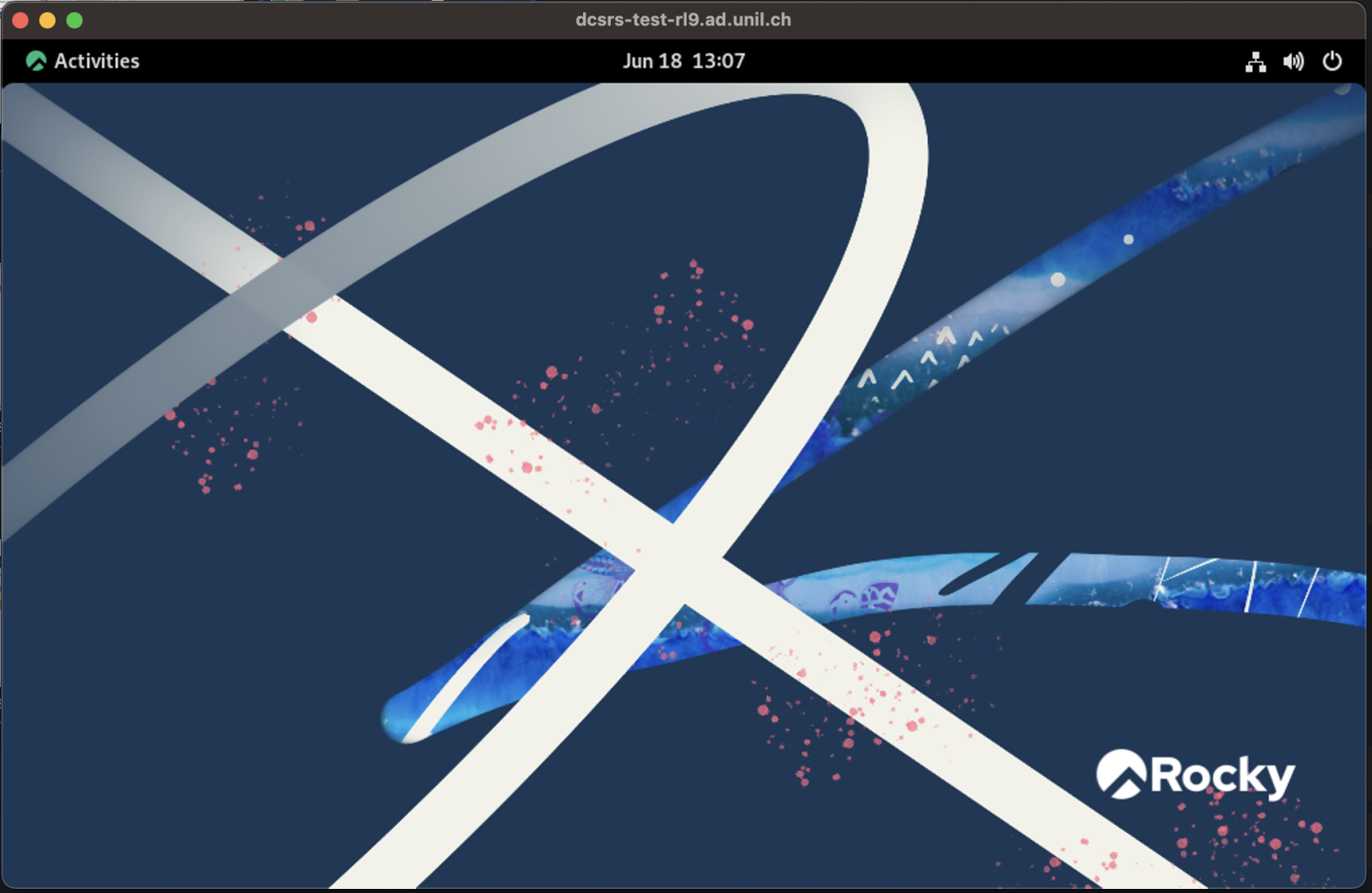
#### 💻 Step 9: Connect via Remote Desktop
From your local machine, open your **Remote Desktop Client (RDP)** and connect to:
[](https://wiki.unil.ch/ci/uploads/images/gallery/2025-06/ynJimage.png)
---
If you need further help, please contact your system administrator or open a support ticket with the helpdesk ().