In general, we will modify the "**Close the quiz**" parameter by adding a few minutes. You have to activate the parameter with the checkbox "**Enable**" on the right of the parameter, then manually calculate the official end time of the test + the few extra minutes (for example, 5 min of exemption for a test ending at 12:05, gives a test closing time at 12:10), and finally, **modify the time of "close the test"**.
In exceptional situations (e.g., a test that is set up incorrectly and closes prematurely) where the participant can no longer access the test, it may be necessary to change the number of attempts allowed. In this case, add a 2nd attempt.
Once the form is filled, **don't forget to save**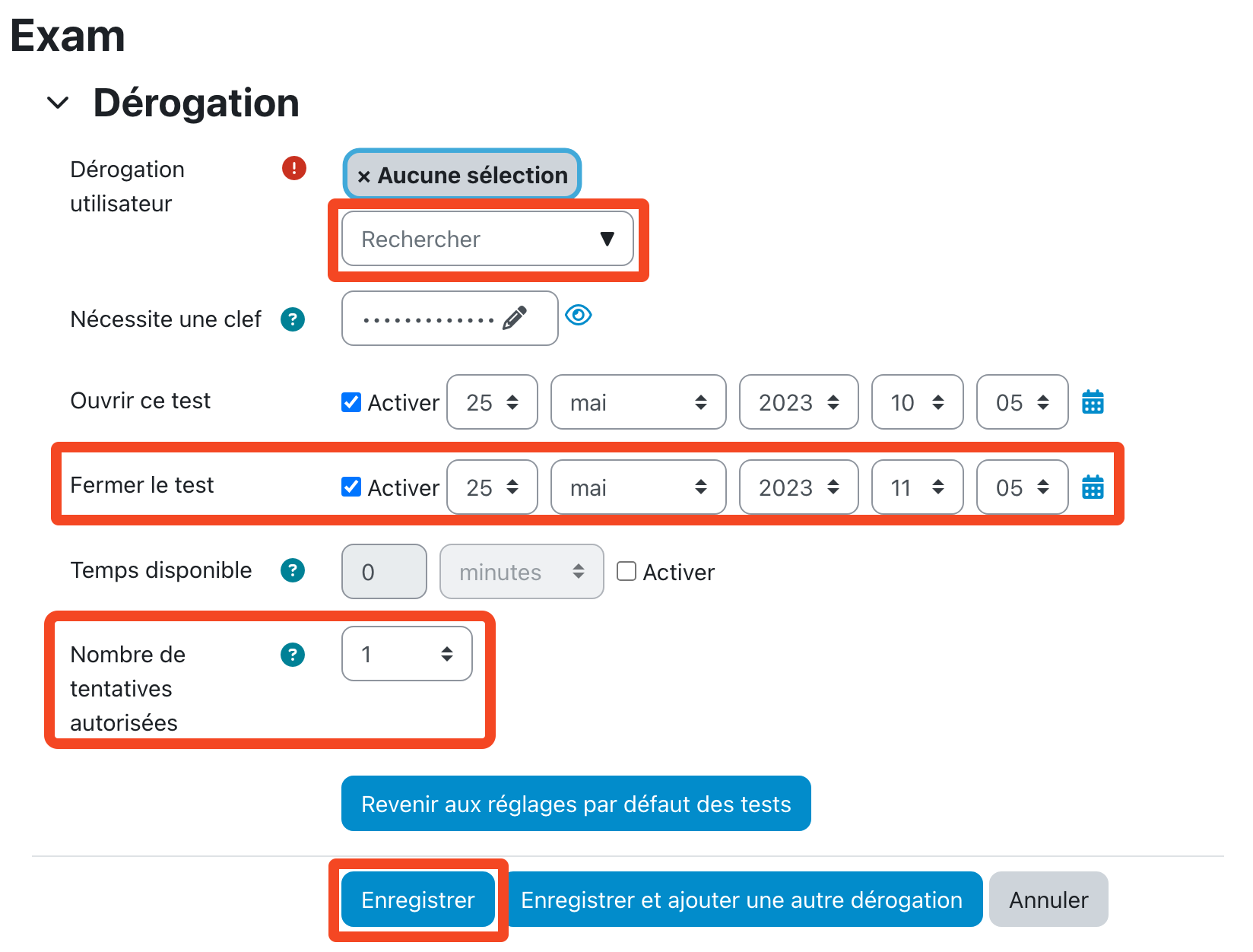](https://wiki.unil.ch/cse/uploads/images/gallery/2023-11/XRk1TfEgeQVz4a5t-capture-decran-2023-11-06-a-14-44-58.png) # Blocking a user's access to the exam page At the beginning of each exam, the CSE or the main proctor must suspend the access to the exam page for all the students that are not present in the room. To do this, after the attendance check, go to the **list of participants** on the exam page by clicking on the "**Participants**" button in the top menu. [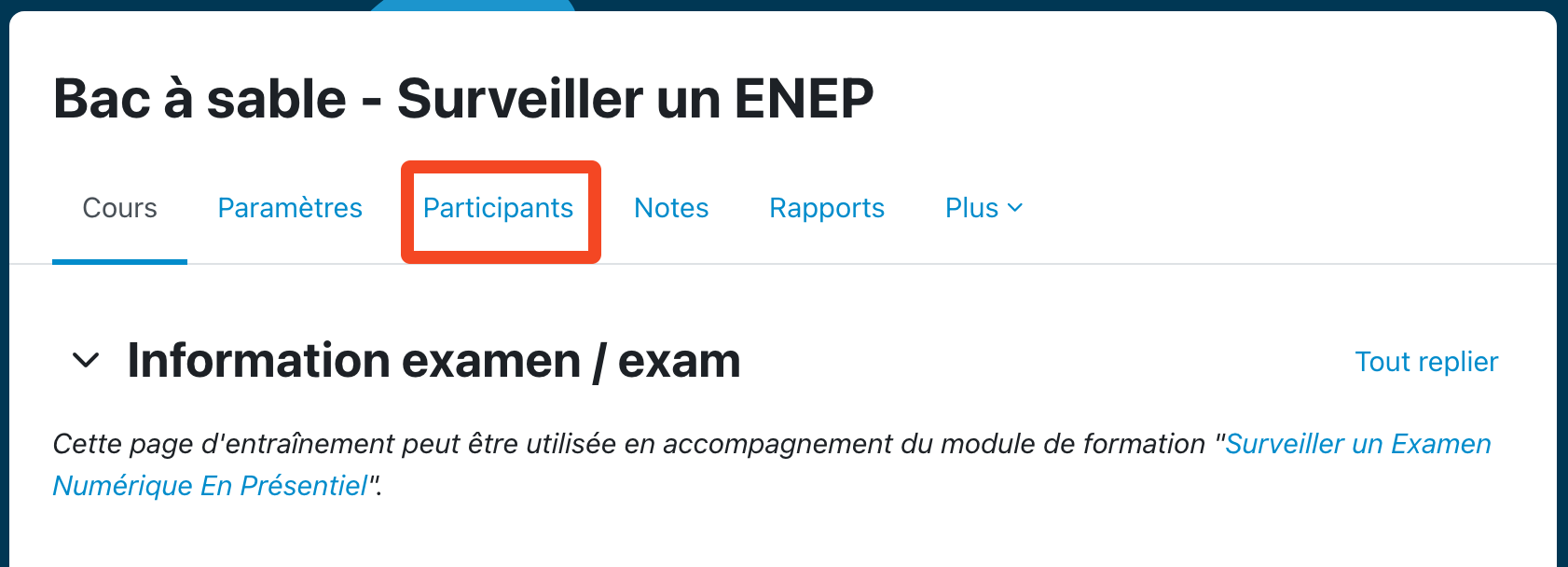](https://wiki.unil.ch/cse/uploads/images/gallery/2023-01/pyxSmEMeXrJpjuKL-capture-decran-2023-01-10-a-13-13-57.png) Next, you can **filter the list of participants** according to the initials of the first and last names (1). So **select** the first letter of the student's **last name**, **THEN** the first letter of the **first name**. In the list of students, **find the name of the student** (2), then **open the parameters** by clicking on the wheel to the right of the status (3). [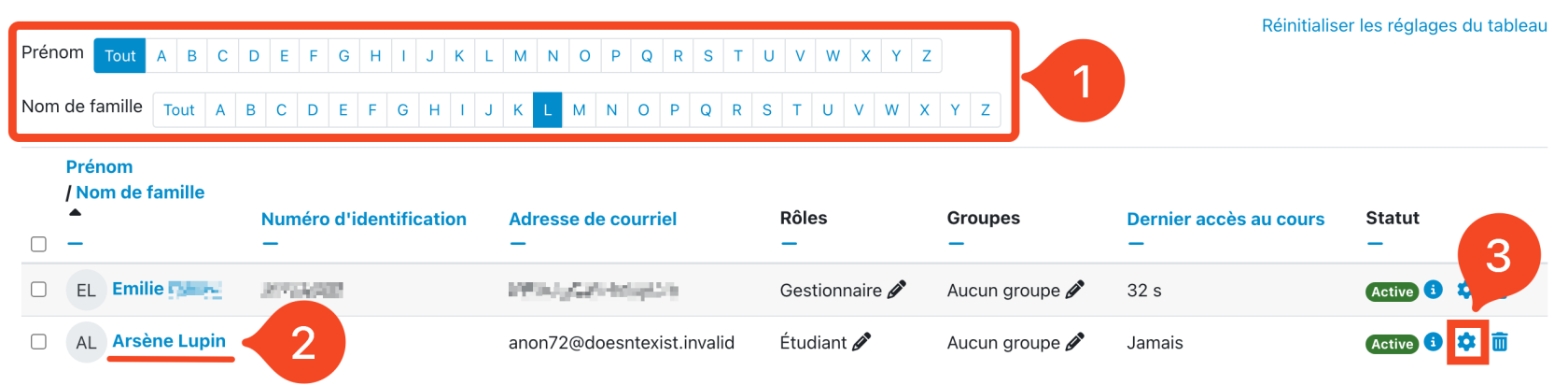](https://wiki.unil.ch/cse/uploads/images/gallery/2023-11/DKSFF7QDDP7ejkk4-capture-decran-2023-11-06-a-14-46-12.png) **Make sure** you are opening the registration page for the **correct student**, then **change the status** from "Active" to "**Suspended**". Then **save the changes**. [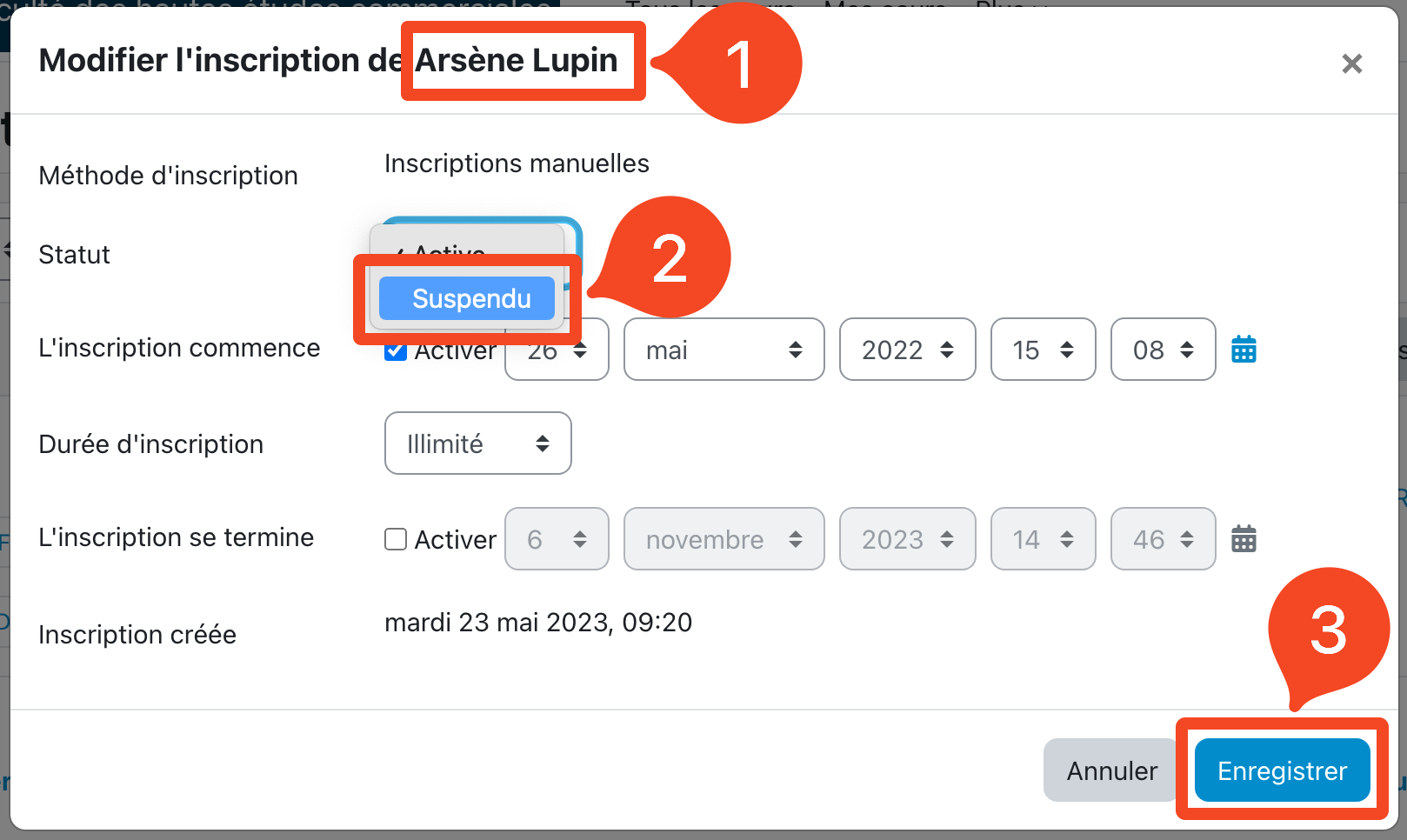](https://wiki.unil.ch/cse/uploads/images/gallery/2023-01/XJkALjXmVklsDRYQ-capture-decran-2023-01-10-a-13-14-49.png) You can **check that the student's access has been blocked** when their status is displayed as **suspended**. [](https://wiki.unil.ch/cse/uploads/images/gallery/2023-11/UNq2CbMTCXSxNacQ-capture-decran-2023-11-06-a-14-47-07.png) **Repeat** for each absent student. # Check if a student has submitted their answers in a Quiz**For each student who leaves an exam early**, it is necessary to **check if his/her answers have been sent** (and that the attempt has been sent so that he/she cannot modify it outside the exam room).
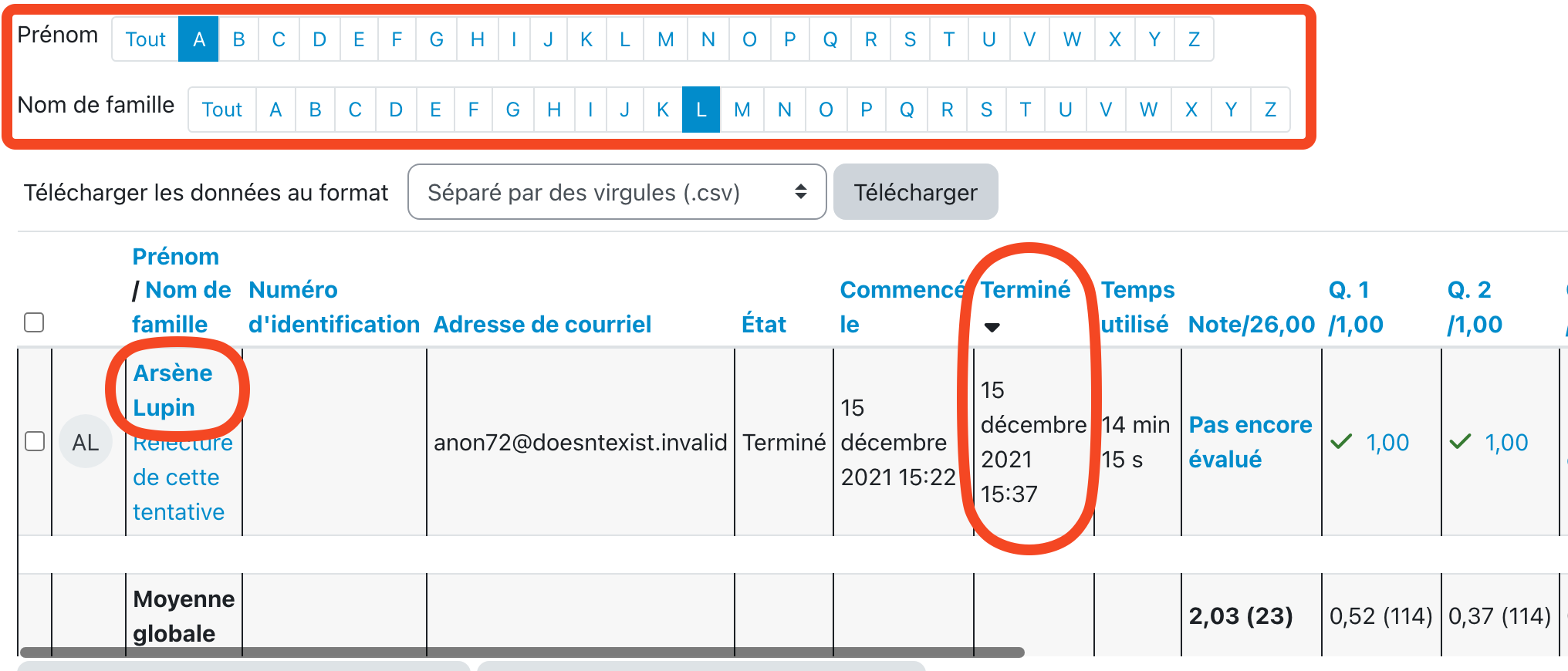
## On the results page The first and most convenient and safe option for this is to go to the test results. Start by **accessing the test** on the exam page on MoodleExam. [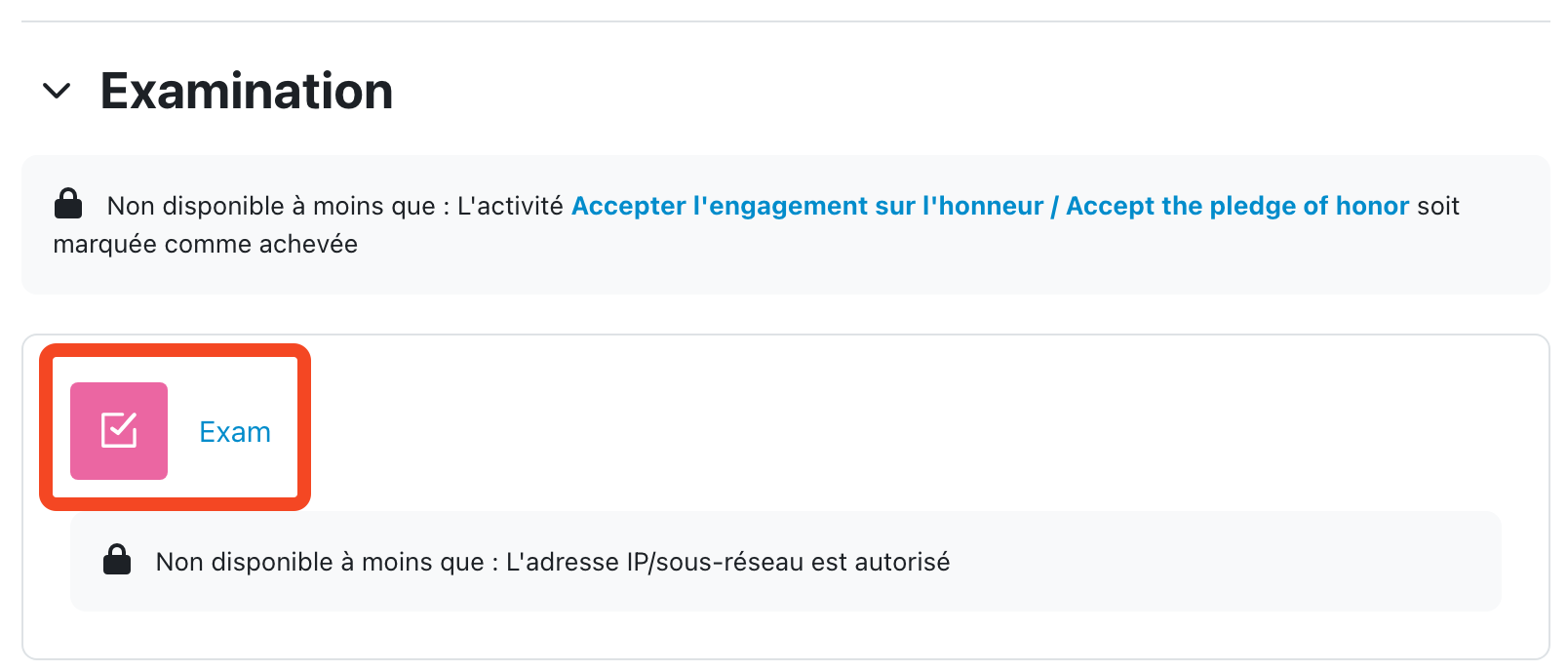](https://wiki.unil.ch/cse/uploads/images/gallery/2023-01/n5dB8UewJeSU3iBw-capture-decran-2023-01-11-a-09-23-50.png) Then, in the menu, open the **results**. [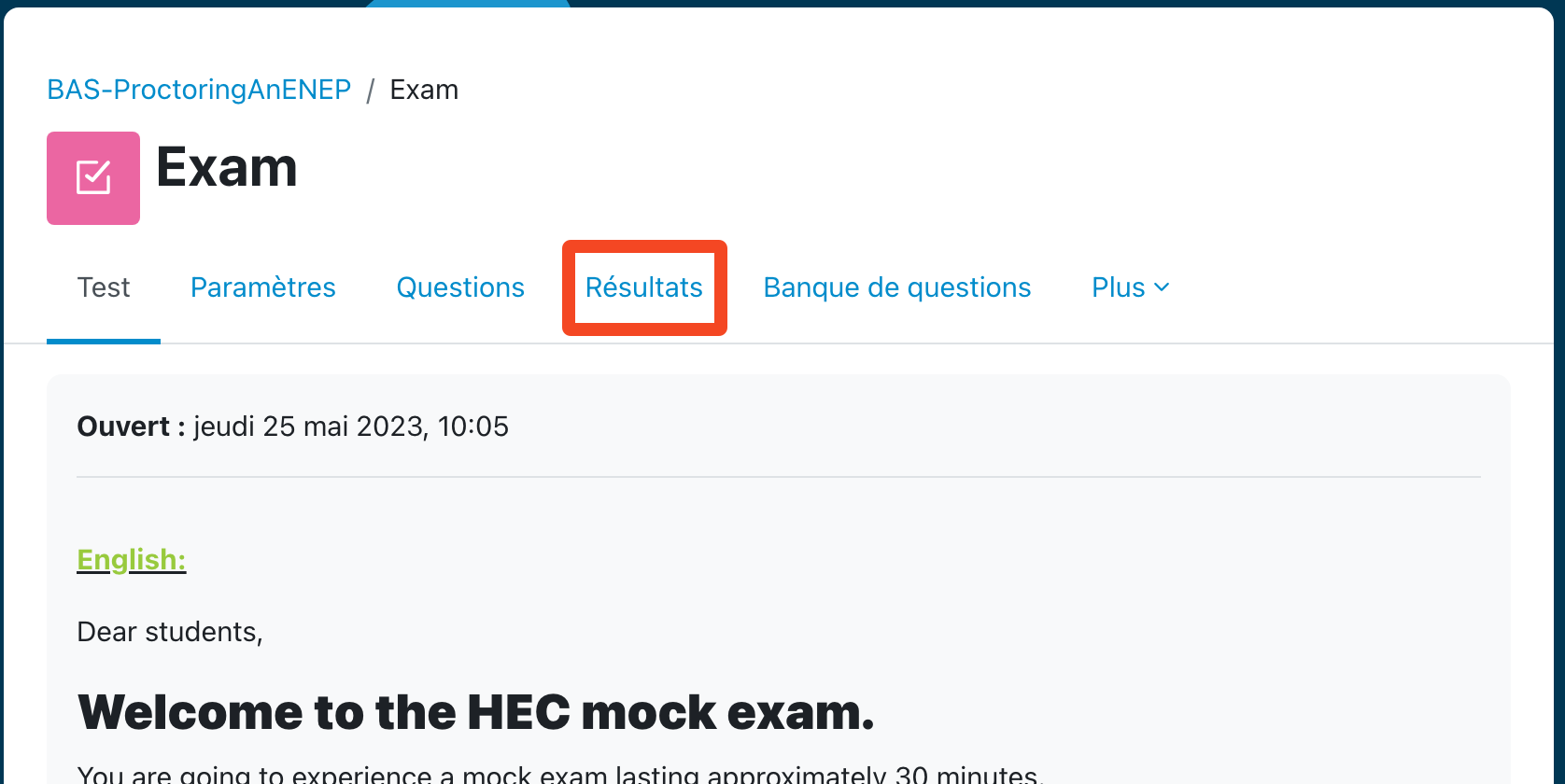](https://wiki.unil.ch/cse/uploads/images/gallery/2023-01/Nntfd9BVHqsJ6HV1-capture-decran-2023-01-11-a-09-24-10.png) On the results page that appears, **uncheck the "In Progress", "Overdue" and "Never Submitted" attempts**. Check the "**Finished**" box (optional step). Click on Show Report. [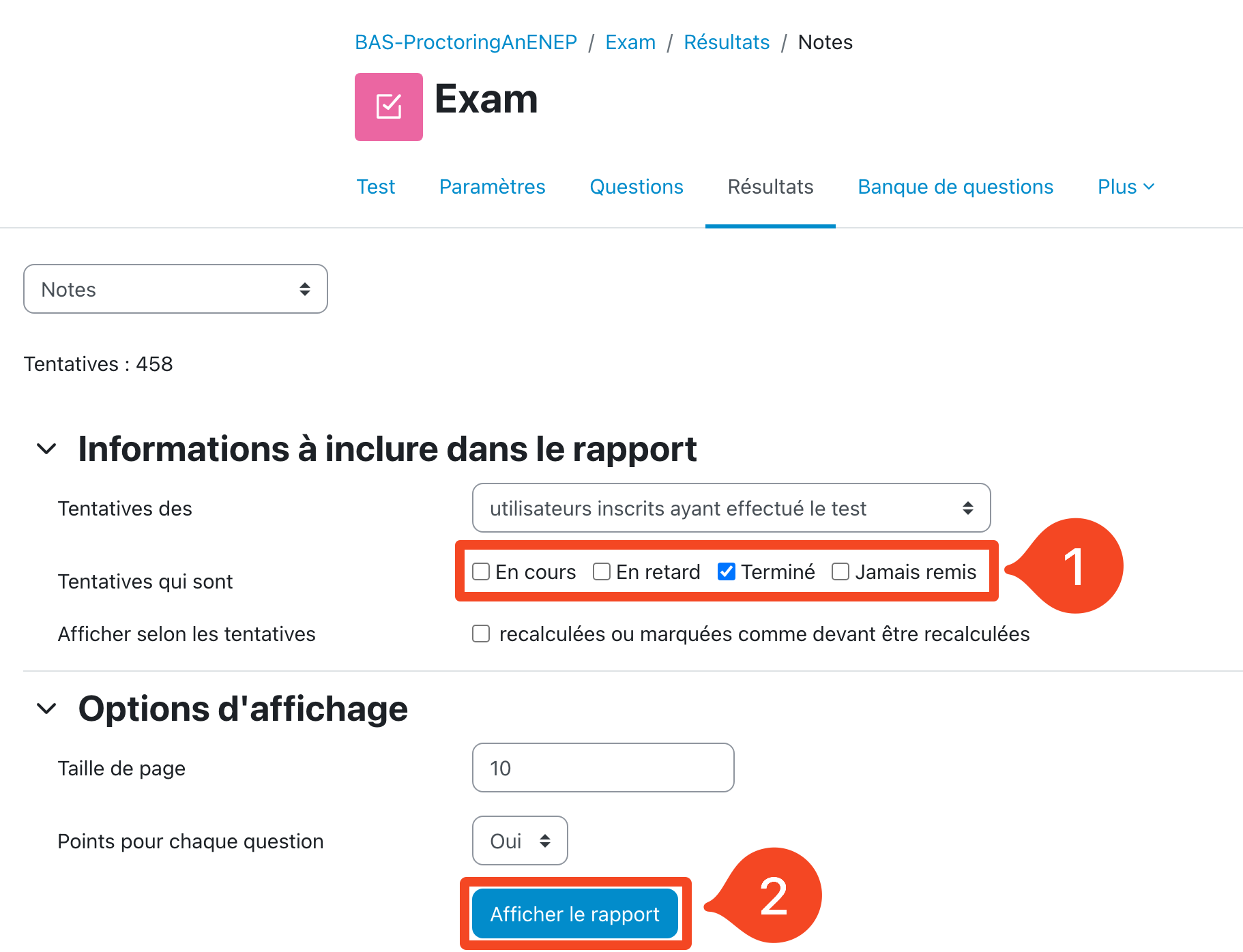](https://wiki.unil.ch/cse/uploads/images/gallery/2023-01/Fhqu0PFRDvCRA1qE-capture-decran-2023-01-11-a-09-24-30.png) The list of completed exam attempts is displayed. You can **sort the attempts by the time** the attempt was made by clicking 2 times on the "Finished" column title. This way, the last completed attempts will be displayed first. This makes it easy to find the person who finishes the exam early, as they should appear at the top of the list if they have turned in their answers.You can **refresh the list by refreshing the page**.
[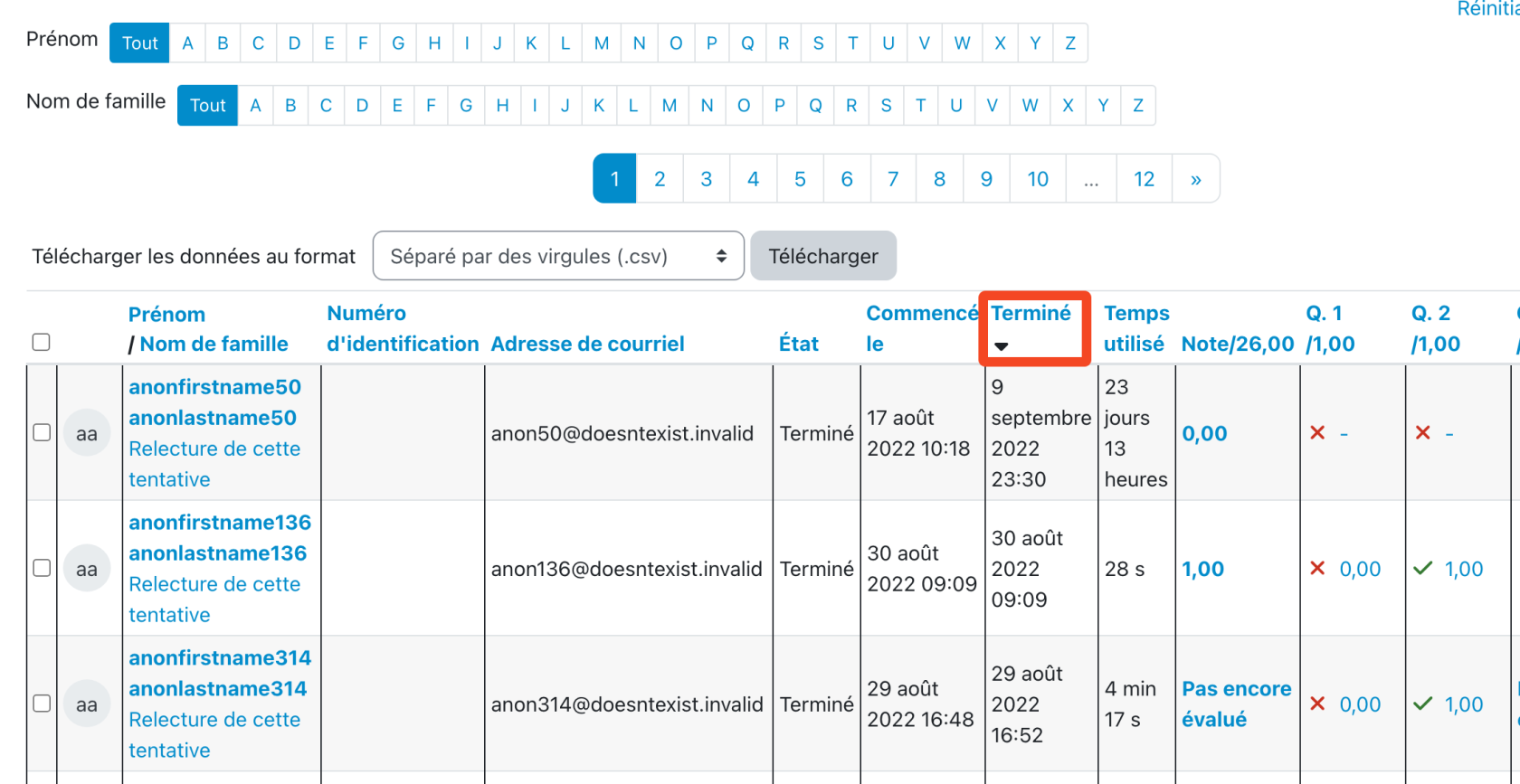](https://wiki.unil.ch/cse/uploads/images/gallery/2023-11/R63ZKqt5xEX3oxIW-capture-decran-2023-11-06-a-15-01-41.png) To find someone's attempt, **select the initial of their last name, then their first name**, then search for the person's name in the list that appears. The status of his or her attempt is displayed in the "Status" column.**If the status is other than "finished"**, the student must **turn in their answers on the test page**.
[](https://wiki.unil.ch/cse/uploads/images/gallery/2023-01/GeaN8ItJm6f7gCsI-capture-decran-2023-01-11-a-09-26-56.png) ## What to do if a student has left the room without sending in their answers? + Assignments You can **suspend a student who has left the room without submitting answers** by following the procedure described on [this page](https://wiki.unil.ch/cse/books/moodleexam/page/blocking-a-users-access-to-the-exam-page "Blocking a user's access to the test").This method also applies to exams that use a **Moodle Assignment to turn in work** (instead of a Test/Quiz). This is because the assignment does not block the modification of the assignment after the first submission. Therefore, **each student who wishes to finish the exam and leave the room early must be manually blocked** from accessing and editing the assignment.
You have to **unblock all students that have been suspended** using this method, **at the end of the exam**. Suspended student's work/answers are blocked/suspended too. Hence, their result will not appear in the test results.
# Prevent submission changes in an Assignment In the case of a digital exam based on an *Assignment*, exam papers can be modified up to the cut-off date set in the *Assignment*. A student who leaves the examination room early, after submitting his or her assignment, may still be able to modify his or her work between now and the end of the examination.When a student leaves the exam room early, the student must be prevented from modifying the work.
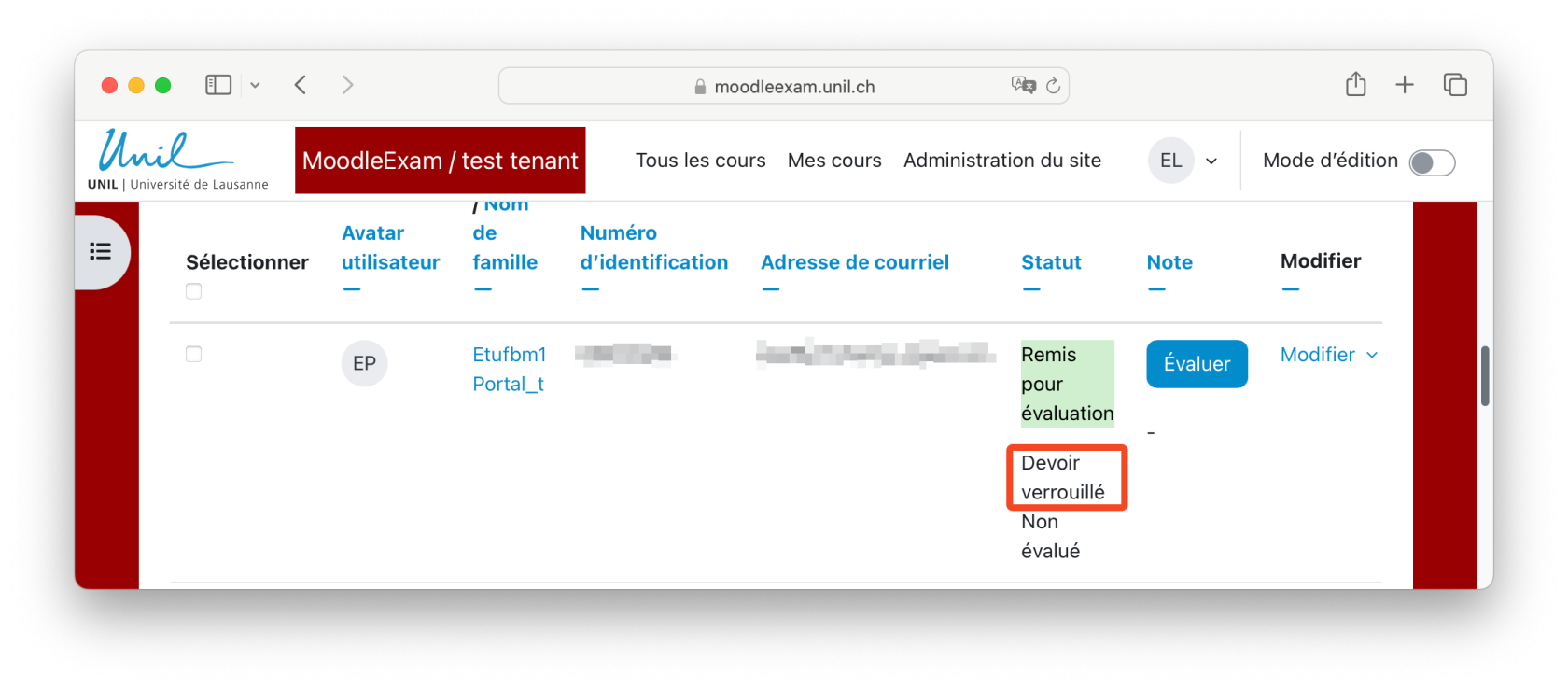
### Preventing changes to student work 1\. First, go to the Submissions page. [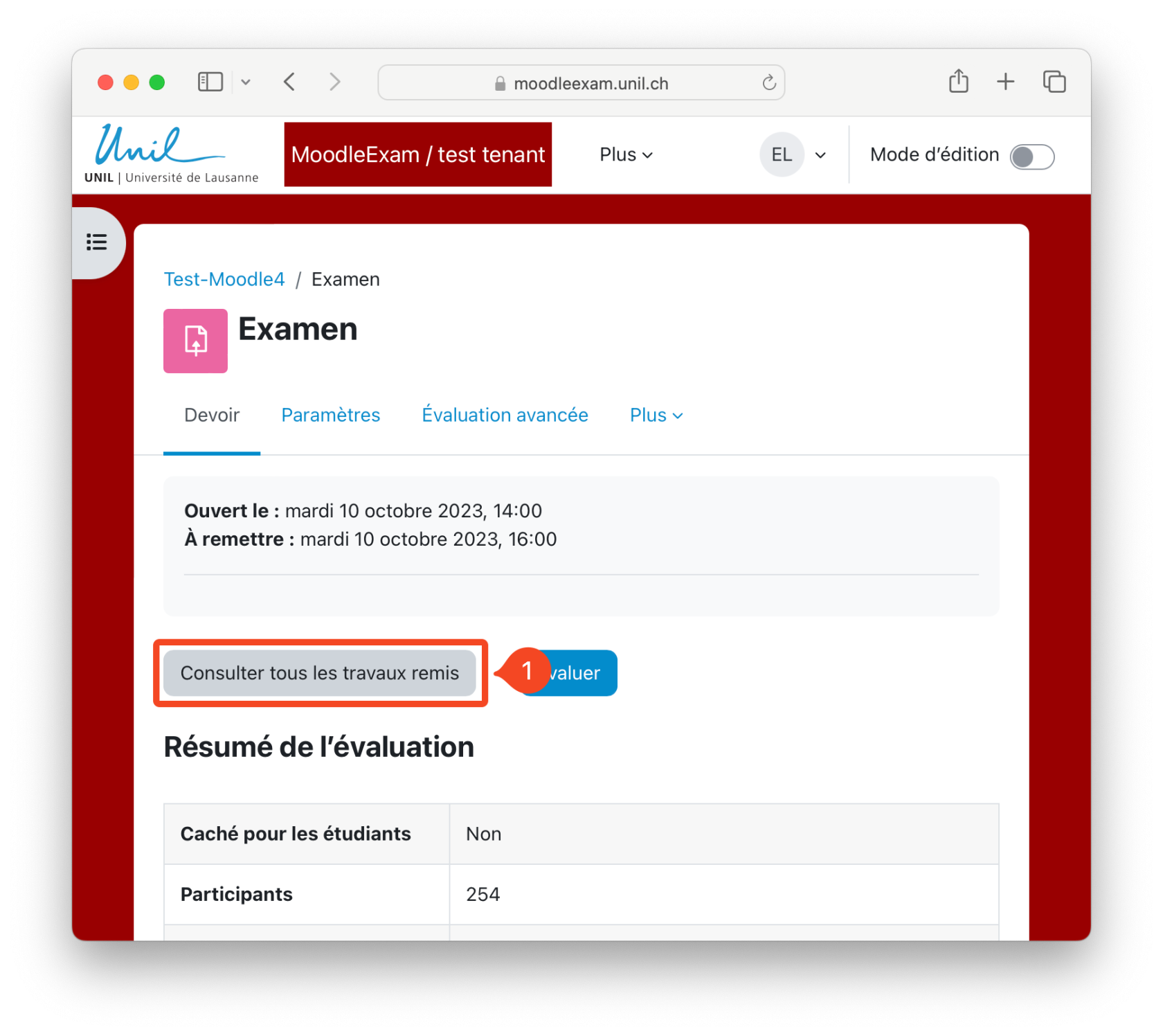](https://wiki.unil.ch/cse/uploads/images/gallery/2024-05/scSWt0bu0YBDvNs6-capture-decran-2024-05-16-a-11-30-49.png) 2/3. Then, using the name filtering tools, find the student's work in the list of submissions. 4\. Next to the Grade button, click on the "**Modify" option**. 5\. In the drop-down list, click on "Prevent submission changes". [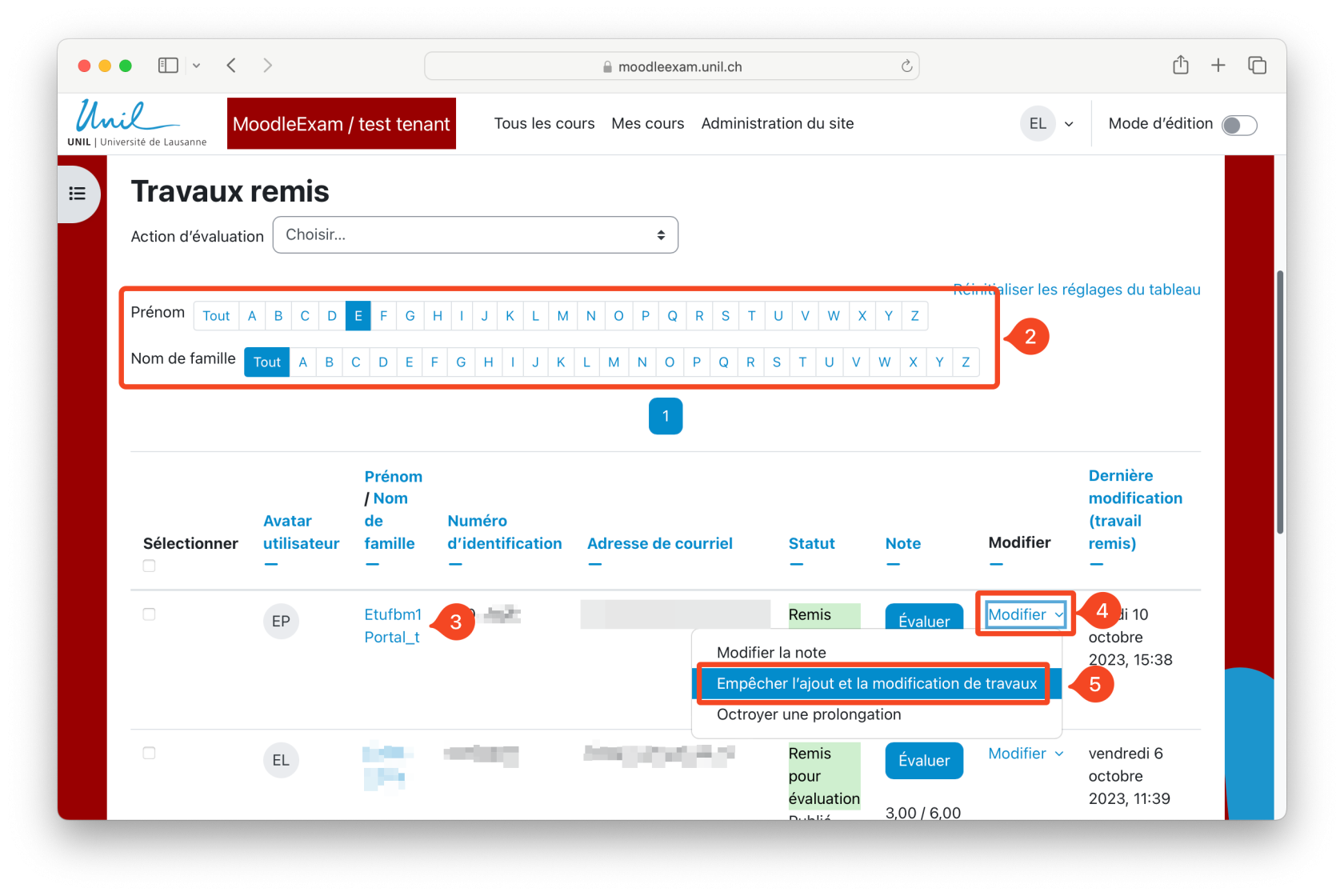](https://wiki.unil.ch/cse/uploads/images/gallery/2024-05/4Hcp0OapVVMfhJQa-capture-decran-2024-05-16-a-11-32-17.png)6. That's it, the student's work is now locked. They will not be able to change it.
[](https://wiki.unil.ch/cse/uploads/images/gallery/2024-05/RPSEqH0383kaVMNP-capture-decran-2024-05-16-a-11-32-47.png) ### For anonymous exams For anonymous exams, it is impossible to search for a student's work by first and last name. To make it easier for you to find the student's work, go to the bottom of the Submissions page. In Assignments per page, select "All". [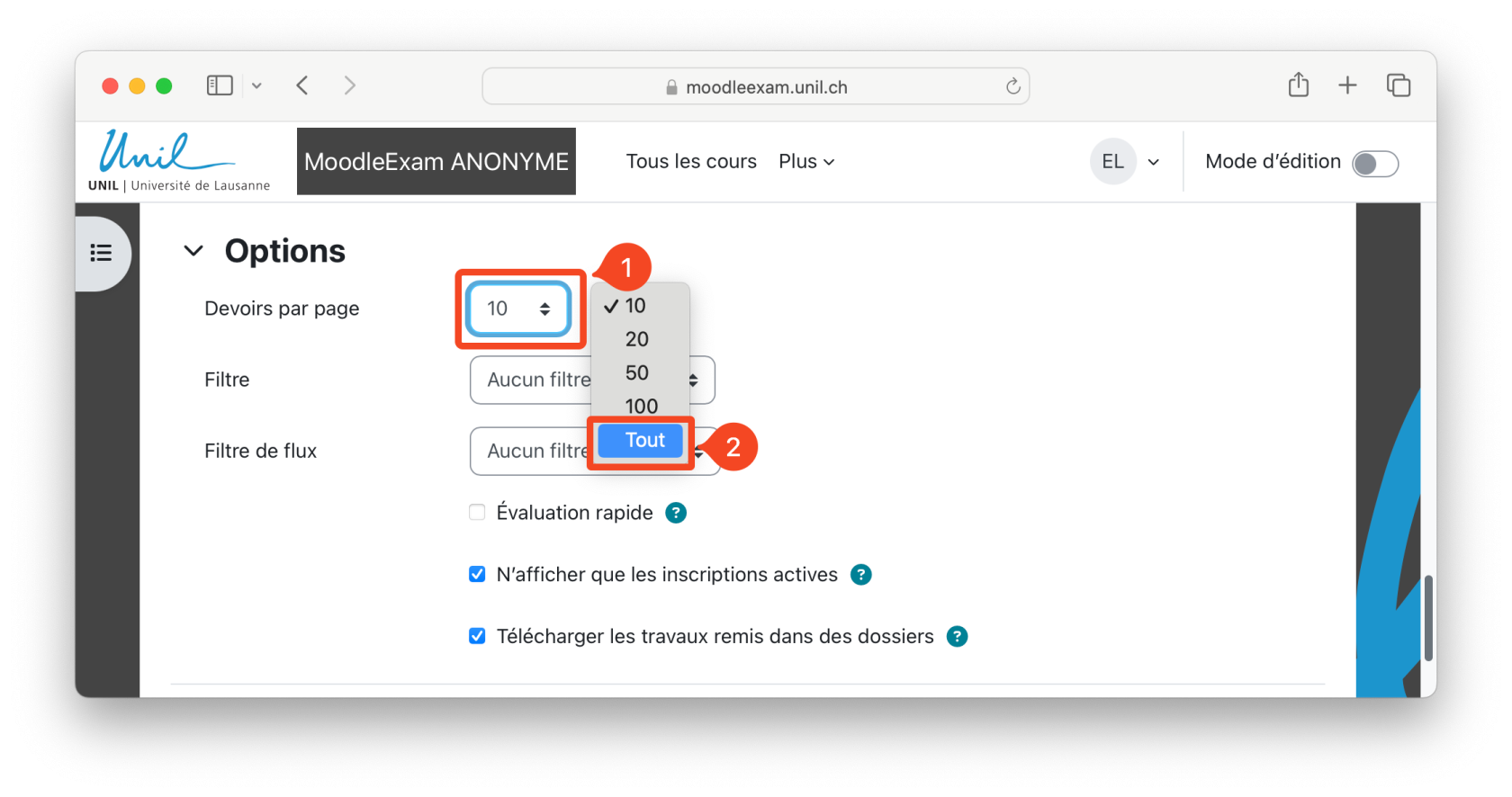](https://wiki.unil.ch/cse/uploads/images/gallery/2024-05/spxWIjCAwfnGVvzb-capture-decran-2024-05-16-a-11-44-40.png) Then open the Search function (shortcuts: ctrl + F on Windows or cmd + F on Mac) in your browser. Enter the student number. The student's work will be highlighted. Check the student number, then follow the procedure described above. [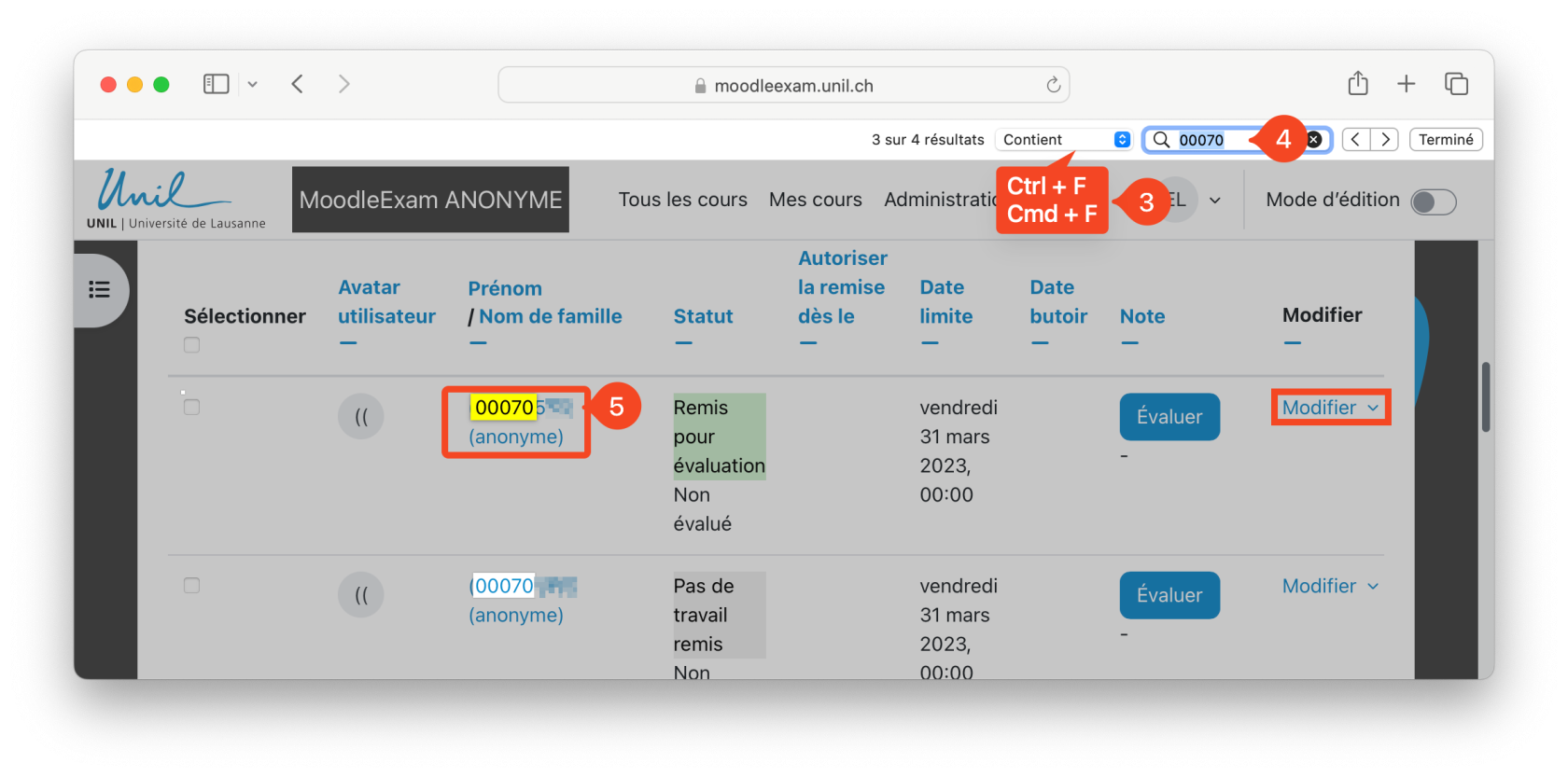](https://wiki.unil.ch/cse/uploads/images/gallery/2024-05/yuHFIQ8TJPcAmeEl-capture-decran-2024-05-16-a-11-49-32.png) # What changes when proctoring an anonymous digital examAt the University of Lausanne, certain exams are now anonymous. This new system, which anonymises students with their student number in certain spaces of MoodleExam, slightly modifies the identity verification procedures on MoodleExam.
### Check that a student has handed in their attempt in a Quiz #### Option A : Check that the attempt has been sent directly to the student's screen A first option for checking that a student has handed in their exam attempt is simply to look at the student's computer screen to see if the exam attempt has been handed in. In the case of a *Quiz*, the student's screen should match the image below. [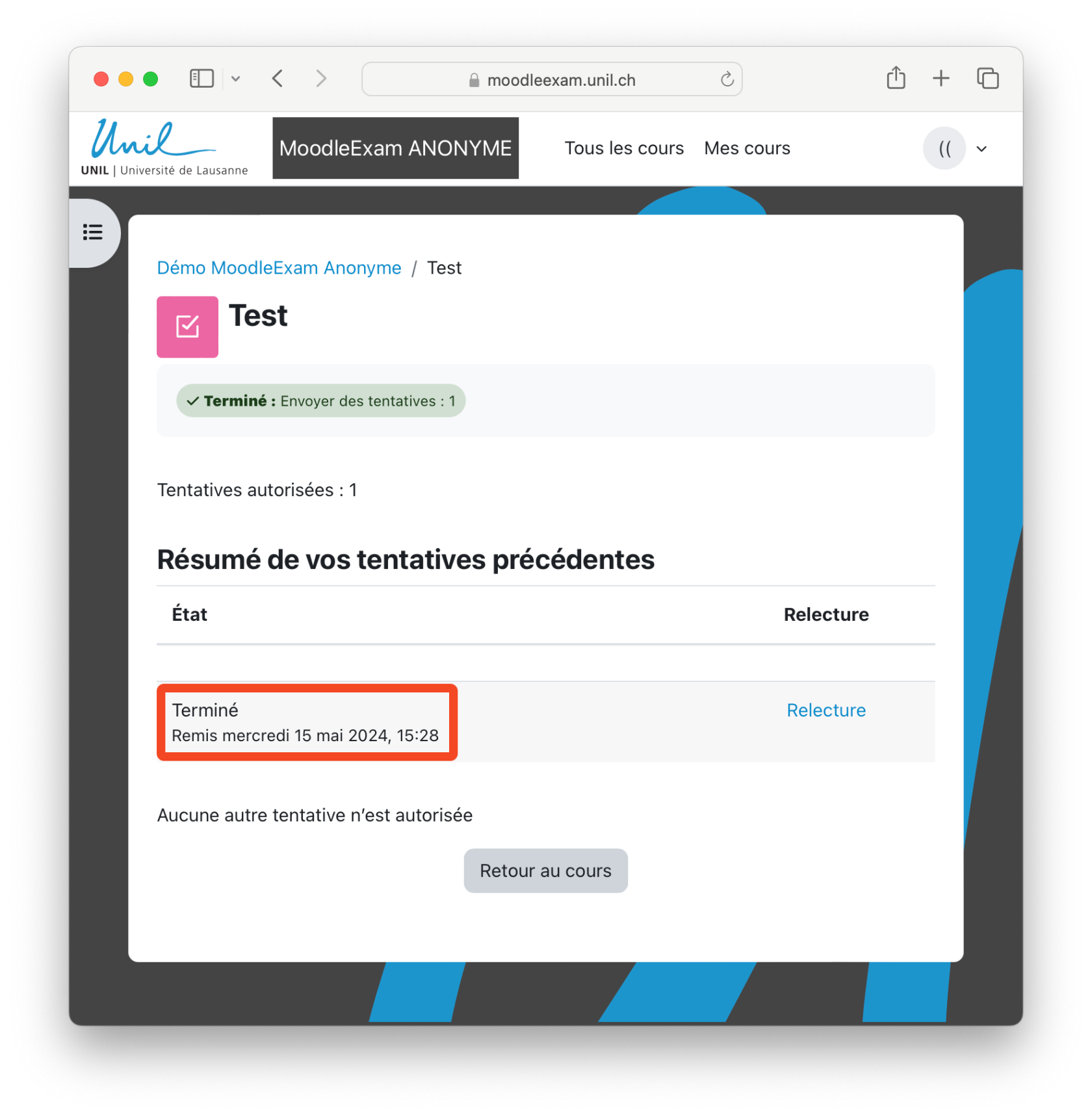](https://wiki.unil.ch/cse/uploads/images/gallery/2024-05/Zo6idkVeddB2di3d-capture-decran-2024-05-15-a-15-28-34.png) Check the **name of the exam**, the **status of the attempt** and the **date**. The **name must match that of the exam**, the **attempt is indicated as "Finished"**, with a **date and time close to the current time**.Note that the background color of the page may vary depending on the faculties.
#### Option B : Find the attempt in the exam results 1\. Go to the exam results page. 2\. Display all the exam attempts by **entering a number greater than the number of students registered** for the exam in the "Page size" field.To speed up the page loading and to hide students' marks, you can remove the display of marks by setting **'Marks for each question' to No**.
3\. Click on "**Show report**". [ 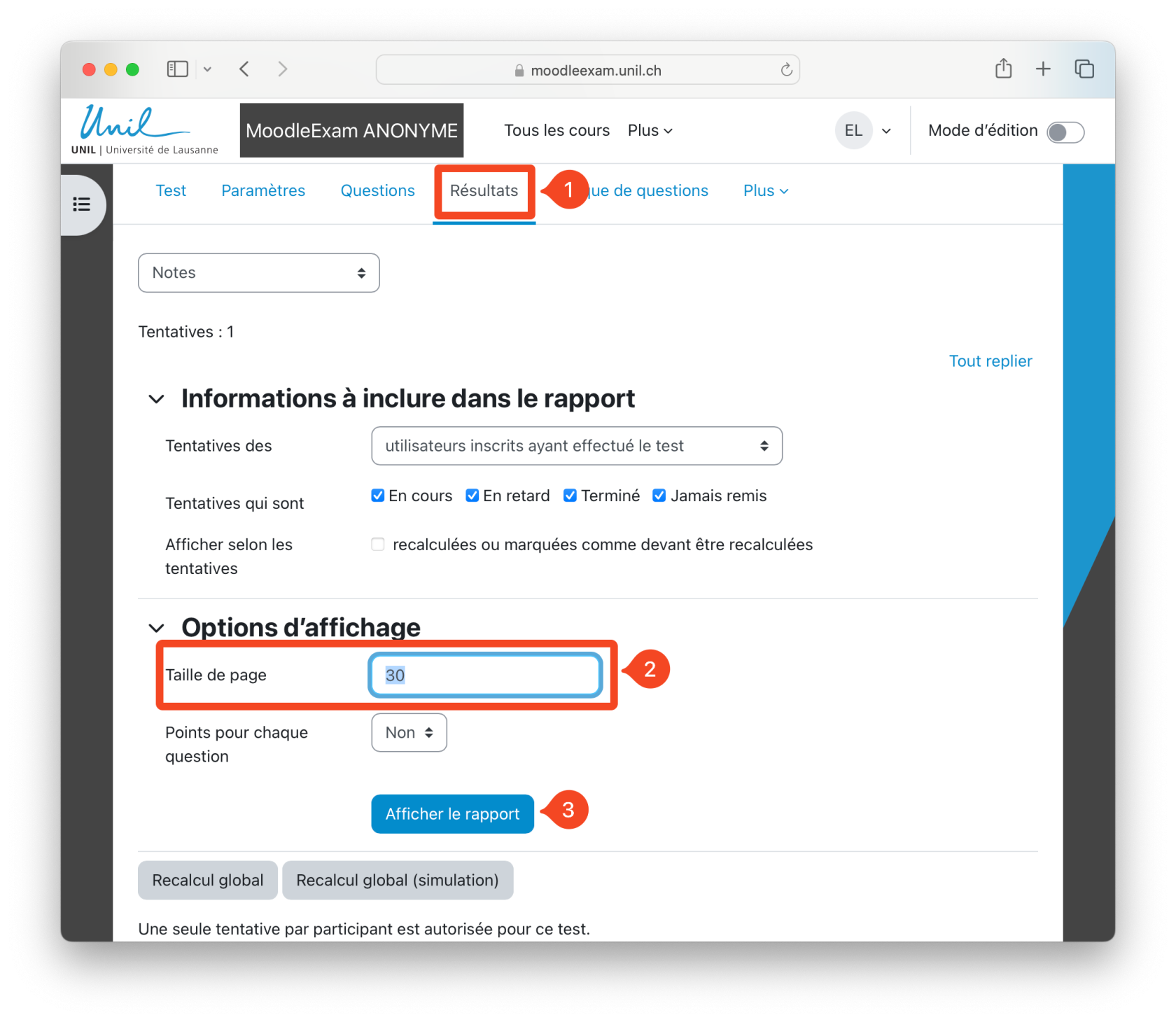](https://wiki.unil.ch/cse/uploads/images/gallery/2024-05/qiI8bcKaKRxXZPlU-capture-decran-2024-05-15-a-15-17-29.png) 4\. Then **use your browser's "Search" function**, often associated with the shortcut "Ctrl + F" on Windows (or "Cmd + F" on Mac). 5\. In the search bar that appears, **enter the student number** you are looking for. 6\. The attempt should then be highlighted. You can then check whether the attempt has been finished. [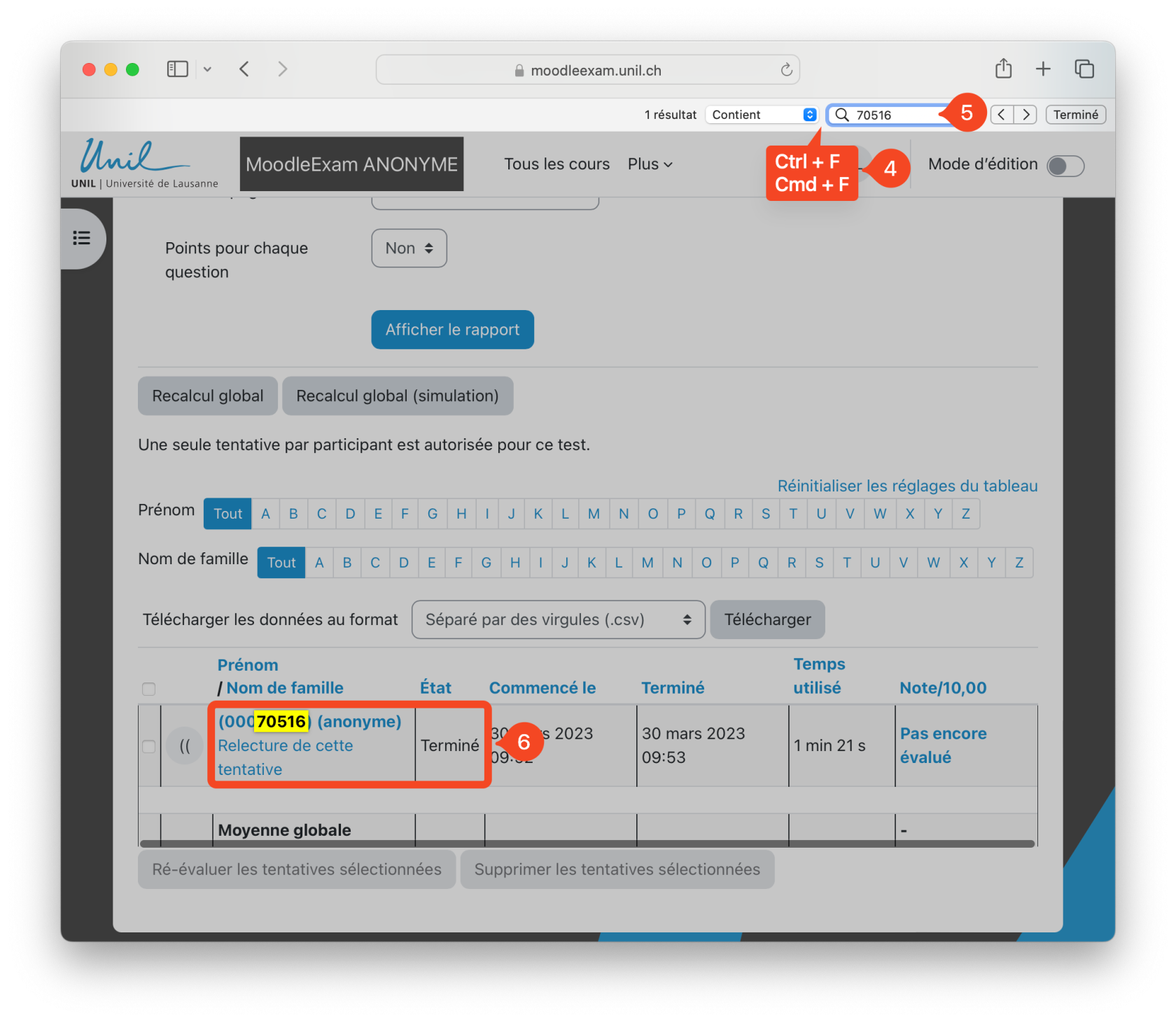](https://wiki.unil.ch/cse/uploads/images/gallery/2024-05/SDSp99hI6zjY7PpK-capture-decran-2024-05-15-a-15-18-14.png) You will find the **student number on the student card**, in the re-inscribable area, under the status and faculty. [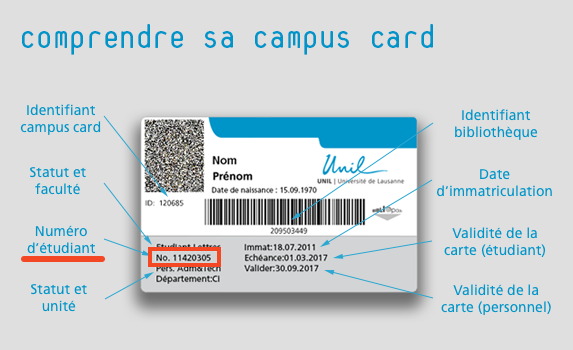](https://wiki.unil.ch/cse/uploads/images/gallery/2024-05/XI2zel1MtrayqzoK-schema-campuscard-web.png)For easier searching, you can also sort the attempts to display the last attempts returned first by clicking on the "Completed" column.
### Find a student in the list of registered participants on the MoodleExam page The procedure for finding a student is very similar to method B for checking exam results, using your browser's Search function. 1. Go to the Participants page for your exam on MoodleExam. 2. Scroll to the bottom of the page. [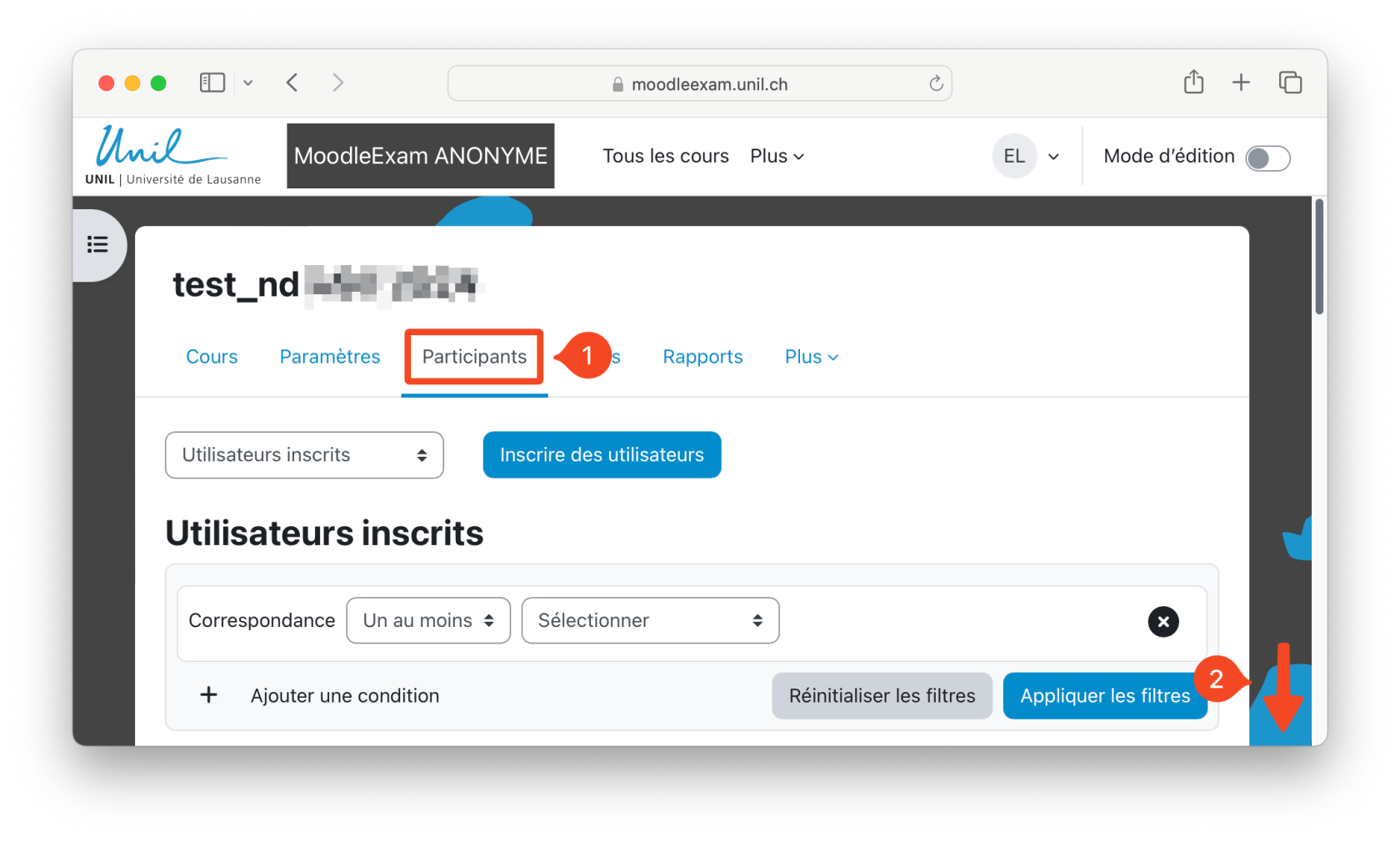](https://wiki.unil.ch/cse/uploads/images/gallery/2024-05/lOEEWVVqbIOwWp6Z-capture-decran-2024-05-15-a-15-54-18.png) 3\. At the bottom of the Participants page, **click on "Show all x"** to display all the participants registered on the page. [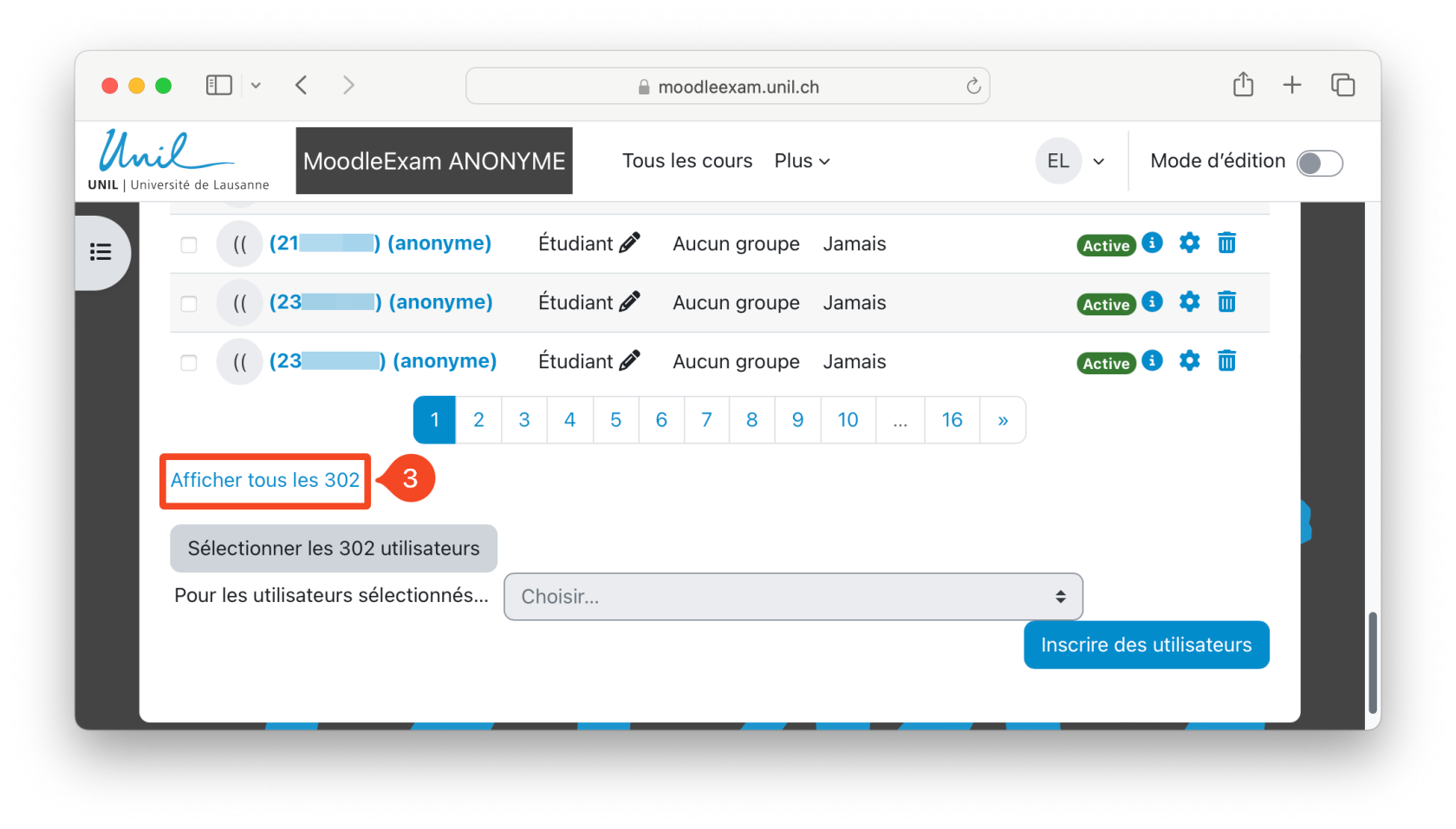](https://wiki.unil.ch/cse/uploads/images/gallery/2024-05/bmO3gDN9qOLayxDW-capture-decran-2024-05-15-a-15-54-56.png) 4\. You can now **search for the student number** using your browser's search function. Use the shortcut "Ctrl + F2" on Windows or "Cmd + F" on Mac to display the search bar. 5\. Then enter the student's number. 6\. The line corresponding to the student is then highlighted. You can now suspend the student's status by clicking on the small cog on the right. [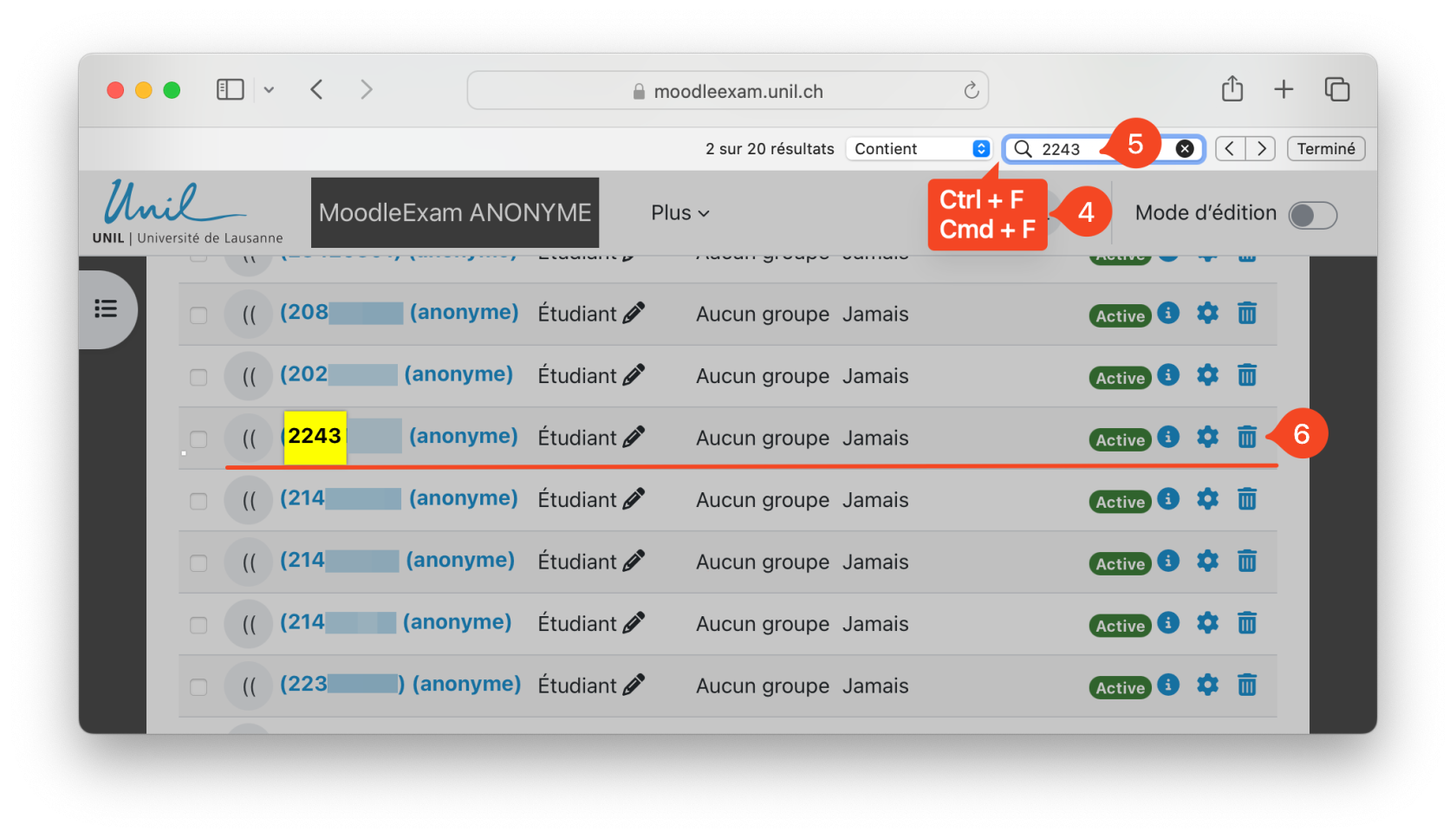](https://wiki.unil.ch/cse/uploads/images/gallery/2024-05/pR9mJmkjFu1P9N95-capture-decran-2024-05-15-a-15-59-29.png) ### Adding an override to a *Quiz* or an *Assignment*The procedure for adding an override to a *Quiz* or an *Assignment* is exactly the same as for non-anonymised examinations. However, you **must enter the student number** and not the student's name.
### Preventing a student from modifying their submission in an AssignmentThe procedure to prevent a student from modifying their submission in an assignment is the same in an anonymous exam. You must however look for the student's number and not their name/surname. Check [this page](https://wiki.unil.ch/cse/books/moodleexam/page/prevent-submission-changes-in-an-assignment "Prevent submission changes in an Assignment") for a simple procedure to find the student number in the Submissions page.