# Guide wifi exam-unil

Les facultés ont établi de nouvelles procédures pour les examens numériques en présentiel (ENEP). Cette page explique les aspects techniques de ces examens.

# 1. Wi-Fi Exam-Unil

### Caractéristiques du wifi ExamUnil

Le Wi-Fi « exam-unil » est un **wifi dédié à la réalisation des examens** sur les équipements informatiques des étudiants (ordinateur, tablette) en **limitant l’accès à la plate-forme MoodleExam**. Les étudiants peuvent accéder uniquement aux documents stockés localement sur leur appareil.

Caractéristiques du Wi-Fi :

- Activation « à la demande » dans les salles ;
- Clé Wi-Fi WPA2 similaire aux box Internet (simple et rapide) ;
- Plusieurs mots de passe Wi-Fi possibles (1 par faculté).

Le Wi-Fi « exam-unil » ne permet pas l’accès à :

- Internet ;
- MoodleUNIL ;
- OWA / Boite mail ;
- Réseau Interne UNIL

### Appareils recommandés

Les **appareils suivants sont recommandés** afin de pouvoir passer son examen dans les meilleures conditions possibles:

- ordinateur avec macOS 12 ou une version postérieure ;
- ordinateur avec Windows 10 ou 11

Nous ne possédons pas suffisamment de données sur les appareils Linux/iPad/Tablettes, nous ne recommandons donc pas leur utilisation.

# 2. Connexion au réseau WiFi exam-unil

<p class="callout warning">Avant de vous connecter au WiFi, assurez-vous de n'avoir **aucun VPN activé** sur votre appareil (si vous en avez ils sont généralement visibles sur votre barre de menu sur MacOS &amp; Windows). </p>

## <a name="_Toc104556410"></a>macOS

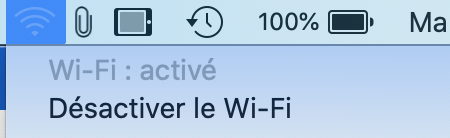
Connexion au Wi-Fi :

[![image-1653728898020.png](https://wiki.unil.ch/cse/uploads/images/gallery/2022-05/scaled-1680-/i1zJxzh6d9LqmQKk-image-1653728898020.png)](https://wiki.unil.ch/cse/uploads/images/gallery/2022-05/i1zJxzh6d9LqmQKk-image-1653728898020.png)

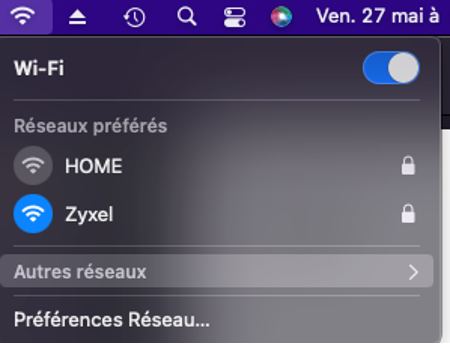
Dans le menu Wi-Fi, sélectionner « exam-unil » :

- Il peut être nécessaire de cliquer sur « Autres réseaux » pour faire apparaître "exam-unil" :

[![image-1653728915801.png](https://wiki.unil.ch/cse/uploads/images/gallery/2022-05/scaled-1680-/4UKz3q7qjgLTkawG-image-1653728915801.png)](https://wiki.unil.ch/cse/uploads/images/gallery/2022-05/4UKz3q7qjgLTkawG-image-1653728915801.png)
Si « exam-unil » n’est pas visible :

1. Désactiver / réactiver le Wi-Fi ;
2. Se connecter sur « eduroam » ou « public-unil » et réessayer ;
3. Attendre 1 minute ;
4. Réessayer ensuite de se connecter à « exam-unil »

Sur macOS, si le souci persiste, tenter l’ajout manuel :

[![image-1653728932730.png](https://wiki.unil.ch/cse/uploads/images/gallery/2022-05/scaled-1680-/WAba7XfVJfoAFjji-image-1653728932730.png)](https://wiki.unil.ch/cse/uploads/images/gallery/2022-05/WAba7XfVJfoAFjji-image-1653728932730.png)
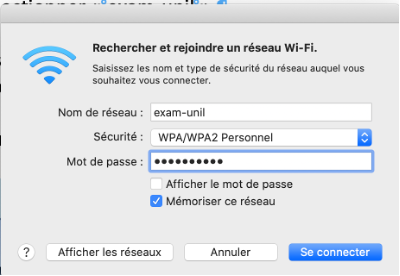
Attention : un message « pas de connexion internet » / « réseau limité » peut apparaître, ce qui est normal (accès uniquement à MoodleExam).

## <a name="_Toc104556411"></a>Windows 10 / 11

Selon la version de Windows (10 ou 11) l’aspect graphique peut être légèrement différent, mais la procédure de connexion est similaire.

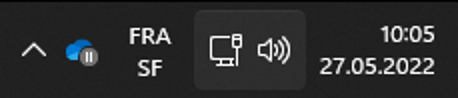
L’accès se fait sur la barre des tâches, option réseau :

[![image-1653728965648.png](https://wiki.unil.ch/cse/uploads/images/gallery/2022-05/scaled-1680-/SfKvtHbhhy59ha59-image-1653728965648.png)](https://wiki.unil.ch/cse/uploads/images/gallery/2022-05/SfKvtHbhhy59ha59-image-1653728965648.png)
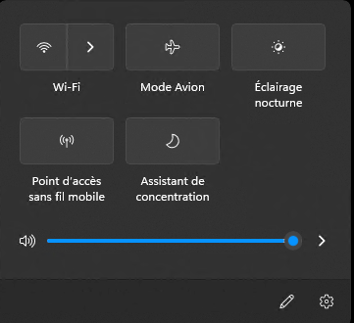
Activer le Wi-Fi :

[![image-1653728977933.png](https://wiki.unil.ch/cse/uploads/images/gallery/2022-05/scaled-1680-/Y4Y5YgAe3aBsh7lj-image-1653728977933.png)](https://wiki.unil.ch/cse/uploads/images/gallery/2022-05/Y4Y5YgAe3aBsh7lj-image-1653728977933.png)
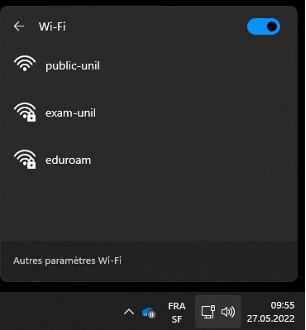
Sélectionner « exam-unil » :

##### Windows 11 : 

[![image-1653728993602.png](https://wiki.unil.ch/cse/uploads/images/gallery/2022-05/scaled-1680-/lRE1sQ511DIZSMYl-image-1653728993602.png)](https://wiki.unil.ch/cse/uploads/images/gallery/2022-05/lRE1sQ511DIZSMYl-image-1653728993602.png)
##### Windows 10 :

[![image-1653729004898.png](https://wiki.unil.ch/cse/uploads/images/gallery/2022-05/scaled-1680-/bpJKAMfLlOR4TOYJ-image-1653729004898.png)](https://wiki.unil.ch/cse/uploads/images/gallery/2022-05/bpJKAMfLlOR4TOYJ-image-1653729004898.png)
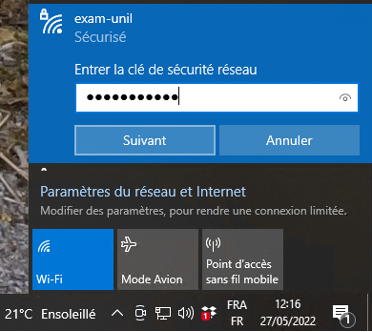
<p class="callout warning">Attention : un **message « pas de connexion internet » ou « réseau limité »** peut apparaître, **c'est normal** (car l'accès internet est limité à Moodleexam uniquement).</p>

# 3. Connexion à MoodleExam

La connexion à moodleexam se fait via la **barre d’adresse** de Chrome / Firefox :

**exam.unil.ch** ou [**https://exam.unil.ch**](https://exam.unil.ch)

Alternative : **moodleexam.unil.ch** ou **[https://moodleexam.unil.ch](https://moodleexam.unil.ch/)**

<p class="callout warning">Faire bien attention d'**écrire manuellement** l'adresse **sans fautes.** Ecrire l'URL **dans la barre d'adresse** d'un navigateur (Google Chrome, Firefox, Safari) et non dans la barre de recherche d'un moteur de recherche (par ex : Google, Ecosia, Yahoo).  
</p>

Typiquement, les étudiant·e·s tentent de se connecter à MoodleUnil (sans remarquer la différence entre moodle.unil.ch et moodleexam.unil.ch), ou passent par Google pour trouver MoodleExam. Mais ces deux méthodes (MoodleUnil et Google) sont bloquées par le wifi restreint et sont inaccessibles. Il est donc indispensable de se connecter directement à MoodleExam

<p class="callout info">(Si la page s’affiche, aller au chapitre 7)</p>

#### Etapes classiques de connexion

1. Entrer l’adresse pour accéder à exam.unil.ch / moodleexam.unil.ch ;
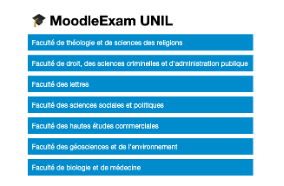
2. Sélectionner la faculté :  
    [![image-1653729131704.png](https://wiki.unil.ch/cse/uploads/images/gallery/2022-05/scaled-1680-/jPygNAwFwy0yRSu4-image-1653729131704.png)](https://wiki.unil.ch/cse/uploads/images/gallery/2022-05/jPygNAwFwy0yRSu4-image-1653729131704.png)
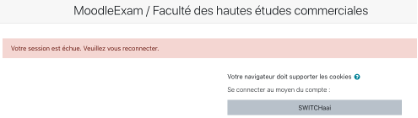
3. Sélectionner SWITCHaai :  
    [![image-1653729142204.png](https://wiki.unil.ch/cse/uploads/images/gallery/2022-05/scaled-1680-/MYxwHcTBZAizwed1-image-1653729142204.png)](https://wiki.unil.ch/cse/uploads/images/gallery/2022-05/MYxwHcTBZAizwed1-image-1653729142204.png)
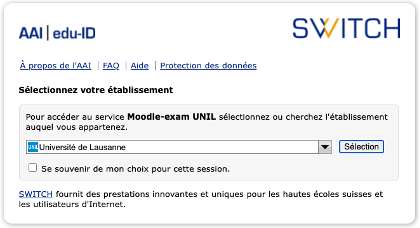
4. Sélectionner son Université :  
    [![image-1653729153228.png](https://wiki.unil.ch/cse/uploads/images/gallery/2022-05/scaled-1680-/C4ahQeoedRDshm7z-image-1653729153228.png)](https://wiki.unil.ch/cse/uploads/images/gallery/2022-05/C4ahQeoedRDshm7z-image-1653729153228.png)
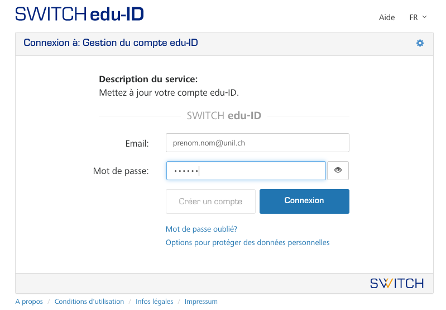
5. Entrer ses logins et mot de passes EDU-ID (peuvent être différents du mot de passe UNIL) :

[![image-1653729164387.png](https://wiki.unil.ch/cse/uploads/images/gallery/2022-05/scaled-1680-/zJD4euFZdKY0rgPH-image-1653729164387.png)](https://wiki.unil.ch/cse/uploads/images/gallery/2022-05/zJD4euFZdKY0rgPH-image-1653729164387.png)
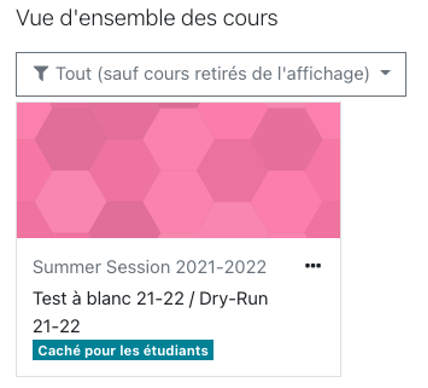
6. Sélectionner l’examen concerné (voir l'exemple ci-dessous) :  
    [![image-1653729179265.png](https://wiki.unil.ch/cse/uploads/images/gallery/2022-05/scaled-1680-/Rc5qAN2AckgtdtlR-image-1653729179265.png)](https://wiki.unil.ch/cse/uploads/images/gallery/2022-05/Rc5qAN2AckgtdtlR-image-1653729179265.png)
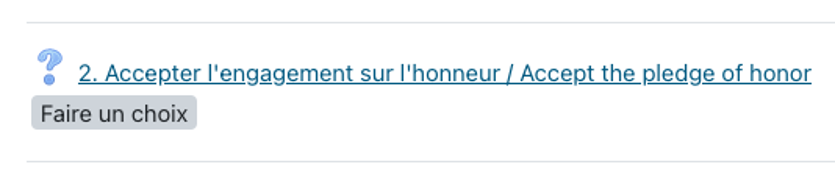
7. Accepter l’engagement sur l’honneur :  
    [![image-1653729193824.png](https://wiki.unil.ch/cse/uploads/images/gallery/2022-05/scaled-1680-/6IWza5cyCLjrz2Dc-image-1653729193824.png)](https://wiki.unil.ch/cse/uploads/images/gallery/2022-05/6IWza5cyCLjrz2Dc-image-1653729193824.png)
8. Démarrer l’examen avec le mot de passe communiqué par les surveillants (ATTENTION : CE N’EST PAS LE CODE WIFI)

# 4. Dépannage

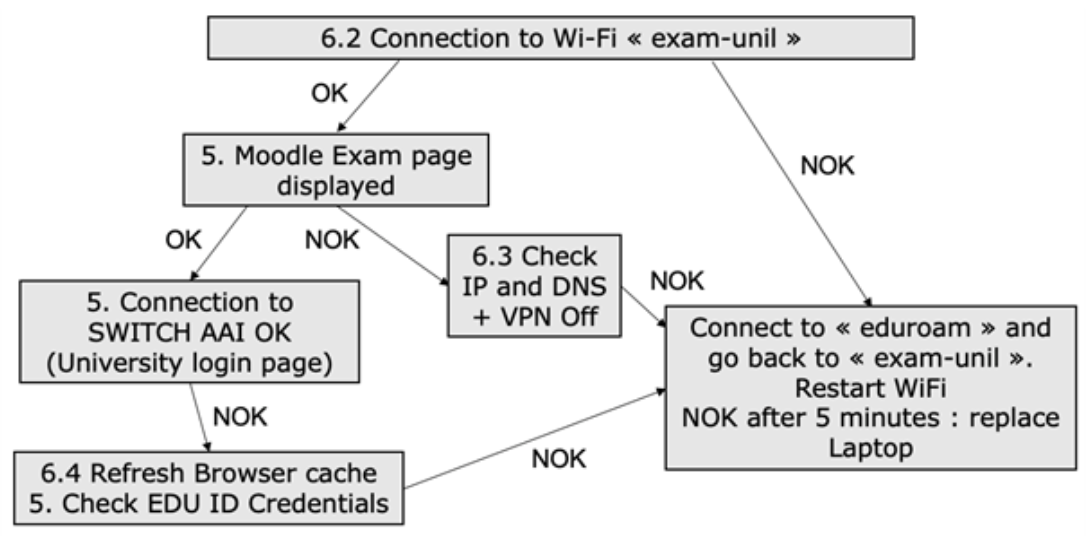
Pour intervenir sur un appareil en cas de problème, veuillez suivre la marche à suivre indiquée dans le graphique suivant:

<div id="bkmrk-" style="width: 100%;"><div style="position: relative; padding-bottom: 56.25%; padding-top: 0; height: 0;"><iframe allowfullscreen="allowfullscreen" frameborder="0" height="675" scrolling="yes" src="https://view.genial.ly/64510c84c969260011355c90" style="position: absolute; top: 0; left: 0; width: 100%; height: 100%;" title="Arbre examunil" width="1200"></iframe>

</div></div>[![Capture d’écran 2023-04-25 à 16.31.25.png](https://wiki.unil.ch/cse/uploads/images/gallery/2023-04/scaled-1680-/z9yTYXj7xH6Orwwm-capture-decran-2023-04-25-a-16-31-25.png)](https://wiki.unil.ch/cse/uploads/images/gallery/2023-04/z9yTYXj7xH6Orwwm-capture-decran-2023-04-25-a-16-31-25.png)

# 5. Oubli du wifi

Si la connexion ne se passe pas bien (échec après 3-4 essais), il faut essayer d’oublier le Wi-Fi « exam-unil ».

- Le **mot de passe enregistré est peut-être faux** ;
- Le mot de passe correspond peut-être à une ancienne session d’examen.

Marche à suivre pour oublier le Wi-Fi « exam-unil »:

## <a name="_Toc104556414"></a> macOS :

1. Aller dans le menu Wi-Fi : [![image-1653729263154.png](https://wiki.unil.ch/cse/uploads/images/gallery/2022-05/scaled-1680-/NJ7eoQvXBw44Upe1-image-1653729263154.png)](https://wiki.unil.ch/cse/uploads/images/gallery/2022-05/NJ7eoQvXBw44Upe1-image-1653729263154.png)
2. Aller dans « Ouvrir les préférences réseau »

[![image-1653729272722.png](https://wiki.unil.ch/cse/uploads/images/gallery/2022-05/scaled-1680-/dg3oouQlUL4YT2dJ-image-1653729272722.png)](https://wiki.unil.ch/cse/uploads/images/gallery/2022-05/dg3oouQlUL4YT2dJ-image-1653729272722.png)
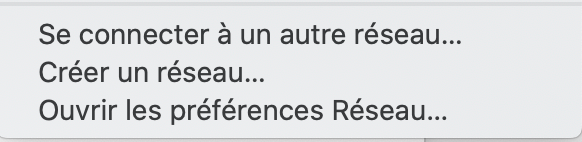
3. Sélectionner le Wi-Fi  
    [![image-1653729281881.png](https://wiki.unil.ch/cse/uploads/images/gallery/2022-05/scaled-1680-/FKXdvUuFRLVTtkYB-image-1653729281881.png)](https://wiki.unil.ch/cse/uploads/images/gallery/2022-05/FKXdvUuFRLVTtkYB-image-1653729281881.png)

4. Sélectionner « exam-unil » et cliquer sur le « - » :  
    [![image-1653729295746.png](https://wiki.unil.ch/cse/uploads/images/gallery/2022-05/scaled-1680-/3fY6b0atckTW2Z8W-image-1653729295746.png)](https://wiki.unil.ch/cse/uploads/images/gallery/2022-05/3fY6b0atckTW2Z8W-image-1653729295746.png)
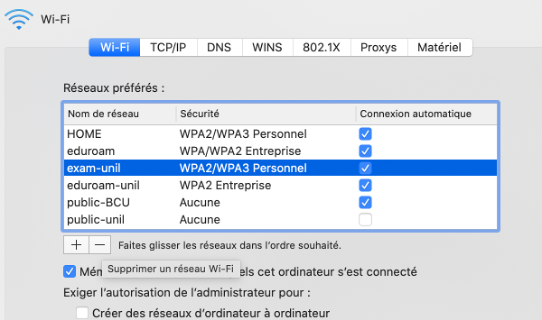
5. Recommencer le processus du chapitre 2.

## <a name="_Toc104556415"></a>Windows 10 / 11 :

Entre Windows 10 et 11, l’aspect graphique peut présenter de légères différences mais la procédure est identique.

1. Presser la touche Windows et taper « Wi-Fi » :  
    [![image-1653729319126.png](https://wiki.unil.ch/cse/uploads/images/gallery/2022-05/scaled-1680-/EGm3oKziTi0u1kJF-image-1653729319126.png)](https://wiki.unil.ch/cse/uploads/images/gallery/2022-05/EGm3oKziTi0u1kJF-image-1653729319126.png)
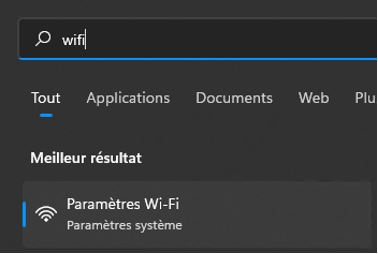
2. Sélectionner « gérer les réseaux connus » :  
    [![image-1653729329804.png](https://wiki.unil.ch/cse/uploads/images/gallery/2022-05/scaled-1680-/fbUYmhGc70fXcW4G-image-1653729329804.png)](https://wiki.unil.ch/cse/uploads/images/gallery/2022-05/fbUYmhGc70fXcW4G-image-1653729329804.png)
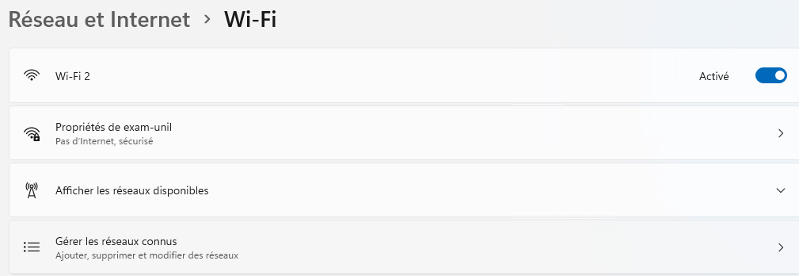
3. Oublier le réseau « exam-unil »  
    [![image-1653729346463.png](https://wiki.unil.ch/cse/uploads/images/gallery/2022-05/scaled-1680-/d6zfutFilhkzydCg-image-1653729346463.png)](https://wiki.unil.ch/cse/uploads/images/gallery/2022-05/d6zfutFilhkzydCg-image-1653729346463.png)
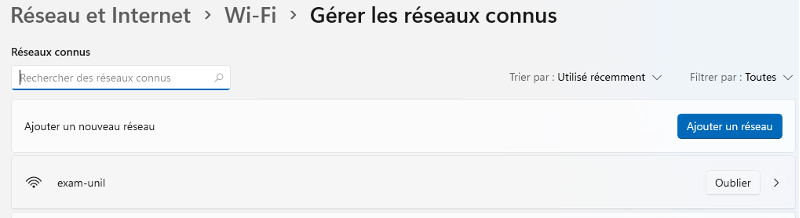
4. Recommencer le processus du chapitre 2.

# 6. Proxy et dissimulation d'adresse IP

### macOS

Sur les versions récentes de macOS, le masquage d'IP et la détection de proxy peut poser problème dans le cadre de MoodleExam:
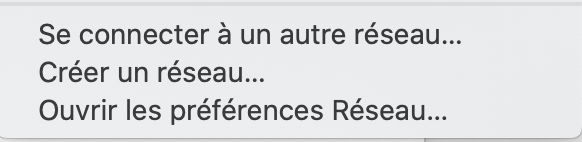
<div class="SCXW95259594 BCX9" id="bkmrk-aller-dans-le-menu-w"><div class="SCXW95259594 BCX9"><div class="ListContainerWrapper SCXW95259594 BCX9">1. <span class="TextRun SCXW95259594 BCX9" data-contrast="auto" lang="EN-US" xml:lang="EN-US"><span class="NormalTextRun SCXW95259594 BCX9">Aller dans le menu Wi-Fi (icône wifi en haut à droite de votre écran)</span></span>

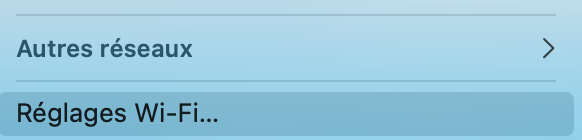
</div><div class="ListContainerWrapper SCXW95259594 BCX9">2. <span class="TextRun SCXW95259594 BCX9" data-contrast="auto" lang="FR-CH" xml:lang="FR-CH"><span class="NormalTextRun SCXW95259594 BCX9">Cliquer sur « Ouvrir les préférences réseaux </span><span class="NormalTextRun SCXW95259594 BCX9">»</span><span class="NormalTextRun SCXW95259594 BCX9"> ou "Réglages Wi-Fi" selon votre version de MacOs;</span></span><span class="EOP SCXW95259594 BCX9" data-ccp-props="{}"> </span>

</div></div></div><span class="WACImageContainer NoPadding DragDrop BlobObject SCXW95259594 BCX9" role="presentation">![Une image contenant texte

Description générée automatiquement](https://wiki.unil.ch/cse/uploads/images/gallery/2023-04/NMSUTlKqRBM9mwri-embedded-image-cx0yuijo.png)</span>

Ou[  
![Capture d’écran 2024-06-25 à 10.47.53.png](https://wiki.unil.ch/cse/uploads/images/gallery/2024-06/scaled-1680-/lI9UC7RSxsRbwzus-capture-decran-2024-06-25-a-10-47-53.png)](https://wiki.unil.ch/cse/uploads/images/gallery/2024-06/lI9UC7RSxsRbwzus-capture-decran-2024-06-25-a-10-47-53.png)

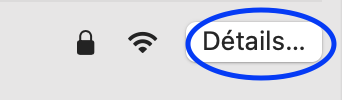
Dans les "réglages Wi-Fi", cliquer sur "Détails..." sur la ligne du wifi "exam-unil"[![Capture d’écran 2024-06-25 à 10.48.20.png](https://wiki.unil.ch/cse/uploads/images/gallery/2024-06/scaled-1680-/GezlqymexjTWtg0Y-capture-decran-2024-06-25-a-10-48-20.png)](https://wiki.unil.ch/cse/uploads/images/gallery/2024-06/GezlqymexjTWtg0Y-capture-decran-2024-06-25-a-10-48-20.png)
<div class="SCXW95259594 BCX9" id="bkmrk-v%C3%A9rifier-que-l%27optio"><div class="ListContainerWrapper SCXW95259594 BCX9">3. <span class="TextRun SCXW95259594 BCX9" data-contrast="auto" lang="FR-CH" xml:lang="FR-CH"><span class="NormalTextRun SCXW95259594 BCX9">Vérifier que l'option « **Limiter le suivi de l’adresse IP** » n'est **pas cochée**</span><span class="NormalTextRun SCXW95259594 BCX9"> ;</span></span><span class="EOP SCXW95259594 BCX9" data-ccp-props="{}"> </span>

</div></div><span class="WACImageContainer NoPadding DragDrop BlobObject SCXW95259594 BCX9" role="presentation">![Une image contenant texte

Description générée automatiquement](https://wiki.unil.ch/cse/uploads/images/gallery/2023-04/MO2HlsgwK4EmhWHg-embedded-image-pf74bgt8.png)</span><span class="EOP SCXW95259594 BCX9" data-ccp-props="{"335559731":708}"> </span>

[![Capture d’écran 2024-06-25 à 10.49.22.png](https://wiki.unil.ch/cse/uploads/images/gallery/2024-06/scaled-1680-/EFZKHnTDo2lOHnXg-capture-decran-2024-06-25-a-10-49-22.png)](https://wiki.unil.ch/cse/uploads/images/gallery/2024-06/EFZKHnTDo2lOHnXg-capture-decran-2024-06-25-a-10-49-22.png)

<div class="SCXW95259594 BCX9" id="bkmrk-s%C3%A9lectionner-%C2%AB%E2%80%AFavanc"><div class="SCXW95259594 BCX9"><div class="OutlineElement Ltr SCXW95259594 BCX9">  
</div><div class="ListContainerWrapper SCXW95259594 BCX9">4. <span class="TextRun SCXW95259594 BCX9" data-contrast="auto" lang="EN-US" xml:lang="EN-US"><span class="NormalTextRun BookmarkStart SCXW95259594 BCX9">Sélectionner « Avancé… », </span><span class="NormalTextRun BookmarkStart SCXW95259594 BCX9">« </span><span class="NormalTextRun SCXW95259594 BCX9">Proxy</span><span class="NormalTextRun SCXW95259594 BCX9"> »</span> <span class="NormalTextRun BookmarkEnd SCXW95259594 BCX9">et **cocher** l'option </span><span class="NormalTextRun SCXW95259594 BCX9">« </span>**<span class="NormalTextRun SpellingErrorV2Themed SCXW95259594 BCX9">Découverte</span><span class="NormalTextRun SCXW95259594 BCX9"> auto proxy</span>**<span class="NormalTextRun SCXW95259594 BCX9"> »</span><span class="NormalTextRun SCXW95259594 BCX9">.</span></span><span class="EOP SCXW95259594 BCX9" data-ccp-props="{}"> </span>

</div></div></div><span class="WACImageContainer NoPadding DragDrop BlobObject SCXW95259594 BCX9" role="presentation">![Une image contenant texte

Description générée automatiquement](https://wiki.unil.ch/cse/uploads/images/gallery/2023-04/Qgas4PKvEQWnzUDE-embedded-image-ma8sww7r.png)</span><span class="EOP SCXW95259594 BCX9" data-ccp-props="{"335559685":720}"> </span>

### <span class="EOP SCXW95259594 BCX9" data-ccp-props="{}">Windows</span>

<span class="EOP SCXW95259594 BCX9" data-ccp-props="{}">Sur Windows, **taper "proxy"** dans la barre de recherche windows pour trouver le menu des paramètres du proxy. Vérifier que l'option <span class="TextRun SCXW95259594 BCX9" data-contrast="auto" lang="EN-US" xml:lang="EN-US"><span class="NormalTextRun SCXW95259594 BCX9">« </span>**<span class="NormalTextRun SpellingErrorV2Themed SCXW95259594 BCX9">Détecter automatiquement les paramètres</span>**<span class="NormalTextRun SCXW95259594 BCX9"> » est activée. </span></span></span><span class="WACImageContainer NoPadding DragDrop BlobObject SCXW95259594 BCX9" role="presentation">![](https://wiki.unil.ch/cse/uploads/images/gallery/2023-04/0Mb3r9rNpkfCgSNv-embedded-image-xkogpj8g.png)</span><span class="TextRun SCXW95259594 BCX9" data-contrast="auto" lang="EN-US" xml:lang="EN-US"><span class="NormalTextRun SCXW95259594 BCX9"> </span></span><span class="WACImageContainer NoPadding DragDrop BlobObject SCXW95259594 BCX9" role="presentation">![Une image contenant texte

Description générée automatiquement](https://wiki.unil.ch/cse/uploads/images/gallery/2023-04/J6YE8faxPtoWsrgX-embedded-image-nxn2lexh.png)</span>

# 7. Vérification des DNS

Si la page moodleexam.unil.ch ne s’affiche pas sur Firefox / Chrome / Edge / Safari, ça peut venir des DNS (Domain Name System) :

Pour contourner les DNS, il faut entrer l’URL : [https://130.223.26.67](https://130.223.26.67/)

Si la page s’affiche, il faut vérifier les DNS.

### <a name="_Toc104556417"></a>macOS (similaire selon les versions)

1. Aller dans le menu Wi-Fi :
2. Aller dans « Ouvrir les préférences réseaux »  
    [![image-1653729499578.png](https://wiki.unil.ch/cse/uploads/images/gallery/2022-05/scaled-1680-/l1gr1VIxuwHTxe5G-image-1653729499578.png)](https://wiki.unil.ch/cse/uploads/images/gallery/2022-05/l1gr1VIxuwHTxe5G-image-1653729499578.png)
3. Sélectionner « Wi-Fi » puis « Avancé… »  
    ![](https://wiki.unil.ch/cse/loading.gif)
    
    [![image-1653729714447.png](https://wiki.unil.ch/cse/uploads/images/gallery/2022-05/scaled-1680-/AnUFHubK2zx0GC8N-image-1653729714447.png)](https://wiki.unil.ch/cse/uploads/images/gallery/2022-05/AnUFHubK2zx0GC8N-image-1653729714447.png)
4. Aller dans le menu DNS et **vérifier la visibilité des « 130.223.8.20 » et « 130.223.4.5 » + « unil.ch ».** Dans le cas contraire, sélectionner chaque entrée et cliquer sur le « - » :

 [![Capture d’écran 2022-05-28 à 11.18.58.png](https://wiki.unil.ch/cse/uploads/images/gallery/2022-05/scaled-1680-/4Rci1zf0O6nKBMIR-capture-decran-2022-05-28-a-11-18-58.png)](https://wiki.unil.ch/cse/uploads/images/gallery/2022-05/4Rci1zf0O6nKBMIR-capture-decran-2022-05-28-a-11-18-58.png)

5. Dans le menu Wi-Fi, cliquer sur « Appliquer**» :**

[![image-1653729629696.png](https://wiki.unil.ch/cse/uploads/images/gallery/2022-05/scaled-1680-/u2Qxl0v6G9zGg7ji-image-1653729629696.png)](https://wiki.unil.ch/cse/uploads/images/gallery/2022-05/u2Qxl0v6G9zGg7ji-image-1653729629696.png)

### <a name="_Toc104556418"></a>Windows 10

Pour Windows 10, la procédure est la suivante :

1. Presser la touche Windows et taper « Wi-Fi » :  
    [![image-1653729655095.png](https://wiki.unil.ch/cse/uploads/images/gallery/2022-05/scaled-1680-/2MXF9w05rmXZnuyd-image-1653729655095.png)](https://wiki.unil.ch/cse/uploads/images/gallery/2022-05/2MXF9w05rmXZnuyd-image-1653729655095.png)
2. Cliquer sur le réseau « exam-unil » (cf. chapitre 2 pour la connexion)

[![image-1653729667377.png](https://wiki.unil.ch/cse/uploads/images/gallery/2022-05/scaled-1680-/E8YVz8Lp130sM62j-image-1653729667377.png)](https://wiki.unil.ch/cse/uploads/images/gallery/2022-05/E8YVz8Lp130sM62j-image-1653729667377.png)

3. Vérifier que la **ligne IP est bien réglée sur automatique** (DHCP) :  
    [![image-1653729679923.png](https://wiki.unil.ch/cse/uploads/images/gallery/2022-05/scaled-1680-/BPkGuee4OCUyzRf5-image-1653729679923.png)](https://wiki.unil.ch/cse/uploads/images/gallery/2022-05/BPkGuee4OCUyzRf5-image-1653729679923.png)
4. Si ce n’est pas le cas, cliquer sur « Modifier »  
    [![image-1653729696598.png](https://wiki.unil.ch/cse/uploads/images/gallery/2022-05/scaled-1680-/MkC1NARRn6kS9IIf-image-1653729696598.png)](https://wiki.unil.ch/cse/uploads/images/gallery/2022-05/MkC1NARRn6kS9IIf-image-1653729696598.png)

### <a name="_Toc104556419"></a>Windows 11

Pour Windows 11, l’affichage est similaire mais il y a une option DNS en plus :

1. Presser la touche Windows et taper « Wi-Fi » :  
    [![image-1653729746570.png](https://wiki.unil.ch/cse/uploads/images/gallery/2022-05/scaled-1680-/3DIC67fzaqvVvV95-image-1653729746570.png)](https://wiki.unil.ch/cse/uploads/images/gallery/2022-05/3DIC67fzaqvVvV95-image-1653729746570.png)
2. Cliquer sur le **réseau « exam-unil » (**cf. chapitre 2 pour la connexion)  
    [![image-1653729761599.png](https://wiki.unil.ch/cse/uploads/images/gallery/2022-05/scaled-1680-/rqe0X18FgLms4QoV-image-1653729761599.png)](https://wiki.unil.ch/cse/uploads/images/gallery/2022-05/rqe0X18FgLms4QoV-image-1653729761599.png)
3. Vérifier que les **lignes IP et DNS sont bien réglés sur automatique** (DHCP) :  
    [![image-1653729781864.png](https://wiki.unil.ch/cse/uploads/images/gallery/2022-05/scaled-1680-/FUgPycBxuWyDDcM5-image-1653729781864.png)](https://wiki.unil.ch/cse/uploads/images/gallery/2022-05/FUgPycBxuWyDDcM5-image-1653729781864.png)
4. Si ce n’est pas le cas, cliquer sur « **Modifier** » et régler sur automatique.   
    [![image-1653729820410.png](https://wiki.unil.ch/cse/uploads/images/gallery/2022-05/scaled-1680-/OK5XxRxPvslOpmPv-image-1653729820410.png)](https://wiki.unil.ch/cse/uploads/images/gallery/2022-05/OK5XxRxPvslOpmPv-image-1653729820410.png)
    
    [![image-1653729804737.png](https://wiki.unil.ch/cse/uploads/images/gallery/2022-05/scaled-1680-/3BCBjx9oPr8AtKrH-image-1653729804737.png)](https://wiki.unil.ch/cse/uploads/images/gallery/2022-05/3BCBjx9oPr8AtKrH-image-1653729804737.png)

# 8. Suppression de la cache des navigateurs

Une fois le contrôle du Wi-Fi et du DNS effectué, il est possible d’effacer les données en mémoire dans le navigateur. Il s'agit d'effacer le cache :

(source : Wikipedia)

#### **Firefox : (navigateur recommandé)**

- Windows et Linux : 
    - *Soit*: effectuer la combinaison de touches Ctrl + F5 ou Maj + Ctrl+R ;
    - *Soit*: cliquer sur le bouton « *Rafraîchir* » en enfonçant la touche Maj.
- Mac OS X : 
    - *Soit*: effectuer la combinaison de touches Maj + ⌘+R ;
    - *Soit*: cliquer sur le bouton « *Rafraîchir* » en enfonçant la touche Maj.

#### **Google Chrome :**

- *Windows*: effectuer la combinaison de touches CTRL + F5 ou Ctrl + Maj + R.
- *Linux*: effectuer la combinaison de touches Maj + Ctrl+R.
- *Mac*: effectuer la combinaison de touches ⌘ + Maj + R.

#### **Microsoft Edge :**

- Effectuer la combinaison de touches Ctrl+ F5 ;

#### **Safari :**

- Cliquer sur le bouton « *Rafraîchir*» en enfonçant la touche Maj;

# 9. Ordinateur d'urgence

Si après **5 minutes d'intervention** vous n'obtenez **pas de résultat**, il est possible de fournir à l'étudiant.e un **ordinateur de secours**. Ceci est à faire en dernier recours car il n'y a qu'un nombre limité d'ordinateurs de secours et il est possible que vous en nécessitiez plus d'un pendant l'examen.

# 10. Basculer sur public-unil

Si jamais il y a des examens qui basculent sur le WiFi eduroam pendant la session d’été, voici les logins de secours pour public-unil :  
![image001.png](https://wiki.unil.ch/cse/uploads/images/gallery/2023-06/x6SIrpEu6DPIV45Z-embedded-image-k2ds3wyo.png)

# Documents supplémentaires de Martin Le Cossec (page non-publique)

Lien Sharepoint : [https://unils.sharepoint.com/:f:/s/CSE-NUMERIQUE/Ekz62fhD7YFBt3YoSg4ytzsB28nNafJQMjC-HVHggdmvuw?e=JkT67s](https://unils.sharepoint.com/:f:/s/CSE-NUMERIQUE/Ekz62fhD7YFBt3YoSg4ytzsB28nNafJQMjC-HVHggdmvuw?e=JkT67s)

Nouvelles vidéos d'aide janvier 2023 :

[https://unils.sharepoint.com/sites/ENEPHEC527-Teams/Documents%20partages/Forms/AllItems.aspx?RootFolder=%2Fsites%2FENEPHEC527%2DTeams%2FDocuments%20partages%2FENEP%2DHIVER%2D2023&amp;FolderCTID=0x01200095BC1ED2A2CCF049B60FE3A8D098DAE4](https://unils.sharepoint.com/sites/ENEPHEC527-Teams/Documents%20partages/Forms/AllItems.aspx?RootFolder=%2Fsites%2FENEPHEC527%2DTeams%2FDocuments%20partages%2FENEP%2DHIVER%2D2023&FolderCTID=0x01200095BC1ED2A2CCF049B60FE3A8D098DAE4)