At the University of Lausanne, certain exams are now anonymous. This new system, which anonymises students with their student number in certain spaces of MoodleExam, slightly modifies the identity verification procedures on MoodleExam.
### Check that a student has handed in their attempt in a Quiz #### Option A : Check that the attempt has been sent directly to the student's screen A first option for checking that a student has handed in their exam attempt is simply to look at the student's computer screen to see if the exam attempt has been handed in. In the case of a *Quiz*, the student's screen should match the image below. [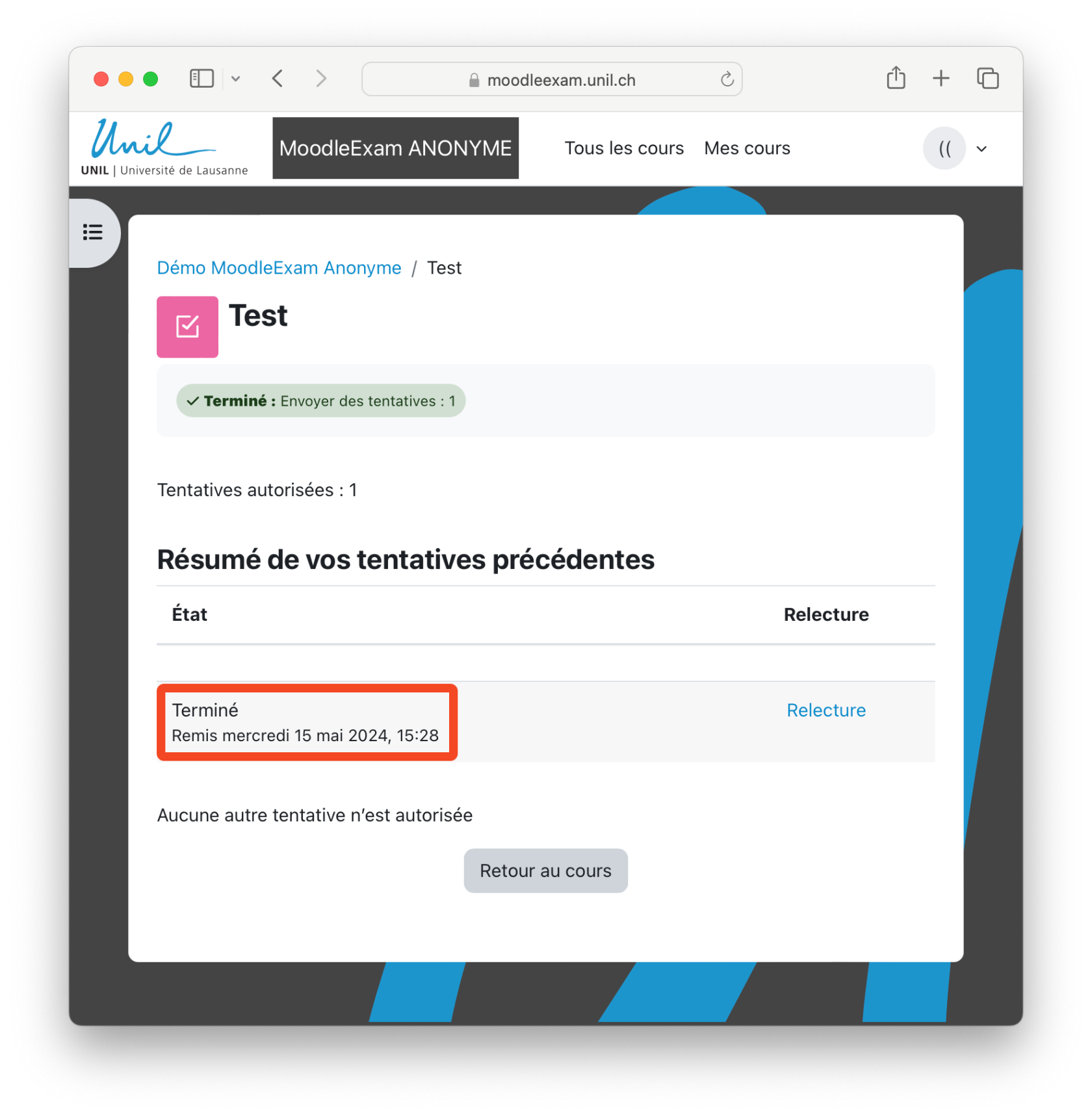](https://wiki.unil.ch/cse/uploads/images/gallery/2024-05/Zo6idkVeddB2di3d-capture-decran-2024-05-15-a-15-28-34.png) Check the **name of the exam**, the **status of the attempt** and the **date**. The **name must match that of the exam**, the **attempt is indicated as "Finished"**, with a **date and time close to the current time**.Note that the background color of the page may vary depending on the faculties.
#### Option B : Find the attempt in the exam results 1\. Go to the exam results page. 2\. Display all the exam attempts by **entering a number greater than the number of students registered** for the exam in the "Page size" field.To speed up the page loading and to hide students' marks, you can remove the display of marks by setting **'Marks for each question' to No**.
3\. Click on "**Show report**". [ 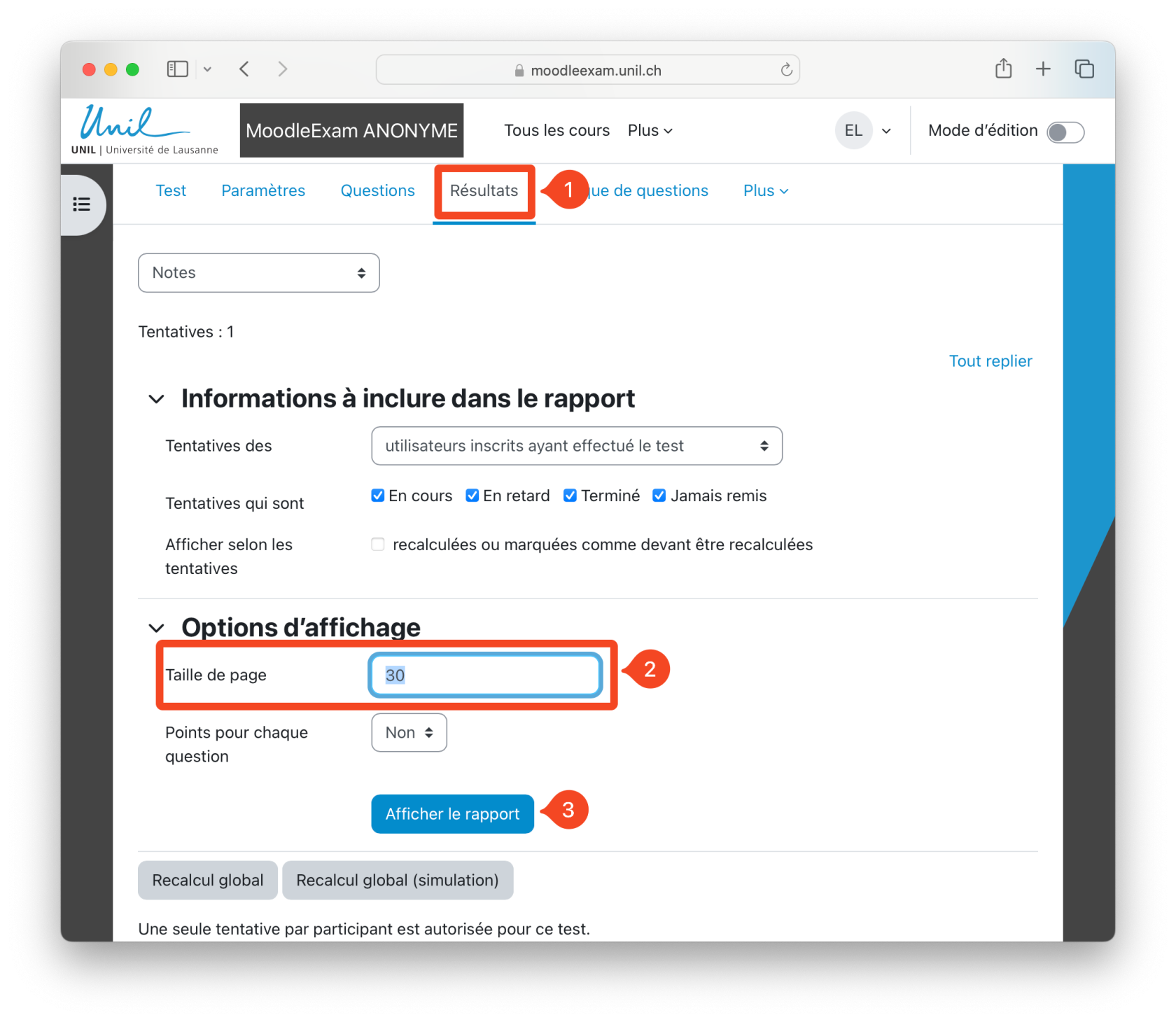](https://wiki.unil.ch/cse/uploads/images/gallery/2024-05/qiI8bcKaKRxXZPlU-capture-decran-2024-05-15-a-15-17-29.png) 4\. Then **use your browser's "Search" function**, often associated with the shortcut "Ctrl + F" on Windows (or "Cmd + F" on Mac). 5\. In the search bar that appears, **enter the student number** you are looking for. 6\. The attempt should then be highlighted. You can then check whether the attempt has been finished. [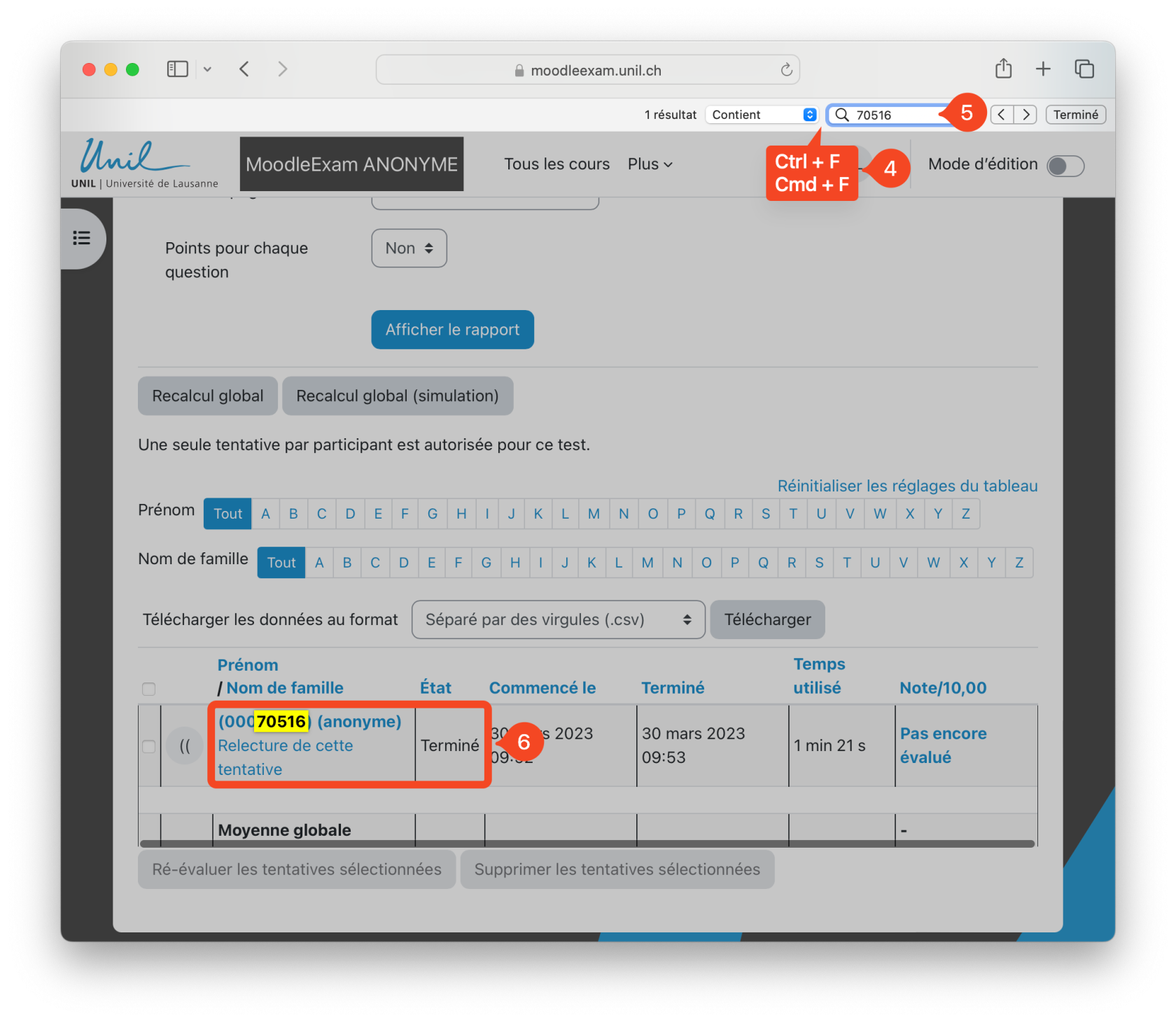](https://wiki.unil.ch/cse/uploads/images/gallery/2024-05/SDSp99hI6zjY7PpK-capture-decran-2024-05-15-a-15-18-14.png) You will find the **student number on the student card**, in the re-inscribable area, under the status and faculty. [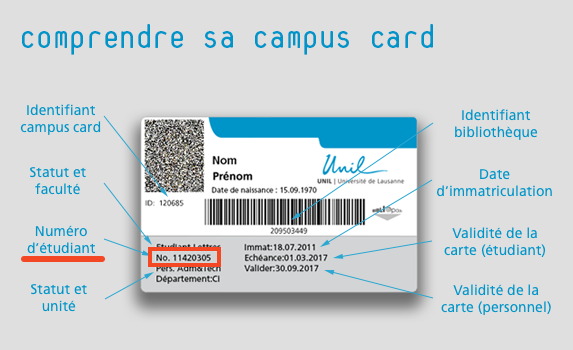](https://wiki.unil.ch/cse/uploads/images/gallery/2024-05/XI2zel1MtrayqzoK-schema-campuscard-web.png)For easier searching, you can also sort the attempts to display the last attempts returned first by clicking on the "Completed" column.
### Find a student in the list of registered participants on the MoodleExam page The procedure for finding a student is very similar to method B for checking exam results, using your browser's Search function. 1. Go to the Participants page for your exam on MoodleExam. 2. Scroll to the bottom of the page. [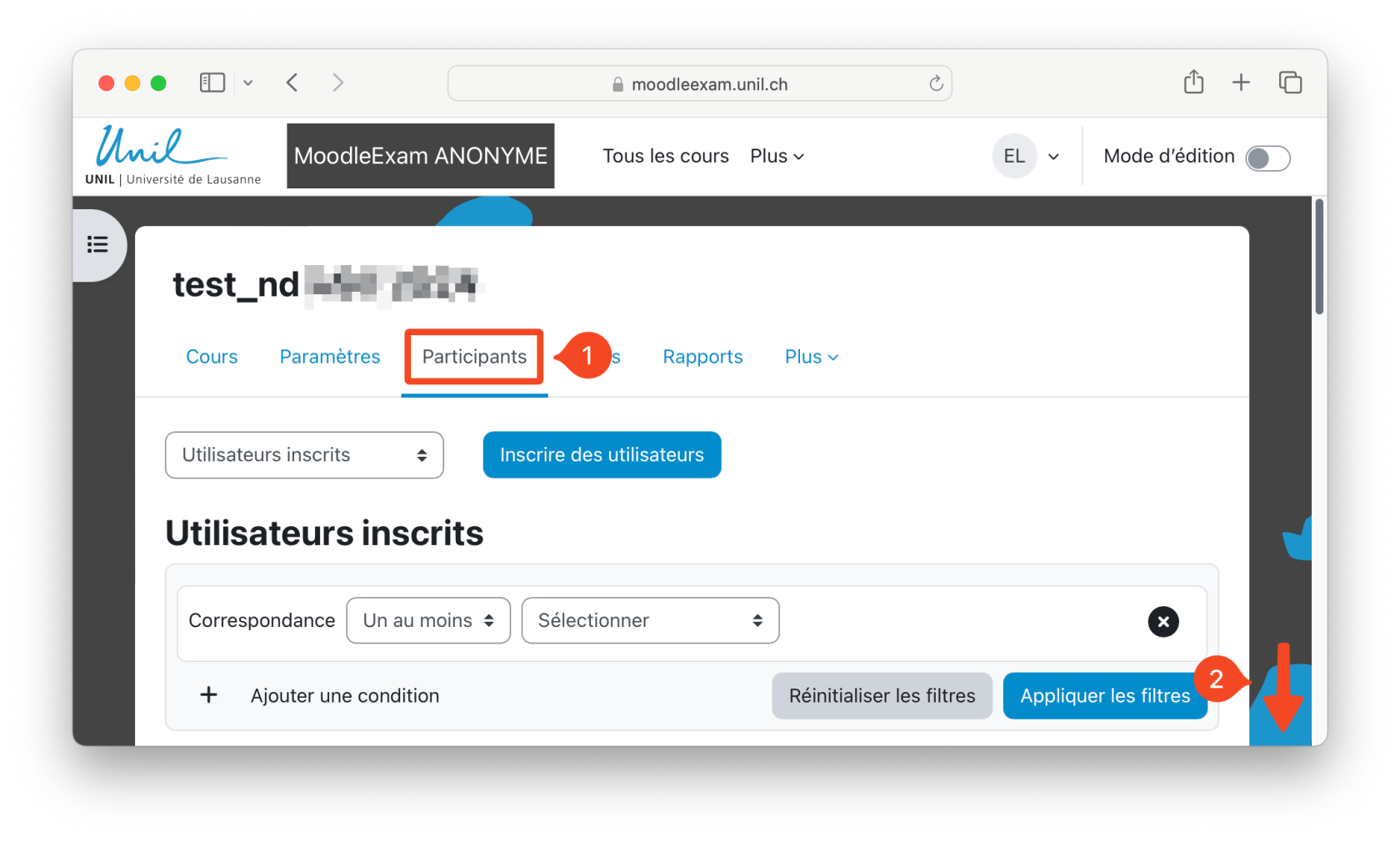](https://wiki.unil.ch/cse/uploads/images/gallery/2024-05/lOEEWVVqbIOwWp6Z-capture-decran-2024-05-15-a-15-54-18.png) 3\. At the bottom of the Participants page, **click on "Show all x"** to display all the participants registered on the page. [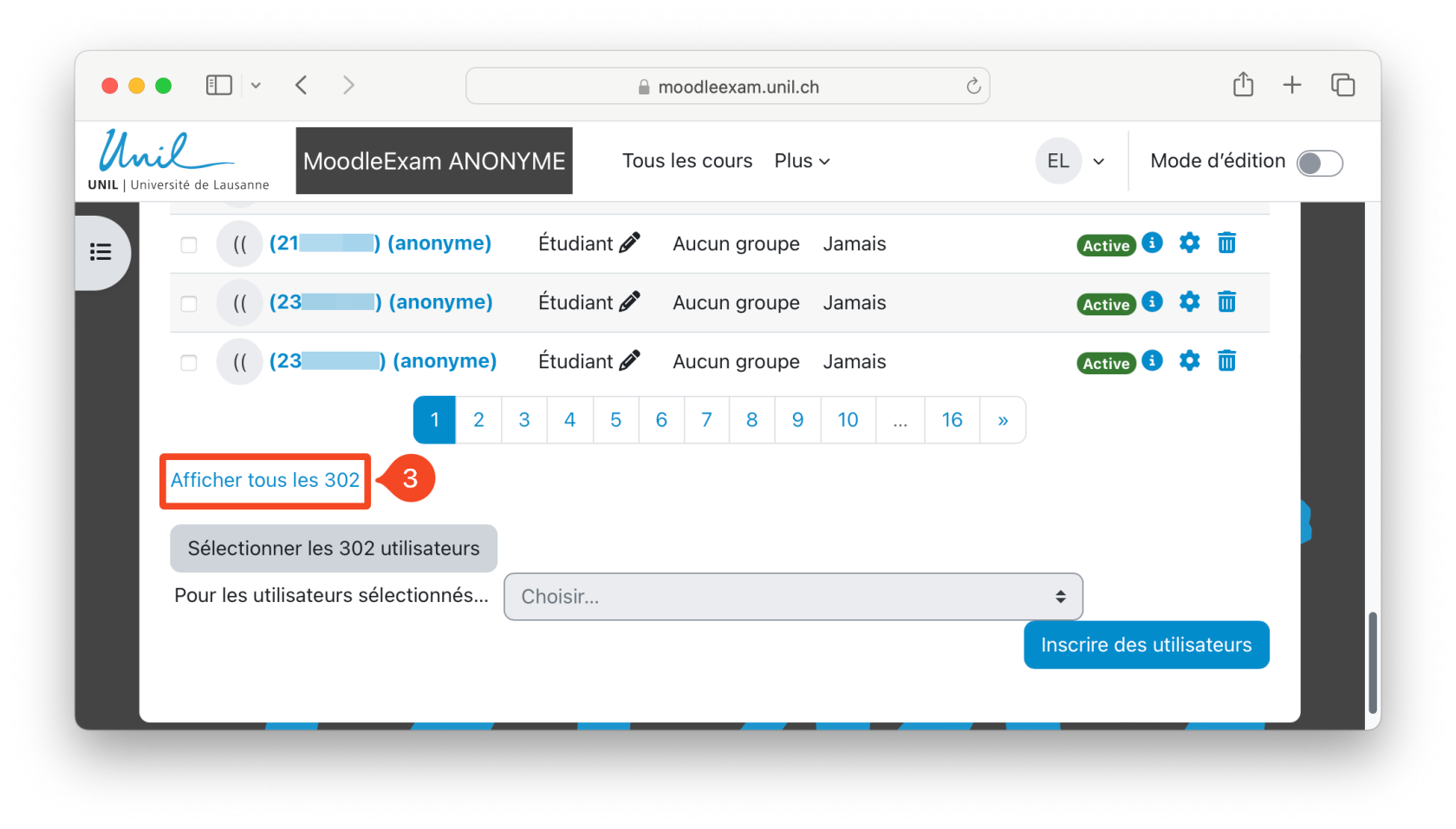](https://wiki.unil.ch/cse/uploads/images/gallery/2024-05/bmO3gDN9qOLayxDW-capture-decran-2024-05-15-a-15-54-56.png) 4\. You can now **search for the student number** using your browser's search function. Use the shortcut "Ctrl + F2" on Windows or "Cmd + F" on Mac to display the search bar. 5\. Then enter the student's number. 6\. The line corresponding to the student is then highlighted. You can now suspend the student's status by clicking on the small cog on the right. [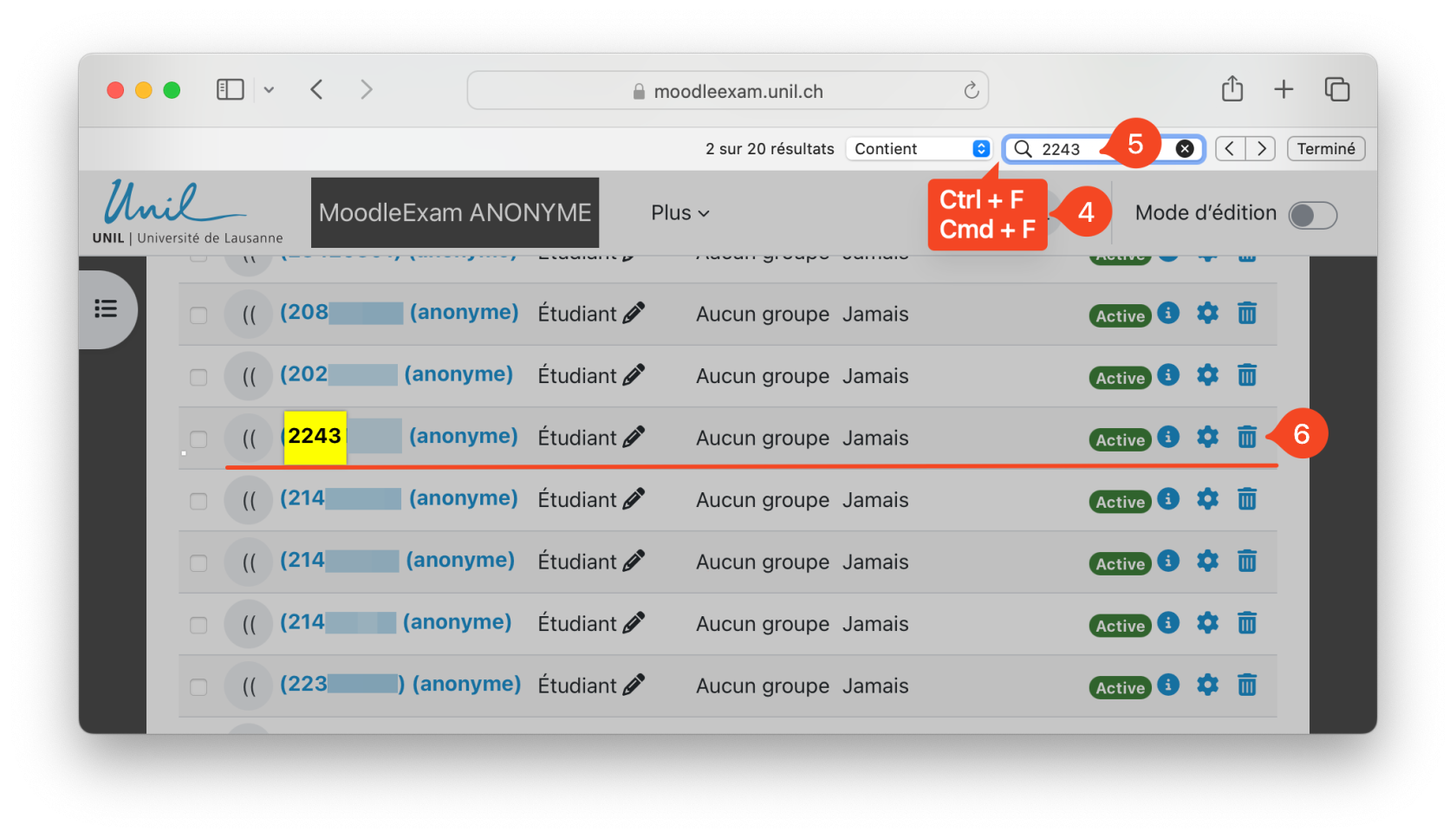](https://wiki.unil.ch/cse/uploads/images/gallery/2024-05/pR9mJmkjFu1P9N95-capture-decran-2024-05-15-a-15-59-29.png) ### Adding an override to a *Quiz* or an *Assignment*The procedure for adding an override to a *Quiz* or an *Assignment* is exactly the same as for non-anonymised examinations. However, you **must enter the student number** and not the student's name.
### Preventing a student from modifying their submission in an AssignmentThe procedure to prevent a student from modifying their submission in an assignment is the same in an anonymous exam. You must however look for the student's number and not their name/surname. Check [this page](https://wiki.unil.ch/cse/books/moodleexam/page/prevent-submission-changes-in-an-assignment "Prevent submission changes in an Assignment") for a simple procedure to find the student number in the Submissions page.