Nous conseillons d’**utiliser l’application Bureau (ordinateur) de Zoom**, téléchargeable [ici](https://unil.zoom.us/download). **Toutefois, en cas de problèmes techniques avec l’application Bureau de Zoom, il est possible que vous souhaitiez passer par l’application Web (navigateur) pour ouvrir une réunion.**
### Méthode 1 : Cliquer sur le lien de la réunion Cliquez sur le **lien de la réunion Zoom** que vous avez reçu dans l'invitation : [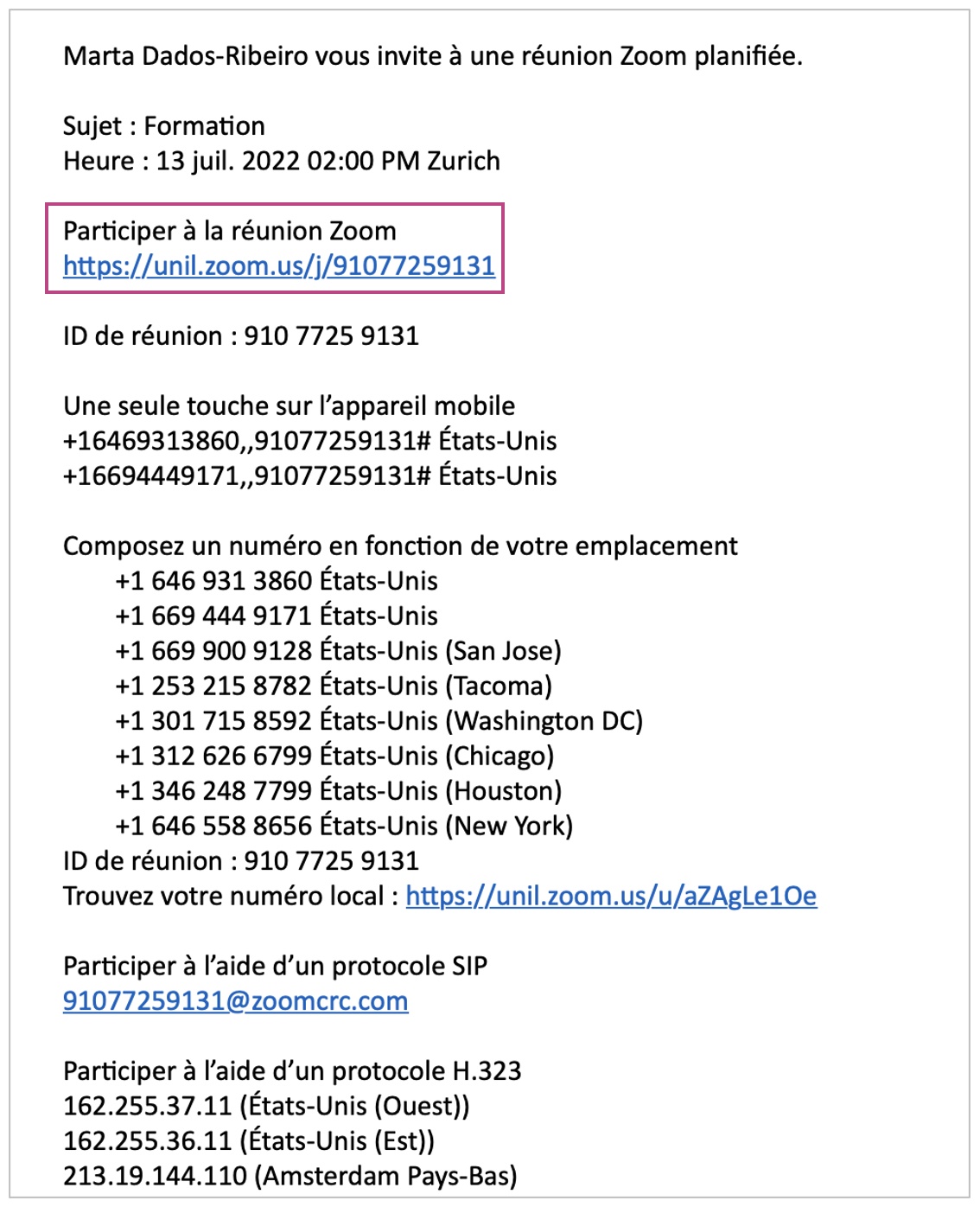](https://wiki.unil.ch/cse/uploads/images/gallery/2022-07/I6PNP7M5uy4QnegM-image-1657707184339.png) Une fenêtre pop-up apparaîtra où vous aurez les options suivantes : lancer la réunion, rejoindre la réunion depuis votre navigateur ou encore télécharger l'application Zoom : [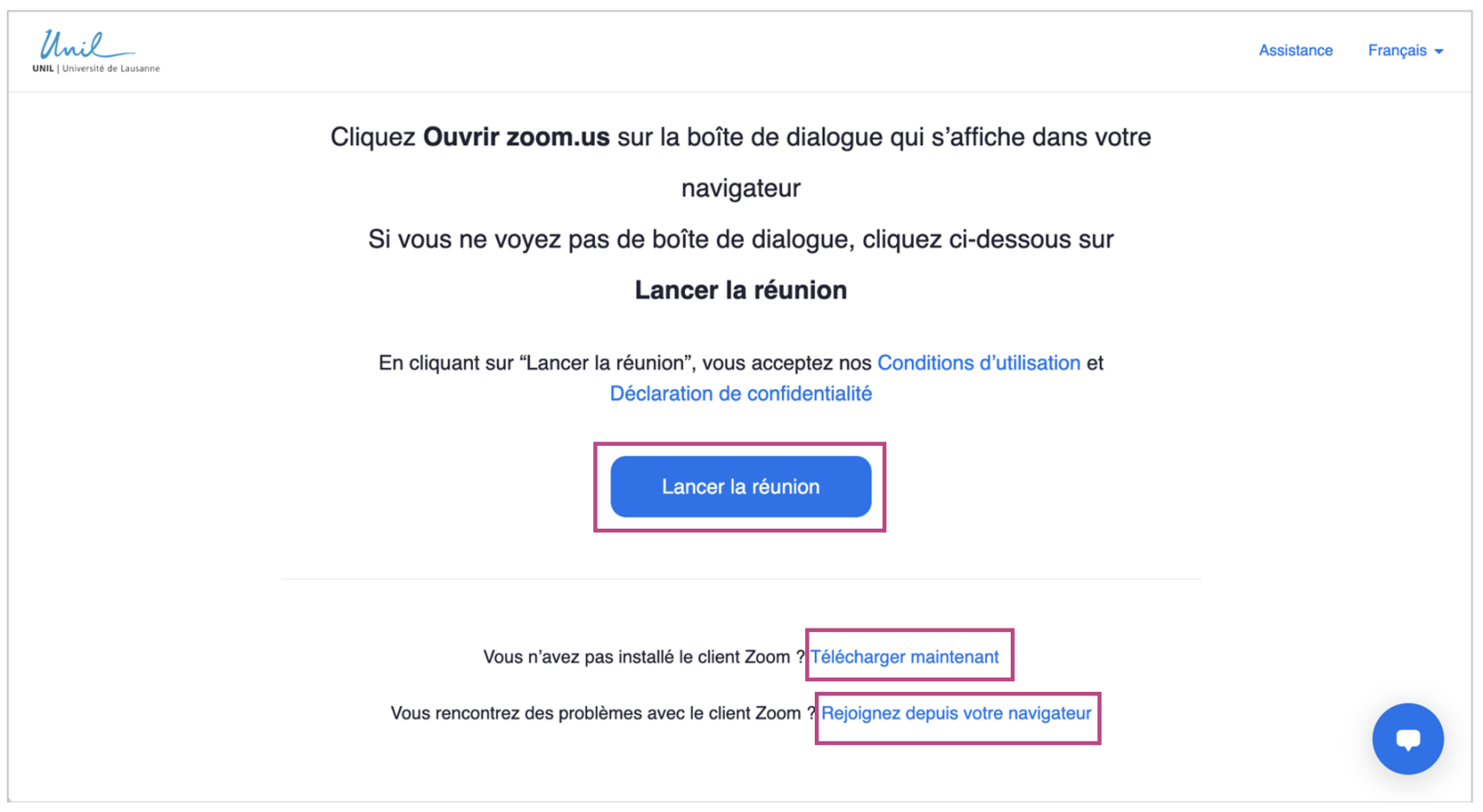](https://wiki.unil.ch/cse/uploads/images/gallery/2022-07/gvXfct3GrAB8xNiF-image-1657707288930-04-20.png) ### Méthode 2 : Copier et coller l'ID de la réunion Vous pouvez aussi rejoindre une réunion en **copiant l'ID de réunion** figurant dans l'invitation (cf image ci-dessus) et en vous rendant sur unil.zoom.us. Vous devrez ensuite sélectionner *Join* sur la page d'accueil, insérer l'ID de la réunion et cliquer sur *Rejoindre* : [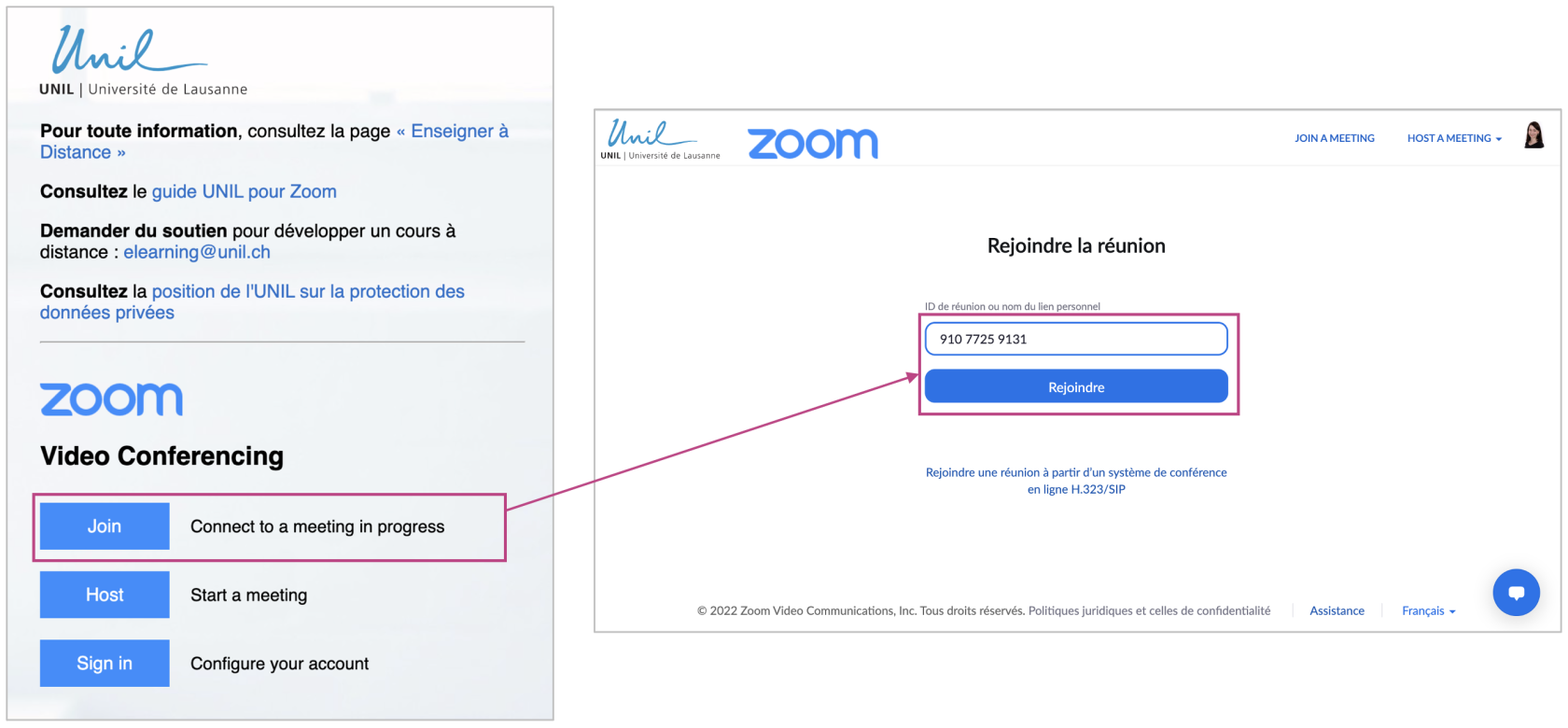](https://wiki.unil.ch/cse/uploads/images/gallery/2022-07/bixqEuoymh1Zb5os-image-1657705489515.png) ##### ##### **Résolution des problèmes** Si, après avoir cliqué sur le lien de la réunion, aucune mention *Rejoignez la réunion depuis votre navigateur* n’apparaît, cliquez sur la mention *Cliquez ici* ou bien la mention *Téléchargez et lancez/exécutez Zoom*.**Attention**: En fonction du navigateur que vous utilisez, cette option peut prendre une forme différente.
[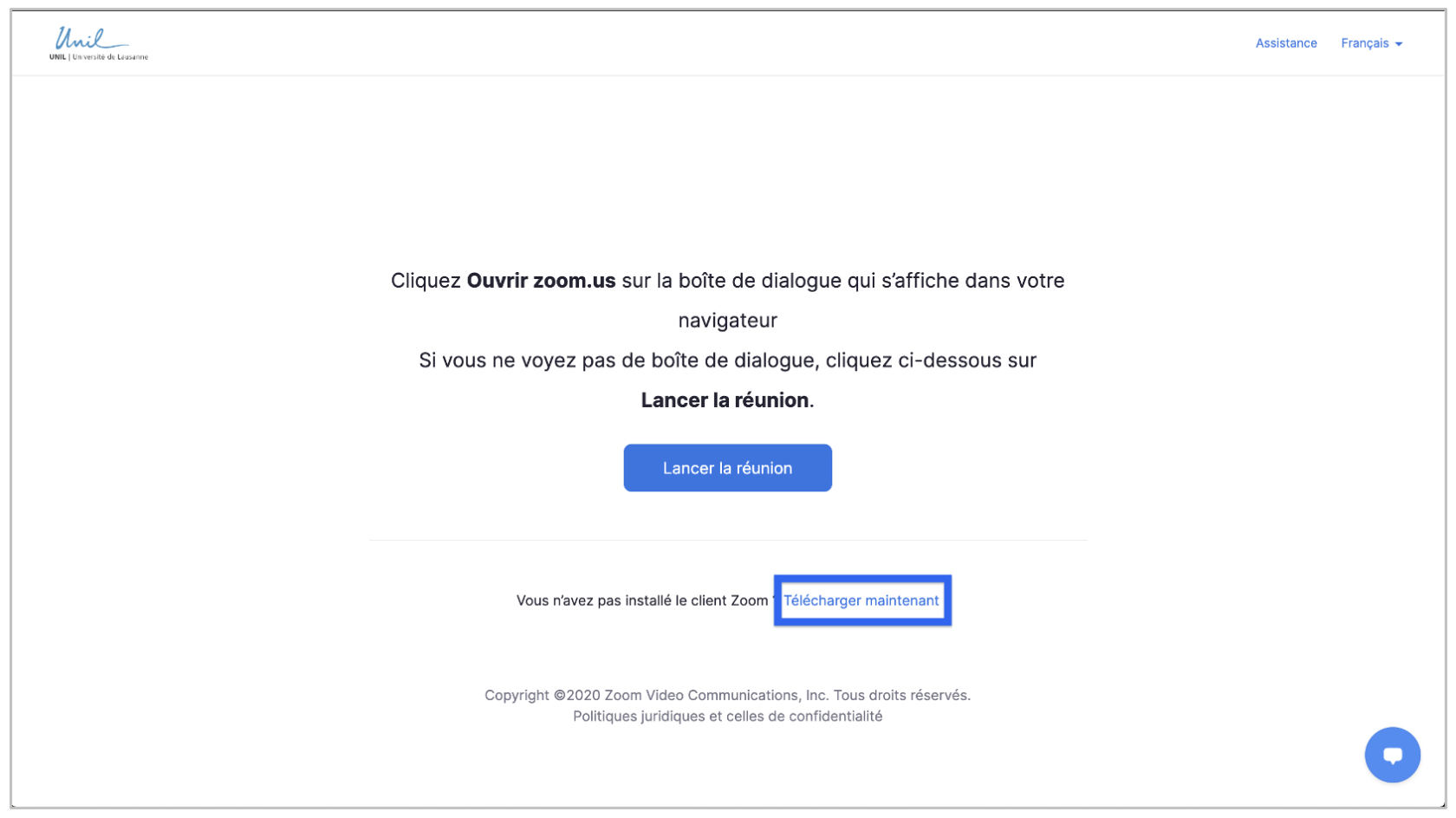](https://wiki.unil.ch/cse/uploads/images/gallery/2022-07/gMshav3aDEiDwTXn-image-1657707910846.png) Une mention *Rejoignez la réunion depuis votre navigateur* devrait apparaître. Cliquez sur celle-ci pour rejoindre la réunion depuis le navigateur web : [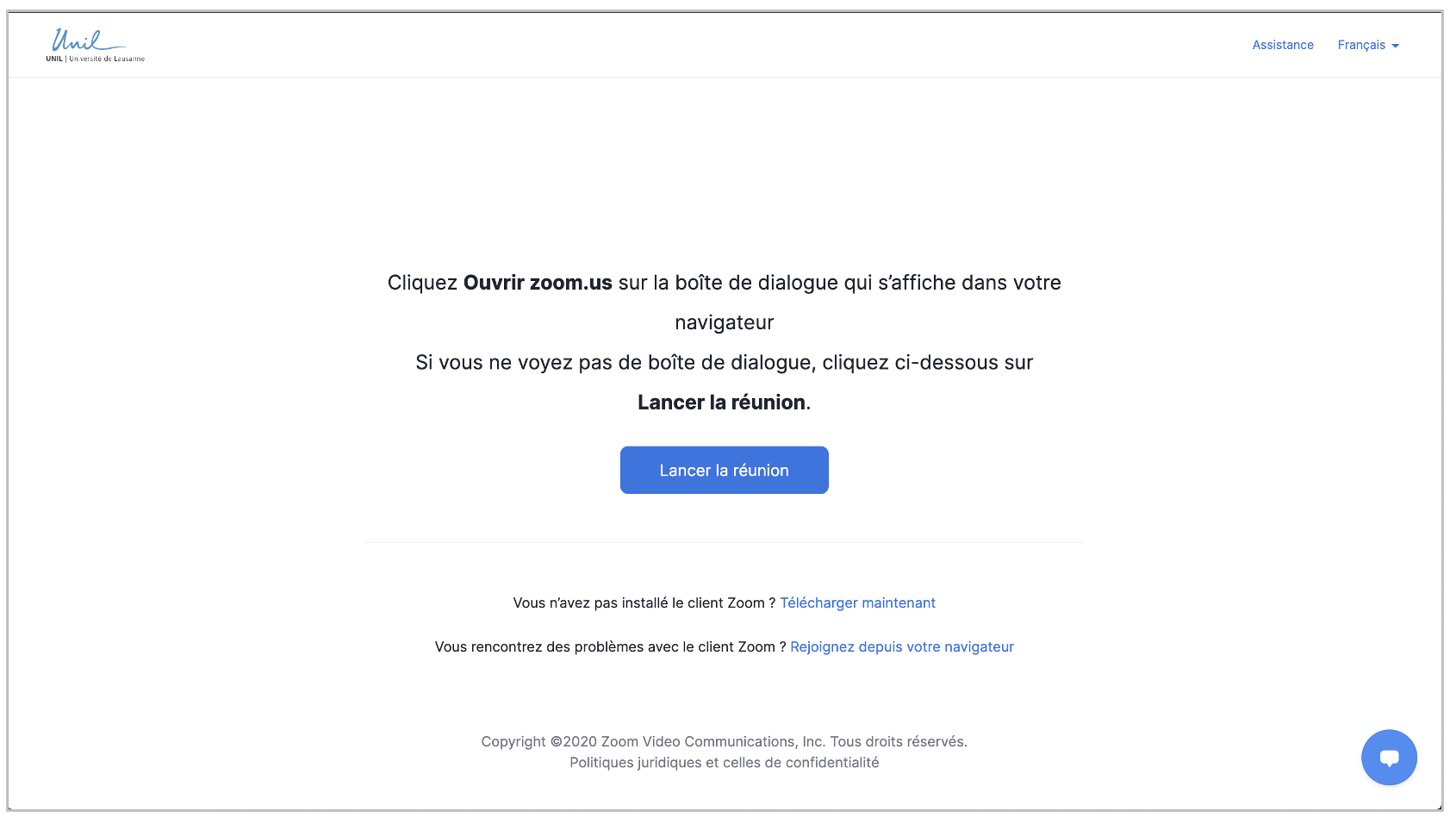](https://wiki.unil.ch/cse/uploads/images/gallery/2022-07/mmsEFk219ahKtfA8-image-1657707934362.png) Il est possible qu’une **fenêtre pop-up** apparaisse durant ces opérations, vous proposant de basculer vers l’application Bureau (ordinateur). Cliquez sur *Annuler* autant de fois que nécessaire, pour rester sur l’application Web (navigateur) : [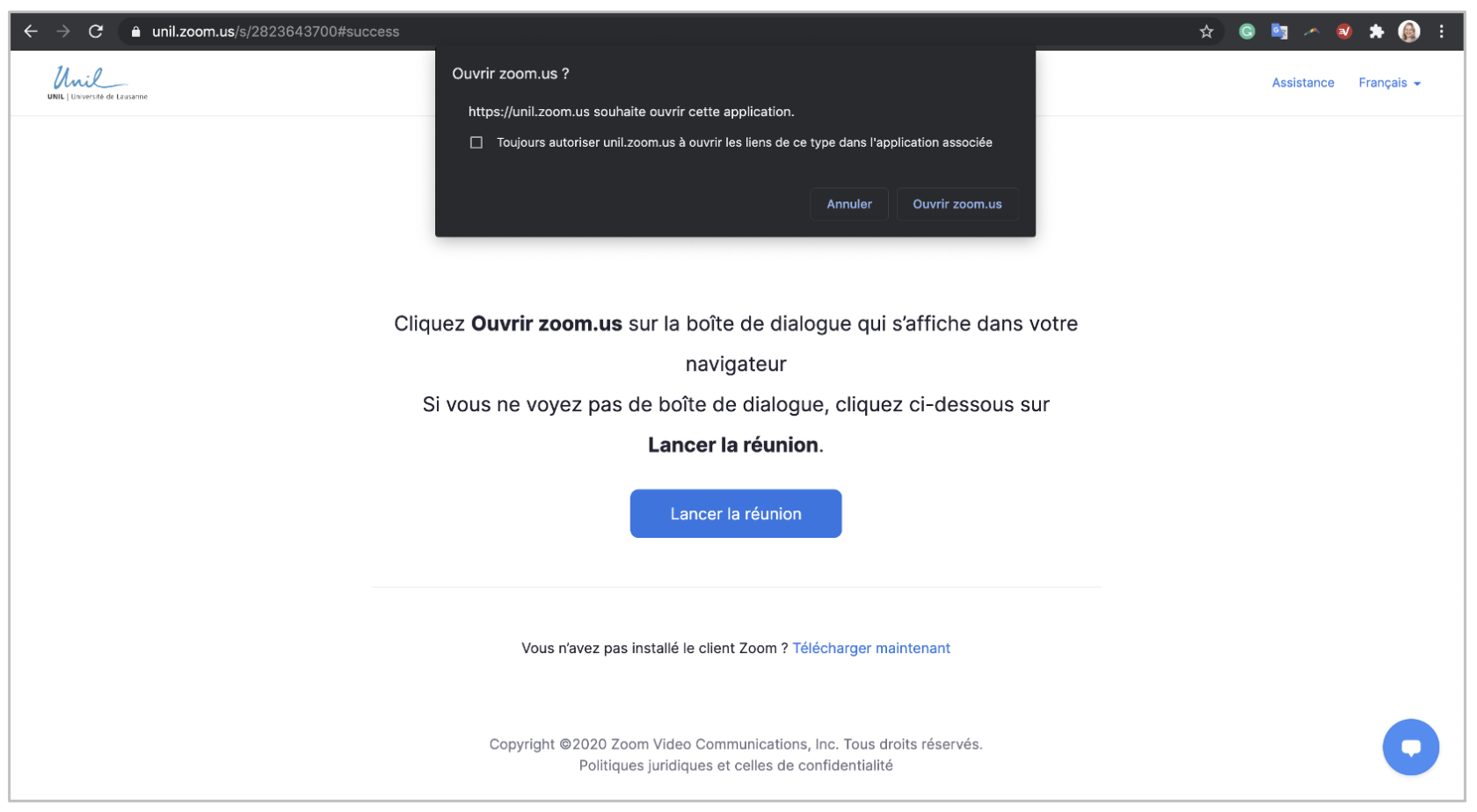](https://wiki.unil.ch/cse/uploads/images/gallery/2022-07/uKaA0h3A03yIdKuN-image-1657707942577.png) ##### **En cas d'authentification requise**Il est possible que l'animateur ou l'animatrice de la réunion ait activé un paramètre **Seuls les utilisateurs authentifiés peuvent participer (à la réunion)**. Afin d'accéder à la réunion, et si ce n'est pas déjà fait, il vous sera nécessaire d'**activer votre compte Zoom UNIL**.
1. Entrez votre **nom complet** et complétez le **CAPTCHA** (*uniquement sur le navigateur*) : [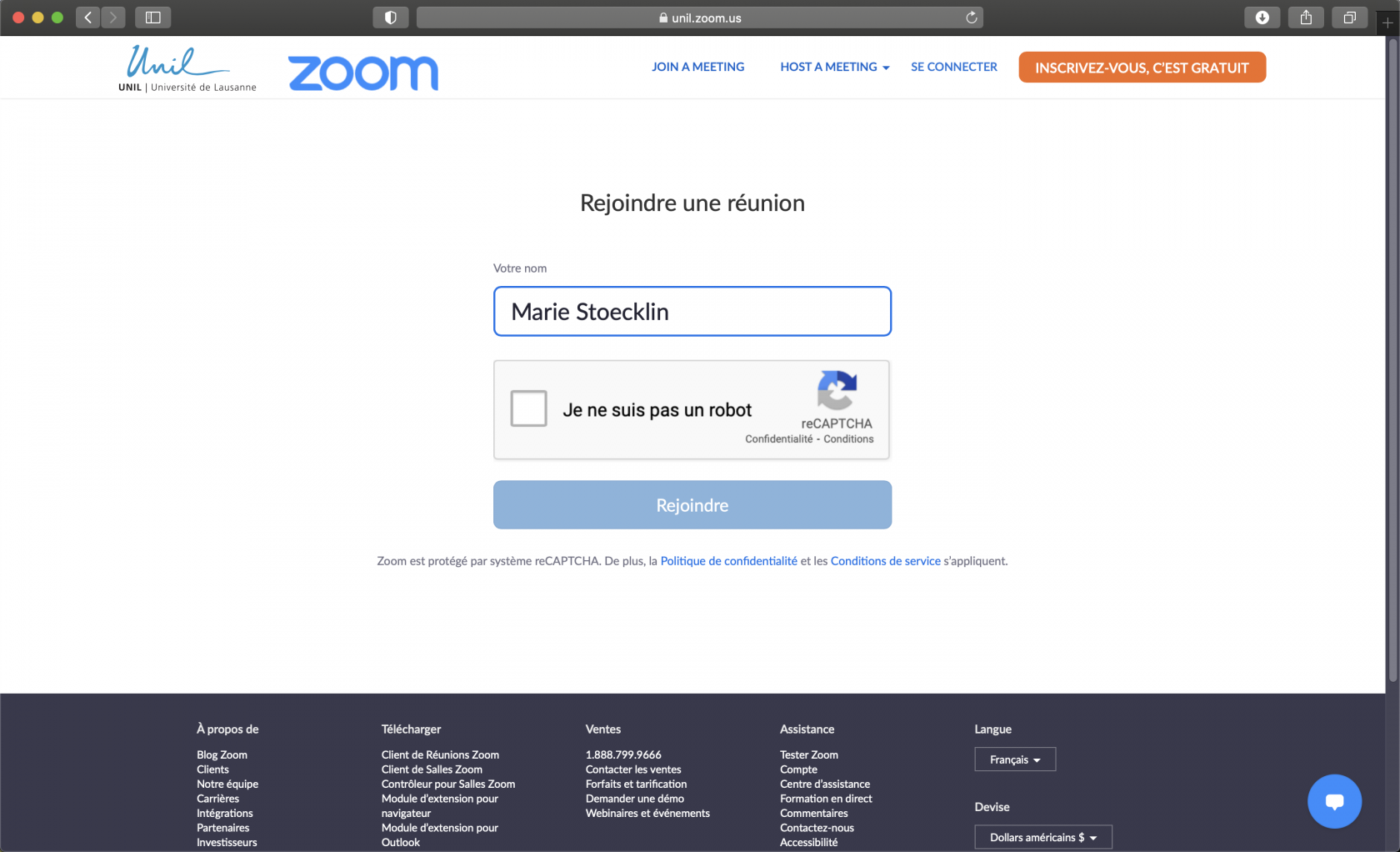](https://wiki.unil.ch/cse/uploads/images/gallery/2020-12/3gv9gWe6ung9lb4Z-image-1606996884133.png) 2. Le message suivant apparaîtra et vous devrez cliquer sur *Identifier* (si vous essayez de rejoindre la réunion depuis votre navigateur) : [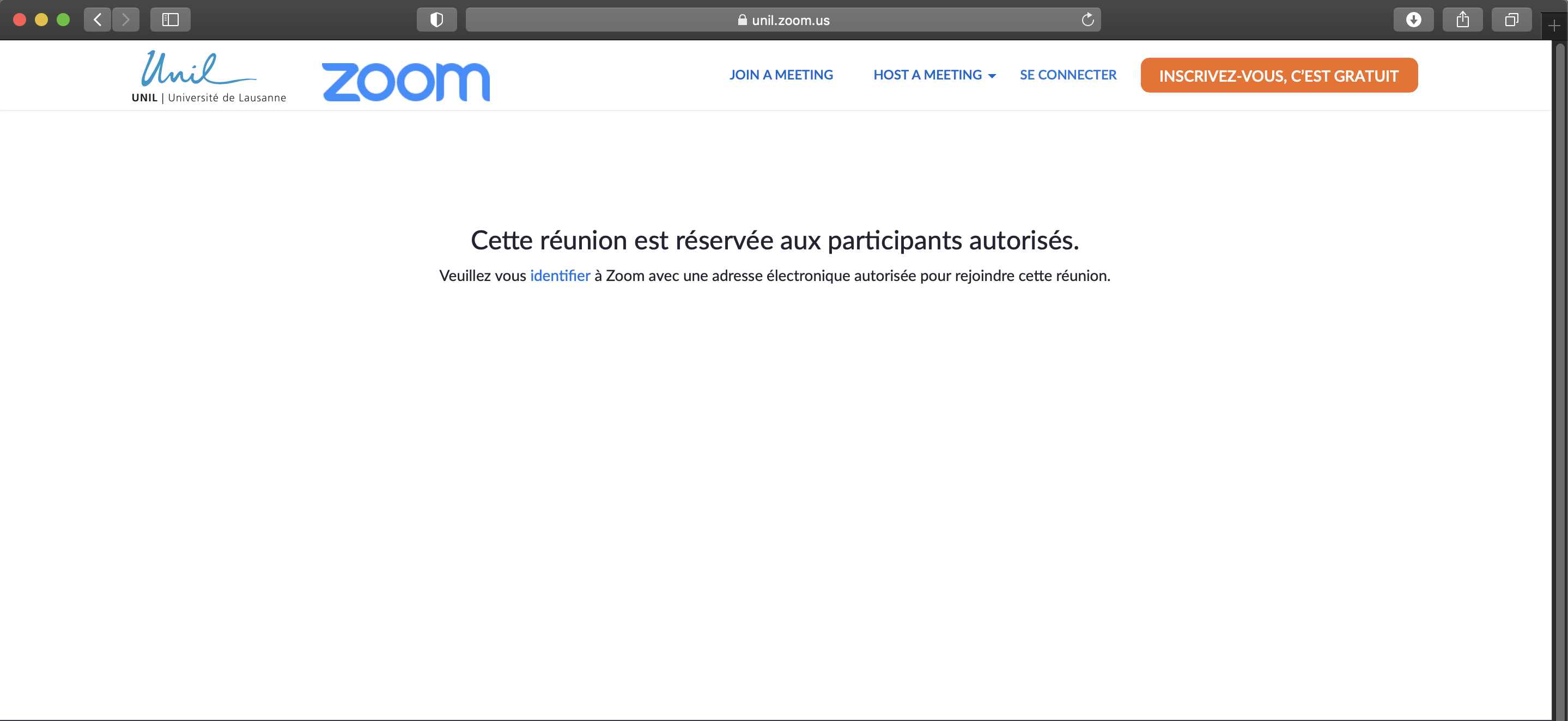](https://wiki.unil.ch/cse/uploads/images/gallery/2020-12/aYQu8DqpYWKXJmPa-image-1606996919343.png) 3. Vous serez renvoyé·e à ce stade vers une page web du CI. **Entrez vos identifiants de connexion UNIL** : [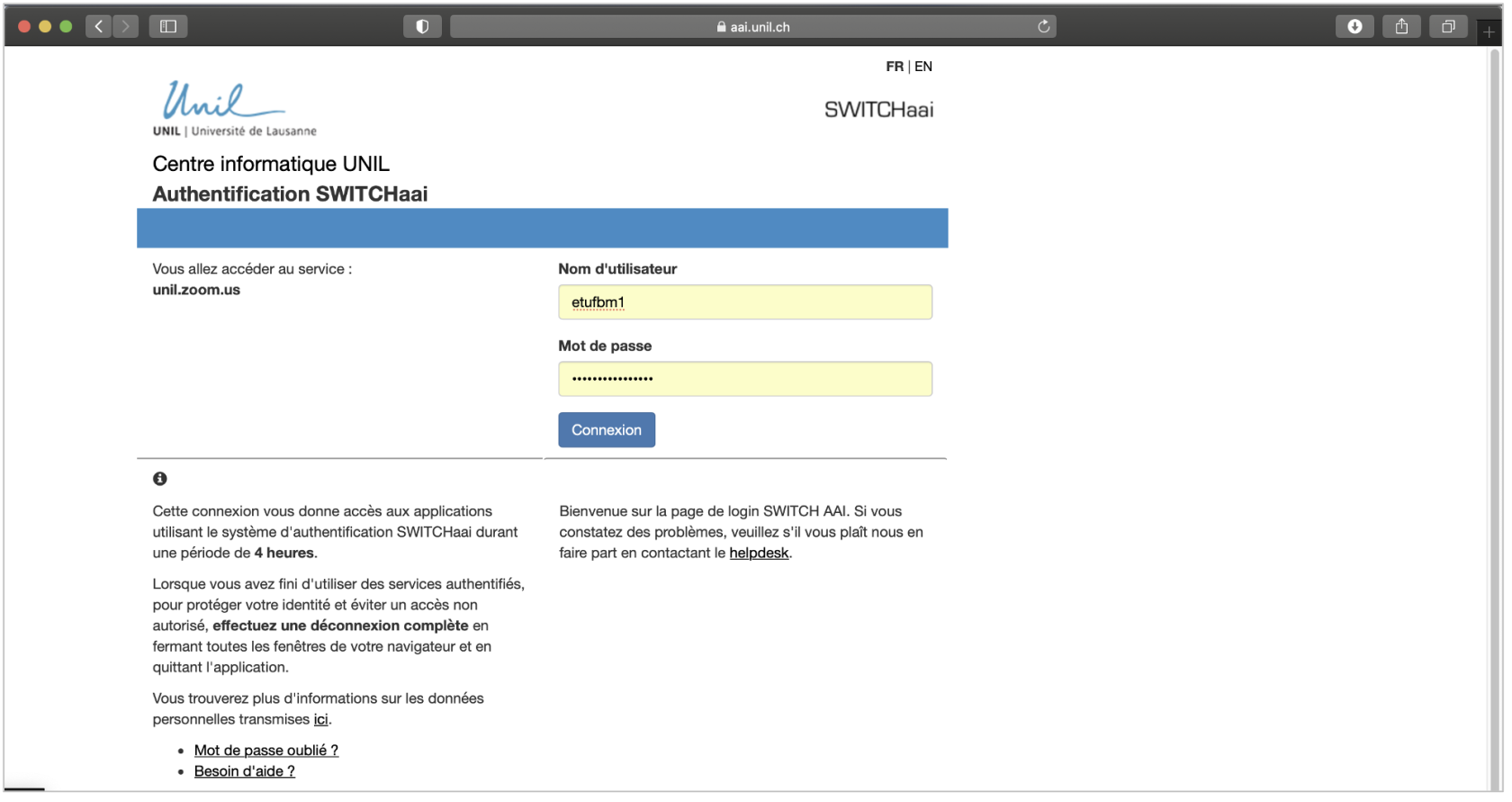](https://wiki.unil.ch/cse/uploads/images/gallery/2022-07/l9tV8qXDpE8nSKsa-image-1657708399328.png)**Attention**: Si vous êtes renvoyé·e· vers le site Microsoft Office, il vous faudra à nouveau répéter ces étapes, en cliquant sur le lien de la réunion Zoom ou en entrant l'ID de réunion sur unil.zoom.us.
4. Finalement, si vous n'aviez pas déjà activé votre compte Zoom UNIL, vous serez à présent invité·e à accepter des **conditions d’utilisation** du service unil.zoom.us : [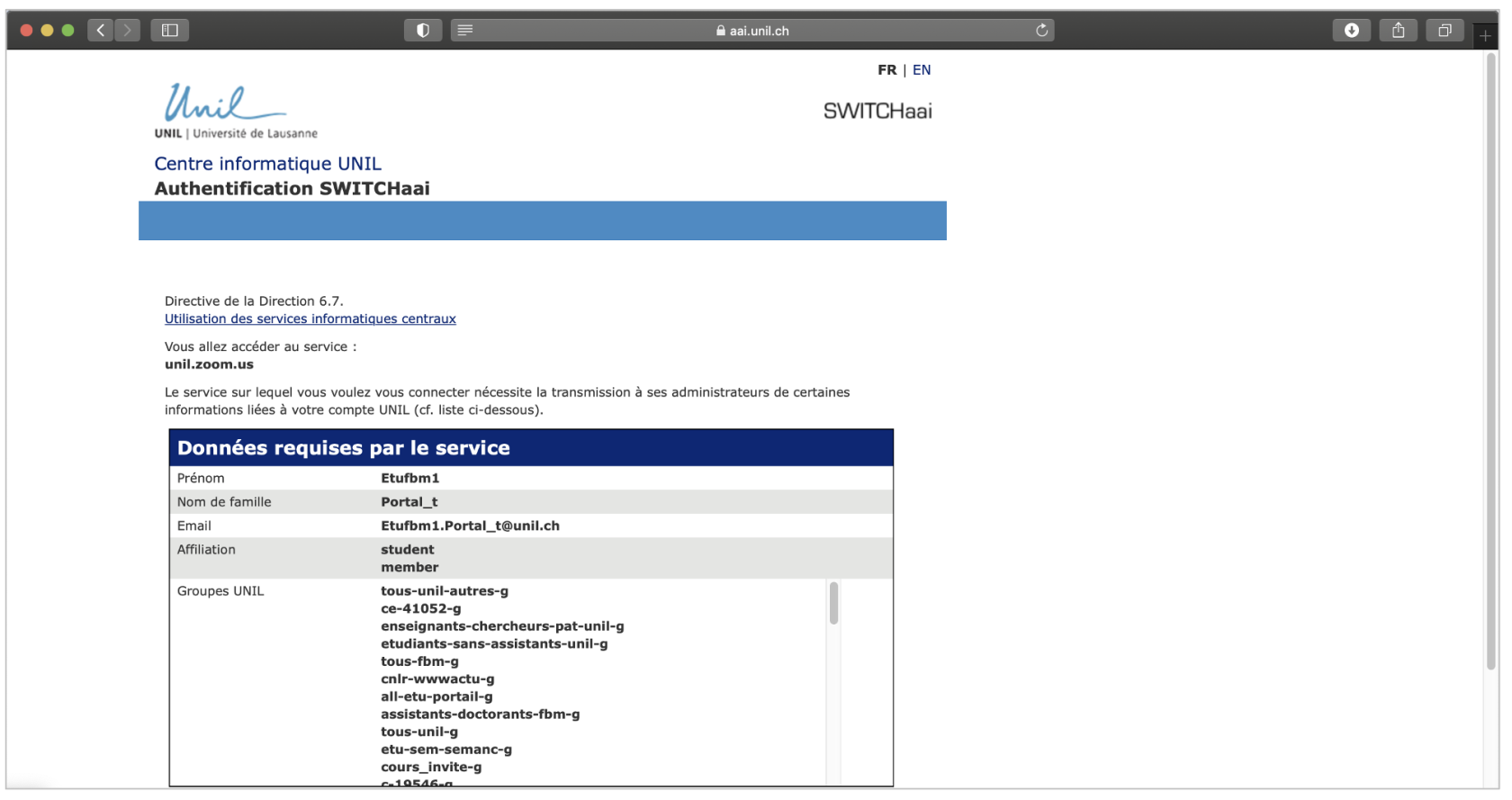](https://wiki.unil.ch/cse/uploads/images/gallery/2022-07/Yb4hgrLAhyxODoUh-image-1657708415958.png) # Rejoindre une réunion depuis l'application Bureau ### Cliquer sur le lien de la réunion Cliquez sur le **lien de la réunion Zoom** que vous avez reçu dans l'invitation : [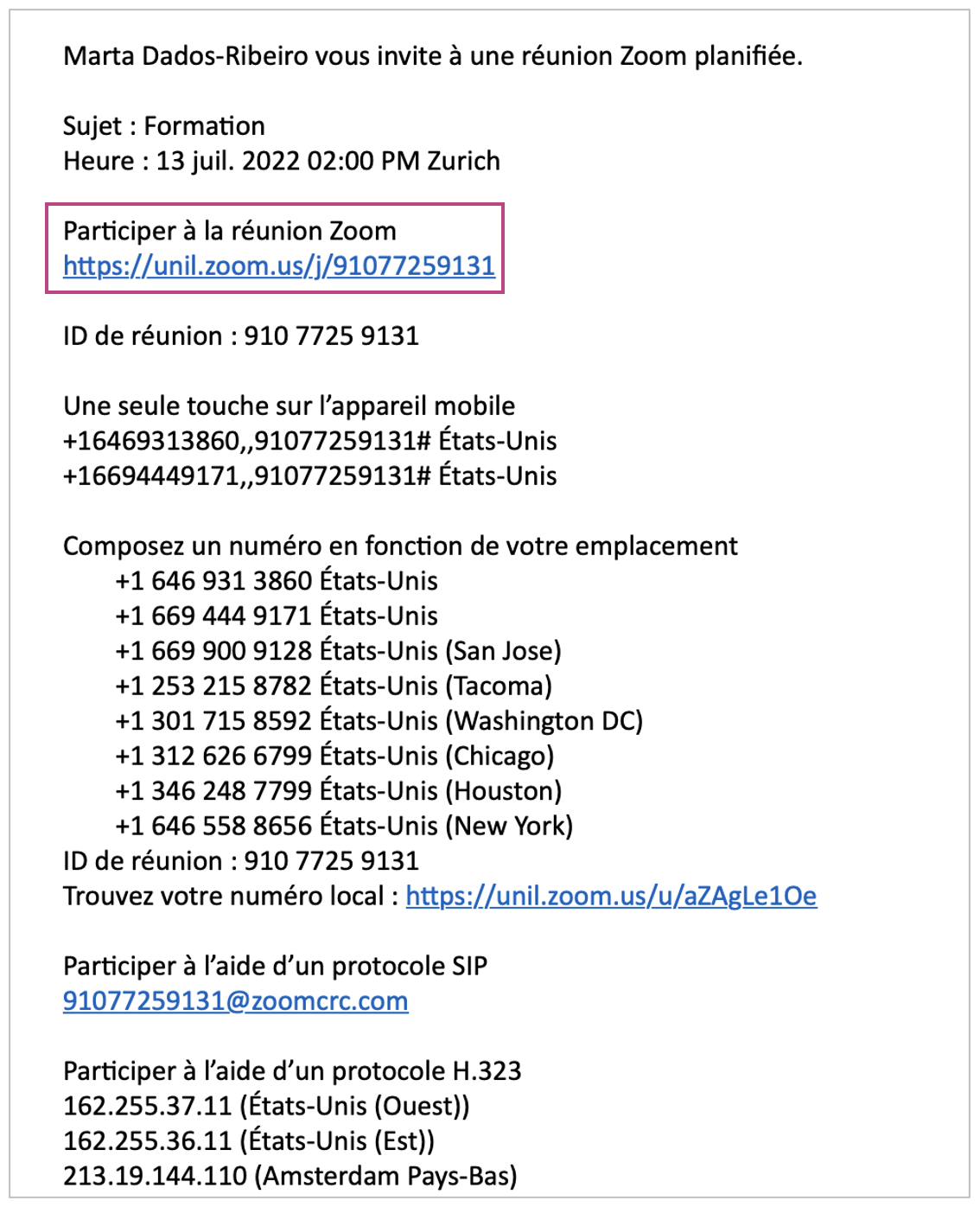](https://wiki.unil.ch/cse/uploads/images/gallery/2022-07/XmHf2yeq0lbh17mn-image-1657708665680.png) Si l'application Bureau est installée sur votre ordinateur, une **fenêtre pop-up** apparaîtra. Cliquez sur *Ouvrir Zoom.us* ou *Ouvrir Client Zoom* pour rejoindre la réunion : [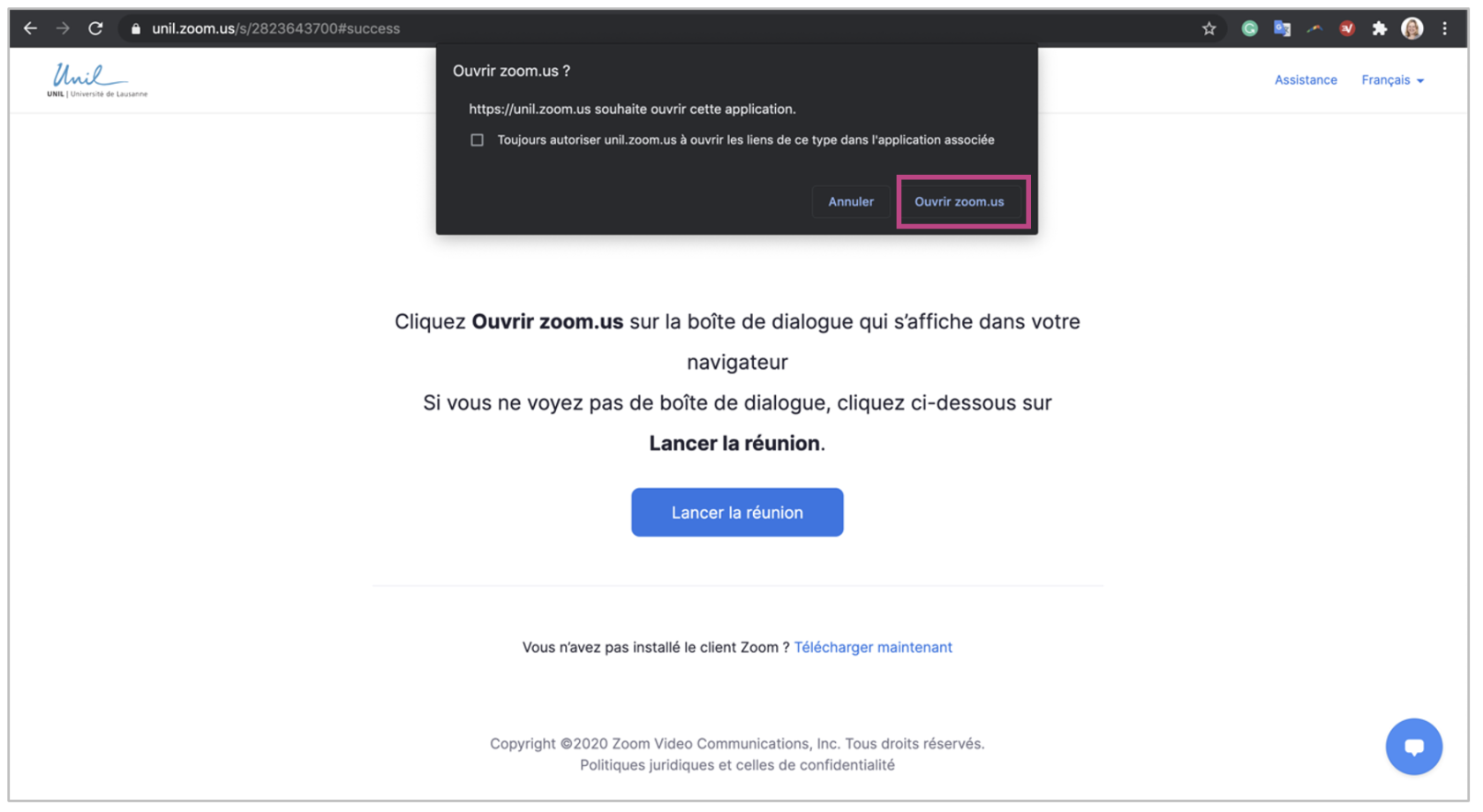](https://wiki.unil.ch/cse/uploads/images/gallery/2022-07/rDMQ8AOTuSt9kF7h-image-1657708845922-us.png) ### Copier et coller l'ID de la réunion Vous pouvez aussi rejoindre une réunion en **copiant l'ID de réunion** figurant dans l'invitation : [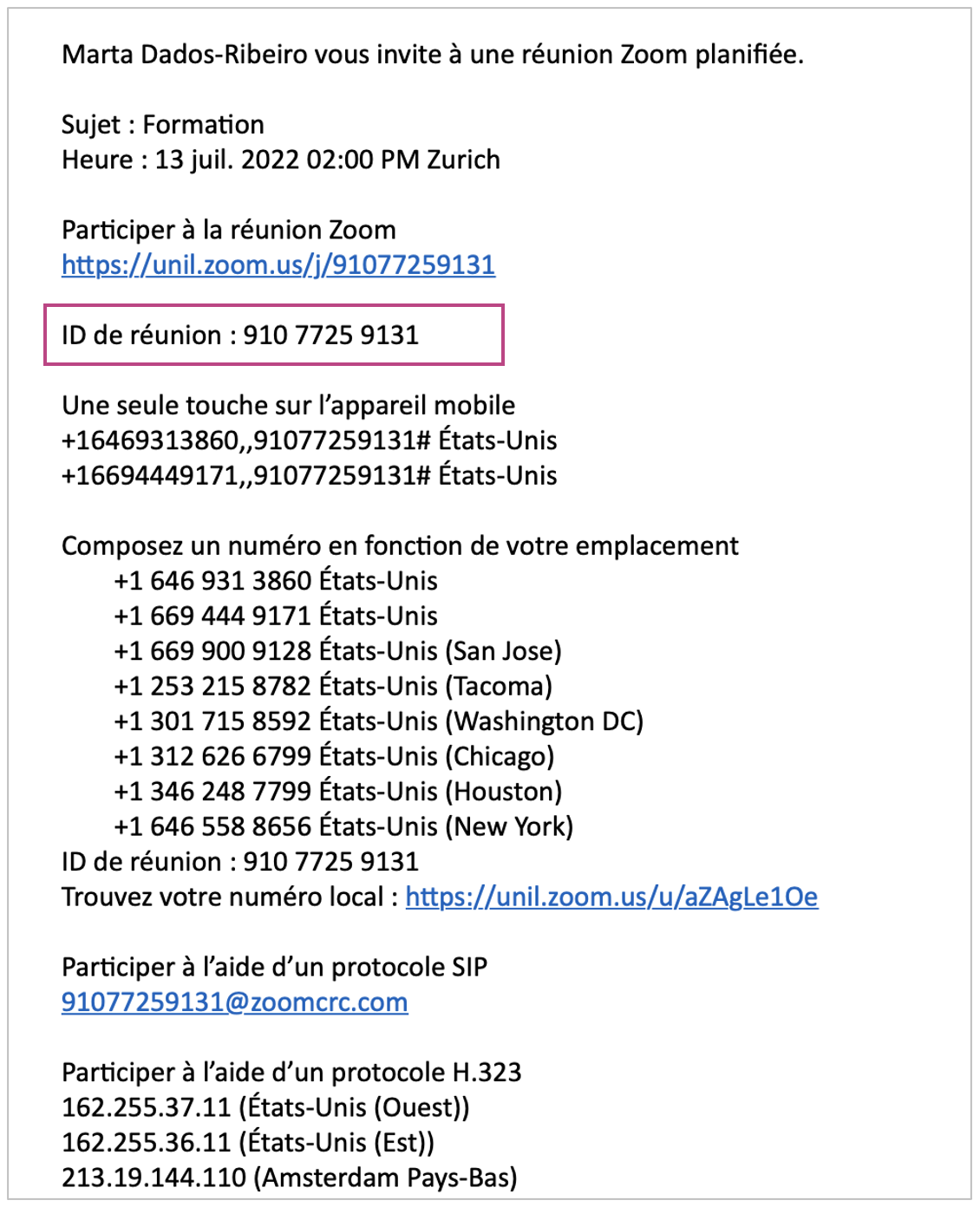](https://wiki.unil.ch/cse/uploads/images/gallery/2022-07/ddC98dN4b272HZXK-image-1657709156124.png) Ensuite, vous devrez ouvrir l'application Bureau de Zoom, puis : Si vous êtes connect·é sur l'application, cliquez sur *Rejoindre* : [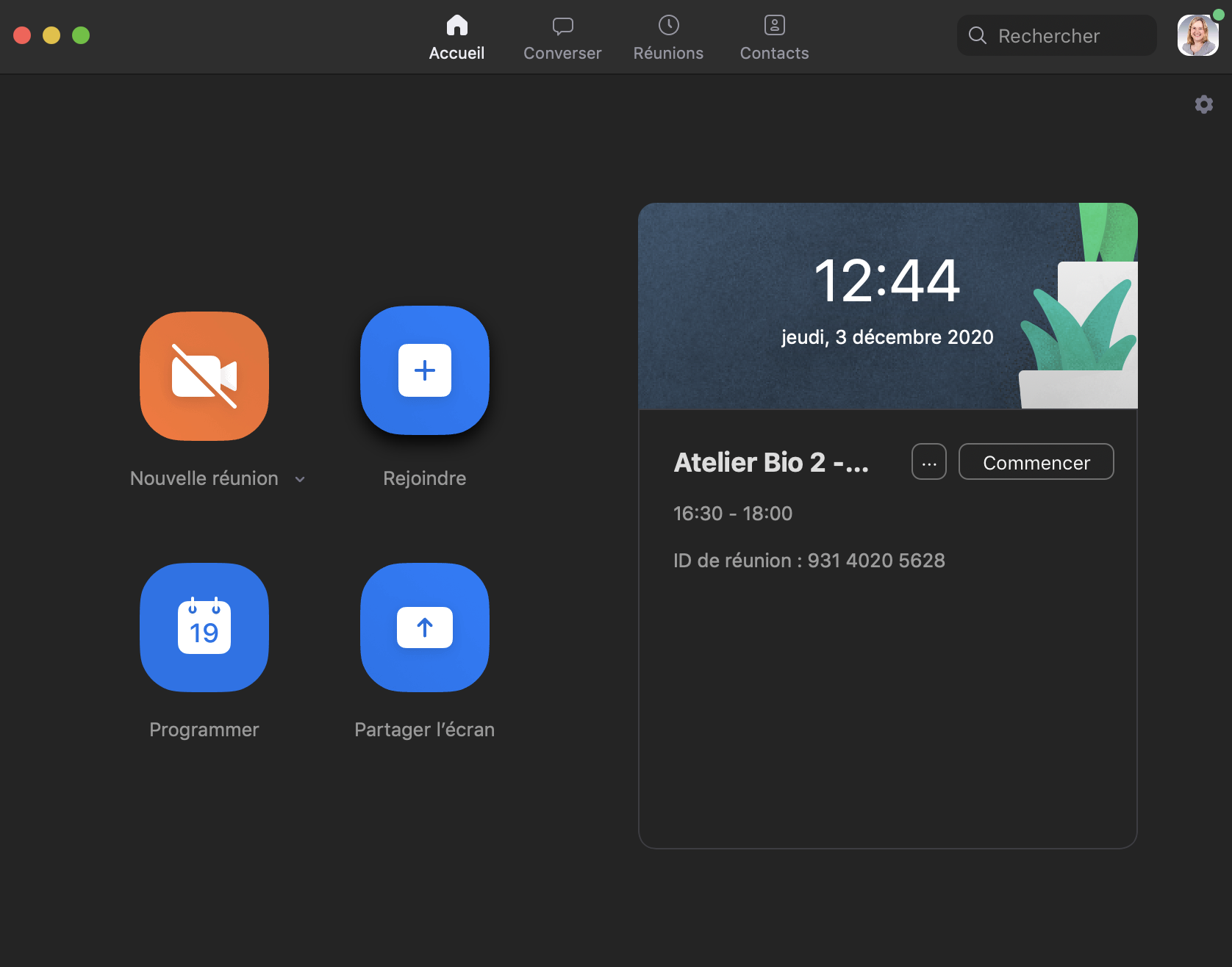](https://wiki.unil.ch/cse/uploads/images/gallery/2020-12/YCdmAwgaupTI3ksl-image-1606995898605.png) Si vous n'êtes pas connect·é· sur l'application, cliquez sur *Rejoindre une réunion* : [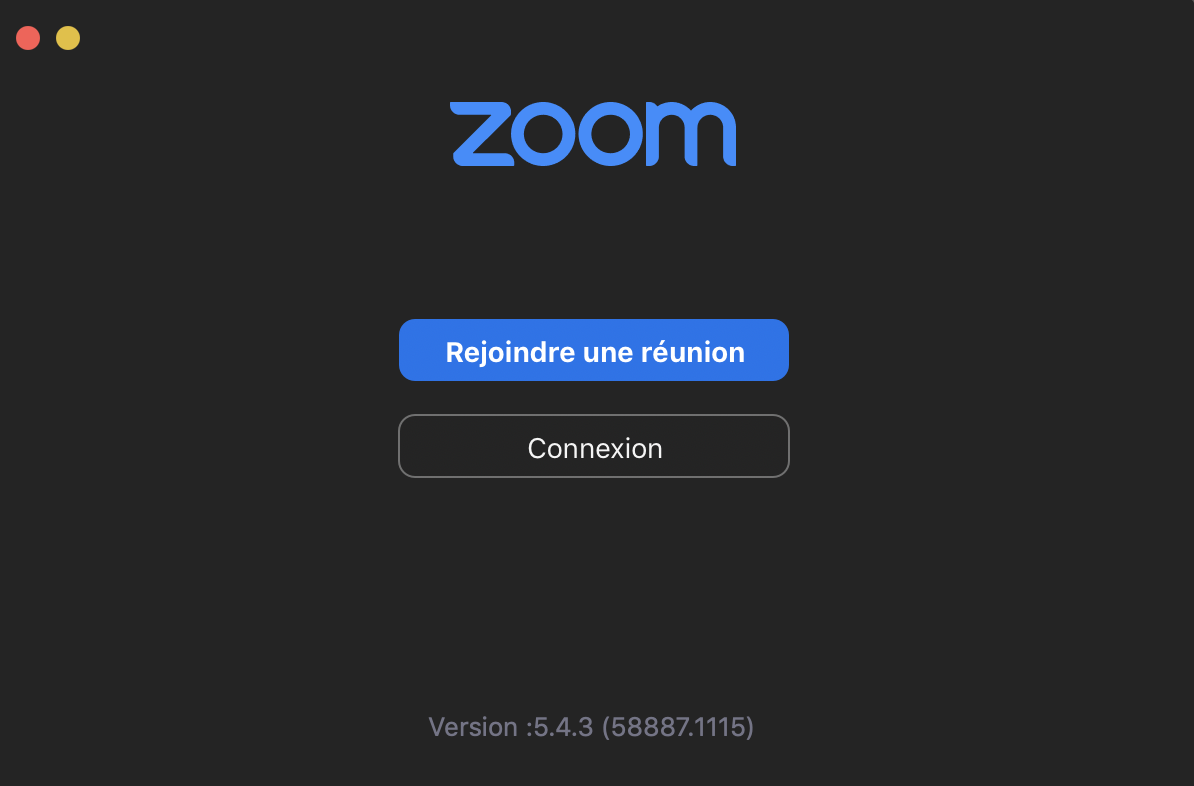](https://wiki.unil.ch/cse/uploads/images/gallery/2020-12/JlIA8oITaWykQ1q3-image-1606997748197.png) Entrez le numéro de la réunion ici : [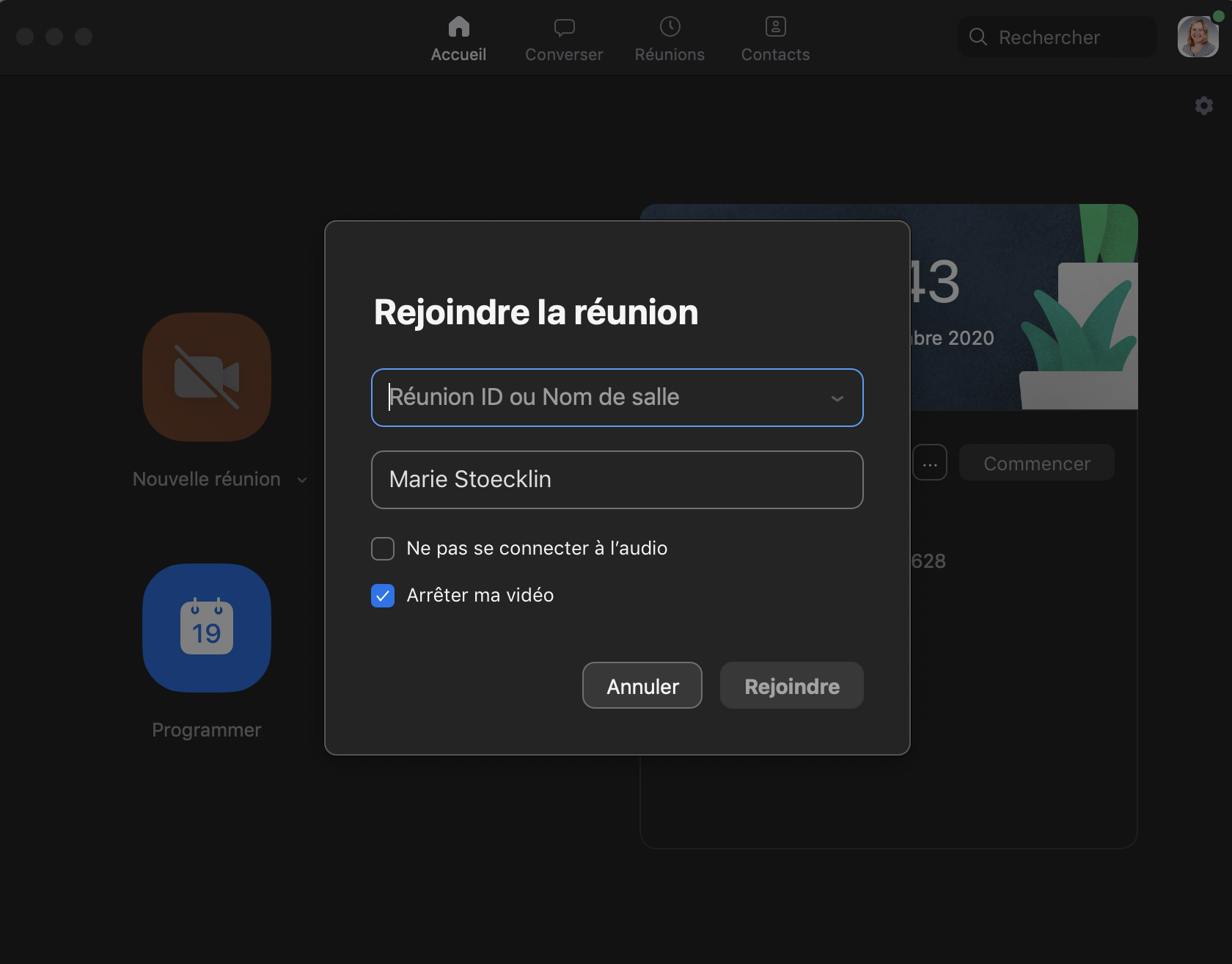](https://wiki.unil.ch/cse/uploads/images/gallery/2020-12/T5UJtkoH4psAUkic-image-1606995890291.png) ##### **En cas d'authentification requise**Il est possible que l'animateur ou l'animatrice de la réunion ait activer un paramètre **Seuls les utilisateurs authentifiés peuvent participer (à la réunion)**. Afin d'accéder à la réunion, et si ce n'est pas déjà fait, il vous sera nécessaire d'**activer votre compte Zoom UNIL**.
1. Le message suivant apparaîtra et vous devrez cliquer sur *Se connecter pour rejoindre* : [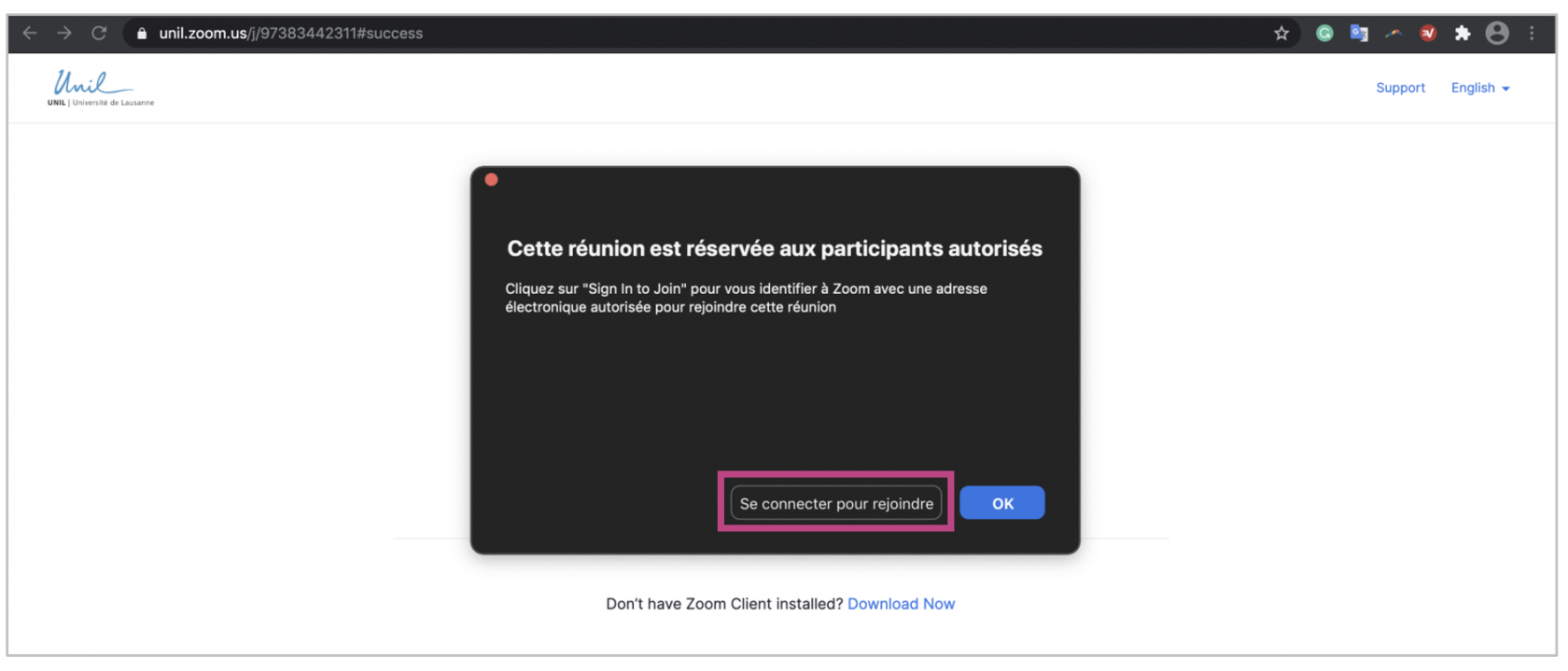](https://wiki.unil.ch/cse/uploads/images/gallery/2022-07/qkJqjPh8vHVziYiB-image-1657710050828.png) 2. Choisissez ensuite la méthode de connexion *Se connecter avec l'authentification unique* :**Attention**: Si vous entrez votre adresse email et votre mot de passe UNIL ici, cela ne fonctionnera pas!
[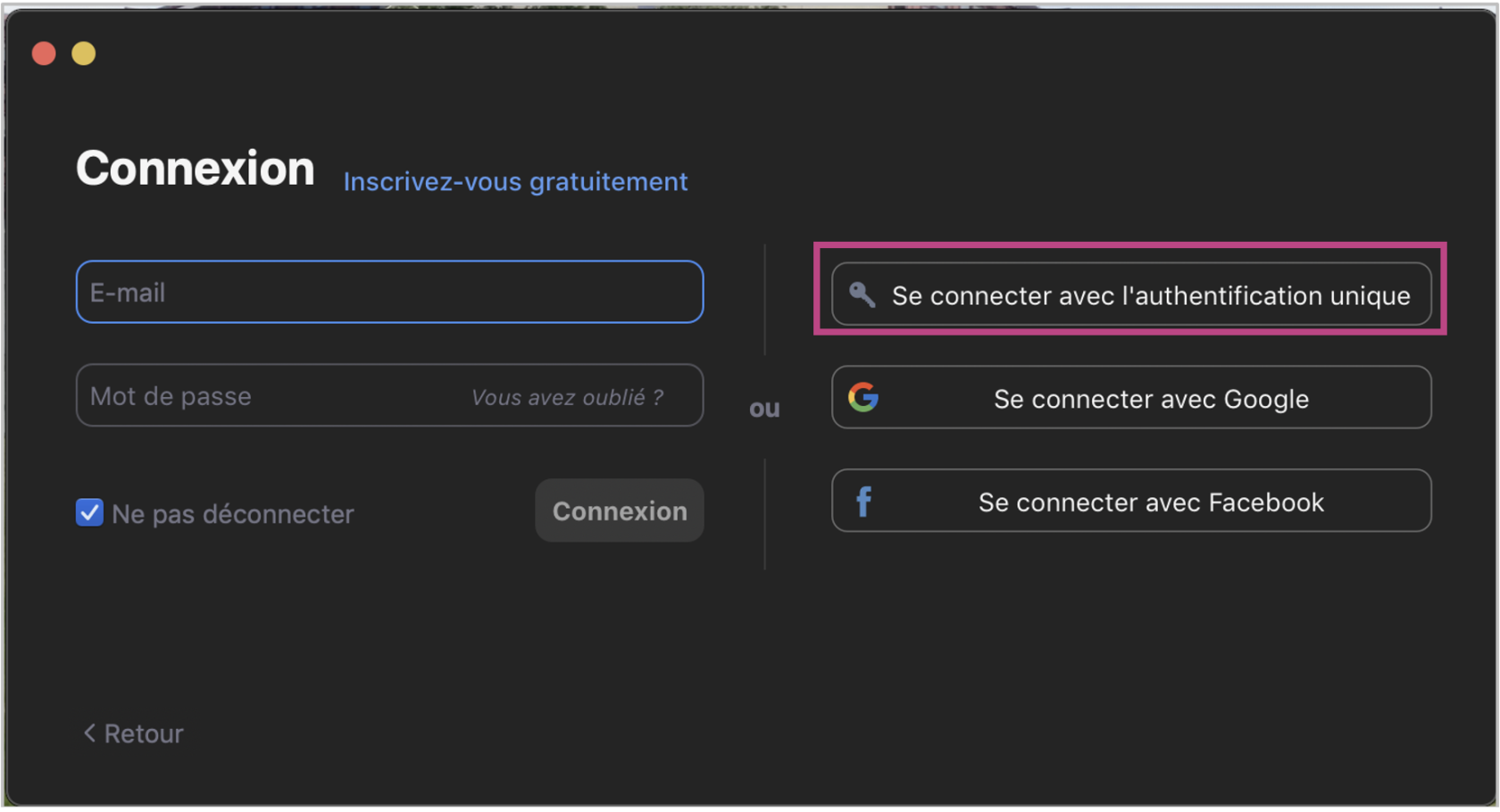](https://wiki.unil.ch/cse/uploads/images/gallery/2022-07/q2FqIWHVybfJsEoI-image-1657709872688.png) 3. Entrez ensuite le nom de domaine *unil* : [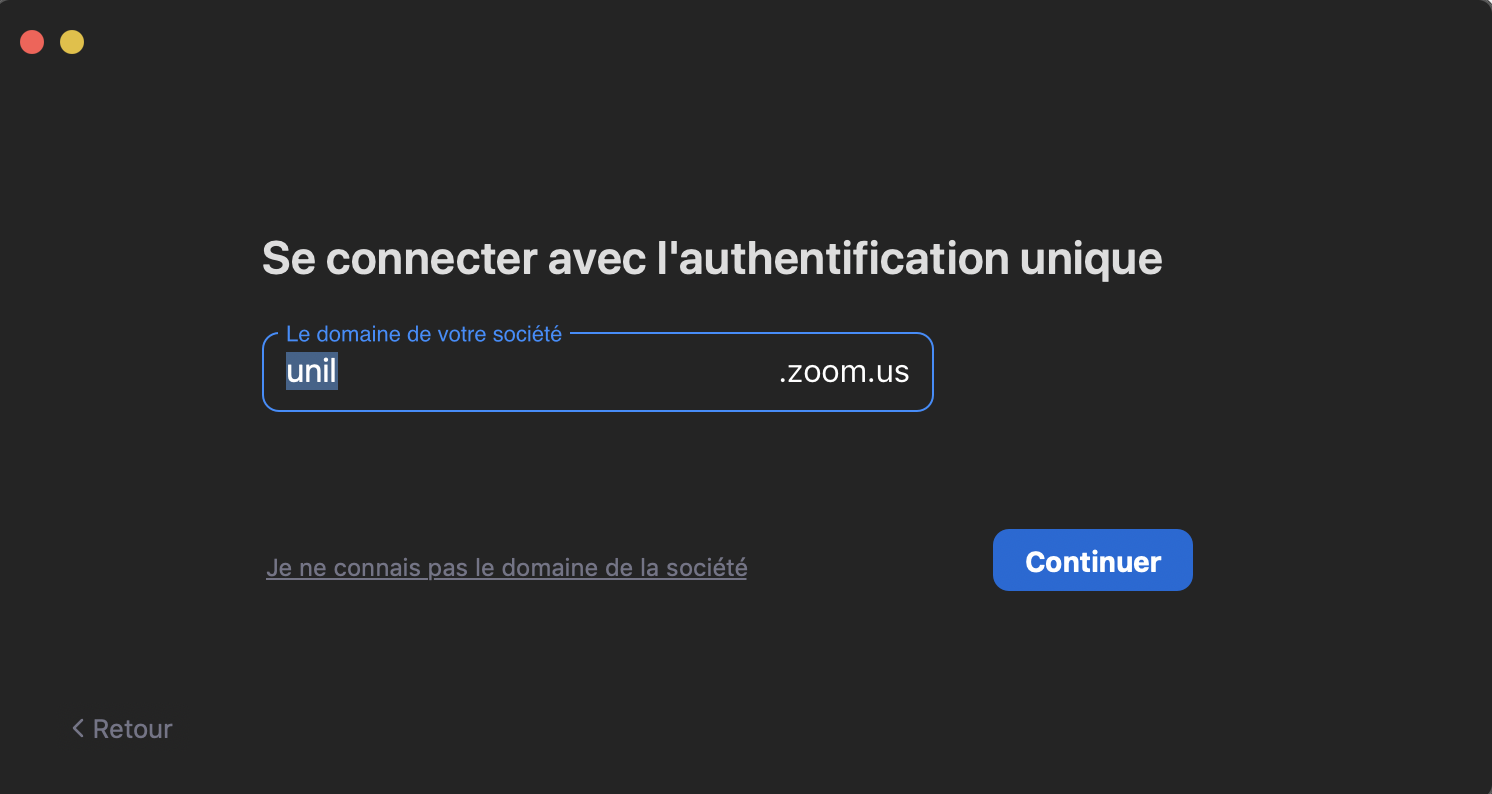](https://wiki.unil.ch/cse/uploads/images/gallery/2020-12/hlgH6gxOxSg5q80p-image-1606997594998.png) 4. Vous serez renvoyé·e· à ce stade vers une page Web du CI. **Entrez vos identifiants de connexion UNIL** : [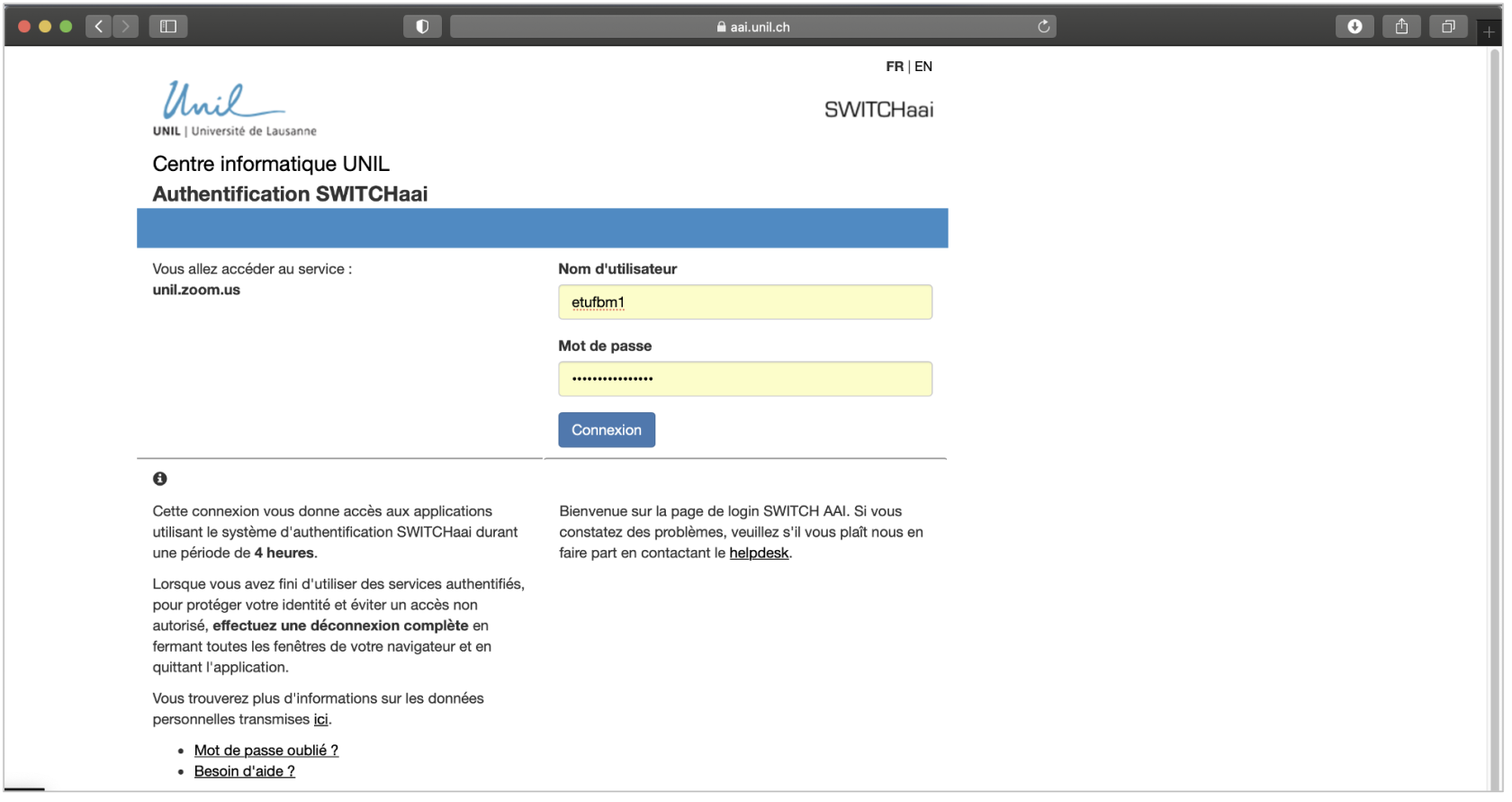](https://wiki.unil.ch/cse/uploads/images/gallery/2022-07/pgks6PMCWKG9RWtL-image-1657709445306.png) 5. Finalement, si vous n'aviez pas déjà activé votre compte Zoom UNIL préalablement, vous serez invité·e· à accepter des **conditions d’utilisation** du service unil.zoom.us : [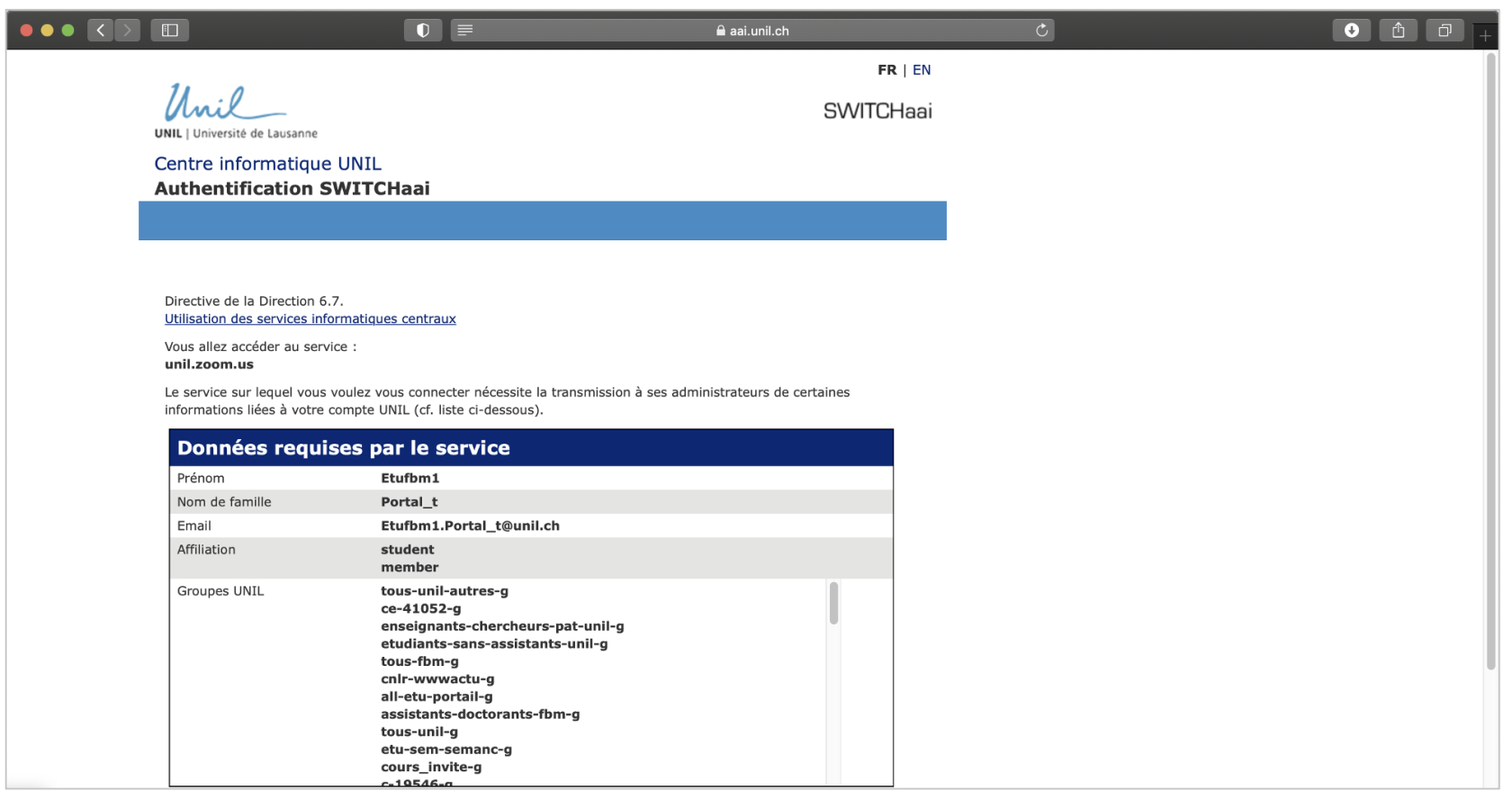](https://wiki.unil.ch/cse/uploads/images/gallery/2022-07/obMng60A918GK0Ye-image-1657709457188.png) 6\. Acceptez de **revenez sur l'application Bureau**, en cliquant sur *Ouvrir Zoom.us* ou *Ouvrir Client Zoom* lorsqu'une fenêtre pop-up apparaît sur votre écran : [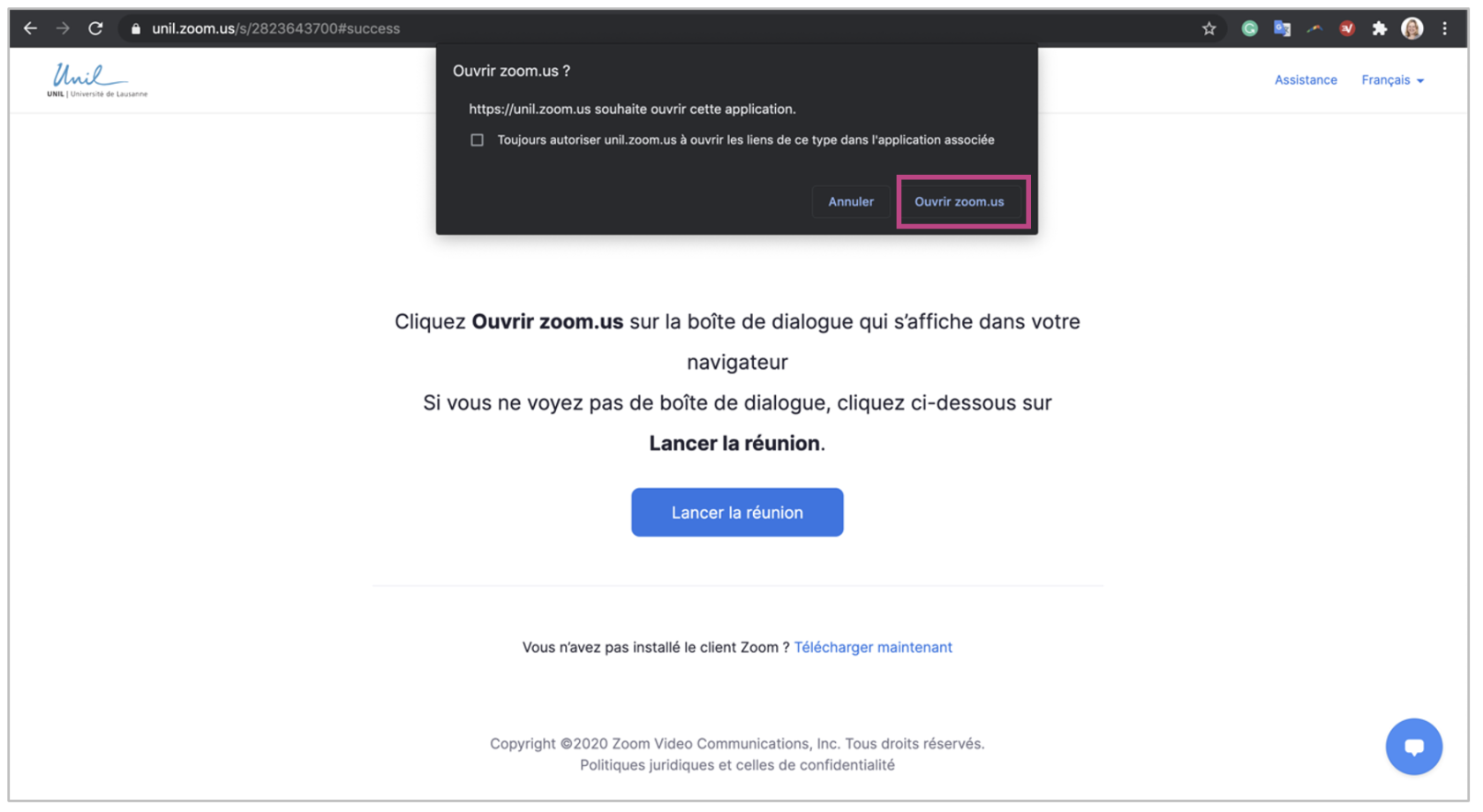](https://wiki.unil.ch/cse/uploads/images/gallery/2022-07/m6CpdOEqMoOHZLF8-image-1657709493863-us.png) # Rejoindre plusieurs réunions simultanément La fonctionnalité permettant de rejoindre plusieurs réunions simultanément **à partir de l'application Bureau de Zoom**, permet de participer ou de surveiller plusieurs réunions en même temps.Pour bénéficier de cette fonctionnalité, il peut être nécessaire de **mettre à jour l'application Bureau de Zoom**. Suivez les instructions présentées ici : [Mettre à jour l'application Bureau](https://wiki.unil.ch/cse/books/zoom/page/mettre-%C3%A0-jour-lapplication-bureau "Mettre à jour l'application Bureau").
### Activer la fonctionnalité Ce paramètre est en principe activé par défaut dans votre compte Zoom. Toutefois, pour vérifier qu'il est bien activé, vous pouvez vous rendre sur [l'application Web de Zoom](https://unil.zoom.us/) et cliquer sur *Paramètres*, puis sur *En réunion: base*. Vérifiez que l'option *Rejoignez différentes réunions simultanément sur votre ordi de bureau* est bien activée dans les paramètres généraux de votre compte Zoom UNIL : [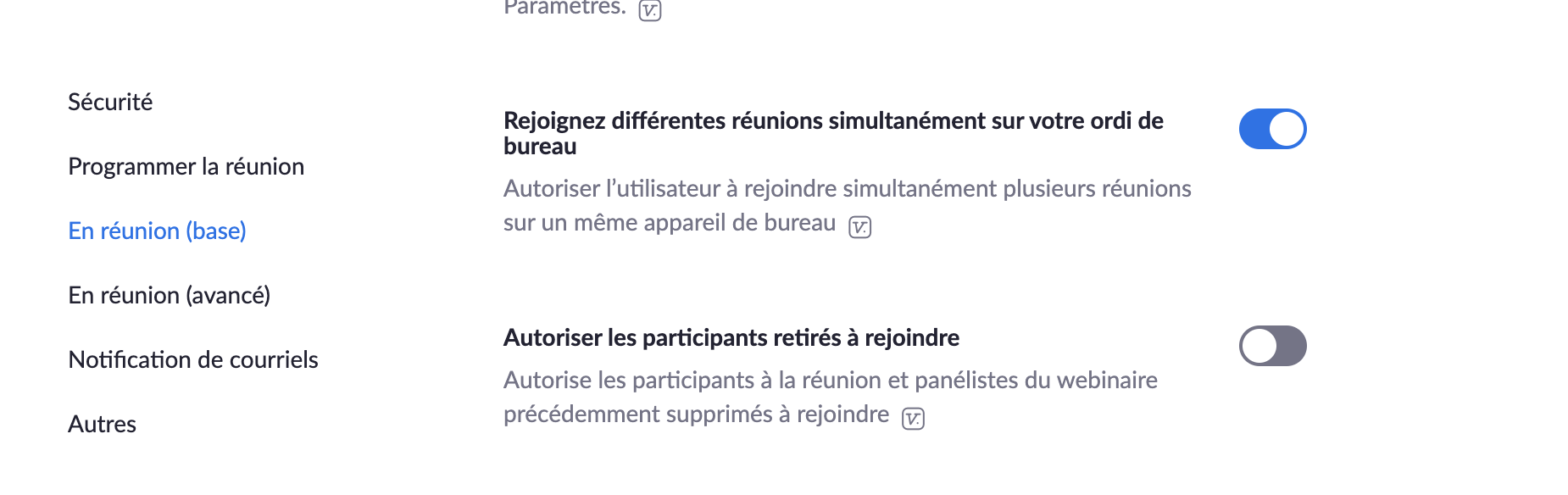](https://wiki.unil.ch/cse/uploads/images/gallery/2020-12/xbSh0MNI4wqcrqLA-image-1607525918882.png) ##### **Rejoindre la première réunion** Pour rejoindre la première réunion, vous avez trois options : - Cliquez sur le bouton *Rejoindre* dans l'application de bureau Zoom : [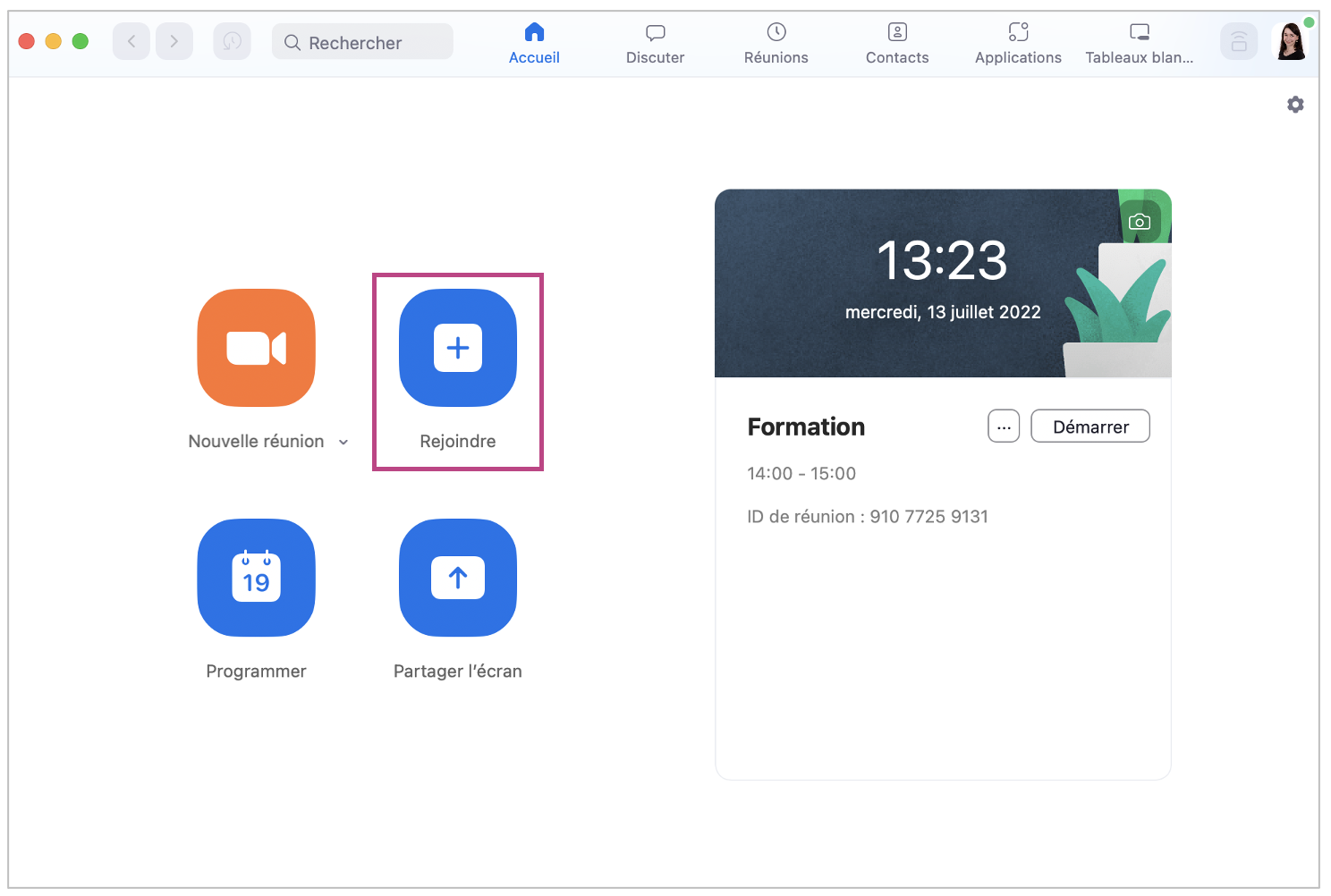](https://wiki.unil.ch/cse/uploads/images/gallery/2022-07/UWkR8Ewn0hZBNeWj-image-1657711484763.png) - Cliquez sur le lien de la réunion dans l'invitation : [](https://wiki.unil.ch/cse/uploads/images/gallery/2022-07/W1YcmB5vrfAvfvsf-image-1657711524133.png) - Copiez l'ID de la réunion depuis l'invitation, puis accédez à [https://unil.zoom.us/](https://unil.zoom.us/), cliquez sur *Join* et saisissez l'ID dans la fenêtre pop-up : [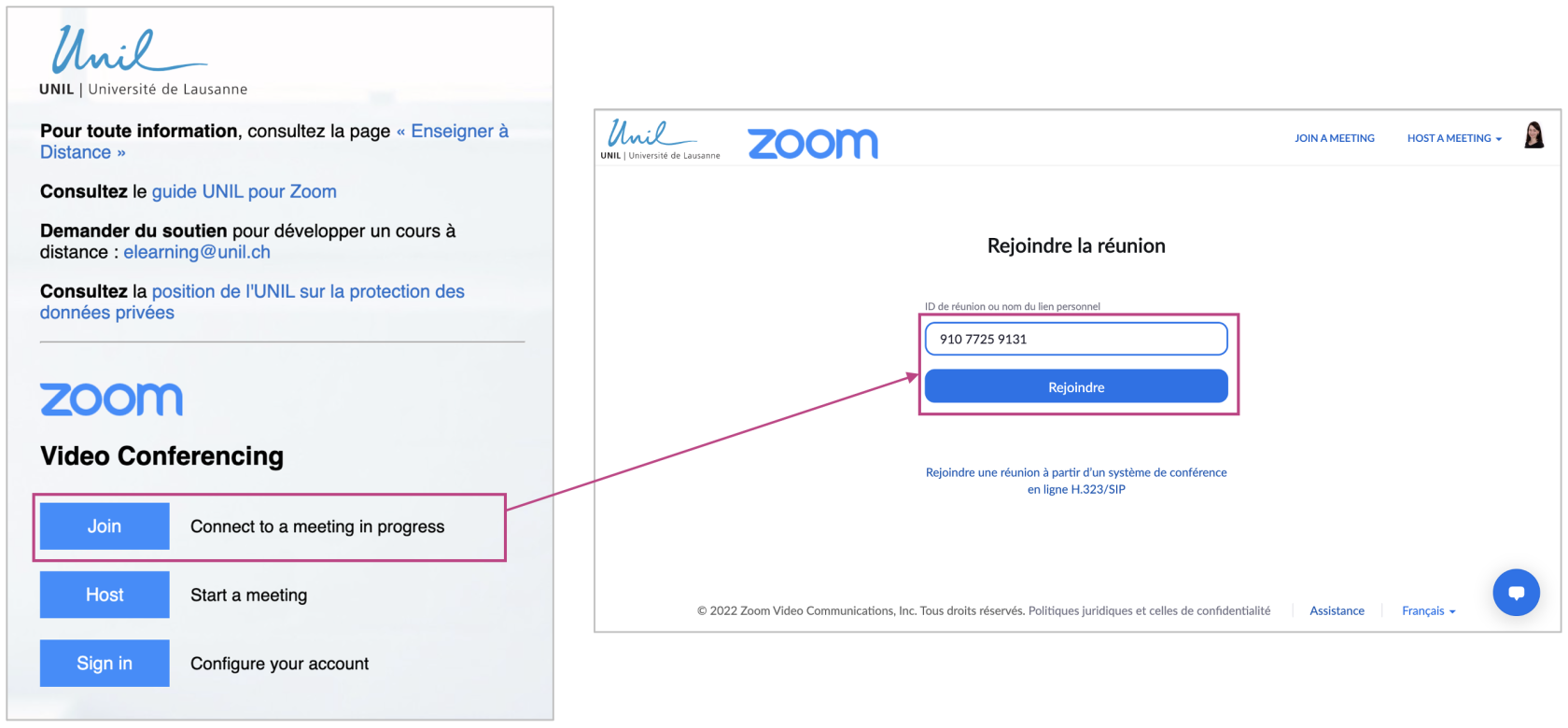](https://wiki.unil.ch/cse/uploads/images/gallery/2022-07/prwsxoRkXC168w1U-image-1657711591264.png) ### Rejoindre les réunions suivantes Pour rejoindre les réunions suivantes, vous pouvez : - Cliquer sur le lien de la réunion dans l'invitation : [](https://wiki.unil.ch/cse/uploads/images/gallery/2022-07/W1YcmB5vrfAvfvsf-image-1657711524133.png) - ou copiez et coller l'ID de la réunion en accédant à la page [https://unil.zoom.us/](https://unil.zoom.us/) : [](https://wiki.unil.ch/cse/uploads/images/gallery/2022-07/prwsxoRkXC168w1U-image-1657711591264.png) Vous ne pourrez pas, au contraire, rejoindre des réunions supplémentaires via le bouton Rejoindre de l'application de bureau.Le bouton *Rejoindre* dans l'application Bureau de Zoom ne fonctionnera que pour rejoindre la première réunion. Pour les réunions suivantes, cliquez tout simplement sur l'URL de la réunion ou bien entrez l'ID de réunion à l'adresse suivante: [https://unil.zoom.us/join](https://unil.zoom.us/join).
**La documentation complète et officielle de Zoom à ce sujet peut être consultée [ici](https://support.zoom.us/hc/en-us/articles/360001120743-Joining-multiple-meetings-simultaneously-on-desktop).**