# Rejoindre une réunion depuis l'application Bureau

### <span style="color: #000000;">Cliquer sur le lien de la réunion</span>

<span style="font-weight: 400;">Cliquez sur le **lien de la réunion Zoom** que vous avez reçu dans l'invitation :</span>

[![image-1657708665680.png](https://wiki.unil.ch/cse/uploads/images/gallery/2022-07/scaled-1680-/XmHf2yeq0lbh17mn-image-1657708665680.png)](https://wiki.unil.ch/cse/uploads/images/gallery/2022-07/XmHf2yeq0lbh17mn-image-1657708665680.png)

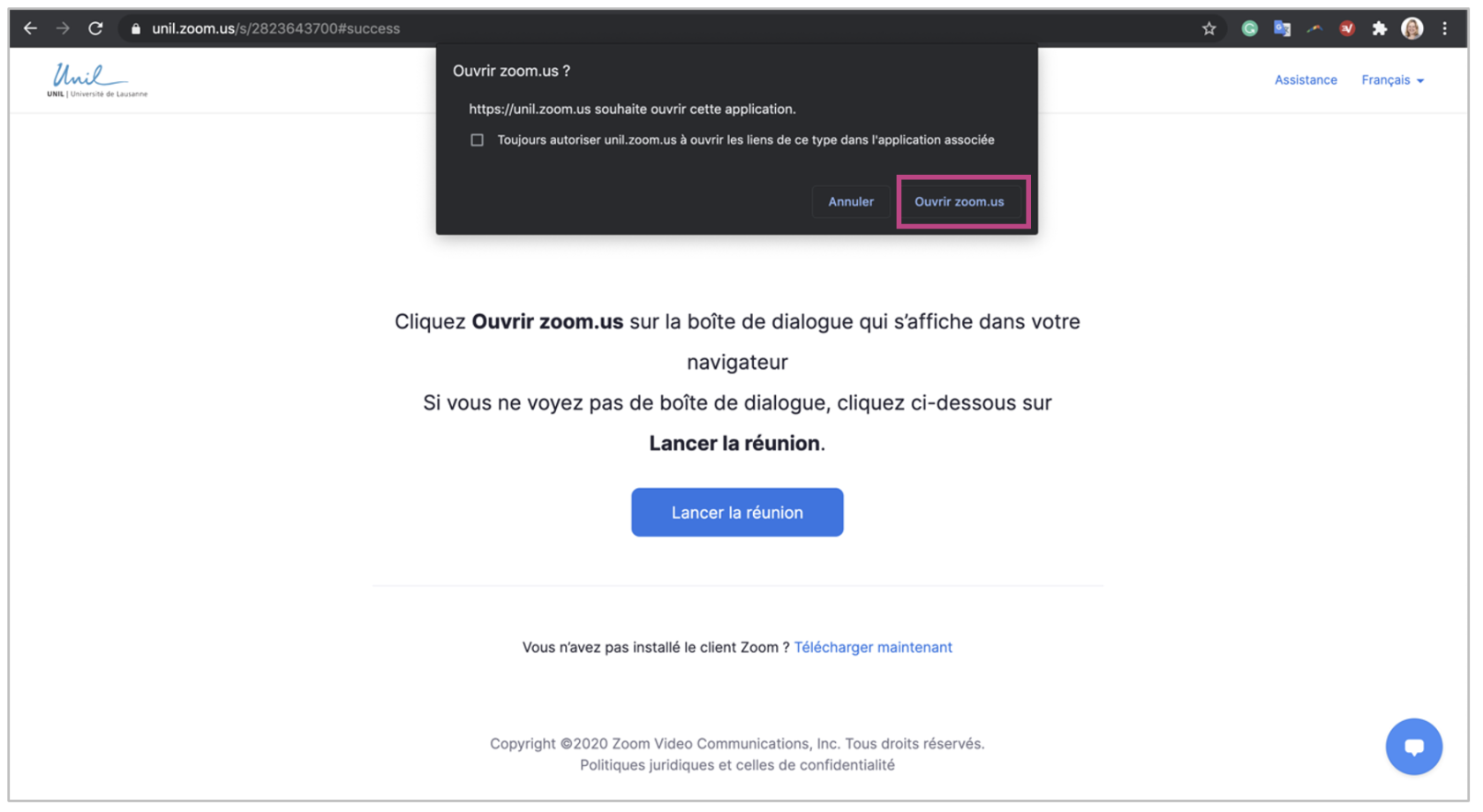
<span style="font-weight: 400;">Si l'application Bureau est installée sur votre ordinateur, une **fenêtre pop-up** apparaîtra. Cliquez sur *Ouvrir Zoom.us* ou *Ouvrir Client Zoom* pour rejoindre la réunion :</span>

[![image-1657708845922.us.png](https://wiki.unil.ch/cse/uploads/images/gallery/2022-07/scaled-1680-/rDMQ8AOTuSt9kF7h-image-1657708845922-us.png)](https://wiki.unil.ch/cse/uploads/images/gallery/2022-07/rDMQ8AOTuSt9kF7h-image-1657708845922-us.png)

### <span style="color: #000000;">Copier et coller l'ID de la réunion</span>

Vous pouvez aussi rejoindre une réunion en **copiant l'ID de réunion** figurant dans l'invitation :

[![image-1657709156124.png](https://wiki.unil.ch/cse/uploads/images/gallery/2022-07/scaled-1680-/ddC98dN4b272HZXK-image-1657709156124.png)](https://wiki.unil.ch/cse/uploads/images/gallery/2022-07/ddC98dN4b272HZXK-image-1657709156124.png)

Ensuite, vous devrez ouvrir l'application Bureau de Zoom, puis :

Si vous êtes connect·é sur l'application, cliquez sur *Rejoindre* :

[![image-1606995898605.png](https://wiki.unil.ch/cse/uploads/images/gallery/2020-12/scaled-1680-/YCdmAwgaupTI3ksl-image-1606995898605.png)](https://wiki.unil.ch/cse/uploads/images/gallery/2020-12/YCdmAwgaupTI3ksl-image-1606995898605.png)

Si vous n'êtes pas connect·é· sur l'application, cliquez sur *Rejoindre une réunion* :

[![image-1606997748197.png](https://wiki.unil.ch/cse/uploads/images/gallery/2020-12/scaled-1680-/JlIA8oITaWykQ1q3-image-1606997748197.png)](https://wiki.unil.ch/cse/uploads/images/gallery/2020-12/JlIA8oITaWykQ1q3-image-1606997748197.png)

Entrez le numéro de la réunion ici :

[![image-1606995890291.png](https://wiki.unil.ch/cse/uploads/images/gallery/2020-12/scaled-1680-/T5UJtkoH4psAUkic-image-1606995890291.png)](https://wiki.unil.ch/cse/uploads/images/gallery/2020-12/T5UJtkoH4psAUkic-image-1606995890291.png)

##### **En cas d'authentification requise**

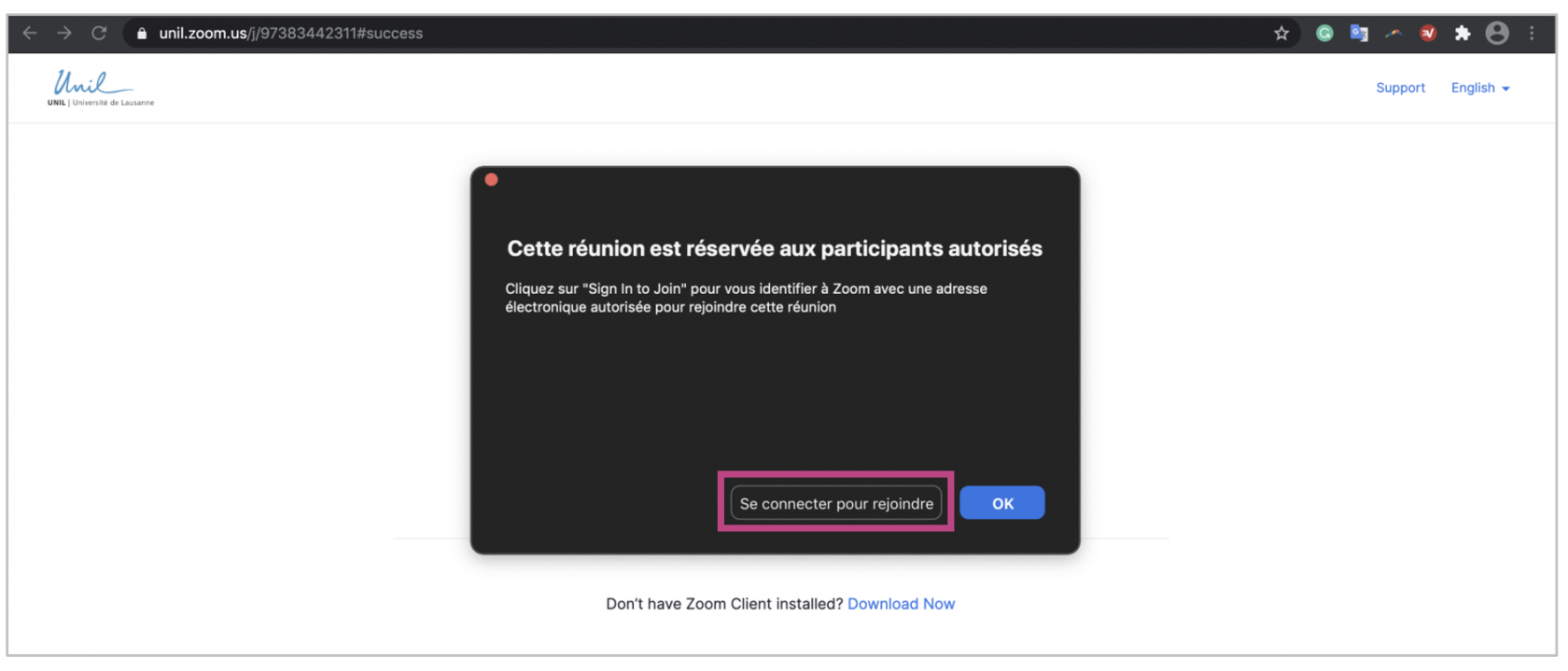
<p class="callout danger"><span style="font-weight: 400;">Il est possible que l'animateur ou l'animatrice de la réunion ait activer un paramètre **Seuls les utilisateurs authentifiés peuvent participer (à la réunion)**. Afin d'accéder à la réunion, et si ce n'est pas déjà fait, il vous sera nécessaire d'**activer votre compte Zoom UNIL**. </span></p>

<span style="font-weight: 400;">1</span><span style="font-weight: 400;">. Le message suivant apparaîtra et vous devrez cliquer sur </span>*Se connecter pour rejoindre* <span style="font-weight: 400;">:</span>

[![image-1657710050828.png](https://wiki.unil.ch/cse/uploads/images/gallery/2022-07/scaled-1680-/qkJqjPh8vHVziYiB-image-1657710050828.png)](https://wiki.unil.ch/cse/uploads/images/gallery/2022-07/qkJqjPh8vHVziYiB-image-1657710050828.png)

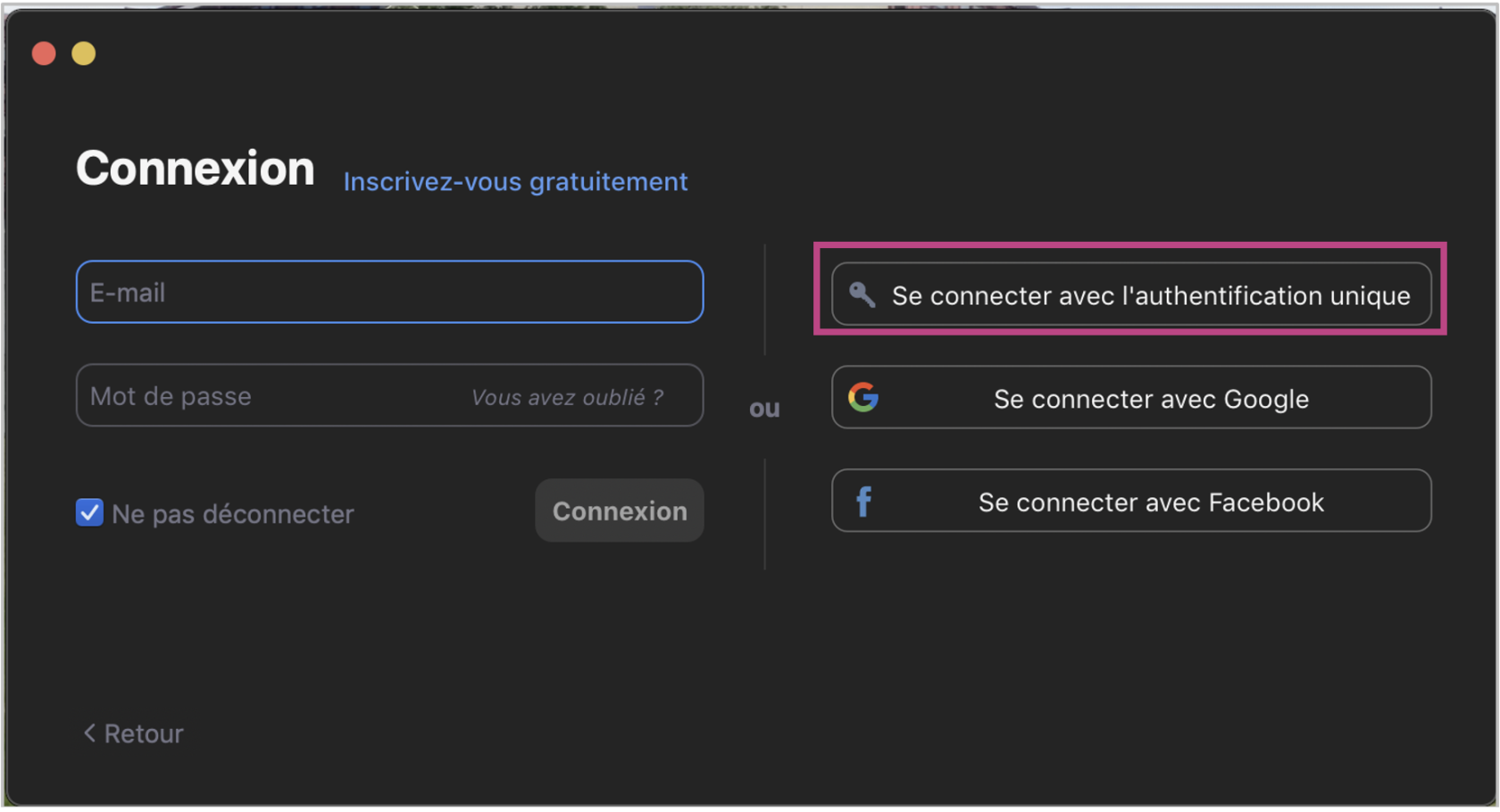
<span style="font-weight: 400;">2. Choisissez ensuite la méthode de connexion *Se connecter avec l'authentification unique* :</span>

<p class="callout danger">**Attention**: Si vous entrez votre adresse email et votre mot de passe UNIL ici, cela ne fonctionnera pas!</p>

[![image-1657709872688.png](https://wiki.unil.ch/cse/uploads/images/gallery/2022-07/scaled-1680-/q2FqIWHVybfJsEoI-image-1657709872688.png)](https://wiki.unil.ch/cse/uploads/images/gallery/2022-07/q2FqIWHVybfJsEoI-image-1657709872688.png)

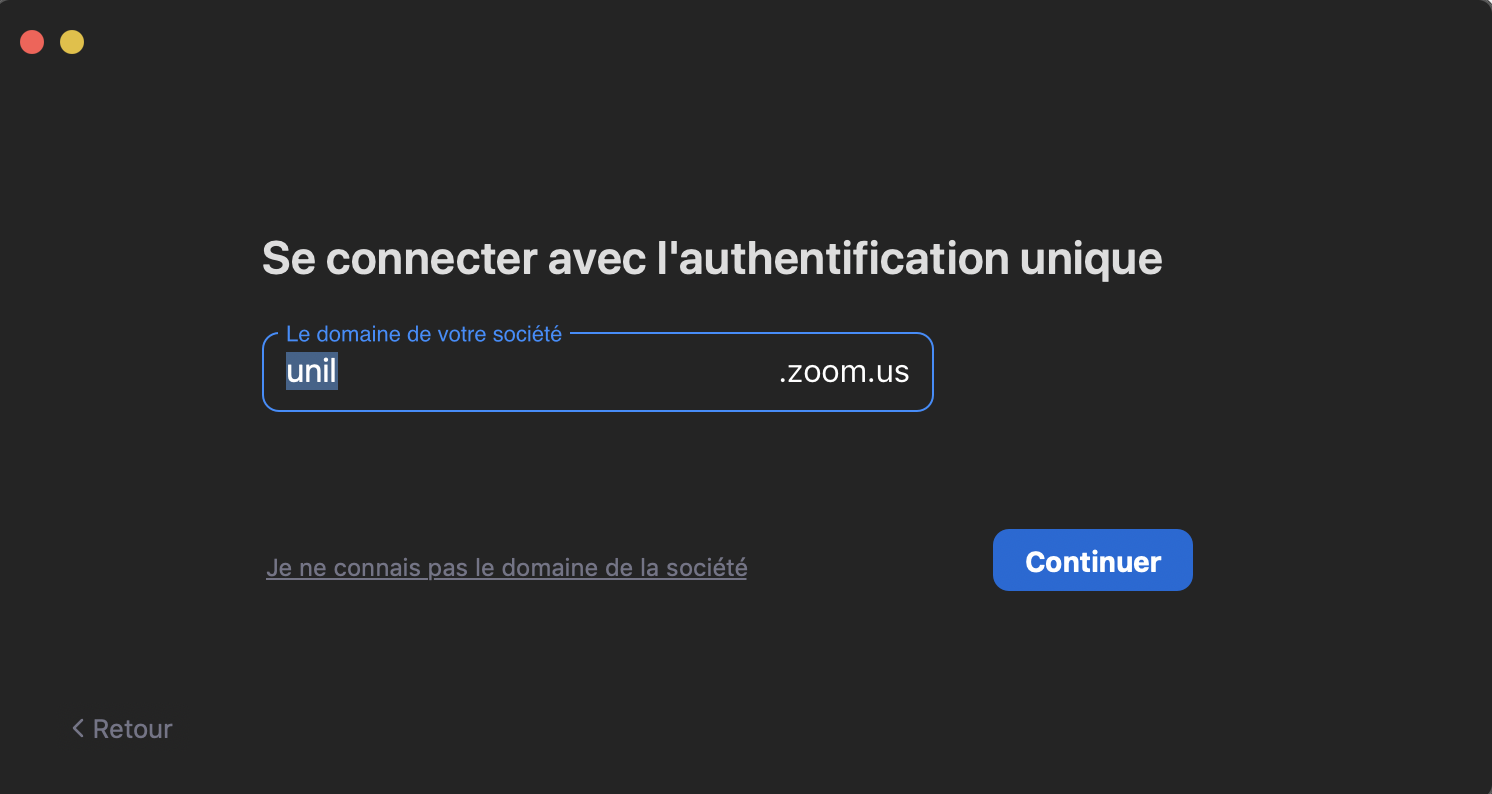
<span style="font-weight: 400;">3. Entrez ensuite le nom de domaine *unil* :</span>

[![image-1606997594998.png](https://wiki.unil.ch/cse/uploads/images/gallery/2020-12/scaled-1680-/hlgH6gxOxSg5q80p-image-1606997594998.png)](https://wiki.unil.ch/cse/uploads/images/gallery/2020-12/hlgH6gxOxSg5q80p-image-1606997594998.png)

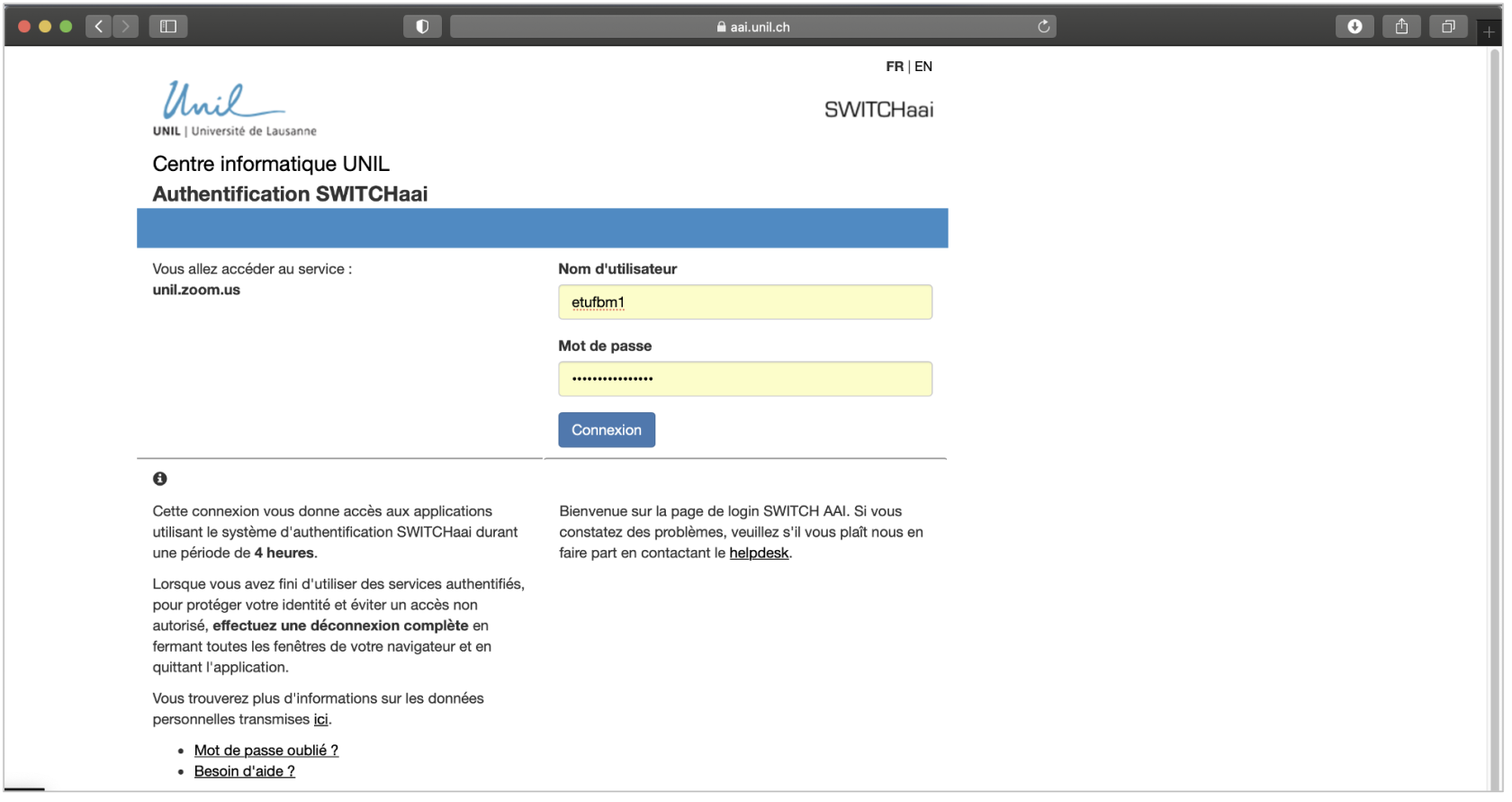
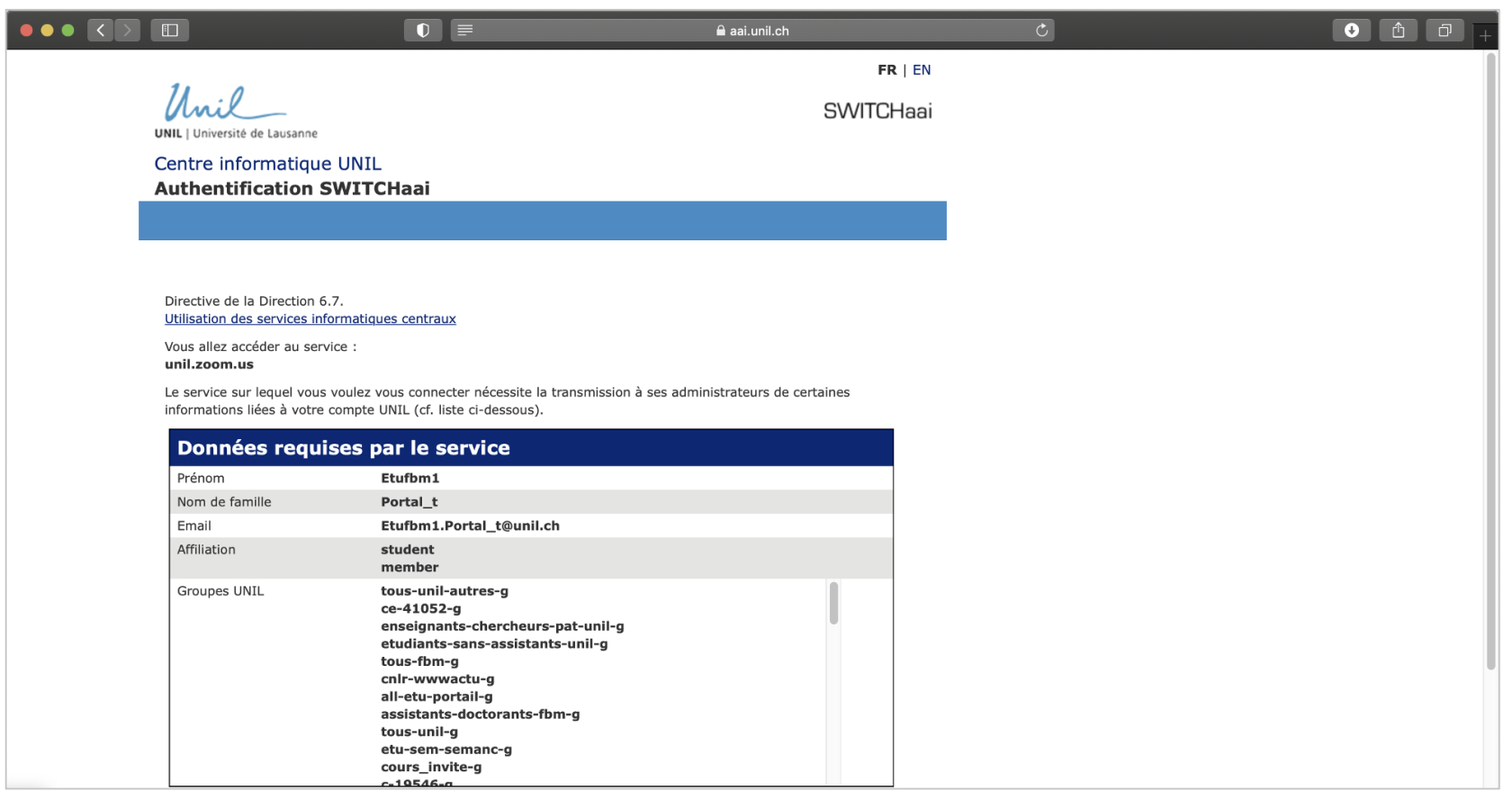
<span style="font-weight: 400;">4. Vous serez renvoyé·e· à ce stade vers une page Web du CI. **Entrez vos identifiants de connexion UNIL** : </span>


[![image-1657709445306.png](https://wiki.unil.ch/cse/uploads/images/gallery/2022-07/scaled-1680-/pgks6PMCWKG9RWtL-image-1657709445306.png)](https://wiki.unil.ch/cse/uploads/images/gallery/2022-07/pgks6PMCWKG9RWtL-image-1657709445306.png)

  
<span style="font-weight: 400;">5. Finalement, si vous n'aviez pas déjà activé votre compte Zoom UNIL préalablement, vous serez invité·e· à accepter des **conditions d’utilisation** du service unil.zoom.us : </span>

[![image-1657709457188.png](https://wiki.unil.ch/cse/uploads/images/gallery/2022-07/scaled-1680-/obMng60A918GK0Ye-image-1657709457188.png)](https://wiki.unil.ch/cse/uploads/images/gallery/2022-07/obMng60A918GK0Ye-image-1657709457188.png)

6\. Acceptez de **revenez sur l'application Bureau**, en cliquant sur *Ouvrir Zoom.us* ou *Ouvrir Client Zoom* lorsqu'une fenêtre pop-up apparaît sur votre écran :

[![image-1657709493863.us.png](https://wiki.unil.ch/cse/uploads/images/gallery/2022-07/scaled-1680-/m6CpdOEqMoOHZLF8-image-1657709493863-us.png)](https://wiki.unil.ch/cse/uploads/images/gallery/2022-07/m6CpdOEqMoOHZLF8-image-1657709493863-us.png)