# Exporting records
To learn how to link your ORCID account to Unisciences, a tutorial is avaliable [here](https://wiki.unil.ch/recherche/books/importexport-from-serval/page/linking-your-orcid-account-with-unisciences).
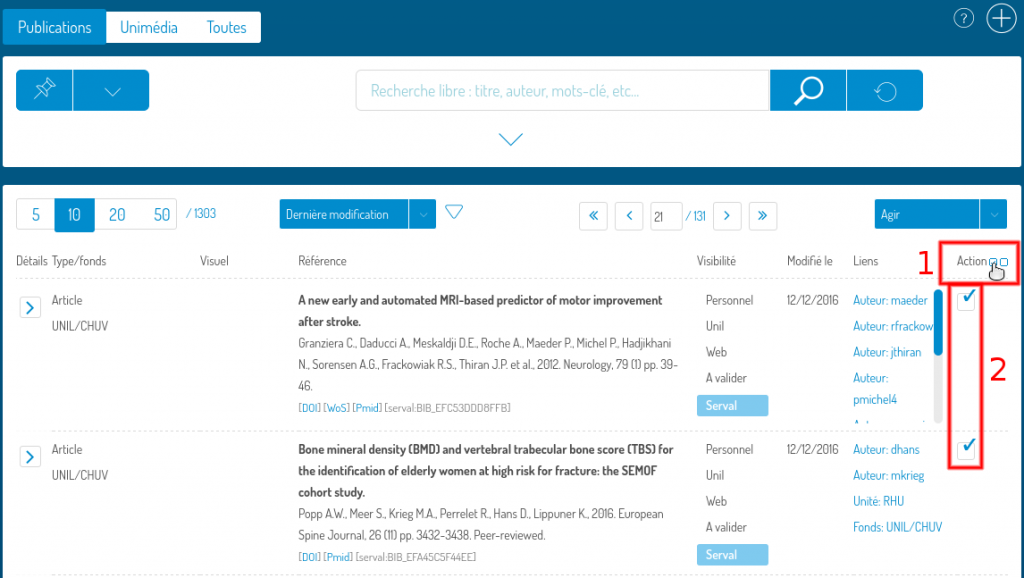
To export some of the results obtained during your last search, select the publications to be exported by using the “**select all**” button (1) or by **checking each publication** concerned (2).
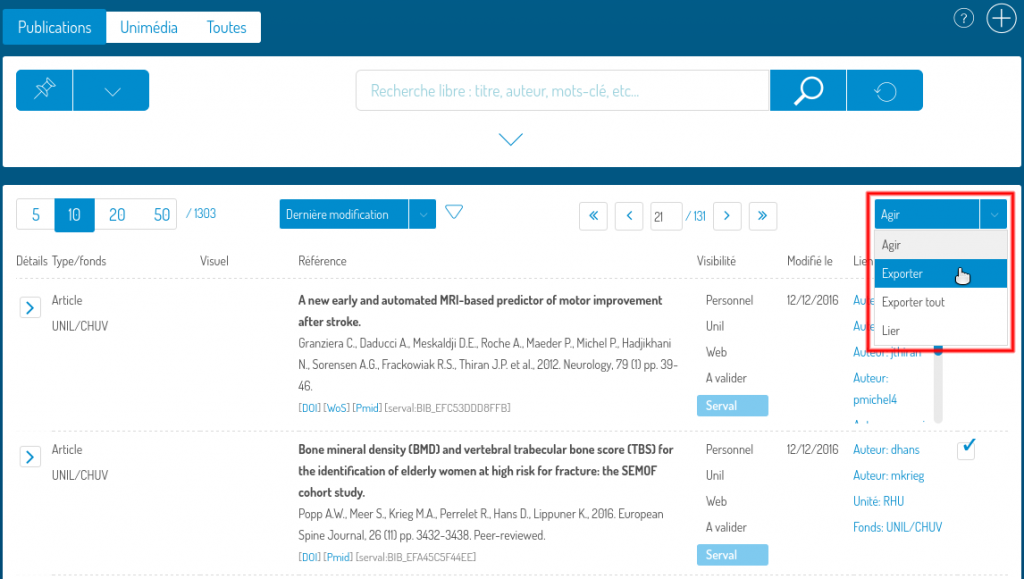
If you wish to export the previously selected publications, choose “**Export**” from the “**Act**” menu.
If you want to export all the results found, choose “**Export All**”. The “Export All” choice is only available from [myUnil](https://my.unil.ch/).
Then choose the **export format** (1) and click on the “**Export**” button (2).
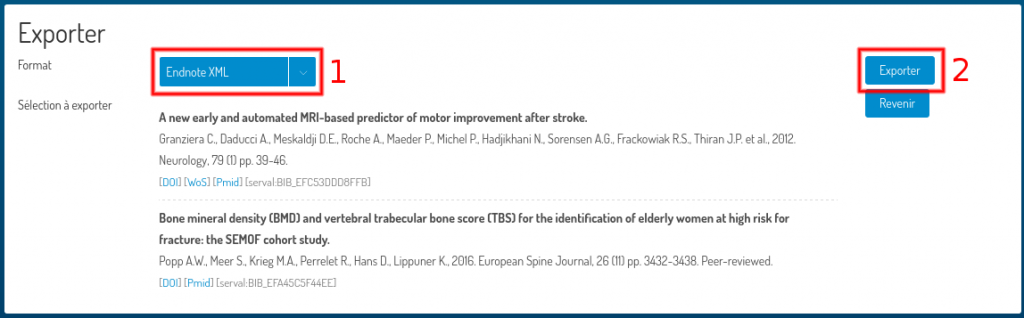
The available formats are:
- **Endnote XML** (to export your list of publications to Endnote)
- **BibTex** (to export your publications to citation management software)
- **ORCID** (to export your list of publications to ORCID).
#### **To import Endnote XML files created in Serval, In Endnote**
- Go to the “File” menu and choose “Import”.
- In the “Import Options” list, select “Endnote Generated XML”. Depending on your version of Endnote, you must first click on “Options” to access it.