# Introduction | Interface & Navigation
# Main Page | Public Interface
#### **Main Page Navigation Guide** | Public Interface
[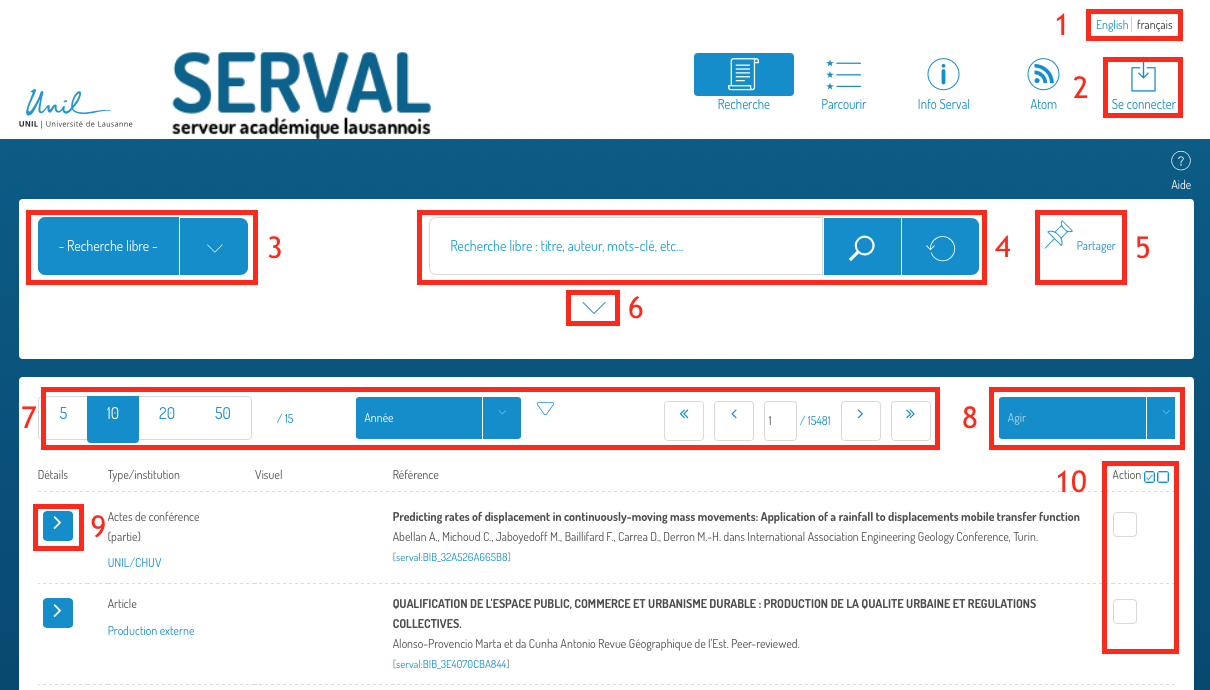](https://wiki.unil.ch/recherche/uploads/images/gallery/2024-02/pagepublique-serval.png)
1. **Language** **Selection**
2. **Authenticate to enter notices and access content** reserved for the UNIL community.
3. **Proposed search criteria**, such as publications with documents.
4. **Search field**. The magnifying glass button initiates the search, while the circular arrow button resets the fields.
5. **Generate a shareable link** leading to the results of selected search criteria.
6. To **Show/Hide advanced search**, click on the enclosed icon.
7. You can **Sort your search** based on various criteria (latest modification, relevance, year, etc.). Select the desired filter. The triangle on the right indicates the sorting order, which you can reverse by clicking on it. You can also choose the number of notices visible on the page.
8. Perform actions such as **Exporting the results of selected searches** (see 10).
9. Click on this icon to **Show/Hide details** regarding the publication.
10. **Select publications** on which to perform an action (see 8).
Once authenticated, you can access the Intranet interface. A user guide for this interface is available [here](https://wiki.unil.ch/recherche/books/1-introduction-interface-navigation/page/page-principale-interface-intranet).
# Main Page | Intranet
#### **Main Page Navigation Guide** | Intranet
[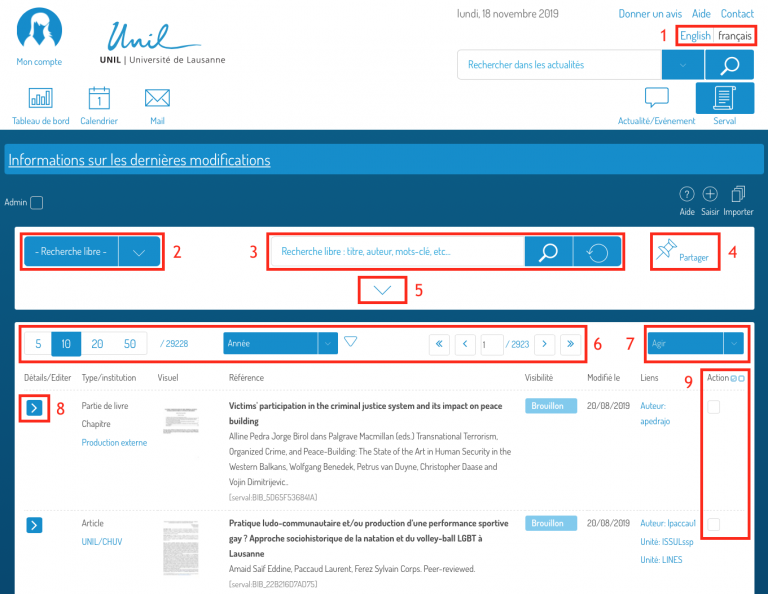](https://wiki.unil.ch/recherche/uploads/images/gallery/2024-02/intranet1-serval.png)
1. **Language** **Selection**
2. **Proposed search criteria**, for example, publications with documents.
3. **Search field**. The *magnifying glass* button launches the search. The right button (circular arrow) resets the fields.
4. **Generate a shareable link** leading to the results of selected search criteria.
5. To **Show/Hide advanced search**, click on the surrounded icon.
6. You have the option to **Sort your search** based on various criteria (latest modification, relevance, year, etc.). Select the desired filter. The triangle on the right indicates the sorting order, which you can reverse by clicking on it. You can also choose the number of notices visible on the page.
7. Perform actions such as **Exporting the results** of checked searches (see 9).
8. Click on this icon to **Show/Hide details** about the publication and to **edit the notice**.
9. **Select the publications** on which to perform an action (see 7).