*The voice in this video was generated by artificial intelligence.*
#### Enter a new publication 1. Click on “My workspace.”[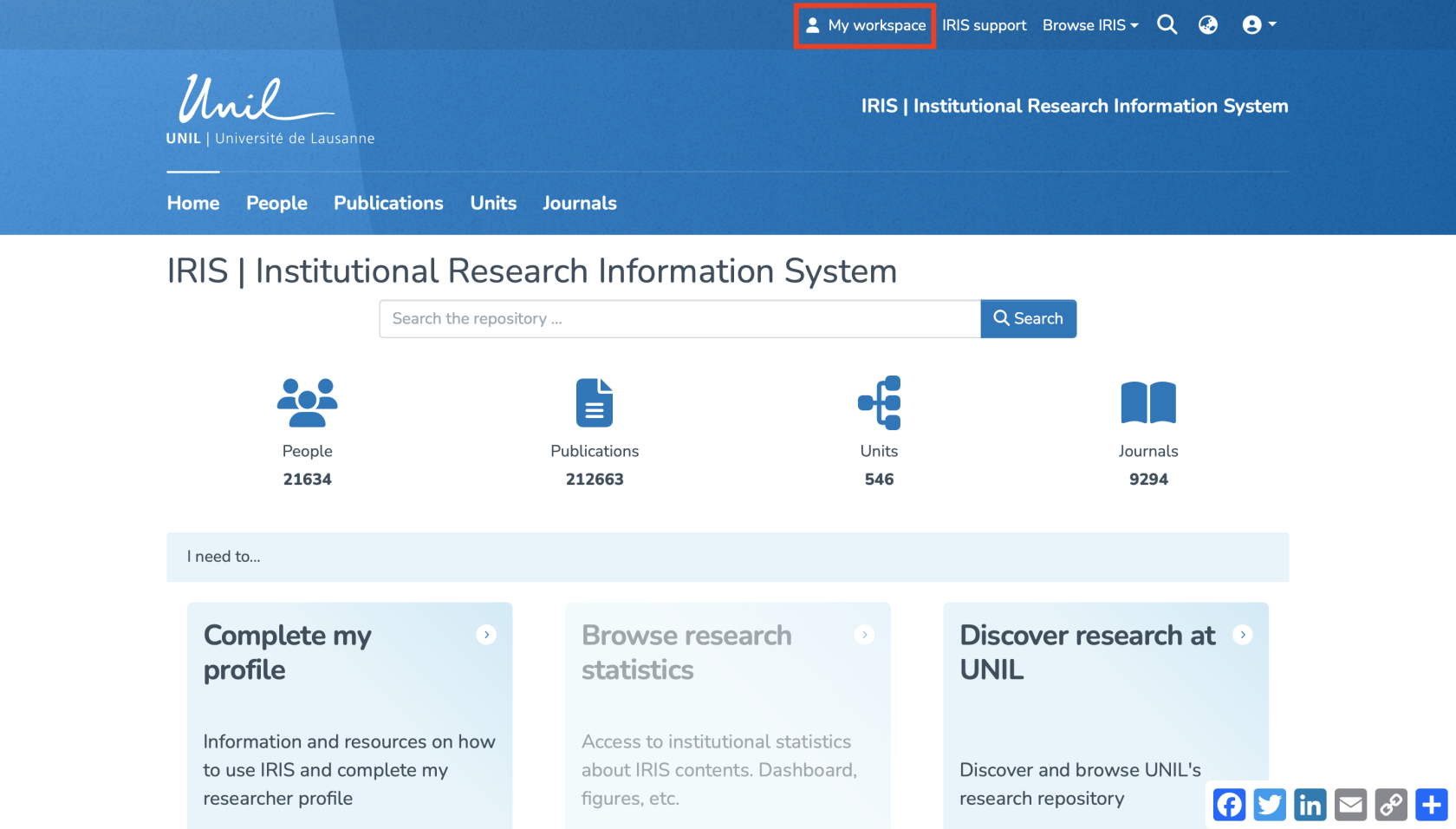](https://wiki.unil.ch/recherche/uploads/images/gallery/2025-08/bwPcapture-decran-2025-08-15-a-09-22-31.png) 2. Click on “Enter.” [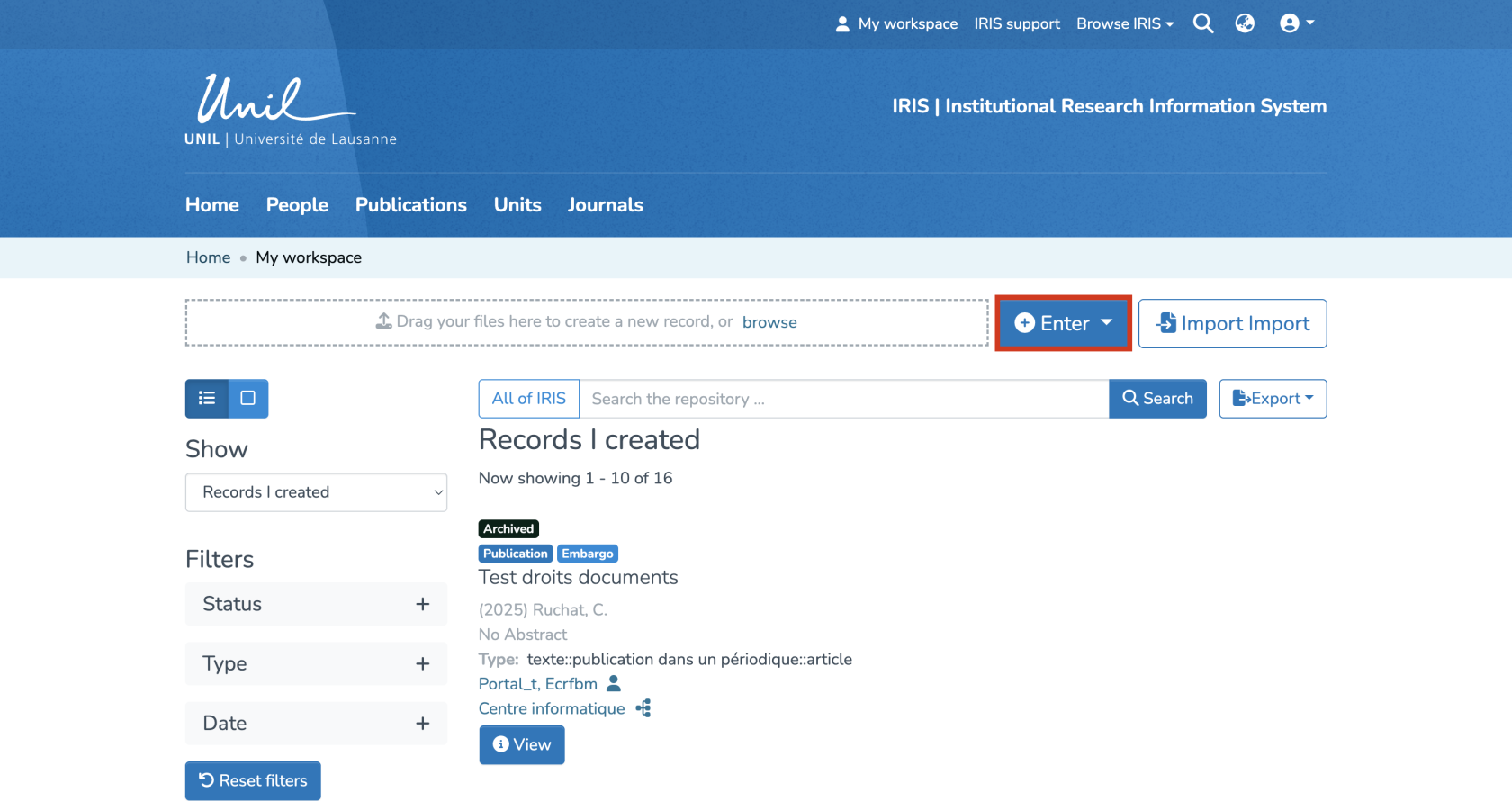](https://wiki.unil.ch/recherche/uploads/images/gallery/2025-09/qFLimage.png) 3. Search for the collection where you want to create the record, then select it. 4. Click on “Publication” to access the entry form. [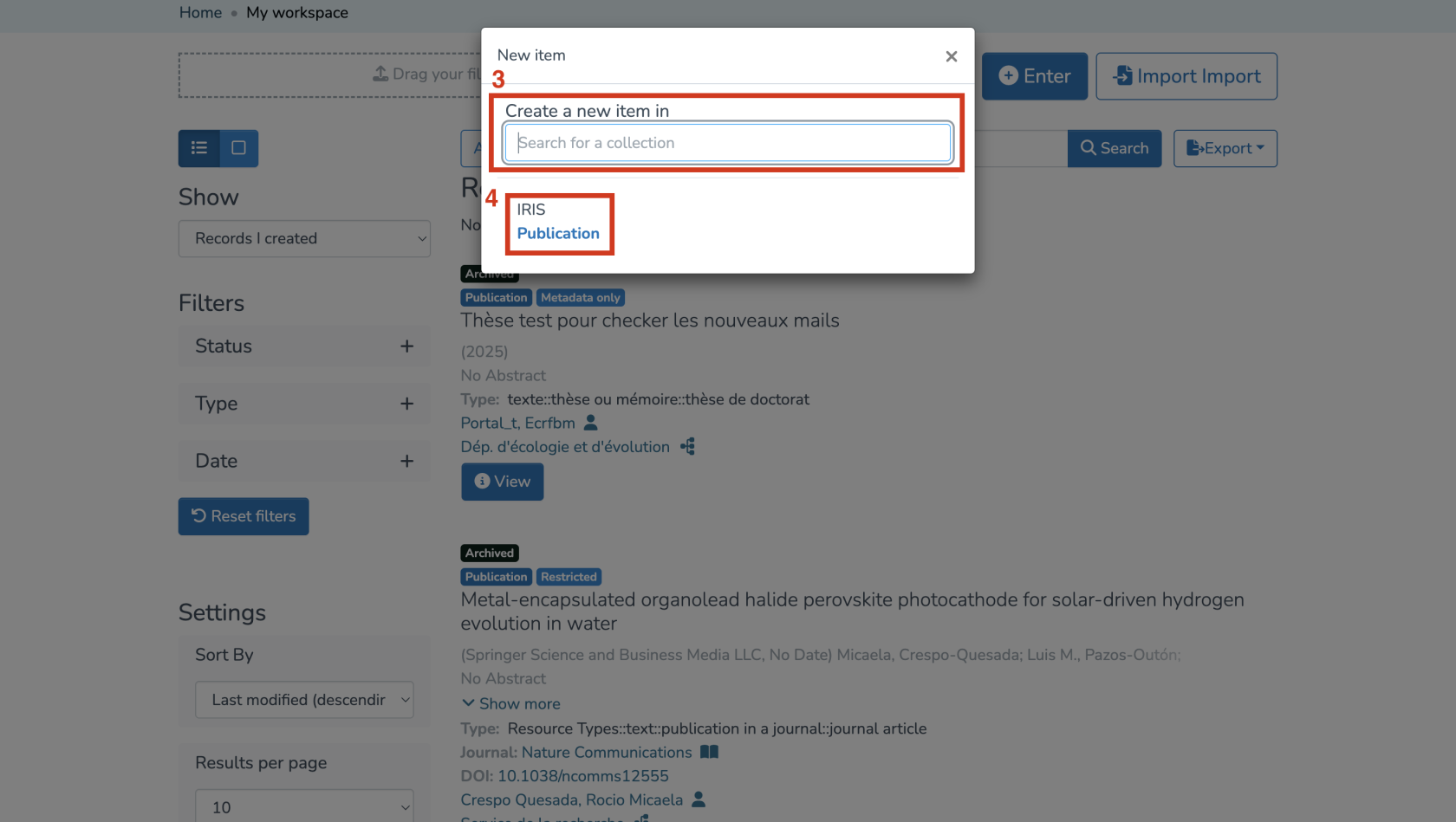](https://wiki.unil.ch/recherche/uploads/images/gallery/2025-07/qWfimage.png) #### Fill in the required fields In the form, enter the publication’s information, especially the required fields (marked with an asterisk \*), which include: 1. Type of publication 2. Institution where the research was conducted 3. Title 4. Date of issue 5. Editorial state [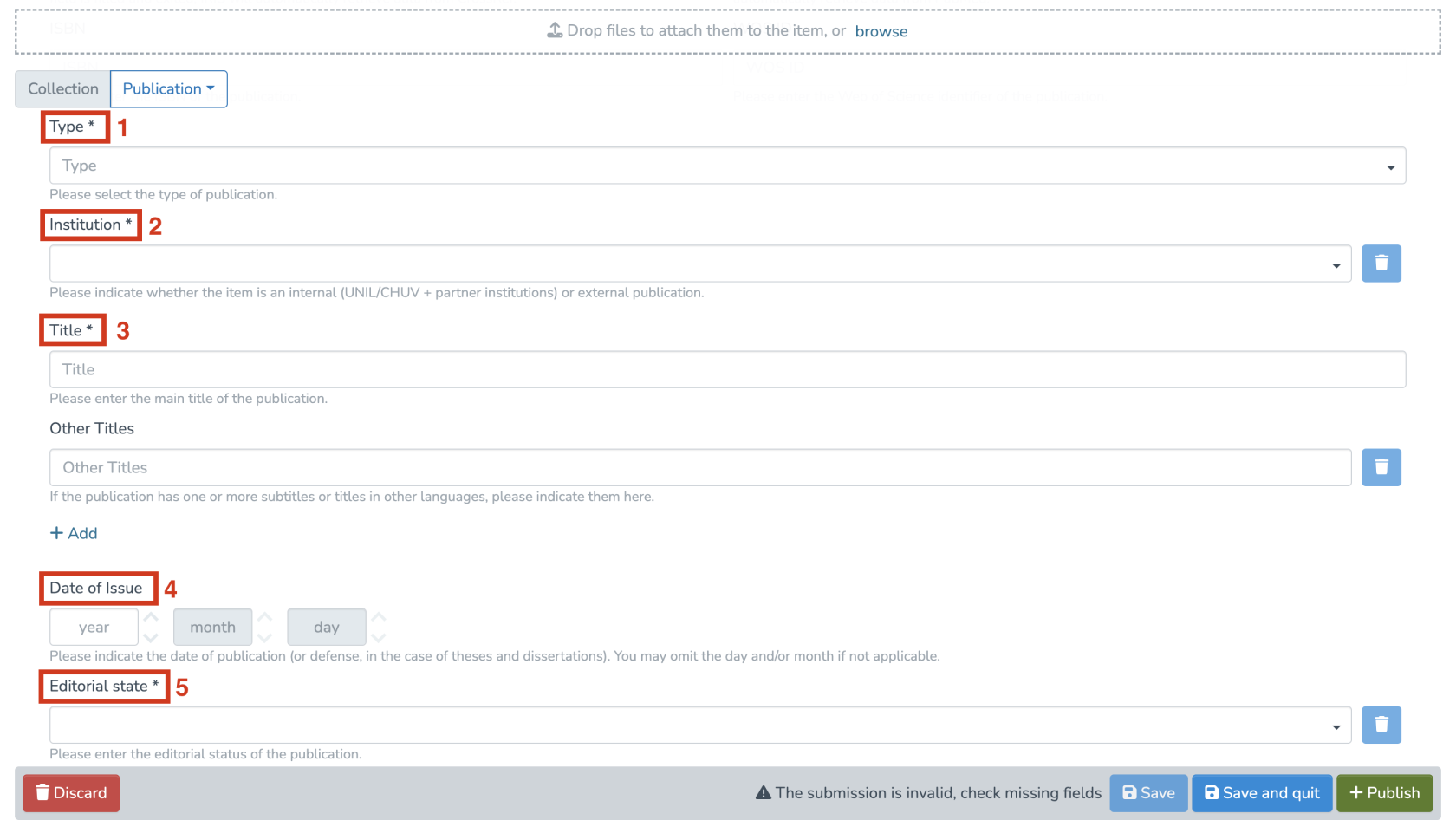](https://wiki.unil.ch/recherche/uploads/images/gallery/2025-07/qRNimage.png) These 5 fields are mandatory to create the record. The remaining fields are highly recommended. #### Link people and units **In IRIS, by default, the person who enters a record does not have the right to edit it. Only the individuals linked to the record have this permission.** **Make sure to properly link all relevant persons to the record.** This step allows you to associate the publication with your researcher profile, your co-authors, and the relevant research unit. To correctly attribute publications to authors and their units, ensuring they appear in their respective profiles, please follow these guidelines: - For publications internal to UNIL/CHUV: - A link to a unit is mandatory. - A link to the associated persons must be entered whenever possible. - For external publications: - A link to at least one person is mandatory. - No link to a unit is allowed. - Don’t forget to link yourself to the record — otherwise, it won’t appear in your researcher profile. 1. In the corresponding section, click on “Add.” [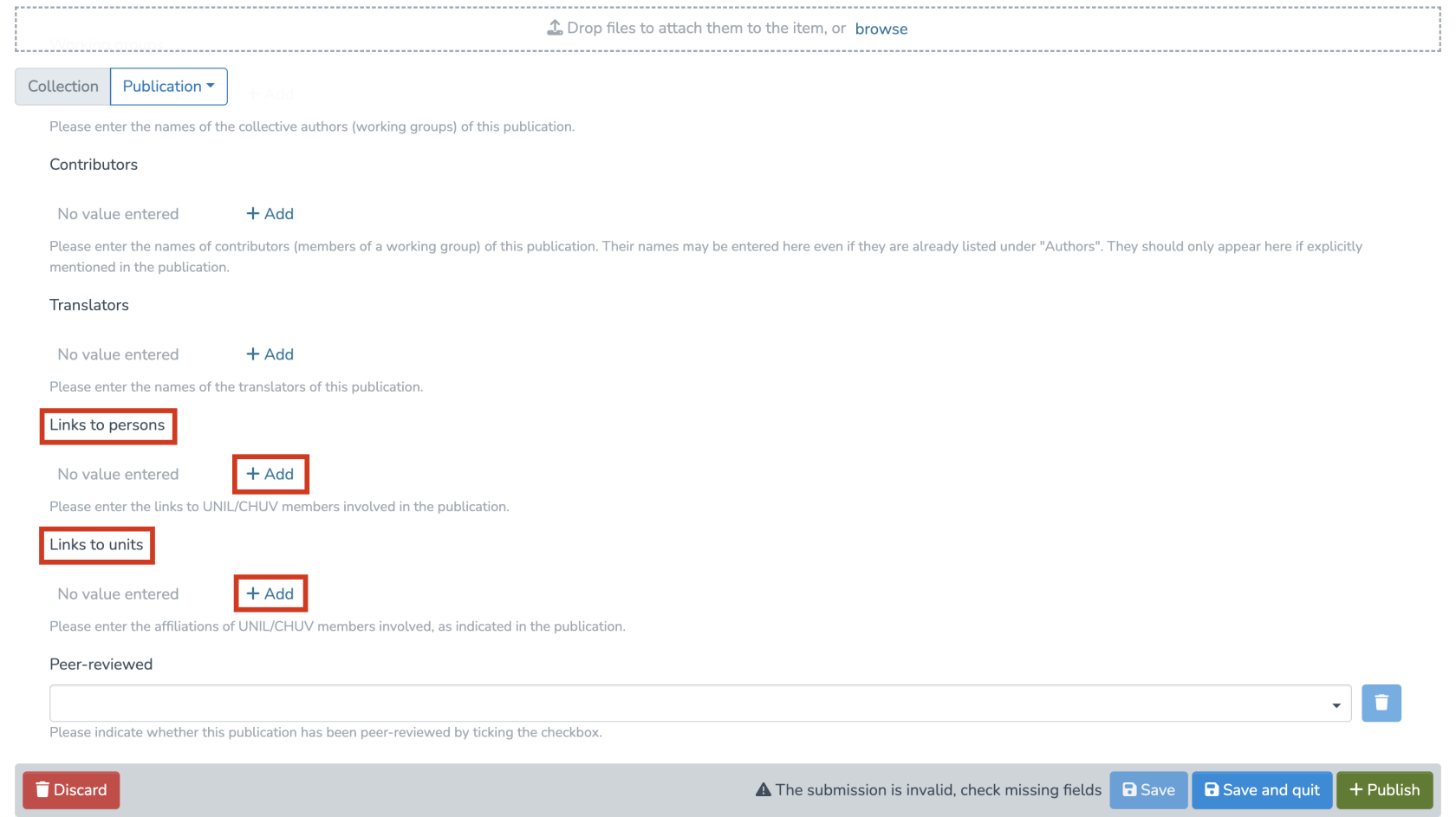](https://wiki.unil.ch/recherche/uploads/images/gallery/2025-07/3Unimage.png) 2. Type the name of the person or unit, then select it. [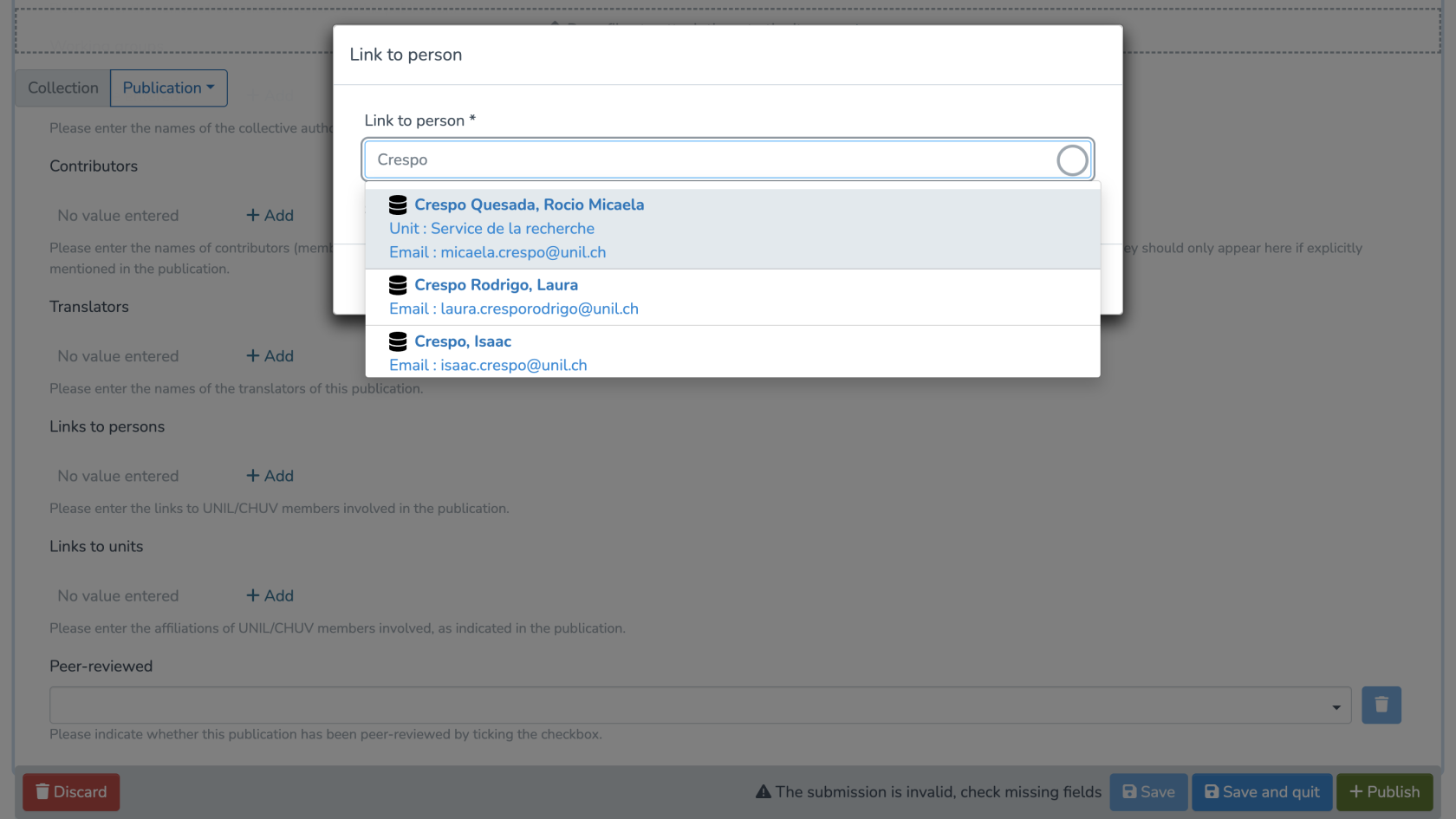](https://wiki.unil.ch/recherche/uploads/images/gallery/2025-07/UfNimage.png) #### Add full text and/or secondary documents 1. You can add full-text files and/or secondary documents by clicking on “Browse” and selecting the desired file from your library. [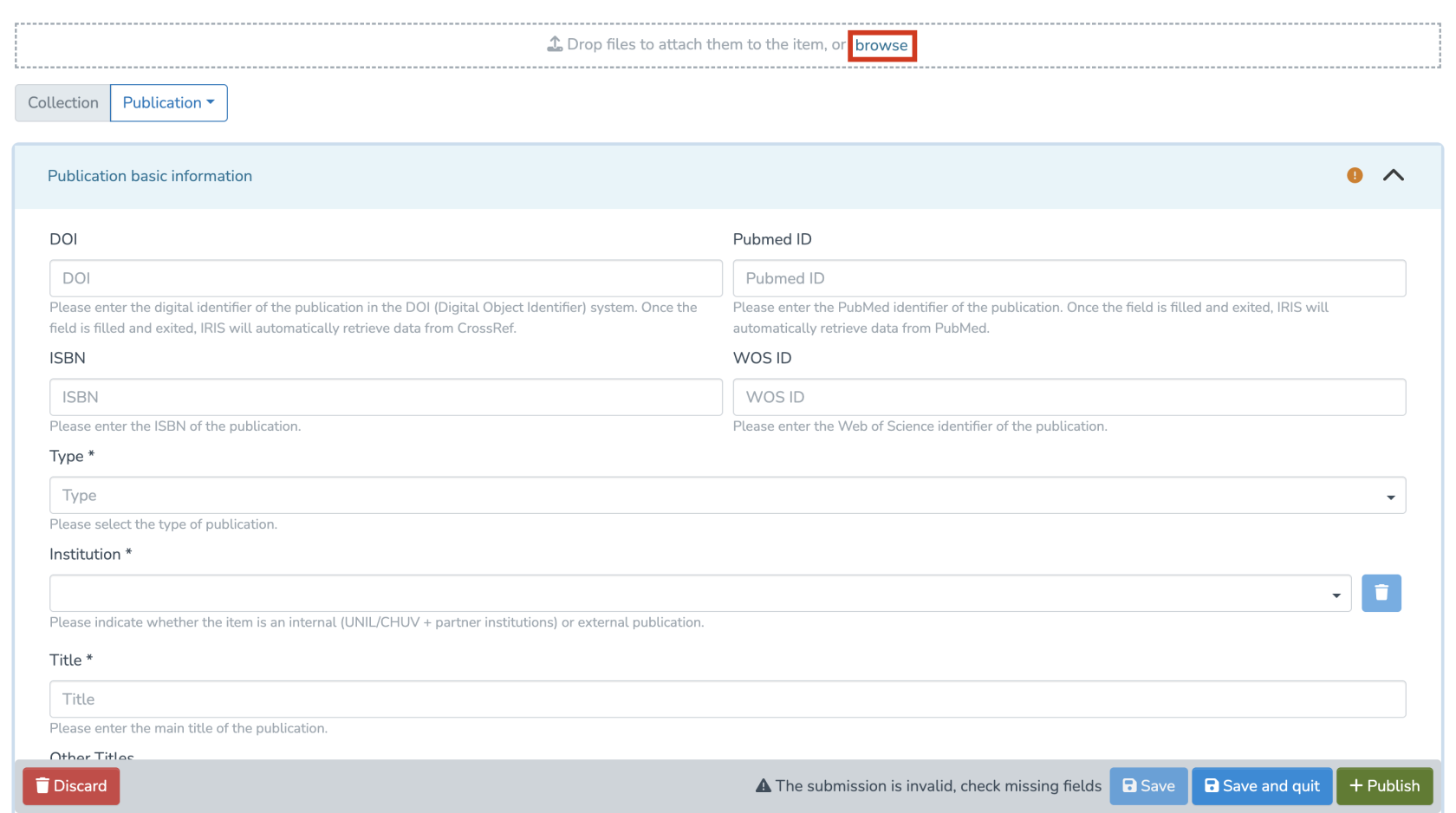](https://wiki.unil.ch/recherche/uploads/images/gallery/2025-07/X7Dimage.png) 2. Alternatively, you can scroll down to the “Documents” section and simply drag and drop your file onto the page. [](https://wiki.unil.ch/recherche/uploads/images/gallery/2025-07/TcRimage.png) 3. Once uploaded, you can edit the document’s metadata by clicking the corresponding icon. [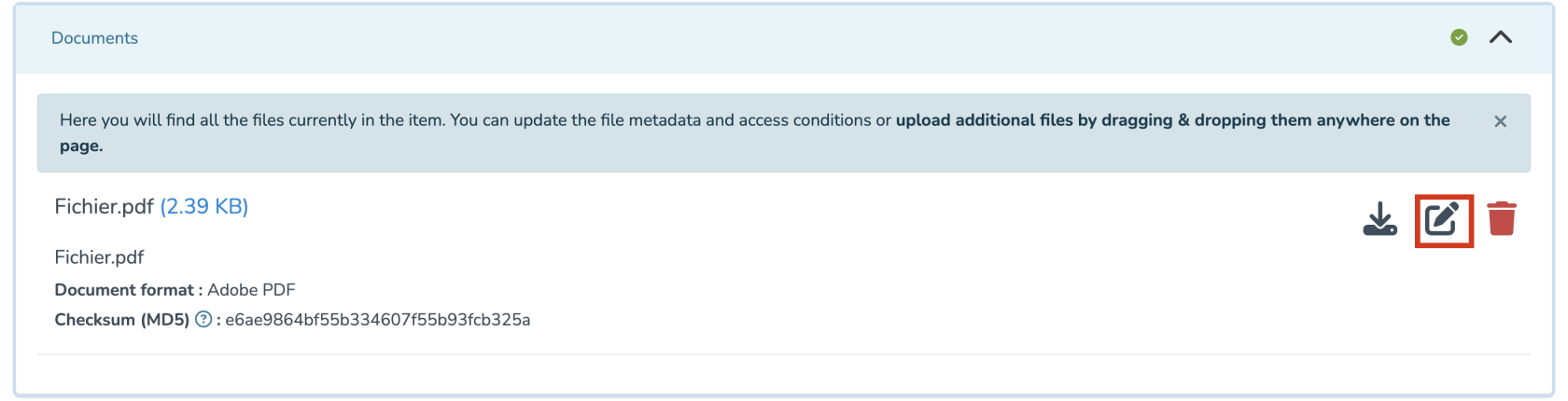](https://wiki.unil.ch/recherche/uploads/images/gallery/2025-07/6mDimage.png) 4. You can edit the following fields: (a) File name (b) Manuscript version (c) License (d) Document accessibility (open access / embargo / UNIL restricted) (e) If you select “embargo”, set the embargo end date, after which your document will become publicly accessible. [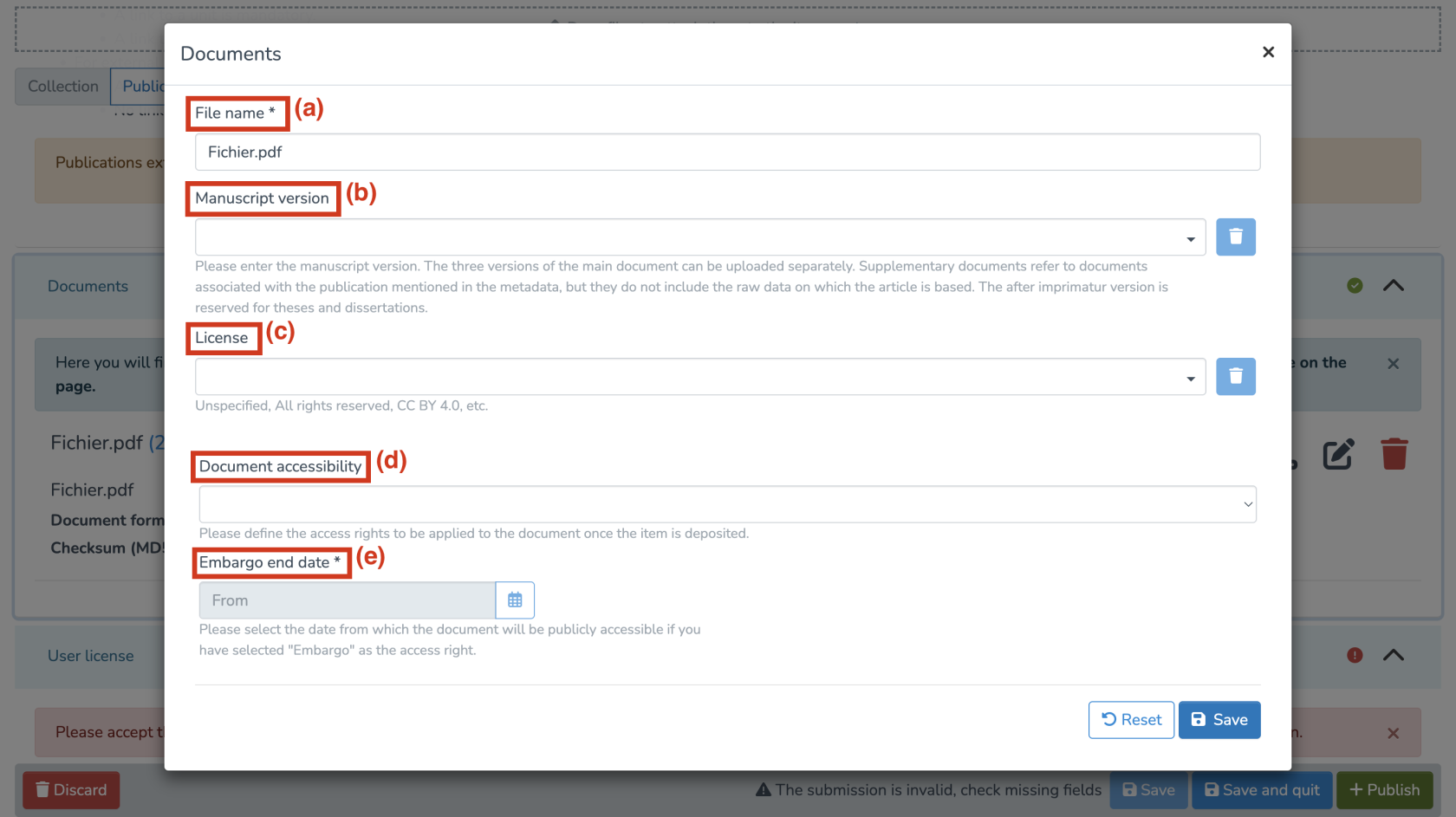](https://wiki.unil.ch/recherche/uploads/images/gallery/2025-07/5i6image.png) When multiple files are uploaded, it is recommended to designate one file as the primary file using the corresponding button. [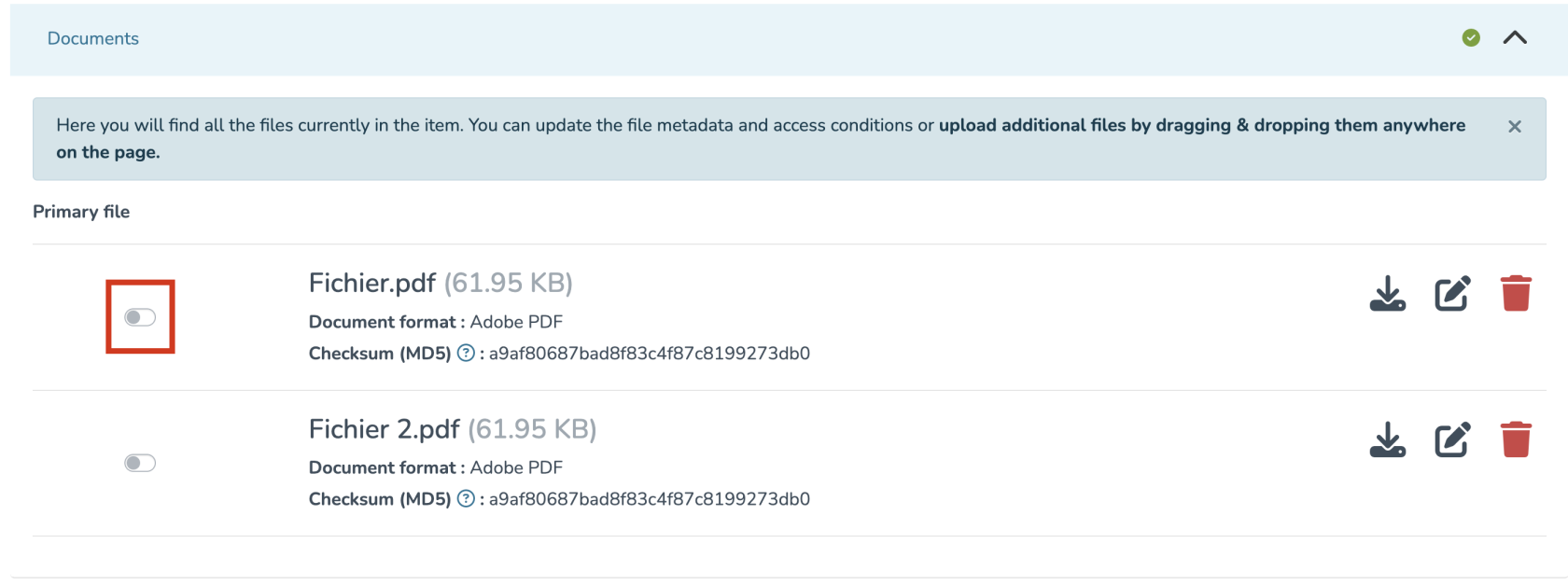](https://wiki.unil.ch/recherche/uploads/images/gallery/2026-02/yQpimage.png) [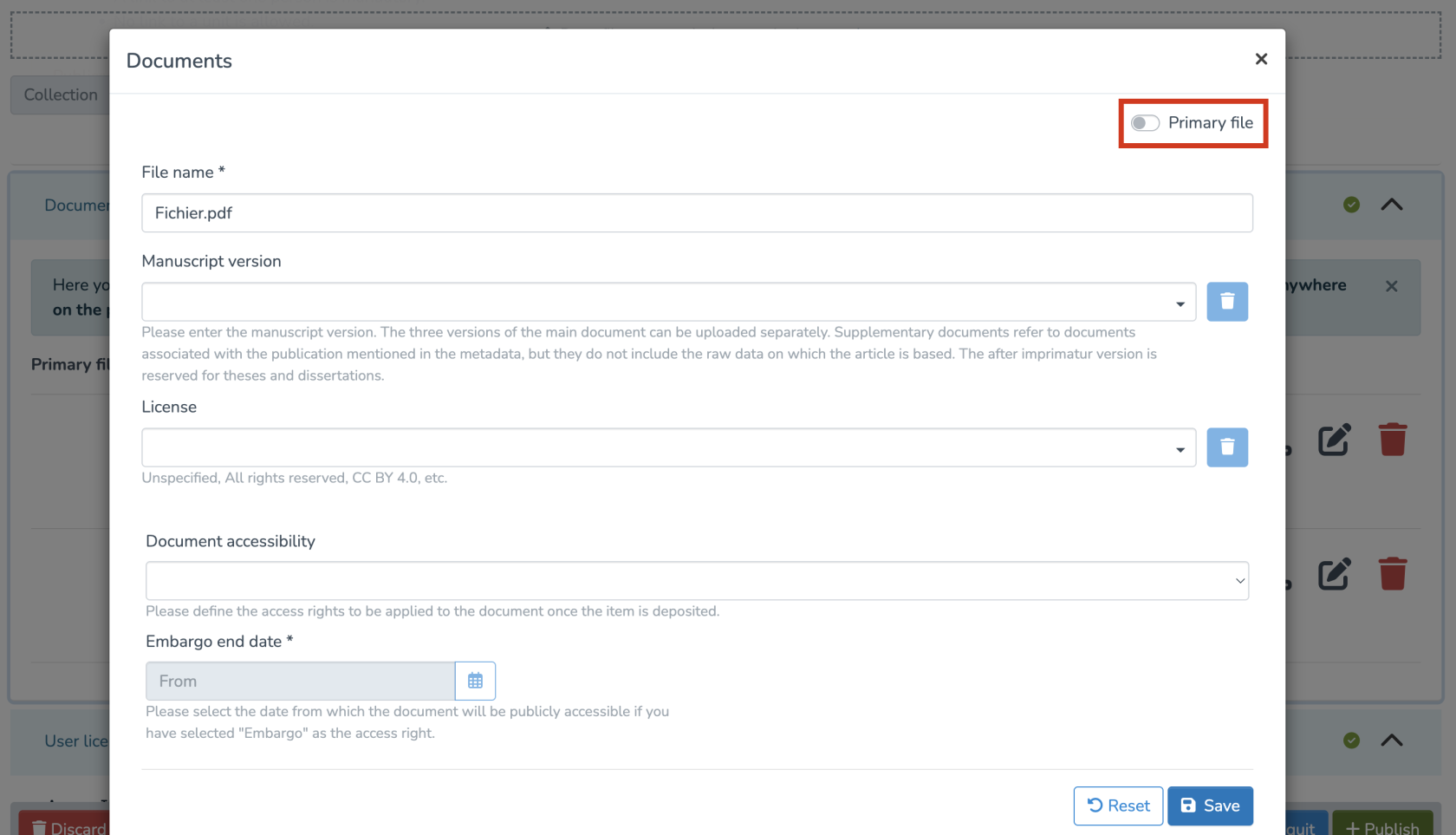](https://wiki.unil.ch/recherche/uploads/images/gallery/2026-02/FbPimage.png) This is particularly useful when a record contains several documents. Defining a primary file makes it possible to: - Generate the thumbnail associated with the record (by default, the thumbnail is created from the first uploaded document); - Improve the visibility and indexing of the publication, in particular via OAI-PMH and Google Scholar, which prioritize indexing the full text of the main document; - Determine the access status displayed for the record (Open Access, UNIL Restricted, or under embargo), which is by default based on the first uploaded document. #### Check for duplicates The system will display a list of potential duplicates. For each item, click on “It's a duplicate” or “It's not a duplicate” as appropriate. [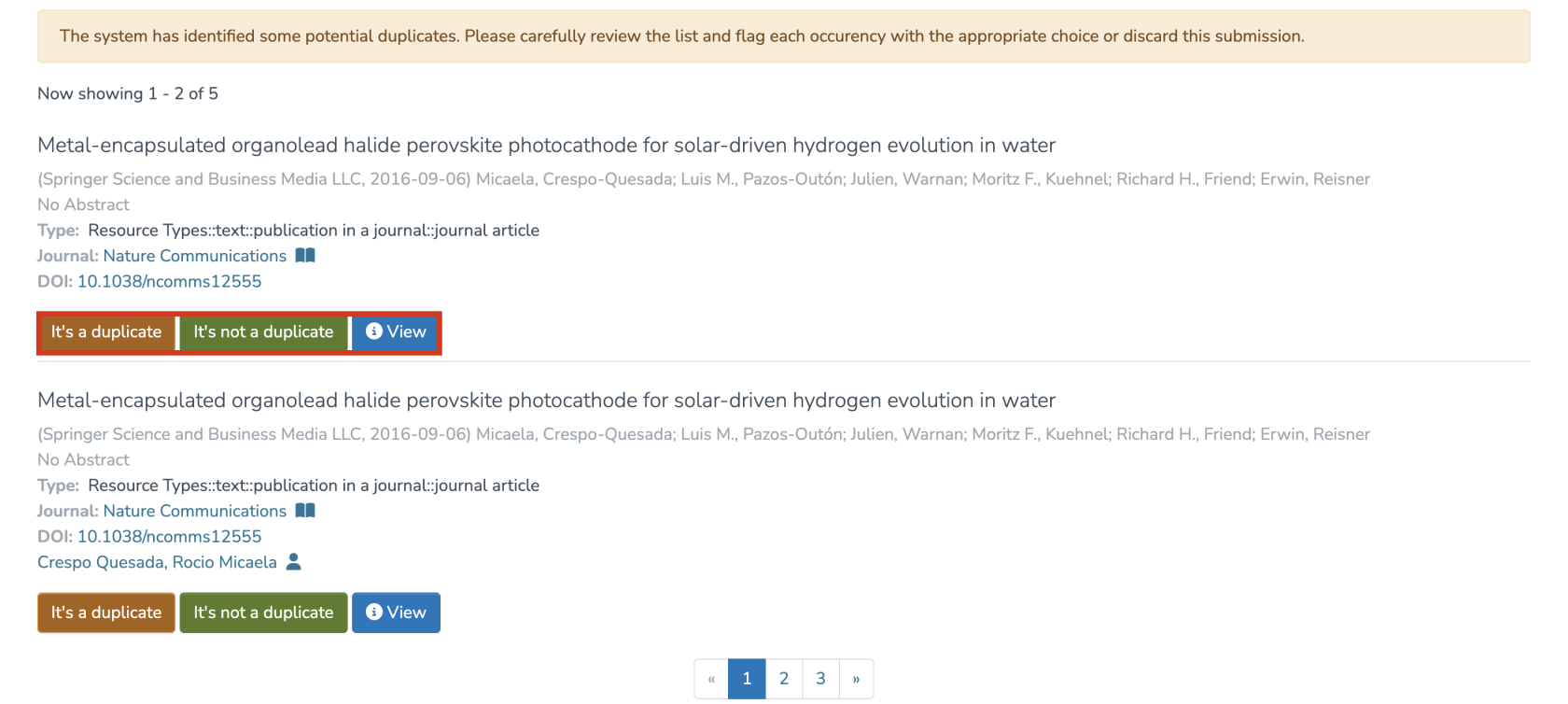](https://wiki.unil.ch/recherche/uploads/images/gallery/2025-07/p9iimage.png) #### Finalize the submission 1. If you’re uploading a full-text document, you will need to approve the user license. 2. Once your publication entry is complete, choose “Save” or “Save and quit” to save the record, or click “Publish” to immediately publish it. [](https://wiki.unil.ch/recherche/uploads/images/gallery/2025-07/6duimage.png) # Entering a publication by DOI/PMID ####*The voice in this video was generated by artificial intelligence.*
#### Entry 1. Firstly, you should access your [workspace](https://wiki.unil.ch/recherche/books/user-guide/page/my-workspace) 2. Then, you should click on **“Enter.”** [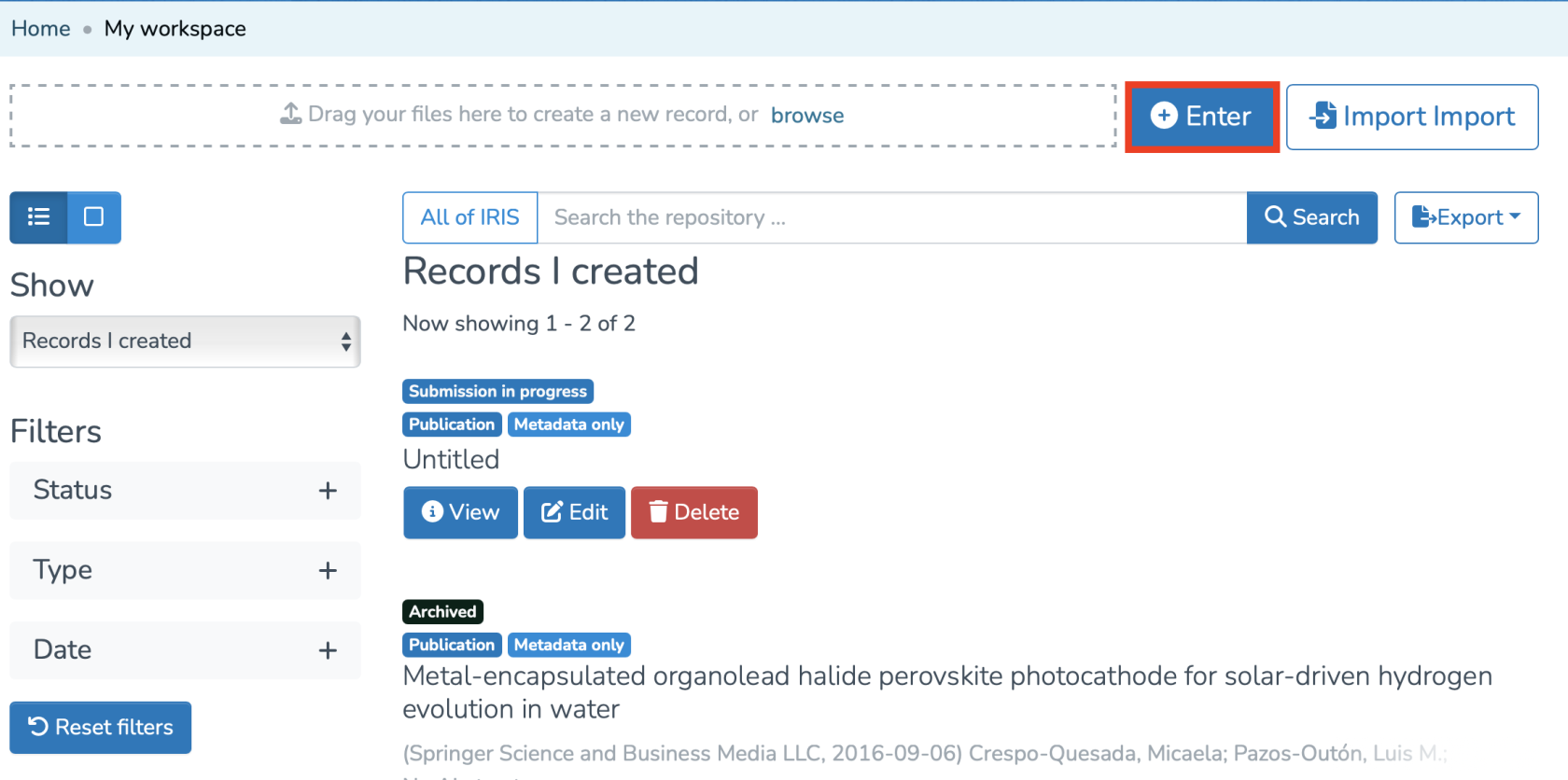](https://wiki.unil.ch/recherche/uploads/images/gallery/2025-07/capture-decran-2025-07-31-a-11-55-19.png) 3. Search for the collection in which you want to create the record, then select it, or click on the one already suggested to access the entry form. [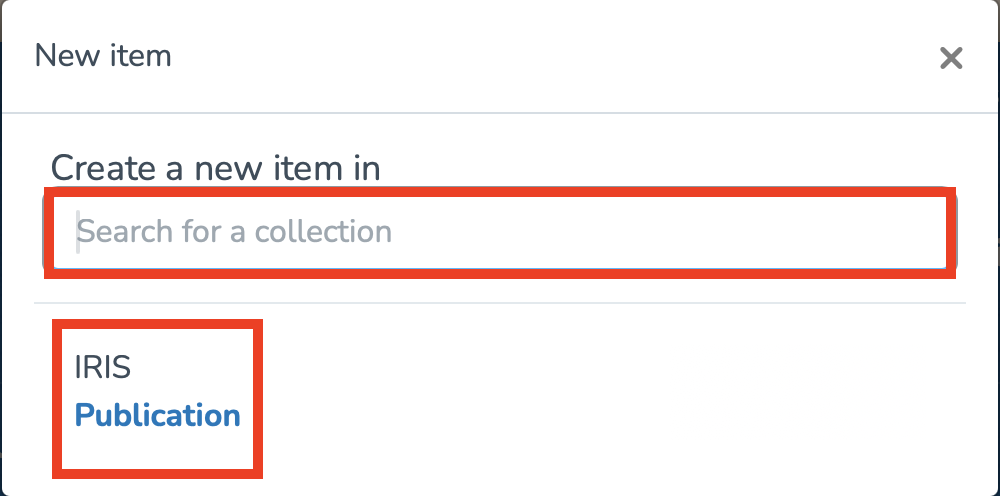](https://wiki.unil.ch/recherche/uploads/images/gallery/2025-07/capture-decran-2025-07-31-a-11-56-40.png) #### Entering the DOI/PMID In this case, we are interested in the publication by DOI (1) or PMID (2). In the form, you will need to enter the DOI (Digital Object Identifier) or the PubMed ID. IRIS will then automatically link the data. However, you must move your cursor away from the DOI or PMID input field and click elsewhere so that the metadata is populated. Note**:** Fields marked with a " \* " are mandatory and must be completed if they are not already filled in. [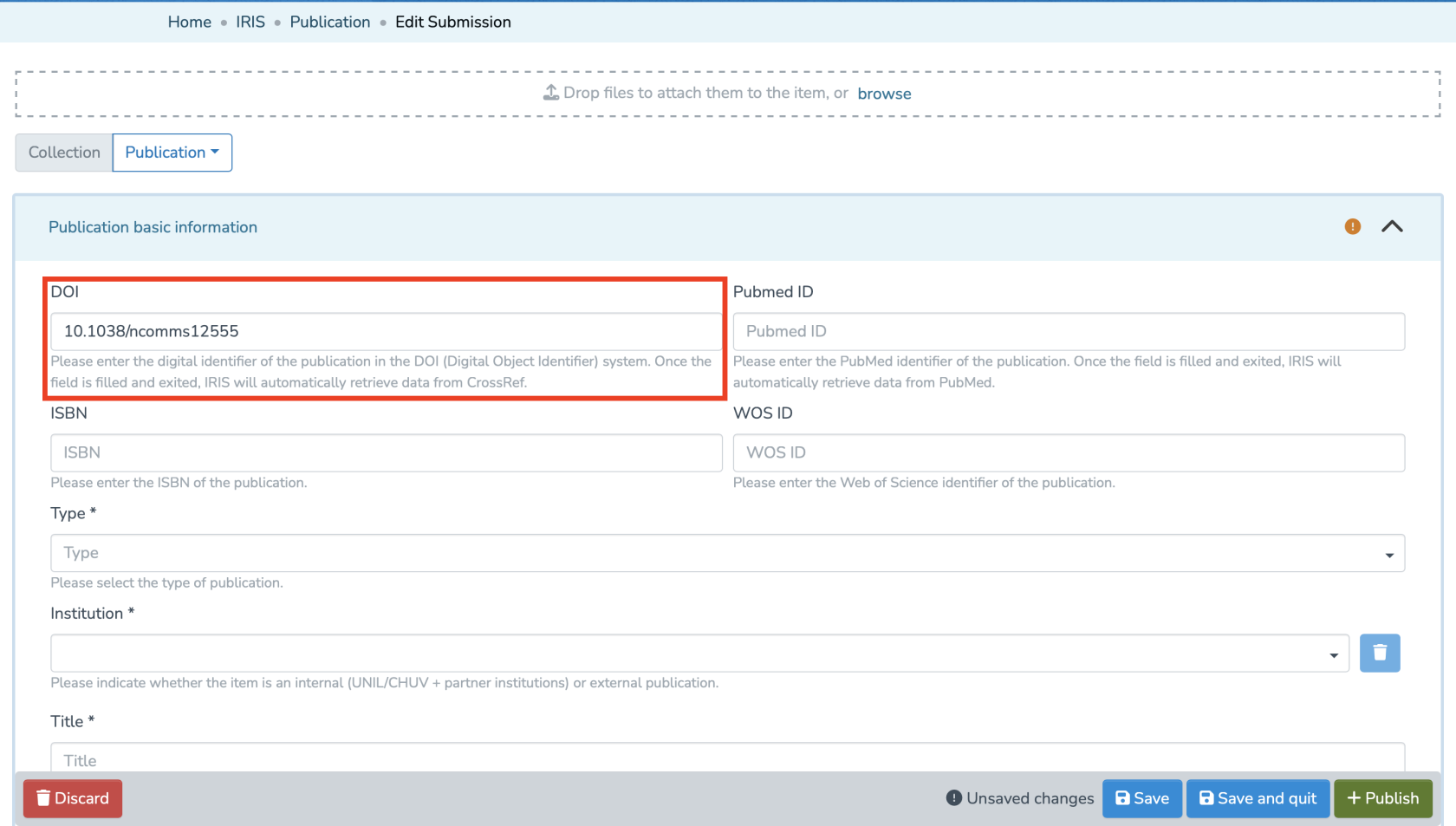](https://wiki.unil.ch/recherche/uploads/images/gallery/2025-07/capture-decran-2025-07-31-a-11-58-51.png) [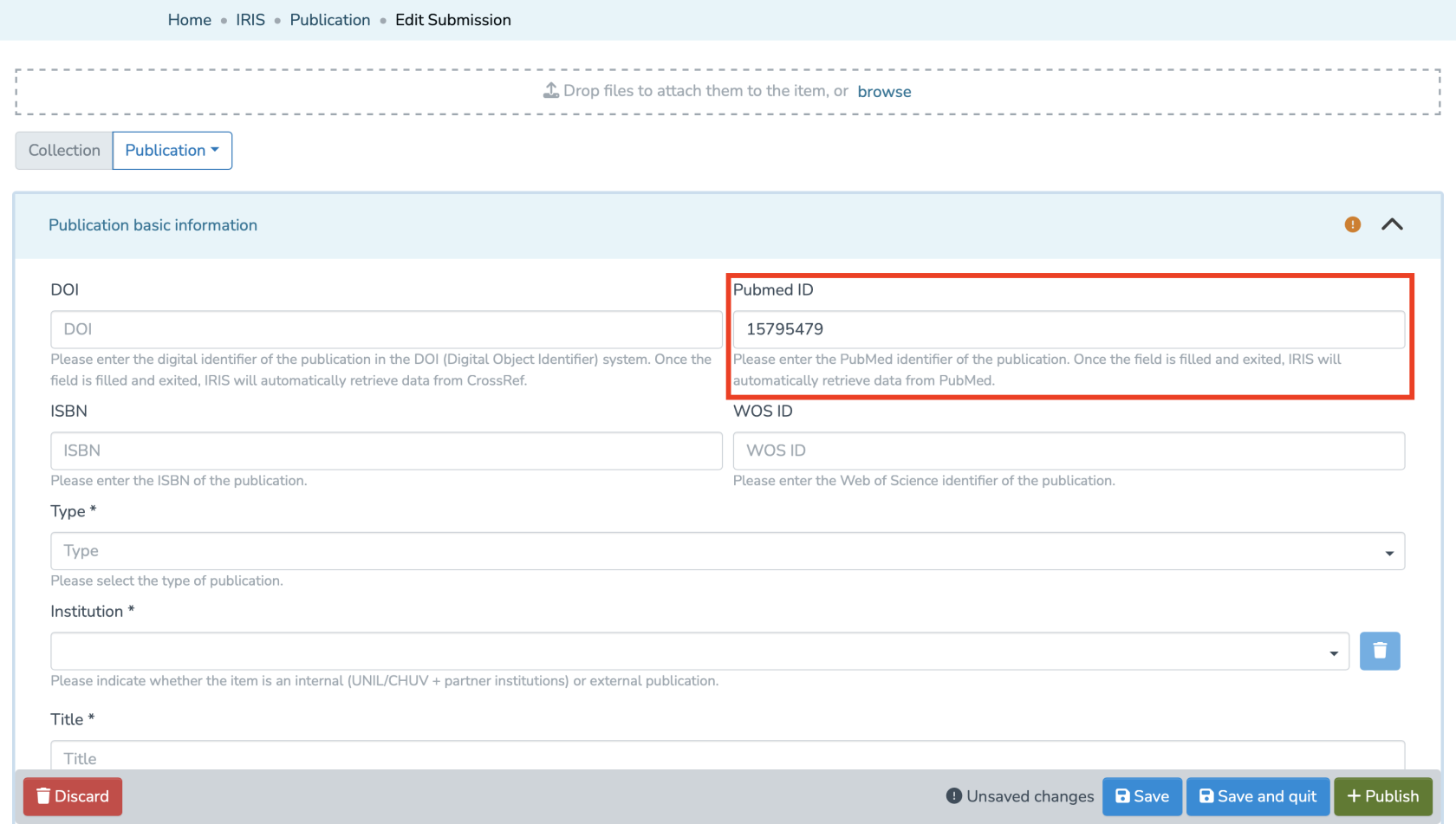](https://wiki.unil.ch/recherche/uploads/images/gallery/2025-07/capture-decran-2025-07-31-a-11-59-54.png) #### Linking People and Units **In IRIS, by default, the person who enters a record does not have the right to edit it. Only the individuals linked to the record have this permission.** **Make sure to properly link all relevant persons to the record.** Make sure to fill in the following two fields by clicking **“Add”**: 1. Links to people (Internal & external publication to UNIL/CHUV/Unisanté). 2. Links to units (Only internal publication to UNIL/CHUV/Unisanté). [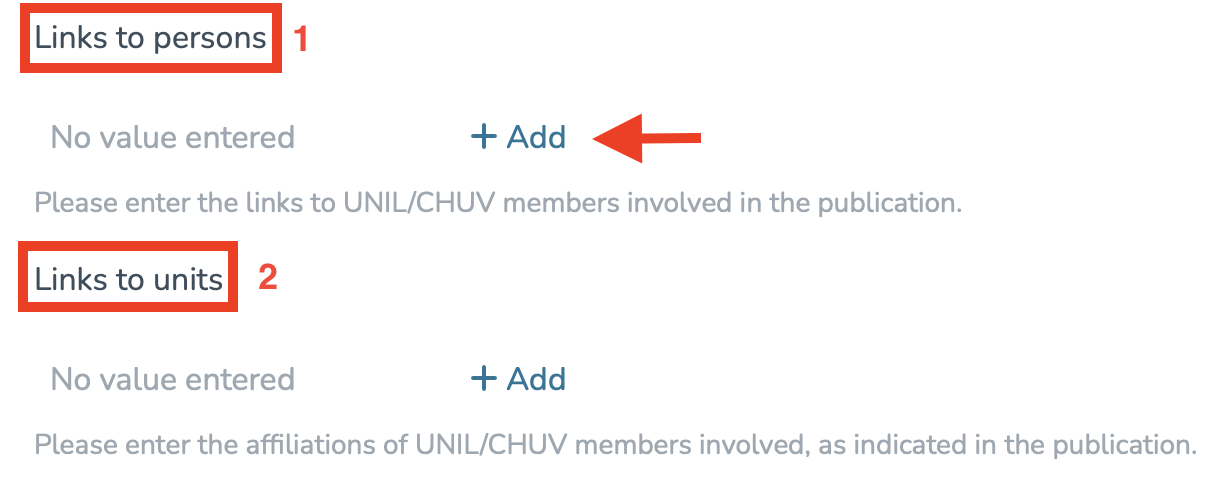](https://wiki.unil.ch/recherche/uploads/images/gallery/2025-07/capture-decran-2025-07-31-a-12-00-52.png) #### Checking for Duplicates The system will suggest a list of potential duplicates. You will need to go through each suggested publication and specify whether it is a duplicate by clicking **“It is a duplicate”** or **“It is not a duplicate,”** as appropriate. **Note:** Make sure to go through each publication, as several pages may be available. [](https://wiki.unil.ch/recherche/uploads/images/gallery/2025-07/p9iimage.png) Once these steps are completed, you will need to: 1. Approve the license by ticking the indicated checkbox. 2. Choose whether to **save** or **publish** your entry immediately. [](https://wiki.unil.ch/recherche/uploads/images/gallery/2025-07/capture-decran-2025-07-31-a-12-03-09.png) After publishing your entry, you can access its metadata as follows: - Access your workspace. - Click **“View”** under the title of the corresponding publication. [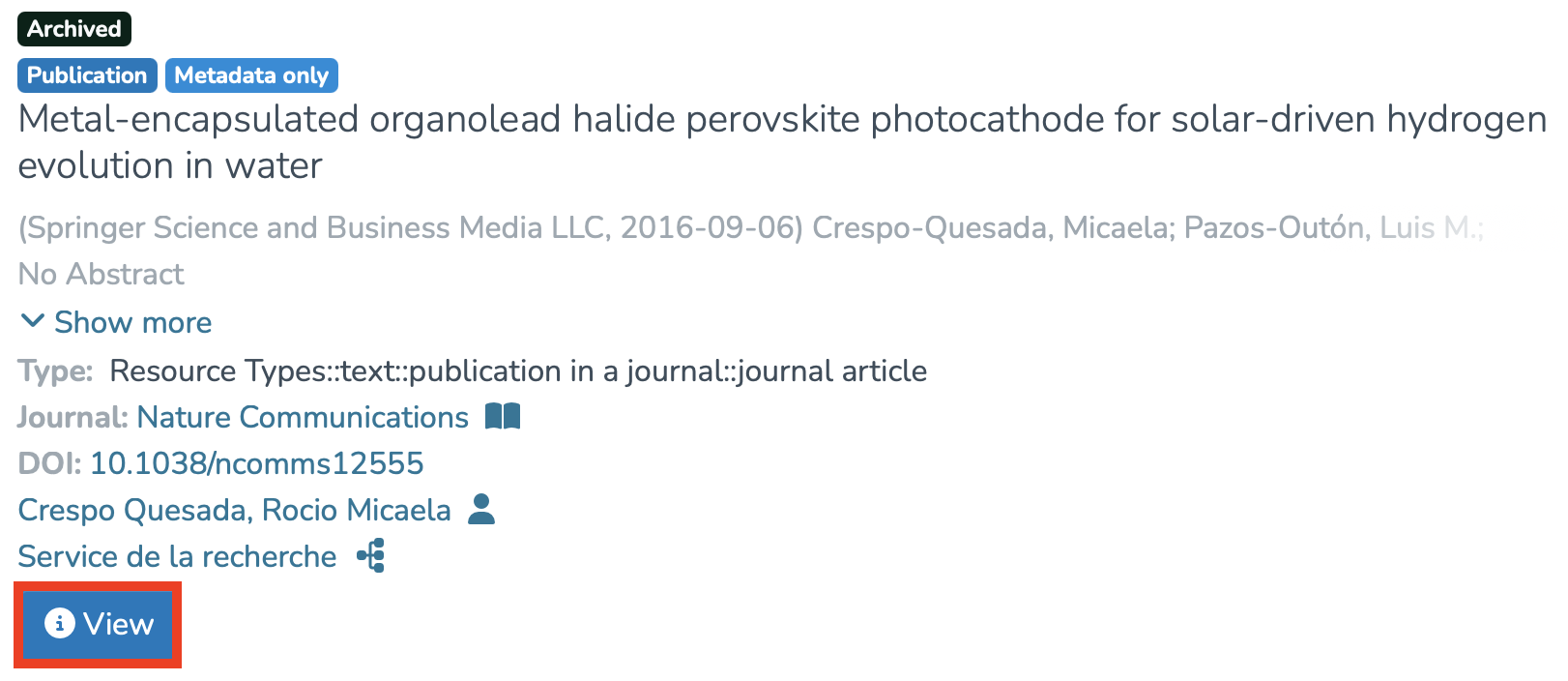](https://wiki.unil.ch/recherche/uploads/images/gallery/2025-07/capture-decran-2025-07-31-a-12-04-40.png) To display all metadata, click on **“...”**, then on **“Show all metadata.”** [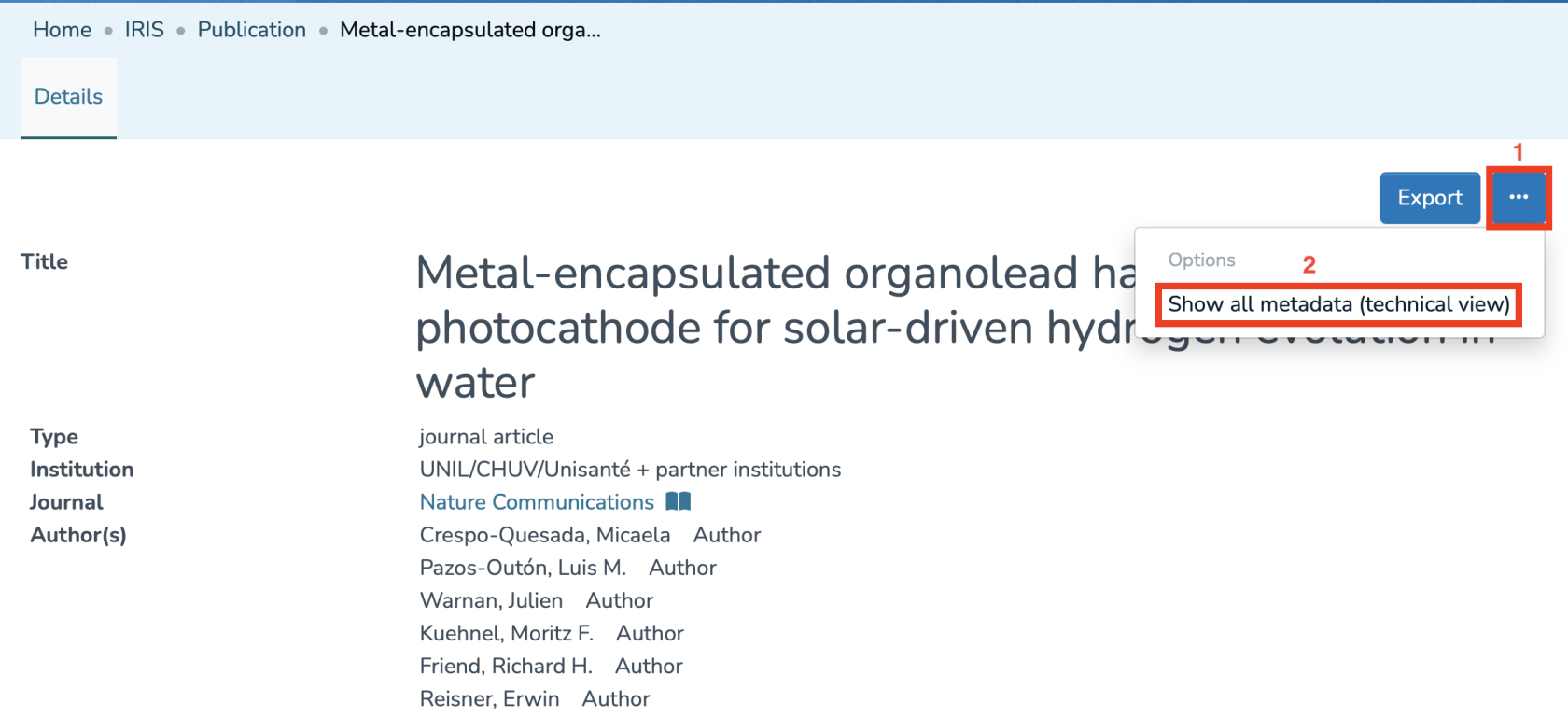](https://wiki.unil.ch/recherche/uploads/images/gallery/2025-07/capture-decran-2025-07-31-a-12-05-40.png) You will then have access to a detailed page displaying all the metadata of the item. [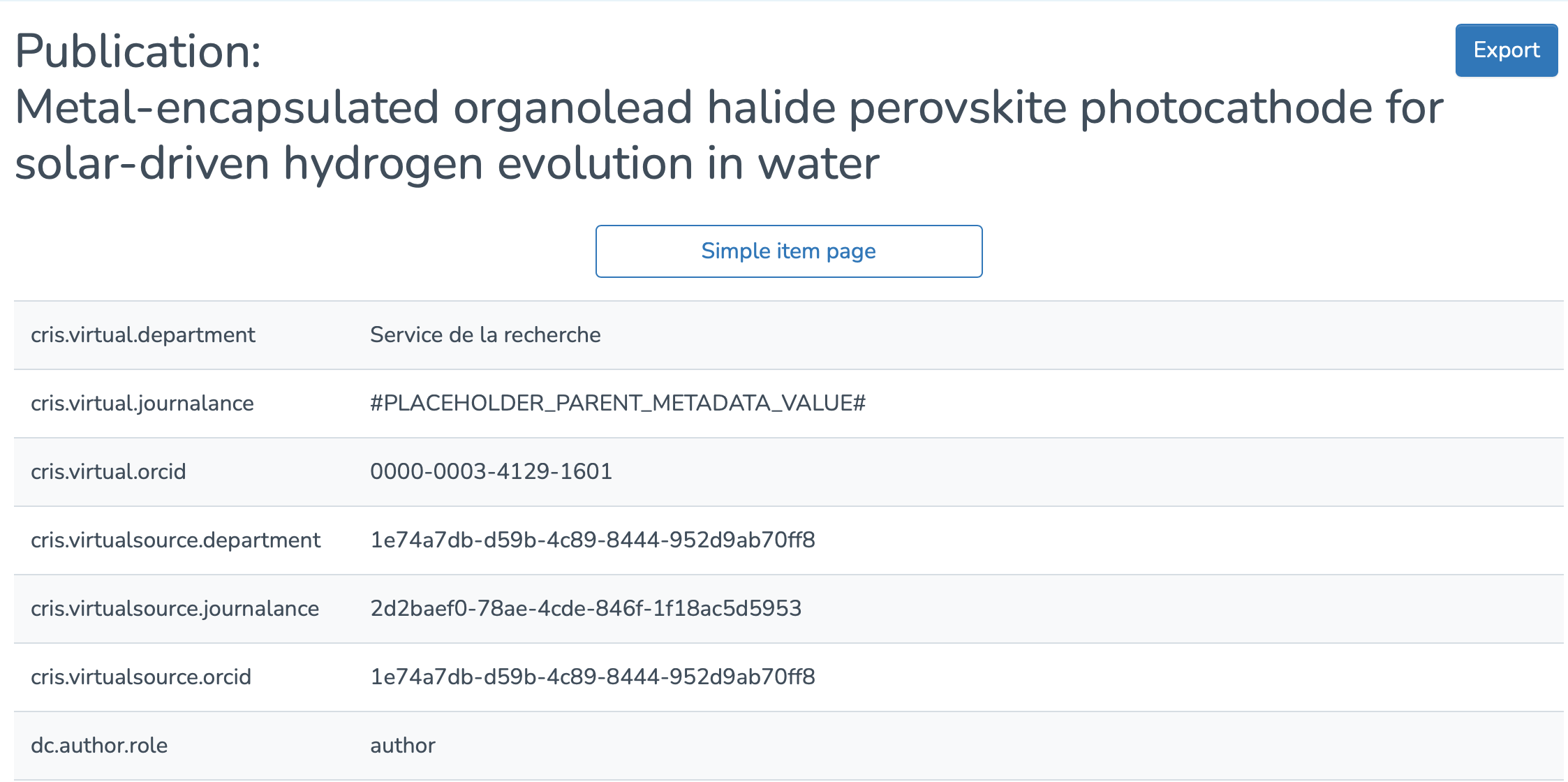](https://wiki.unil.ch/recherche/uploads/images/gallery/2025-07/capture-decran-2025-07-31-a-12-06-55.png) # Adding full text and/or secondary documents ####*The voice in this video was generated by artificial intelligence.*
#### Access your researcher profile ***Accessing Your Profile via the Login Menu*** 1. From the IRIS homepage, click on the login menu.[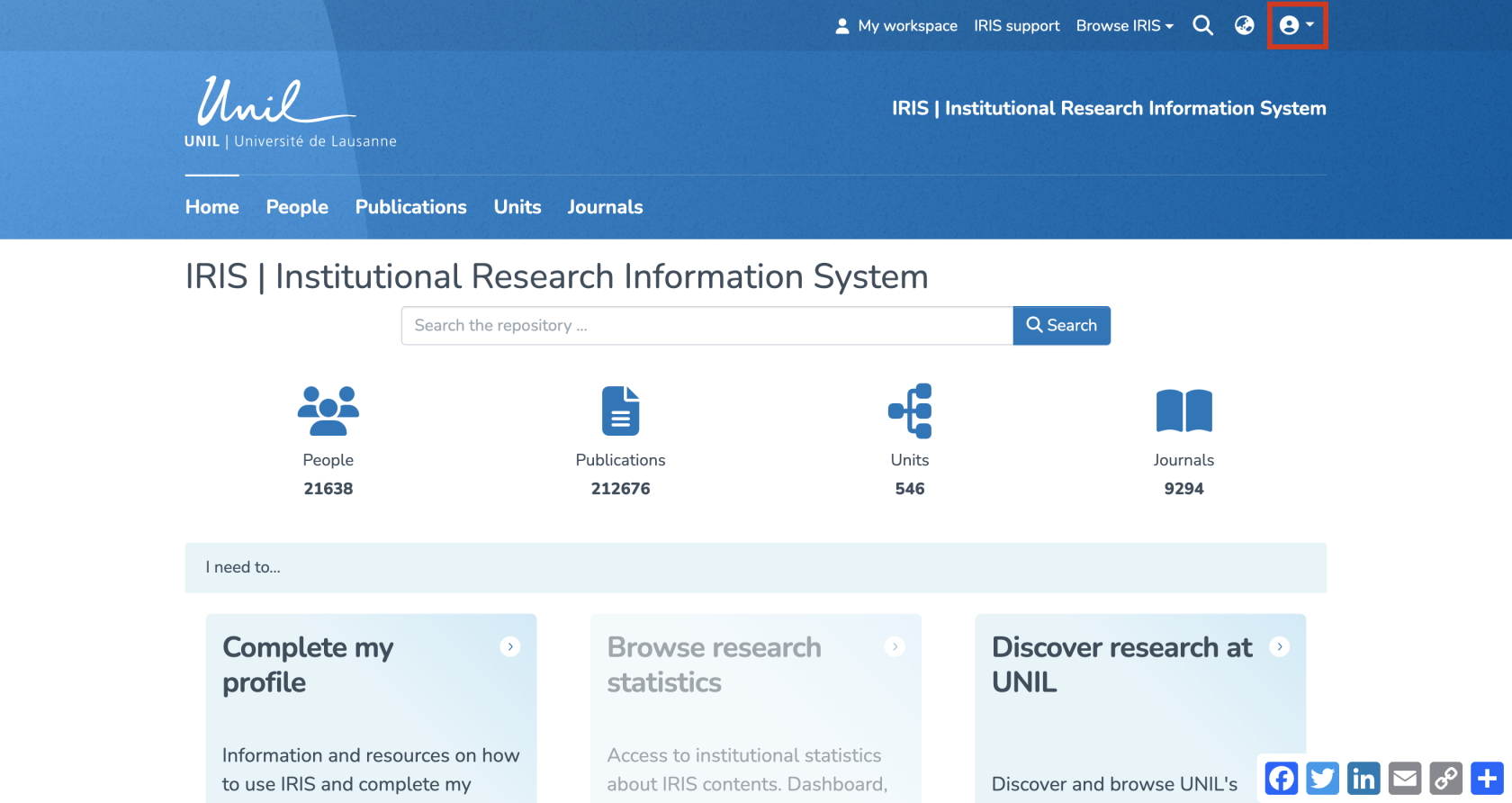](https://wiki.unil.ch/recherche/uploads/images/gallery/2025-09/E94image.png) 2. In the dropdown menu, select “My account and profile.”[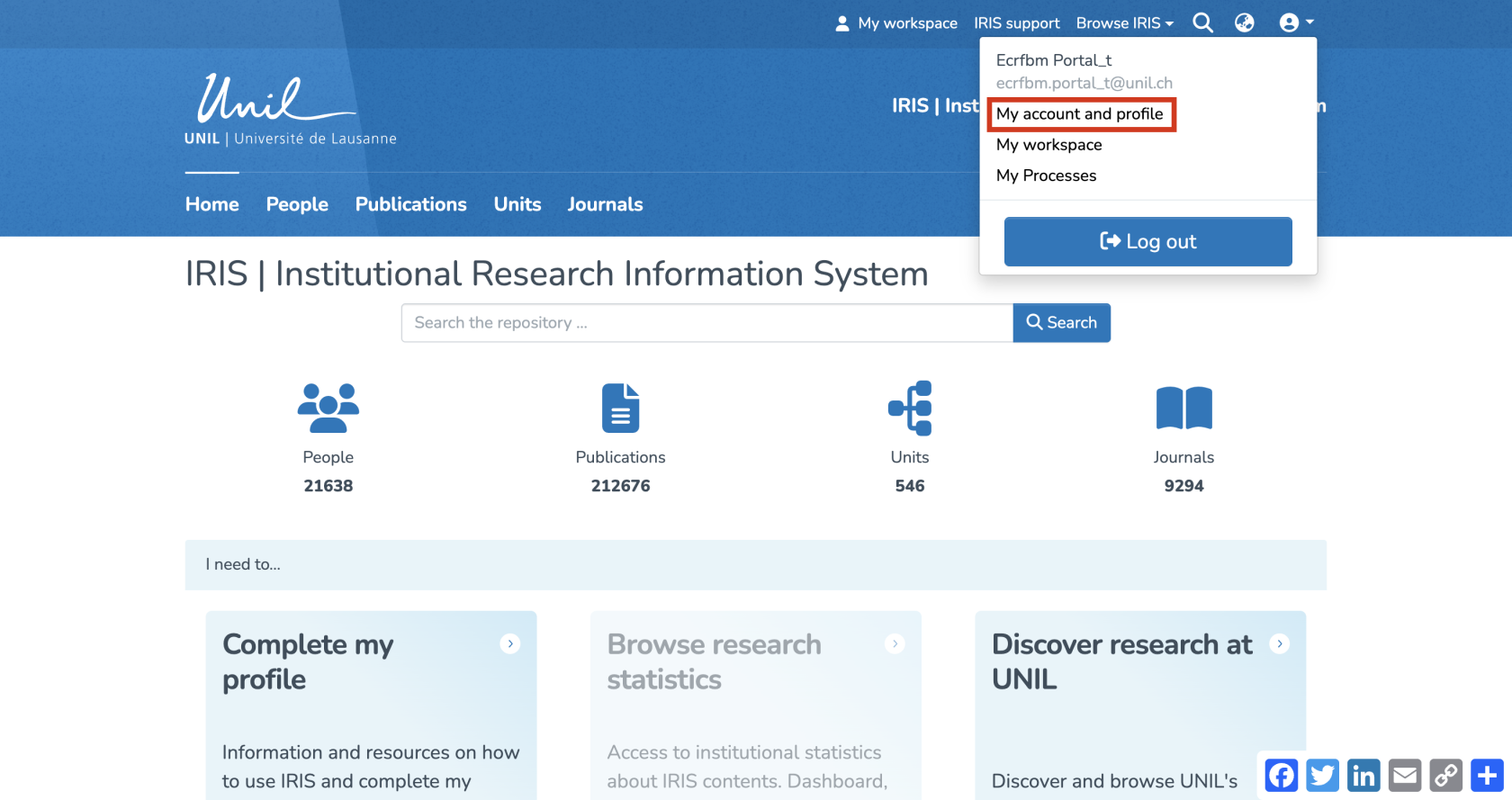](https://wiki.unil.ch/recherche/uploads/images/gallery/2025-09/2sJimage.png) 3. You’ll be redirected to a page titled “Update Profile”. Click on “View” to open the full version of your profile.[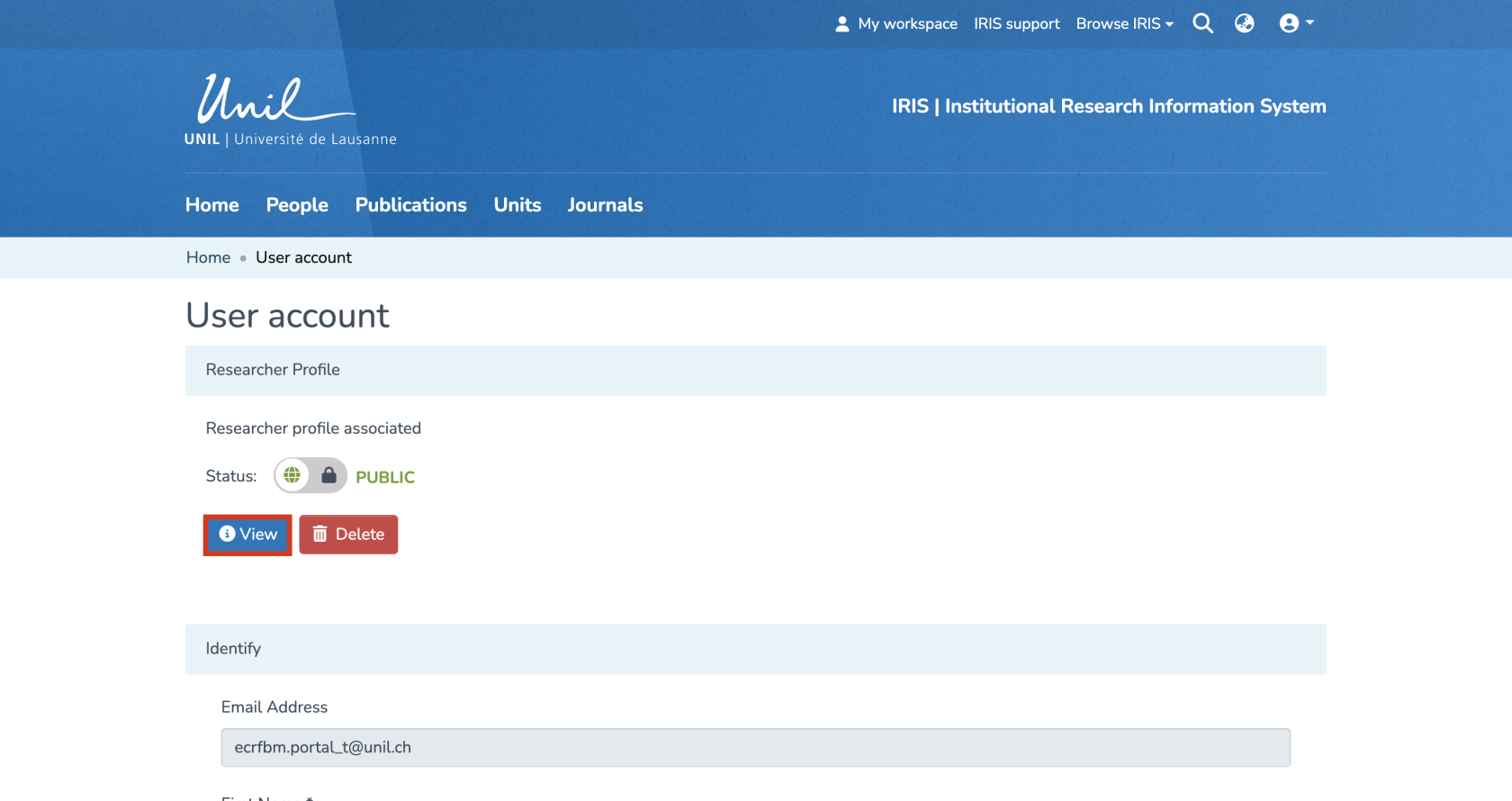](https://wiki.unil.ch/recherche/uploads/images/gallery/2025-09/XNPimage.png) ***Accessing Your Profile via Search*** 1. From the IRIS homepage, click on “People.”[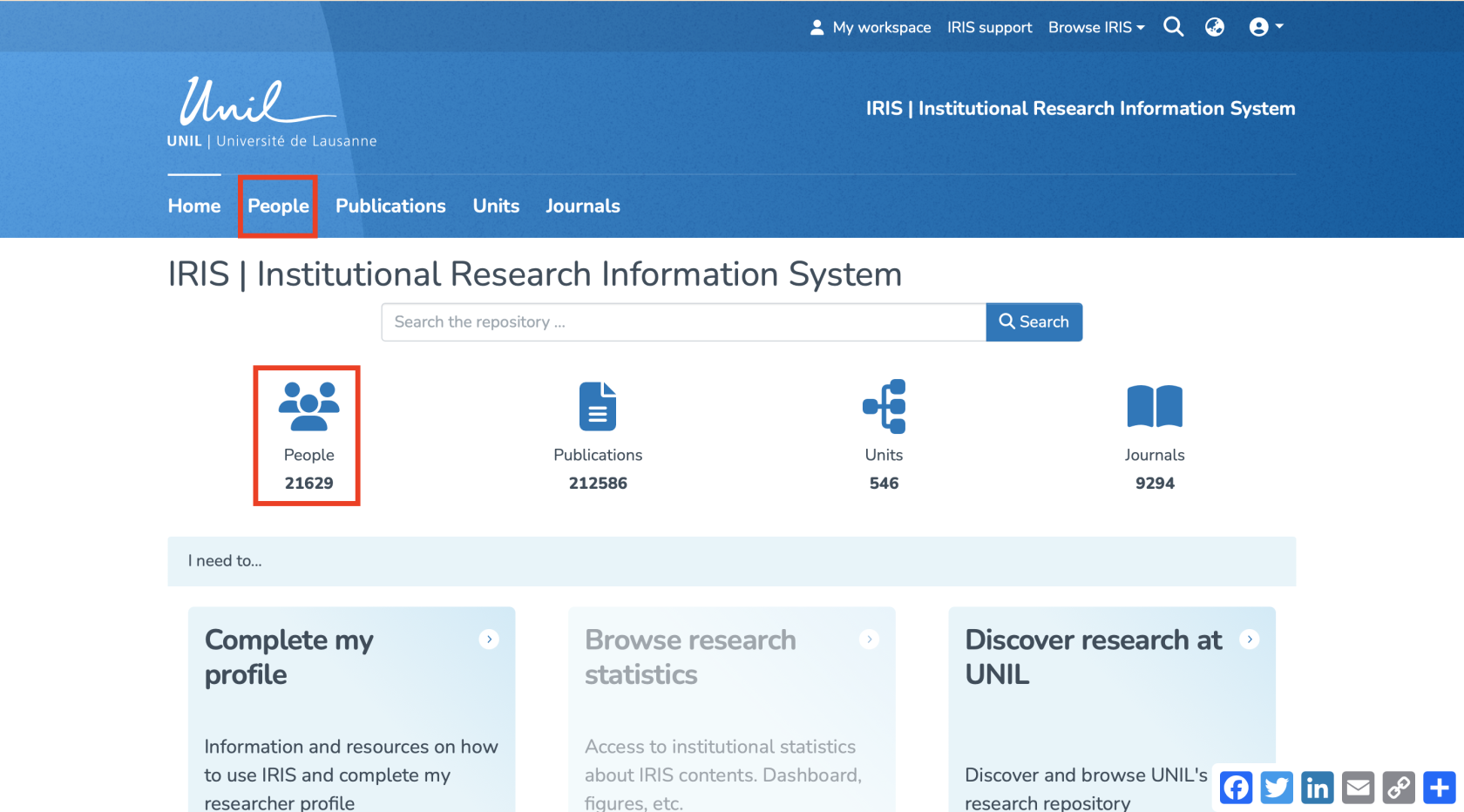](https://wiki.unil.ch/recherche/uploads/images/gallery/2025-07/capture-decran-2025-07-31-a-12-14-11.png) 2. In the search bar that appears, enter your name (a), then click “Search” (b). 3. Once the search is complete, your profile will appear in the results. Click on your name (c).[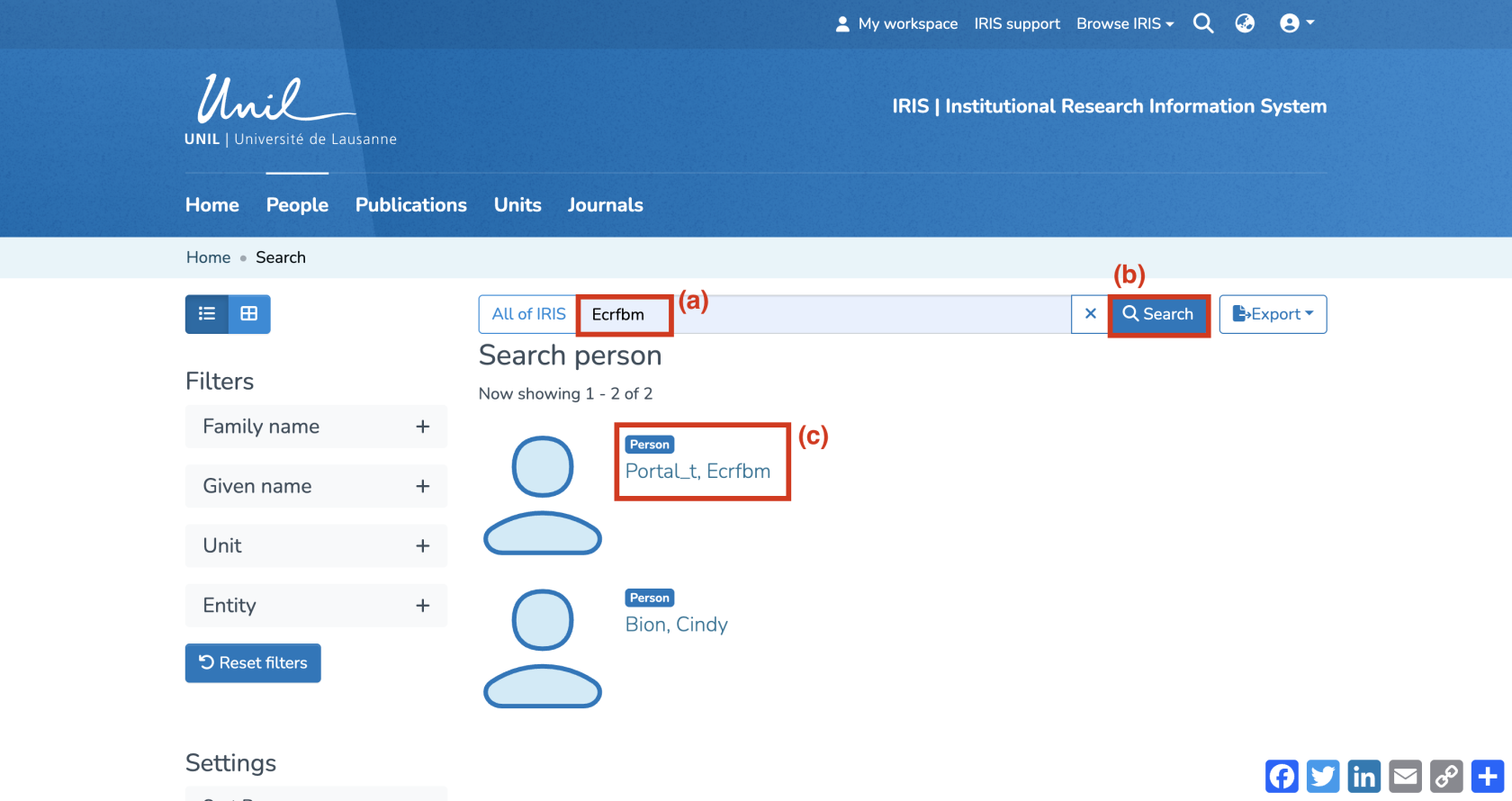](https://wiki.unil.ch/recherche/uploads/images/gallery/2025-09/0ukimage.png) #### Access the relevant record 1. You are now on your researcher profile page. Under the “Publications” section, you’ll find both the records you have created and those you are linked to. 2. Identify the desired record and click on its title.[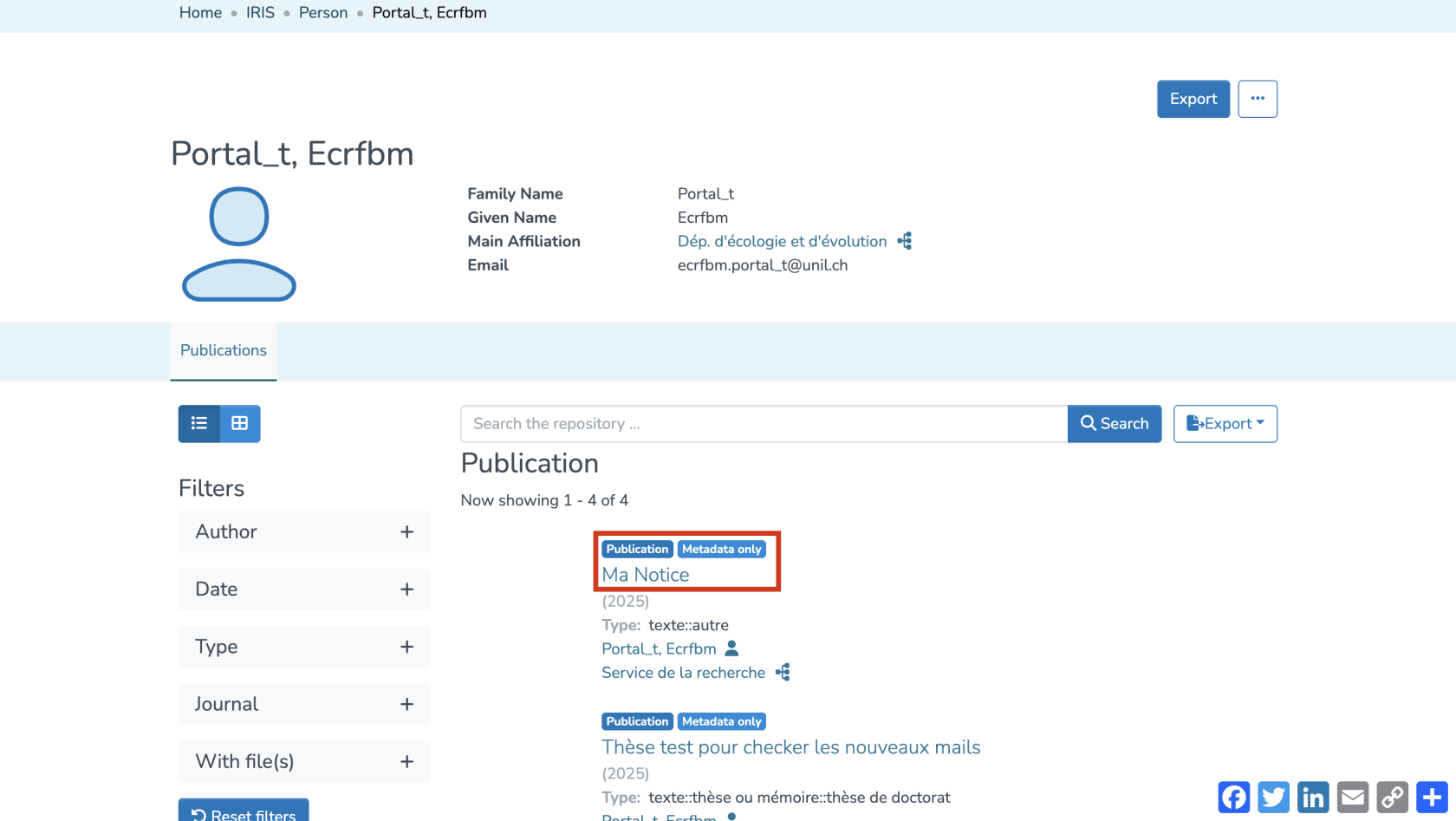](https://wiki.unil.ch/recherche/uploads/images/gallery/2025-07/Qwqimage.png) 3. You are now on the record detail page. Click on the three dots icon, then select “Edit.” [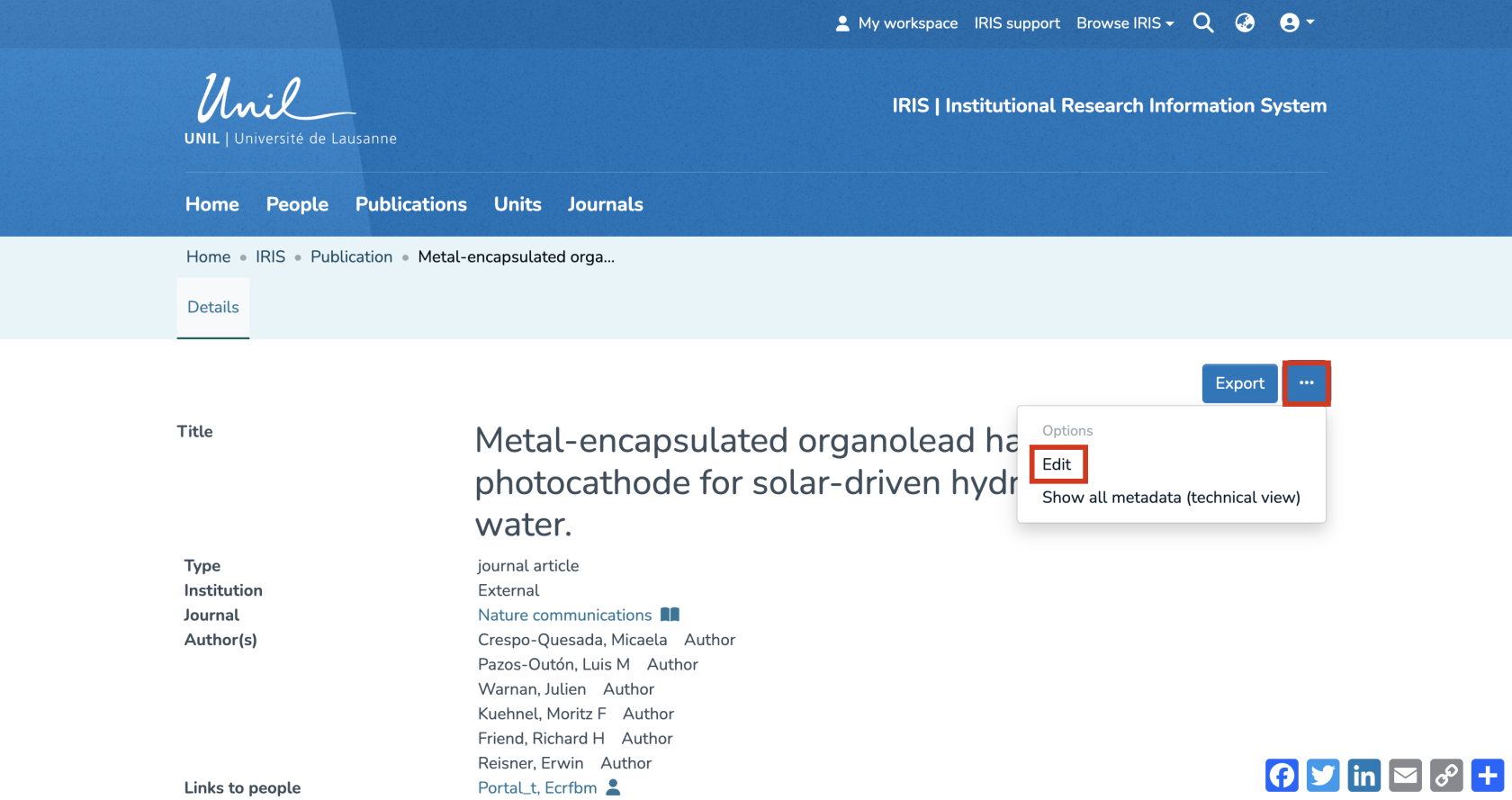](https://wiki.unil.ch/recherche/uploads/images/gallery/2025-09/7vWimage.png) #### Add full text and/or secondary documents 1. You are now in the publication entry form. 2. If no file has been added yet, you can upload one by clicking on “Browse” and selecting the desired file from your library.[](https://wiki.unil.ch/recherche/uploads/images/gallery/2025-07/X7Dimage.png) 3. Alternatively, you can scroll down to the “Documents” section and simply drag and drop your file onto the page.[](https://wiki.unil.ch/recherche/uploads/images/gallery/2025-07/TcRimage.png) 4. If a document is already present, you can access its metadata by clicking on the corresponding icon. **It is necessary that the metadata are properly completed in order to ensure appropriate visibility of the document.** 5. You can edit the following fields: (a) File name (b) Manuscript version (c) License (d) Document accessibility (open access / embargo / UNIL restricted) (e) If you select “embargo”, set the embargo end date, after which your document will become publicly accessible.**Warning:** If the document metadata are not completed, the file visibility is **by default set to “Restricted UNIL.”**
[](https://wiki.unil.ch/recherche/uploads/images/gallery/2025-07/5i6image.png) When multiple files are uploaded, it is recommended to designate one file as the primary file using the corresponding button. [](https://wiki.unil.ch/recherche/uploads/images/gallery/2026-02/yQpimage.png) [](https://wiki.unil.ch/recherche/uploads/images/gallery/2026-02/FbPimage.png) This is particularly useful when a record contains several documents. Defining a primary file makes it possible to: - Generate the thumbnail associated with the record (by default, the thumbnail is created from the first uploaded document); - Improve the visibility and indexing of the publication, in particular via OAI-PMH and Google Scholar, which prioritize indexing the full text of the main document; - Determine the access status displayed for the record (Open Access, UNIL Restricted, or under embargo), which is by default based on the first uploaded document. #### Finalize the submission 1. To complete your submission, you will need to approve the user license. 2. Then, you can choose to click “Save” or “Save and quit” to save the record, or click “Publish” to archive the publication immediately.[](https://wiki.unil.ch/recherche/uploads/images/gallery/2025-07/6duimage.png) # Adding and/or correcting links in a record ####*The voice in this video was generated by artificial intelligence.*
#### 1. Find the record you would like to edit As an author, you can edit a record if: - In "submission in progress" status —> if you created it (they are located in your workspace) - In "archived" status —> only if you are linked to it (you can find them either in your workspace or in your researcher profile) #### Find your records in your researcher profile **Access your researcher profile via the login menu** From the IRIS homepage, click on the login menu. [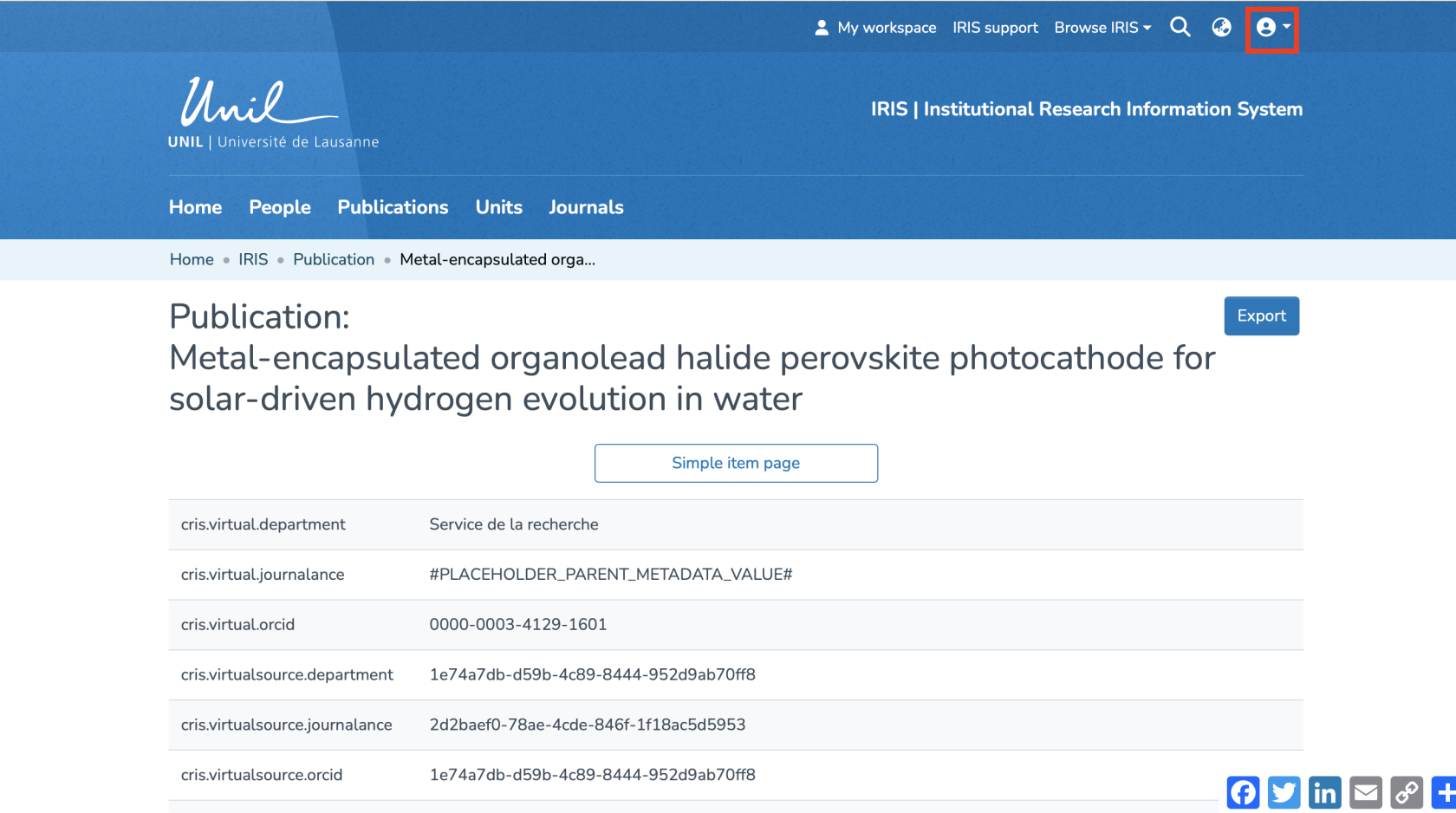](https://wiki.unil.ch/recherche/uploads/images/gallery/2025-07/capture-decran-2025-07-31-a-12-11-24.png) In the dropdown menu, choose **“My Account and Profile.”** [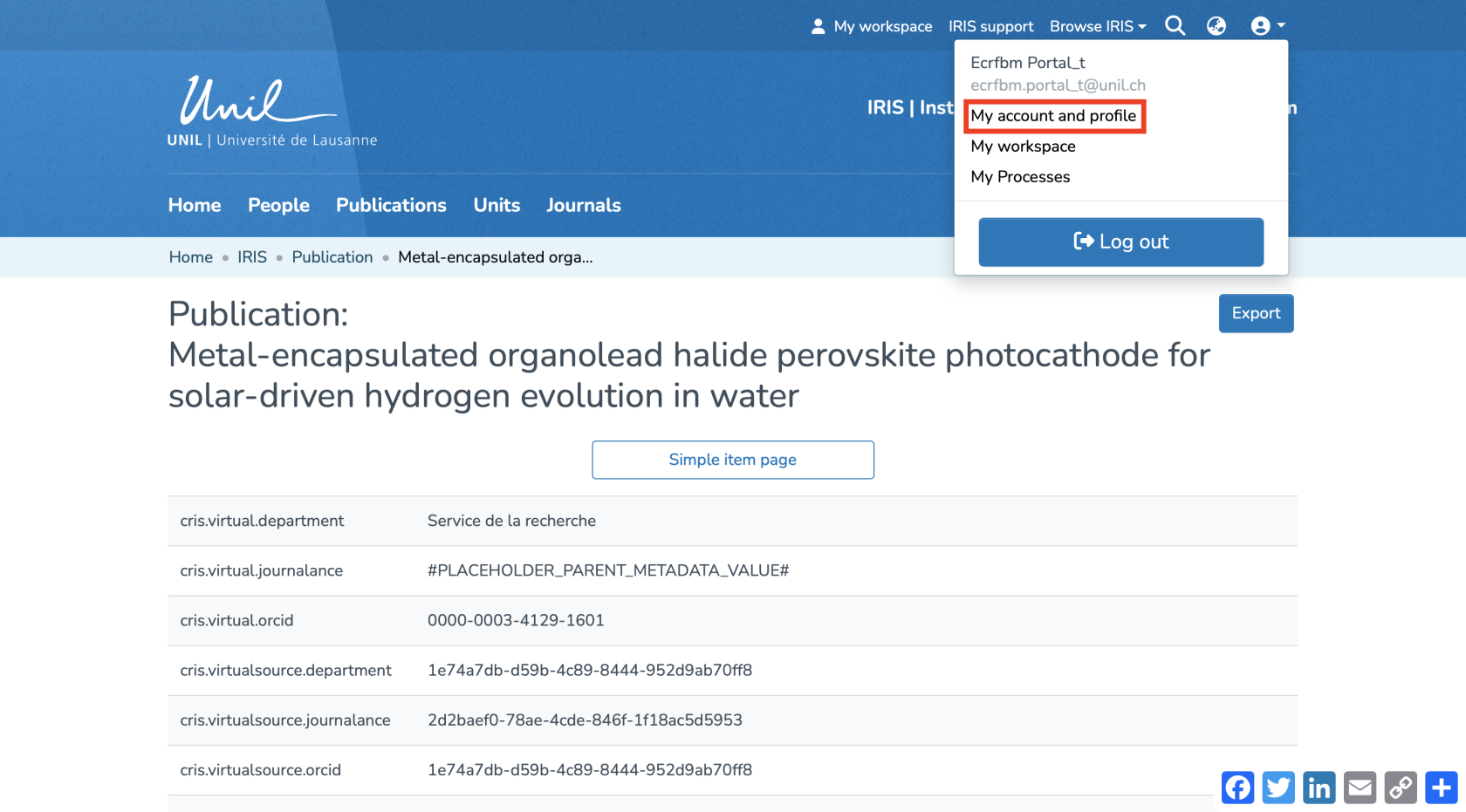](https://wiki.unil.ch/recherche/uploads/images/gallery/2025-07/capture-decran-2025-07-31-a-12-12-09.png) You will be redirected to a page titled **“User account.”** Click on **“View”** to access the full view of your profile.[](https://wiki.unil.ch/recherche/uploads/images/gallery/2025-09/XNPimage.png) **Access your researcher profile via the search function** From the IRIS homepage, click on **“People.”** [](https://wiki.unil.ch/recherche/uploads/images/gallery/2025-07/capture-decran-2025-07-31-a-12-14-11.png) In the search field that appears, enter your name (a) and click on **“Search”** (b). Once the search is complete, your profile will appear in the results. Click on your name (c) to access your researcher profile. [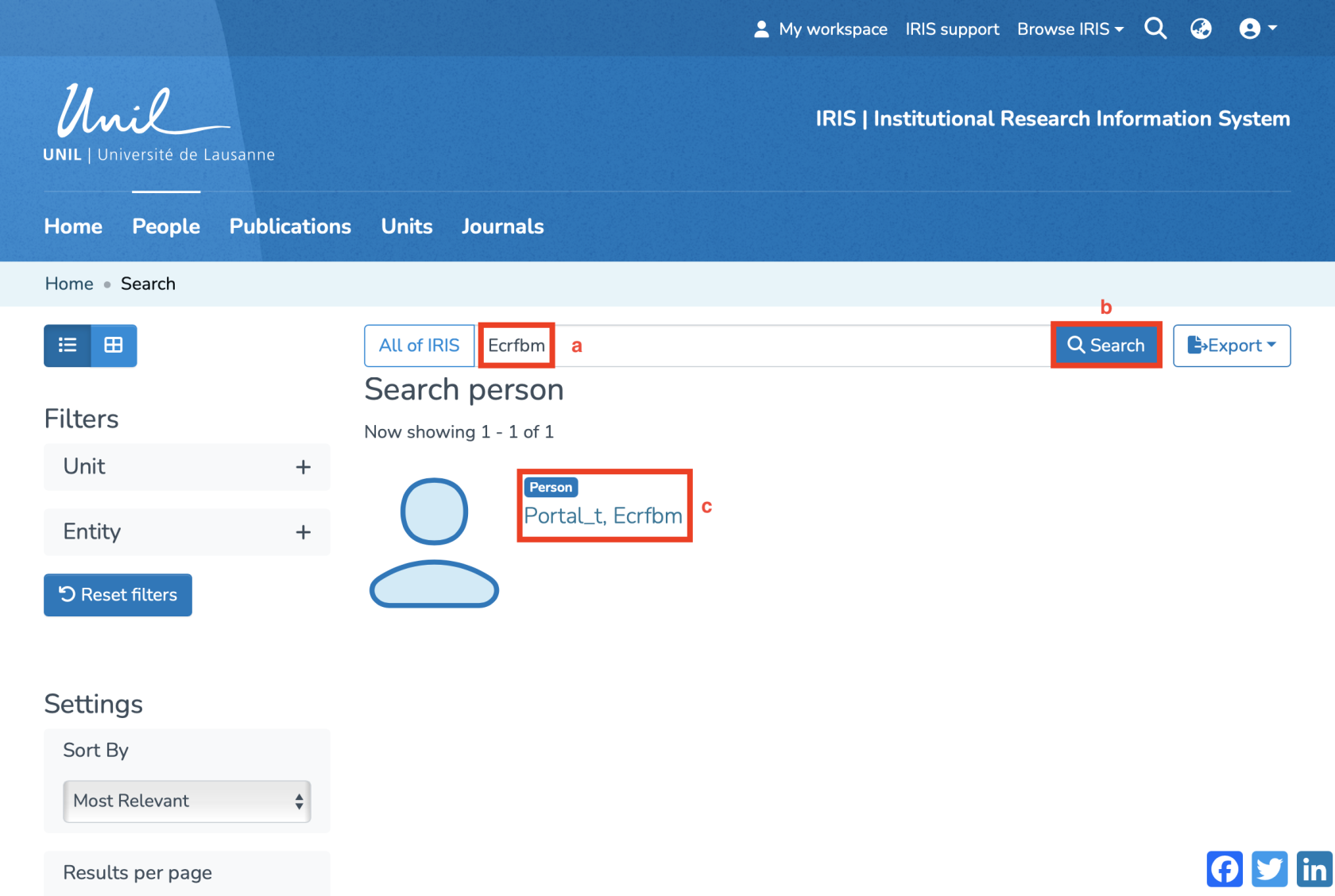](https://wiki.unil.ch/recherche/uploads/images/gallery/2025-07/capture-decran-2025-07-31-a-12-15-30.png) #### Locate the record to edit Your profile will be displayed. Under **“Publications,”** you will find all the records you have created as well as those to which you are linked. Locate the record you are interested in, then click on its title. You will then be taken to the page with the details of this record. [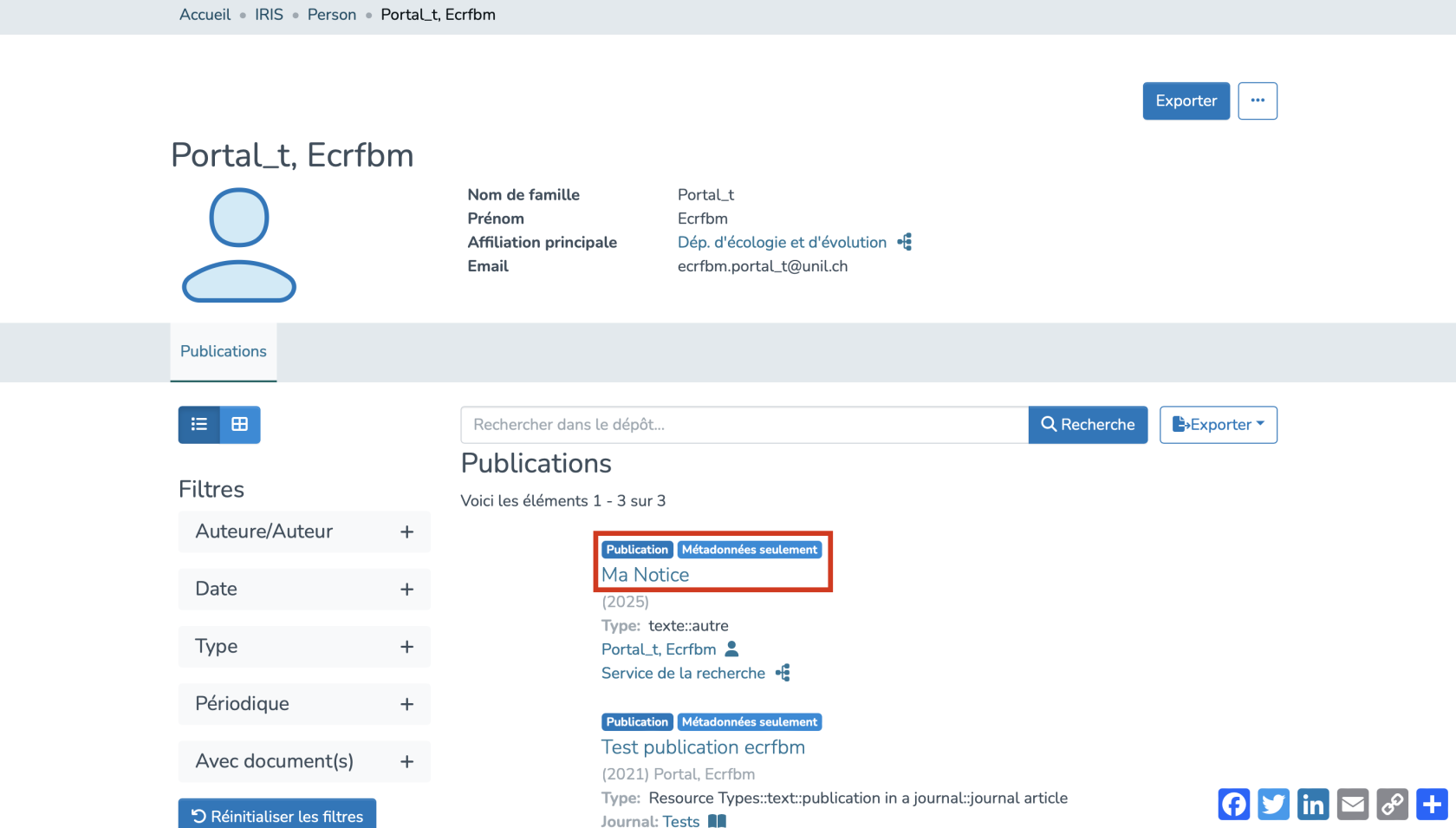](https://wiki.unil.ch/recherche/uploads/images/gallery/2025-07/1Drimage.png) **2. Access the record editing page** On the detail page, click on the three-dot icon to open the options menu. Then select **“Edit.”** [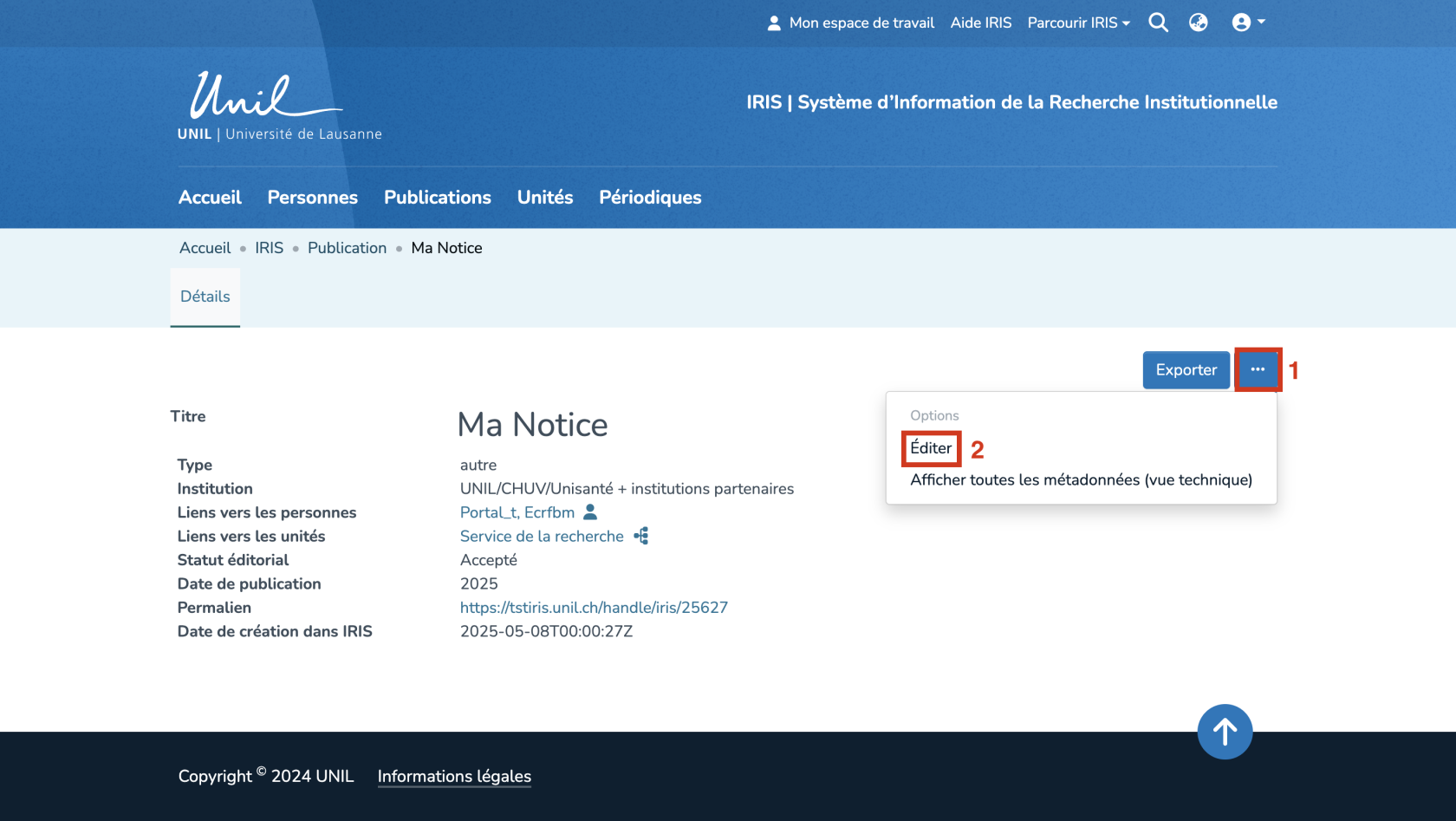](https://wiki.unil.ch/recherche/uploads/images/gallery/2025-07/BKYimage.png) If you prefer to retrieve the record via your workspace rather than your researcher profile, simply click on **“Edit”** to modify it. [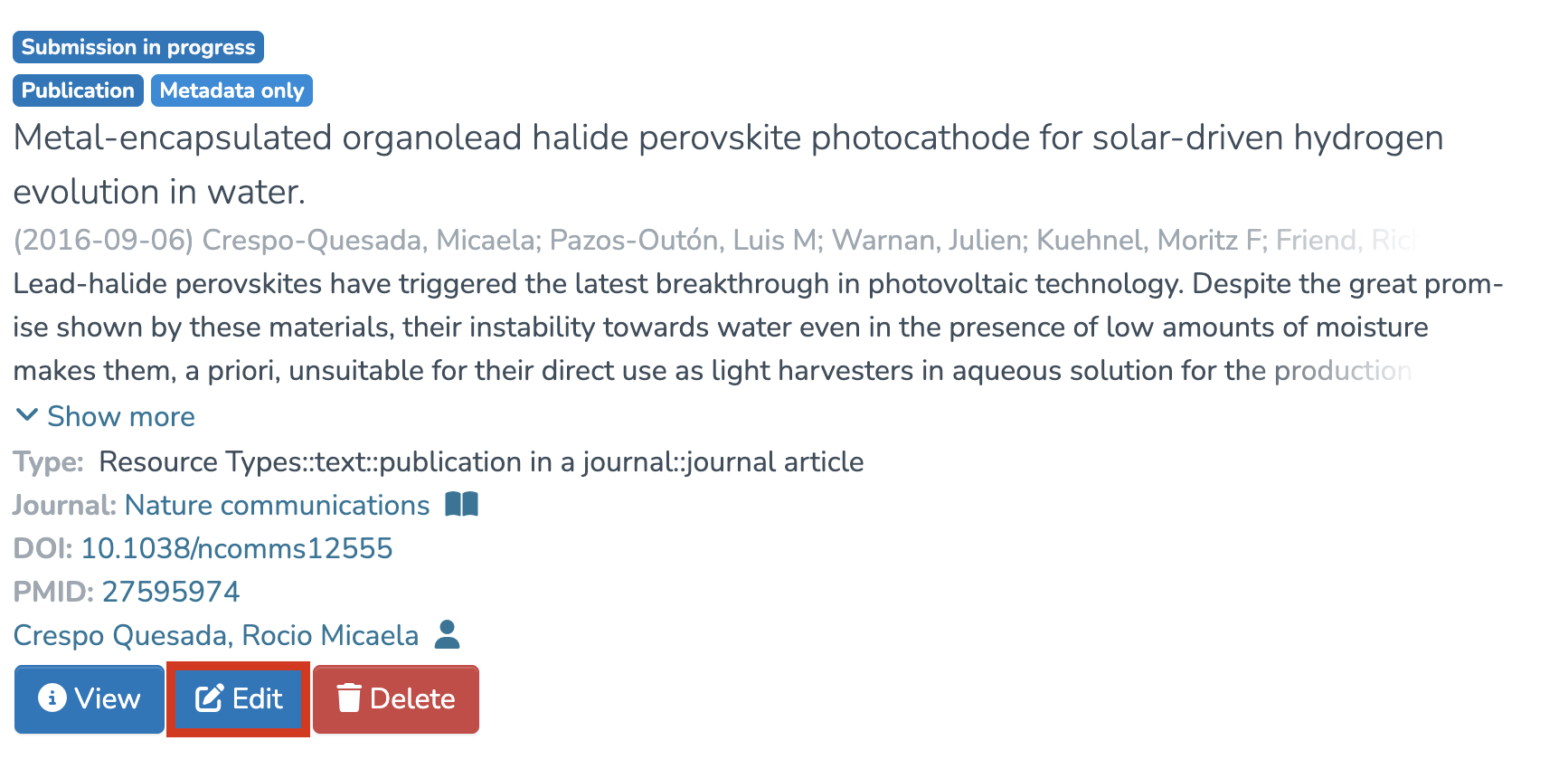](https://wiki.unil.ch/recherche/uploads/images/gallery/2025-09/DWqimage.png) **3. Add the corresponding link** ****In IRIS, by default, the person who enters a record does not have the right to edit it. Only the individuals linked to the record have this permission.** **Make sure to properly link all relevant persons to the record.**** To add a link to a person or unit, click on **“Add”** as indicated by numbers 2 and 3. To remove a link, click on the cross (1). You can directly edit the link by clicking on the person or unit highlighted in blue (see arrow). [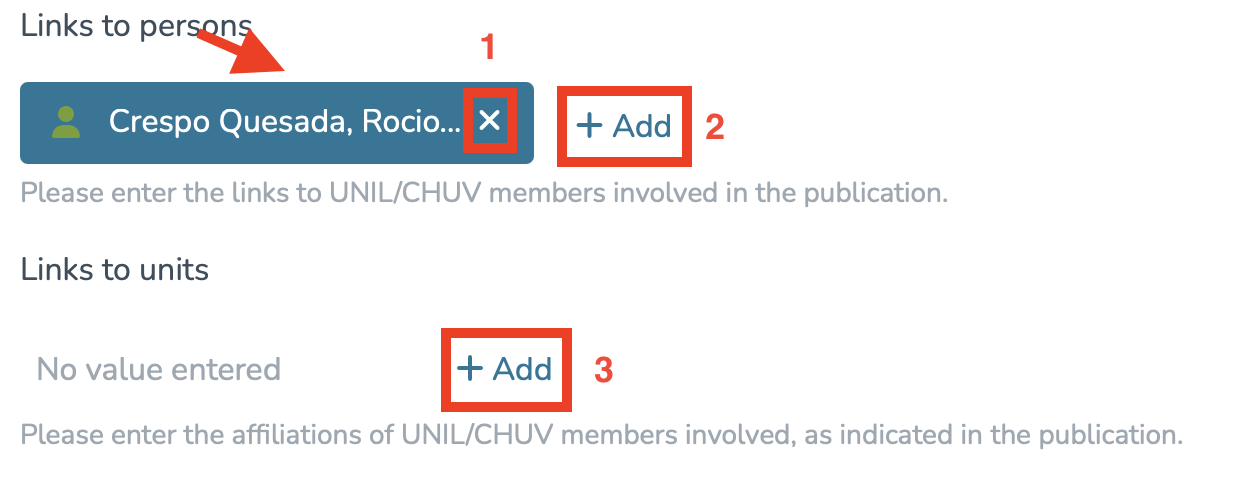](https://wiki.unil.ch/recherche/uploads/images/gallery/2025-07/capture-decran-2025-07-31-a-12-20-44.png) # Publish a record I have created that is in the « submission in progress » status ####*The voice in this video was generated by artificial intelligence.*
#### Accessing Your Workspace Once you're logged into IRIS: 1. Click on “My workspace.” 2. You’ll be redirected to the page “Records I created.” [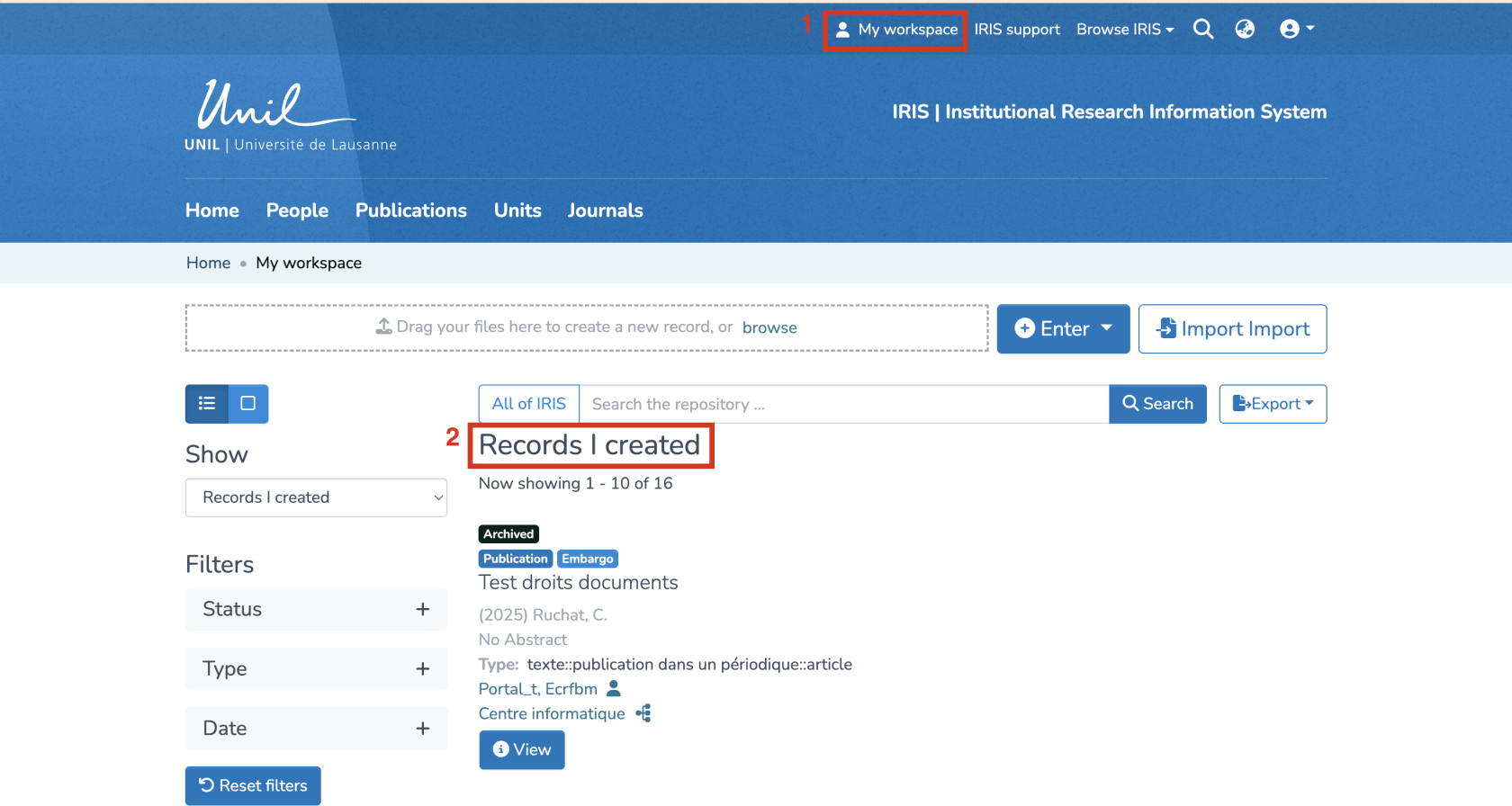](https://wiki.unil.ch/recherche/uploads/images/gallery/2025-09/jz8image.png) #### Review/Edit the Record 1. Find the record you wish to publish in the list. 2. You can edit it by clicking on “Edit.” [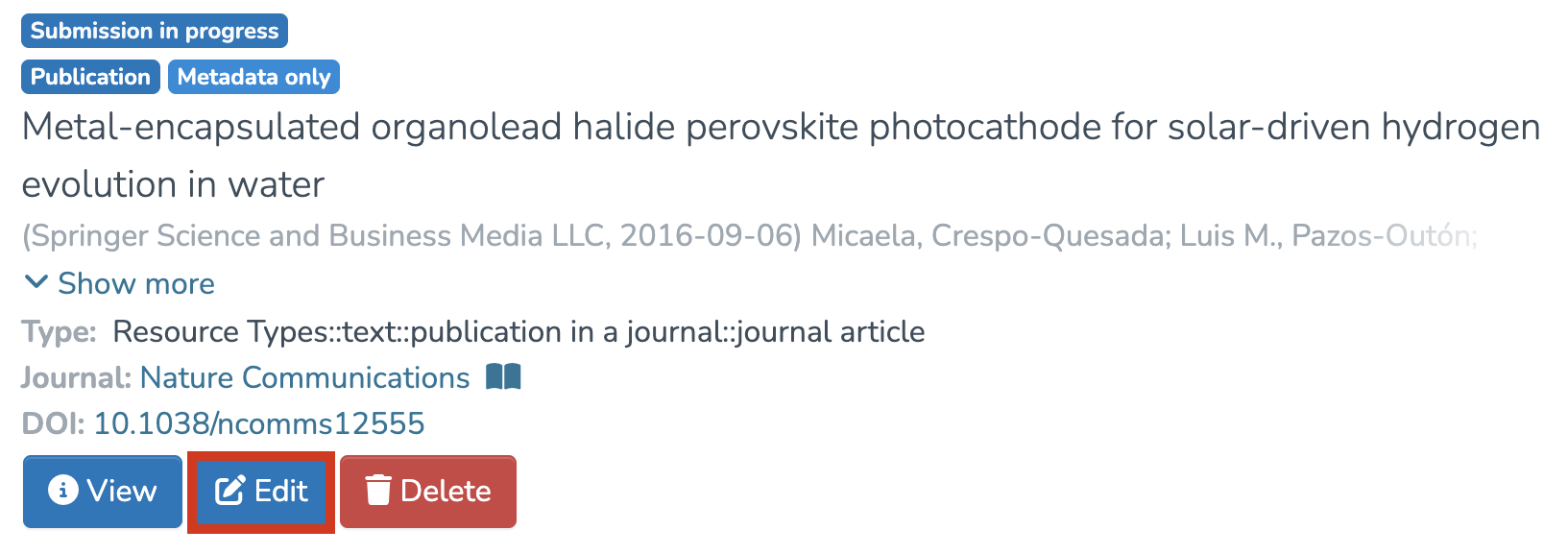](https://wiki.unil.ch/recherche/uploads/images/gallery/2025-07/KVaimage.png) #### Publish the Record 1. Make sure all required fields are completed and that the record is properly linked to the corresponding people and units. 2. Once the changes have been made, scroll down to the bottom of the page and click on “Publish.” [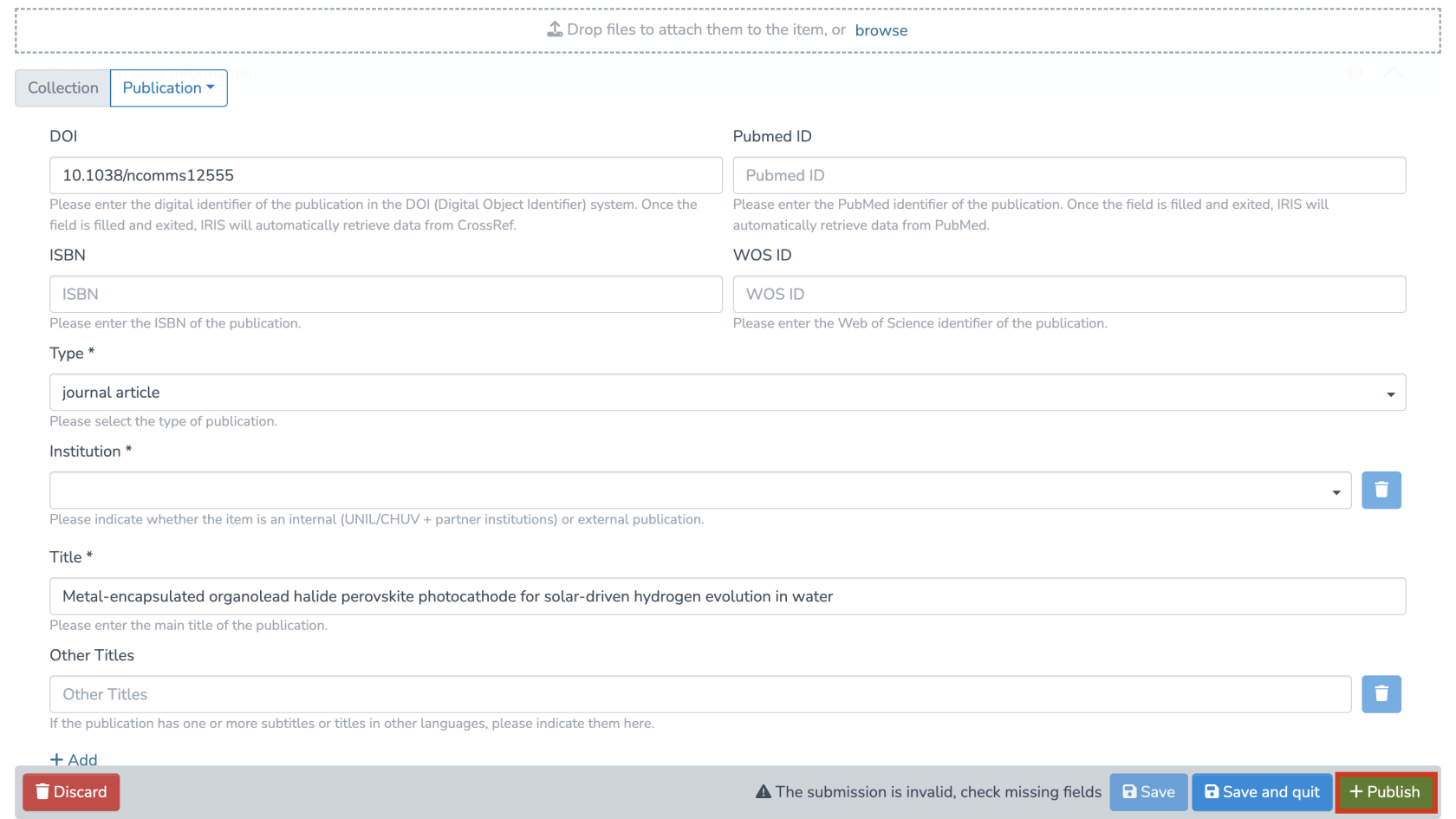](https://wiki.unil.ch/recherche/uploads/images/gallery/2025-07/tVLimage.png) **Note**: As the author, your record is automatically validated and will therefore be archived immediately, except for theses and dissertations. # Delete a record I have created that is in the « submission in progress » status ####*The voice in this video was generated by artificial intelligence.*
#### Access Your Workspace 1. Click on “My workspace.” 2. You will be redirected to the “Records I created” page, where you will find the record you saved as “Submission in progress.” [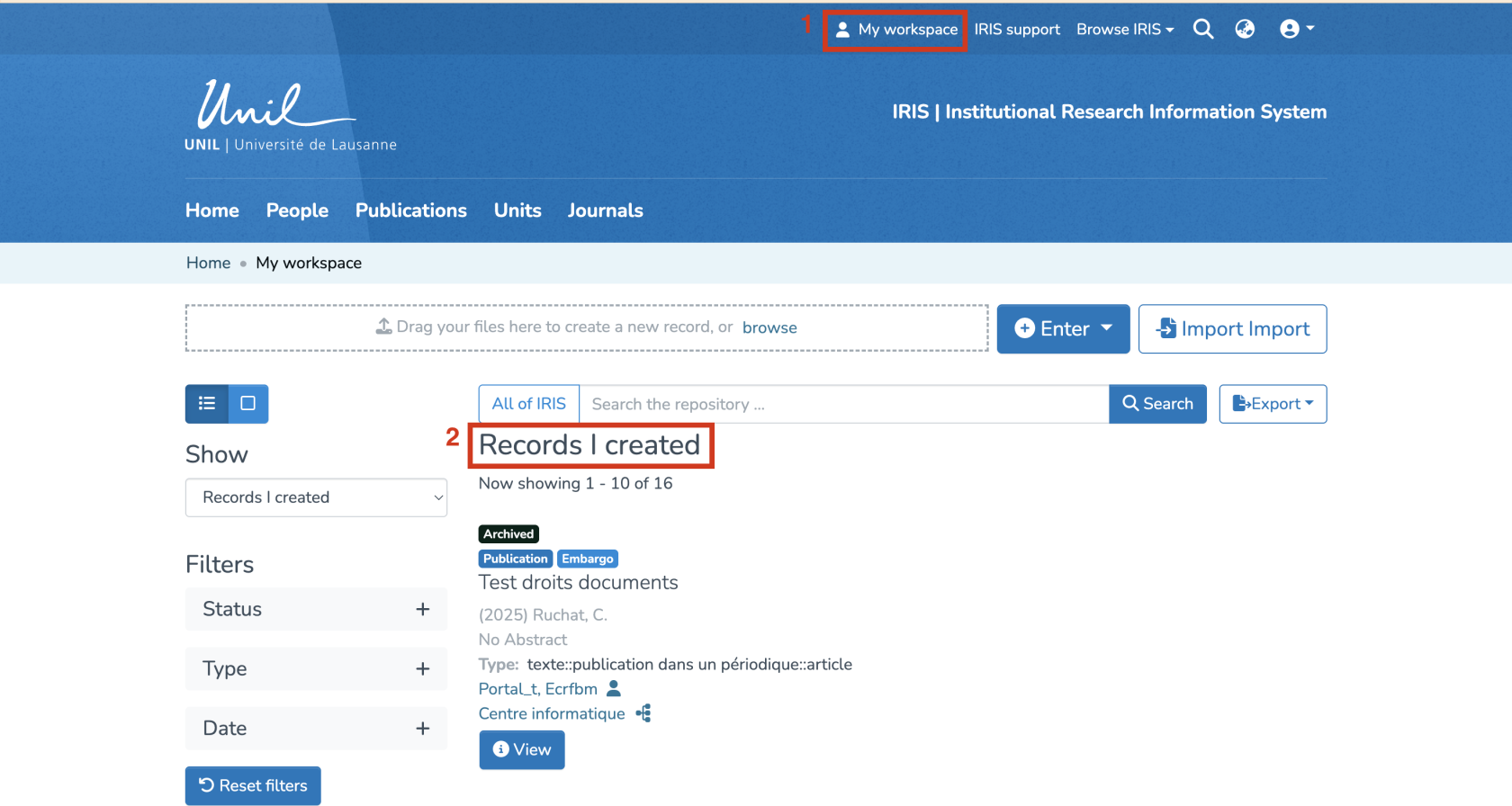](https://wiki.unil.ch/recherche/uploads/images/gallery/2025-09/9n4image.png) #### Delete the Record - Click on the red “Delete” button located beneath the relevant record. [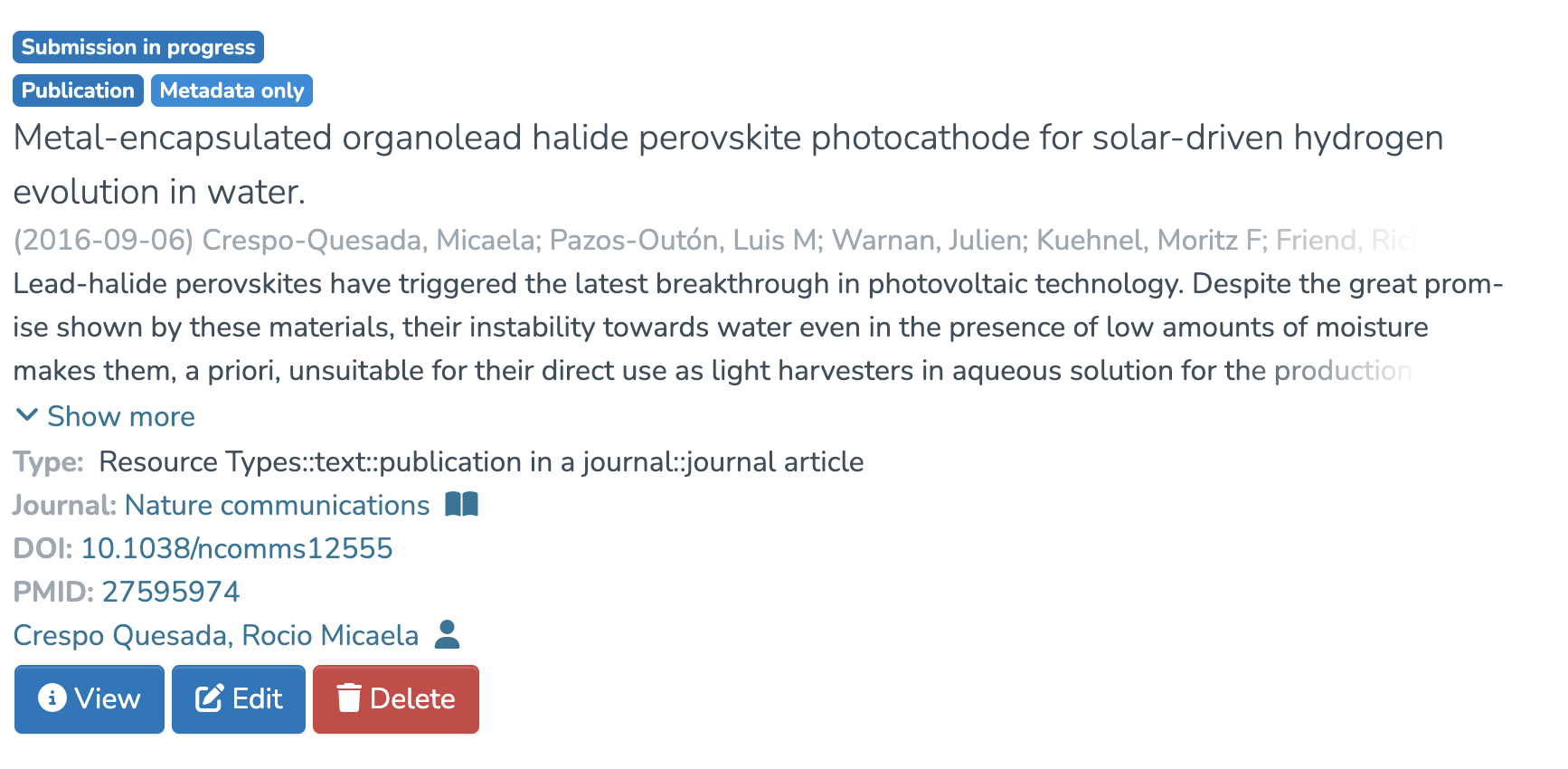](https://wiki.unil.ch/recherche/uploads/images/gallery/2025-09/qNZimage.png) #### Confirm Deletion - A warning message will appear: “This operation can't be undone. Are you sure?” If you are sure you want to delete the record, click “Yes, I’m sure.” [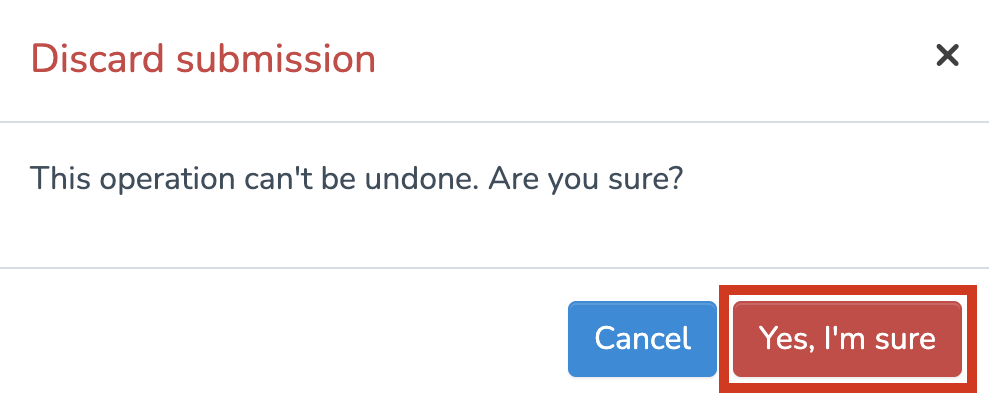](https://wiki.unil.ch/recherche/uploads/images/gallery/2025-07/6lHimage.png) #### Confirmation The record will then be permanently deleted and will no longer appear in your workspace. # Edit a record in "archived" status ####*The voice in this video was generated by artificial intelligence.*
#### 1. Find the Record You Want to Edit As the author, you can edit a record if: - You created it (you’ll find it either in your workspace or in your researcher profile). - You are linked to it (you’ll find it only in your researcher profile). ##### Find Your Records in Your Researcher Profile ***Accessing Your Profile via the Login Menu*** 1. From the IRIS homepage, click on the login menu.[](https://wiki.unil.ch/recherche/uploads/images/gallery/2025-09/E94image.png) 2. In the dropdown menu, select “My account and profile.”[](https://wiki.unil.ch/recherche/uploads/images/gallery/2025-09/2sJimage.png) 3. You’ll be redirected to a page titled “User account”. Click on “View” to open the full version of your profile.[](https://wiki.unil.ch/recherche/uploads/images/gallery/2025-09/XNPimage.png) ***Accessing Your Profile via Search*** 1. From the IRIS homepage, click on “People.”[](https://wiki.unil.ch/recherche/uploads/images/gallery/2025-07/capture-decran-2025-07-31-a-12-14-11.png) 2. In the search bar that appears, enter your name (a), then click “Search” (b). 3. Once the search is complete, your profile will appear in the results. Click on your name (c).[](https://wiki.unil.ch/recherche/uploads/images/gallery/2025-09/0ukimage.png) ##### Locate the Record You Want to Edit 1. Your profile will be displayed. Under “Publications,” you will find all the records you have created, as well as those you are linked to. 2. Find the record you are interested in, then click on its title. This will take you to the page displaying the details of the record. [](https://wiki.unil.ch/recherche/uploads/images/gallery/2025-07/Qwqimage.png) #### 2. Access the record editing page 1. On the record detail page, click on the three-dot icon to open the options menu. 2. Select “Edit.”[](https://wiki.unil.ch/recherche/uploads/images/gallery/2025-09/7vWimage.png) If you prefer to retrieve the record via your workspace rather than your researcher profile, simply click on **“Edit”** to modify it. [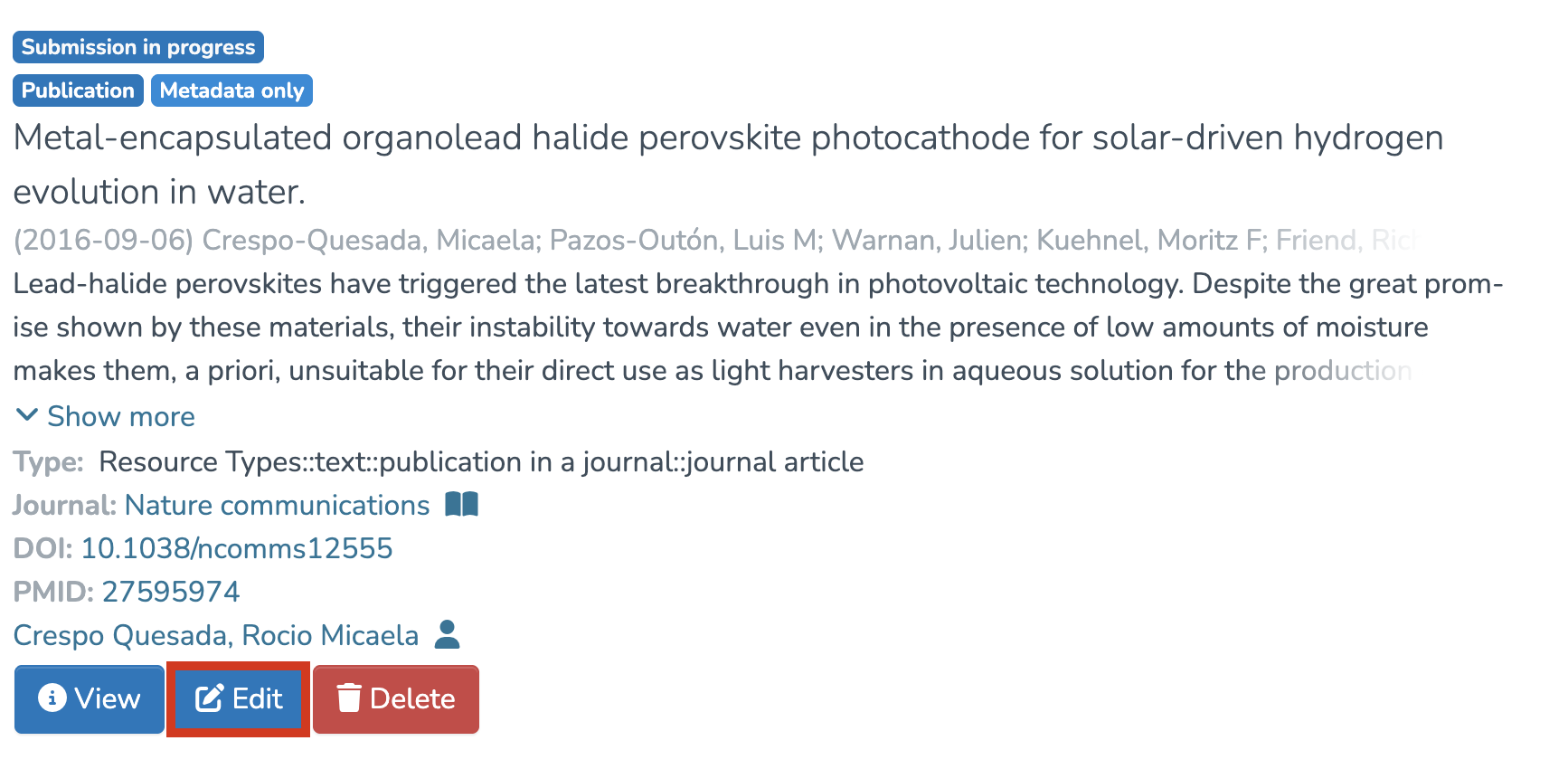](https://wiki.unil.ch/recherche/uploads/images/gallery/2025-09/w82image.png) #### 3. Edit the content 1. You’ll be redirected to the entry form, identical to the one used when the record was first created. 2. You can now update any necessary fields. #### 4. Save Your Changes 1. Once you’ve finished editing, scroll to the bottom of the page and click on “Save and quit.” 2. Your changes will be saved, and you’ll automatically be redirected back to the record’s detail page. [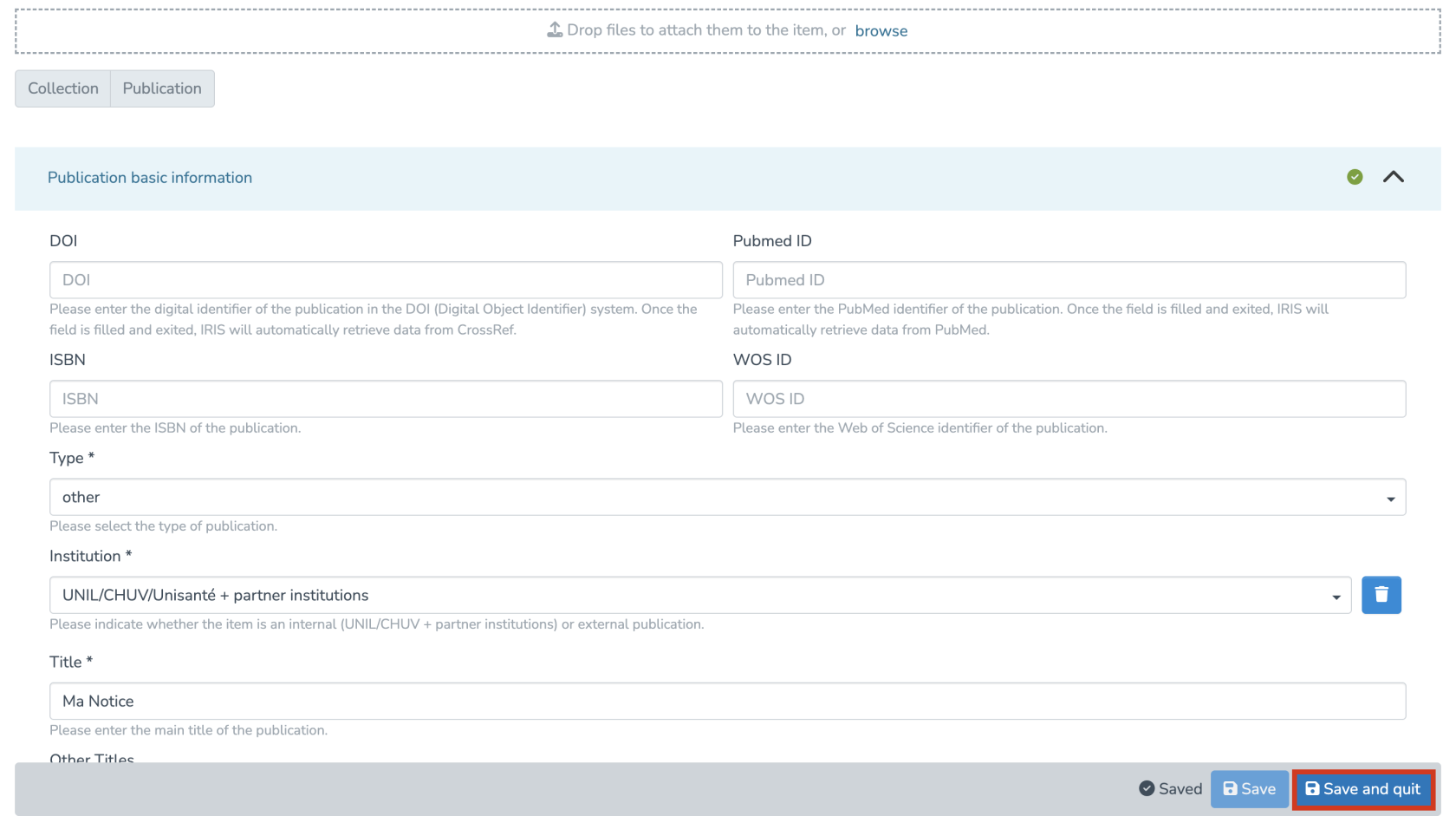](https://wiki.unil.ch/recherche/uploads/images/gallery/2025-07/dubimage.png) # Entering your thesis in IRIS ### 1. Introduction Entering the thesis into IRIS is a compulsory step in obtaining the doctorate degree. This process helps to preserve and enhance the value of doctoral students' research work. You will find all the information you need to obtain a doctorate in [Directive 3.10 issued by the UNIL Direction](https://www.unil.ch/central/fr/home/menuinst/organisation/documents-officiels/textes-legaux/directives-internes-de-lunil.html). You can also review the [thesis distribution conditions](https://www.unil.ch/files/live/sites/unil/files/03-recherche/0308-doctorats-postdocs/ConditionsGenerales_FR_pdf.pdf). This guide will take you through the various stages of submission, from creating an account to the final submission of your thesis for validation. If you have any questions, you can contact**Warning:** If the document metadata are not completed, the file visibility is **by default set to “Restricted UNIL.”**
[](https://wiki.unil.ch/recherche/uploads/images/gallery/2025-07/5i6image.png) When multiple files are uploaded, it is recommended to designate one file as the primary file using the corresponding button. [](https://wiki.unil.ch/recherche/uploads/images/gallery/2026-02/yQpimage.png) [](https://wiki.unil.ch/recherche/uploads/images/gallery/2026-02/FbPimage.png) This is particularly useful when a record contains several documents. Defining a primary file makes it possible to: - Generate the thumbnail associated with the record (by default, the thumbnail is created from the first uploaded document); - Improve the visibility and indexing of the publication, in particular via OAI-PMH and Google Scholar, which prioritize indexing the full text of the main document; - Determine the access status displayed for the record (Open Access, UNIL Restricted, or under embargo), which is by default based on the first uploaded document. #### Check for duplicates IRIS automatically detects potential duplicates. Before you can save your entry, a list of potentially similar publications will be displayed : **if a publication derived from your thesis (article, book, etc.) has a similar title and has already been entered into the repository, it may appear as a duplicate, even though it is not**. Please review each suggestion carefully and indicate whether it is indeed a duplicate (by clicking “It's a duplicate”) or not (by clicking “It's not a duplicate”).[](https://wiki.unil.ch/recherche/uploads/images/gallery/2025-07/p9iimage.png) #### Licenses In general, the thesis is uploaded to Serval under a Creative Commons Attribution 4.0 International license (CC BY 4.0 - [https://creativecommons.org/licenses/by/4.0/](https://creativecommons.org/licenses/by/4.0/)) or another Creative Commons license of the author's choice, so that any interested user can access it. [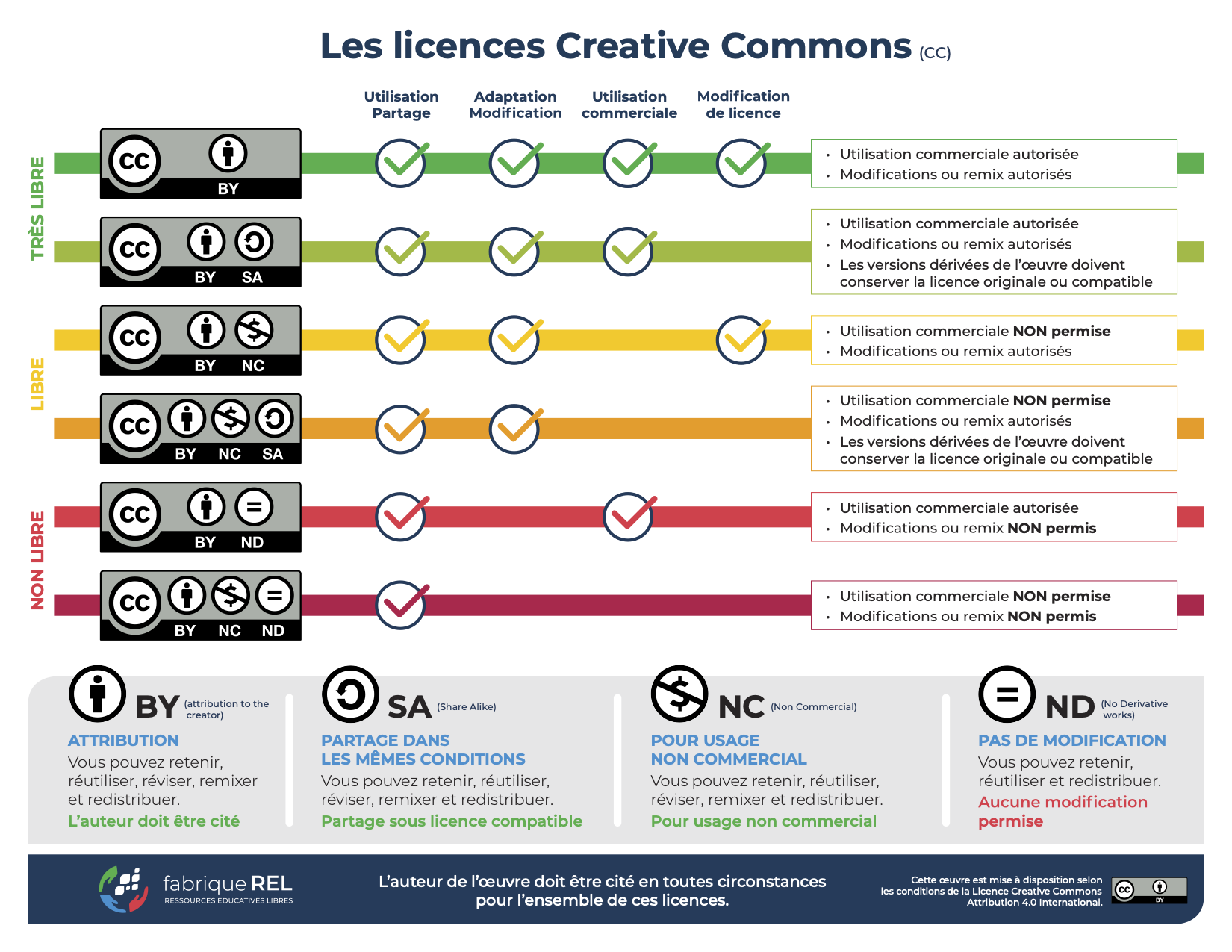](https://wiki.unil.ch/recherche/uploads/images/gallery/2024-10/cc-by-fabriquerel2.png) If third-party rights, such as those of publishers or co-authors, prevent distribution under a Creative Commons license, the author may grant UNIL a simple (non-exclusive) and free license to put the thesis online in the institutional repository after the end of any embargo (choose “**all rights reserved**”). ### 3. Finalize the submission 1. Before you can submit your thesis for validation, you must accept IRIS’s user licence. 2. Once your publication entry is complete, choose “Save” or “Save and quit” to save the record, or click “Publish” to immediately publish it.[](https://wiki.unil.ch/recherche/uploads/images/gallery/2025-07/6duimage.png) 3. After publishing your entry, it will move into processing and be pending validation. While awaiting validation, you can find your thesis under “My workspace.” **You will receive an automatic email confirming the validation once your submission has been processed.**[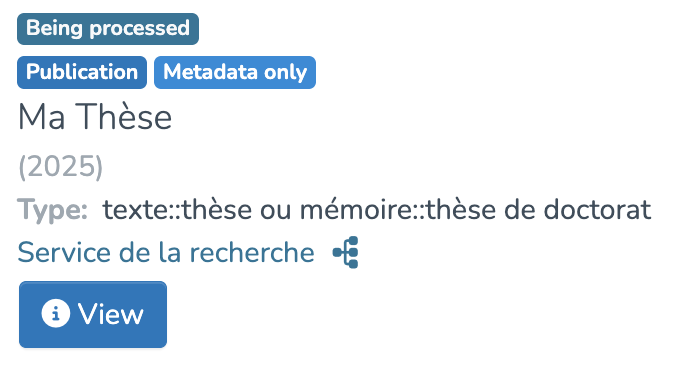](https://wiki.unil.ch/recherche/uploads/images/gallery/2025-07/6apimage.png) ### 4. Finalize the degree order You can now return to your [degree order](https://ed.unil.ch/pubauth/commande-grade) and finalize it. # Validating a record ####*The voice in this video was generated by artificial intelligence.*
#### Introduction You will receive an email as soon as a record is available for validation. You can then access the platform to process it. To do so, simply follow the instructions below #### Workspace First, you will need to access your workspace by clicking on **“My Workspace.”** [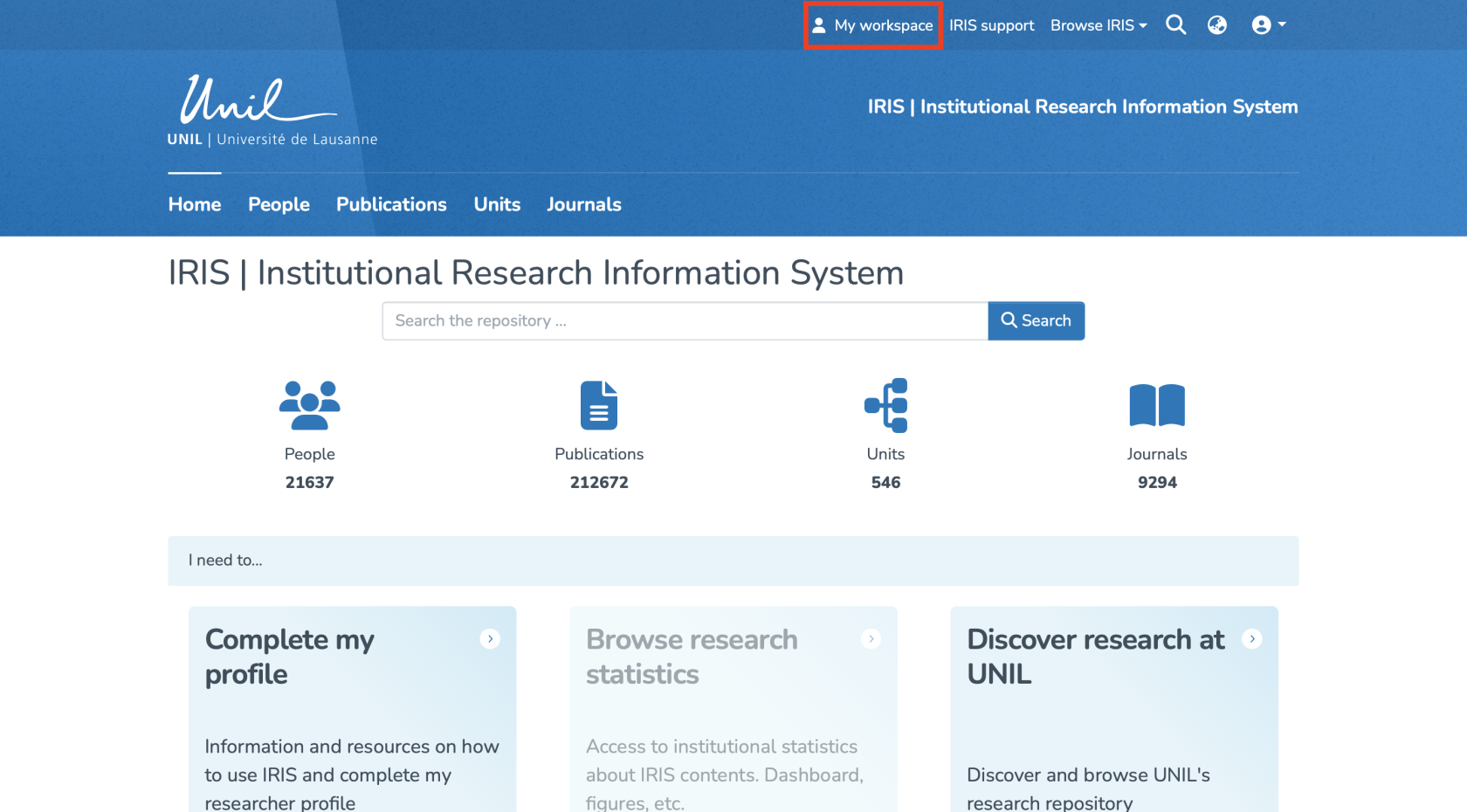](https://wiki.unil.ch/recherche/uploads/images/gallery/2025-08/capture-decran-2025-08-21-a-21-17-22.png) #### Accessing Records to Validate You will automatically be redirected to the page containing the records you have created. To access other records, click on the button highlighted in red. [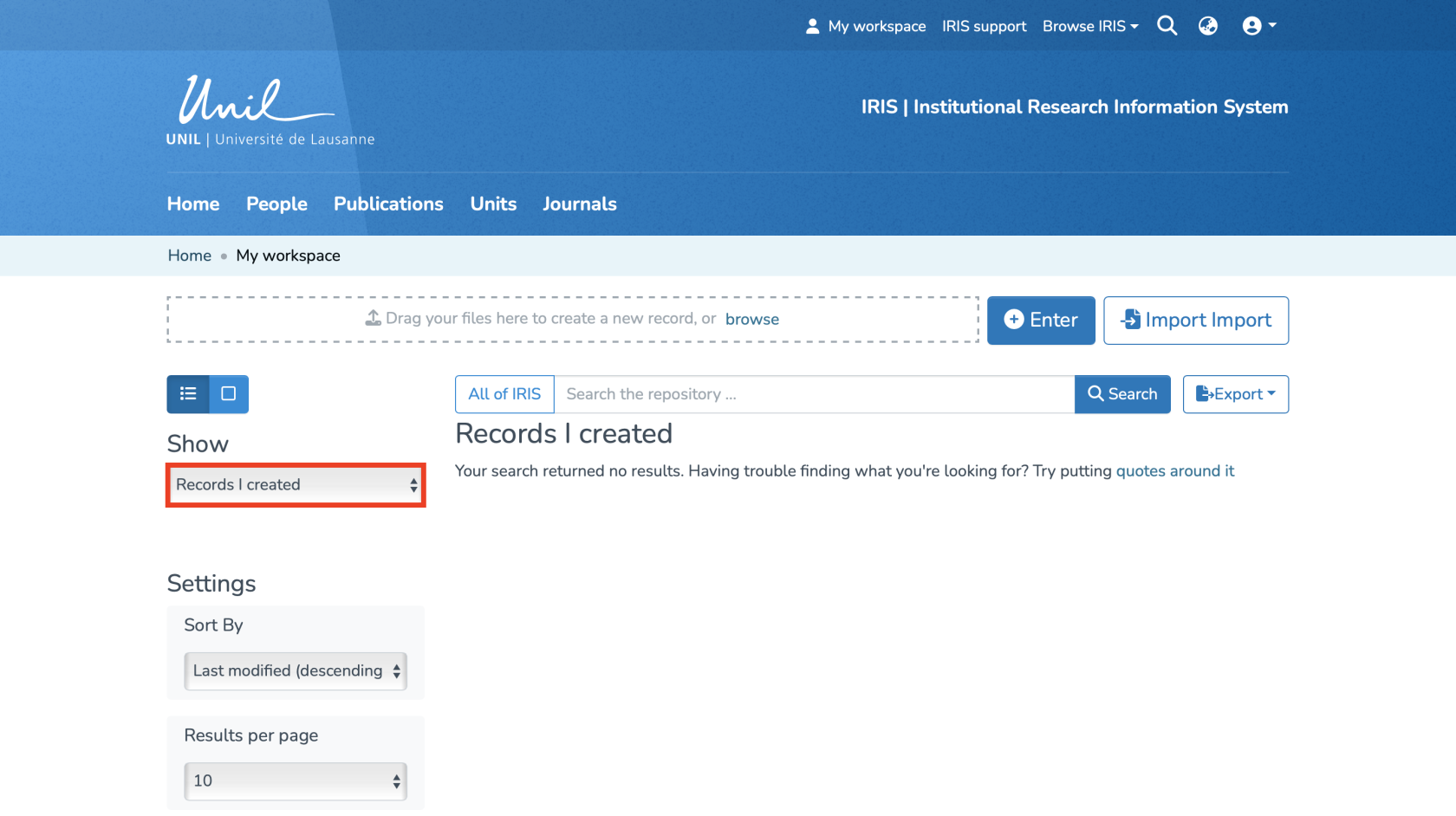](https://wiki.unil.ch/recherche/uploads/images/gallery/2025-08/capture-decran-2025-08-21-a-21-26-10.png) Once you have done this, a dropdown menu will appear with several types of records. Select **“Records to Validate”** to view those that require validation. The page will automatically refresh with the corresponding records. [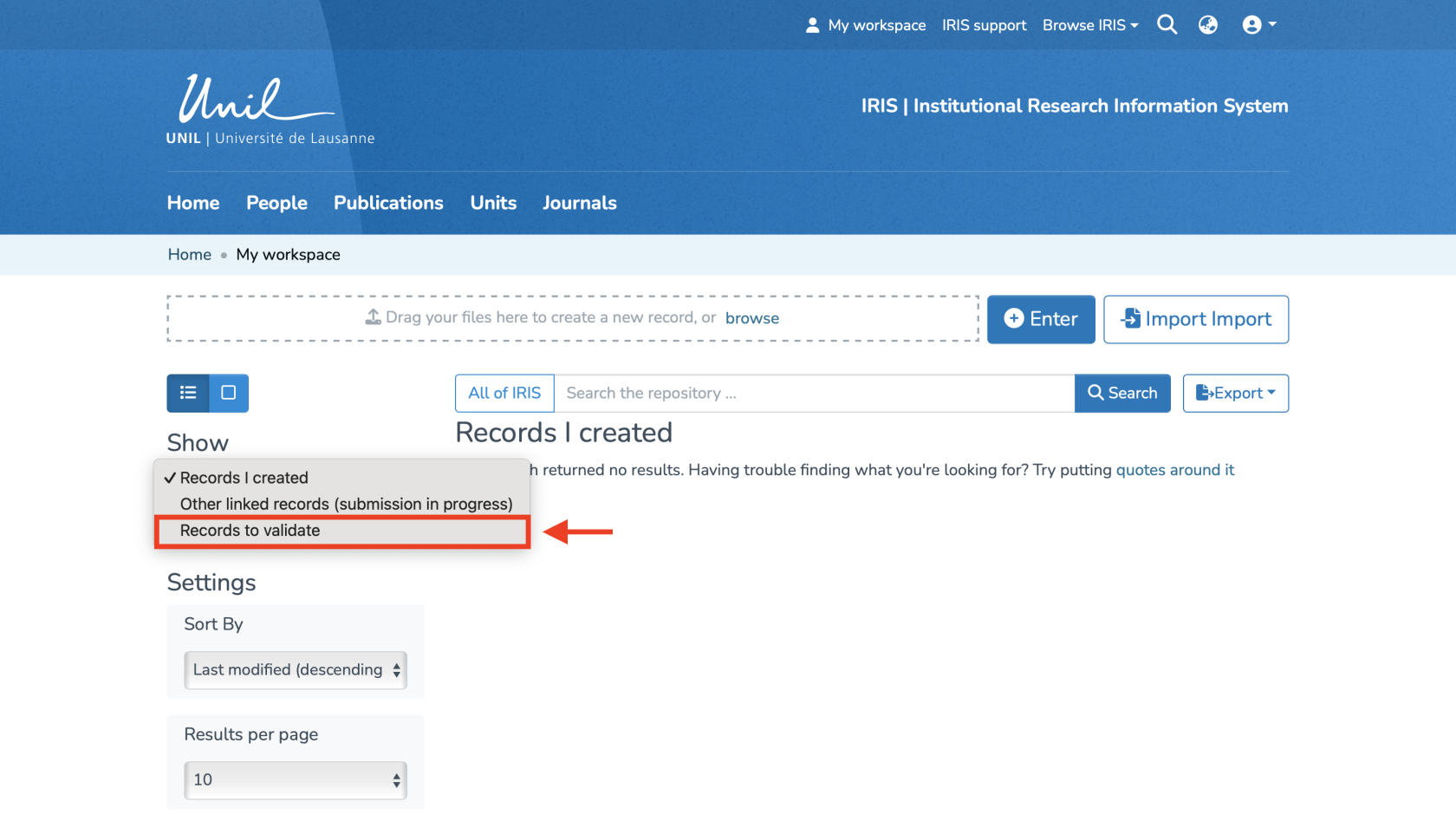](https://wiki.unil.ch/recherche/uploads/images/gallery/2025-08/capture-decran-2025-08-21-a-21-26-43.png) #### Available Features You are now on the page containing all the records you need to validate. To start the validation, first click on **“Claim”** under the relevant record. [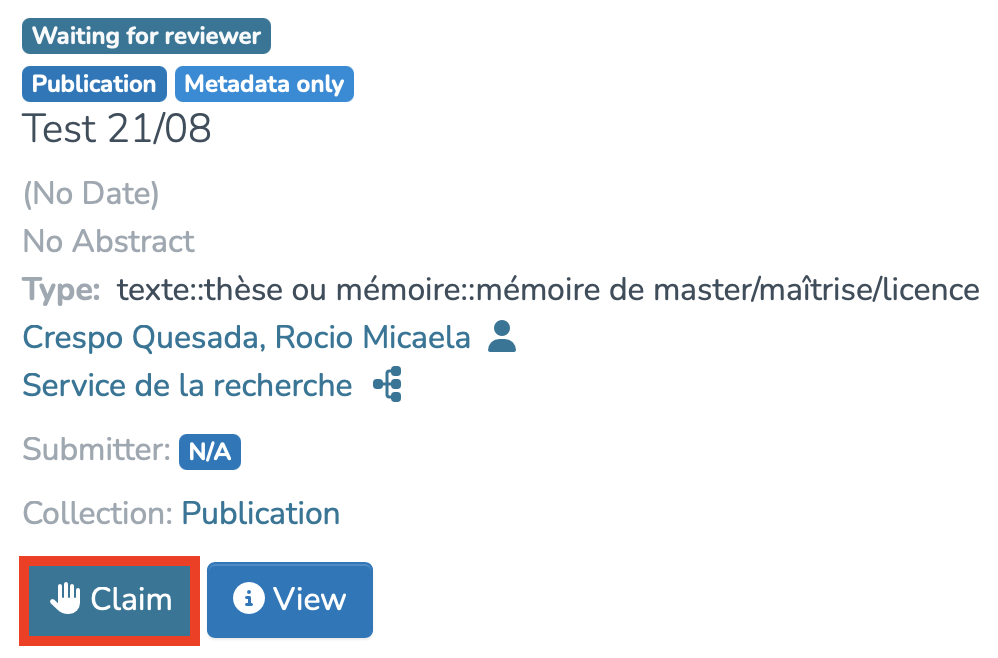](https://wiki.unil.ch/recherche/uploads/images/gallery/2025-08/capture-decran-2025-08-21-a-21-28-18.png) You can then perform several actions by clicking on the following buttons: 1. **Approve** : If you have reviewed the item and it is suitable for inclusion in the collection. 2. **Reject** : If the reviewed item **is not ready** to be included in the collection. You will be asked to indicate the reason for the rejection and further edits the user should make before resubmission. 3. **Edit** : If you wish to modify the item’s metadata. 4. **Return to pool** : If you wish to return the task to the pool so that another user may perform the task 5. **View** : If you wish to display the item’s metadata. [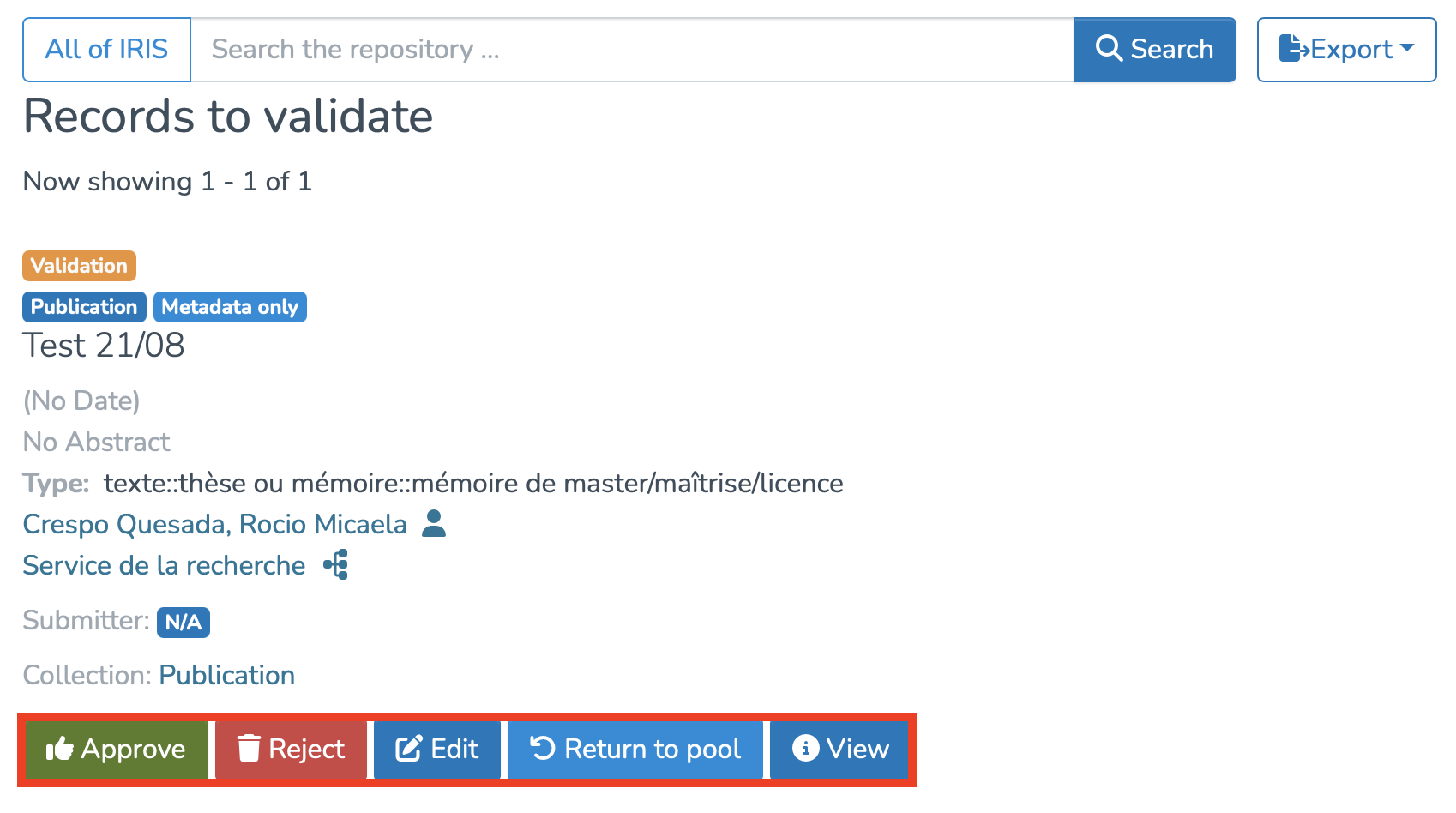](https://wiki.unil.ch/recherche/uploads/images/gallery/2025-08/capture-decran-2025-08-21-a-21-32-03.png) # Publications: type descriptions [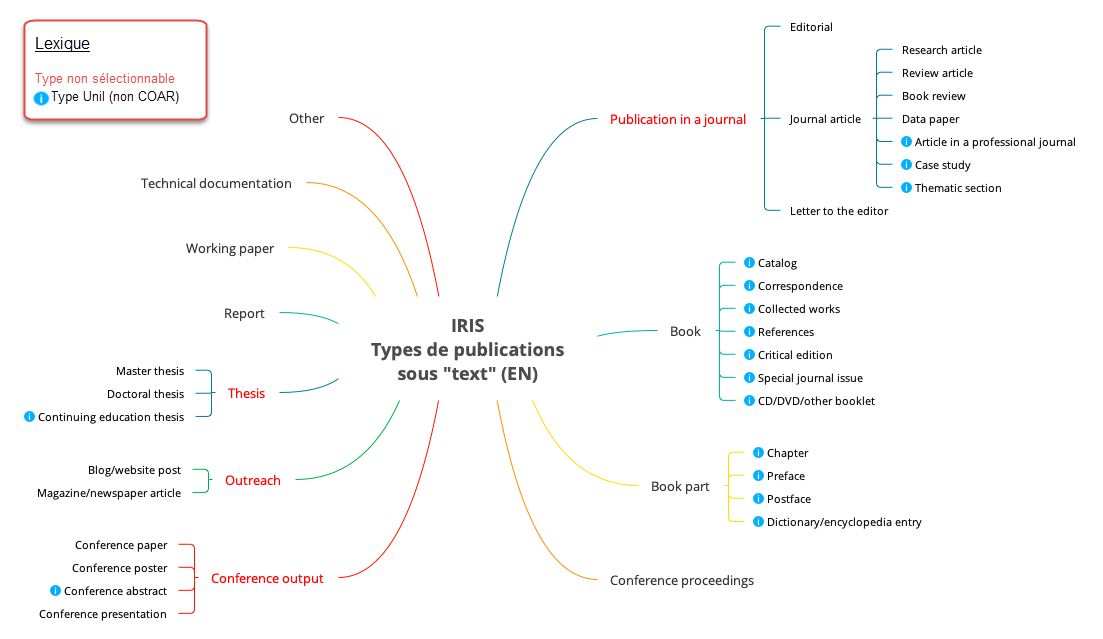](https://wiki.unil.ch/recherche/uploads/images/gallery/2025-09/gfhimage.png) In this diagram, the **red nodes** are **not selectable** in IRIS: they are only used to organize the different categories. The elements marked with a **blue circle** correspond to **specific publication types that are unique to UNIL**.| **Type** | **Description** |
| Text | Resource composed mainly of text, including books, letters, memoirs, poems, newspapers, articles and mailing list archives. Facsimiles or images of texts are also considered texts. |
| Publication in a journal | Article or content published in a scientific or professional periodical, intended to disseminate original research and recent developments. |
| Editorial | Short essay expressing the opinion of the editor(s) of a journal on a topical scientific, political or cultural subject. |
| Journal article | Research article reporting the results of an original study, published in a scientific journal. |
| Research article | Article presenting the methods and results of original research carried out by the authors. |
| Review article | Comprehensive, critical analysis of available knowledge on a subject, based on a review of existing literature. |
| Book review | Critical evaluation of a book, focusing on its content, quality and scope. |
| Data paper | Article describing a specific dataset, its characteristics, access and potential for reuse. |
| Article in a professional journal | Article aimed at practitioners in a specific field, often more applied than a scientific article. |
| Case study | In-depth analysis of a particular case, generally used in the social sciences, medicine or management. |
| Thematic section | Structured set of articles gathered around a single theme within a periodical. |
| Letter to the editor | Letter commenting on or discussing an article published in a periodical, or presenting a point of interest to its readers. |
| Book | Non-periodical work, published in one or more volumes. |
| Catalog | Descriptive publication listing works of art, often as part of an exhibition or collection. |
| Correspondence | Collection of letters exchanged between different people. |
| Collected works | Collection of publications on one or more themes by one or more authors. |
| References | A work designed for occasional consultation (dictionary, encyclopedia, etc.). |
| Critical edition | Version of a text annotated and commented by a specialist. |
| Special journal issue | Special edition of a magazine devoted entirely to a specific theme or event. |
| CD/DVD/other booklet | Explanatory document accompanying an audio or video medium, such as a CD or DVD. |
| Book part | Chapter or defined section of a book. |
| Chapter | Distinct part of a book, often with its own title. |
| Preface | Introductory text of a book, often written by the author or an expert. |
| Postface | Concluding text of a book, often written after publication. |
| Dictionary/encyclopedia entry | Entry or article presenting concise, structured information on a term, concept, person or event. |
| Conference proceedings | Collection of papers presented at a conference/colloquium. |
| Conference output | Papers presented at a conference, including articles, posters and oral communications. |
| Conference paper | Article published in the proceedings of a conference/colloquium, reporting original research. |
| Conference poster | Graphic presentation of research results, displayed at a conference/symposium. |
| Conference abstract | Abstract of a paper presented at a conference. |
| Conference presentation | Slides or any other visual aid used for an academic presentation, particularly at a conference or symposium. |
| Outreach | Publication intended for a non-specialist audience, aimed at explaining scientific concepts. |
| Blog/website post | Text published on a blog or website. |
| Magazine/newspaper article | Article published in a newspaper or magazine, covering a variety of subjects. |
| Thesis | An academic document presenting the results of research carried out as part of a university degree. |
| Master thesis | A dissertation reporting on a research project undertaken as part of a higher education course leading to a Master's degree. |
| Doctoral thesis | A thesis reporting on research undertaken during a period of higher education leading to a doctorate. |
| Continuing education thesis | A dissertation reporting on work undertaken during a period of study leading to a further education diploma. |
| Report | A formal document presenting the results of a study, research or analysis. |
| Working paper | A working or discussion paper circulated publicly or among a group of peers. Some disciplines publish working papers in series. |
| Technical documentation | Technical documentation refers to any type of documentation that describes the handling, functionality and architecture of a technical product or a product under development or use. |
| Other | A type of resource that is not included in the existing terms under the higher concept “Text”. |