*The voice in this video was generated by artificial intelligence.*
#### Entry 1. Firstly, you should access your [workspace](https://wiki.unil.ch/recherche/books/user-guide/page/my-workspace) 2. Then, you should click on **“Enter.”** [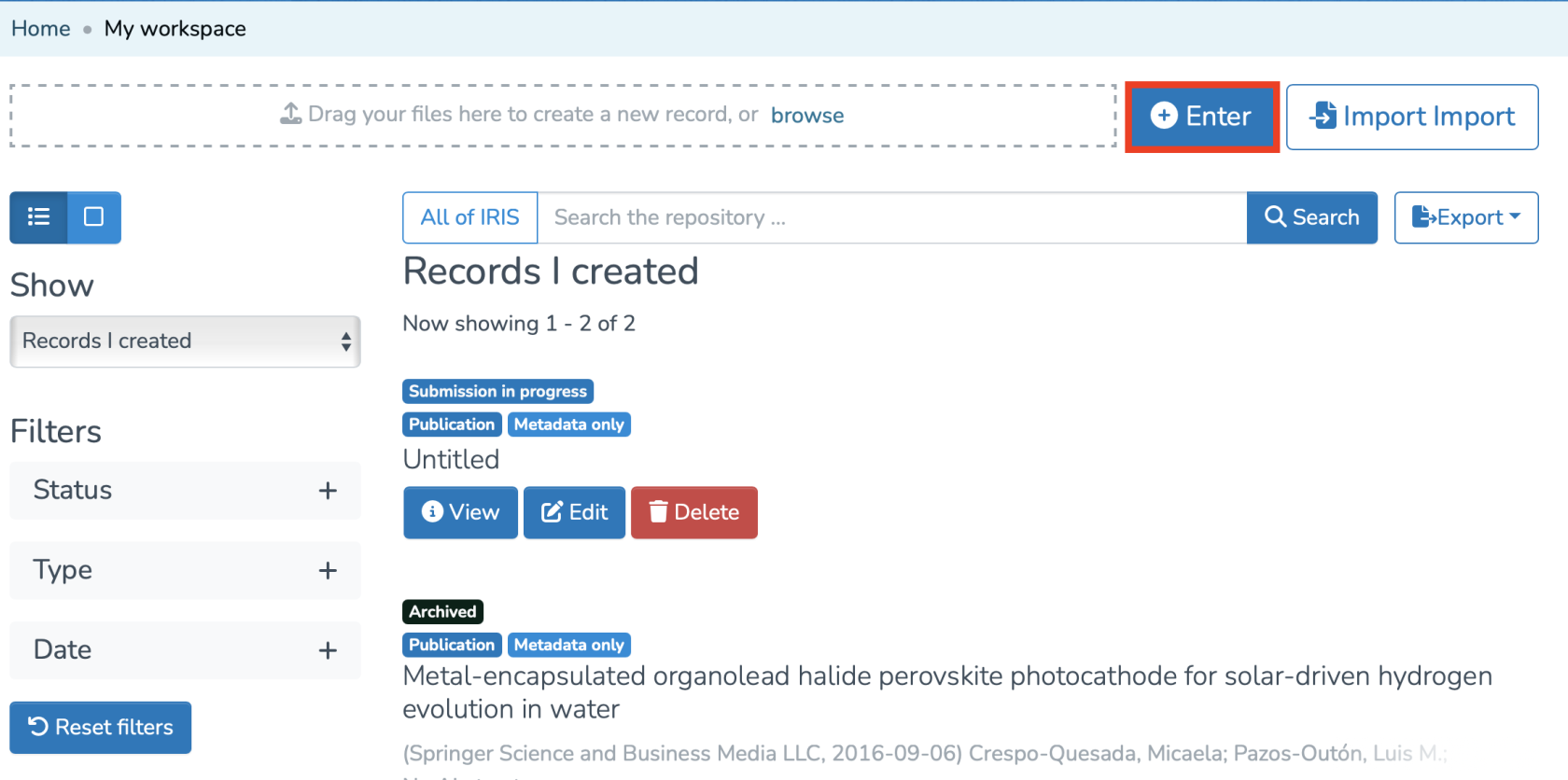](https://wiki.unil.ch/recherche/uploads/images/gallery/2025-07/capture-decran-2025-07-31-a-11-55-19.png) 3. Search for the collection in which you want to create the record, then select it, or click on the one already suggested to access the entry form. [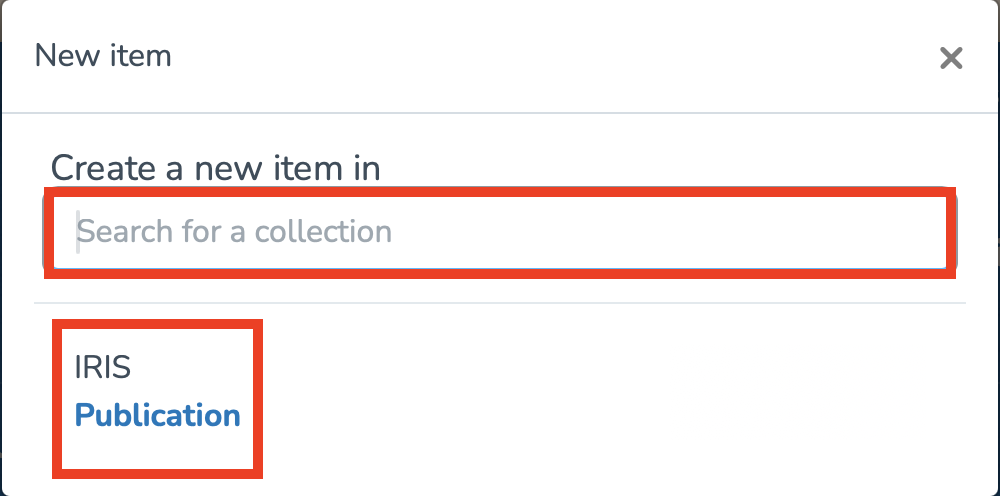](https://wiki.unil.ch/recherche/uploads/images/gallery/2025-07/capture-decran-2025-07-31-a-11-56-40.png) #### Entering the DOI/PMID In this case, we are interested in the publication by DOI (1) or PMID (2). In the form, you will need to enter the DOI (Digital Object Identifier) or the PubMed ID. IRIS will then automatically link the data. However, you must move your cursor away from the DOI or PMID input field and click elsewhere so that the metadata is populated. Note**:** Fields marked with a " \* " are mandatory and must be completed if they are not already filled in. [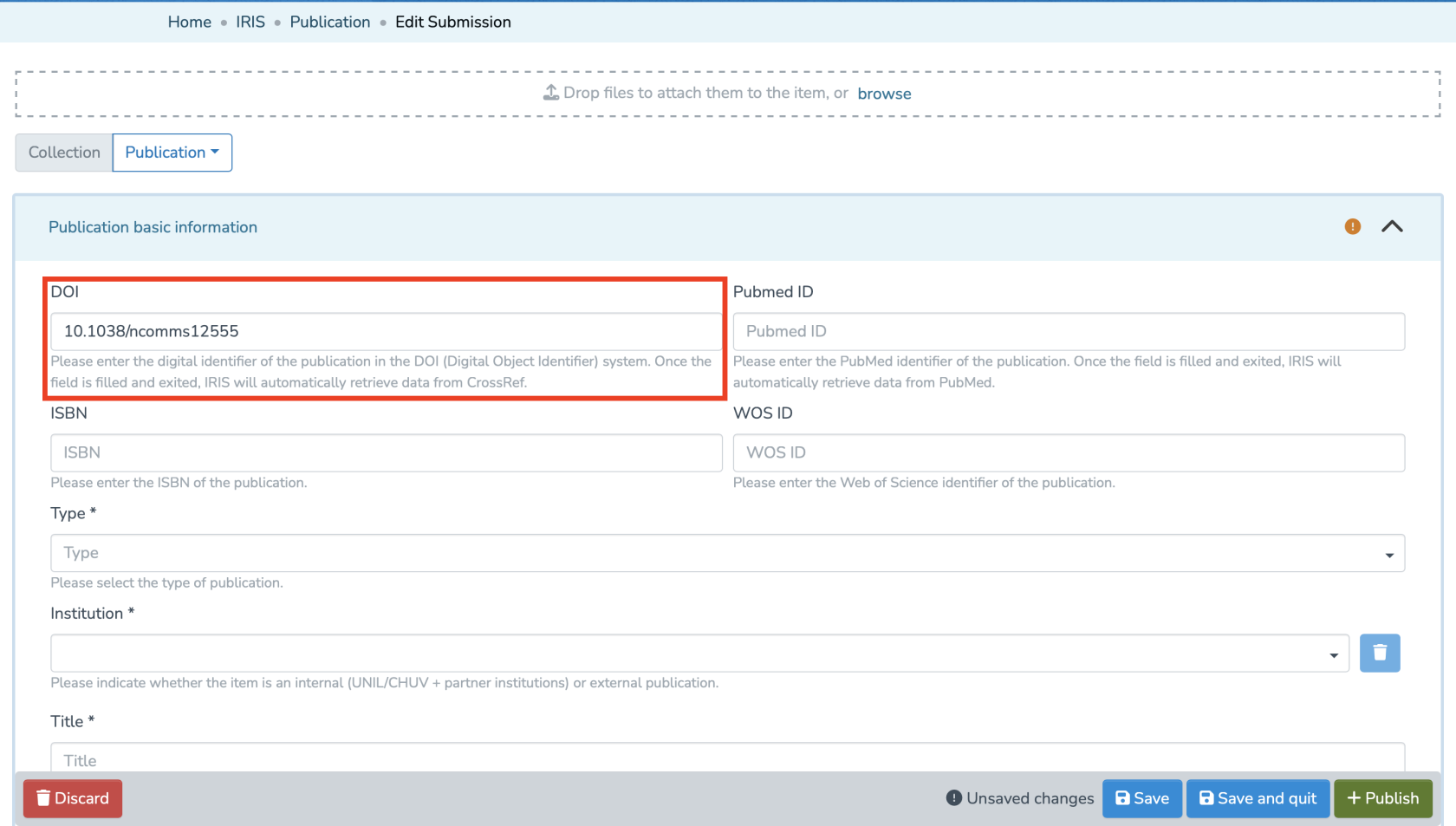](https://wiki.unil.ch/recherche/uploads/images/gallery/2025-07/capture-decran-2025-07-31-a-11-58-51.png) [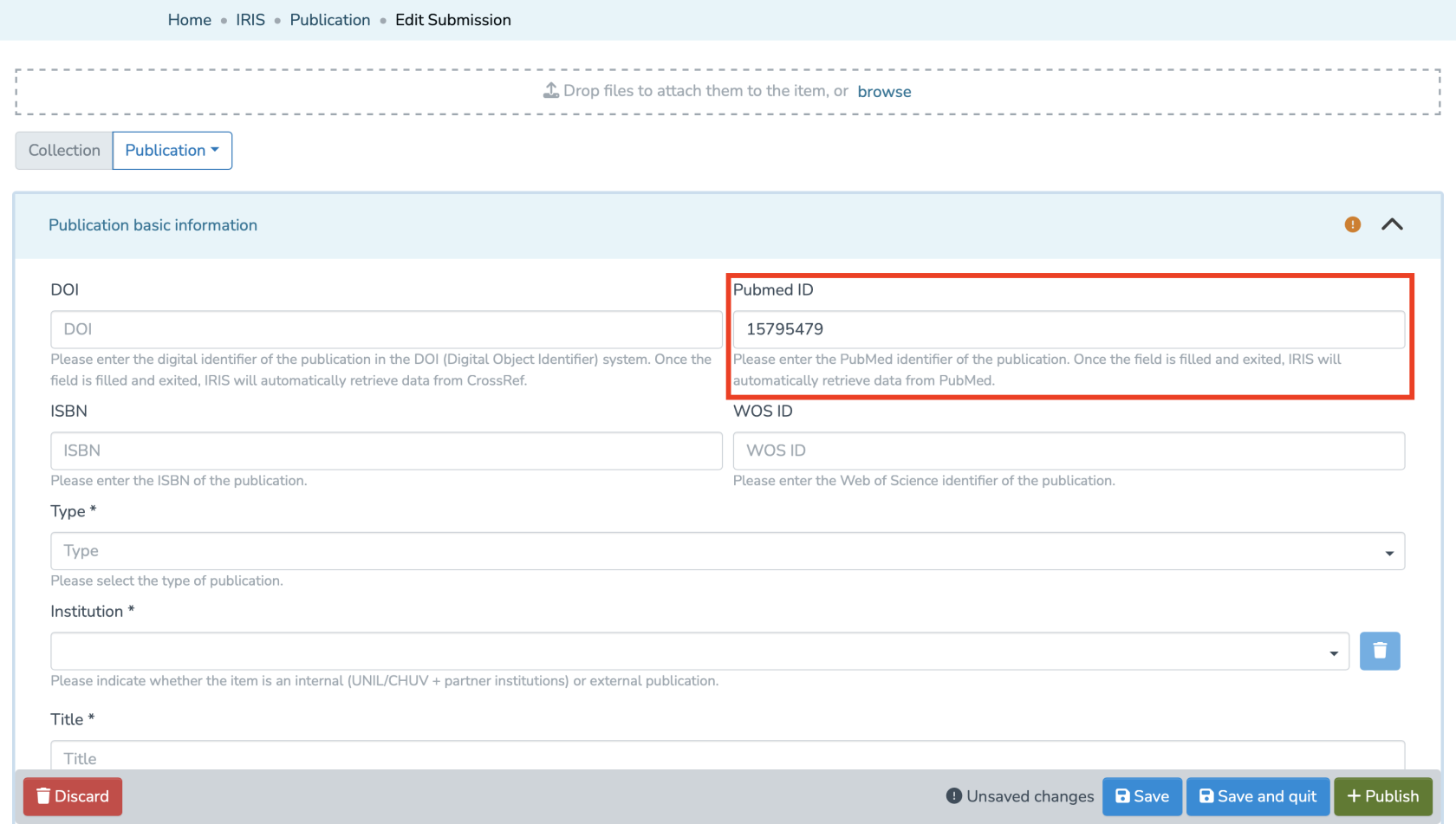](https://wiki.unil.ch/recherche/uploads/images/gallery/2025-07/capture-decran-2025-07-31-a-11-59-54.png) #### Linking People and Units **In IRIS, by default, the person who enters a record does not have the right to edit it. Only the individuals linked to the record have this permission.** **Make sure to properly link all relevant persons to the record.** Make sure to fill in the following two fields by clicking **“Add”**: 1. Links to people (Internal & external publication to UNIL/CHUV/Unisanté). 2. Links to units (Only internal publication to UNIL/CHUV/Unisanté). [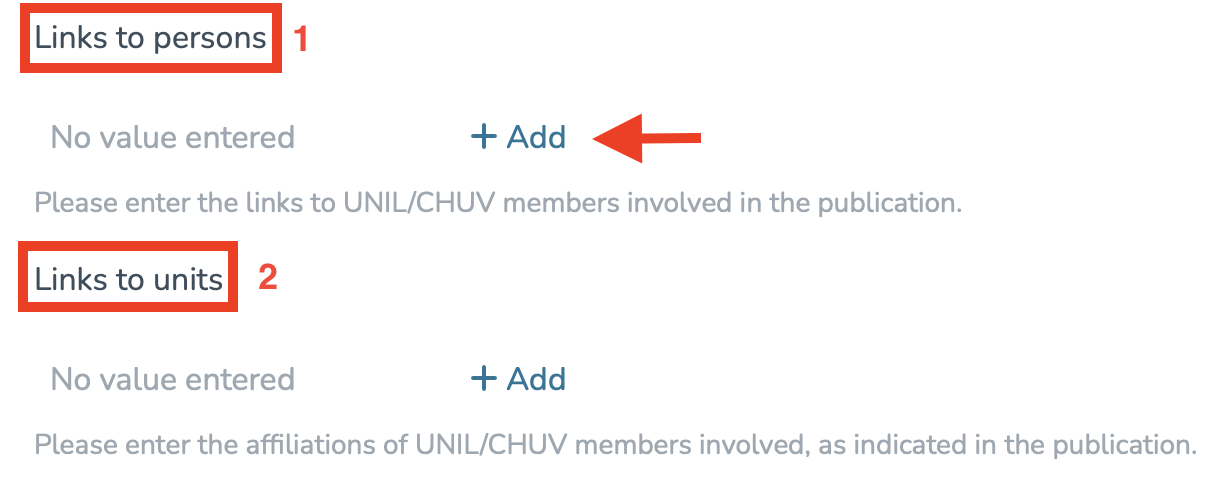](https://wiki.unil.ch/recherche/uploads/images/gallery/2025-07/capture-decran-2025-07-31-a-12-00-52.png) #### Checking for Duplicates The system will suggest a list of potential duplicates. You will need to go through each suggested publication and specify whether it is a duplicate by clicking **“It is a duplicate”** or **“It is not a duplicate,”** as appropriate. **Note:** Make sure to go through each publication, as several pages may be available. [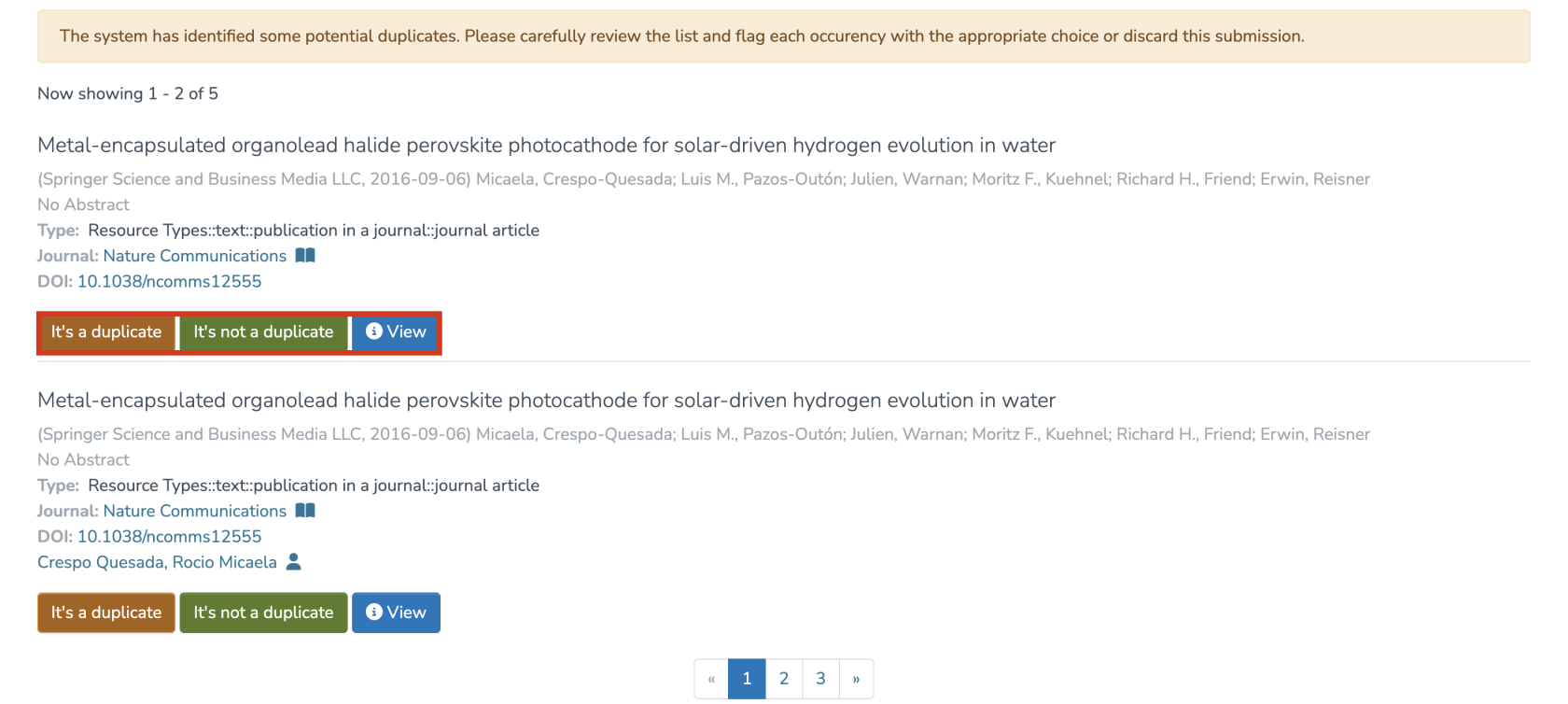](https://wiki.unil.ch/recherche/uploads/images/gallery/2025-07/p9iimage.png) Once these steps are completed, you will need to: 1. Approve the license by ticking the indicated checkbox. 2. Choose whether to **save** or **publish** your entry immediately. [](https://wiki.unil.ch/recherche/uploads/images/gallery/2025-07/capture-decran-2025-07-31-a-12-03-09.png) After publishing your entry, you can access its metadata as follows: - Access your workspace. - Click **“View”** under the title of the corresponding publication. [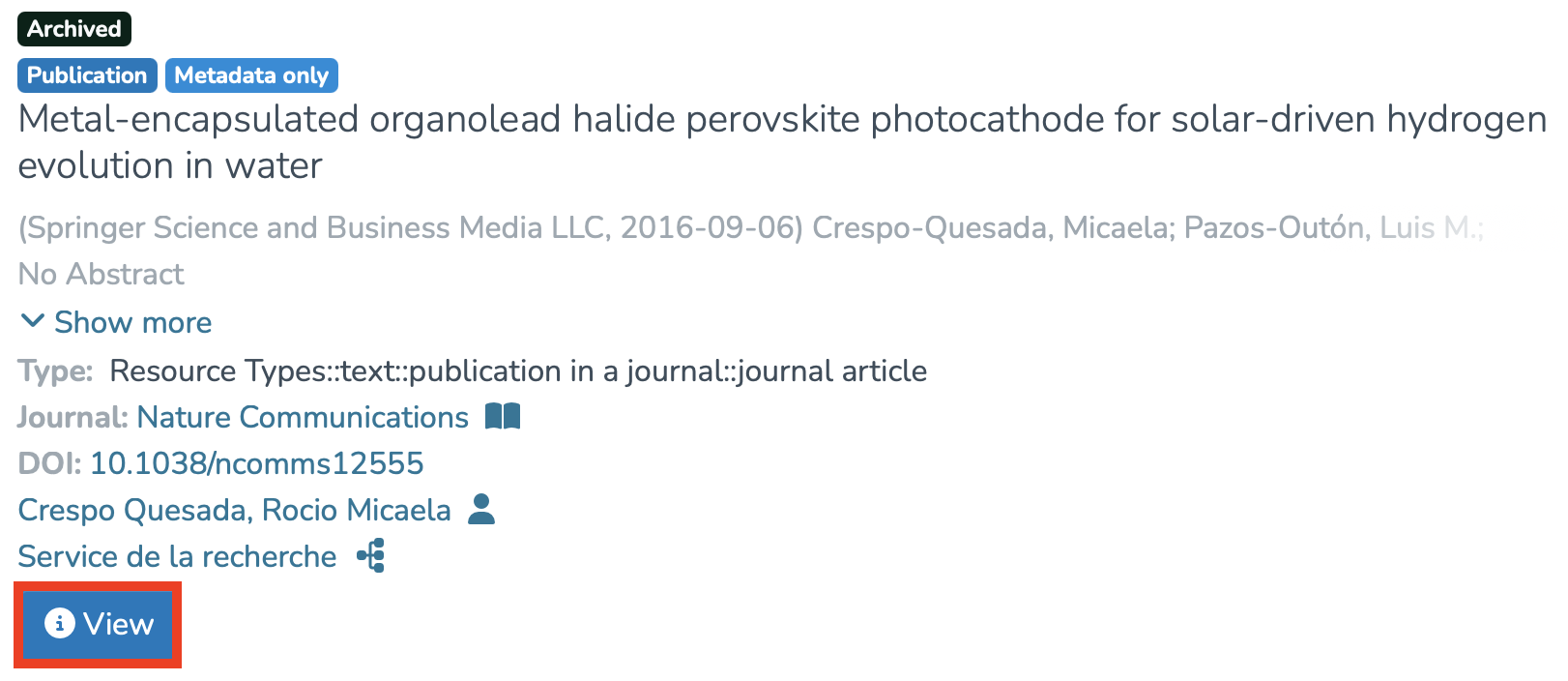](https://wiki.unil.ch/recherche/uploads/images/gallery/2025-07/capture-decran-2025-07-31-a-12-04-40.png) To display all metadata, click on **“...”**, then on **“Show all metadata.”** [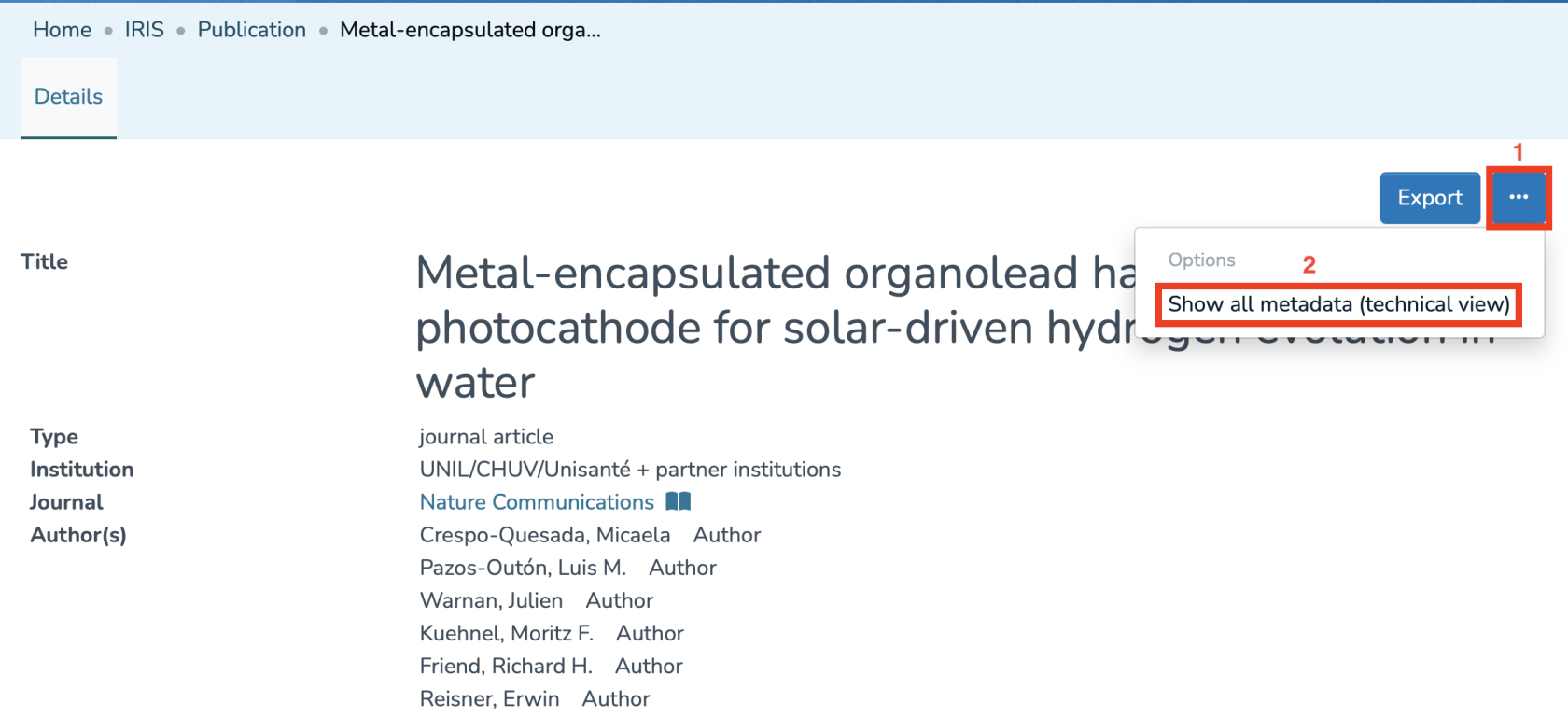](https://wiki.unil.ch/recherche/uploads/images/gallery/2025-07/capture-decran-2025-07-31-a-12-05-40.png) You will then have access to a detailed page displaying all the metadata of the item. [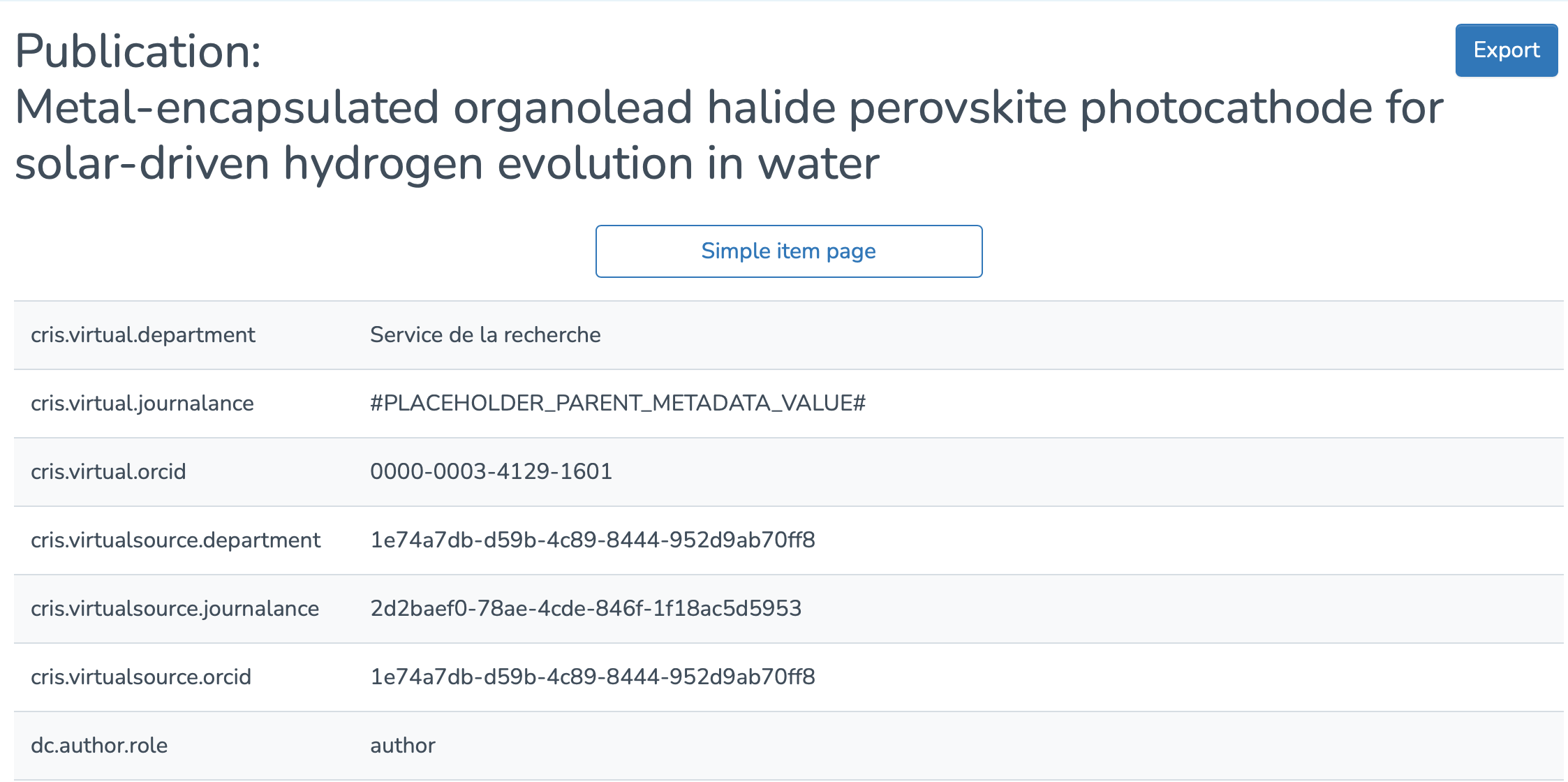](https://wiki.unil.ch/recherche/uploads/images/gallery/2025-07/capture-decran-2025-07-31-a-12-06-55.png)