# Importing individual items into IRIS (DOI/PMID/ORCID)

#### <span style="color: rgb(0, 0, 0);"><iframe allowfullscreen="allowfullscreen" class=" align-center" height="314" src="https://www.youtube.com/embed/FuLFRUzZg84" width="560"></iframe>

</span>

<p class="callout warning"><span style="color: rgb(0, 0, 0);">*The voice in this video was generated by artificial intelligence.*</span></p>

#### <span style="color: rgb(0, 0, 0);">Access Your Workspace</span>

  
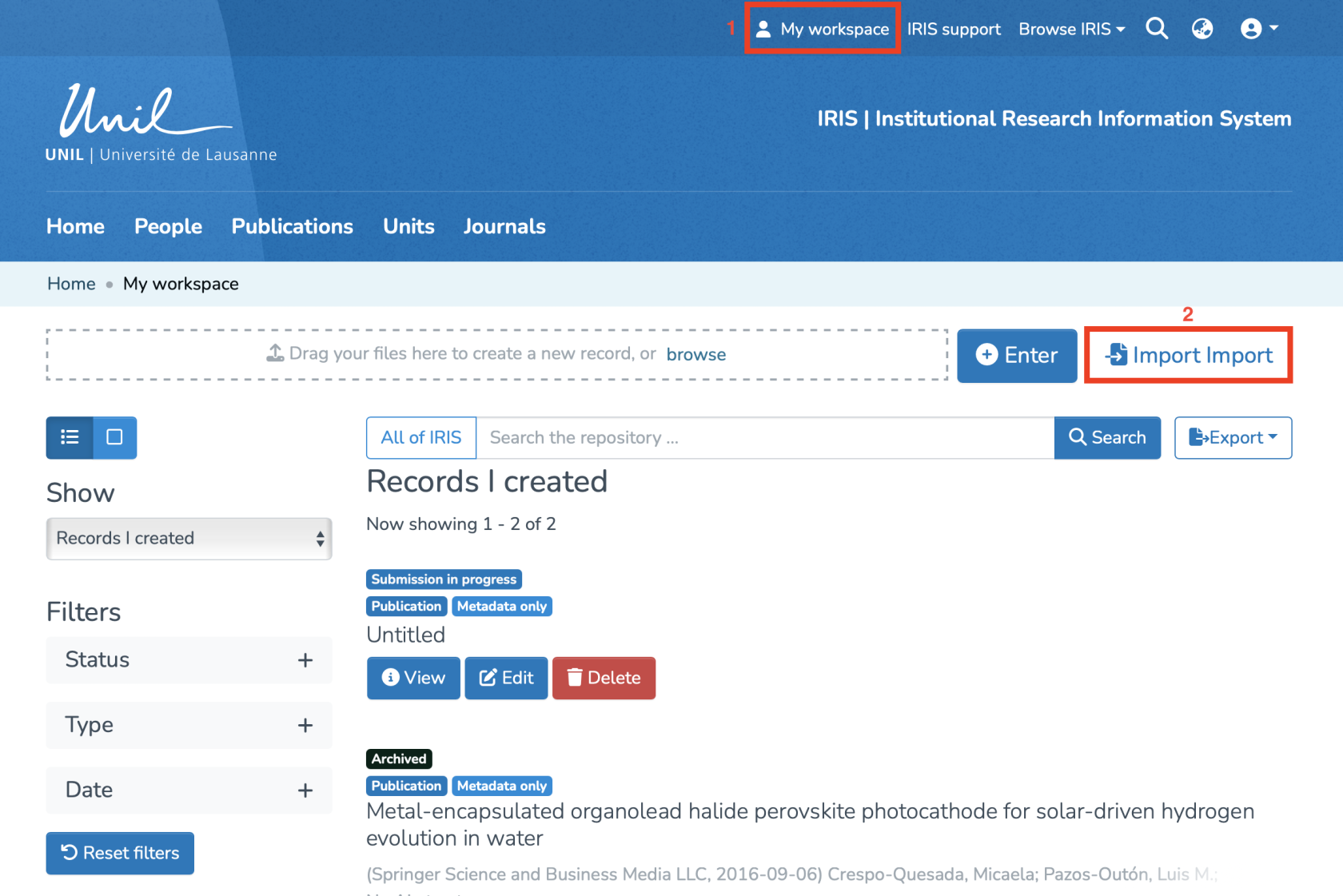
<span style="color: rgb(0, 0, 0);">The import of individual items into IRIS is done from your workspace:</span>

1. <span style="color: rgb(0, 0, 0);">Click on **“My Workspace.”**</span>
2. <span style="color: rgb(0, 0, 0);">Click on **“Import”** to be redirected to the import page.</span>

[![Capture d’écran 2025-07-31 à 12.26.15.png](https://wiki.unil.ch/recherche/uploads/images/gallery/2025-07/scaled-1680-/capture-decran-2025-07-31-a-12-26-15.png)](https://wiki.unil.ch/recherche/uploads/images/gallery/2025-07/capture-decran-2025-07-31-a-12-26-15.png)

#### <span style="color: rgb(0, 0, 0);">Importing Items</span>

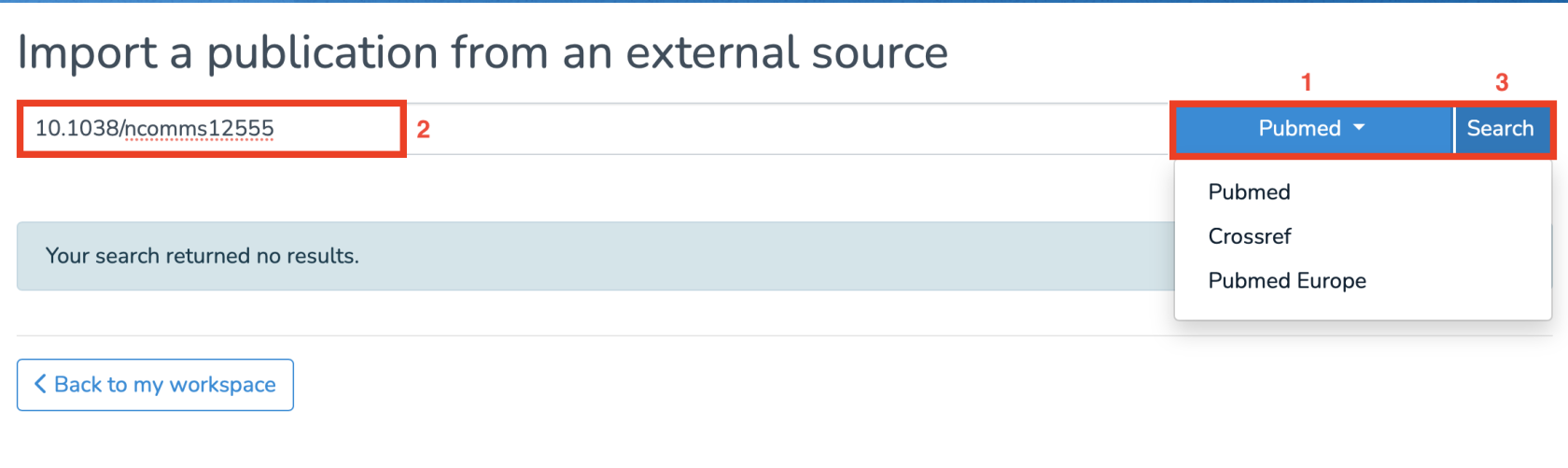
<span style="color: rgb(0, 0, 0);">On the import page:</span>

1. <span style="color: rgb(0, 0, 0);">Click on (1) to select the type of entry (PubMed/DOI).</span>
2. <span style="color: rgb(0, 0, 0);">Enter the corresponding source for your choice.</span>
3. <span style="color: rgb(0, 0, 0);">Click on **“Search.”**</span>

[![Capture d’écran 2025-07-31 à 12.33.52.png](https://wiki.unil.ch/recherche/uploads/images/gallery/2025-07/scaled-1680-/capture-decran-2025-07-31-a-12-33-52.png)](https://wiki.unil.ch/recherche/uploads/images/gallery/2025-07/capture-decran-2025-07-31-a-12-33-52.png)

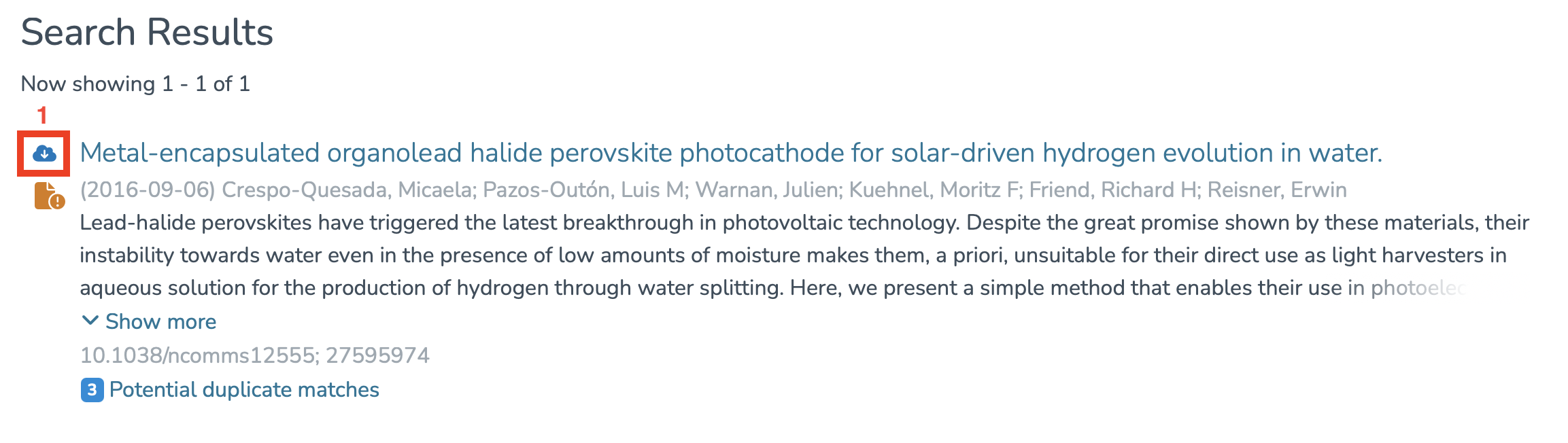
<span style="color: rgb(0, 0, 0);">You will see the results related to your search and will need to click on (1) to import.</span>

[![Capture d’écran 2025-07-31 à 12.35.19.png](https://wiki.unil.ch/recherche/uploads/images/gallery/2025-07/scaled-1680-/capture-decran-2025-07-31-a-12-35-19.png)](https://wiki.unil.ch/recherche/uploads/images/gallery/2025-07/capture-decran-2025-07-31-a-12-35-19.png)

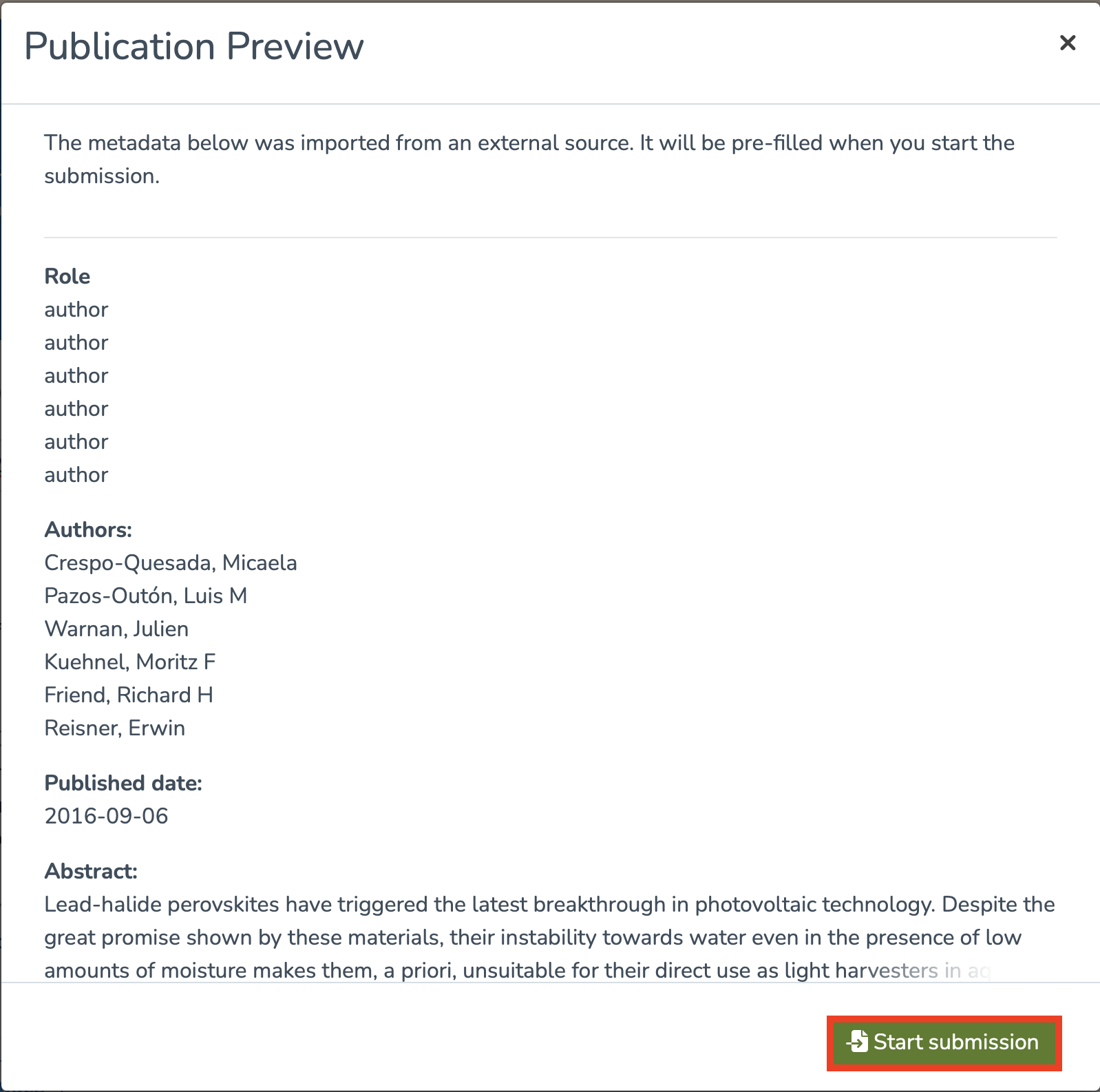
<span style="color: rgb(0, 0, 0);">You will then be redirected to a page containing the metadata of the search result and will need to click on **“Start Submission”** to begin the import process.</span>

[![Capture d’écran 2025-07-31 à 12.36.13.png](https://wiki.unil.ch/recherche/uploads/images/gallery/2025-07/scaled-1680-/capture-decran-2025-07-31-a-12-36-13.png)](https://wiki.unil.ch/recherche/uploads/images/gallery/2025-07/capture-decran-2025-07-31-a-12-36-13.png)

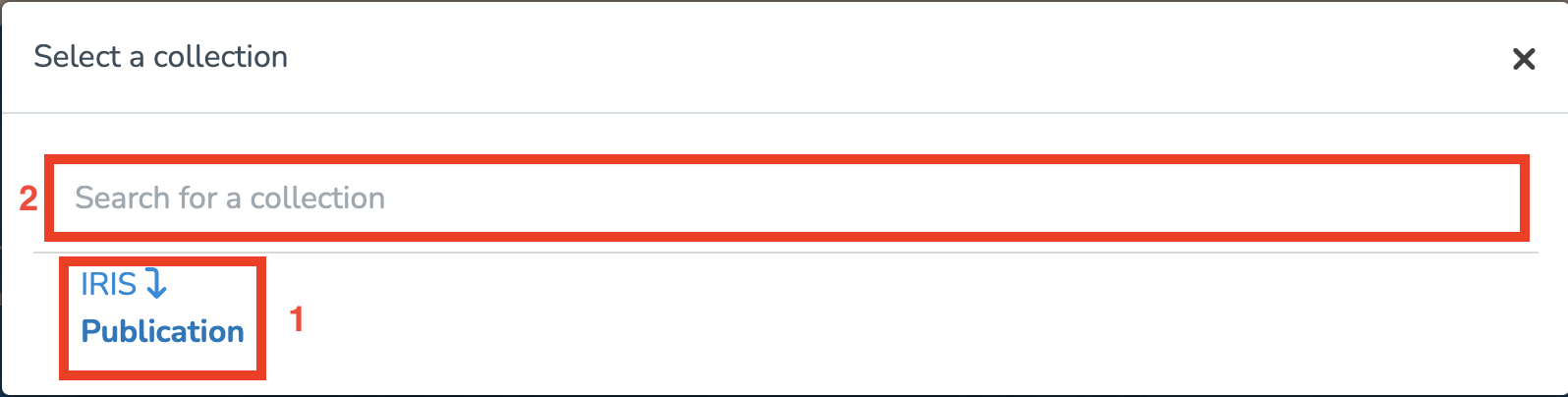
<span style="color: rgb(0, 0, 0);">Once this is done, you will need to select a collection in which to import the item:</span>

- <span style="color: rgb(0, 0, 0);">You can choose the proposed collection,</span>
- <span style="color: rgb(0, 0, 0);">Or manually enter a collection.</span>

[![Capture d’écran 2025-07-31 à 12.37.02.png](https://wiki.unil.ch/recherche/uploads/images/gallery/2025-07/scaled-1680-/capture-decran-2025-07-31-a-12-37-02.png)](https://wiki.unil.ch/recherche/uploads/images/gallery/2025-07/capture-decran-2025-07-31-a-12-37-02.png)

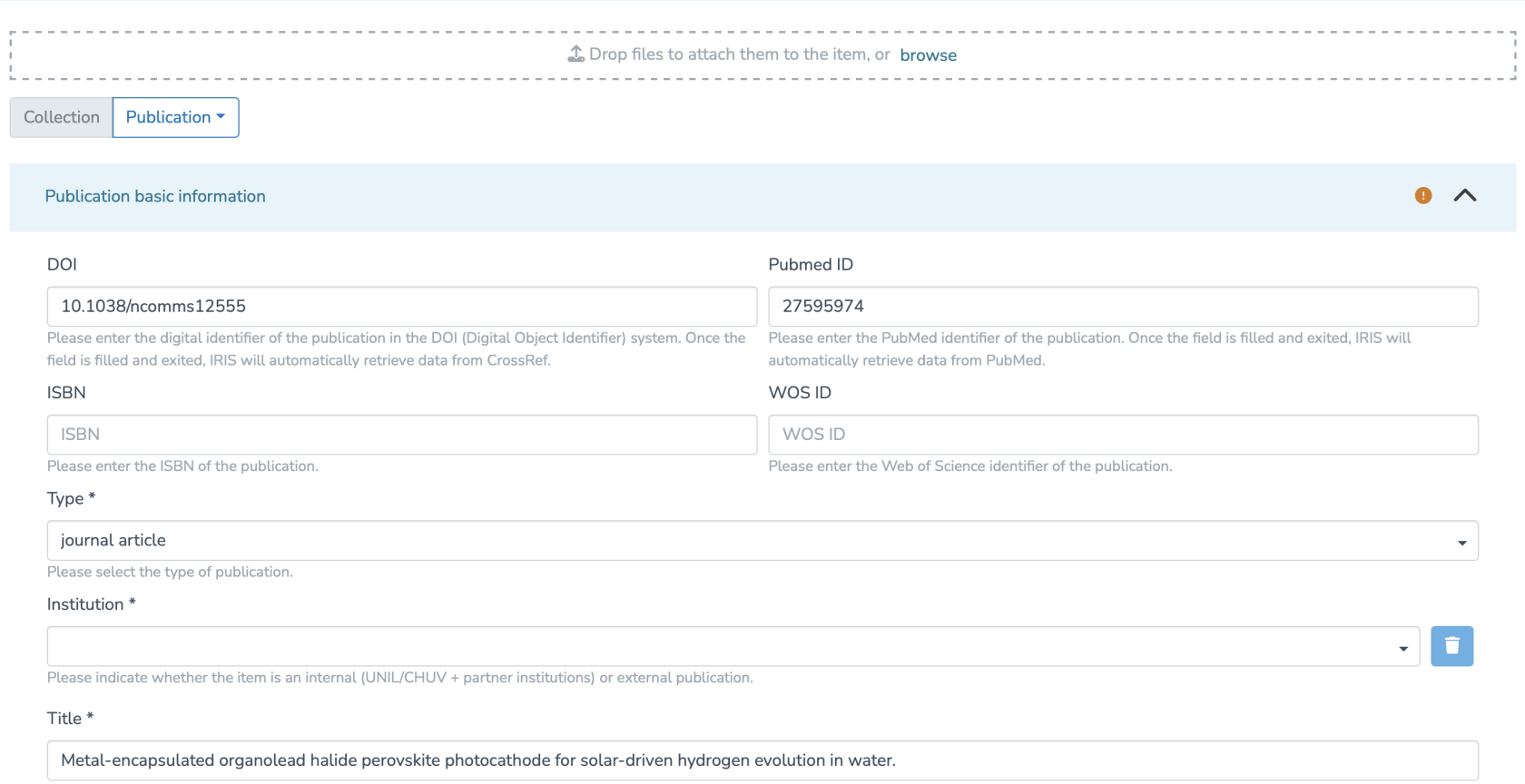
<span style="color: rgb(0, 0, 0);">You will then access the entry form.</span>

<span style="color: rgb(0, 0, 0);">**Note:** Fields marked with a “\*” are mandatory and must be completed if they are not already filled in.</span>

[![Capture d’écran 2025-07-31 à 12.38.49.png](https://wiki.unil.ch/recherche/uploads/images/gallery/2025-07/scaled-1680-/capture-decran-2025-07-31-a-12-38-49.png)](https://wiki.unil.ch/recherche/uploads/images/gallery/2025-07/capture-decran-2025-07-31-a-12-38-49.png)

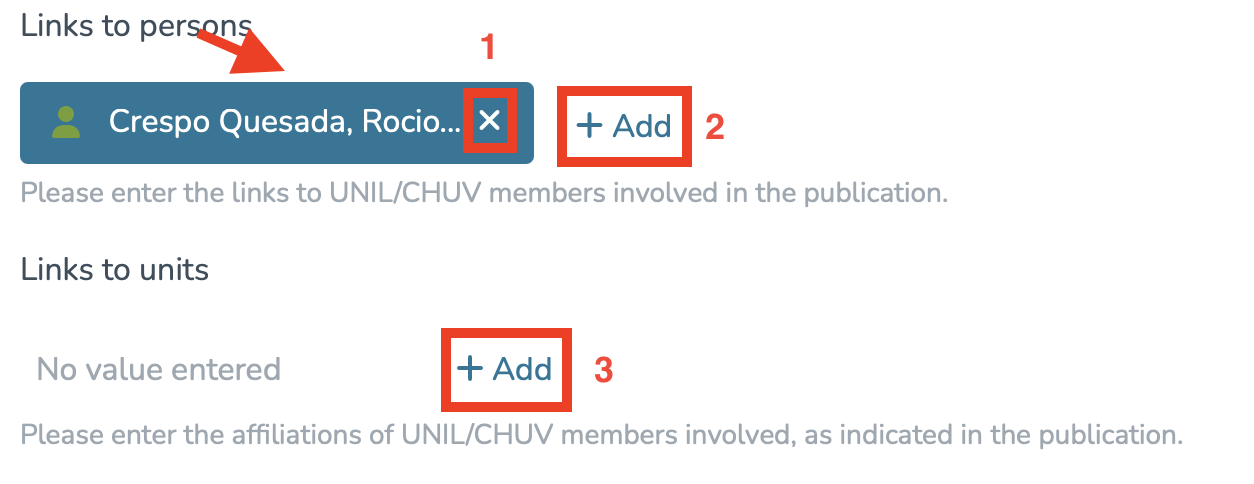
<span style="color: rgb(0, 0, 0);">Make sure to fill in the two following fields by clicking on **“Add”**:</span>

- <span style="color: rgb(0, 0, 0);">Links to people (Internal &amp; external publication to UNIL/CHUV/Unisanté).</span>
- <span style="color: rgb(0, 0, 0);">Links to units (Only internal publication to UNIL/CHUV/Unisanté).</span>

[![Capture d’écran 2025-07-31 à 12.20.44.png](https://wiki.unil.ch/recherche/uploads/images/gallery/2025-07/scaled-1680-/zaocapture-decran-2025-07-31-a-12-20-44.png)](https://wiki.unil.ch/recherche/uploads/images/gallery/2025-07/zaocapture-decran-2025-07-31-a-12-20-44.png)

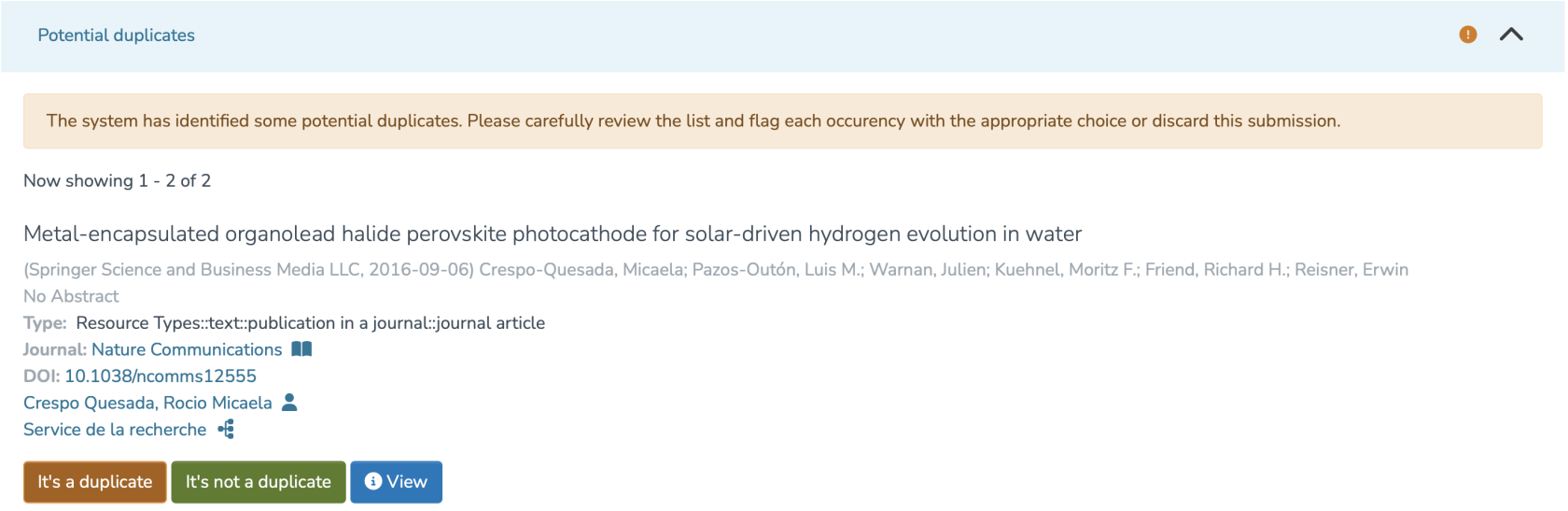
<span style="color: rgb(0, 0, 0);">The system will then suggest a list of potential duplicates. You must go through each suggested publication and specify whether it is a duplicate by clicking **“It is a duplicate”** or **“It is not a duplicate,”** as appropriate.</span>

<span style="color: rgb(0, 0, 0);">**Note:** Make sure to review every publication, as multiple pages may be available.</span>

[![Capture d’écran 2025-07-31 à 12.40.50.png](https://wiki.unil.ch/recherche/uploads/images/gallery/2025-07/scaled-1680-/capture-decran-2025-07-31-a-12-40-50.png)](https://wiki.unil.ch/recherche/uploads/images/gallery/2025-07/capture-decran-2025-07-31-a-12-40-50.png)

<span style="color: rgb(0, 0, 0);">Once these steps are completed, you will need to:</span>

- <span style="color: rgb(0, 0, 0);">Approve the license by checking the indicated box.</span>
- <span style="color: rgb(0, 0, 0);">Choose whether to **save** or **publish** your import immediately.</span>

[![Capture d’écran 2025-07-31 à 12.03.09.png](https://wiki.unil.ch/recherche/uploads/images/gallery/2025-07/scaled-1680-/Krdcapture-decran-2025-07-31-a-12-03-09.png)](https://wiki.unil.ch/recherche/uploads/images/gallery/2025-07/Krdcapture-decran-2025-07-31-a-12-03-09.png)

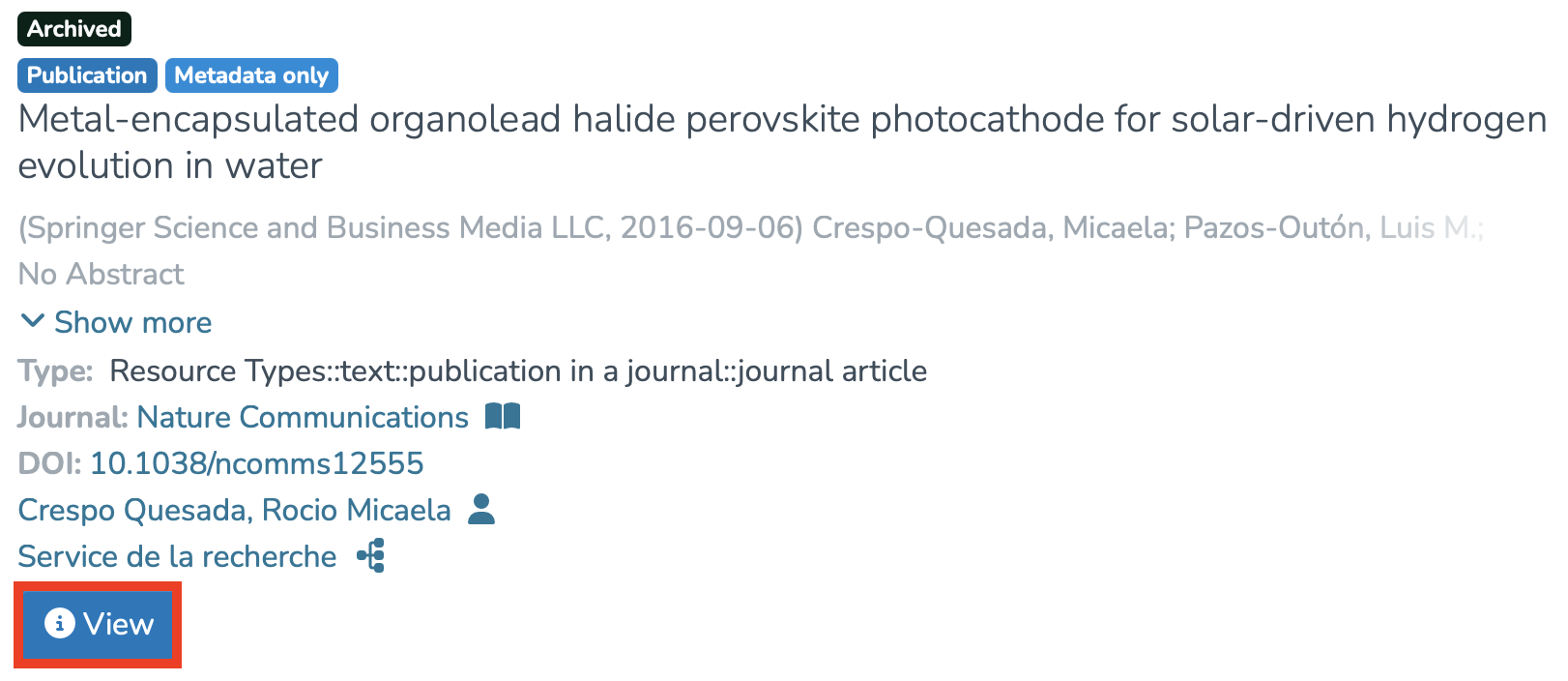
<span style="color: rgb(0, 0, 0);">After publishing your import, you can access its metadata as follows:</span>

- <span style="color: rgb(0, 0, 0);">Access your workspace.</span>
- <span style="color: rgb(0, 0, 0);">Click on **“View.”**</span>

[![Capture d’écran 2025-07-31 à 12.04.40.png](https://wiki.unil.ch/recherche/uploads/images/gallery/2025-07/scaled-1680-/zOBcapture-decran-2025-07-31-a-12-04-40.png)](https://wiki.unil.ch/recherche/uploads/images/gallery/2025-07/zOBcapture-decran-2025-07-31-a-12-04-40.png)