*The voice in this video was generated by artificial intelligence.*
#### Introduction Before you start working with IRIS, it is important to become familiar with four key concepts. **Workspace**: it mainly allows you to view the records you have created and to create new ones. To explore its features in detail, visit [this page](https://wiki.unil.ch/recherche/books/user-guide/page/my-workspace). **Researcher profile**: it provides an overview of your academic and personal data. To explore its features in detail, visit [this page.](https://wiki.unil.ch/recherche/books/user-guide/page/access-your-researcher-profile) **User account**: here, you can check your account settings as well as your personal information, and update your profile. To access it, click on the login menu at the top right. [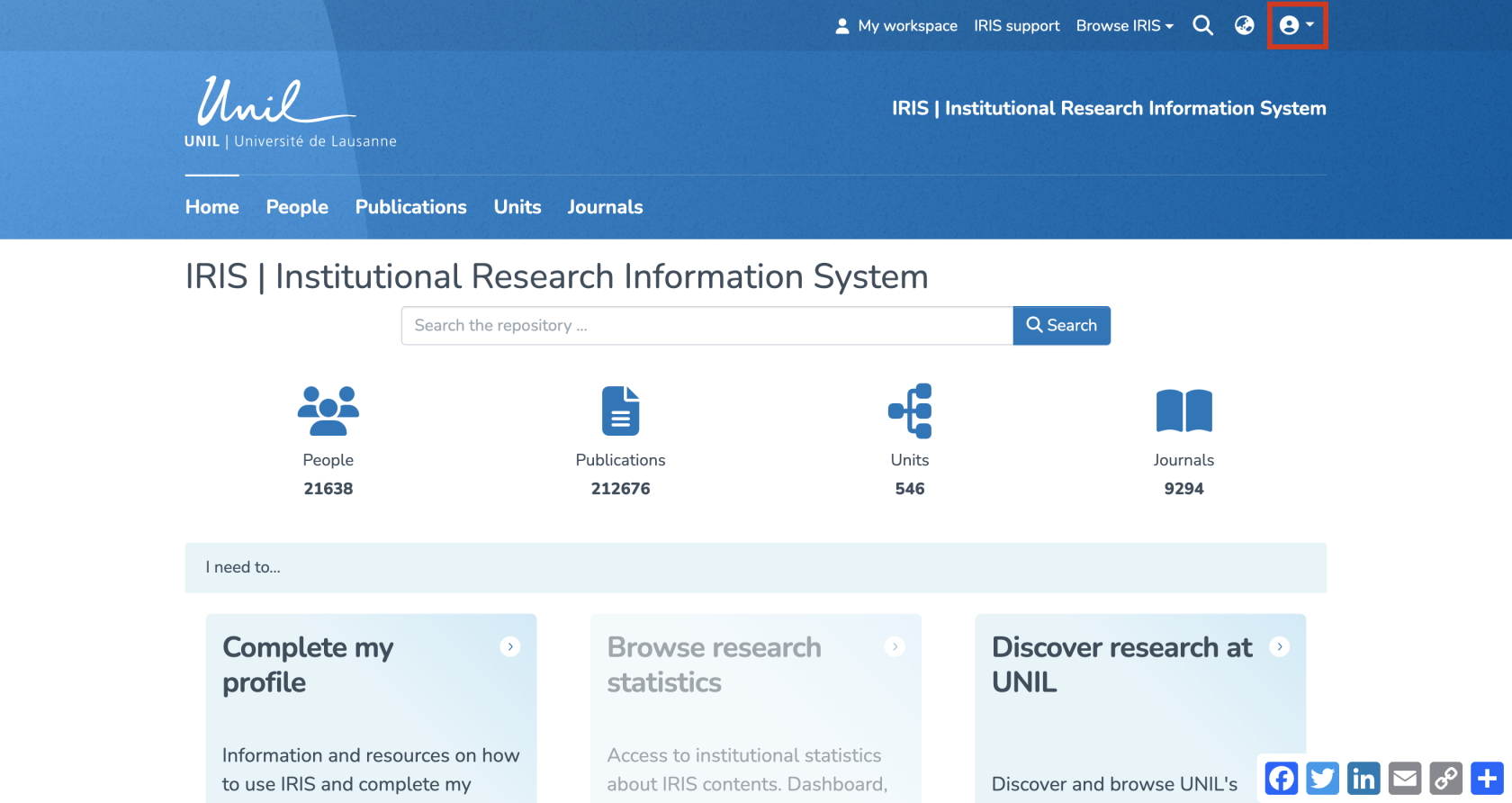](https://wiki.unil.ch/recherche/uploads/images/gallery/2025-09/E94image.png) In the drop-down menu, select the option "My account and profile". [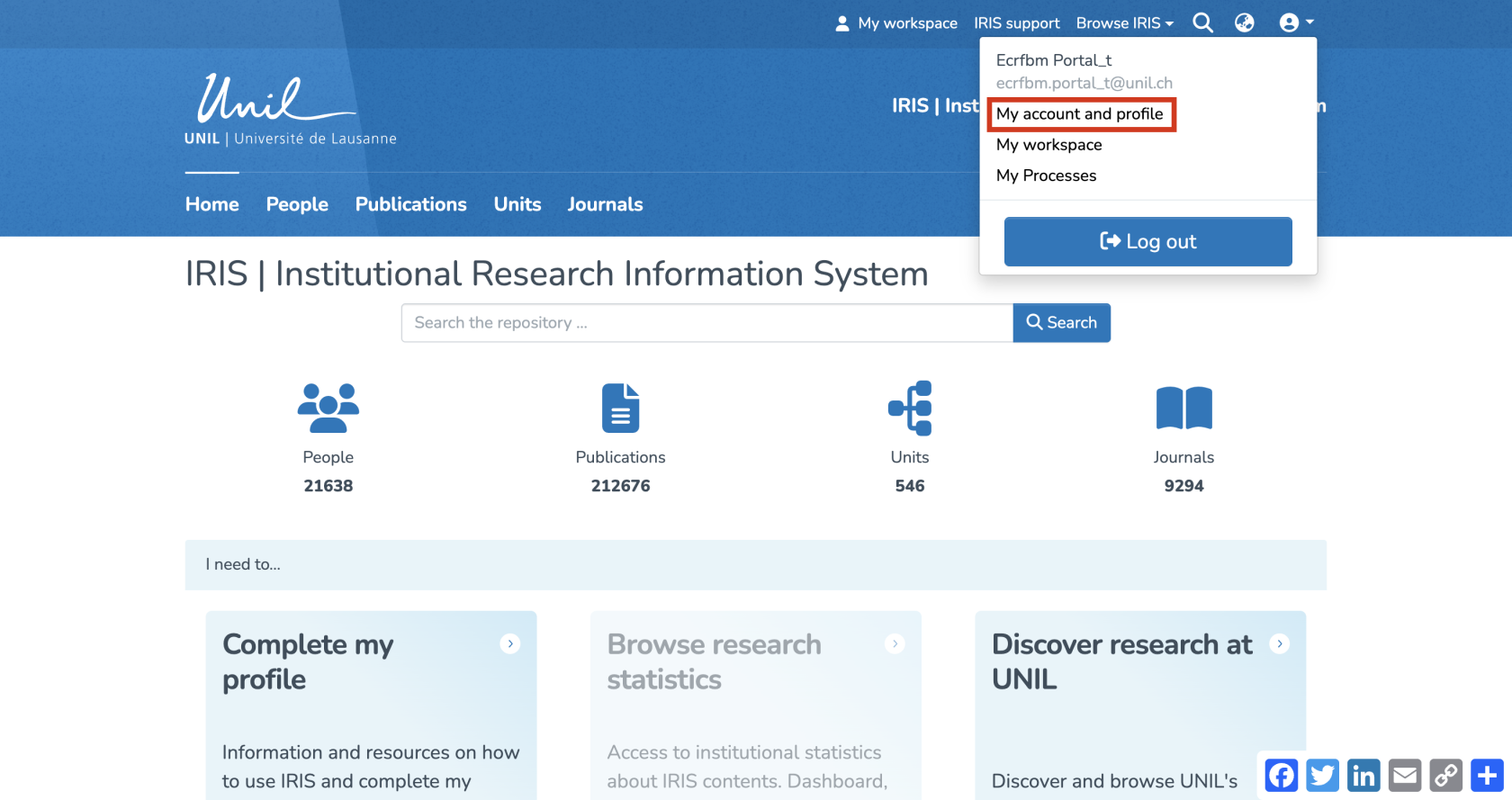](https://wiki.unil.ch/recherche/uploads/images/gallery/2025-09/2sJimage.png) You will then be redirected to your user account. From this page, you can also access your researcher profile by clicking on "View". [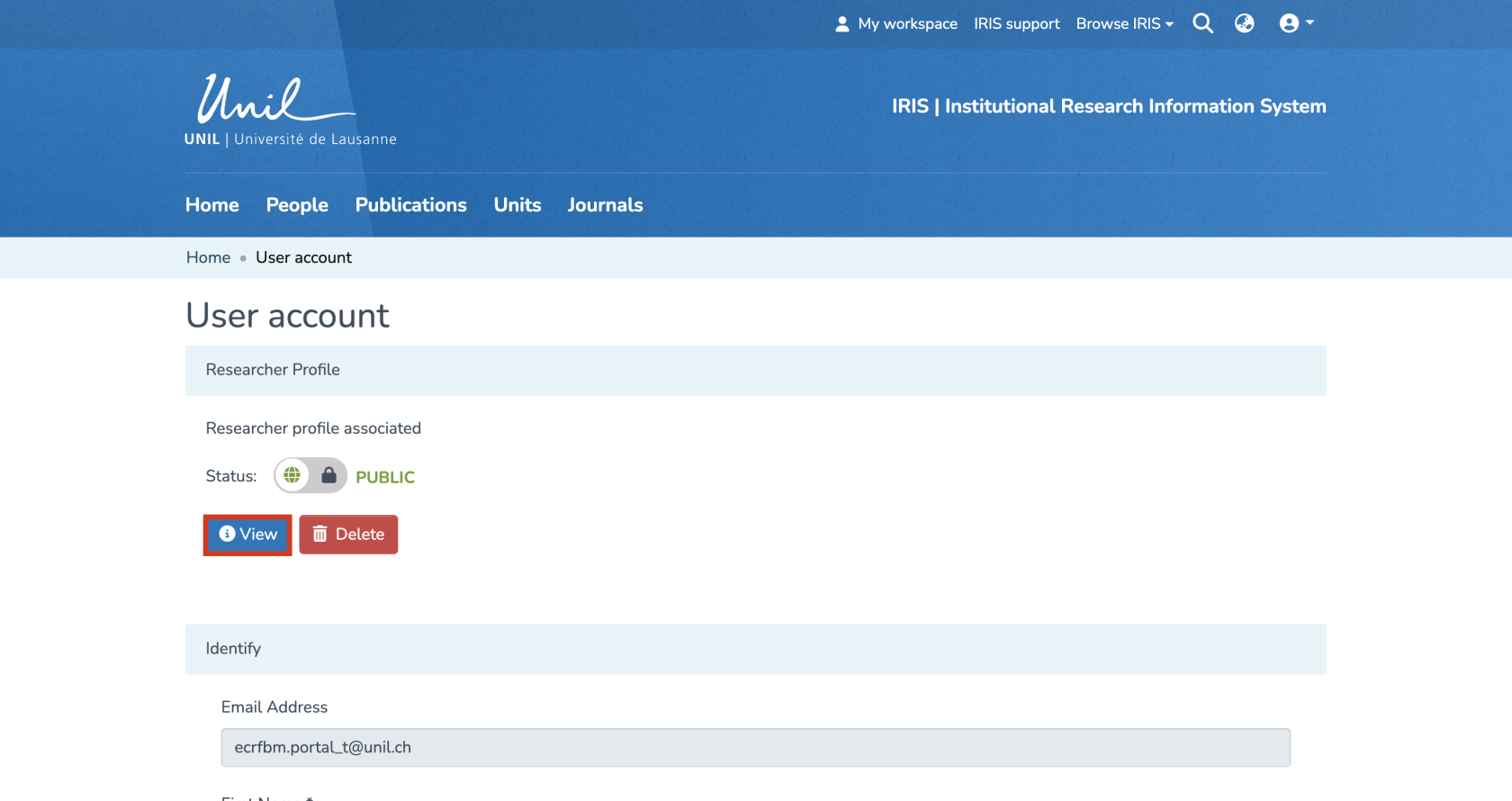](https://wiki.unil.ch/recherche/uploads/images/gallery/2025-09/XNPimage.png) **Collections**: each collection represents a specific category of research-related data, such as collaborators, publications, units, and journals. There are four collections in IRIS: 1. People: this collection includes the collaborators in IRIS. You can search for repository members and view their researcher profiles. 2. Publications: this section gathers all deposited works and provides access to their metadata. 3. Units: this collection lists the research units. It also allows you to access their profiles to view their information and related publications. 4. Journals: in this section, you will find all journals and periodicals linked to a publication in the repository. [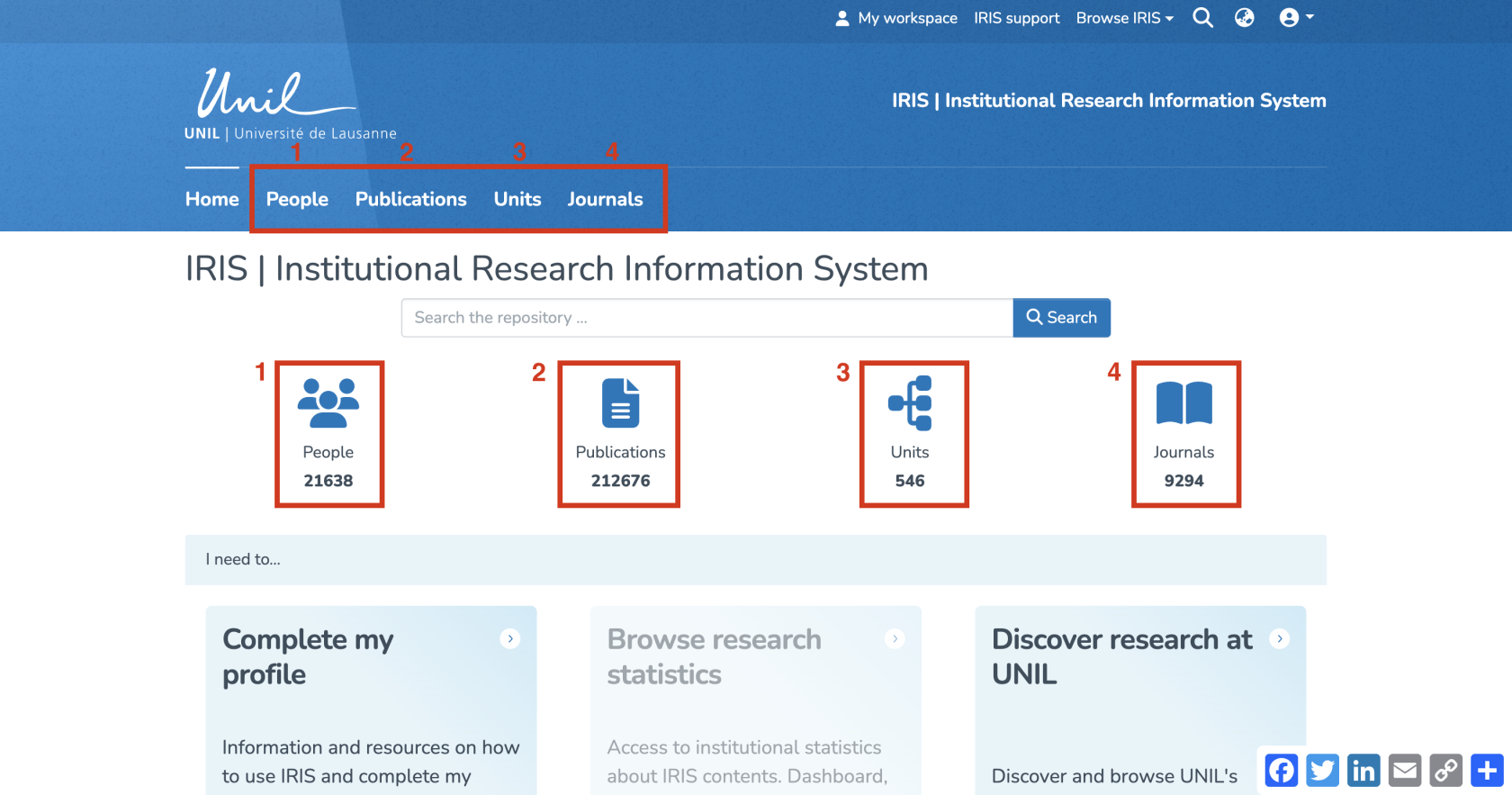](https://wiki.unil.ch/recherche/uploads/images/gallery/2025-09/OnYimage.png) #### Initial Features Once you are logged in, you will be redirected to the IRIS homepage. In the top-right corner of this page, you will find the following features: 1\. My Workspace: This section allows you to view the records you have created and to create new ones. 2\. IRIS Support: Access IRIS support and related documentation. 3\. Search the entire repository. 4\. Select the interface language (French/English). [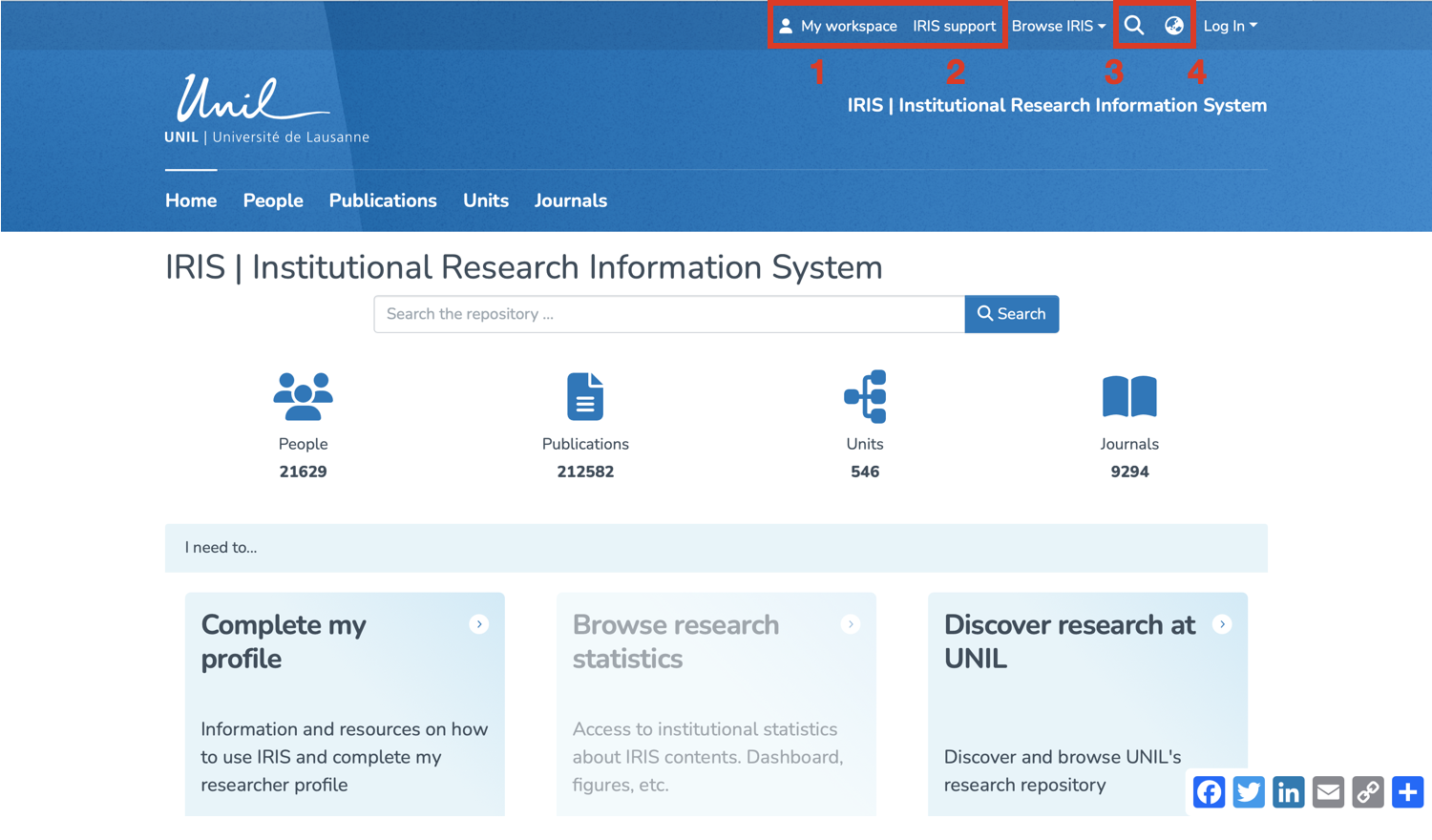](https://wiki.unil.ch/recherche/uploads/images/gallery/2025-07/capture-decran-2025-07-25-a-08-25-04.png) #### Search You can also browse the platform by **People (1)**, **Publications (2)**, **Units (3)**, or **Journals (4)** by clicking on the button corresponding to the desired collection. [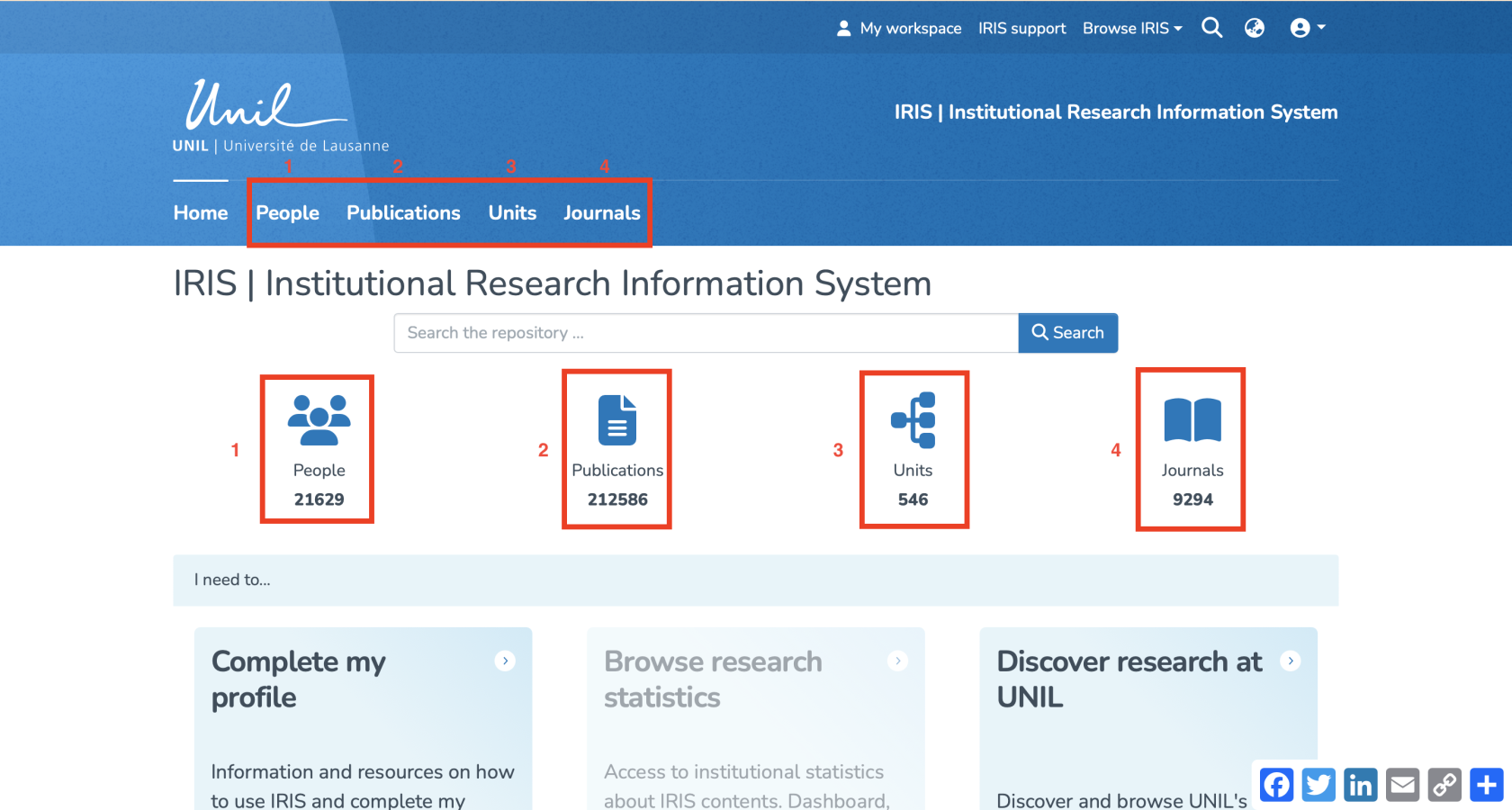](https://wiki.unil.ch/recherche/uploads/images/gallery/2025-07/capture-decran-2025-07-31-a-11-35-16.png) An **advanced search** can be performed using the search bar on the homepage. [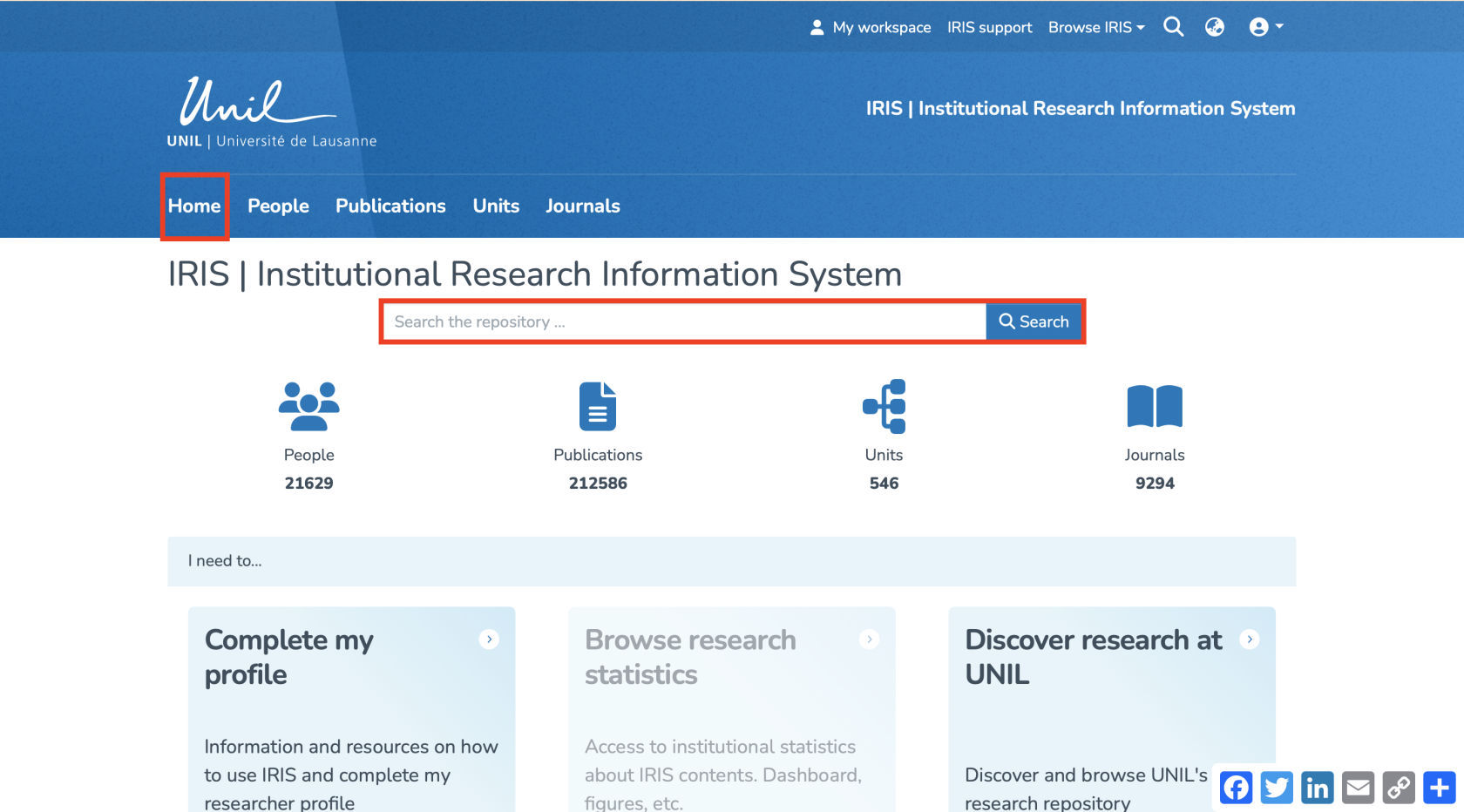](https://wiki.unil.ch/recherche/uploads/images/gallery/2025-07/capture-decran-2025-07-31-a-11-41-23.png) For more details about searching, please refer to the page [https://wiki.unil.ch/recherche/books/user-guide/page/searching-iris.](https://wiki.unil.ch/recherche/books/user-guide/page/searching-iris) #### Browse To browse the platform, click on **“Browse IRIS.”** You will then be able to browse by **Publication**, **Person**, or **Unit**. [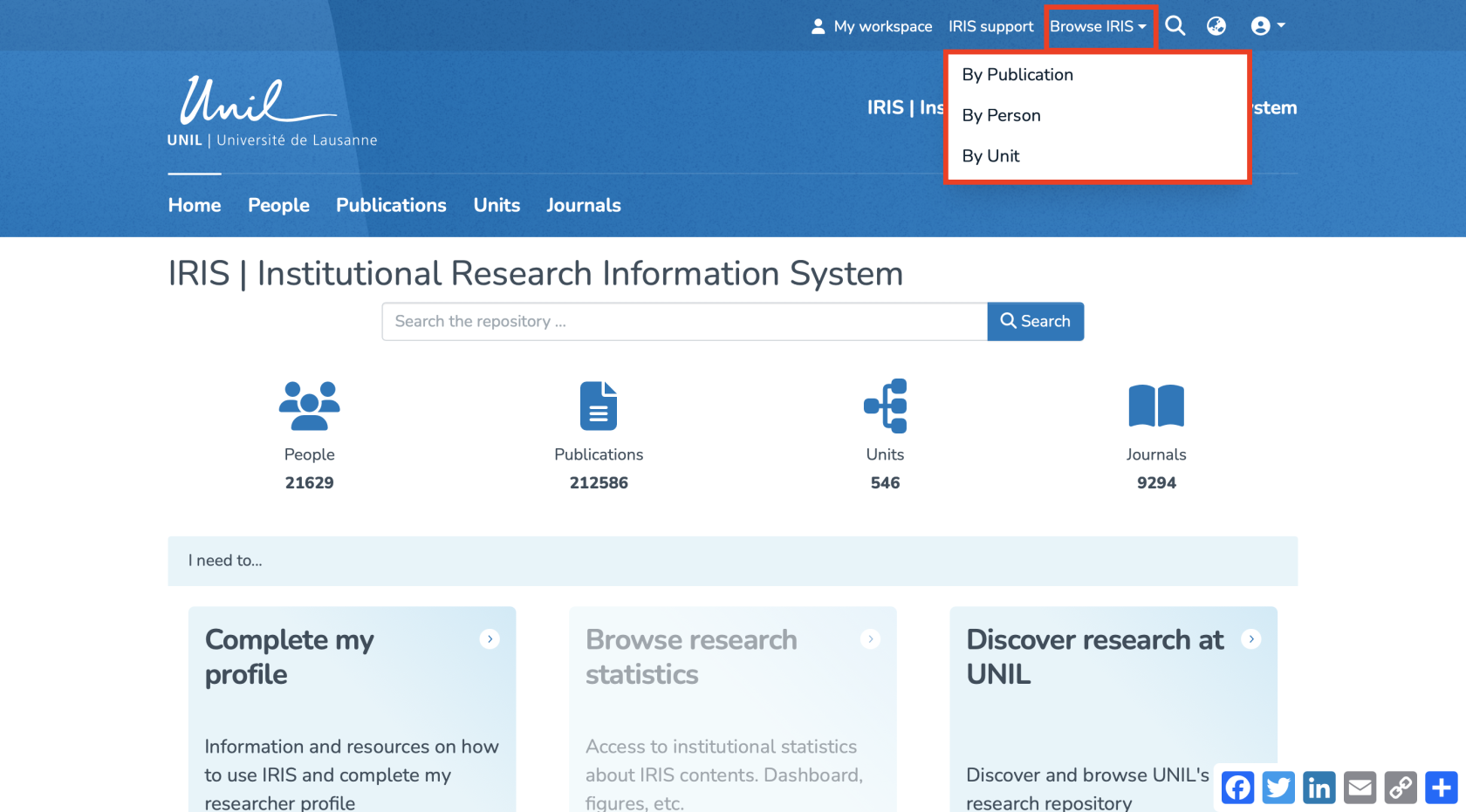](https://wiki.unil.ch/recherche/uploads/images/gallery/2025-07/capture-decran-2025-07-31-a-11-25-34.png) Another way to browse the platform is by clicking on **“Discover Research at UNIL”** in the **“I need to…”** window. [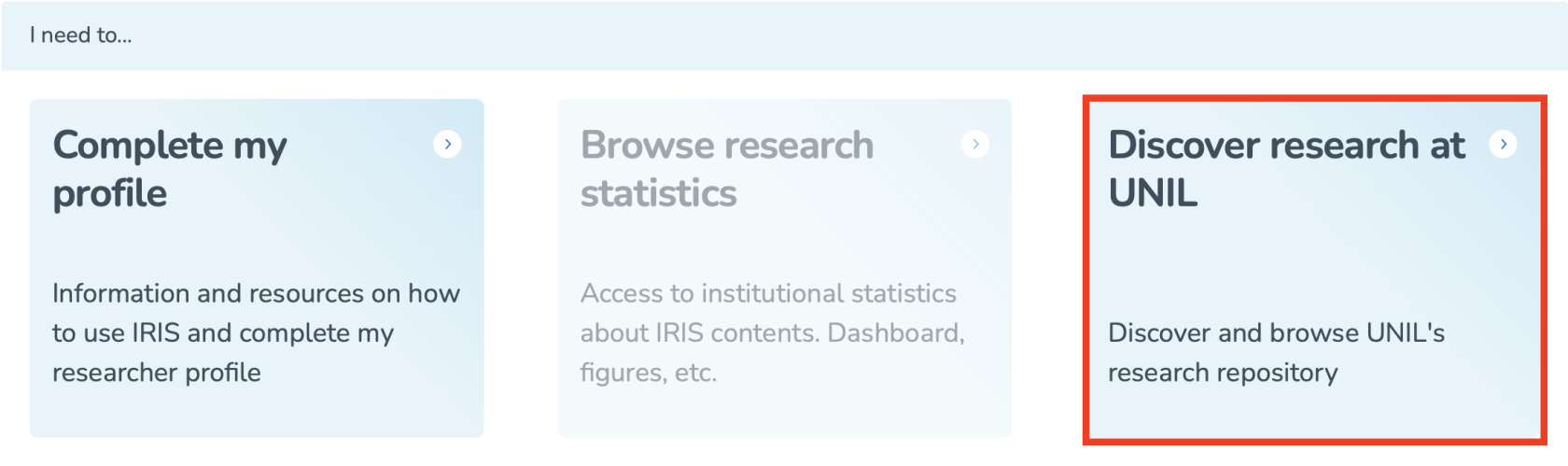](https://wiki.unil.ch/recherche/uploads/images/gallery/2025-07/capture-decran-2025-07-31-a-11-43-02.png) You will then be redirected to a page displaying all publications in the repository. On this page, you can browse publications by: 1. Recent Submissions 2. Author 3. Issue date 4. Keyword 5. Title 6. Type [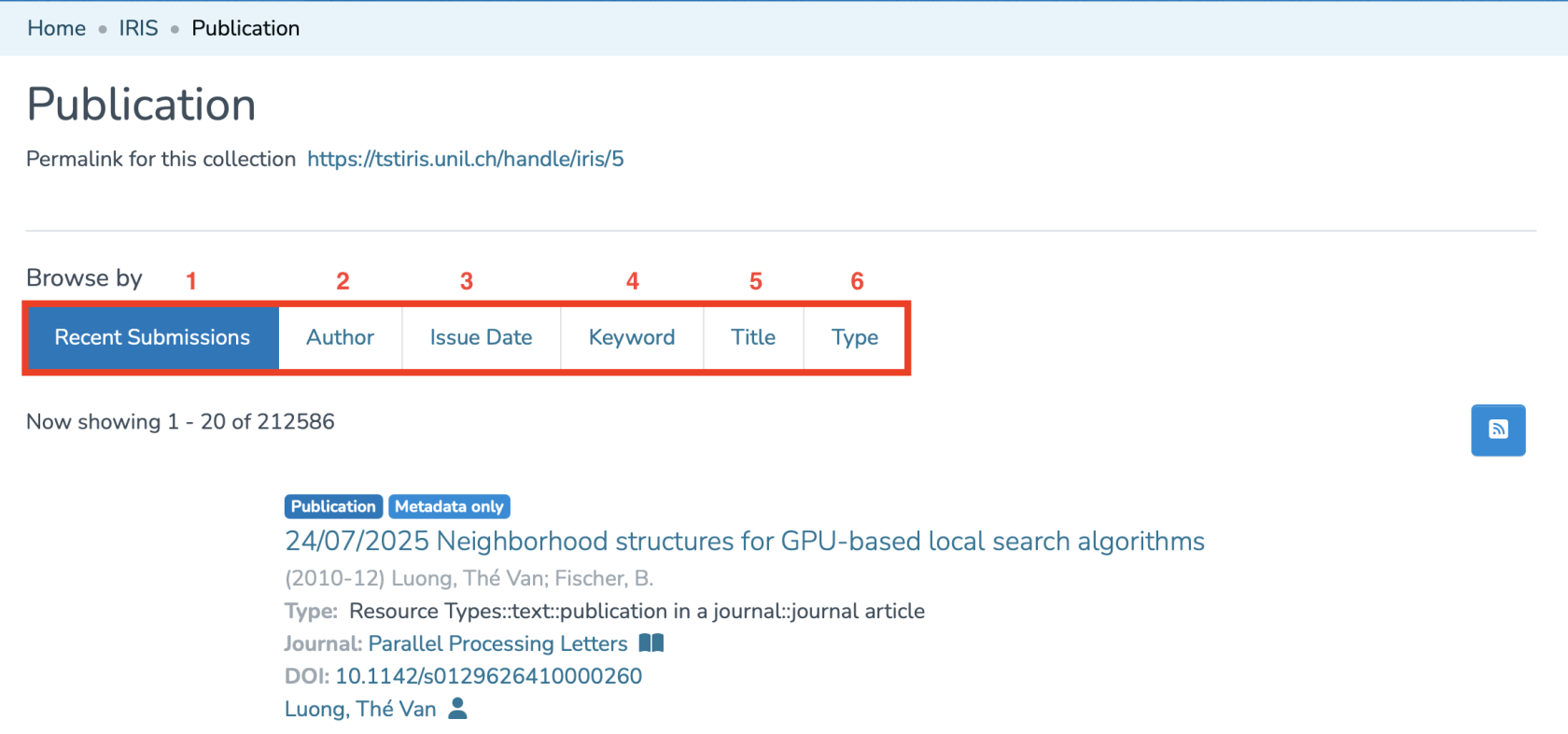](https://wiki.unil.ch/recherche/uploads/images/gallery/2025-07/capture-decran-2025-07-31-a-11-44-19.png) For all these categories (except recent deposits), you can filter the results using the search bar. [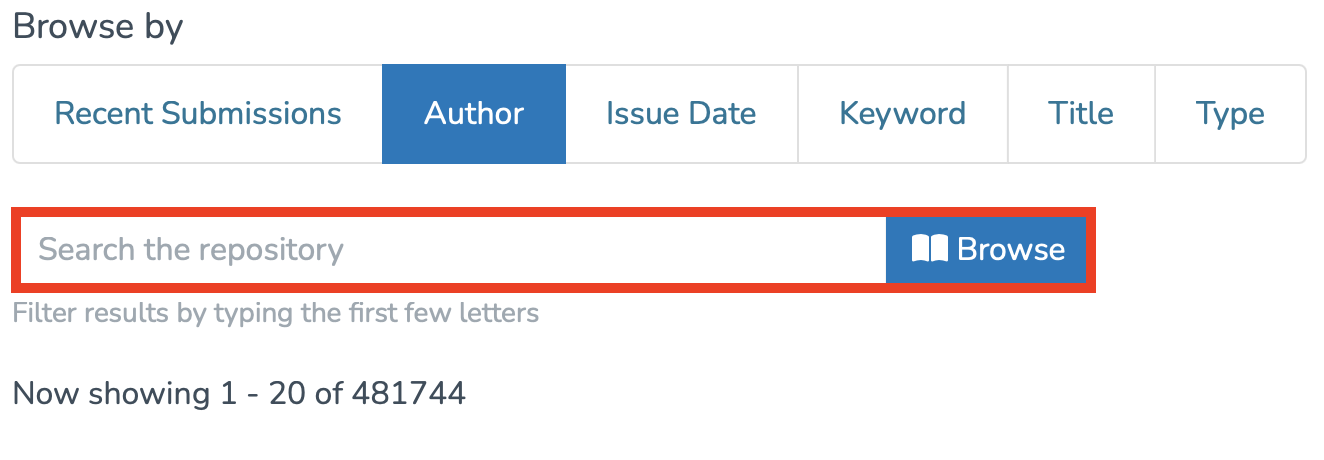](https://wiki.unil.ch/recherche/uploads/images/gallery/2025-07/capture-decran-2025-07-31-a-11-46-45.png) You can also view the **Recent Additions** at the bottom of the page. [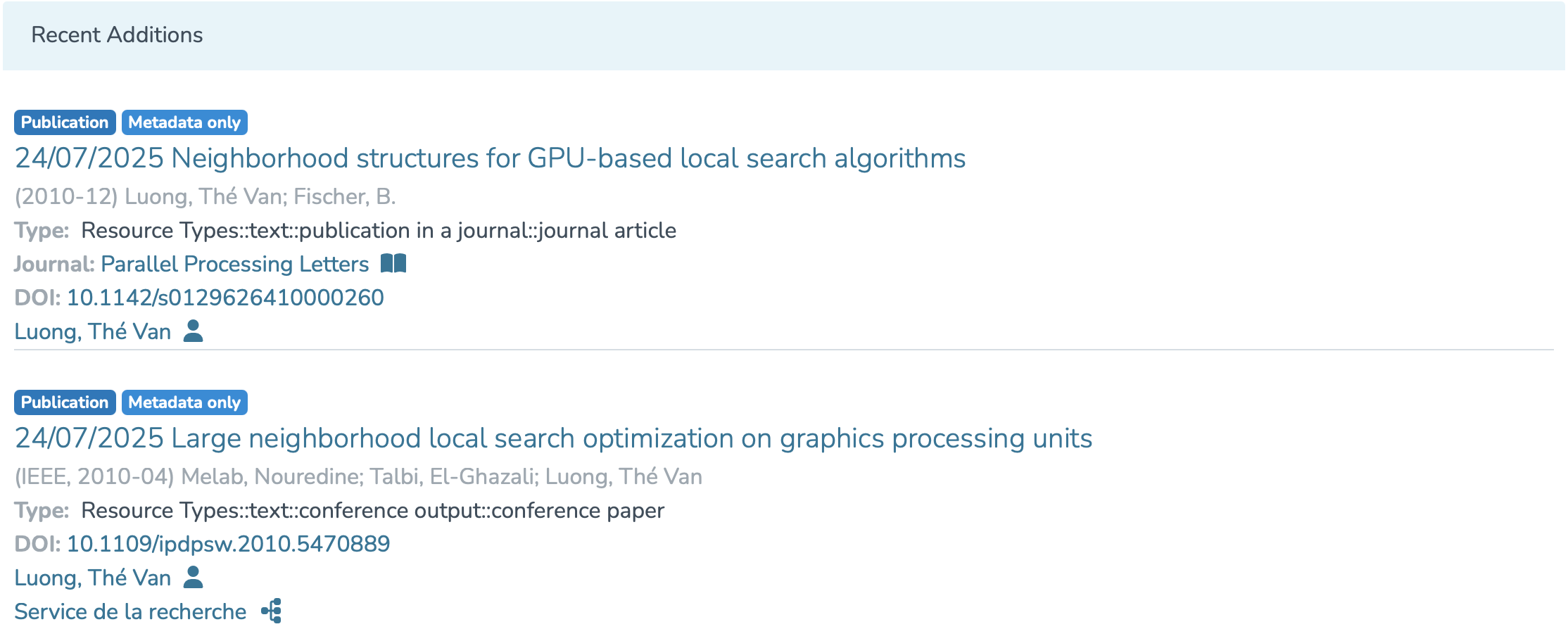](https://wiki.unil.ch/recherche/uploads/images/gallery/2025-07/capture-decran-2025-07-31-a-11-48-02.png) At any time, you can return to the homepage by clicking on **“Home.”** [](https://wiki.unil.ch/recherche/uploads/images/gallery/2025-07/capture-decran-2025-07-31-a-11-48-22.png)