*The voice in this video was generated by artificial intelligence.*
#### Introduction You will receive an email as soon as a record is available for validation. You can then access the platform to process it. To do so, simply follow the instructions below #### Workspace First, you will need to access your workspace by clicking on **“My Workspace.”** [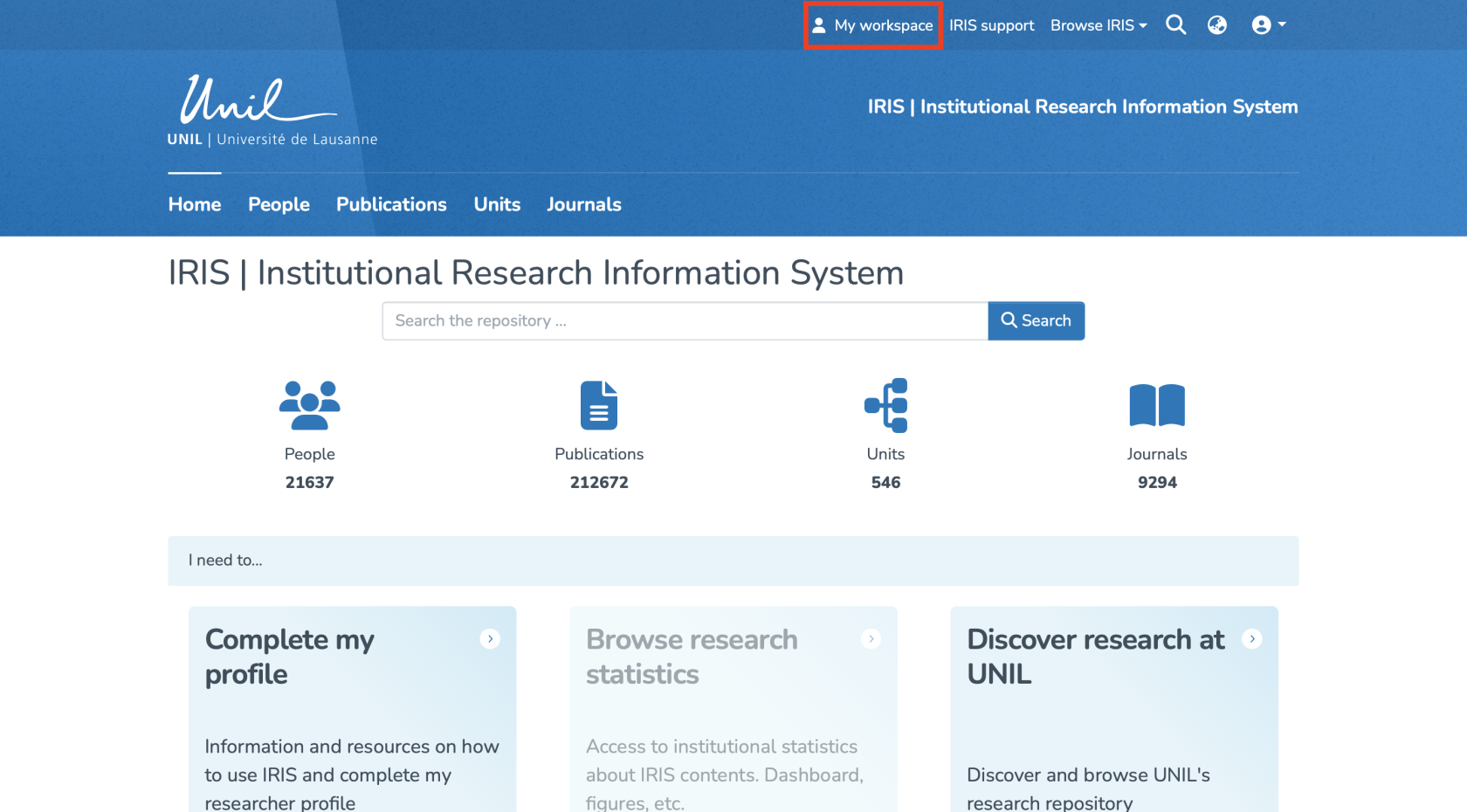](https://wiki.unil.ch/recherche/uploads/images/gallery/2025-08/capture-decran-2025-08-21-a-21-17-22.png) #### Accessing Records to Validate You will automatically be redirected to the page containing the records you have created. To access other records, click on the button highlighted in red. [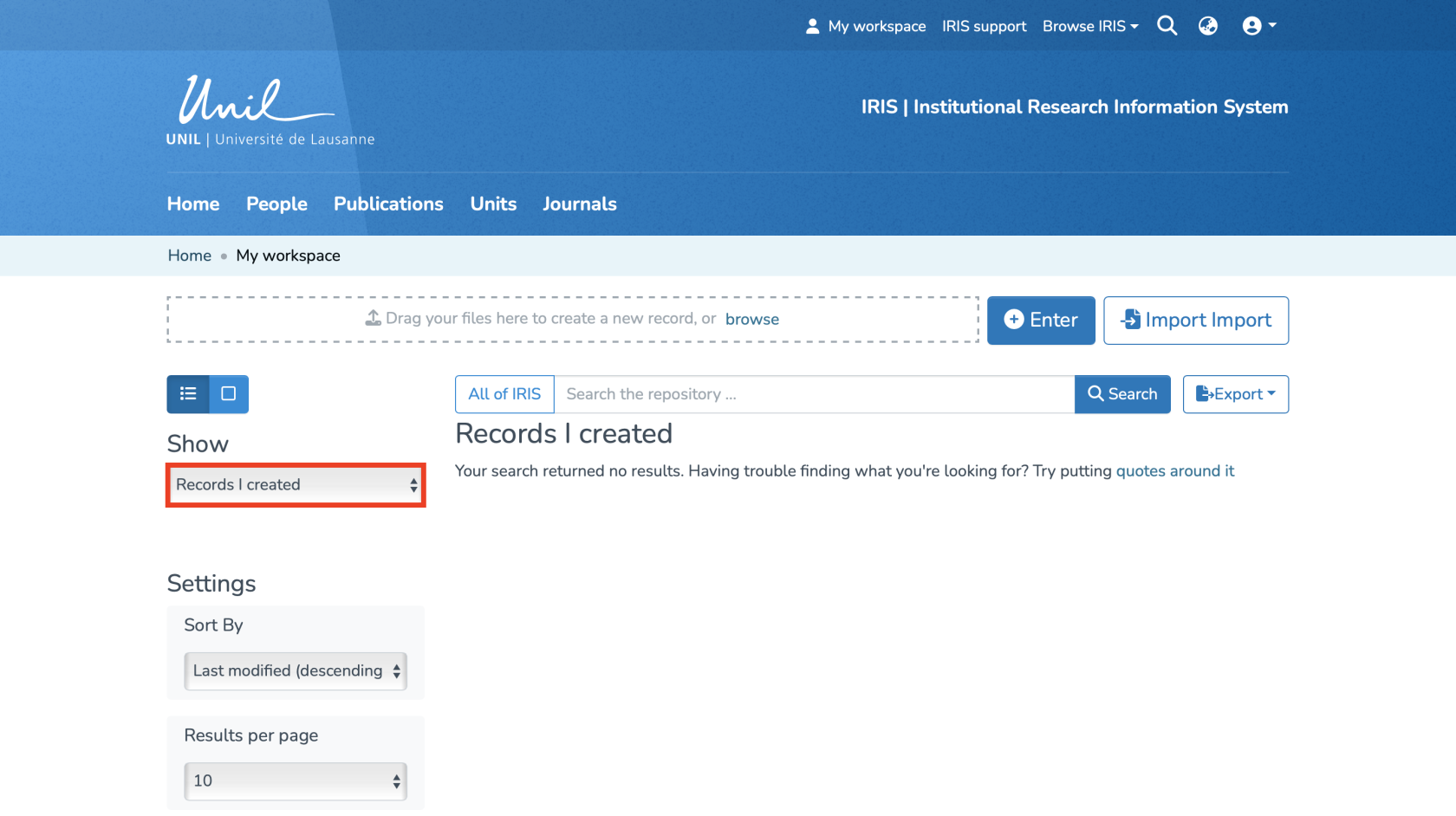](https://wiki.unil.ch/recherche/uploads/images/gallery/2025-08/capture-decran-2025-08-21-a-21-26-10.png) Once you have done this, a dropdown menu will appear with several types of records. Select **“Records to Validate”** to view those that require validation. The page will automatically refresh with the corresponding records. [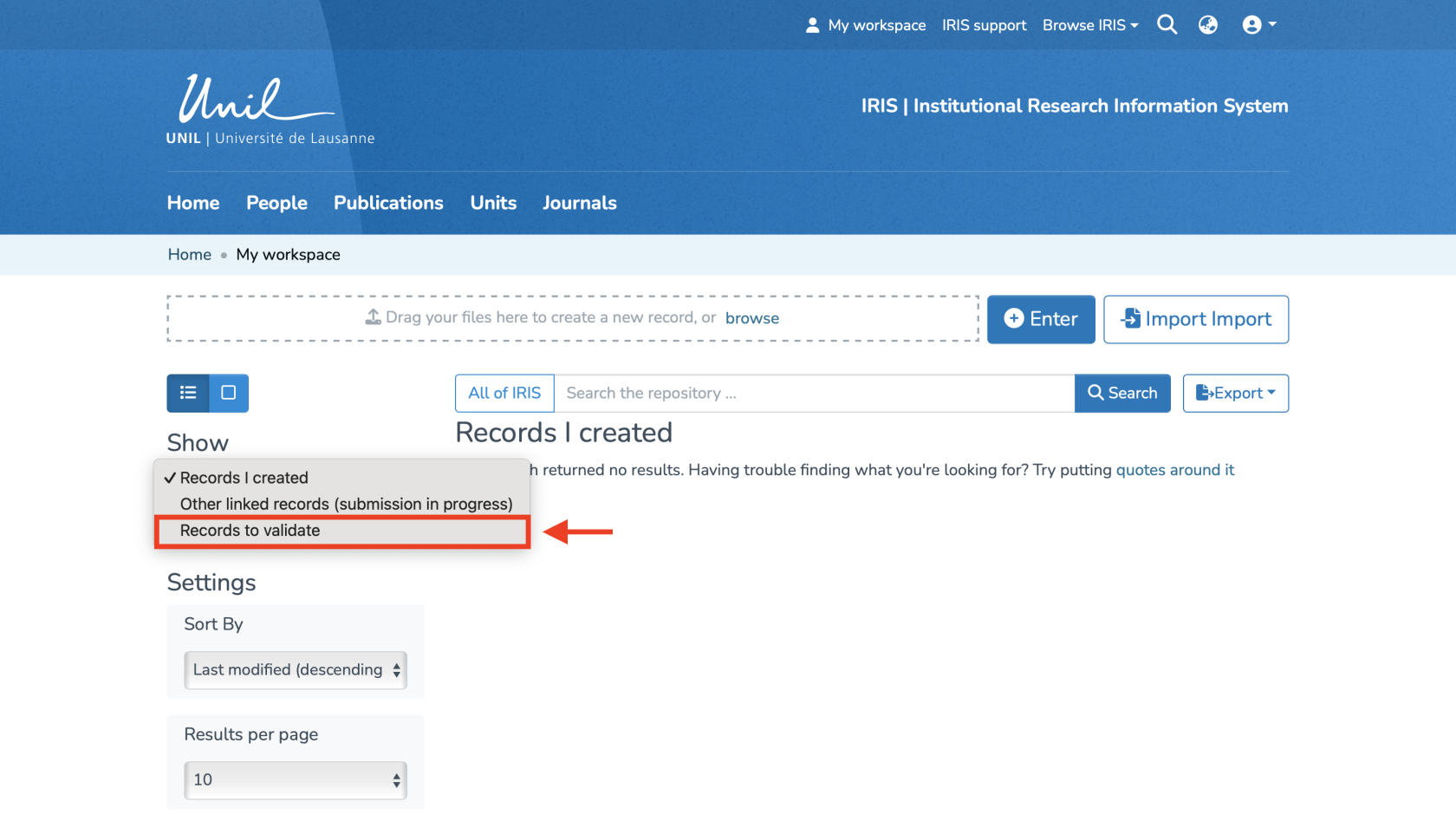](https://wiki.unil.ch/recherche/uploads/images/gallery/2025-08/capture-decran-2025-08-21-a-21-26-43.png) #### Available Features You are now on the page containing all the records you need to validate. To start the validation, first click on **“Claim”** under the relevant record. [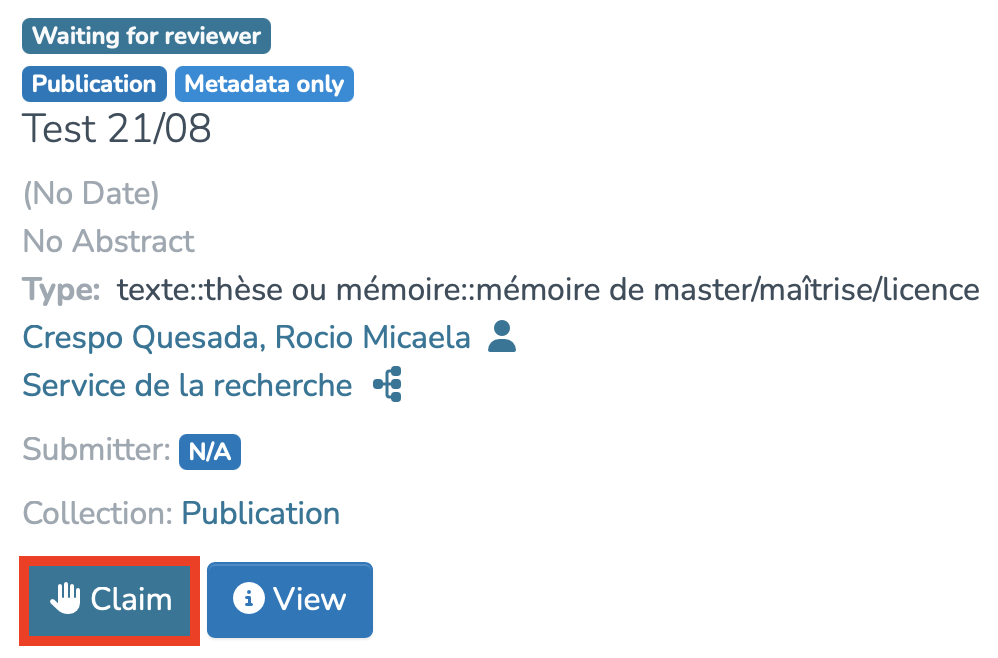](https://wiki.unil.ch/recherche/uploads/images/gallery/2025-08/capture-decran-2025-08-21-a-21-28-18.png) You can then perform several actions by clicking on the following buttons: 1. **Approve** : If you have reviewed the item and it is suitable for inclusion in the collection. 2. **Reject** : If the reviewed item **is not ready** to be included in the collection. You will be asked to indicate the reason for the rejection and further edits the user should make before resubmission. 3. **Edit** : If you wish to modify the item’s metadata. 4. **Return to pool** : If you wish to return the task to the pool so that another user may perform the task 5. **View** : If you wish to display the item’s metadata. [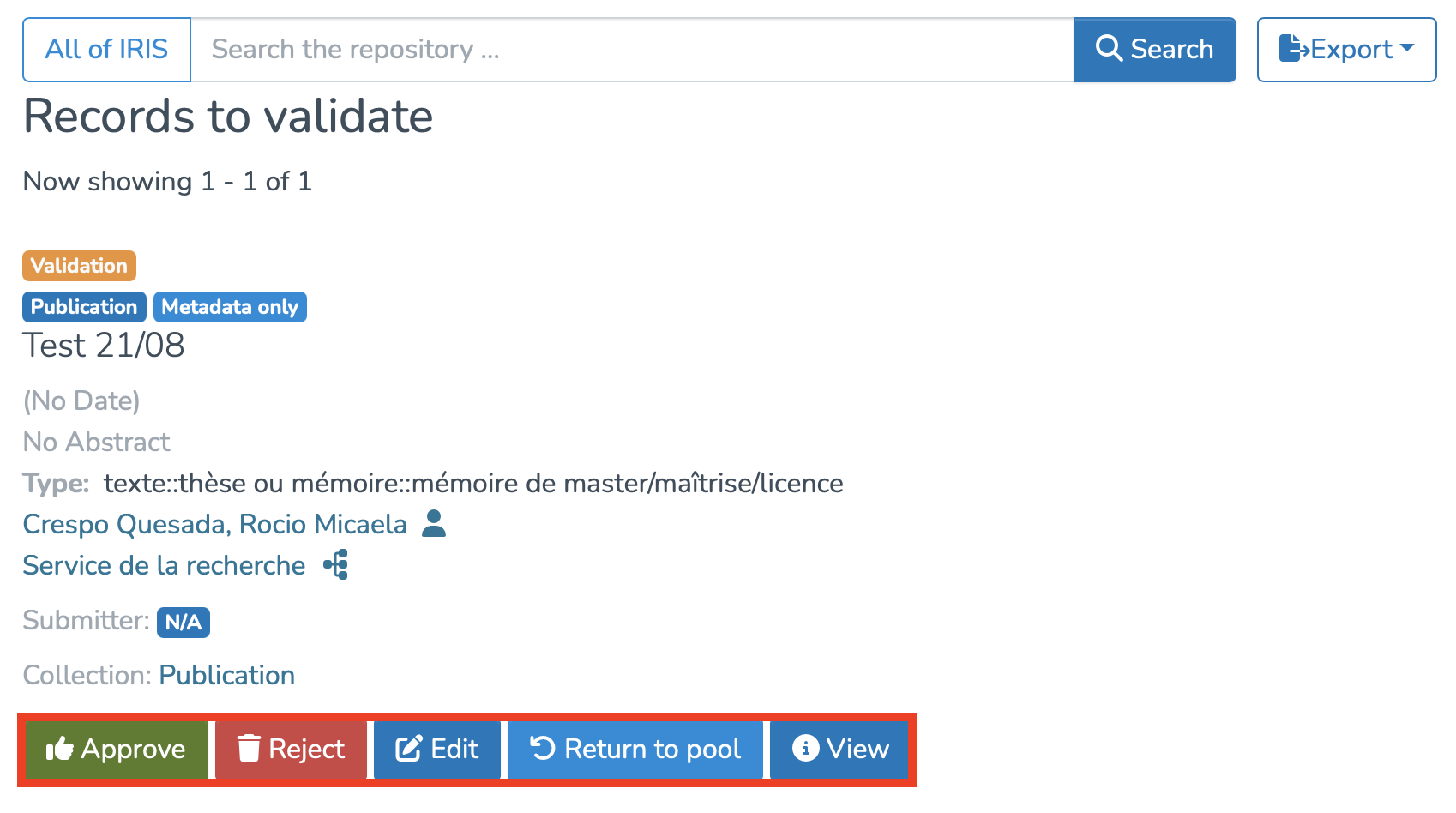](https://wiki.unil.ch/recherche/uploads/images/gallery/2025-08/capture-decran-2025-08-21-a-21-32-03.png)