
First steps in MyUNIL
The Dashboard
AuthenticationThe dashboard is the homepage of MyUNIL. It provides you with a personalised overview of your university activity and quick access to the most frequently used features.
Access: Menu MyUNIL → Tableau de bord
URL: https://my.unil.ch
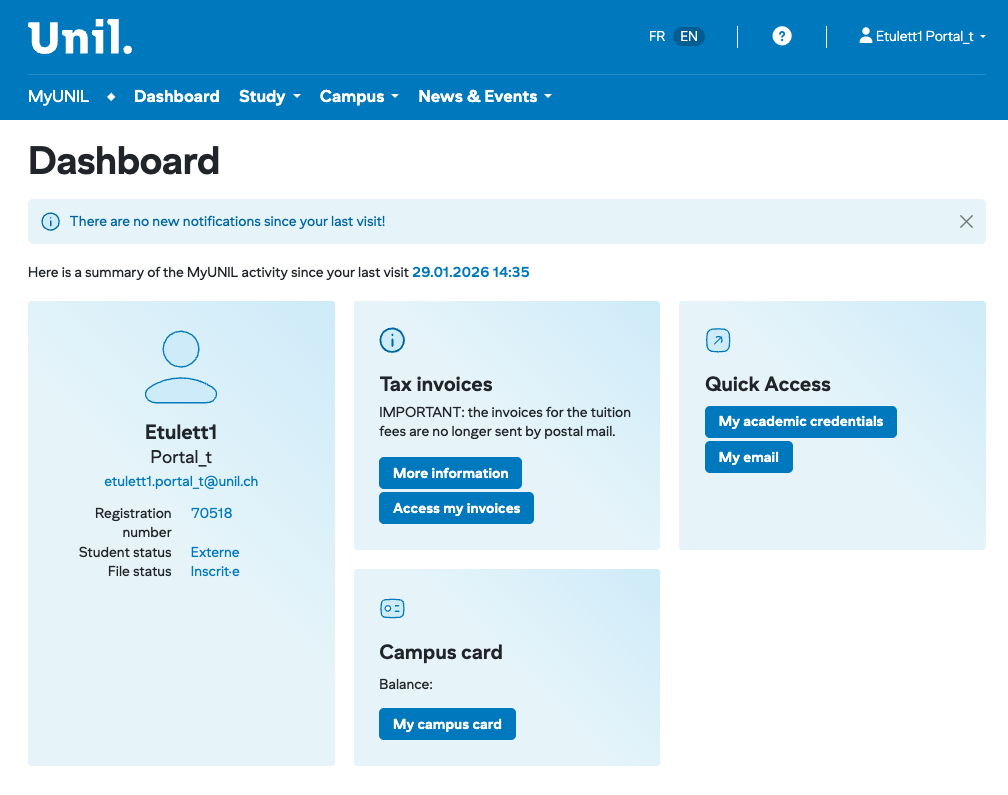
The Navigation Bar
At the top of the screen, the blue navigation bar allows you to access the different sections of MyUNIL:
| Menu | Description |
|---|---|
| Dashboard | Homepage with an overview of your activity |
| Study | Access to courses, documents, timetables and academic results |
| Work | Salary data and certificates |
| Campus | Information and services related to campus life |
| News & Events | Events, news and university calendar |
Elements in the MyUNILTop portalRight usesCorner
Several edu-IDelements authenticationare permanently accessible in the top right corner of the screen:
Language Selector (https:FR //wp.unil.ch/eduid/). EN)
Allows you to switch the interface between French and English.
Help Button (?)
Provides access to documentation and support resources.
User Menu
By clicking on your name, a dropdown menu appears with the following options:
ButtonYour email address — displayed for usersinformation purposes- Mes données administratives — direct access to your personal information
- Fermer la session — secure logout from the portal
The Notifications Area
Example: "Voici un résumé de l'activité MyUNIL depuis votre dernière visite le 29.01.2026 10:55"
Dashboard Widgets
The dashboard displays several widgets (panels) that give you a UNILquick accountoverview of your information and direct access to key features.
User Profile Widget
Located on the left, this widget displays your personal information:
- Your surname and first name
ButtonYour status (e.g.: Portal_t for userstest account)- Your university email address
- Your registration number
- Your student status (e.g.: External, Regular)
- Your file status (e.g.: Registered)
Tuition Fees Widget
This widget informs you about your semester tuition fee invoices. Two buttons are available:
- Plus d'informations — to find out more about university fees
- Accéder à mes factures — to view and download your invoices
⚠️ Important
Semester tuition fee invoices are no longer sent by post. View them directly from this widget or in the dedicated section.
Campus Card Widget
This widget displays your campus card balance and allows you to access its management. Click on Ma campus cardto:
- Check your current balance
- Top up your card
- Block or unblock your card if lost
Quick Access Widget
Located on the right, this widget offers shortcuts to the most frequently used features:
- Mes attestations d'études — download your enrolment certificates
- Ma boîte email — access your university mailbox directly
Interface Summary
Area
Content
Possible Actions
Header
UNIL logo, navigation, language, help, profile
Navigate, change language, log out
Notifications
Messages and activity summary
View updates
Profile
Personal information
View your status
Invoices
Semester fees
View and download
Campus card
Card balance
Manage your campus card
Quick access
Main shortcuts
Certificates, emails
Tips for Use
- Check your dashboard regularly so you don't miss any important notifications.
- Verify your file status, particularly during the registration period.
- Remember to download your tuition fee invoices as soon as they are available.
- Don't forget to log out after using a shared computer.
This documentation is part of otherthe institutionsofficial usinguser SWITCHhelp edu-IDfor asthe anMyUNIL authenticationportal.
University systemof
Lausanne – IT Centre
ButtonYour email address — displayed forusersinformation purposes- Mes données administratives — direct access to your personal information
- Fermer la session — secure logout from the portal
- Your surname and first name
ButtonYour status (e.g.: Portal_t foruserstest account)- Your university email address
- Your registration number
- Your student status (e.g.: External, Regular)
- Your file status (e.g.: Registered)
- Plus d'informations — to find out more about university fees
- Accéder à mes factures — to view and download your invoices
- Check your current balance
- Top up your card
- Block or unblock your card if lost
- Mes attestations d'études — download your enrolment certificates
- Ma boîte email — access your university mailbox directly
- Check your dashboard regularly so you don't miss any important notifications.
- Verify your file status, particularly during the registration period.
- Remember to download your tuition fee invoices as soon as they are available.
- Don't forget to log out after using a shared computer.
By clicking on your name, a dropdown menu appears with the following options:
The Notifications Area
Example: "Voici un résumé de l'activité MyUNIL depuis votre dernière visite le 29.01.2026 10:55"
Dashboard Widgets
The dashboard displays several widgets (panels) that give you a UNILquick accountoverview of your information and direct access to key features.
User Profile Widget
Located on the left, this widget displays your personal information:
Tuition Fees Widget
This widget informs you about your semester tuition fee invoices. Two buttons are available:
⚠️ Important
Semester tuition fee invoices are no longer sent by post. View them directly from this widget or in the dedicated section.
Campus Card Widget
This widget displays your campus card balance and allows you to access its management. Click on Ma campus cardto:
Quick Access Widget
Located on the right, this widget offers shortcuts to the most frequently used features:
Interface Summary
| Area | Content | Possible Actions |
|---|---|---|
| Header | UNIL logo, navigation, language, help, profile | Navigate, change language, log out |
| Notifications | Messages and activity summary | View updates |
| Profile | Personal information | View your status |
| Invoices | Semester fees | View and download |
| Campus card | Card balance | Manage your campus card |
| Quick access | Main shortcuts | Certificates, emails |
Tips for Use
This documentation is part of otherthe institutionsofficial usinguser SWITCHhelp edu-IDfor asthe anMyUNIL authenticationportal.
University systemof