Access and synchronize calendars (courses, exams)
The Academic Calendar
StudentsThe andcalendar teachersis canthe accesscentral theirtool for viewing your course calendarstimetables and exam scheduledates. fromIt provides a consolidated view of your university schedule.
Access: Menu Study → Calendar
URL: https://my.unil.ch/calendar
Accessing the “Calendar”Calendar
| Option | Description |
|---|---|
| Calendar | Displays your course timetables and exams |
Interface Elements
Top Toolbar
The toolbar at the top of the calendar allows you to customise the display:
Agenda Button
Located on the left, the Agenda button provides access to your personal diary.
Display Modes
- Week — displays the selected week (default view)
- Month — displays the full month
Agenda Filters
On the right, coloured labels allow you to filter the events displayed:
| Label | Colour | Description |
|---|---|---|
| My exams | Red | Shows or hides your exams |
| My courses | Green | Shows or hides your courses |
Click on the cross (×) of a label to hide the corresponding category. Click again to show it.
The Mini-Calendar
On the left side of the screen, a mini-calendar allows you to navigate quickly:
- Use the < and > arrows to change month
- Click on a date to display the corresponding week
- Today's date is highlighted (blue circle)
- The Aujourd'hui button returns to the current date
"À suivre" Section
Below the mini-calendar, the À suivre (Coming up) section displays your upcoming important events.
The Exam List
At the top of the main area, the Mes examens section displays the list of your exams in table format:
| Column | Description |
|---|---|
| Date | Exam date (e.g.: 16.01.2026) |
| Heure | Time slot (e.g.: 08:00 - 10:00) |
| Salle | Exam location (e.g.: Amphimax-351) |
| Modalité | Exam type: Écrit (Written), Oral, etc. |
| Cours | Name of the course concerned |
| Branche | Subject area (e.g.: Histoire) |
| Examinateurs | Name of the examiner(s) |
⚠️ Warning — Oral Exams
For oral exams, the preparation time is shown in brackets in the list. In the calendar, it is the examination time that is displayed. To find out the preparation time, click on the event to view the details.
The Weekly View
The lower part displays your timetable in a weekly grid format:
Navigation
- Use the < and > arrows to move to the previous or next week
- The period displayed is shown in the centre (e.g.: "15 au 21 déc. 2025")
- Click on + Plein écran to enlarge the view
Grid Structure
| Element | Description |
|---|---|
| Columns | Days of the week (Mon. to Sun.) with date |
| Rows | Time slots (from 09:00 to 18:00 and beyond) |
| Coloured blocks | Events (courses or exams) |
Event Blocks
Each event appears as a coloured block containing:
- The name of the course or exam
- The name of the lecturer
- The location (building and room)
- The type (Cours, Séminaire, etc.)
Colour code:
| Colour | Meaning |
|---|---|
| Green | Courses and seminars |
| Red | Exams |
Click on a block to display the full details of the event.
Advanced Features
Full Screen Display
Click on + Plein écran (top right of the grid) to enlarge the calendar for better visibility.
Synchronisation with External Tools
Your course and exam calendars can be directlysynchronised synchronizedwith:
- Your smartphone (iOS and Android)
- Google Calendar
- Outlook
- Other applications compatible with
otheriCaltoolsformat
To Calendar,configure iPhonesynchronisation, /check iPad,your Googlediary Calendar).settings.
INFORMATION:
Contextual Help
FollowingClick on the switch? tobutton edu-ID since february 2021, access (to the data (events, tasks)right of the “Exchange”agenda mainfilters) to access the calendar's contextual help.
Interface Summary
Area
Function
Toolbar
Change view, filter agendas
Mini-calendar
Quick navigation by date
Exam list
Summary table of exams
Weekly grid
Timetable visualisation
Event blocks
Course and exam details
Tips for Use
- Check your calendar
fromregularly to verify any changes to times or rooms.
- Use the filters to display only courses or exams according to your needs.
- For oral exams, make sure to note the preparation time as well as the examination time.
- Synchronise your calendar with your smartphone to receive reminders.
- During exam periods, carefully check the rooms allocated to you.
This documentation is part of the official user help for the MyUNIL portalportal.
University isof temporarilyLausanne impossible.– InIT the meantime please use the following link to access it: https://owa.unil.ch/
However, the course calendars and exams schedule are always available!
FollowingClick on the
switch?tobuttonedu-ID since february 2021, access(to thedata (events, tasks)right of the“Exchange”agendamainfilters) to access the calendar's contextual help.Interface Summary
Area Function Toolbar Change view, filter agendas Mini-calendar Quick navigation by date Exam list Summary table of exams Weekly grid Timetable visualisation Event blocks Course and exam details Tips for Use
- Check your calendar
fromregularly to verify any changes to times or rooms. - Use the filters to display only courses or exams according to your needs.
- For oral exams, make sure to note the preparation time as well as the examination time.
- Synchronise your calendar with your smartphone to receive reminders.
- During exam periods, carefully check the rooms allocated to you.
This documentation is part of the official user help for the MyUNIL
portalportal.
UniversityisoftemporarilyLausanneimpossible.–InITthe meantime please use the following link to access it:https://owa.unil.ch/- Check your calendar
However, the course calendars and exams schedule are always available!
Centre
Access to calendars
The course and exams calendars are accessible from the “Calendar” menu
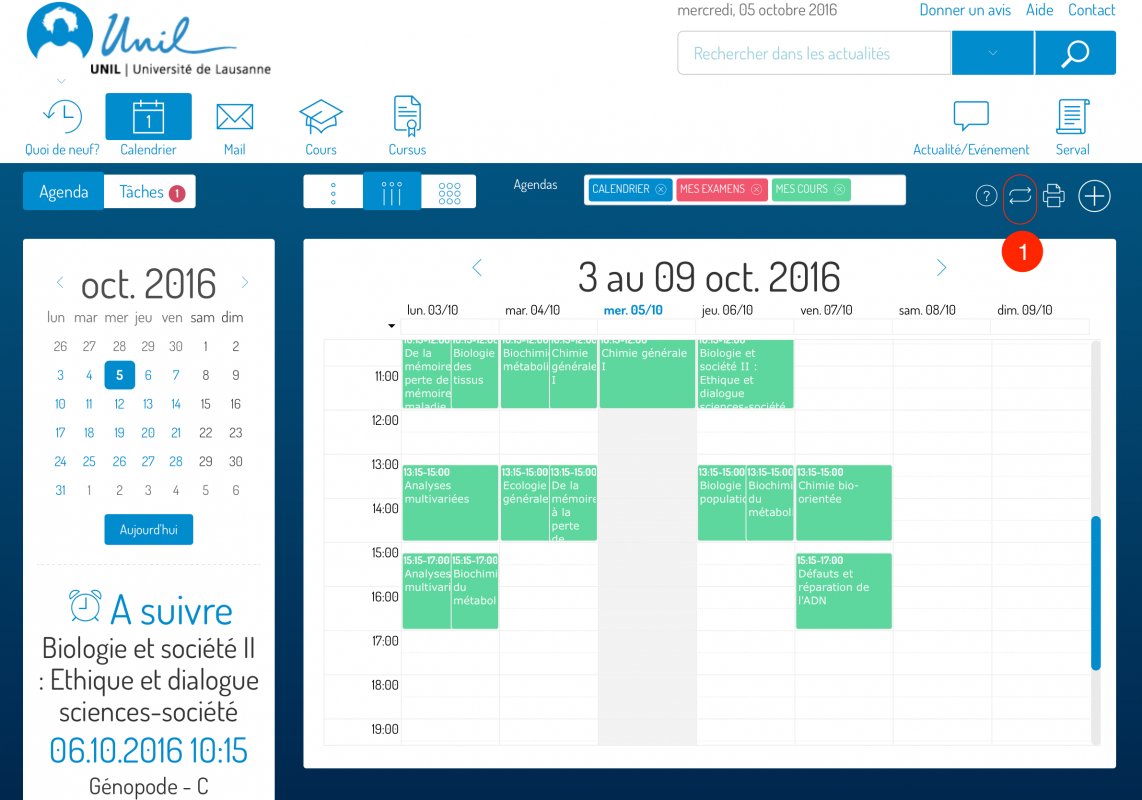
Access to synchronization information
Synchronize your calendars (courses, exams) with external tools (Apple Calendar, iPhone, Google Calendar)
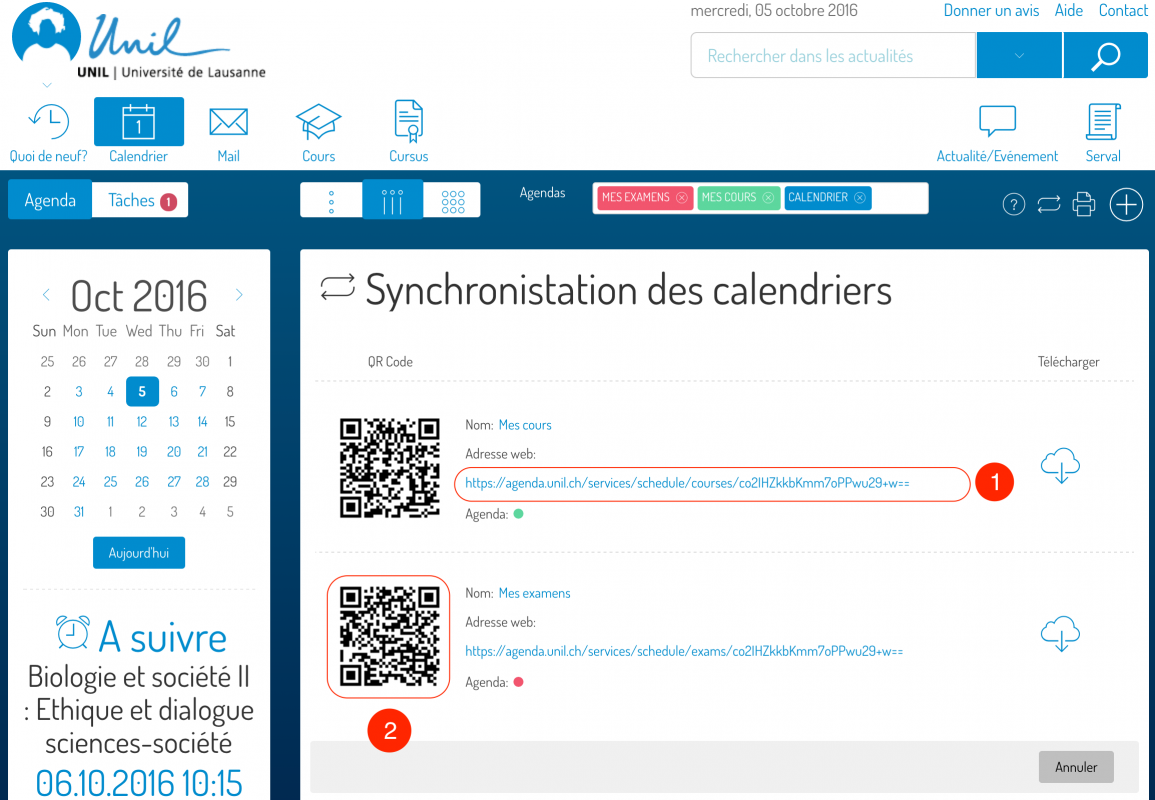
Calendar sync textual addressAddress in the form of a QR-Code for synchronization with smartphones
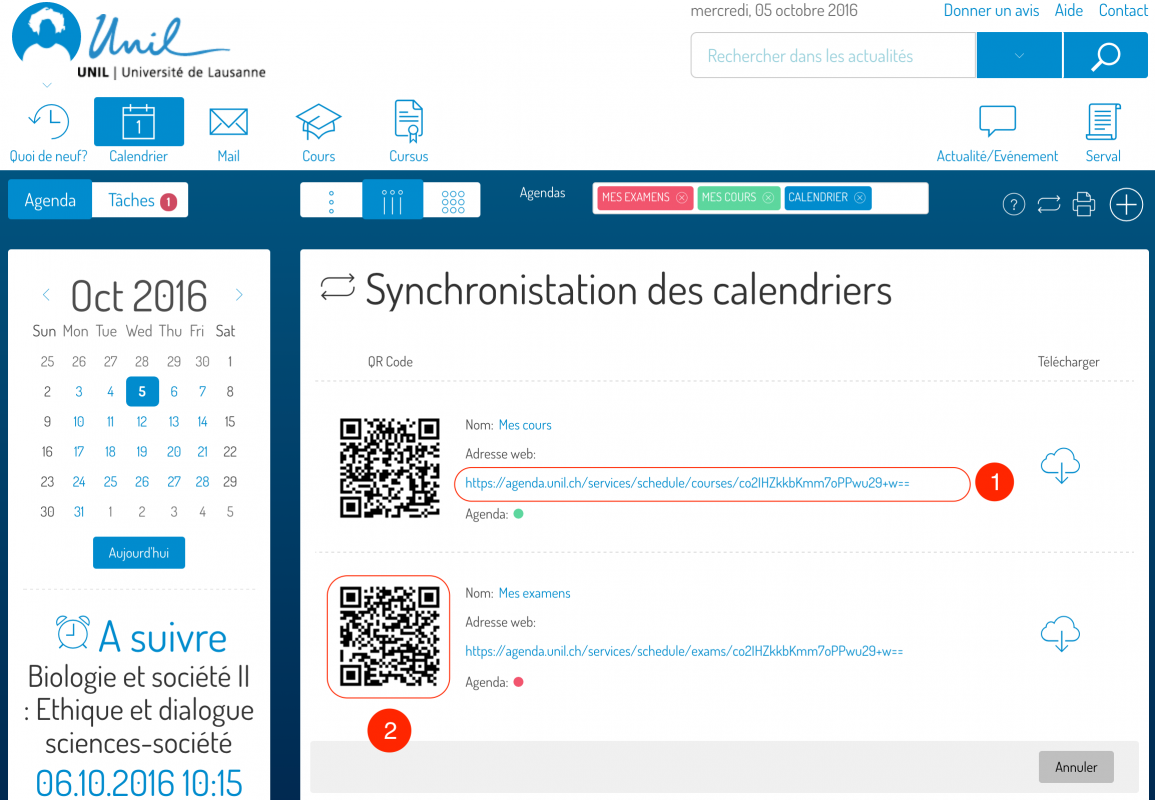
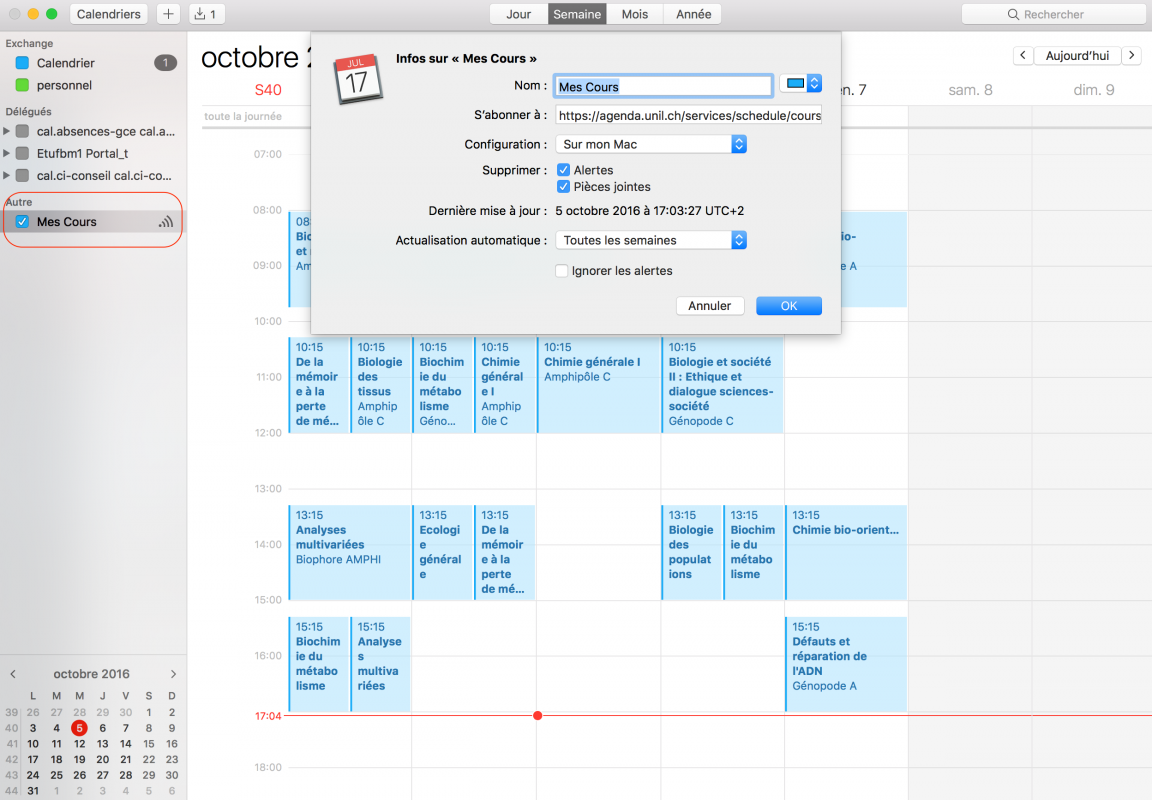
Apple Calendar
- Copy the synchronization address
- Open calendar application
- File -> Calendar Subscription
- Paste the address into the Calendar URL field
- Configure the calendar name and color
iPhone/iPad
- Copy the synchronization address via the QR-Code
- Go to Settings -> Calendar -> Accounts
- Add new account -> Select type “Other”
- Add a calendar with subscription
- Paste the link in the server field
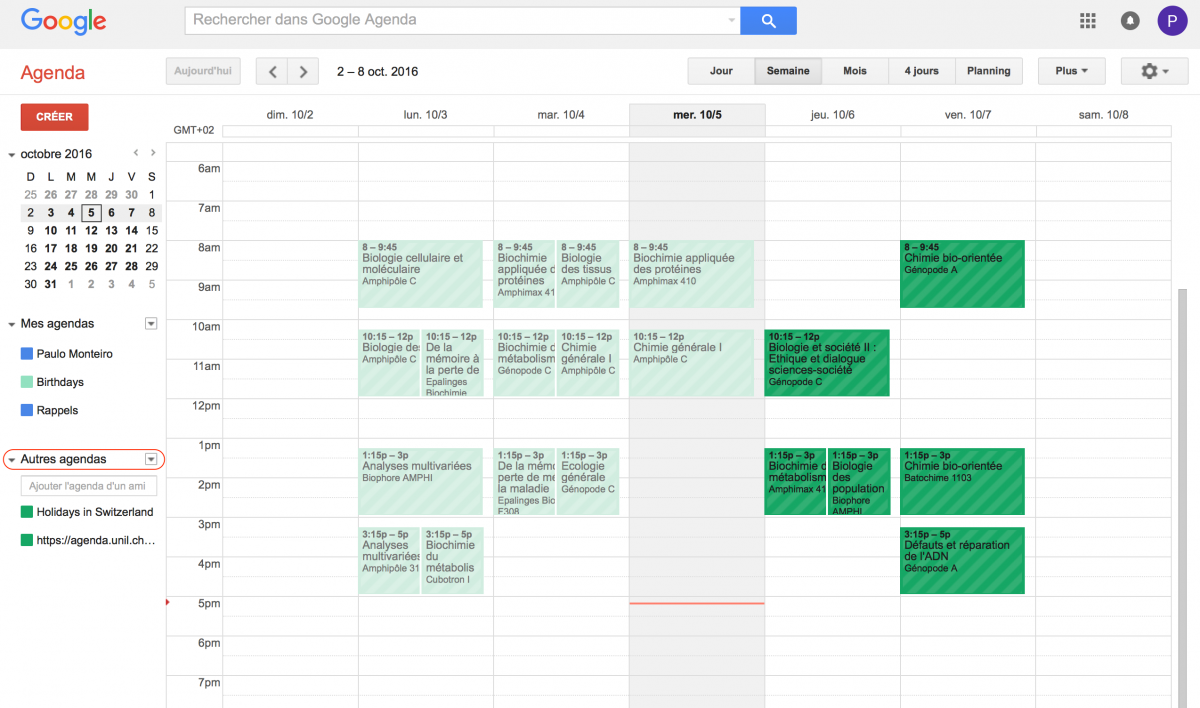
Google agenda
- Sign in Google Calendar
- Go to the menu of “Other Agendas”
- Add URL
- Paste link in field