How to connect to the NAS server (Windows)
Products
| Name | Version |
|
| System | Windows |
>= XP |
Description
The steps below explain how to connect to the UNIL NAS (nas.unil.ch) with a Windows computer so that you can view the file server tree structure in Windows Explorer.
This procedure allows you to access the storage spaces available at UNIL.:UNIL:
- Central NAS server for administrative data: \\nas.unil.ch\FBM\
- DCSR NAS server for research data: \\nasdcsr.unil.ch\RECHERCHE
- DCSR NAS server for "sensitive" research data: \\nasdcsr.unil.ch\RECHERCHE-S
- DCSR NAS server for "personal" research data: \\nasdcsr.unil.ch\RECHERCHE-P
Mac user? Please refer to the following documentation: How to connect to the NAS Server (Mac)
Procedure
How to connect
Prerequisite: You must be on the UNIL network or VPN to access the storage servers.
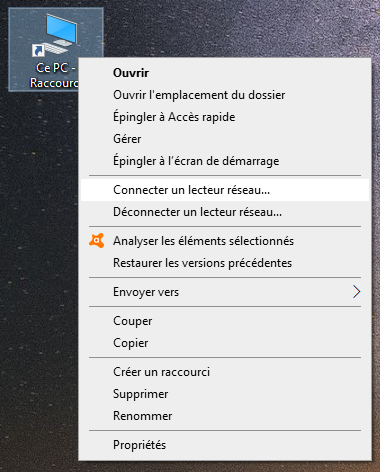
- Right click on “This PC” (Windows 10) or “Computer” on Windows 7 or “My Computer” on Windows XP.

- Select “Map network drive...”.
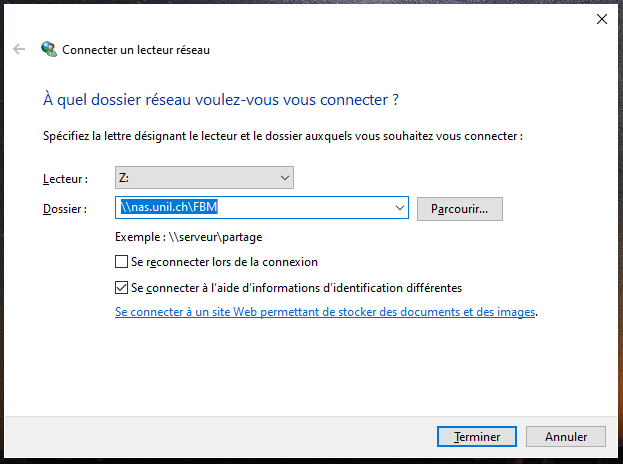
- In the new window:
- Enter the address of the server you want to connect to (see the blue box above). For example: \\nasdcsr.unil.ch\RECHERCHE.
- Unchek « Reconnect at logon » if the connexion to the server is only temporary.
- Check « Connect using different credentials » then click on Finish.
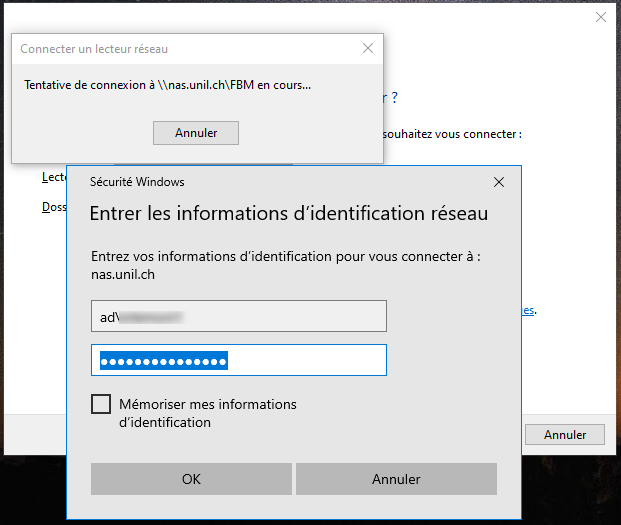
- In the windows security window:
- Enter “ad\” + “UNIL username” (p.ex: “ad\pmartin1”).
- Enter your UNIL password
- Click on “OK”
-
Click on “OK” and then on “Finish”.
-
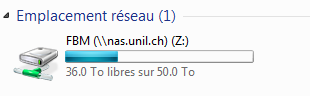
Open “This PC” (Windows 10) or “Computer” on Windows 7 or “My Computer” on Windows XP and clicl on the new mounted network drive.
Create a shortcut
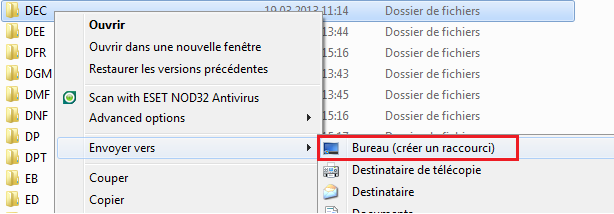
- Right click on a folder and choose “Create shortcut”. The picture below shows how to create a shortcut on the desktop to the “DEC” folder.