
Switch FileSender - User documentation
General information
| Name | |
|
Type |
Web application |
| Description |
File transfer |
| Price |
Description
SWITCHfilesenderSwitch FileSender allows you to transfer attachments of sizes up to 300 GB via email.e-mail. Files sent via SWITCHfilesenderSwitch FileSender remain available tofor recipients for 20 days (extendable to a maximum of 60 days)days max).
The service can be used to send (or receive via a voucher system) files to up to 100 recipients, whether they are UNIL members or not, or via distribution lists.
SWITCHfilesenderSwitch FileSender is not a storage space.
Send files witch SWITCHSwitch filesenderFileSender
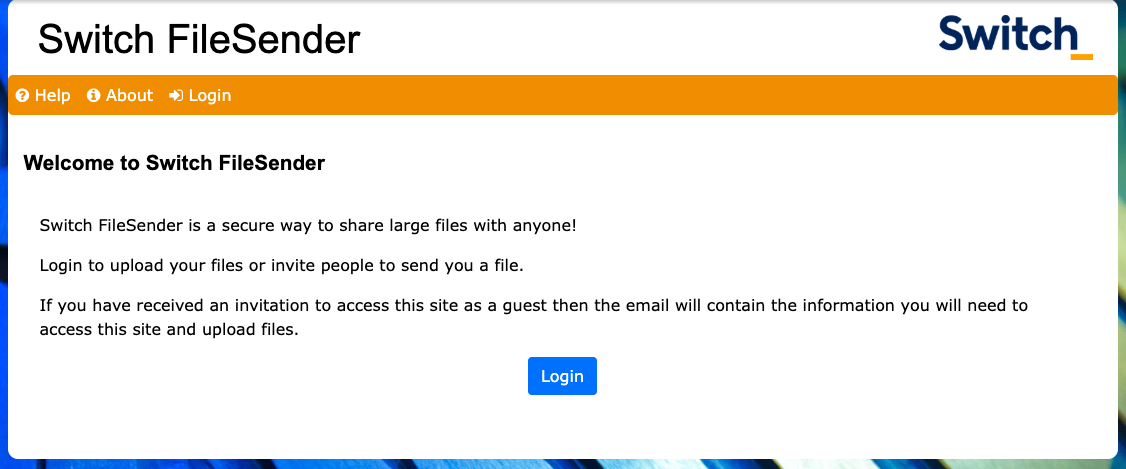
- Go to filesender.switch.ch and log in using your edu-ID login.
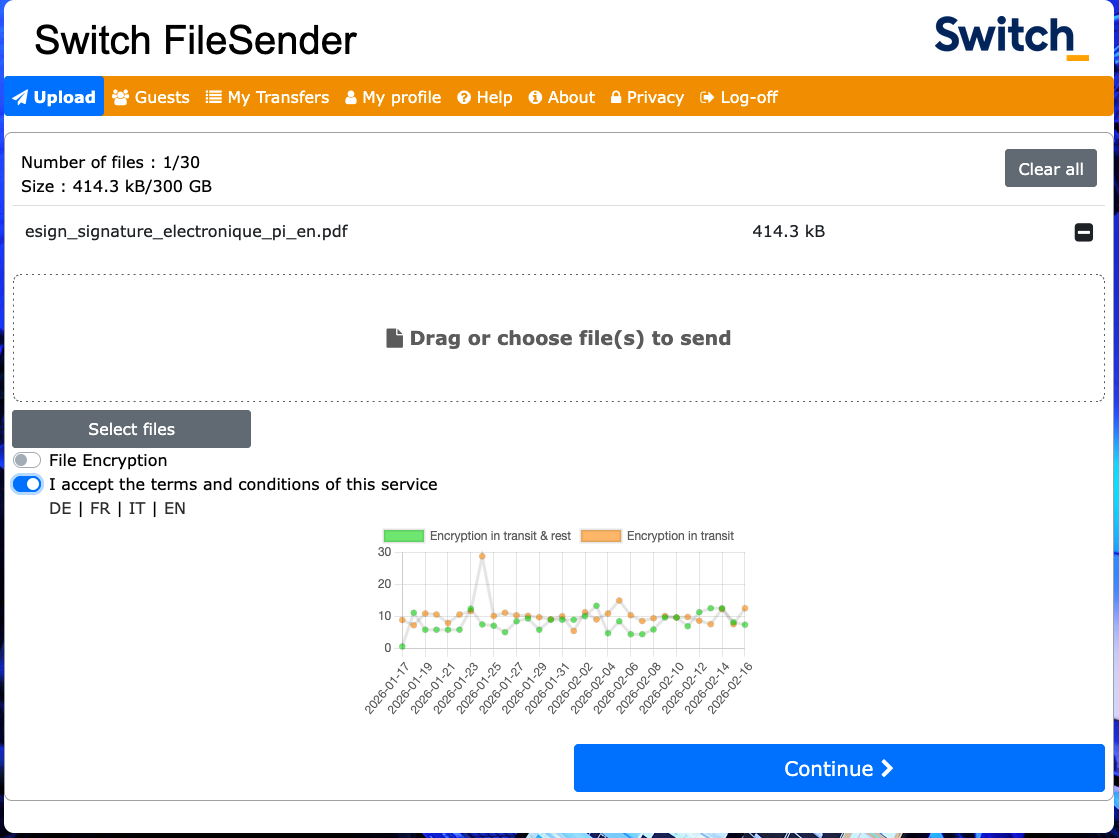
Upload by dragDrag&drop the file you want to transfer.
If you need to transfer several files, please compress them by creating an archive (.zip or .rar).
Choose ifIf youwantwish toencrypteencrypt your file (set or generate a password),by selectingselect File Encryption.
Accept the terms and contitions of the servicethenand click on Continue.
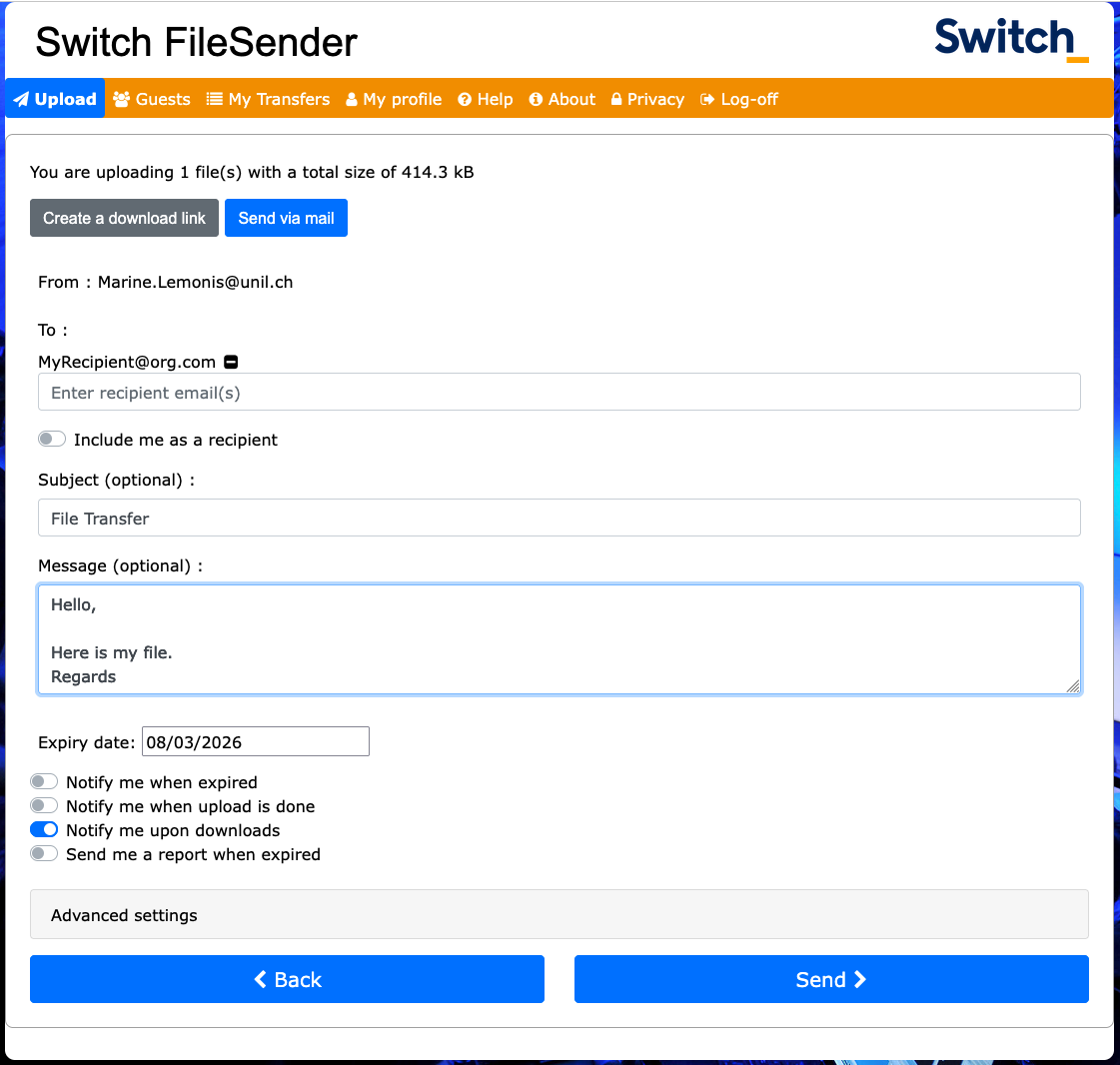
- In the
nextfollowing step, you can choose to create a download link that you can send to multiple people (e.g., via a distribution list) or send your download link directly by email to one or more recipients of your choice. After setting yoursendingparameters, click Send.
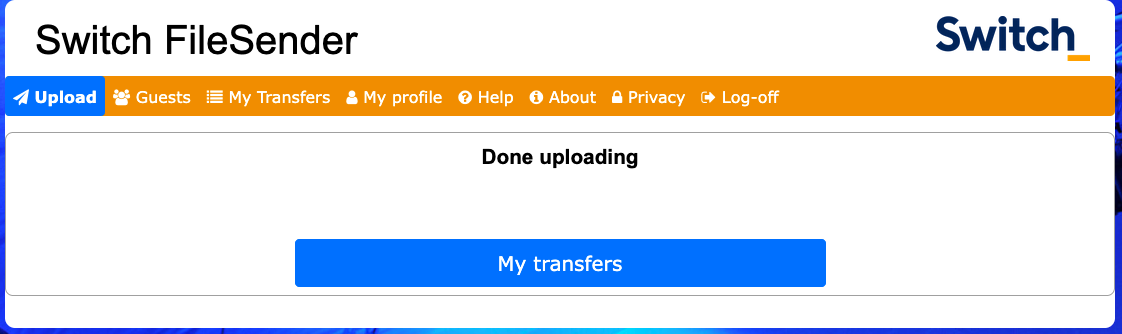
- A confirmation message will appear on the screen when your download/transfer has been completed.
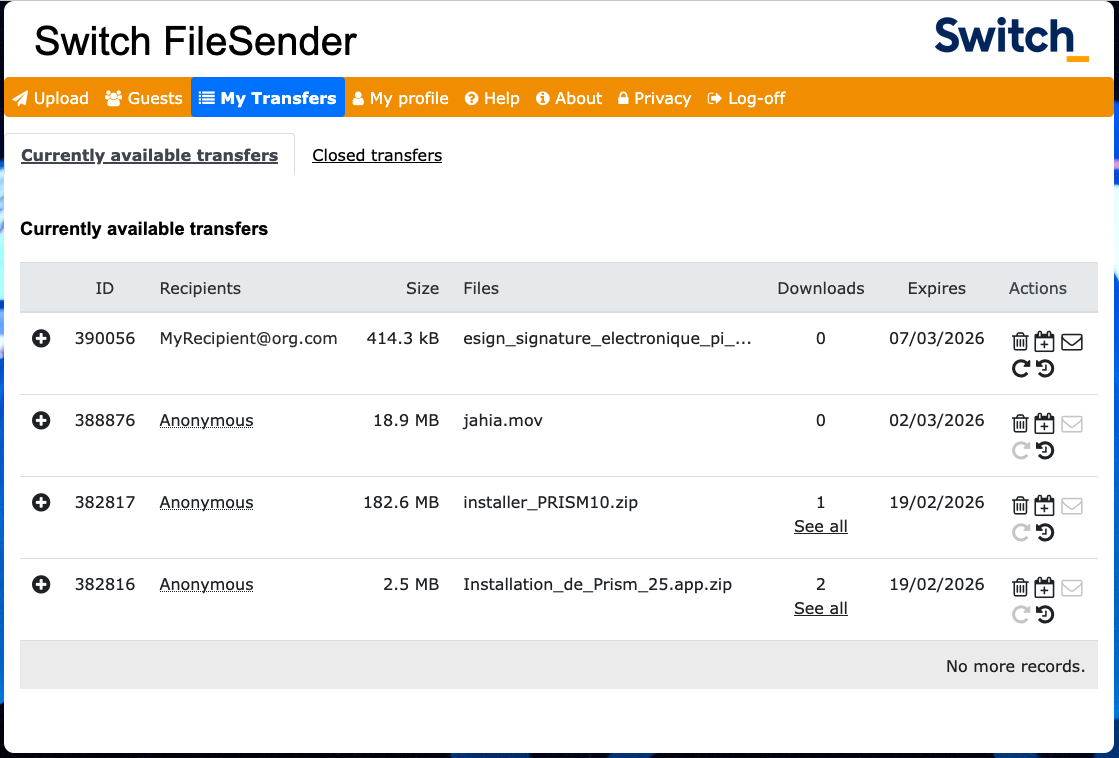
You can view the status of your current downloads/transfers (number of downloads, expiration date, etc.) in the My Transfers tab.
Invite people to send you a file with SWITCHSwitch filesenderFileSender
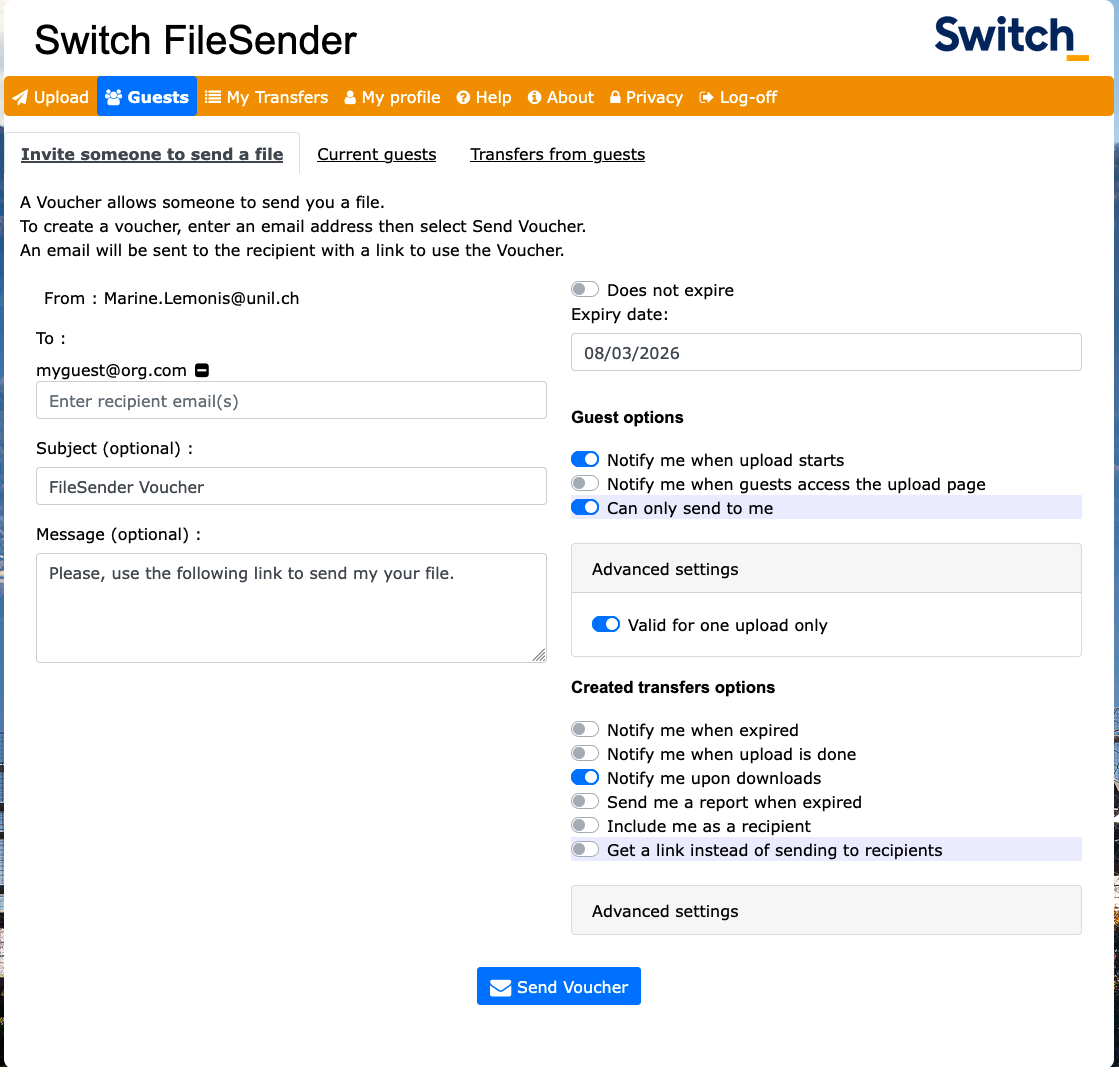
Creating an invitation for an external person allows them to use the service once to transfer a file to the recipient of their choice (you or someone else). However, you remain responsible for the content of their message and their file (see the terms and conditions of use).
- Go to filesender.switch.ch and log in using your edu-ID login.
- Open the Guests tab to create your voucher. Write a message to your recipient if needed and allow your guest to only send his/her file to you if wanted. After setting your invitation parameters, click Send Voucher.
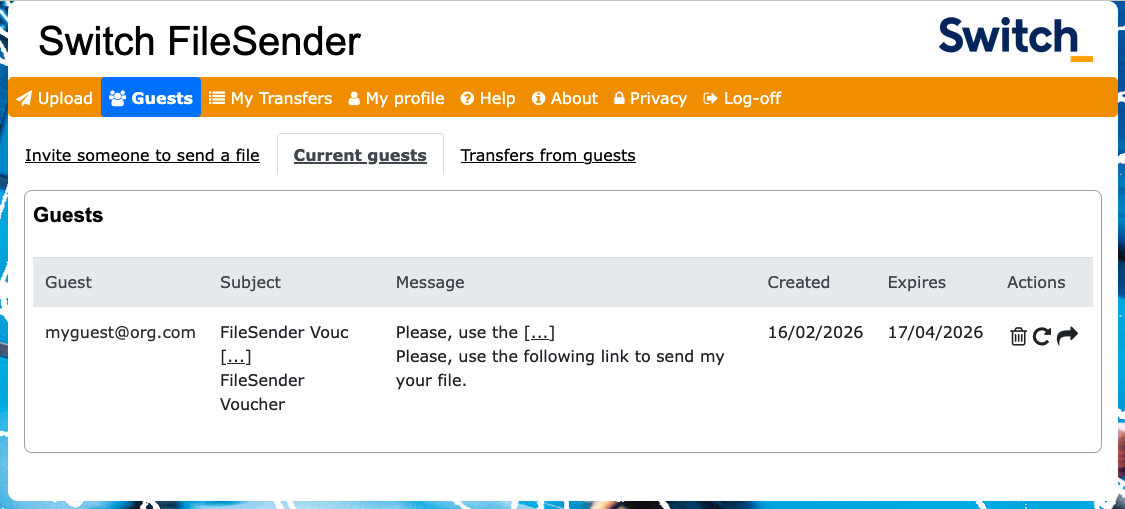
You can view the status of your invitations and transfers in the Current Guests section of the Guests tab.
References
SWITCHSwitch Documentation : SWITCHfilesenderSwitch FileSender FAQ