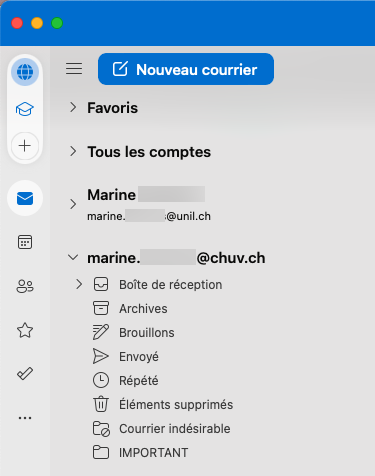
How to display a CHUV mailbox in Outlook on an UNIL computer
Produits concernésProducts
Name |
|
System |
Windows/Mac |
| Application |
Outlook 365 |
Description
Procedure Procédurefor pouraccessing accéder à une boîte e-maila CHUV surmailbox unon postean UNIL depuiscomputer leusing clientthe Outlook.Outlook application.
LaThe solution proposéeprovided par leby CHUV estis l'utilisationto deuse « “Outlook Anywhere”, »which quiallows permetyou d’accéderto àaccess l’entier de sa messagerie CHUV, calendrier et contacts depuis un ordinateur nonyour CHUV sansmailbox connexion(including VPN.calendar and contacts) from a non-CHUV computer and without any VPN connection.
Prérequis Prerequisite
- AvoirWorking with Outlook
- PrendreContact contactthe avec leCHUV Service Desk du CHUV (service.desk@chuv.ch ouor tél.phone 021 314 61 22) afinin deorder faireto activeractivate cettethis possibilitépossibility (Outlook Anywhere).
Marche à suivre
Procedure
Windows
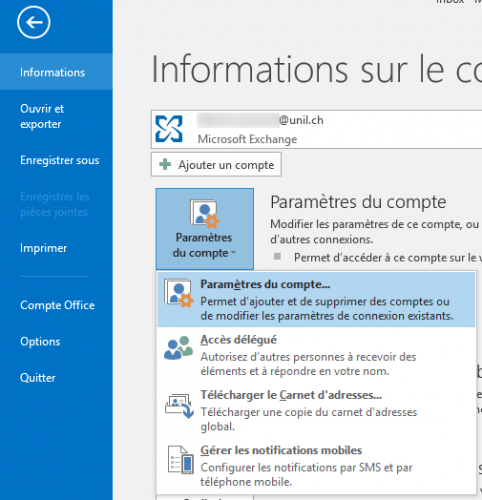
OuvrirOpenOutlook,OutlookallerondansyourleCHUVmenucomputer, go to theFichierFile, select Informations,cliquerclicksuronParamètresAccountduSettings,comptethen click on Account Settingspuis encore surParamètres du compte.again.
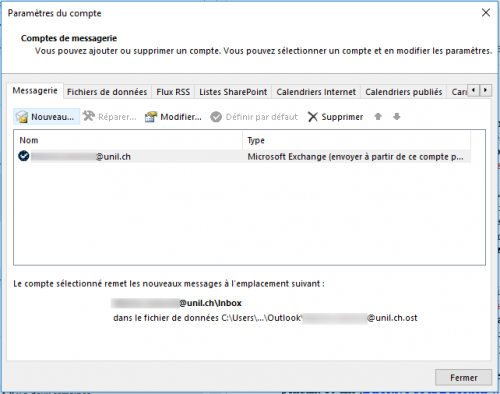
DansAlanewfenêtrewindowquiopens,s'ouvre,clickcliquer suronNouveauNewpourtoajouteraddunancompte.account.
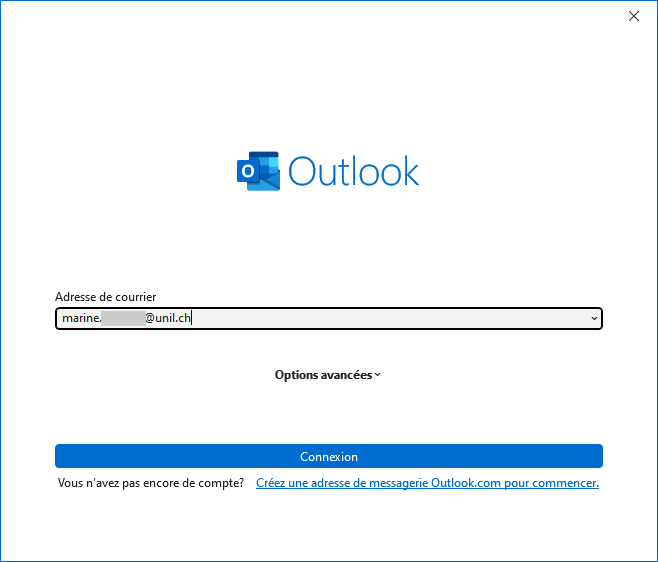
SaisirEnterl'adresse e-mailyour @chuv.ch.ch email address.
DansInlathefenêtreadvanceddesettingsconfigurationwindow,avancée, choisir l'optionchoose Exchange.
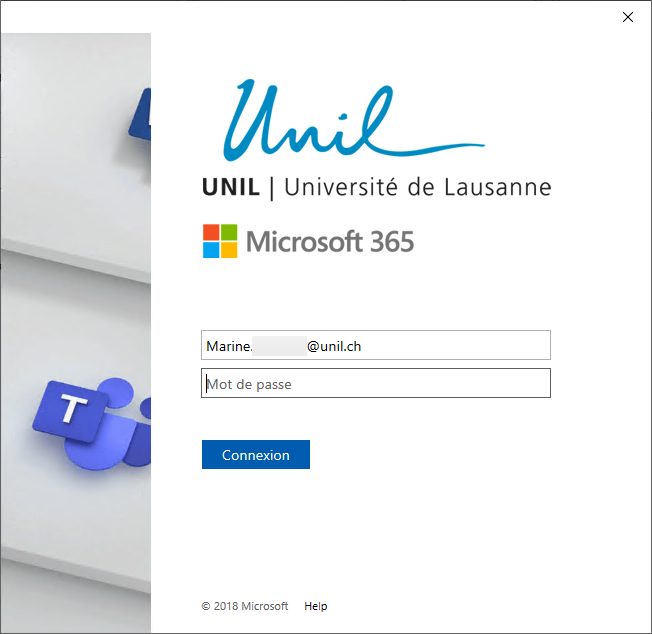
DansInlathenouvellesecurityfenêtrewindow,deentersécurité,theentrerCHUVle mot de passe CHUV.password.
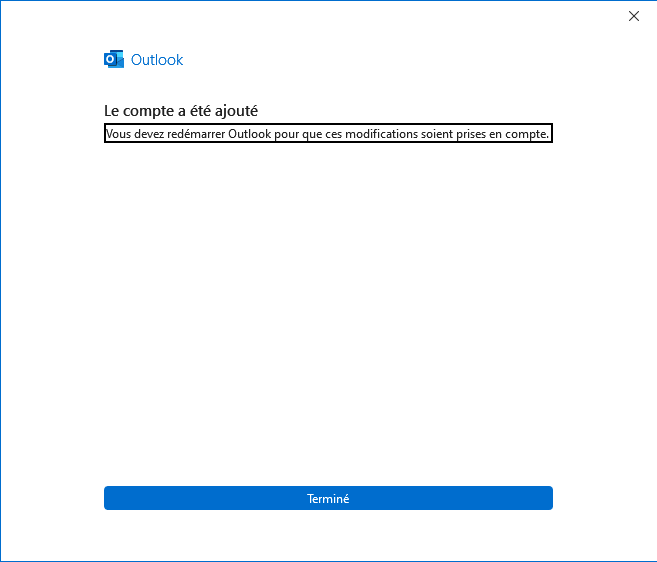
UnOncemessagethedeconfigurationsuccèsisapparait.completed,Fermerclick on Finish. Quit Outlookpuisandredémarrerrestartletheprogramme.software.
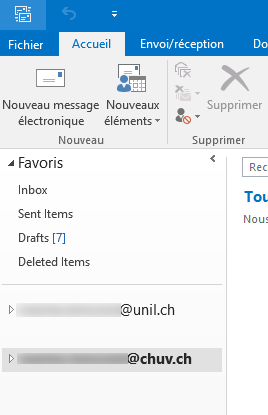
A l'ouverture, le compteThe CHUVapparaitaccountdansislanowlisteavailabledesincomptes disponibles.Outlook.
OSX
Prérequis:Prerequisite: disposeryou àmust minimahave deat laleast versionthe Outlook pourfor Mac version 16.91.1
OuvrirOpen Outlook,allergodanstole menuthe Outlook,choisirmenu and chooseRéglagesSettings.
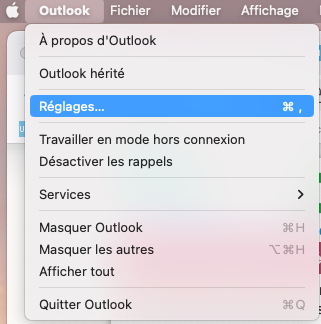
DansInlathelistemenu,desclickoptions, cliquer suronComptesAccounts.
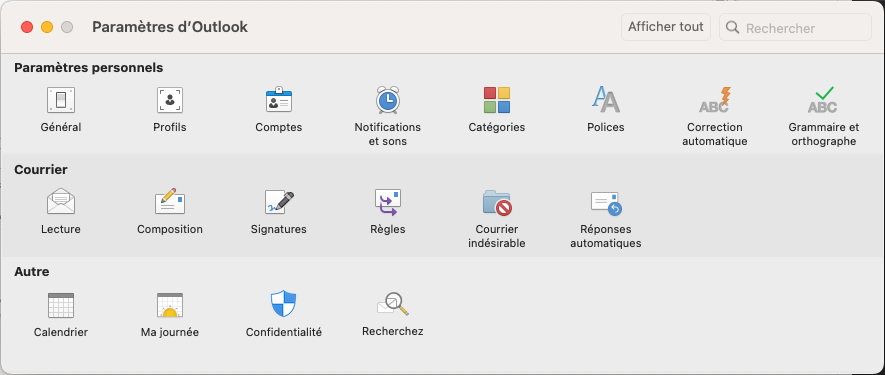
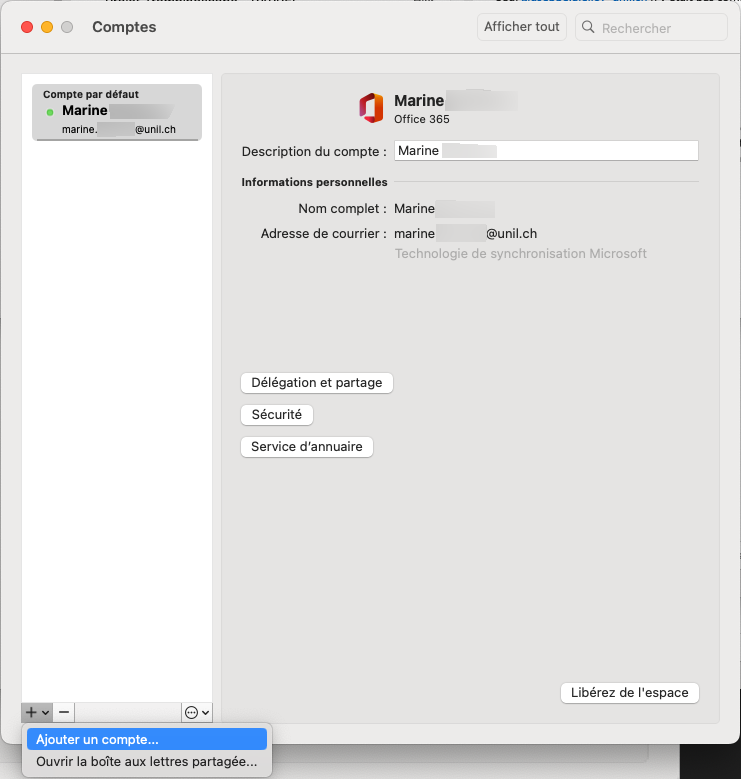
DansInlathefenêtrenewquiwindow,s'ouvre,clickcliquer suron +,puisand selectAjouterAddun compte…account….
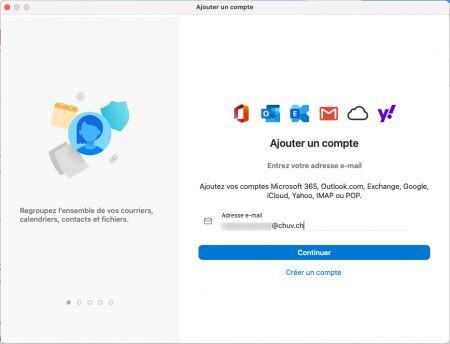
EntrerEnterl'adresse e-mailyour @chuvpuisemailcliqueraddresssurand click onContinuerContinue.
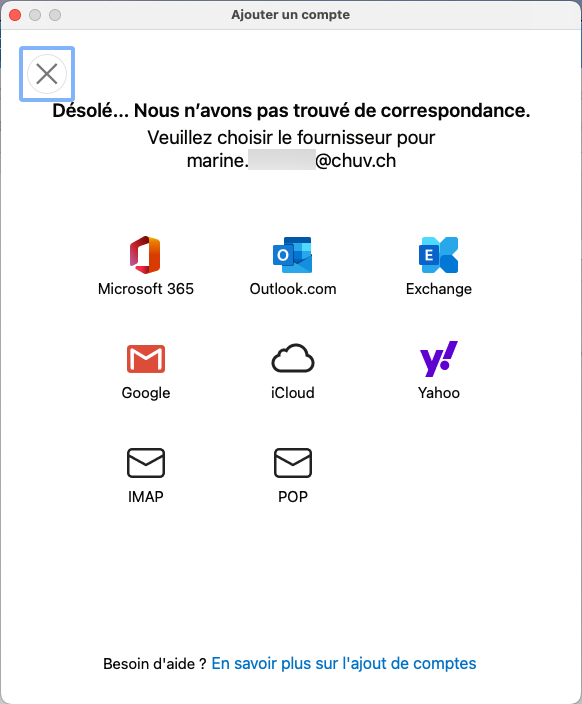
UnAn error messaged'erreurisapparait:displayed:choisir l'optionchoose Exchange.
DansInlathenouvellenewfenêtre,windows,saisirenterlestheinformationsinformationcommeassuit:follows:Adresse e-mailAddress :votre adresseyour CHUV email address- DOMAIN\
nom d'utilisateurUsername: intranet\usernameyour CHUV username - Password :
votre mot de passeyour CHUV password
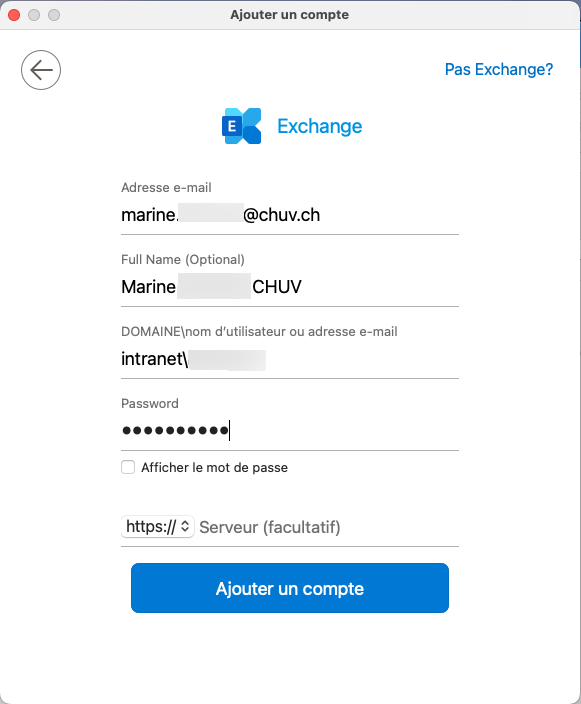
CliquerClicksuronAjouterAddunancompteaccount.UnWhenmessagethedeloginsuccèsisapparait.complete,Pourpleaseleignoremoment,theignorerprofilela gestion des profils.management.
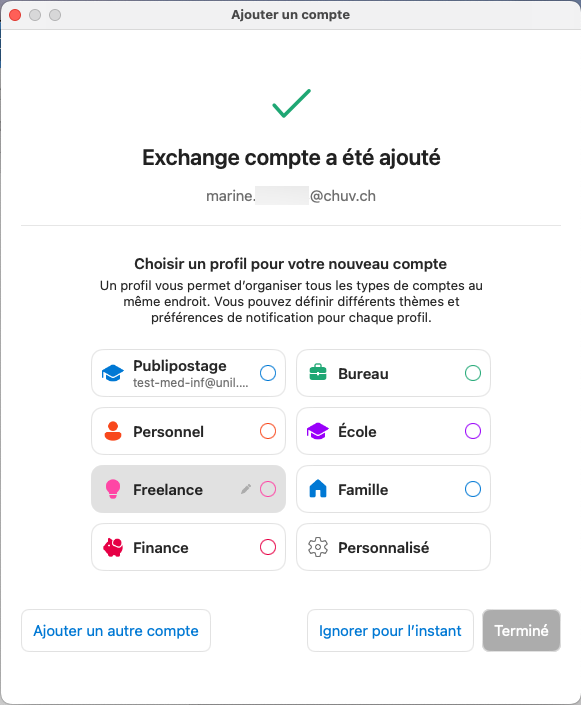
Dans Outlook, le compteYour CHUVapparaitaccountdansislanowlisteavailabledesincomptes disponibles.Outlook.