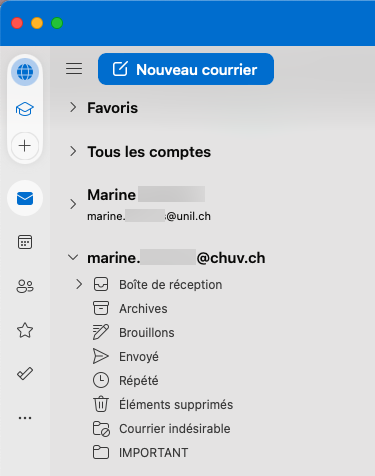
How to display a CHUV mailbox in Outlook on an UNIL computer
Products
| Name | |
| System | Windows/Mac |
| Application |
Outlook 365 |
Description
ProcedureWe forstrongly recommend accessing your CHUV email account on a UNIL computer via the CHUV webmail service: oweb.chuv.ch
If it is really necessary to access a CHUV mailbox in Outlook on an UNIL computercomputer, usingplease refer to the Outlookfollowing application.procedure:
The
Procedure
Windows
Prerequisite
- WorkingYou must work with Outlook
- ContactYou must contact the CHUV Service Desk (service.desk@chuv.ch or phone 021 314 61 22) in order to activate this possibility (Outlook Anywhere).
- You must have set up CHUV 2FA
- You must have set up a UNIL VPN connection
Procedure
- Establish
aWindows- UNIL VPN connection if you are not on the UNIL (or CHUV) network
- Open Outlook on your CHUV computer, go to the File, select Informations, click on Account Settings, then click on Account Settings again.
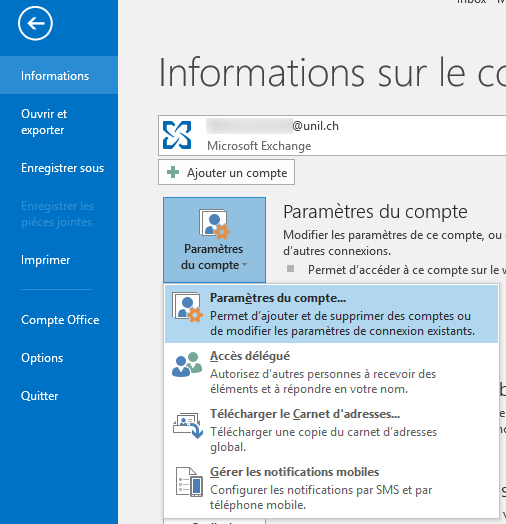
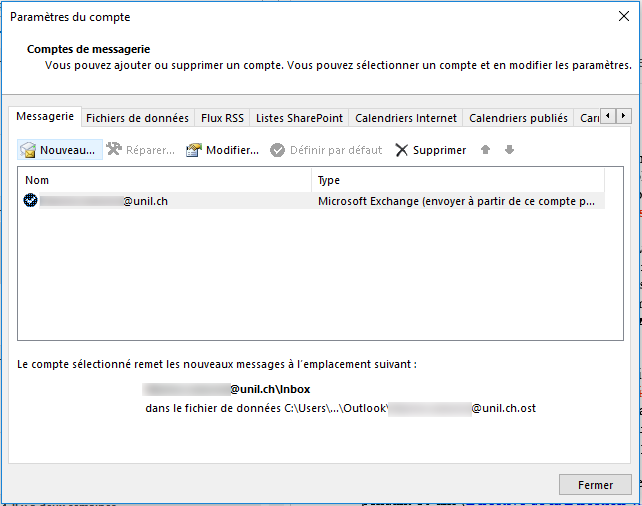
- A new window opens, click on New to add an account.
- Enter your @chuv.ch email address.
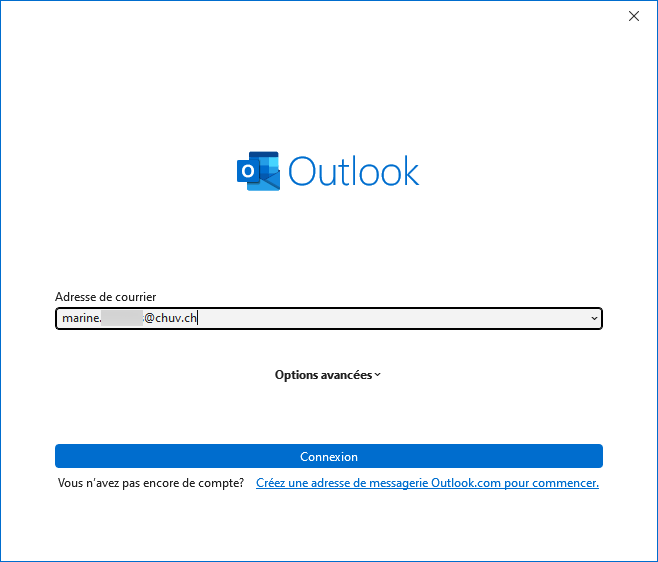
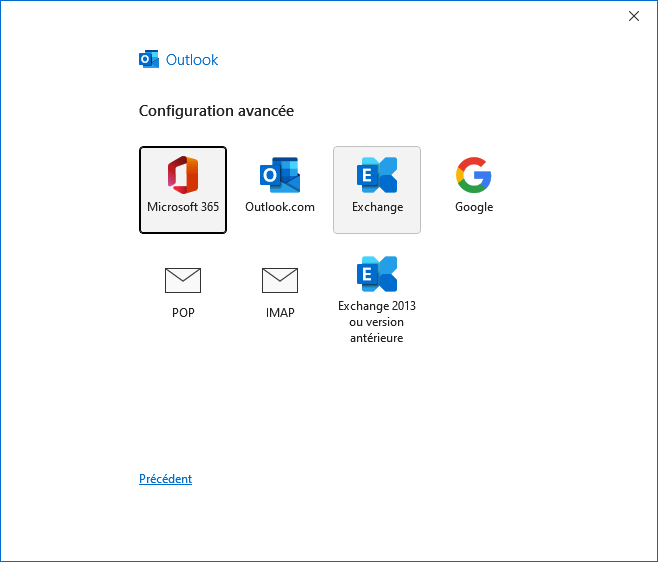
- In the advanced settings window, choose Exchange.
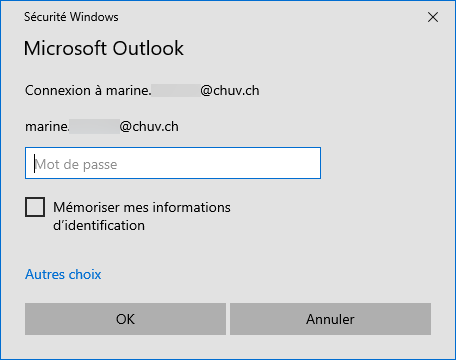
- In the security window, enter the CHUV password.
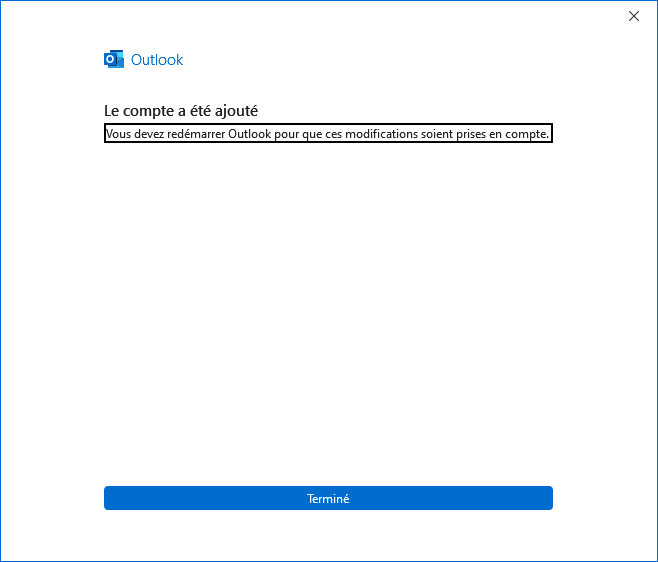
- Once the configuration is completed, click on Finish. Quit Outlook and restart the software.
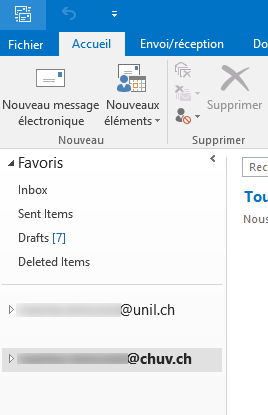
- The CHUV account is now available in Outlook.
OSX
Prerequisite:Prerequisite:
- you must have at least the Outlook for Mac version 16.91.1
- You must contact the CHUV Service Desk (service.desk@chuv.ch or phone 021 314 61 22) in order to activate this possibility (Outlook Anywhere).
- You must have set up CHUV 2FA
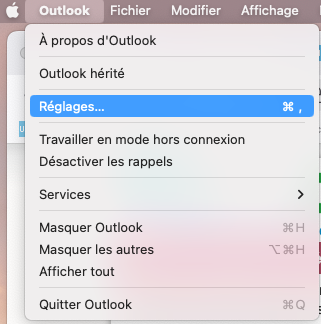
- Open Outlook, go to the Outlook menu and choose Settings.
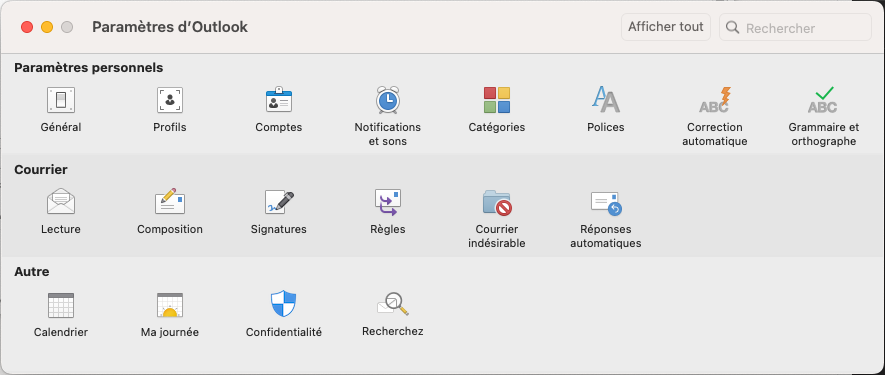
- In the menu, click on Accounts.
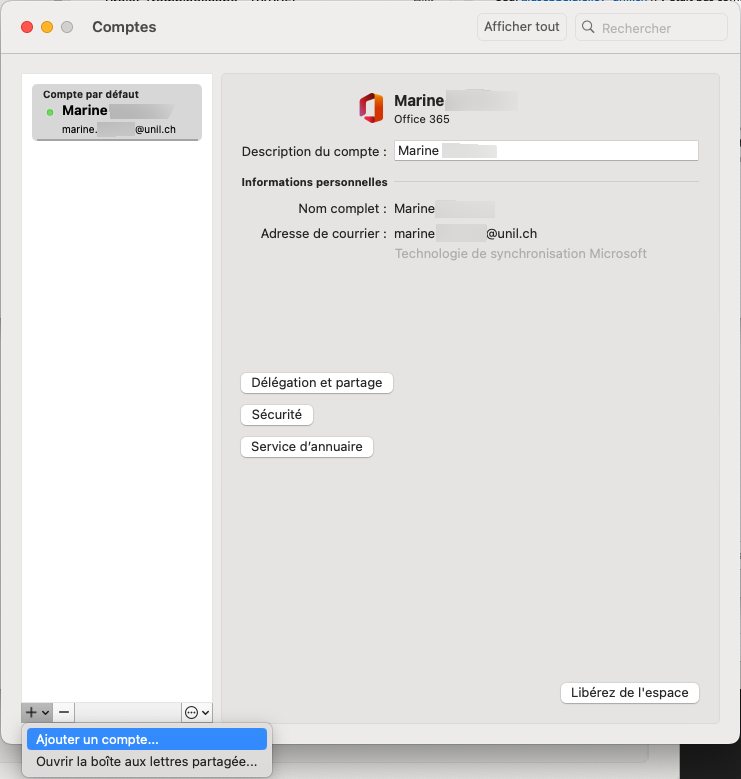
- In the new window, click on +, and select Add account….
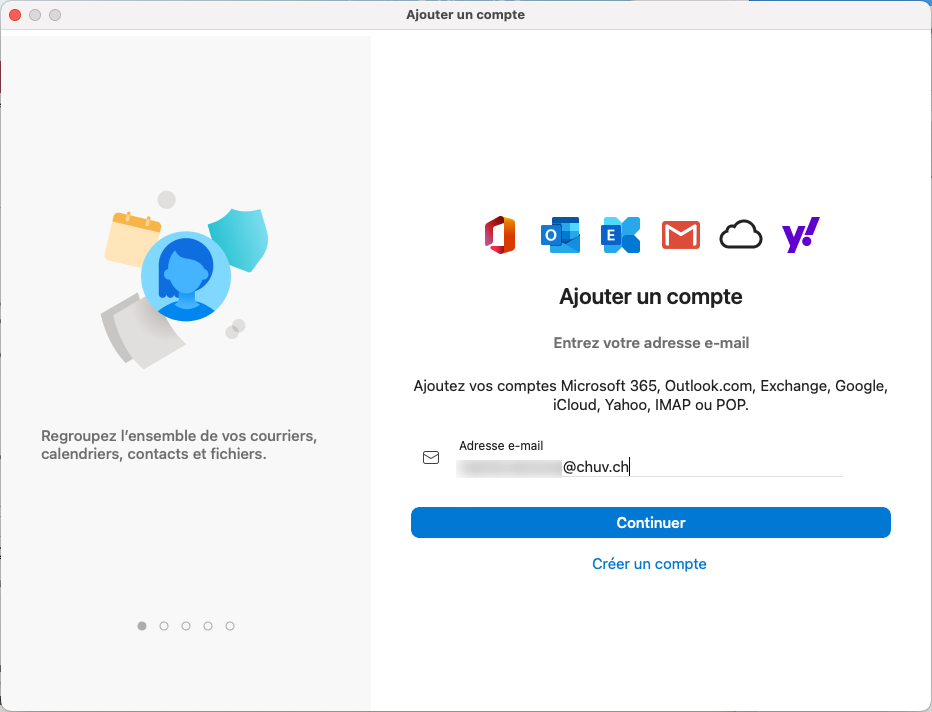
- Enter your @chuv email address and click on Continue.
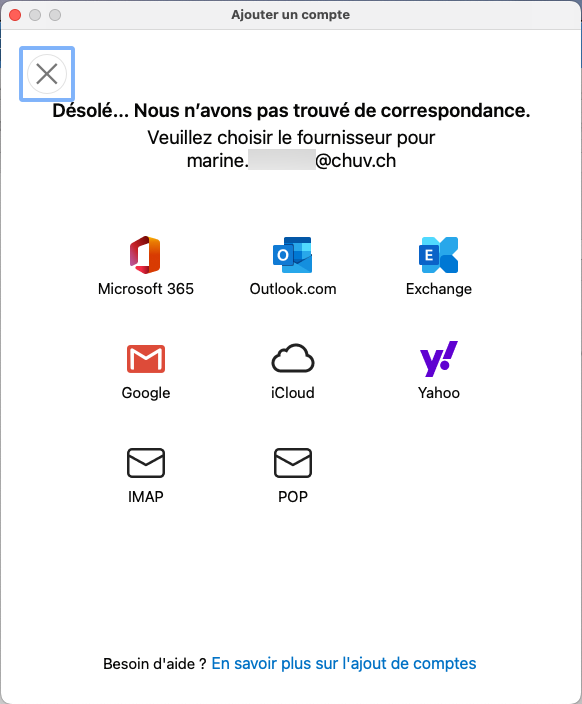
- An error message is displayed: choose Exchange
- In the new windows, enter the information as follows:
- Address : your CHUV email address
- DOMAIN\Username: intranet\your CHUV username
- Password : your CHUV password
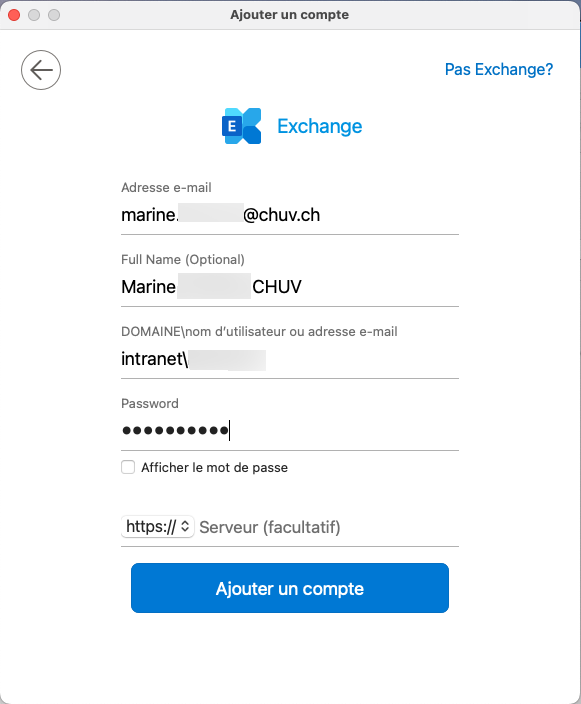
- Click on Add an account.
- When the login is complete, please ignore the profile management.
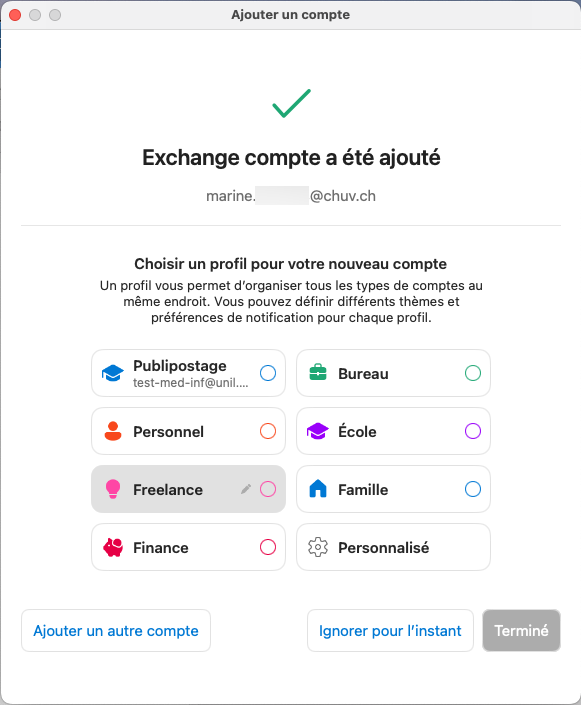
- Your CHUV account is now available in Outlook.