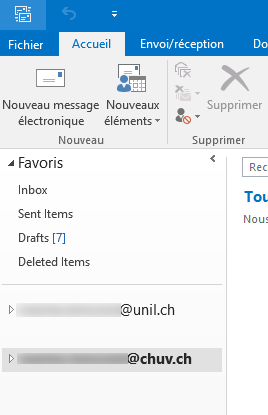
How to display a UNIL mailbox in Outlook on a CHUV Computer (HOS)
Produits concernésProducts
Name |
|
System |
Windows |
| Application |
Outlook |
Description
Procedure Procédurefor pouraccessing accéder à une boîte e-maila UNIL surmailbox unon postea CHUV Windows depuiscomputer l'applicationusing Outlook.the Outlook application.
LaThe solution dispenséeprovided par leby CHUV estis l'utilisationto deuse «“Outlook Anywhere,” which allows another non-CHUV mailbox to coexist on the Outlook Anywhereapplication »of qui permet de faire cohabiter une autre boite de messagerie nona CHUV sur l'application Outlook d'un poste CHUV.workstation.
PrérequisPrerequisites
- AvoirYou unemust adressehave de messageriean UNIL mailbox
- PrendreContact contactthe avec leCHUV Service Desk du CHUV (service.desk@chuv.ch ouor tél.phone 021 314 61 22) afinin deorder faireto activeractivate cettethis possibilitépossibility (Outlook Anywhere).
Marche à suivre
Procedure
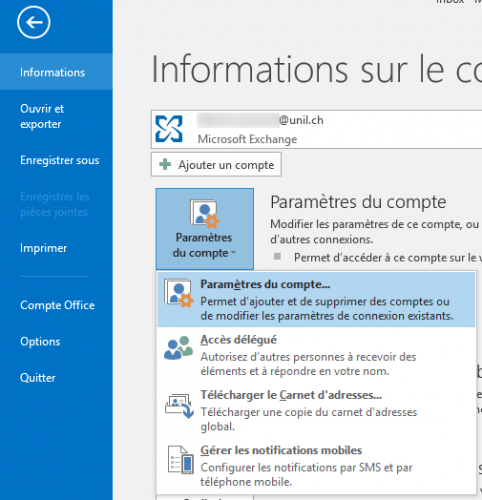
OuvrirOpen OutlooksuronsonyourposteCHUVCHUV,computer,allergodanstole menutheFichierFile, select Informations,cliquerclicksuronParamètresAccountduSettings,comptethen click on Account Settingspuis encore surParamètres du compte.again.
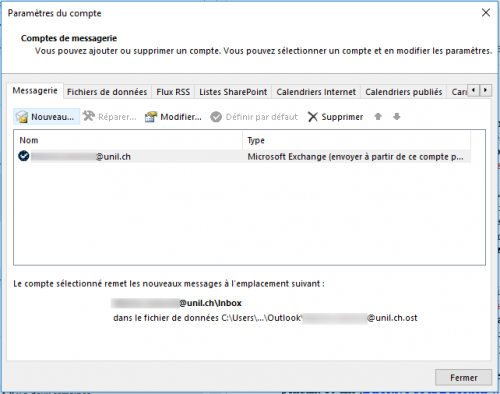
DansAlanewfenêtrewindowquiopens,s'ouvre,clickcliquer suronNouveauNewpourtoajouteraddunancompte.account.
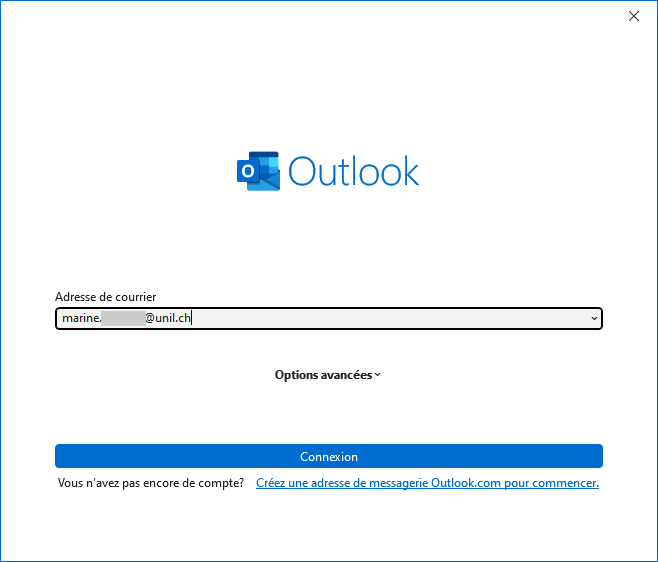
DansInlathenouvellenextfenêtre,window,entrerenterl'adresse de messagerieyour @unil.ch.ch address.
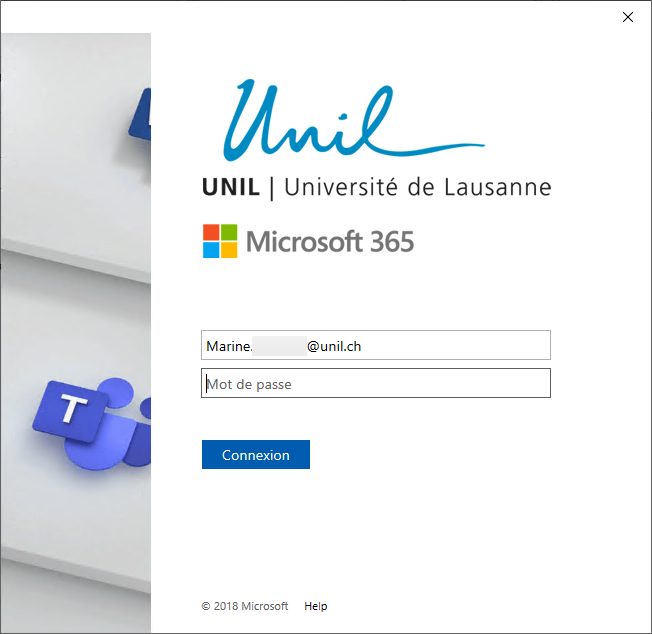
DansInlathenouvellenextfenêtre,window,saisirentersonyourmotUNILde passe UNIL.password.
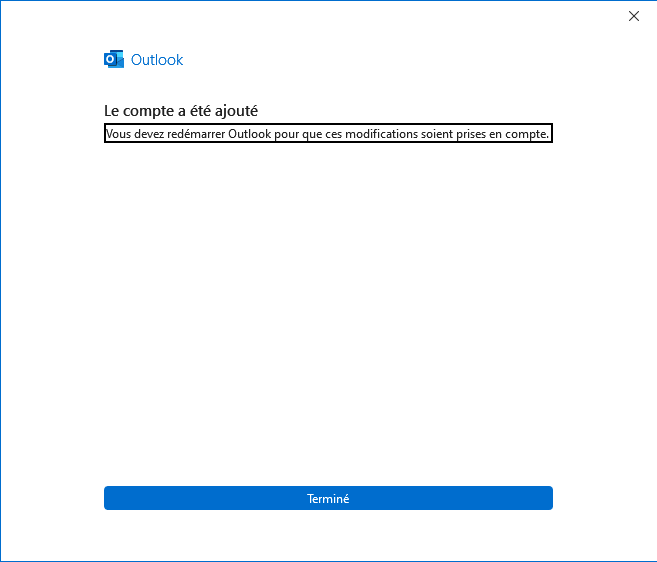
LorsqueWhenlato configurationestisterminée,completed,unyoumessagewillapparaitbepouraskeddemandertode redémarrerrestart Outlook.CliquerClicksuronTerminerFinish.
FermerClose Outlookpuisthenredémarrerrestartle programme.Outlook.A l'ouverture, le compteThe UNILapparaitaccountdansislanowlisteavailabledesincomptes disponibles.Outlook.