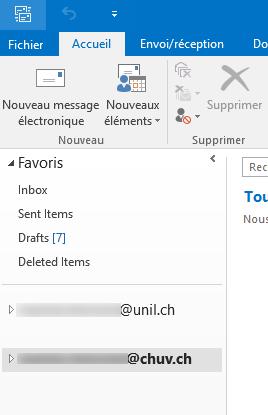
How to display a UNIL mailbox in Outlook on a CHUV Computer (HOS)
Products
| Name | |
| System | Windows |
| Application |
Outlook |
Description
Procedure for accessing a UNIL mailbox on a CHUV Windows computer using the Outlook application.
The solution provided by CHUV is to use “Outlook Anywhere,” which allows another non-CHUV mailbox to coexist on the Outlook application of a CHUV workstation.
Prerequisite
- You must have a UNIL mailbox
- Contact the CHUV Service Desk (service.desk@chuv.ch or phone 021 314 61 22) in order to activate this possibility (Outlook Anywhere).
Procedure
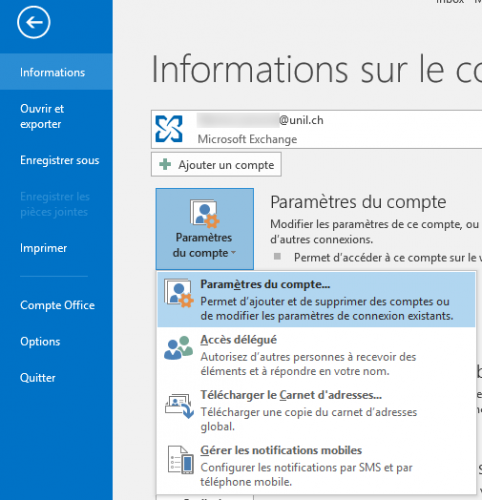
- Open Outlook on your CHUV computer, go to the File, select Informations, click on Account Settings, then click on Account Settings again.
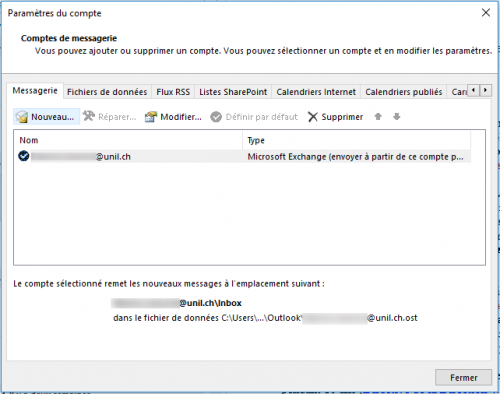
- A new window opens, click on New to add an account.
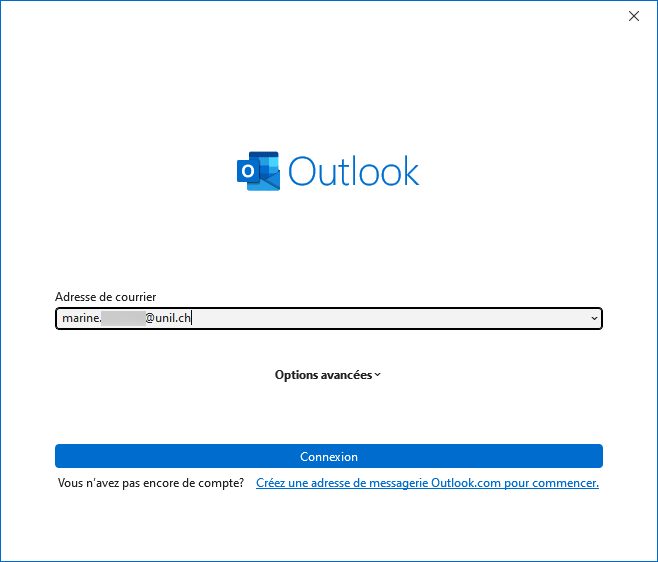
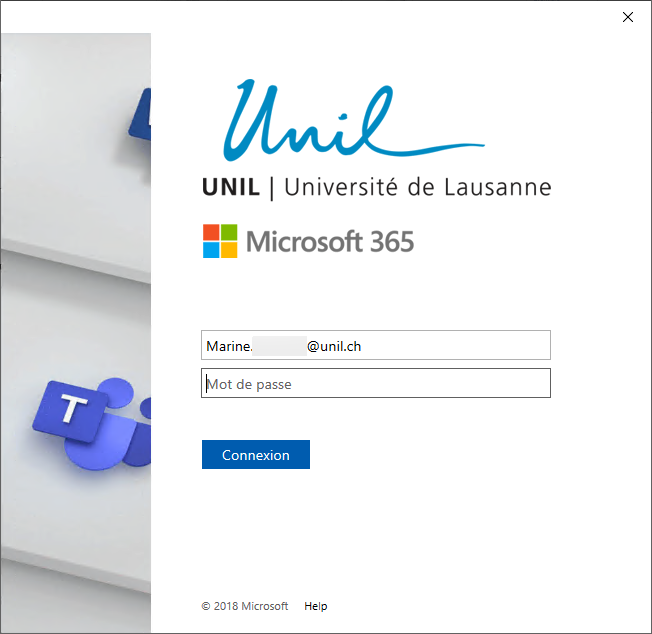
- In the next window, enter your @unil.ch address.
- In the next window, enter your UNIL password.
- When the configuration is completed, you will be asked to restart Outlook. Click on Finish.
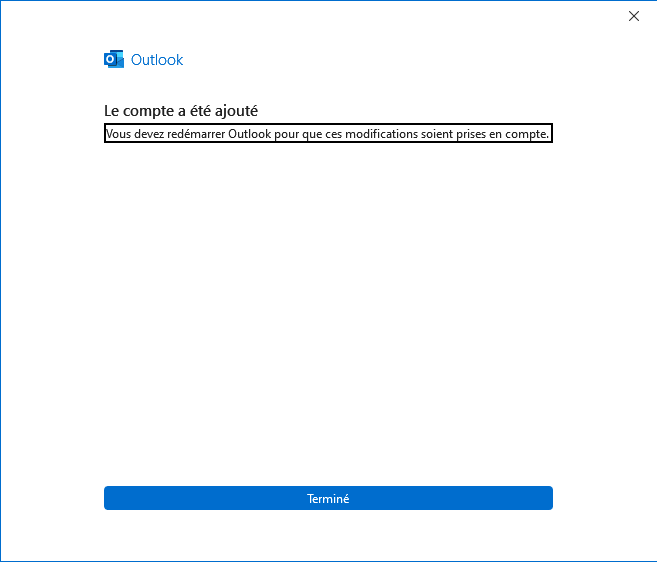
- Close Outlook reopen it.
- The UNIL account is now available in Outlook.