
Remote support - on-Demand Assist app (real VNC)
Description
When the FBM IT support cannot come to your workplace, we use VNC Connect to provide remote support. This service is available for all configurations (Windows, OSX, Linux) and allows your IT manager to view your screen, send you documents, and take remote control of your computer.
The opening of an On-Demand Assist session uses unique access identifiers, valid for a single intervention, only in your presence and with your consent.
Starting a session
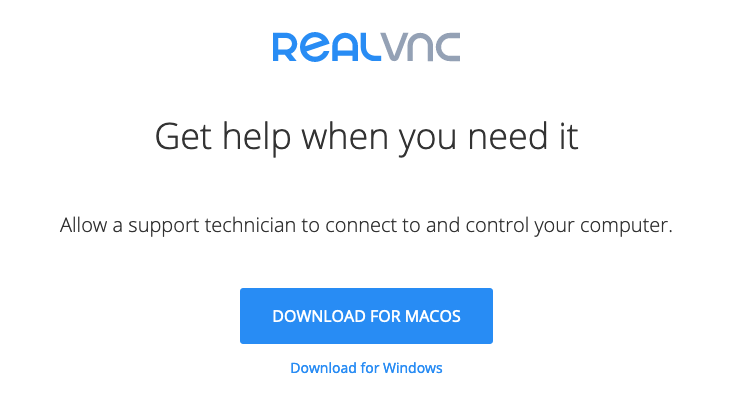
- At the request of your IT correspondent, go to https://www.realvnc.help/ and download the temporary troubleshooting application (On-Demand Assist app) if it is not already installed on your computer.
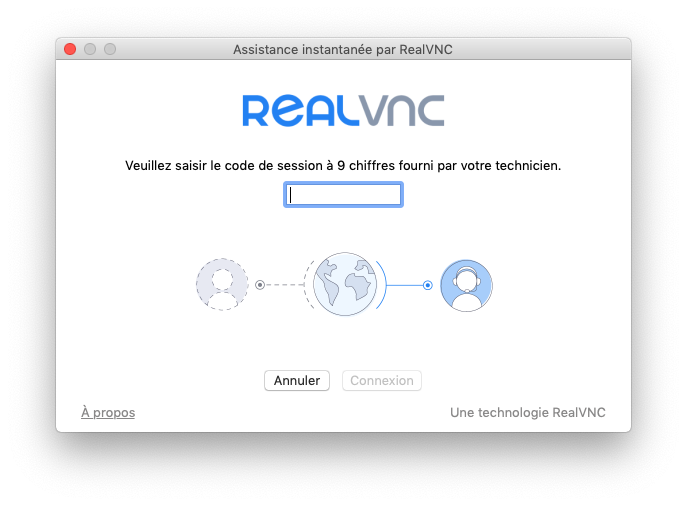
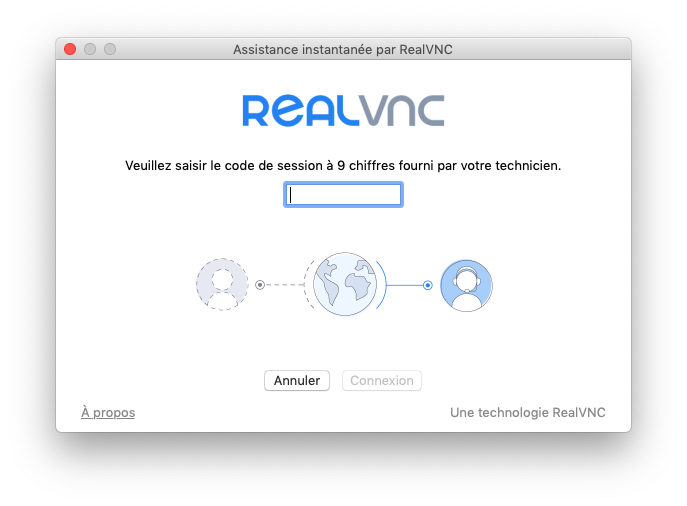
- Launch On-Demand Assist app and enter the 9 digit session code provided by your IT manager.
- Accept the privacy notices.
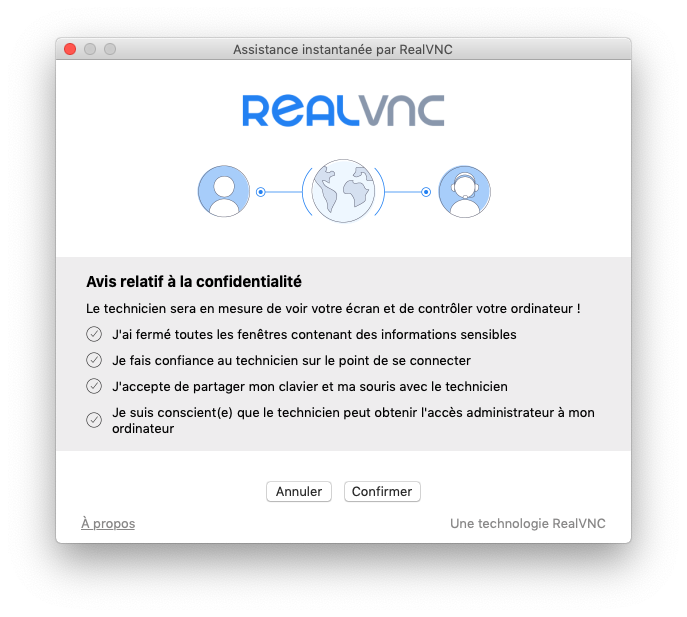
- This allows your IT manager to access your computer and view your screen in order to provide remote assistance.
Closing the remote session
The Real VNC session ends automatically if you click the End Session button or if your IT manager closes the application.