
How can I have access to a shared calendar ("shared mailbox")?
Products
| Name | |
| System | Windows / Mac |
| Application |
Outlook / Outlook Online |
Description
Upon request, a shared calendar (part of a shared mailbox) can be made available to groups and units that are looking for a generic calendar not linked to a personal UNIL IT account. Shared calendar can then be displayed in Outlook (Windows, Mac, or Online) and managed using existing authorization groups.
Procedure
Request the creation of a generic calendar (part of a “shared mailbox”)
To request the creation of a shared calendar, please contact the FBM IT support, specifying the desired name for the calendar and the people who need access to it. Please note that the shared calendar will be linked to an inbox on which an automatic reply indicating that it is not being checked can be configured.
How to access a shared calendar
Outlook (Windows / Mac)
- Open Outlook and go to the Calendar tab.
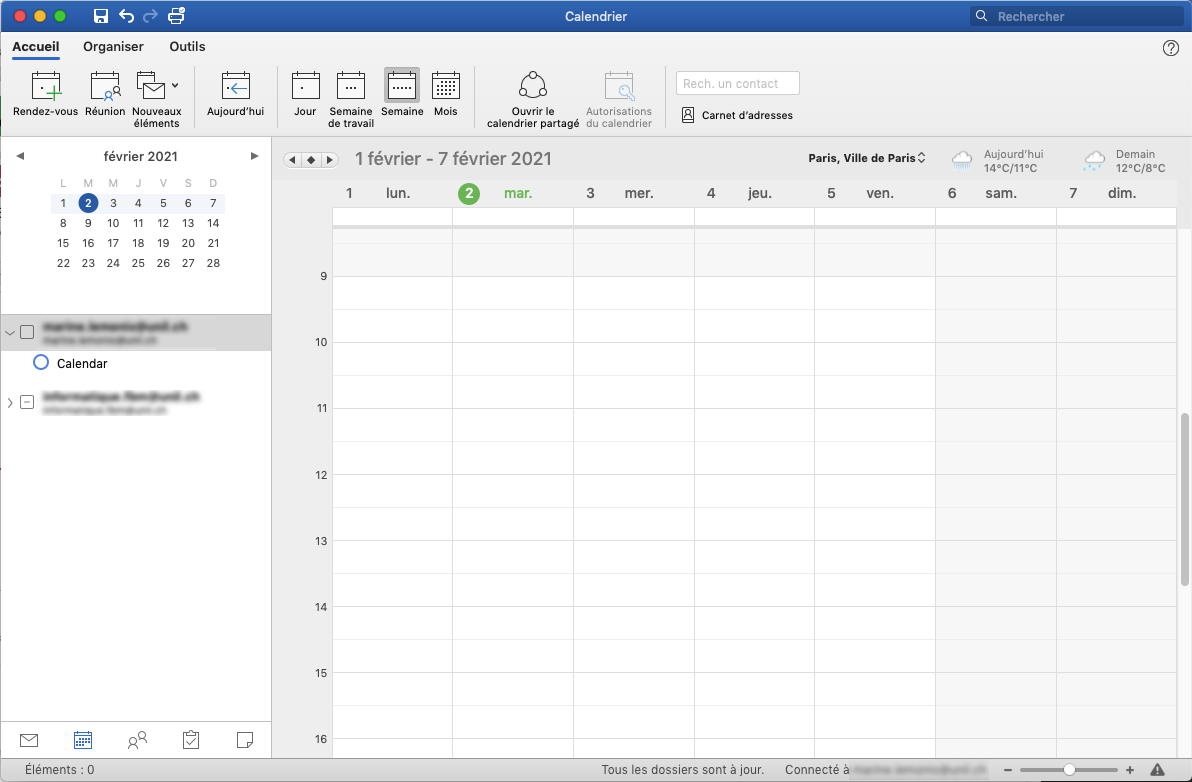
- Click on Open a shared calendar in the ribbon.

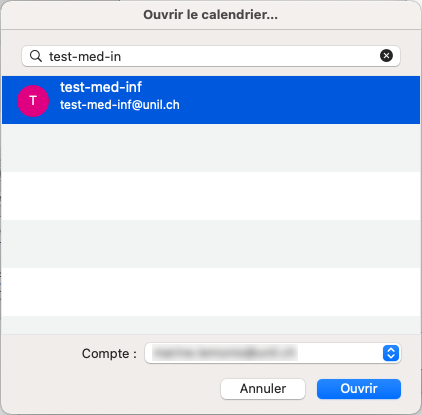
- In the new window, search for the calendar name and click on Open.
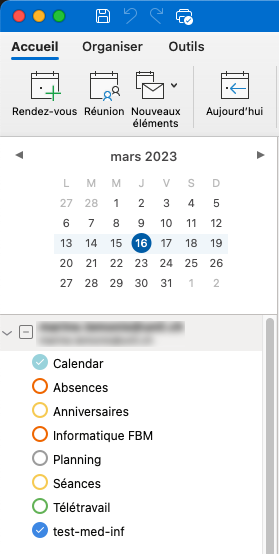
- The shared calendar is displayed in the list of your calendars.
Outlook Online
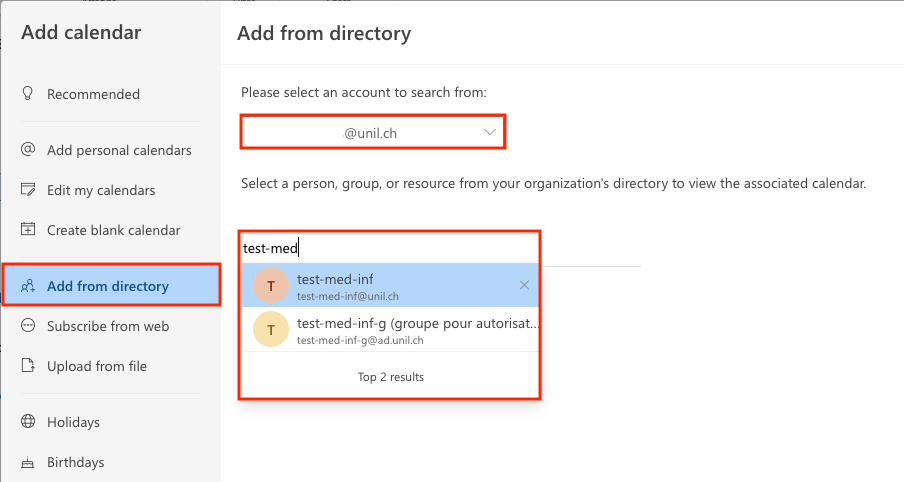
- Log in outlook.office.com with your UNIL credentials, go to the Calendar tab and click on Add calendar.
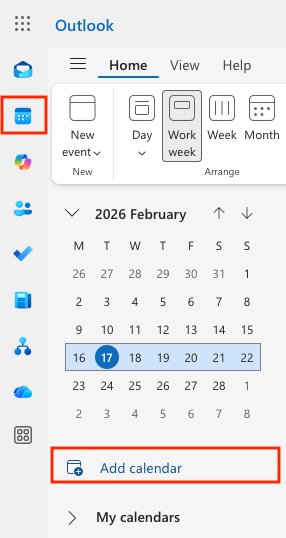
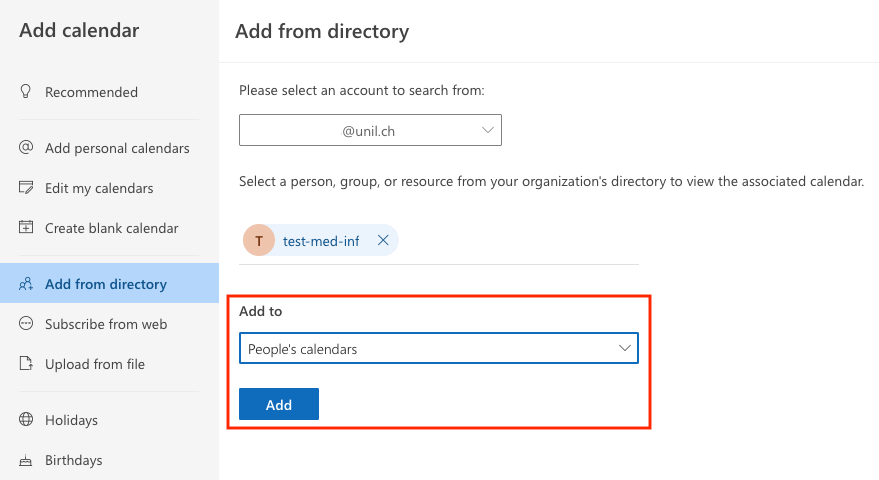
- Click on Add.
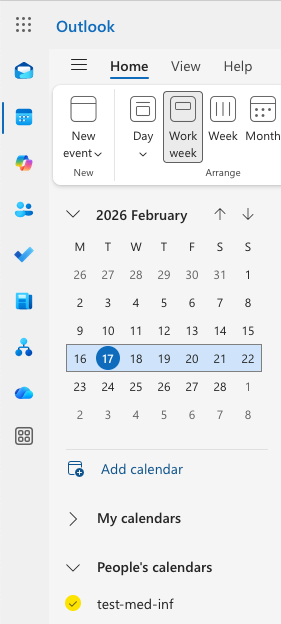
- The shared calendar is displayed in the list of your calendars.
References
Documentation : Afficher un calendrier partagé (Ci's wiki)