How to connect to the NAS server (Mac)
Products
| Name | Version |
|
| System | OSX |
>= 10.6 |
Description
The steps below explain how to connect to the UNIL NAS (nas.unil.ch) with a Mac computer so that you can view the file server tree structure in Finder.
This procedure allows you to access the storage spaces available at UNIL:
- Central NAS server for administrative data: \\nas.unil.ch\FBM\
- DCSR NAS server for research data: \\nasdcsr.unil.ch\RECHERCHE
- DCSR NAS server for "sensitive" research data: \\nasdcsr.unil.ch\RECHERCHE-S
- DCSR NAS server for "personal" research data: \\nasdcsr.unil.ch\RECHERCHE-P
Windows user? Please refer to the following documentation: How to connect to the NAS Server (Windows)
Procedure
How to connect
Prerequisite: You must be on the UNIL network or VPN to access the storage servers.
- Click on Finder.
DansInlathebarremenu,de menus, sélectionnerselect “AllerGo”,puisthen “SeConnectconnectertoau serveurserver”ouorle raccourci clavierhotkey “cmd+K”.
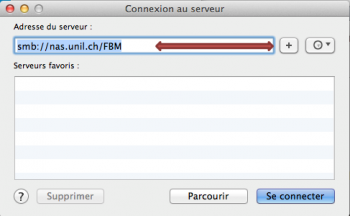
EntrerEnterl'adressetheduaddressserveurofauquelthevousserversouhaitezyouaccéderwant to connect to (voirseeencarttheenbluejauneboxci-dessus)above).Exemple:For example:smb://\\nasdcsr.unil.ch/ch\RECHERCHE.Le boutonThe “+”àbuttondroiteonpermetthed'enregistrerrightleallowsserveurtodanssavelathelisteserverdesin the list of “ServeursFavoritefavoris”Servers”afinindeorderfacilitertounesimplifyconnexionaultérieure.furtherCliquerreconnection.surClick on “Se connecter”Connect”.
EntrerEnterlestheinformationsinformationdetoconnexion:connect:NomName:entrerenter “ad\” + “nomUNILd'utilisateur UNILusername” (p.ex: “ad\pmartin1”).Mot de passePassword:entrerenterleyourmotUNILde passe UNILpassword-
CliquerClicksuron “Se connecterConnect”pourtomontermountletheserveur.NAS server.
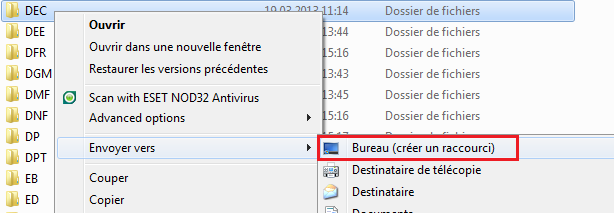
CréerCreate una raccourcishortcut
AfinIndeorderfacilitertol’accèssimplifyaureconnection,serveur,youvouscanpouvezcreatecréeraunlinklientoverstheleshareddossierfolder.partagé.ToCelaproceed:seselectfaitadefolder,laslidemanièreitsuivante:tosélectionnertheunleftdossiercolumnetofletheglisserfinderdans la colonne de gauche du Finder sousunder “Favoris”Favorites”.OnInpeuttheaussi le glisser dans la partie droite du Dock, ce qui créera un raccourci. Dans l'exempledubelow,dessous,theonshortcutcréeisuncreatedraccourcitoversthelefolderdossier“DEC”"DEC"representingreprésentant lethe DécanatdeoflatheFBM.FBM.