How to connect to the NAS server (Mac)
Products
| Name | Version |
|
| System | OSX |
>= 10.6 |
Description
The steps below explain how to connect to the UNIL NAS (nas.unil.ch) with a Mac computer so that you can view the file server tree structure in Finder.
This procedure allows you to access the storage spaces available at UNIL:
- Central NAS server for administrative data: \\nas.unil.ch\FBM\
- DCSR NAS server for research data: \\nasdcsr.unil.ch\RECHERCHE
- DCSR NAS server for "sensitive" research data: \\nasdcsr.unil.ch\RECHERCHE-S
- DCSR NAS server for "personal" research data: \\nasdcsr.unil.ch\RECHERCHE-P
Windows user? Please refer to the following documentation: How to connect to the NAS Server (Windows)
Procedure
How to connect
Prerequisite: You must be on the UNIL network or VPN to access the storage servers.
- Click on Finder.

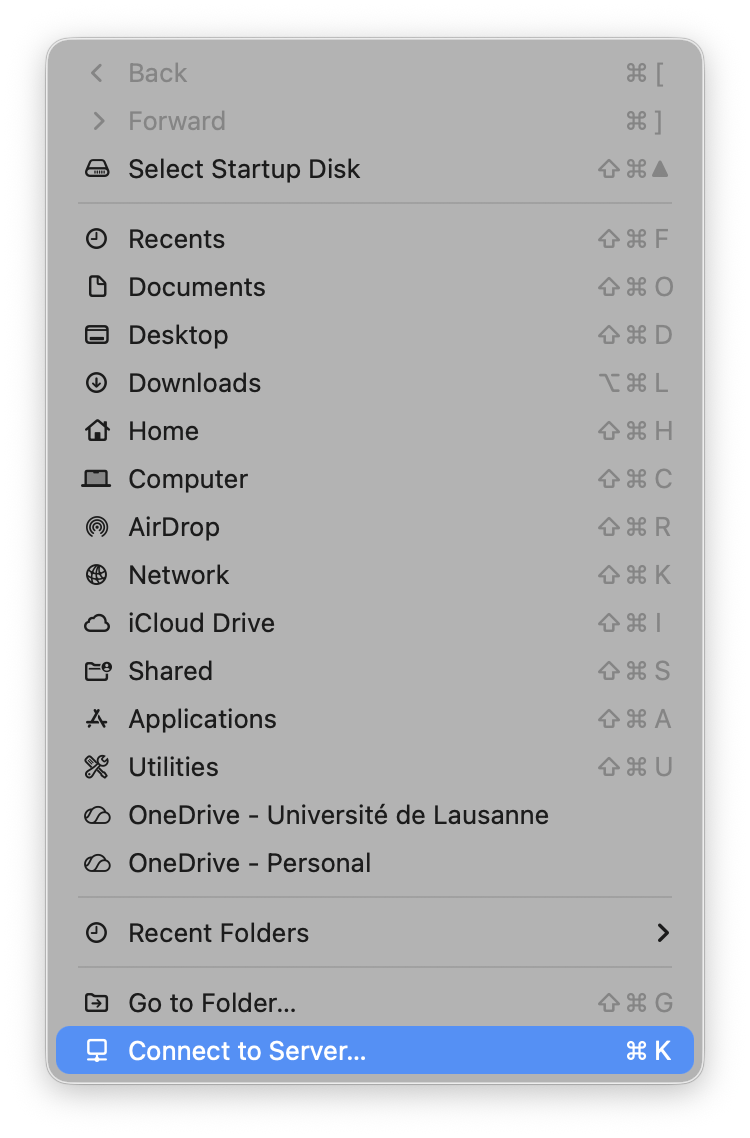
- In the menu, select “Go”, then “Connect to server” or hotkey “cmd+K”.
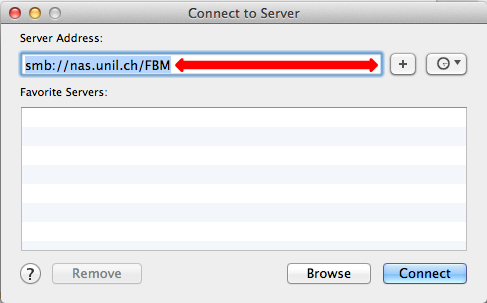
- Enter the address of the server you want to connect to (see the blue box above). For example: \\nasdcsr.unil.ch\RECHERCHE. The “+” button on the right allows to save the server in the list of “Favorite Servers” in order to simplify a further reconnection. Click on “Connect”.
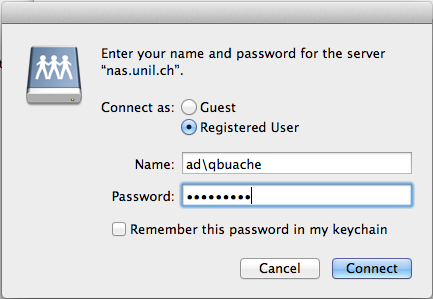
- Enter the information to connect:
- Name: enter “ad\” + “UNIL username” (p.ex: “ad\pmartin1”).
- Password: enter your UNIL password
- Click on “Connect” to mount the NAS server.
Create a shortcut
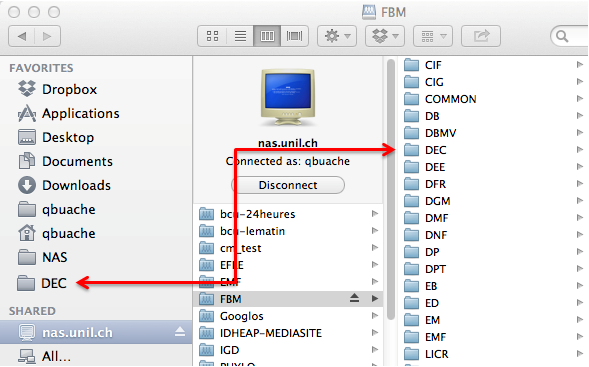
- In order to simplify reconnection, you can create a link to the shared folder. To proceed: select a folder, slide it to the left column of the finder under “Favorites”. In the exemple below, the shortcut is created to the folder “DEC” representing the Décanat of the FBM.