
Campuscard and PrintUNIL
The CampusCard is your multi-function card at the University of Lausanne. It allows you to access buildings, pay on campus and use printing services.
Access: Menu Campus → My campuscard
URL: https://my.unil.ch/campuscard
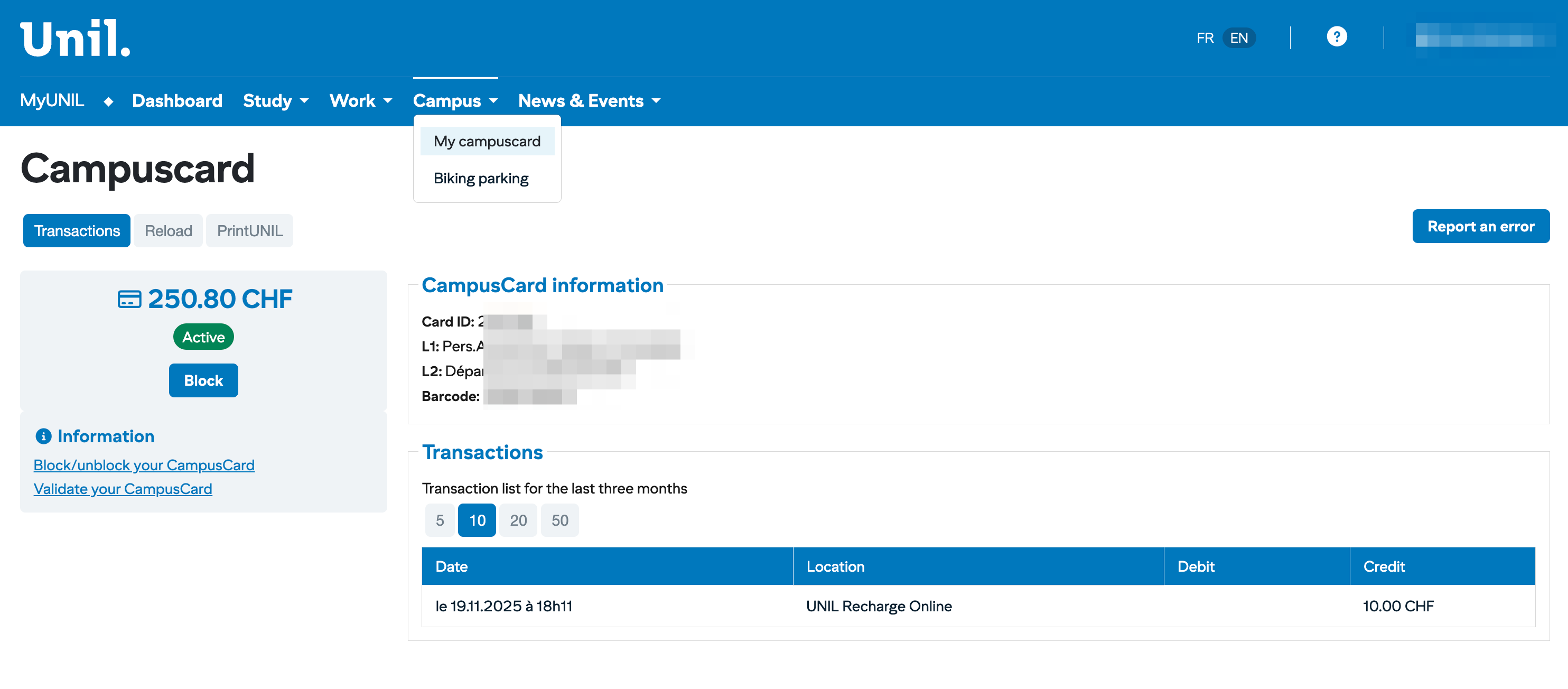
Accessing Your CampusCard Management
| Option | Description |
|---|---|
| My campuscard | Management of your campus card (balance, top-up, blocking) |
| My Biking parking | Management of your bicycle parking subscription |
Available Tabs
The CampusCard page is organised into three tabs:
| Tab | Description |
|---|---|
| Transactions | Transaction history and card information |
| Top-up | Top up your card balance |
| PrintUNIL | Management of your printing credit |
Transactions Tab
This tab displays your card information and transaction history.
Balance and Card Status
On the left, you can see:
- Current balance: amount available on your card (e.g.: 250.80 CHF)
- Status: card state (Actif = Active or Bloqué = Blocked)
- Bloquer button: allows you to block your card if lost or stolen
⚠️ Warning
The total balance (after top-up) must not exceed the maximum amount of 300 CHF.
Information
Below the balance, the Informations section offers useful links:
- Block and Unblock CampusCard: instructions for managing blocking
- Validate your CampusCard: card validation procedure
CampusCard informations
This section displays the technical data of your card:
| Field | Description |
|---|---|
| Card ID | Unique identifier of your card |
| L1 | Line 1 - Personal information |
| L2 | Line 2 - Department or affiliation |
| Code barre | Card barcode number |
Transaction History
The Transactions table displays the list of your transactions for the last three months:
| Column | Description |
|---|---|
| Date | Date and time of the transaction |
| Lieu | Point of sale or service used |
| Débit | Amount debited (expense) |
| Crédit | Amount credited (top-up) |
Filter the Display
Use the 5, 10, 20, 50 buttons to choose the number of transactions displayed per page.
Transaction Examples
| Type | Displayed Location |
|---|---|
| Online top-up | UNIL Recharge Online |
| Cafeteria | Cafeteria name |
| Vending machine | Machine name |
| Printing | PrintUNIL |
Top-up Tab
This tab allows you to top up your CampusCard balance online.
Top-up Methods
You can top up your card:
- Online: by bank card directly from MyUNIL
- On site: at top-up terminals on campus
- In cash: at certain points of sale
Online Top-up Procedure
- Click on the Recharger tab
- Enter the desired amount
- Proceed with bank card payment
- The credit is added immediately to your balance
ℹ️ Reminder
The maximum authorised balance is 300 CHF. Check your current balance before topping up.
PrintUNIL Tab
This tab allows you to manage your printing credit for the PrintUNIL service.
What is PrintUNIL?
PrintUNIL is the University of Lausanne's printing service. It allows you to print, photocopy and scan documents on the campus multifunction printers.
Features
From this tab, you can:
- Check your PrintUNIL balance
- Top up your printing credit
- View your printing history
ℹ️ Note
Prices may vary. Check the IT Centre website for current prices.
Using the Printers
- Send your document to print from your computer
- Go to a campus multifunction printer
- Identify yourself with your CampusCard
- Select and start your print job
Blocking and Unblocking Your CampusCard
In Case of Loss or Theft
If you lose your card or it is stolen:
- Log in to MyUNIL immediately
- Go to Campus → Ma campuscard
- Click on the Block button
- Your card is immediately deactivated
⚠️ Important
Block your card as soon as possible to prevent any fraudulent use of your balance.
Unblocking Your Card
If you find your card after blocking it:
- Go to Campus → My campuscard
- Click on the Unblock button
- Your card is reactivated
Obtaining a New Card
In case of permanent loss, contact the relevant service to obtain a new CampusCard. Replacement fees may apply.
Report an Error
If you notice an error in your transactions or card information, click on the Signaler une erreur button (top right) to contact support.
Interface Summary
| Area | Content | Possible Actions |
|---|---|---|
| Balance | Available amount | View |
| Status | Card state | Block/Unblock |
| Card information | Technical data | View |
| Transactions | 3-month history | View, filter |
| Recharger | Add credit | Pay online |
| PrintUNIL | Printing credit | View, top up |
Tips for Use
- Check your balance regularly to avoid unpleasant surprises.
- Block your card immediately if lost or stolen.
- Top up your card before it is empty to avoid inconvenience.
- Keep your CampusCard in good condition; it contains a sensitive electronic chip.
- For PrintUNIL, remember to check your credit before starting large print jobs.
CampusCard Uses
Your CampusCard allows you to:
- Access buildings: secure doors, laboratories
- Pay on campus: cafeterias, vending machines, library
- Print and photocopy: PrintUNIL service
- Borrow books: university libraries
- Access bicycle parking: parking subscription
This documentation is part of the official user help for the MyUNIL portal.
University of Lausanne – IT Centre