
Adding full text and/or secondary documents
The voice in this video was generated by artificial intelligence.
Access your researcher profile
Accessing Your Profile via the Login Menu
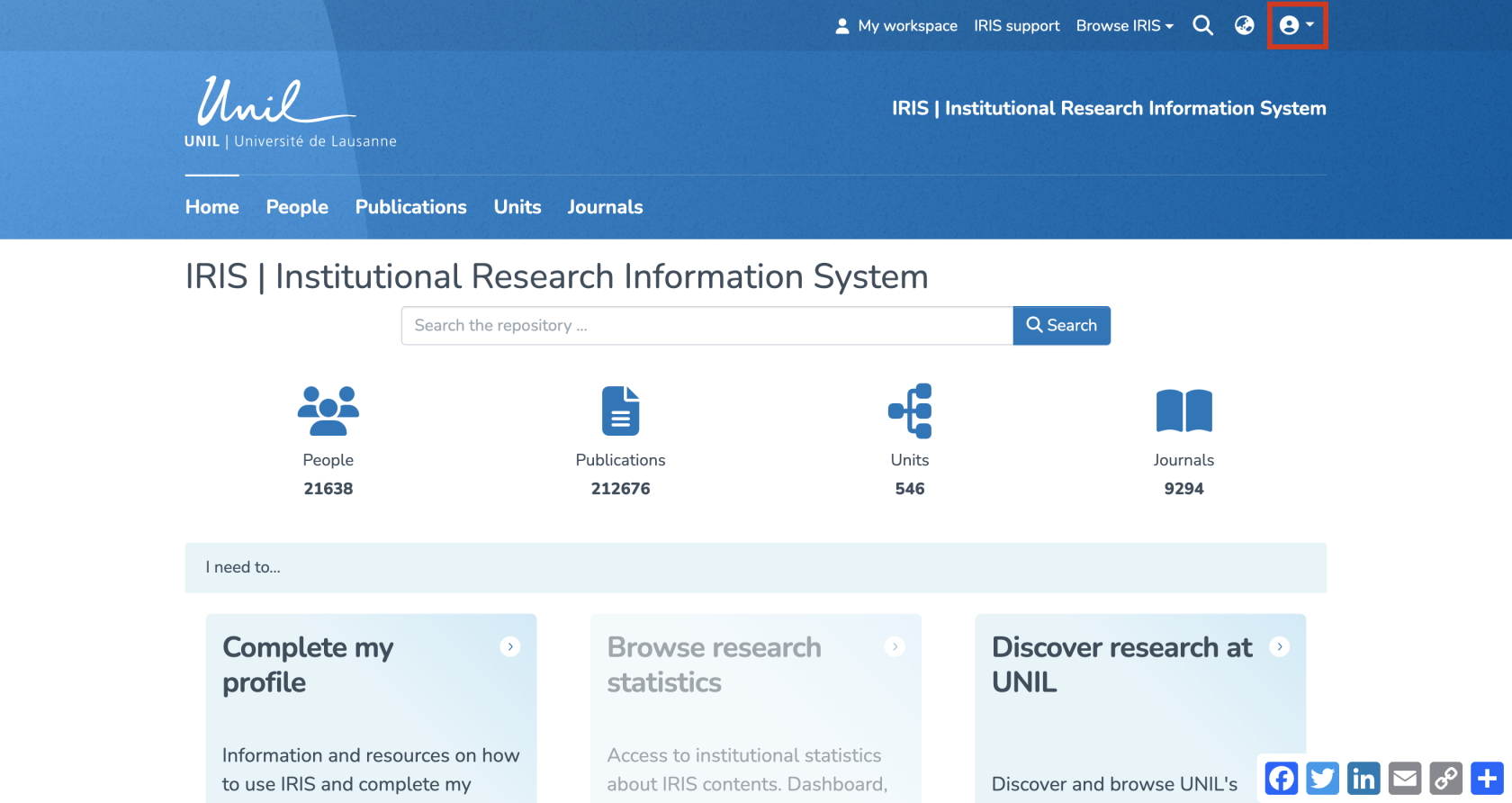
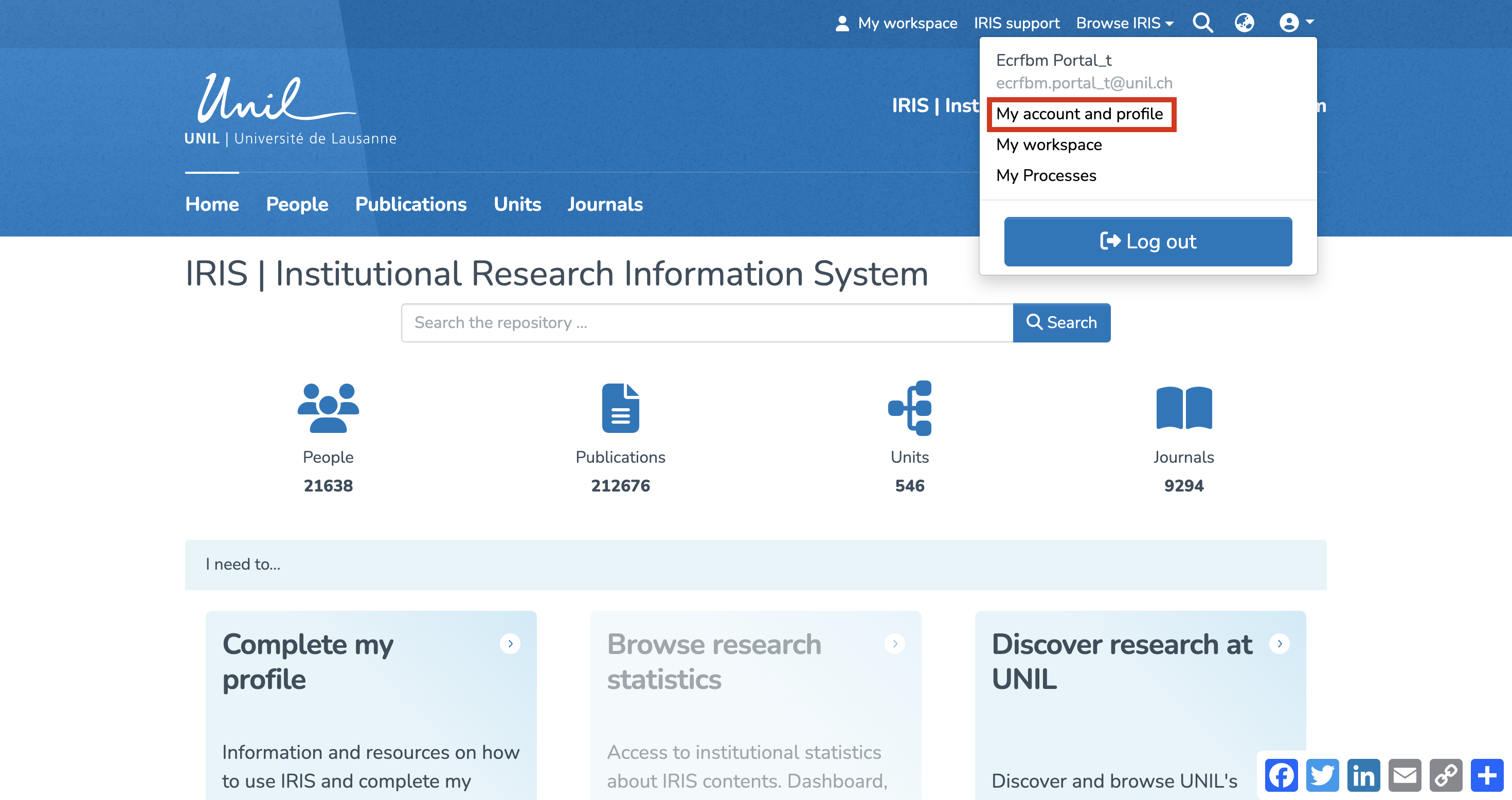
- From the IRIS homepage, click on the login menu.
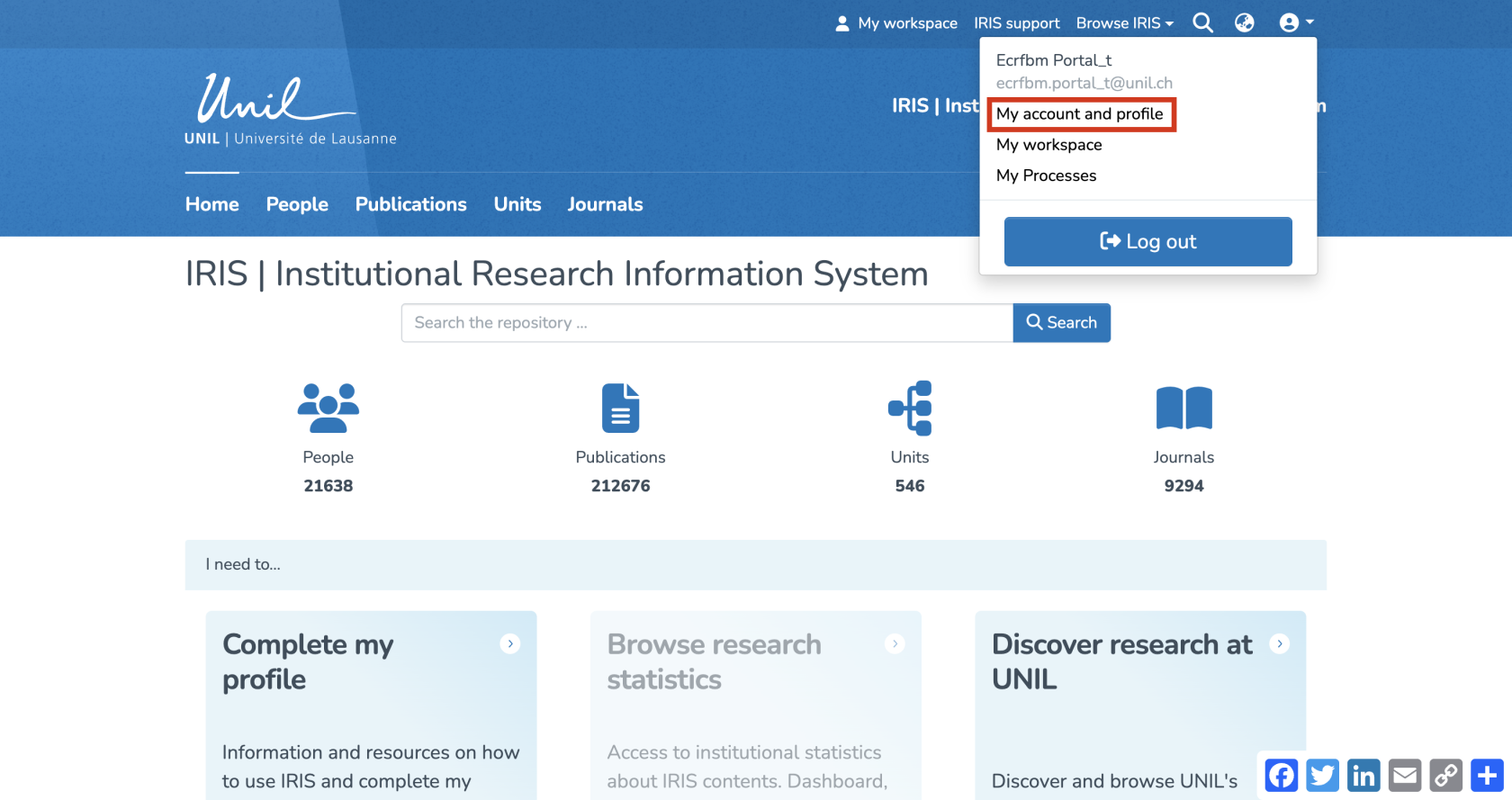
- In the dropdown menu, select “My account and profile.”
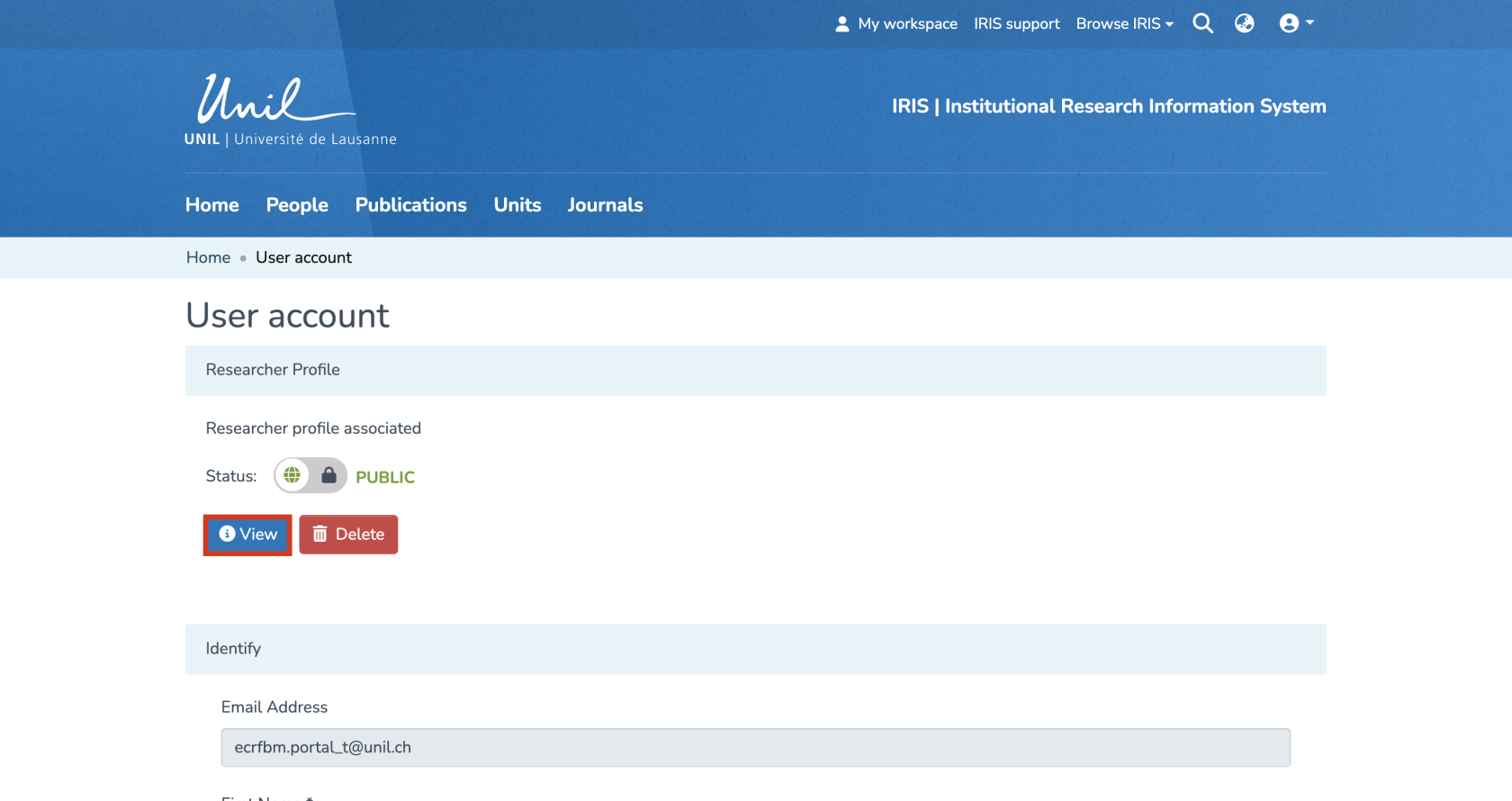
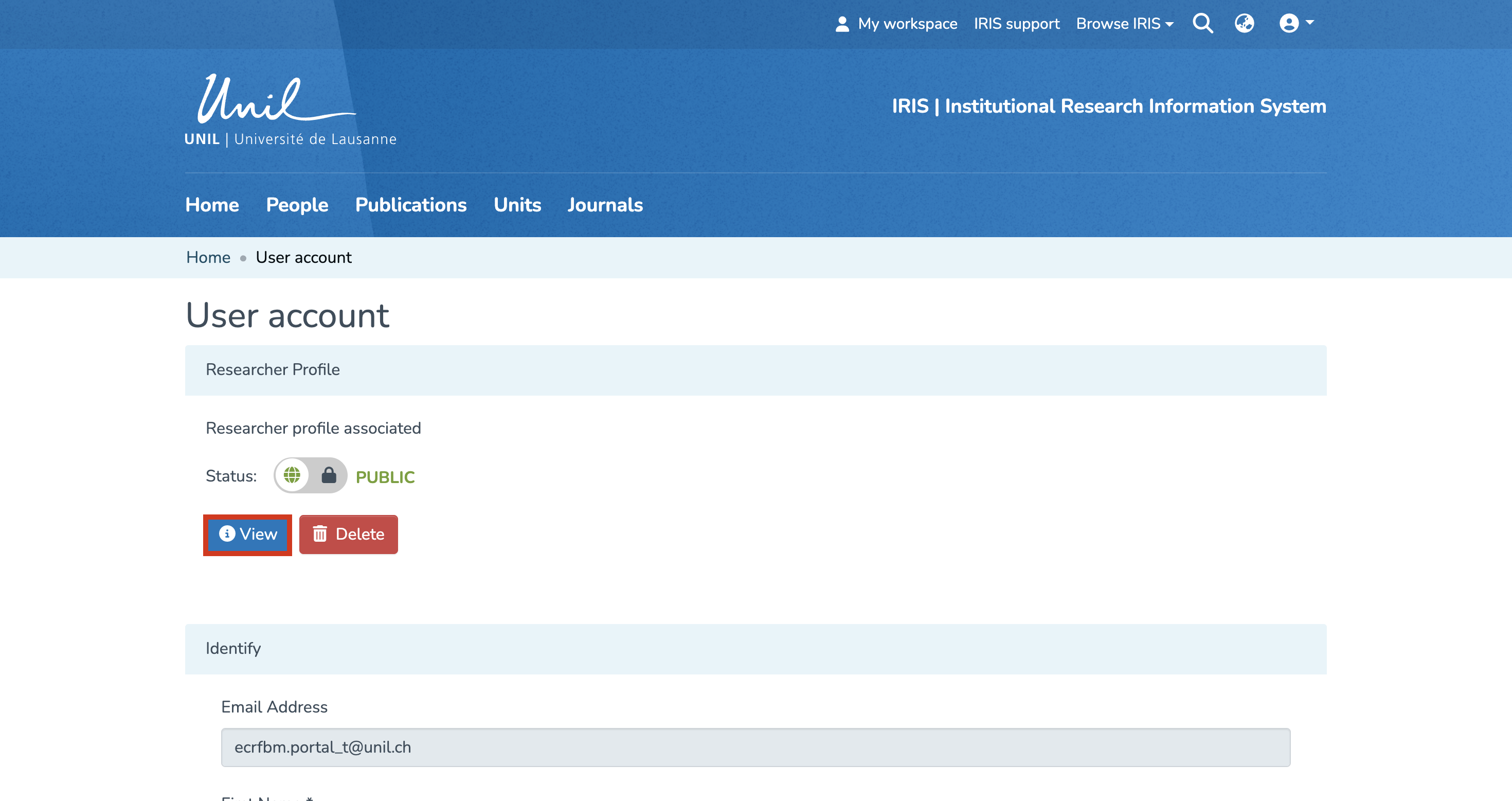
- You’ll be redirected to a page titled “Update Profile”. Click on “View” to open the full version of your profile.
Accessing Your Profile via Search
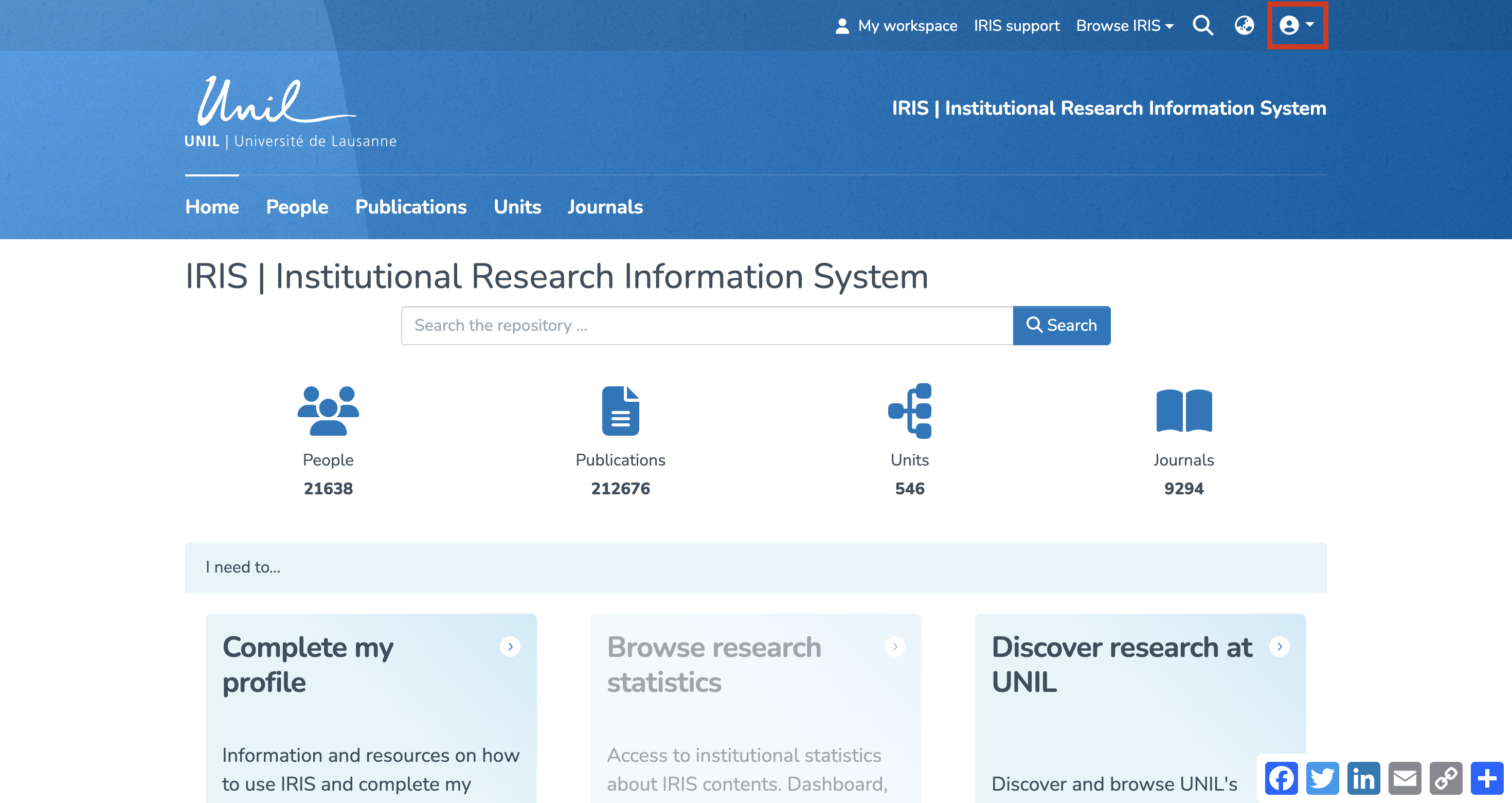
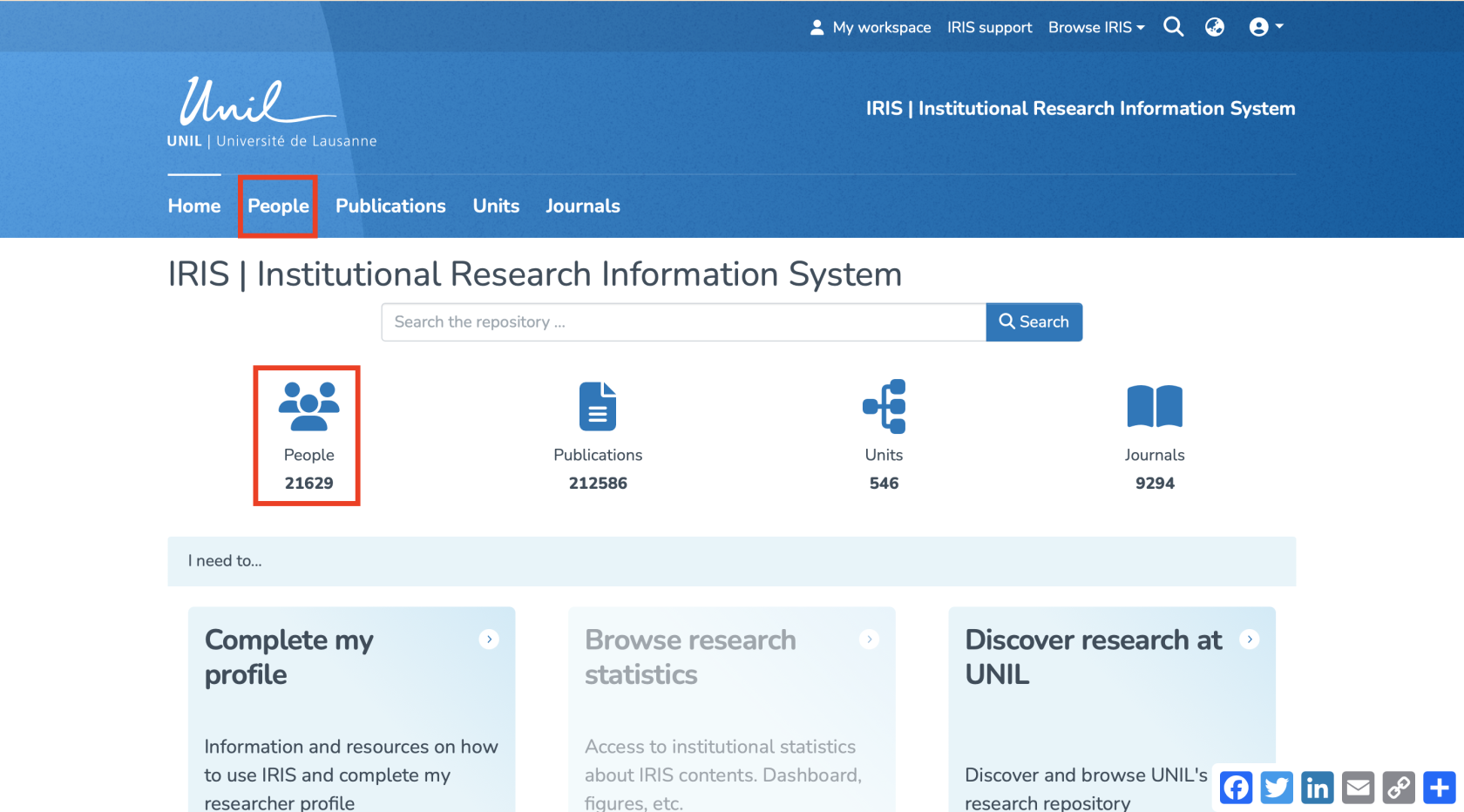
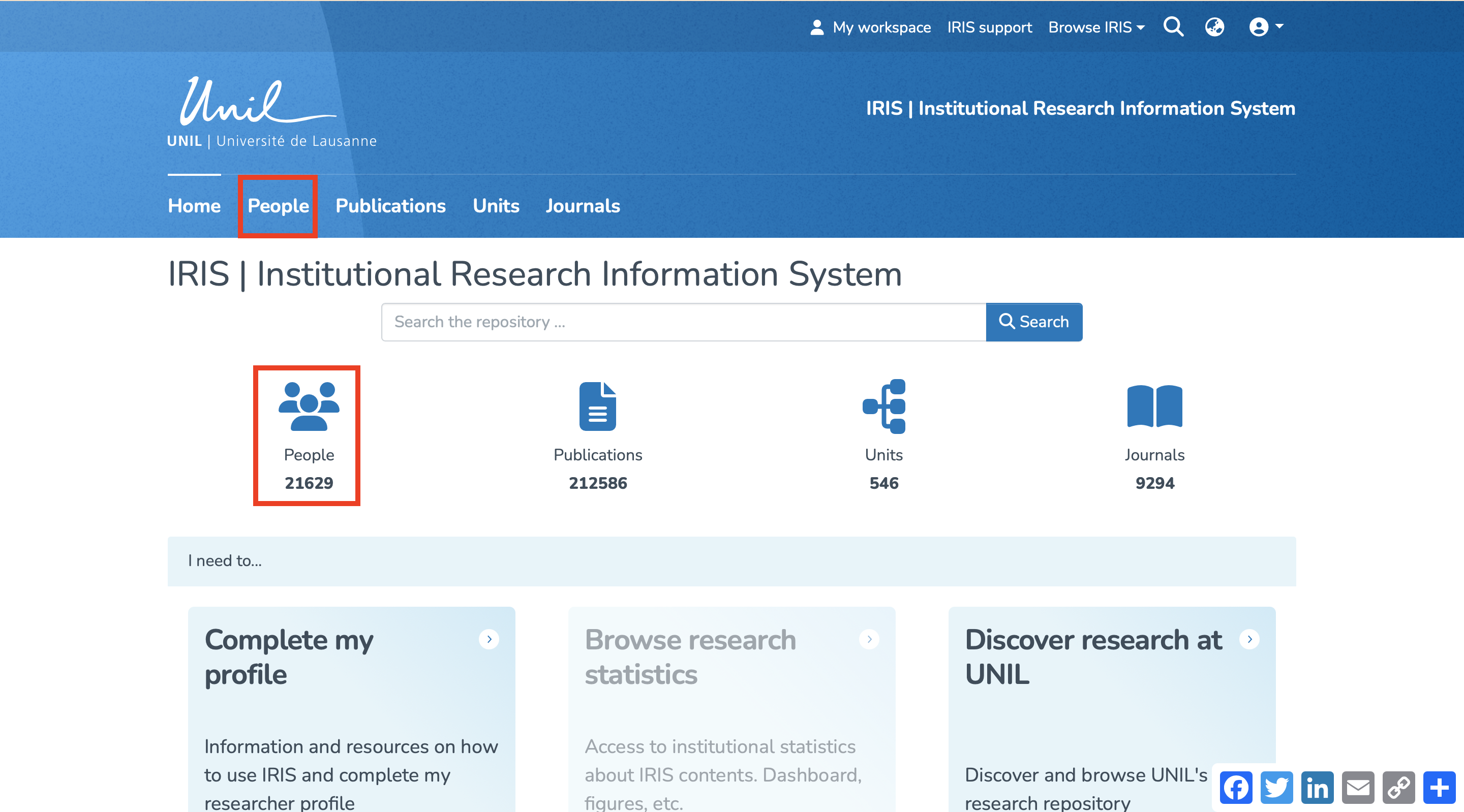
- From the IRIS homepage, click on “People.”
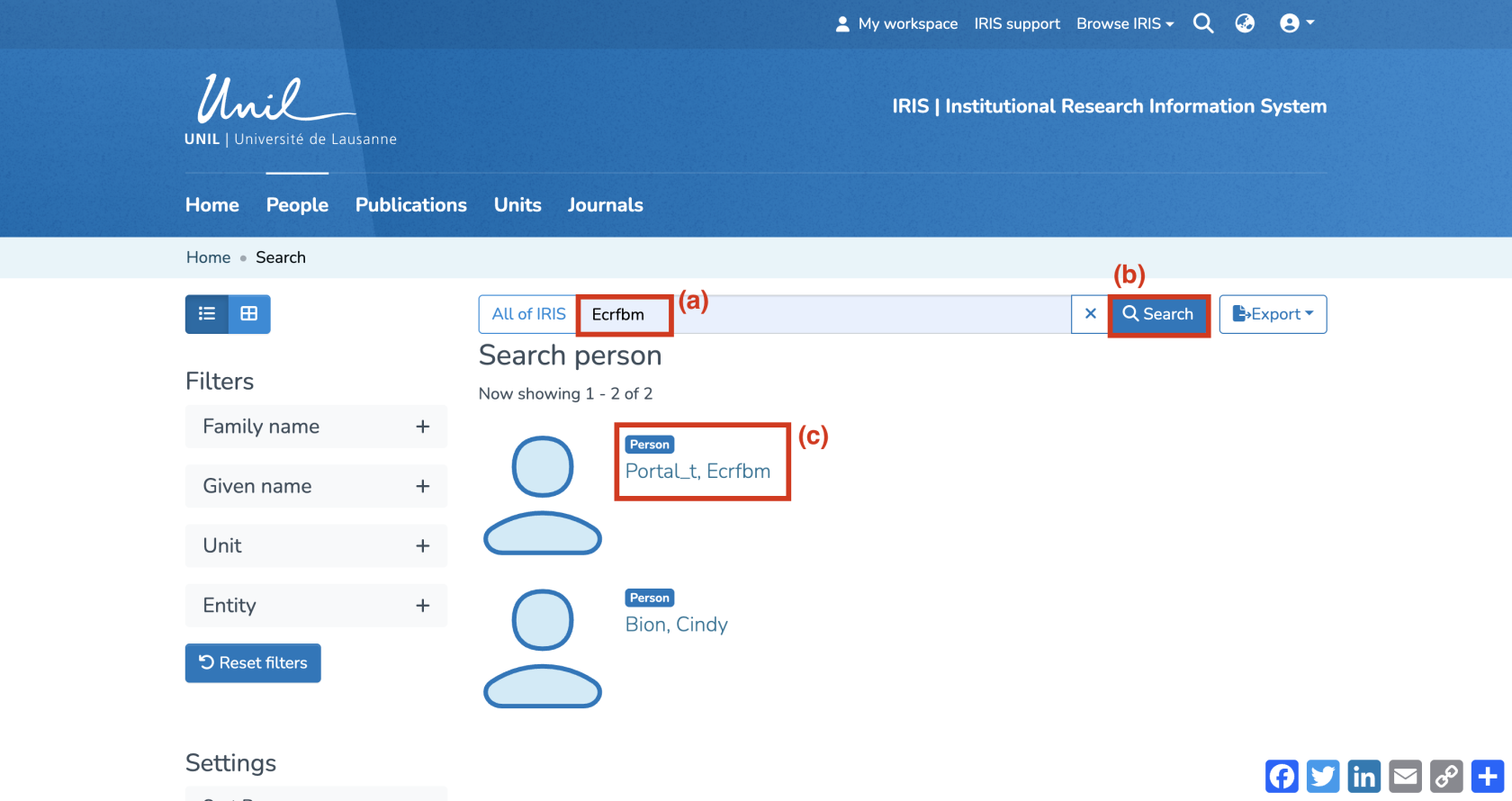
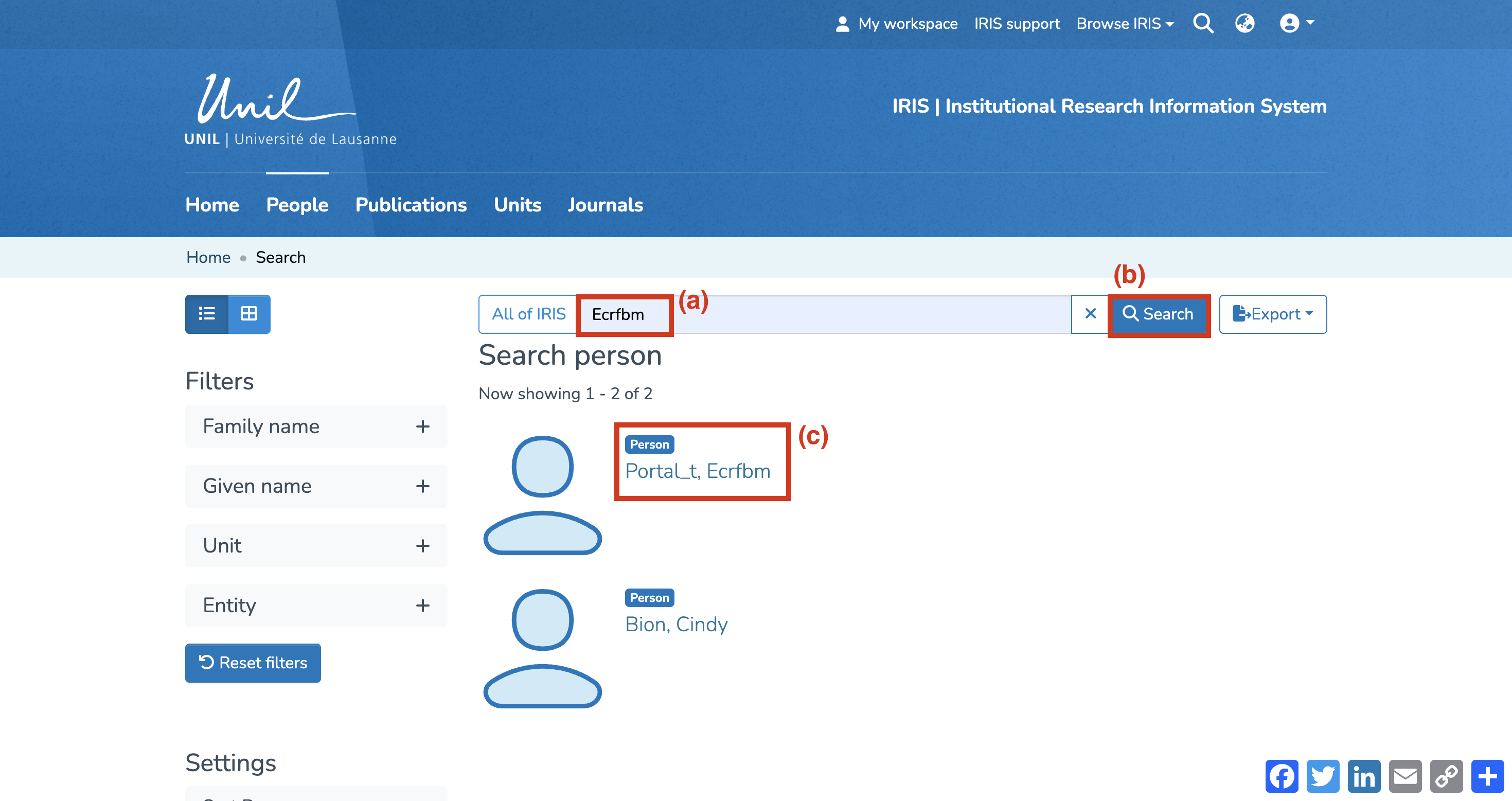
- In the search bar that appears, enter your name (a), then click “Search” (b).
- Once the search is complete, your profile will appear in the results. Click on your name (c).
Access the relevant record
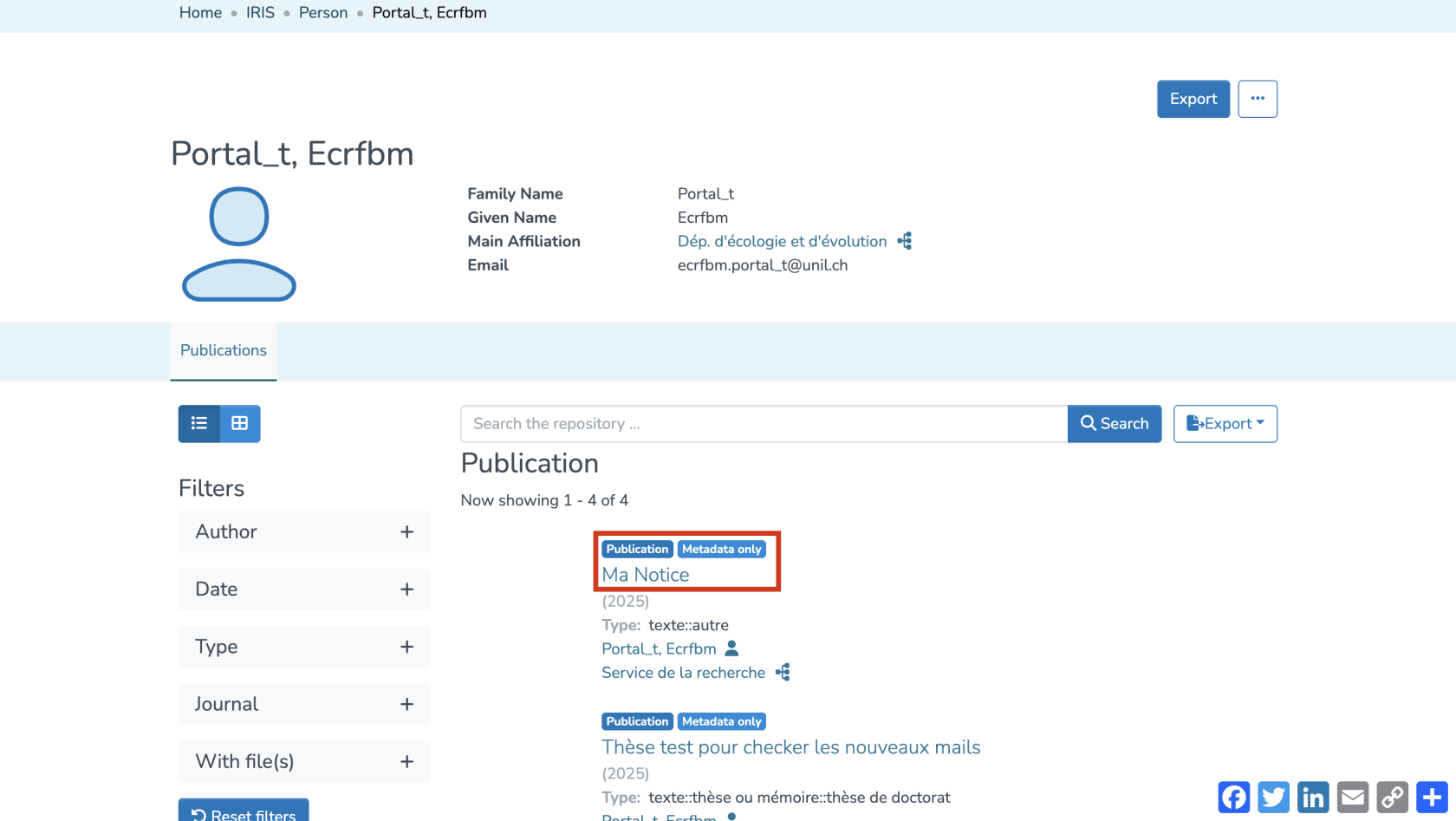
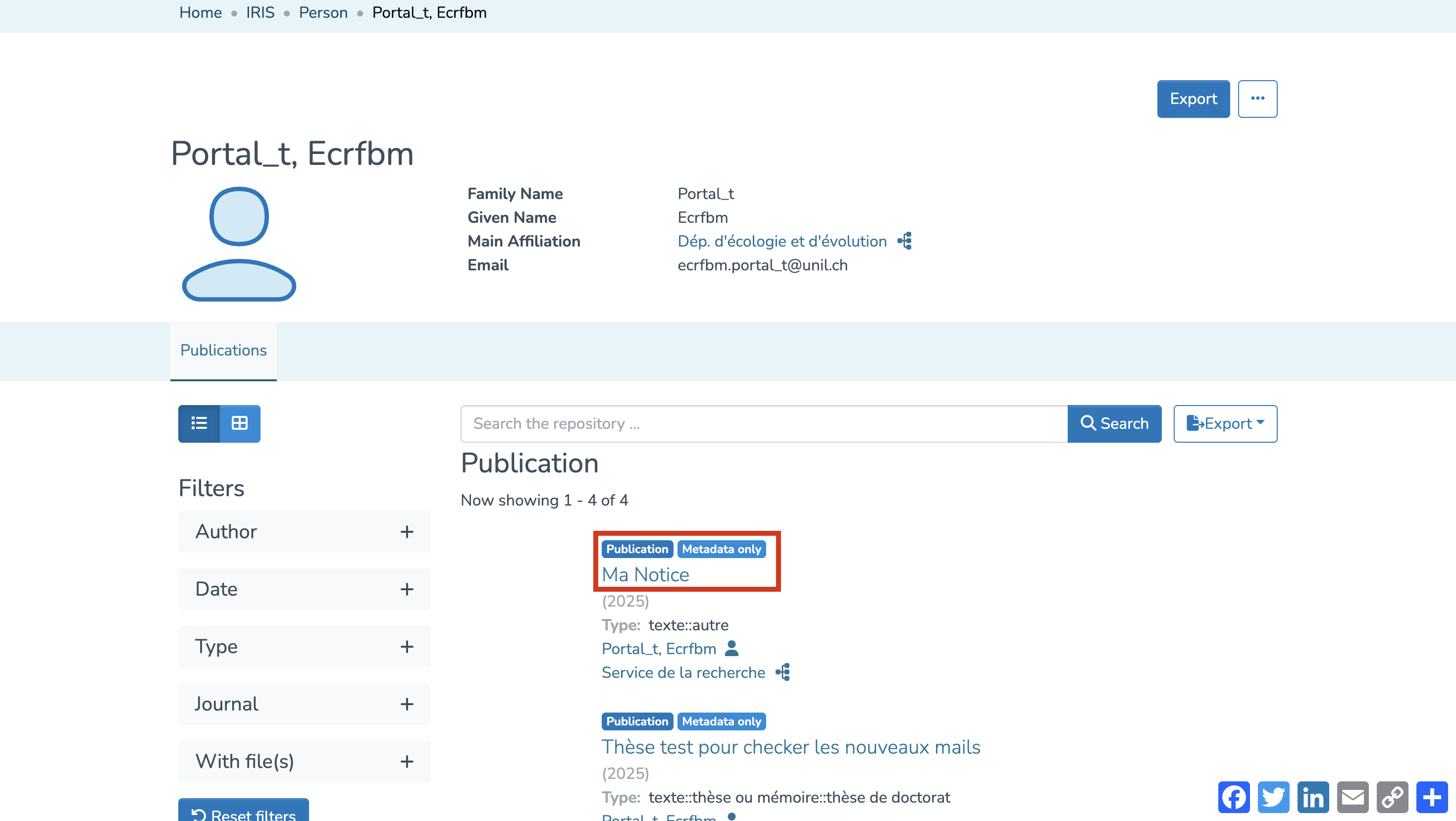
- You are now on your researcher profile page. Under the “Publications” section, you’ll find both the records you have created and those you are linked to.
- Identify the desired record and click on its title.
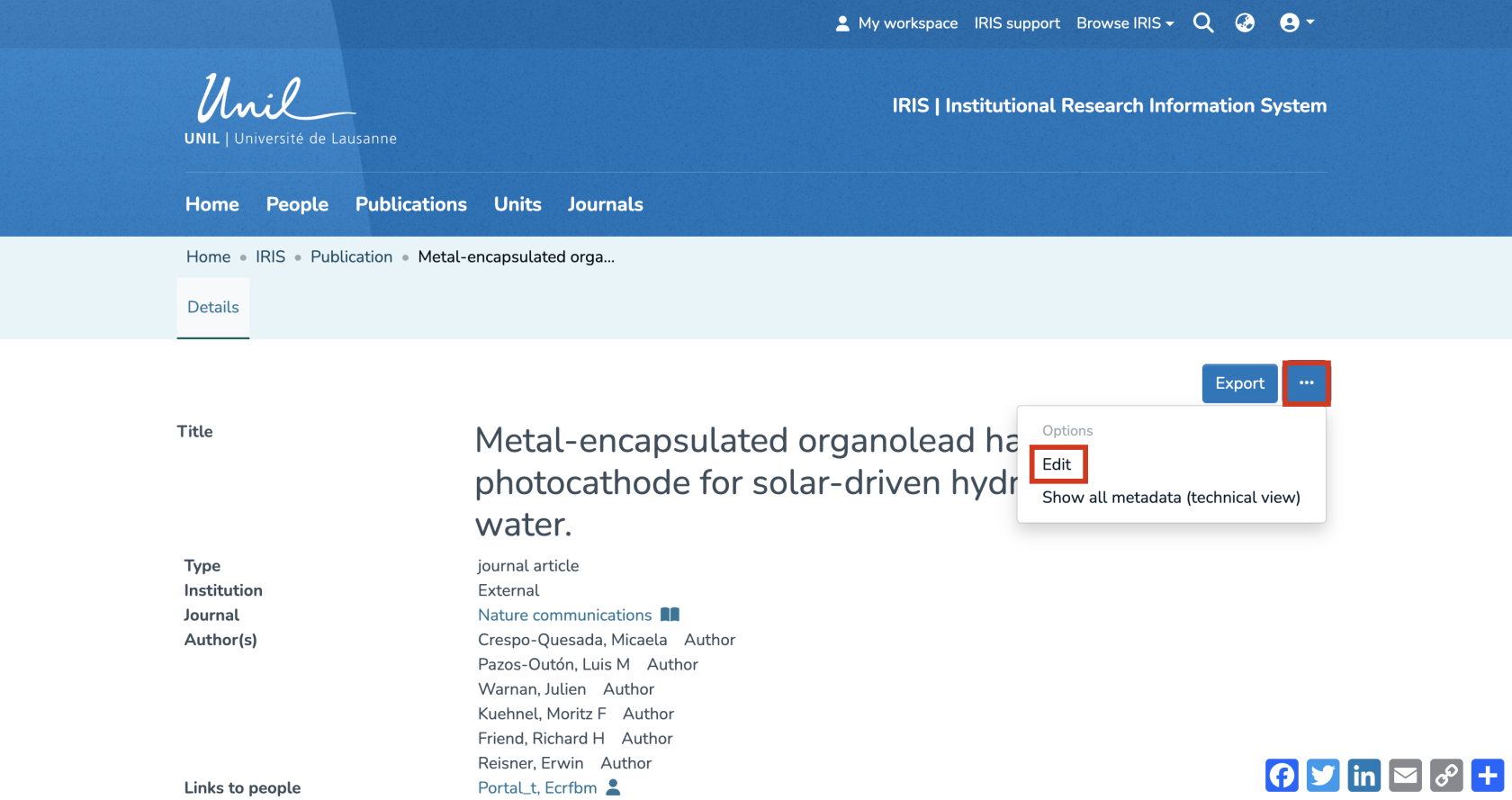
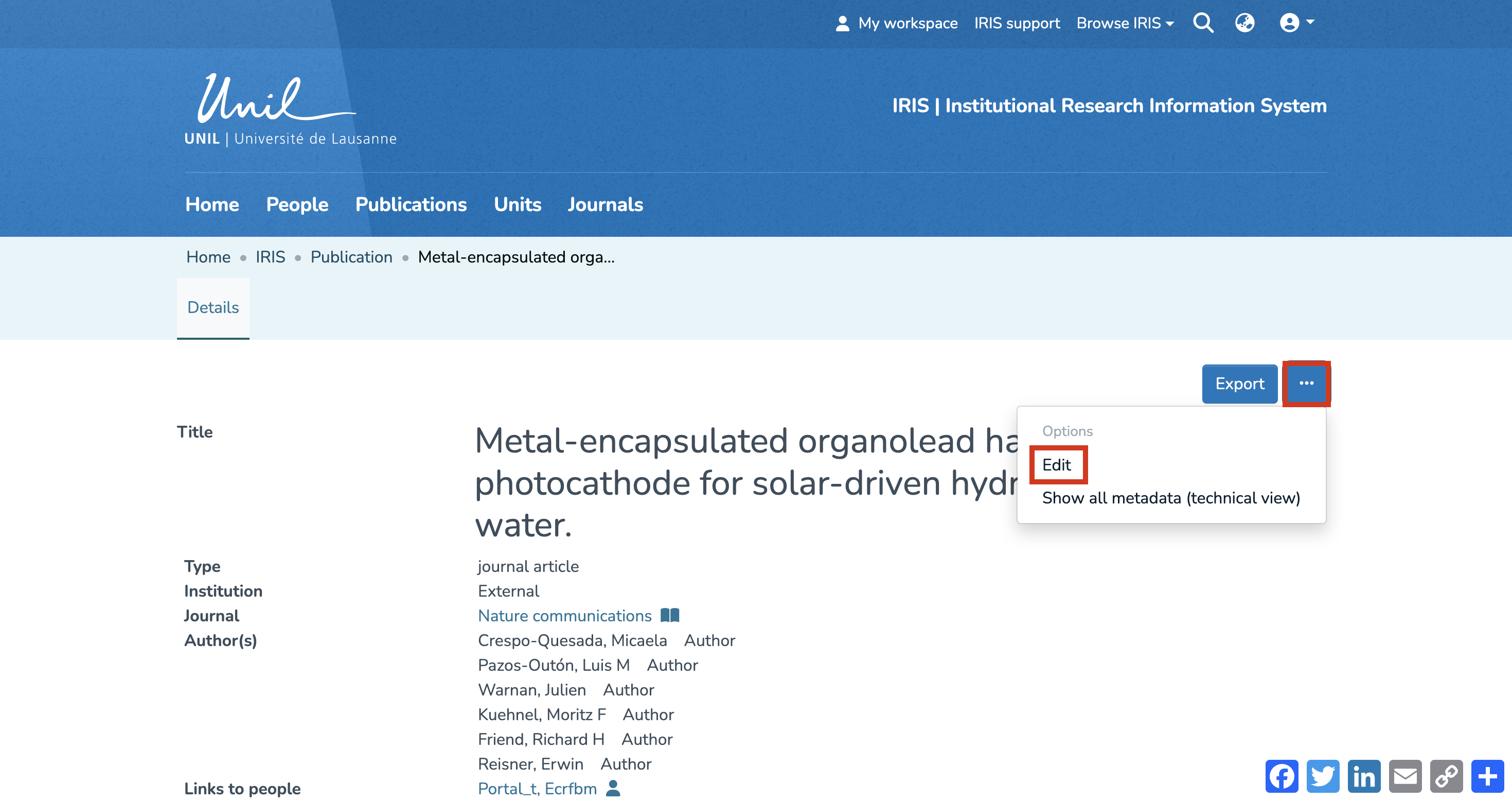
- You are now on the record detail page. Click on the three dots icon, then select “Edit.”
Add full text and/or secondary documents
- You are now in the publication entry form.
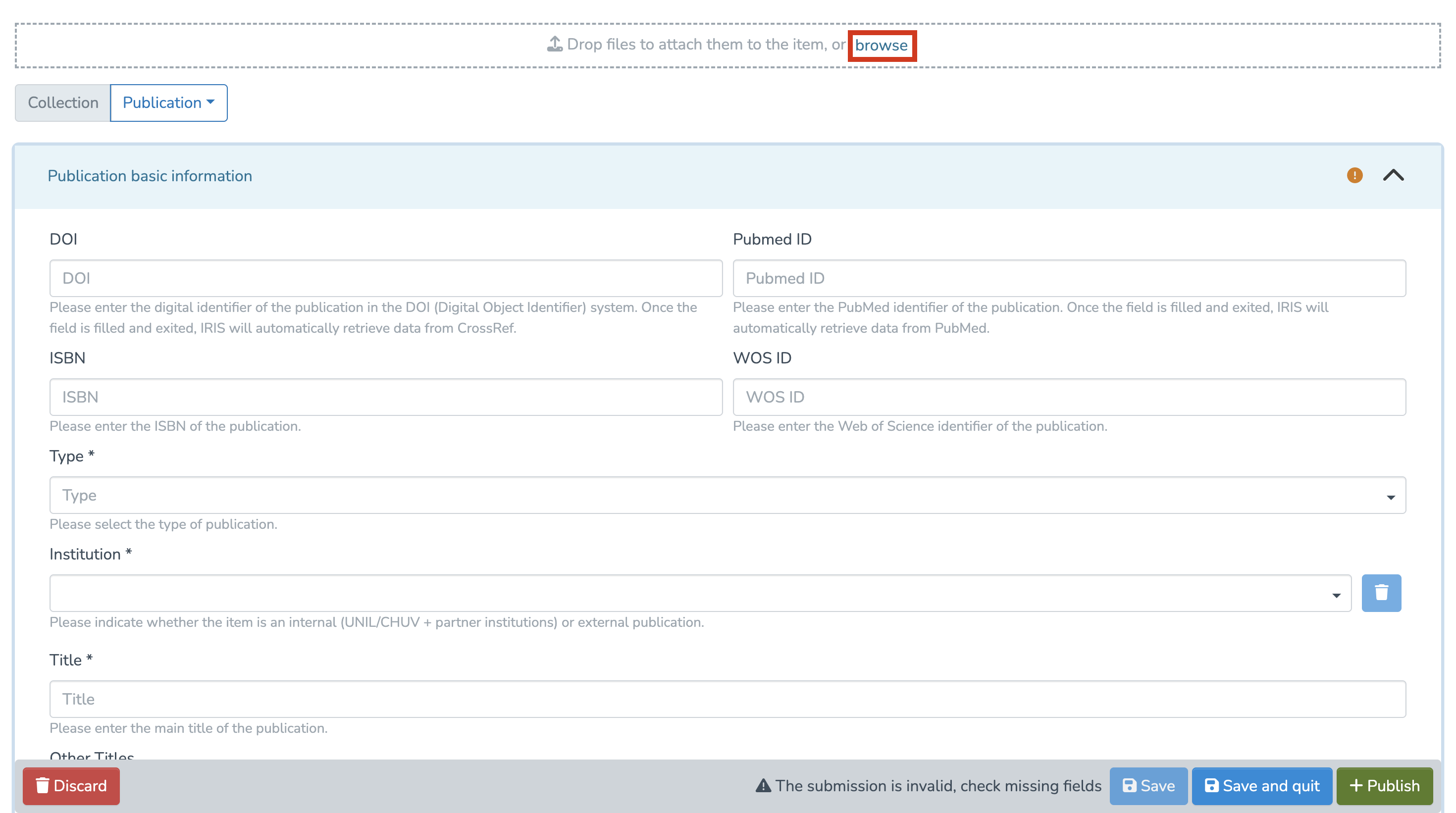
- If no file has been added yet, you can upload one by clicking on “Browse” and selecting the desired file from your library.
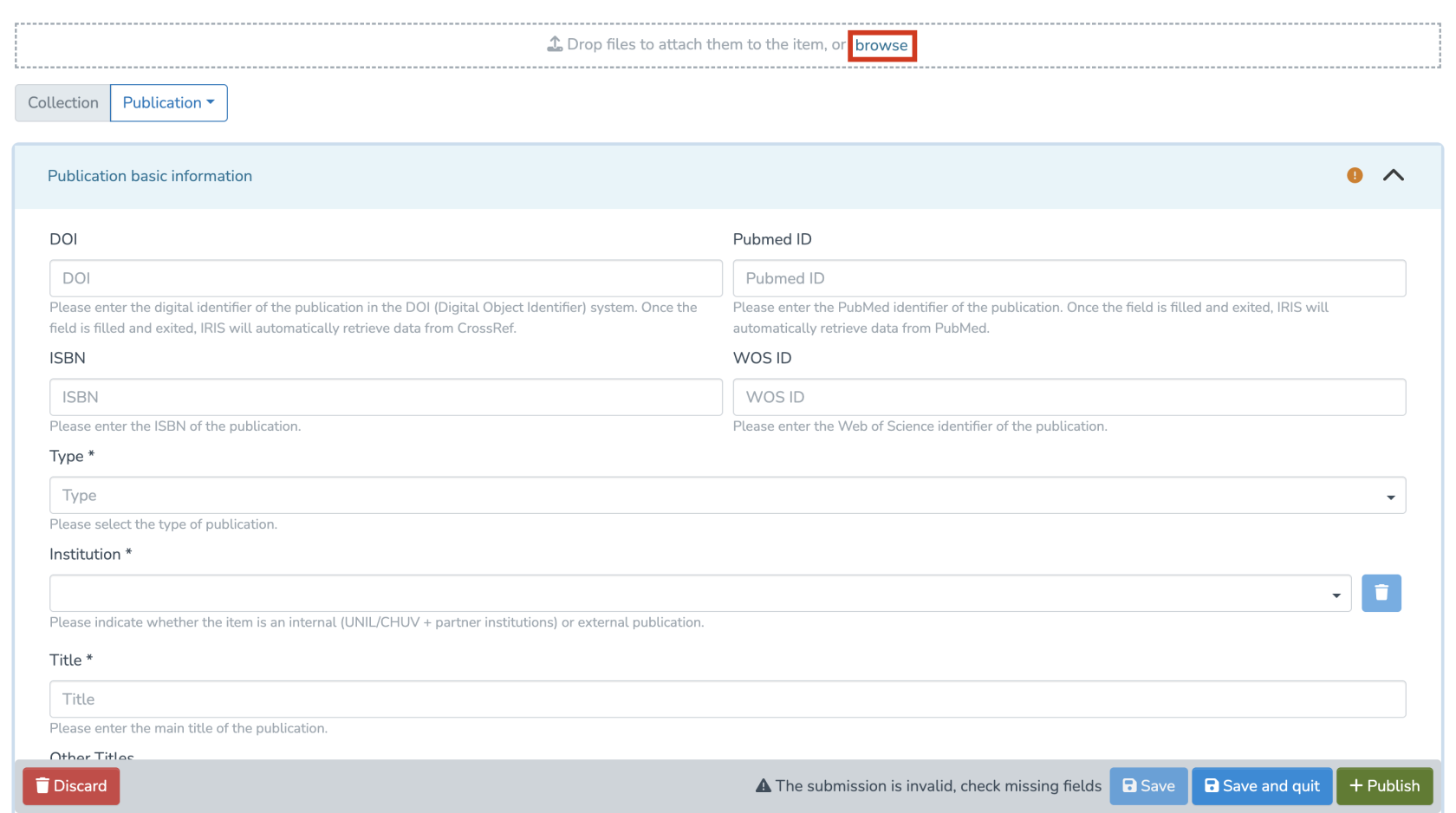
- Alternatively, you can scroll down to the “Documents” section and simply drag and drop your file onto the page.

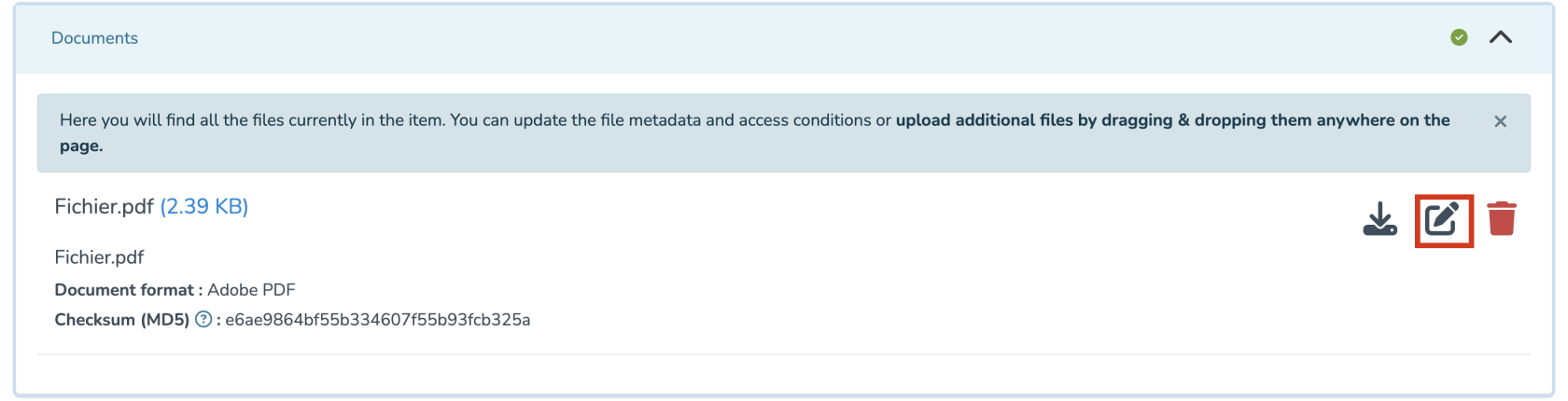
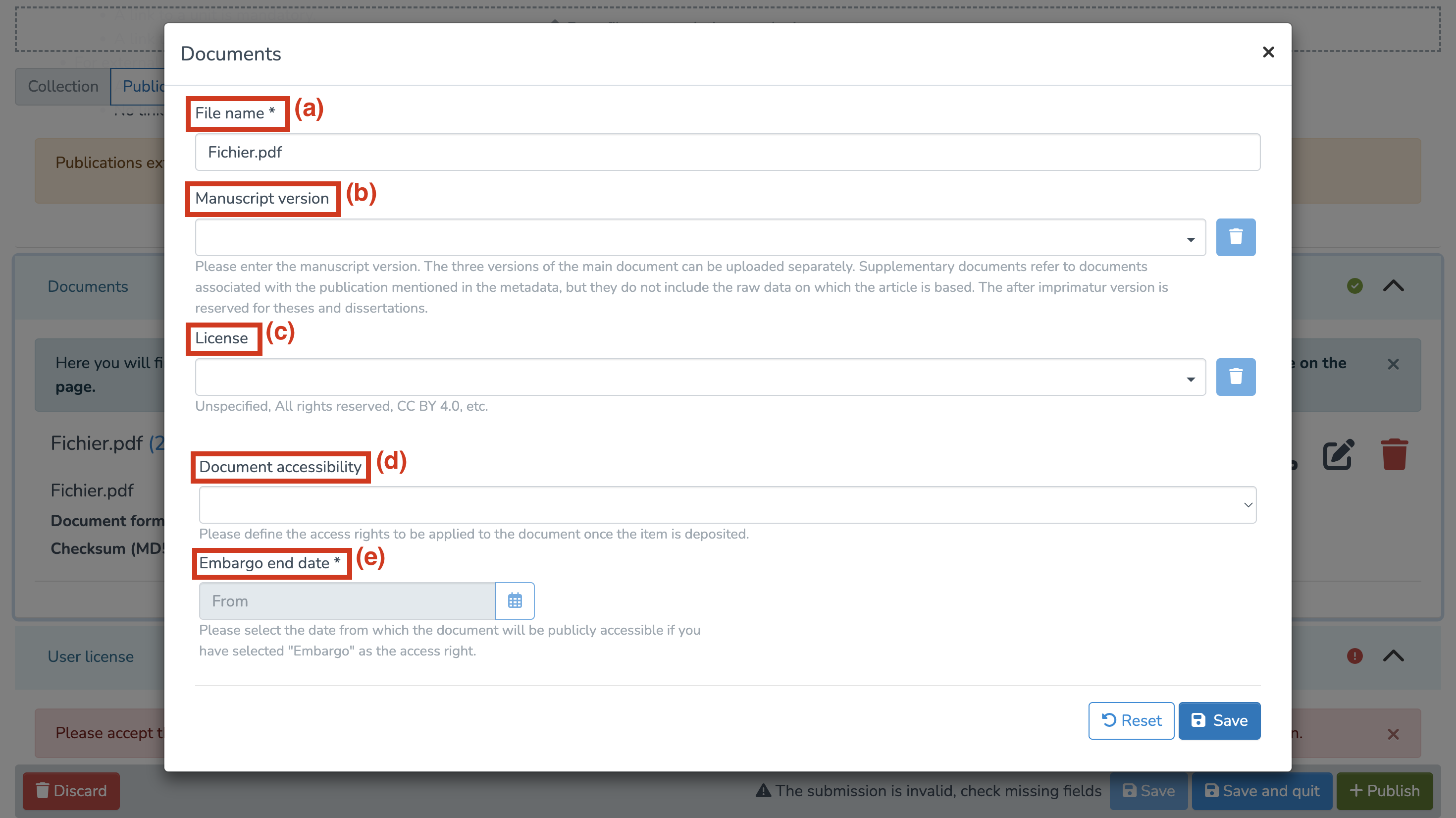
- If a document is already present, you can access its metadata by clicking on the corresponding icon. It is necessary that the metadata are properly completed in order to ensure appropriate visibility of the document.
- You can edit the following fields:

(a) File name
(b) Manuscript version
(c) License
(d) Document accessibility (open access / embargo / UNIL restricted)
(e) If you select “embargo”, set the embargo end date, after which your document will become publicly accessible.
Warning: If the document metadata are not completed, the file visibility is by default set to “Restricted UNIL.”
When multiple files are uploaded, it is recommended to designate one file as the primary file using the corresponding button.
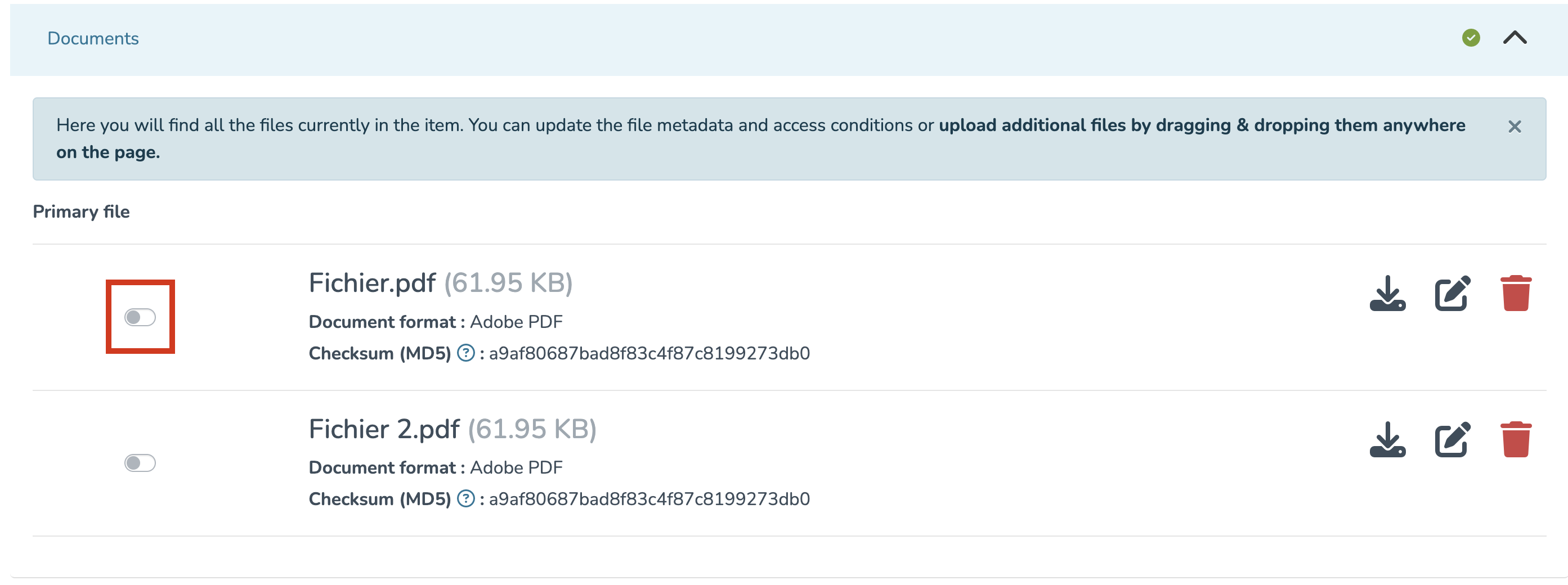
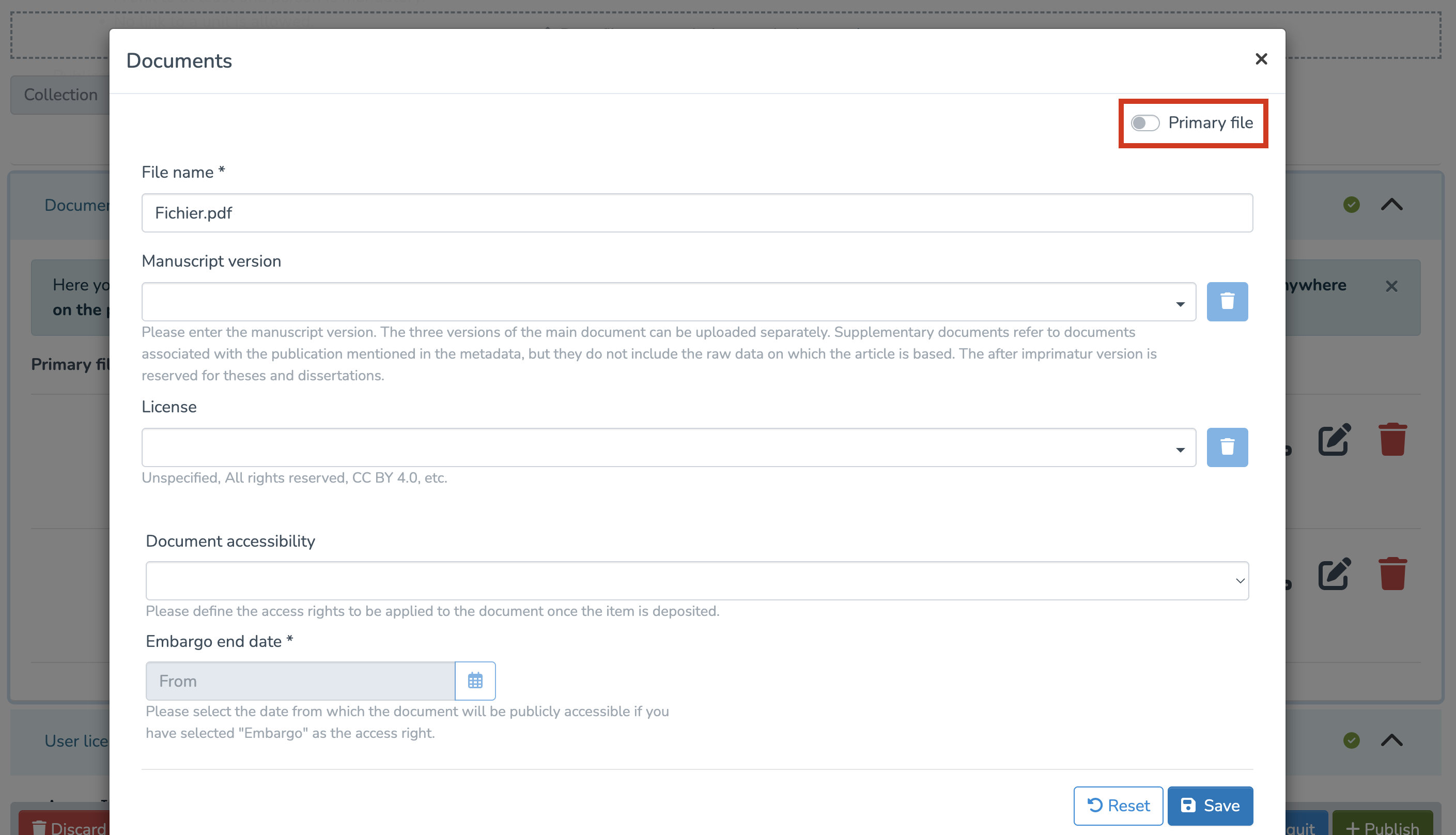
This is particularly useful when a record contains several documents. Defining a primary file makes it possible to:
-
Generate the thumbnail associated with the record (by default, the thumbnail is created from the first uploaded document);
-
Improve the visibility and indexing of the publication, in particular via OAI-PMH and Google Scholar, which prioritize indexing the full text of the main document;
-
Determine the access status displayed for the record (Open Access, UNIL Restricted, or under embargo), which is by default based on the first uploaded document.
Finalize the submission
- To complete your submission, you will need to approve the user license.
- Then, you can choose to click “Save” or “Save and quit” to save the record, or click “Publish” to archive the publication immediately.


Aucun commentaire à afficher
Aucun commentaire à afficher